Best Steam Deck Settings for How to Fish (Dazed Games): Performance & Optimization Guide (2026)
I went into How to Fish expecting something fairly simple: a goofy fishing game, a few islands, some ridiculous fish, and maybe a couple of laughs with friends.
Instead, Dazed Games somehow turned fishing into absolute chaos.
You are driving boats, wrestling aggressive fish, dealing with physics that seem determined to throw everything into the ocean, and trying to coordinate with other players while the screen fills with movement and explosions. It is exactly the kind of indie game that makes me appreciate PC gaming again because it does not take itself too seriously.
And yes, How to Fish feels surprisingly good on Steam Deck.
There is one important catch, though: you cannot simply launch the game, leave every setting on default, and expect the best possible experience in every situation. The Steam Deck can handle the game nicely, but the combination of physics, water effects, multiplayer activity, and visual effects can create some noticeable performance swings when four players start causing trouble at the same time.
After going through the available settings, I would personally recommend aiming for a stable 45 FPS setup rather than obsessing over a completely locked 60 FPS. It feels smooth enough for the type of gameplay How to Fish offers, while also making a meaningful difference to battery life.
If you’re playing on an OLED model, this approach becomes even more appealing.
Does How to Fish Run Well on Steam Deck?
The short answer is yes.
How to Fish uses Unity, and its stylized presentation initially makes the game look much less demanding than a modern AAA release. But the visuals are only part of the equation. The real workload comes from what is happening underneath them.
The game has plenty of physics-driven interactions, water movement, boat handling, fishing lines, creatures, multiplayer synchronization, and various effects happening simultaneously. A quiet fishing trip is one thing. Four players creating complete nonsense around the same boat is another.
That is where Steam Deck optimization starts to matter.
I also prefer keeping the image relatively clean on the Deck’s small display. Turning everything down to the absolute minimum technically works, but it takes away some of the charm of the game. How to Fish looks much better when textures stay high and the heavier effects are reduced selectively.
That is basically my entire philosophy for this game: don’t make it ugly just to gain a few extra frames.
My Recommended Steam Deck Preset: 45 FPS Sweet Spot
For regular handheld gaming, this is the configuration I would start with.
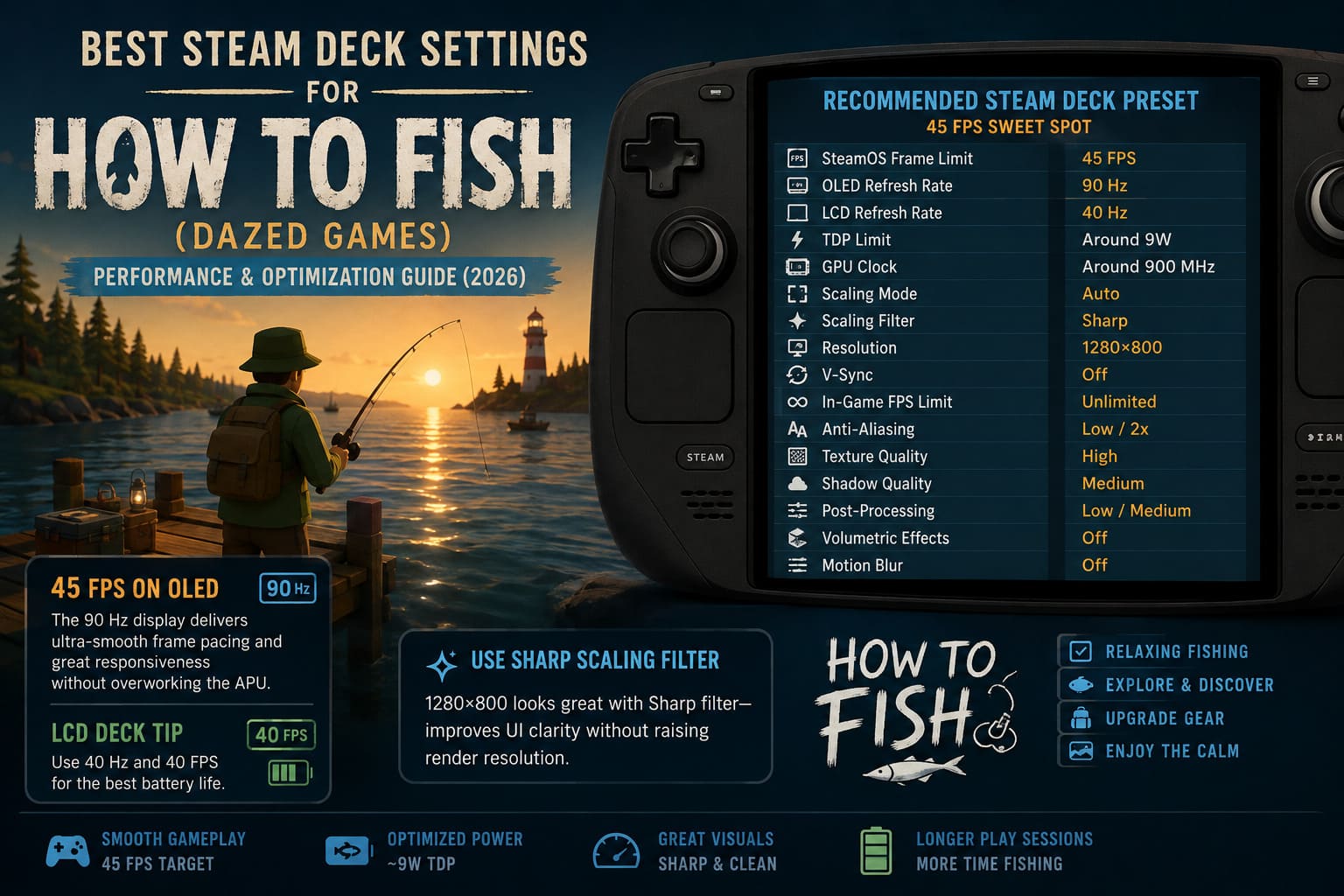
| Setting | Recommended Value |
|---|---|
| SteamOS Frame Limit | 45 FPS |
| OLED Refresh Rate | 90 Hz |
| LCD Refresh Rate | 40 Hz |
| TDP Limit | Around 9W |
| GPU Clock | Around 900 MHz |
| Scaling Mode | Auto |
| Scaling Filter | Sharp |
| Resolution | 1280×800 |
| V-Sync | Off |
| In-Game FPS Limit | Unlimited |
| Anti-Aliasing | Low / 2x |
| Texture Quality | High |
| Shadow Quality | Medium |
| Post-Processing | Low / Medium |
| Volumetric Effects | Off |
| Motion Blur | Off |
The reason I like 45 FPS on OLED is simple: the 90 Hz display makes the frame pacing feel extremely natural. You get a responsive image without forcing the APU to work unnecessarily hard.
On the LCD Deck, I’d rather use 40 Hz and 40 FPS if you’re prioritizing battery life.
One setting I absolutely recommend keeping enabled is the Sharp scaling filter. The Steam Deck’s 1280×800 resolution is perfectly reasonable for this game, but some UI elements can feel small. Sharpening helps preserve readability without requiring you to push the rendering resolution higher.
Why I Wouldn’t Chase 60 FPS All the Time
There is nothing wrong with 60 FPS. In fact, when the Deck is plugged in, I absolutely understand wanting it.
But for handheld play, I don’t think the difference is always worth the additional power consumption.
The interesting thing about How to Fish is that the game’s most demanding moments aren’t necessarily when you’re simply moving around an island. Things become much more complicated when several players are active, boats are moving, fish are reacting, and multiple effects are happening simultaneously.
That’s when trying to maintain a perfect 60 FPS becomes more difficult.
Personally, a stable 45 FPS feels better than a 60 FPS target that constantly dips.
I’d rather have consistent frame delivery while fishing with friends than stare at the performance overlay every five seconds wondering whether the game has dropped from 60 to 54 FPS.
The 60 FPS Profile for Plugged-In Gaming
When my Steam Deck is connected to a charger or sitting in the dock, I use a much less conservative configuration.
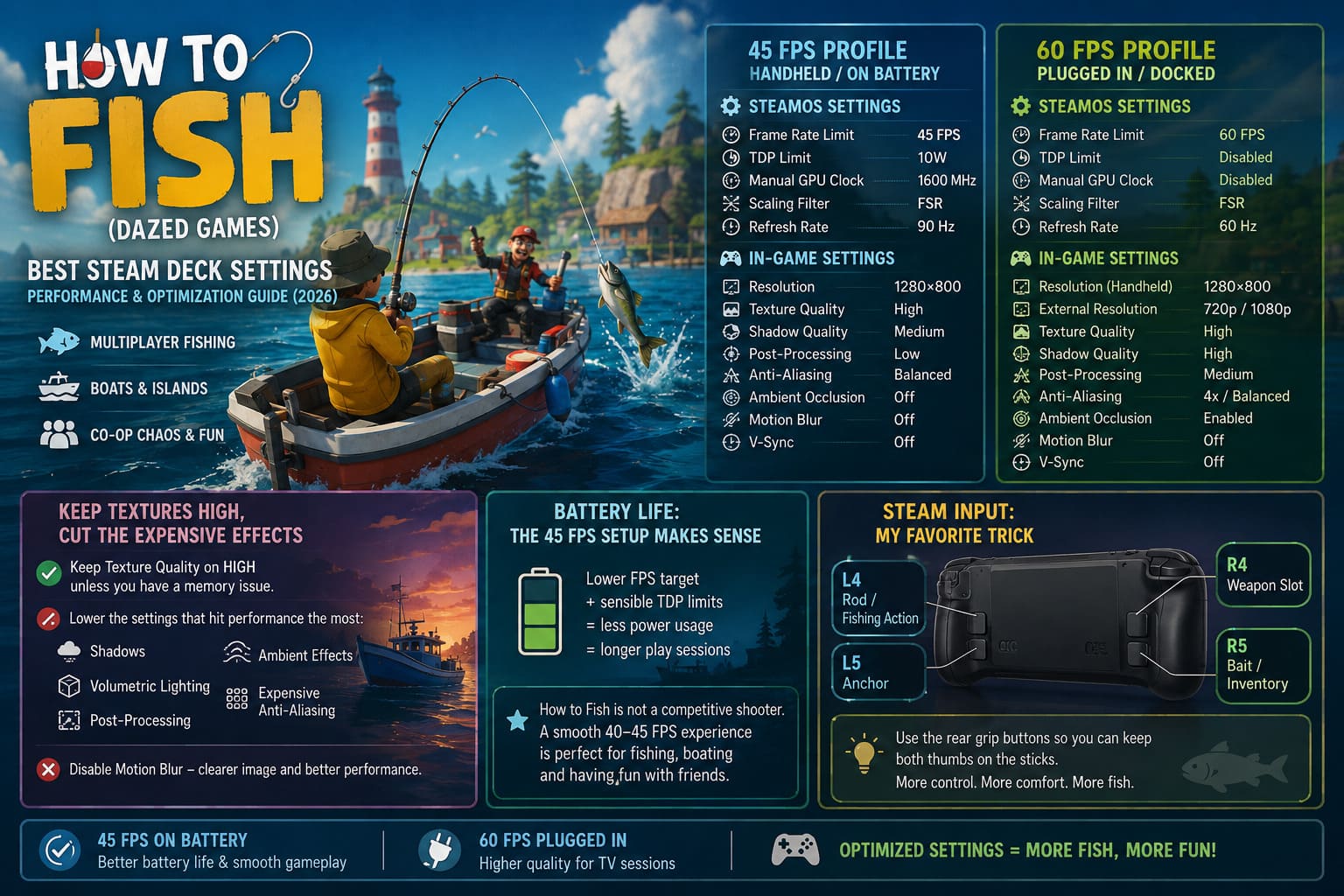
SteamOS Settings
- Frame Rate Limit: 60 FPS
- TDP Limit: Disabled
- Manual GPU Clock: Disabled
- Scaling Filter: FSR for larger external displays
- Refresh Rate: 60 Hz
In-Game Settings
- Resolution: 1280×800 on handheld
- External Resolution: 720p or 1080p, depending on the display
- Texture Quality: High
- Shadow Quality: High
- Post-Processing: Medium
- Anti-Aliasing: 4x or Balanced Upscaling
- Ambient Occlusion: Enabled
- Motion Blur: Off
- V-Sync: Off
This is the profile I’d use for a TV session with friends.
The important thing is not to assume that higher resolution automatically equals better results. If you’re connected to a 1080p display, I would rather use sensible upscaling than force the Steam Deck to render everything natively at a resolution it wasn’t designed to sustain comfortably in a chaotic multiplayer scenario.
Keep Textures High, Cut the Expensive Effects
One of the easiest mistakes with Steam Deck optimization is turning every graphics option down simply because you’re using a handheld.
I don’t recommend doing that here.
Texture quality should stay High unless you’re experiencing a very specific memory-related problem. Reducing textures doesn’t necessarily give you the performance improvement you’d expect, while the image can become noticeably softer.
Instead, target settings that have a more direct impact on GPU workload.
For How to Fish, I’d start by reducing:
- Shadows
- Volumetric lighting
- Post-processing
- Ambient effects
- Expensive anti-aliasing options
And I’d disable motion blur immediately.
This isn’t just about performance. Motion blur on a small handheld display can make fast camera movement around boats and islands look noticeably less clear. I prefer seeing exactly where I’m throwing my line rather than watching the screen smear every time I turn around.
Battery Life: The 45 FPS Setup Makes More Sense
Battery life is another reason I like the 45 FPS configuration.
The Steam Deck OLED already has a substantial advantage over the LCD model in this area, but the exact runtime will naturally vary depending on brightness, Wi-Fi activity, game workload, volume, and other system settings.
So I wouldn’t treat any specific “X hours guaranteed” number as universal.
Instead, think about the principle:
Lower frame targets + sensible TDP limits = less unnecessary power consumption.
For a game like How to Fish, that is a great trade.
You’re not playing a competitive shooter where every millisecond matters. You’re fishing, driving boats, arguing with your friends about who stole the best catch, and probably watching somebody accidentally launch themselves into the water.
A smooth 40–45 FPS experience fits this game incredibly well.
Steam Input: My Favorite Steam Deck Trick
The graphics settings are only half of the experience.
Steam Input can make How to Fish considerably more comfortable, especially during longer sessions.
I particularly like using the rear grip buttons because they allow you to keep both thumbs on the analog sticks.
A simple layout could look like this:
| Button | Suggested Action |
|---|---|
| L4 | Rod / Fishing Action |
| L5 | Anchor |
| R4 | Weapon Slot |
| R5 | Bait / Inventory |
The exact mapping depends on your preferred controls, but the idea is the same: move frequently used actions away from buttons you would otherwise need to reach with your thumbs.
This becomes especially useful when you’re controlling a boat while simultaneously trying to aim, fish, or manage equipment.
What About Turbo?
Steam Input also offers repeat functionality for compatible actions.
I would be careful with using turbo for core gameplay mechanics, though. If the game expects deliberate timing for fishing actions, automating repeated inputs can make the experience feel less satisfying and may not interact with every mechanic the way you expect.
For me, the rear buttons are much more useful than trying to automate everything.
How I Handle Small UI Text
This is one of the areas where the Steam Deck’s screen can expose problems that aren’t obvious on a desktop monitor.
Some menus, descriptions, or merchant information can feel cramped at 1280×800.
My first move is simple: use the Sharp scaling filter and keep the game’s native resolution.
I wouldn’t immediately drop the resolution just to make performance numbers look better. A lower internal resolution can make already-small interface elements even harder to read.
If a particular menu still feels uncomfortable, SteamOS’s accessibility and magnification features are worth keeping in mind.
For a game built around collecting equipment, checking items, and moving between different activities, readable menus are more important than squeezing out another couple of frames.
What to Do If Co-Op Performance Suddenly Drops
This is probably the first thing I’d investigate if How to Fish suddenly starts behaving strangely.
If performance is excellent while playing alone but becomes inconsistent with several friends, don’t immediately blame the GPU.
Multiplayer games can have several additional sources of stutter, including networking activity, physics calculations, asset loading, and temporary shader compilation.
I’d work through these steps:
- Restart the game after a particularly long session.
- Make sure SteamOS and the game are fully updated.
- Test the latest stable Proton version if you’re using a forced compatibility layer.
- If a new game update introduced the problem, check whether other players are reporting the same behavior.
- Compare single-player and four-player performance to identify whether the problem is actually multiplayer-related.
I would also avoid constantly changing five different graphics options at once. Change one or two settings, test the game, and see what actually helped.
That makes troubleshooting much easier.
How to Fish (Dazed Games) Hidden Achievements Guide: 100% Walkthrough
One “Fishing Problem” That Isn’t Actually a Performance Problem
Here’s another thing worth mentioning because it can look like the game is broken.
If you’re repeatedly casting and getting strange results, or your line seems to behave differently from what you expected, don’t automatically assume the Steam Deck is responsible.
How to Fish is built around physics and positioning.
Boat movement, your location, the behavior of fish, and how you approach a catch can all affect the result. If you’re trying to hook something difficult while your boat is constantly drifting around, the situation can become much harder than it needs to be.
Before changing Proton versions or reinstalling the game, make sure the problem isn’t simply related to how you’re approaching the fishing mechanic.
Sometimes the answer is embarrassingly simple: stop the boat, position yourself properly, and try again.
How to Fish (Dazed Games) Boss Fight Guide: Complete Strategy & Tips
My Final Steam Deck Setup
After looking at the game as a handheld experience rather than trying to turn the Steam Deck into a desktop PC, my preferred setup is pretty straightforward.
For OLED: 45 FPS at 90 Hz, around 9W TDP, High textures, Medium shadows, reduced post-processing, disabled volumetrics, and motion blur off.
For LCD: 40 FPS at 40 Hz when battery life matters, with the same basic graphics philosophy.
For plugged-in play: remove the TDP restriction, target 60 FPS, and increase shadows and other effects if the performance headroom is there.
The biggest thing I’d tell other Steam Deck players is this: don’t optimize How to Fish around benchmark numbers alone. Optimize it around how you actually play.
If you’re sitting on the couch for a quick 30-minute session, crank things up. If you’re heading somewhere without a charger, the 40–45 FPS profile makes much more sense. If four friends are joining and you’re expecting absolute physics-driven madness, prioritize frame consistency over visual effects.
That is ultimately why I like playing How to Fish on Steam Deck. It doesn’t need to run like a flagship PC title to be fun. The game’s personality comes from its physics, its ridiculous situations, and the people you’re playing with.
Get the frame pacing stable, keep the image sharp, map a few useful controls to the rear buttons, and then stop staring at the performance overlay.
You’ve got fish to catch.