Silent Hill Townfall AMD Radeon RX Series Optimization Guide: How to Fix Crashes, Boost FPS, and Eliminate Stuttering on PC
If you are playing Silent Hill Townfall on an AMD Radeon RX graphics card, you already know the ugly side of modern Unreal Engine 5 games: the visuals can look absolutely incredible, right up until your frame rate falls off a cliff. Dense fog, dynamic lighting, detailed environments, and sudden shader-heavy scenes can turn an otherwise powerful Radeon GPU into a stuttering mess.
I have spent enough time tweaking demanding PC games to know that simply throwing everything on Low is rarely the answer. You lose half the atmosphere, gain less performance than expected, and still end up wondering why the game occasionally freezes for a second when entering a new area. With Silent Hill Townfall, the smarter approach is to identify the settings that actually punish your GPU and leave the expensive visual features alone when they are not giving you enough in return.
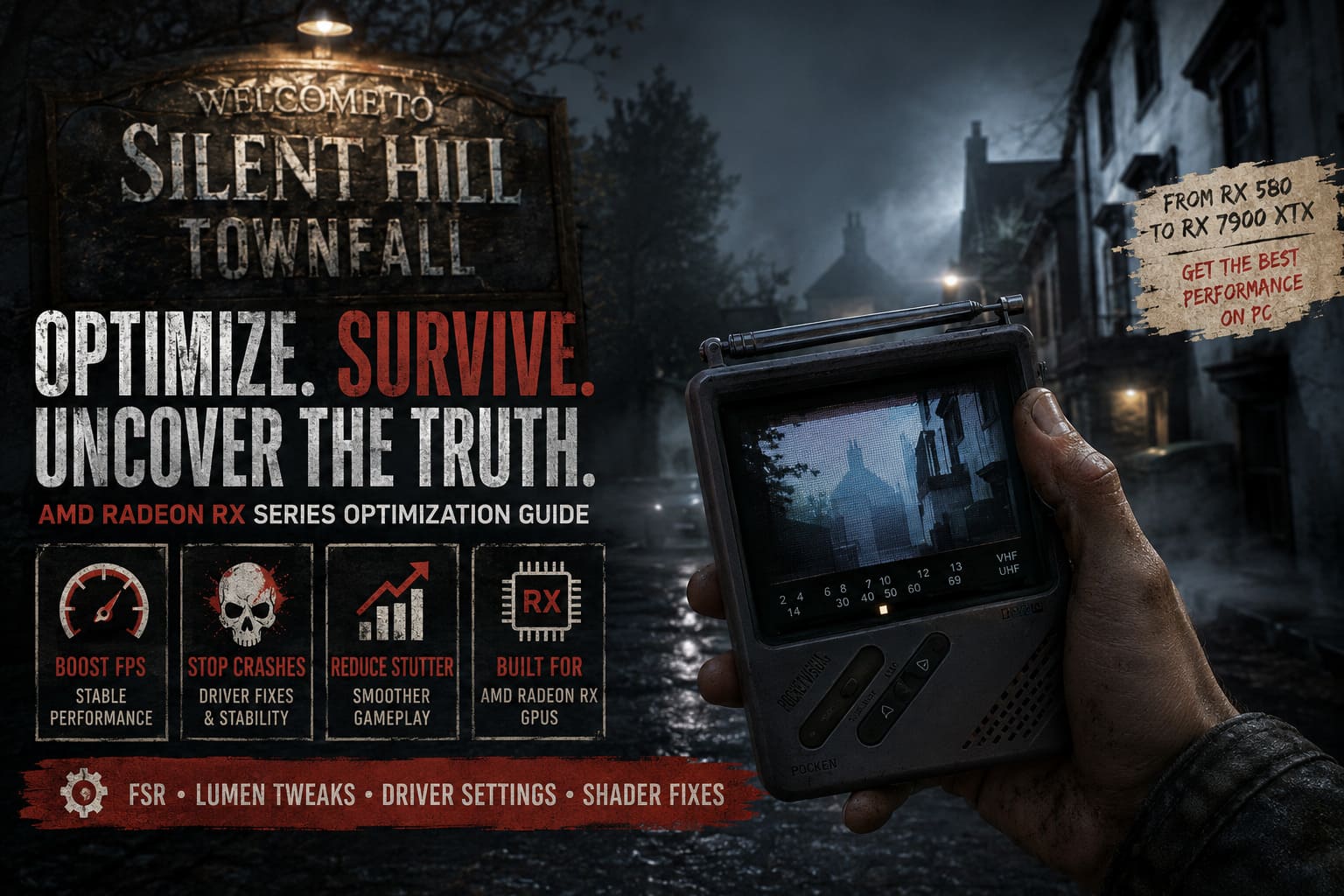
This guide focuses specifically on AMD Radeon RX GPUs, from older cards such as the RX 580 and RX 5700 XT to newer RDNA 2 and RDNA 3 hardware including the RX 6600, RX 6700 XT, RX 7800 XT, and RX 7900 XTX. The goal is simple: get a stable frame rate, reduce shader stutter, prevent unnecessary driver crashes, and keep the game looking like the nightmare it was designed to be.
How to Optimize Silent Hill Townfall DLSS 3 Frame Generation Settings for Maximum FPS
Why Silent Hill Townfall Can Be So Demanding on Radeon GPUs
Silent Hill Townfall is built around the kind of technology that makes screenshots look fantastic and performance graphs look terrifying. Unreal Engine 5 features such as Lumen global illumination, Nanite geometry, volumetric effects, dynamic shadows, and advanced temporal rendering can place a serious workload on both the GPU and CPU.
The biggest problem is that horror games often use lighting and atmospheric effects constantly. In a normal action game, you might enter a brightly lit room and forget about volumetric rendering for a while. Here, fog and darkness are practically part of the gameplay. That means your Radeon card can spend huge amounts of time processing exactly the effects that make the game look so creepy.
The good news is that you don’t need to destroy the image quality to get better performance. A few carefully chosen reductions can make a surprisingly large difference.
AMD Radeon RX Performance Targets
Before touching individual settings, it helps to understand what kind of target makes sense for different Radeon cards. The exact result will vary depending on your CPU, RAM, resolution, driver version, and whether the game is currently shader-compiling, but the following approach is a solid starting point.
| Radeon GPU | Recommended Resolution | Starting Preset | Upscaling | Main Recommendation |
|---|---|---|---|---|
| RX 580 | 1080p | Low | Performance/Balanced | Disable expensive lighting effects |
| RX 5700 XT | 1080p | Medium | Balanced | Reduce fog and shadows |
| RX 6600 | 1080p | Medium | Balanced | Prioritize stable frame pacing |
| RX 6700 XT | 1440p | High | Quality/Balanced | Keep textures high |
| RX 7800 XT | 1440p | High | Quality | Excellent balance of visuals and FPS |
| RX 7900 XTX | 4K | High/Epic | Quality | Push image quality while controlling RT |
Don’t treat this table as a rigid benchmark. Think of it as your starting loadout. If your frame rate is already comfortable, raise individual settings instead of blindly switching everything to Ultra.
Step 1: Start With a Clean AMD Driver Installation
Before blaming Silent Hill Townfall, make sure your Radeon driver installation isn’t carrying years of accumulated junk. Driver leftovers, corrupted shader data, and conflicting profiles can cause strange behavior that looks like a game problem.
For serious troubleshooting, use Display Driver Uninstaller (DDU) in Windows Safe Mode to remove the existing graphics driver. Then install the latest stable AMD Software: Adrenalin Edition package and restart the system.
A clean driver installation is especially worth trying if you are experiencing AMD driver timeouts, sudden desktop crashes, black screens, or repeated game crashes after changing GPU settings.
I would also avoid immediately applying aggressive undervolts or overclocks after installing the driver. First establish that the game runs correctly at completely stock GPU settings. You can tune the card afterward.
Step 2: Use FSR or TSR Instead of Native Rendering
Native resolution sounds attractive, but Unreal Engine 5 can make it brutally expensive. If your Radeon card is struggling, using an upscaler is usually a much better solution than destroying individual graphical settings one by one.
For 1080p, FSR Balanced is a good starting point on mid-range hardware. If the image looks too soft, move to Quality. At 1440p, Quality or Balanced can provide a useful performance increase while preserving much of the original detail.
Owners of high-end Radeon cards should not automatically assume they need native resolution either. If your GPU is hovering around 95–100% utilization and frame pacing becomes unstable during heavy fog sequences, a modest upscaling setting can deliver a much smoother experience.
Step 3: The Biggest FPS Killers to Reduce First
Not every graphics option deserves equal attention. Some settings barely change performance while others can absolutely hammer your GPU.
Lumen and Ray Tracing
This is where I would start if your FPS is suffering badly.
Ray-traced lighting can look fantastic, but the performance cost can be brutal, particularly on older Radeon architectures. If you are running an RX 580, RX 5700 XT, RX 6600, or another GPU without the performance headroom for expensive lighting effects, turn ray tracing off first.
If the game provides a software-based Lumen option, test it against hardware ray tracing rather than assuming the most technically advanced option will automatically look better.
Volumetric Fog
This is the setting that makes Silent Hill Townfall feel like Silent Hill Townfall—and it is also one of the settings I would absolutely reduce if your FPS is struggling.
Set Volumetric Fog to Medium before touching textures. Medium fog can retain most of the atmosphere while significantly reducing the amount of work being thrown at the GPU.
Going from Epic to High may not be enough on a weaker Radeon card. Medium is the sweet spot I would test first.
Shadows
Unreal Engine’s high-quality shadows can consume both GPU resources and VRAM. Try Medium shadow quality and compare the result.
In a dark horror game, the difference between High and Medium shadows is often far less noticeable than the difference between 45 FPS and 60 FPS. I’d take smoother camera movement every time.
Textures
Textures are different. If your Radeon has enough VRAM, reducing texture quality can be an unnecessary sacrifice.
An 8GB card such as the RX 6600 should generally be more conservative with extremely high texture settings, especially at higher resolutions. GPUs with 12GB or 16GB of VRAM, such as the RX 6700 XT and RX 7800 XT, have much more breathing room.
If you are seeing texture pop-in or memory-related instability, lower textures one step and test again.
Step 4: Recommended AMD Adrenalin Settings
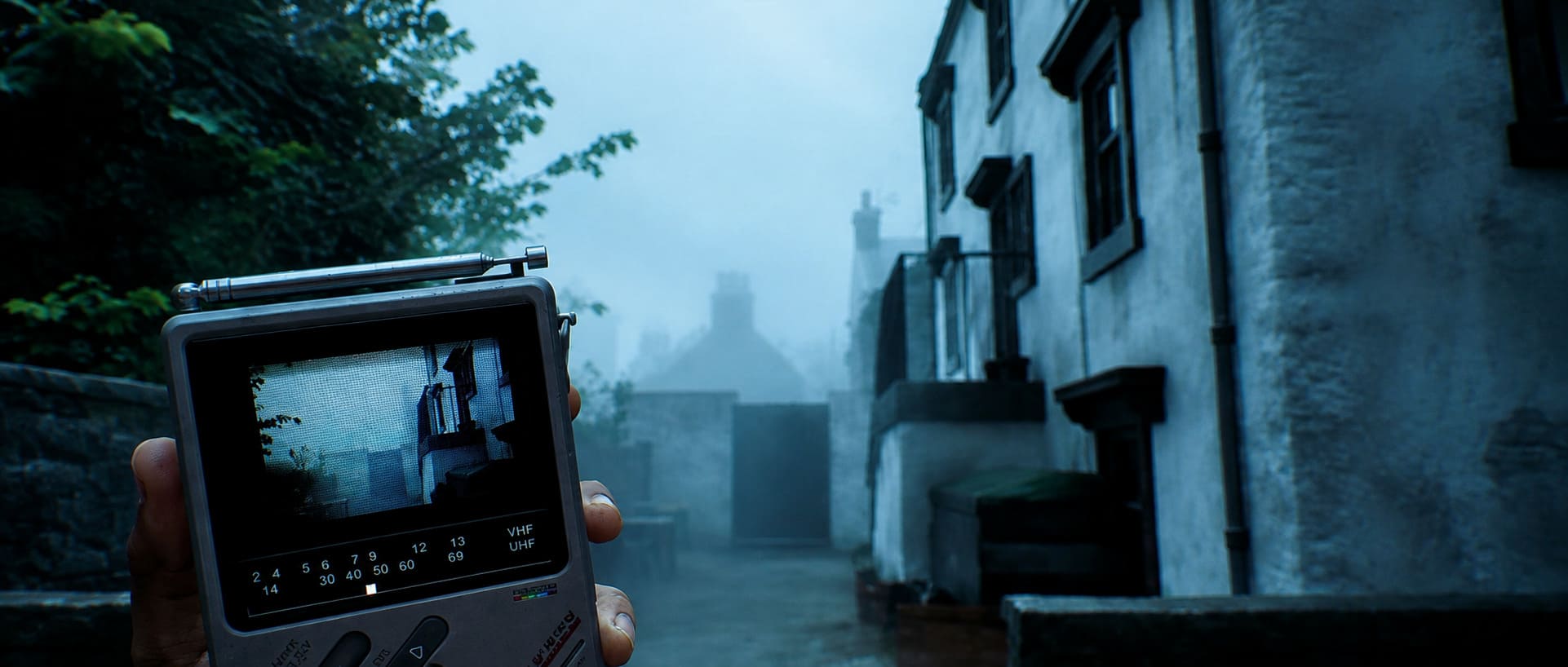
Open AMD Software: Adrenalin Edition and create a dedicated profile for the game. Keep the profile relatively conservative. The goal is stability first, optimization second.
- Radeon Anti-Lag: Enabled
- Radeon Chill: Disabled
- Radeon Boost: Disabled
- Texture Filtering Quality: Performance
- Wait for Vertical Refresh: Use application settings
- Tessellation Mode: Use application settings
- Aggressive GPU overclocking: Disabled while troubleshooting
Radeon Chill and Boost can be useful in the right games, but when you are troubleshooting inconsistent frame pacing, the last thing you want is another feature dynamically changing GPU behavior.
Keep the driver profile simple. Once the game is stable, experiment one setting at a time.
Step 5: Fight Unreal Engine 5 Shader Stuttering
This is the part that drives PC gamers absolutely insane.
You launch a new game, everything looks beautiful, you walk around a corner, and suddenly the screen freezes for a fraction of a second. Then it happens again when a new effect appears. That’s classic shader-related behavior.
If Silent Hill Townfall performs shader compilation when launching, let the process finish before starting the game. Don’t immediately click through menus because you are impatient to enter the fog. Give the system time to finish its work.
If stuttering remains unusually severe, resetting the AMD shader cache can help when the cache has become corrupted or inconsistent. After clearing it, the first launch may actually stutter more while the cache is rebuilt. That’s normal; judge performance after the game has had time to regenerate the necessary shaders.
Step 6: What to Do About Random AMD Driver Crashes
A crash to desktop followed by an AMD Bug Report Tool notification is incredibly frustrating, but don’t immediately assume your graphics card is dying.
First, return the GPU to stock settings. An undervolt that is rock-solid in ten other games can still fail in a particularly nasty Unreal Engine workload. The same applies to memory overclocks.
Next, verify the game installation through Steam or the Epic Games Store, depending on where you own it. Corrupted files can cause crashes when a specific asset, map section, texture, or audio package is loaded.
Also close unnecessary overlays and monitoring utilities temporarily. If you are running several programs that hook into the game at once, remove them from the equation while troubleshooting.
Should You Change Windows TDR Settings?
Windows uses a GPU timeout mechanism called TDR (Timeout Detection and Recovery). Under certain workloads, a GPU can take long enough to complete an operation that Windows interprets the delay as a graphics driver failure.
Some PC troubleshooting guides recommend changing the registry’s TdrDelay value to give the GPU more time. This can sometimes help with specific timeout scenarios, but I would treat it as an advanced troubleshooting measure rather than a universal performance tweak.
Do not edit the Windows Registry casually. Create a restore point or backup first, follow Microsoft’s documentation carefully, and understand that changing TDR behavior does not fix an unstable GPU, defective hardware, or a broken game build.
If your system is crashing repeatedly at stock settings, driver and game-file troubleshooting should come before registry modifications.
My Recommended Radeon Setup
If I were sitting down to play Silent Hill Townfall on a mid-range Radeon PC tonight, this is where I’d start:
- Resolution: 1920×1080 or 2560×1440
- Display Mode: Fullscreen
- Upscaling: FSR Quality or Balanced
- Ray Tracing: Off
- Lumen: Medium/Low depending on GPU
- Volumetric Fog: Medium
- Shadows: Medium
- Textures: Medium on 8GB cards, High on 12GB+ cards
- Effects: Medium/High
- Motion Blur: Personal preference
- Film Grain: Personal preference
- Radeon Anti-Lag: On
- Radeon Chill: Off
- Radeon Boost: Off
From there, increase textures first, then shadows, then lighting quality if your frame rate has enough headroom. I would not sacrifice a stable 60 FPS just to make the fog slightly prettier.
Final Verdict: Smooth Horror Beats Maximum Settings
The worst way to experience a psychological horror game is with inconsistent frame pacing. Silent Hill Townfall depends on atmosphere, timing, darkness, sound, and slow environmental reveals. When the image freezes every few seconds or the camera turns into a slideshow during a fog-heavy sequence, the horror disappears and you’re suddenly thinking about GPU utilization graphs.
The good news is that Radeon owners have plenty of options. Disable ray tracing before gutting the entire graphics preset, reduce volumetric fog, use FSR intelligently, keep your AMD drivers clean, and leave overclocks alone until the game proves stable. Those changes can make a far bigger difference than blindly setting every option to Low.
For older Radeon hardware, the realistic target should be consistent frame pacing rather than chasing an impossible Ultra preset. For cards such as the RX 6700 XT, RX 7800 XT, and RX 7900 XTX, there is considerably more room to push image quality while still keeping performance comfortable.
And honestly, that’s the setup I’d choose. I would rather walk through the fog at a rock-solid frame rate with slightly reduced shadows than watch a gorgeous Unreal Engine 5 screenshot freeze while something horrible is presumably standing three feet behind me.