Nautus PC Low FPS Fix: How to Boost Performance and Fix Stuttering on Nvidia GPUs
If you are playing Nautus on PC and the game feels less smooth than it looks, you are definitely not alone. The underwater environments are packed with atmosphere, lighting effects, dense vegetation, reflections, and moving objects, but all that visual detail can come at a nasty performance cost. A system that handles most modern games comfortably can still run into low FPS, inconsistent frame times, stuttering, and sudden drops while exploring Nautus.
What makes the problem especially annoying is that performance can change dramatically from one area to another. You might get a perfectly stable frame rate while exploring a quieter section, only to watch it collapse when entering a dense underwater zone or returning to the surface. Nvidia GPU owners can usually improve the situation quite a bit by changing a handful of driver, Windows, and in-game settings.
I have always preferred fixing performance from the biggest offenders first rather than blindly turning every graphics option to Low. Nautus has several settings that are surprisingly expensive compared with the visual improvement they provide, so the goal here is to keep the game looking great while getting rid of those ugly frame-time spikes.
Arc Games Nautus Upcoming Release: Magic Design Studios’ New Co-Op Game Revealed
Why Does Nautus Stutter on Nvidia GPUs?
Nautus has a visual style that can be deceptively demanding. Underwater scenes combine lighting, fog, reflections, particles, environmental effects, and constantly moving elements. When several of these systems become active simultaneously, the GPU and CPU can suddenly receive a much heavier workload.
There is also another problem that can be easy to mistake for weak hardware: shader compilation stutter. When the game encounters an effect or asset that has not been compiled and cached yet, you can experience a brief hitch even when your average FPS is normally high. If those hitches happen repeatedly while exploring different areas, the game can feel much worse than its FPS suggests.
Driver configuration can make things even messier. Old shader data, aggressive power-saving behavior, overlays, background applications, and poorly configured Nvidia Control Panel settings can all contribute to inconsistent frame delivery.
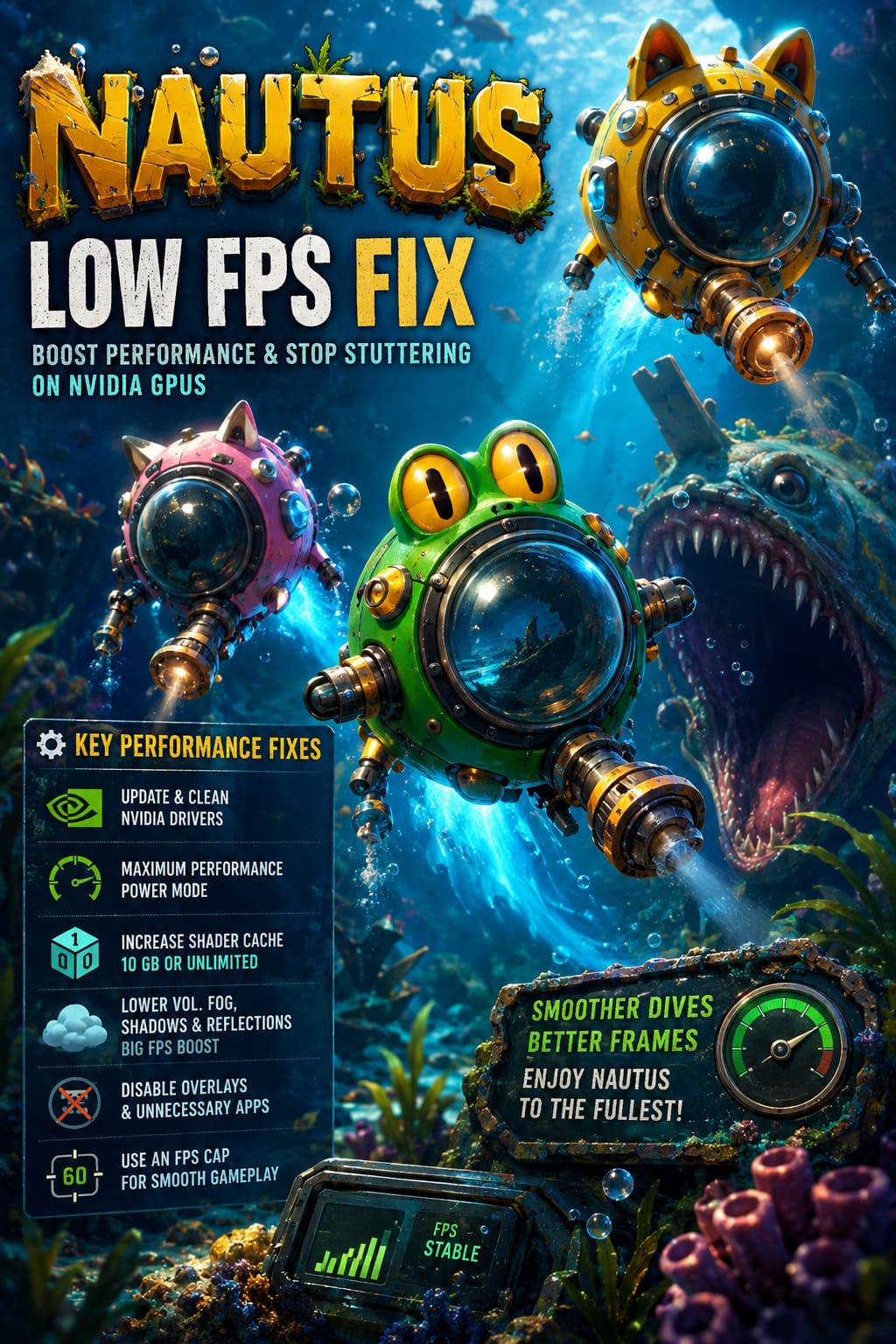
Quick Nautus Performance Settings
Before changing everything on your PC, start with the settings that usually provide the best performance-to-quality ratio.
| Setting | Recommended Value | Performance Impact |
|---|---|---|
| Display Mode | Fullscreen | Low |
| Volumetric Fog | Medium | High |
| Shadows | Medium | High |
| Reflections | Medium | High |
| Motion Blur | Off | Small |
| V-Sync | Off | Small |
| Texture Quality | High | Medium |
| Nvidia Power Management | Maximum Performance | Medium |
| Shader Cache | 10 GB or Unlimited | Stability |
You do not need to turn Nautus into a blurry mess to achieve smoother gameplay. In my experience, volumetric effects, shadows, and reflections are much better targets than texture quality. Those settings can consume a surprising amount of GPU power while lowering them often has a relatively small visual cost.
1. Perform a Clean Nvidia Driver Installation
The first thing I would check after installing or updating Nautus is the Nvidia driver. New games can expose problems that never appeared in older titles, particularly when an existing driver installation has accumulated old profiles or cached data.
Download the latest Game Ready driver available for your Nvidia GPU and select the Custom Installation option during setup. If the installer provides the option to perform a clean installation, enable it and allow the process to finish before restarting Windows.
A clean installation is particularly useful if you have recently changed graphics cards, jumped between several driver versions, or started experiencing stuttering after a driver update.
Do not assume that installing the newest driver automatically fixes everything. Sometimes the problem is actually leftover configuration data, and starting with a clean driver environment gives you a much better baseline for troubleshooting.
2. Configure the Nvidia Control Panel for Nautus
The Nvidia Control Panel is one of the easiest places to squeeze some extra consistency out of a game. Instead of changing global settings and potentially affecting every game on your computer, create a dedicated profile for Nautus.
Open Nvidia Control Panel, select Manage 3D Settings, then open Program Settings. Add Nautus manually if it does not already appear in the list.
I would start with these settings:
- Power Management Mode: Prefer Maximum Performance
- Low Latency Mode: On
- Texture Filtering – Quality: High Performance
- Threaded Optimization: Auto or On
- Max Frame Rate: Match your monitor’s refresh rate when appropriate
- Vertical Sync: Off if you plan to handle synchronization elsewhere
The most important option here is usually Power Management Mode. With a demanding game, allowing the GPU to aggressively reduce its clock speed can create inconsistent performance when the workload suddenly changes.
For example, if your GPU is already running at a high clock and you move into an area with heavy lighting and volumetric effects, the card needs to react quickly. Keeping the game profile focused on performance can make those transitions more consistent.
3. Increase Nvidia Shader Cache Size
Shader compilation is one of the first things I would investigate if Nautus runs at a high average FPS but still feels strangely jerky.
Open the Nvidia Control Panel and go to Manage 3D Settings. Find Shader Cache Size and increase it from the default setting to a larger value such as 10 GB, or use Unlimited if that option is available in your driver.
The idea is simple: give the driver more storage space for compiled shaders so it does not constantly have to throw old data away and recreate it.
This will not magically eliminate every hitch. Shader compilation can still occur when the game encounters something new, especially after an update or driver change. However, maintaining a healthy cache can reduce repeated shader-related stuttering over time.
Make sure you have enough free space on the drive containing your Windows and game installation. There is little point in giving the shader cache unlimited room if your SSD is already nearly full.
4. Lower Volumetric Effects First
If Nautus is struggling for GPU performance, volumetric fog and underwater density should be near the top of your hit list.
These effects are responsible for much of the game’s underwater atmosphere. They also require the GPU to process large amounts of information across the scene, particularly when there are multiple light sources, particles, and environmental effects visible simultaneously.
Try moving volumetric settings from Ultra or High down to Medium. Then return to an area where you previously experienced a major FPS drop and compare the result.
This is the kind of setting adjustment I prefer because the game can still look impressive while the GPU gets a much easier workload. Ultra volumetric effects can look fantastic in screenshots, but when they cost you a huge chunk of performance during actual gameplay, Medium is often the smarter choice.
5. Reduce Shadows Without Destroying Visual Quality
Shadows are another classic performance killer. Nautus can contain multiple dynamic objects and environmental elements that require the engine to calculate shadow information, and the cost can rise quickly in busy areas.
Set Shadow Quality to Medium as a starting point. If you still have significant drops, try Low and compare the visual difference.
I would not immediately sacrifice textures to improve FPS. High-quality textures are often much cheaper than complicated dynamic shadows, assuming your GPU has enough VRAM. Lowering shadows first usually gives you a better balance between image quality and performance.
6. Turn Down Reflections
Reflections are particularly relevant in a game built around water. They can look excellent, but reflective surfaces can become surprisingly expensive when the engine has to update them dynamically.
If your FPS tanks near water surfaces or during scenes containing lots of reflective elements, set Reflections to Medium or Low.
This setting can be a sleeper performance boost. You might not notice the difference while actively playing, especially compared with the impact of cutting texture quality or resolution.
7. Disable Motion Blur and In-Game V-Sync
I recommend turning Motion Blur off if your priority is clarity and responsiveness. It does not always provide a massive FPS increase, but removing another post-processing effect can make fast camera movement feel cleaner.
V-Sync is more complicated because the best option depends on your monitor and synchronization technology. As a general troubleshooting step, disable in-game V-Sync and manage synchronization through your preferred display configuration.
If you are using G-SYNC or another variable-refresh-rate solution, you should configure the entire setup around that technology rather than blindly stacking multiple synchronization methods.
8. Enable Hardware-Accelerated GPU Scheduling
Windows includes Hardware-Accelerated GPU Scheduling, commonly shortened to HAGS. On compatible systems, it can change how certain graphics workloads are scheduled and may improve frame consistency in some games.
To find it, open Windows Settings and navigate to System → Display → Graphics → Default Graphics Settings.
If Hardware-Accelerated GPU Scheduling is available, enable it and restart the computer.
This is not a guaranteed FPS booster for every system. PC performance is annoyingly hardware-dependent, and some configurations can actually behave better with HAGS disabled. If Nautus becomes less stable after enabling it, simply switch it back off and compare.
The important part is testing rather than assuming one setting is universally better.
9. Clear the DirectX Shader Cache
If you have updated Nvidia drivers several times or suddenly developed severe stuttering, clearing the DirectX shader cache is worth trying.
Use Windows Search to open Disk Cleanup, select your main system drive, and look for DirectX Shader Cache in the list of files that can be removed.
Delete the cache and restart your PC before launching Nautus again.
The first launch after clearing shader data can sometimes feel different because the game and driver may need to rebuild cached information. Do not immediately assume the process failed if the initial run is not perfect. Give the game some time to recreate its cache before judging the result.
10. Disable Overlays That You Do Not Need
Overlays are convenient, but when you are troubleshooting stuttering, I would temporarily remove as many as possible.
The biggest ones to check are:
- Steam Overlay
- Discord Overlay
- Nvidia In-Game Overlay
- Recording and instant-replay features
- Hardware monitoring overlays
- Browser windows running in the background
Discord and browser applications can also consume CPU and RAM while you play. If your system is already close to its memory limit, shutting down unnecessary applications can make frame-time behavior more stable.
I especially recommend disabling overlays temporarily rather than permanently. If Nautus becomes smooth afterward, turn them back on one at a time to identify which one is actually causing the problem.
11. Do Not Ignore CPU Usage
Not every FPS problem is a GPU problem.
If your Nvidia GPU is sitting at 60–70% utilization while the frame rate refuses to increase, check your CPU usage. Heavy simulation, AI, physics, environmental systems, and background processes can create a CPU bottleneck that no amount of Nvidia Control Panel tweaking will completely solve.
This is also why simply lowering every graphical setting is not always the answer. If the processor is limiting performance, reducing texture quality from High to Low might barely change your FPS.
Use an overlay such as your preferred hardware monitoring tool to check GPU utilization, GPU temperature, VRAM usage, CPU utilization, RAM usage, and frame time. Frame time is especially useful because a game can report a respectable average FPS while still feeling terrible due to irregular frame delivery.
12. Use a Sensible FPS Cap
If Nautus constantly swings between very high and very low frame rates, an FPS cap can make the game feel substantially smoother.
For a 60 Hz monitor, try a 60 FPS cap. On a 144 Hz display, you might use 120 or 141 FPS depending on your synchronization setup and how much performance your hardware can consistently deliver.
The goal is not always to chase the highest possible number. A stable 60 FPS can feel dramatically better than a game jumping between 85, 48, 72, and 55 FPS every few seconds.
That is one of those PC gaming lessons that becomes obvious once you start paying attention to frame times rather than the FPS counter alone.
Best Nautus Nvidia Settings for a Smooth Experience
For a good starting configuration, I would use Fullscreen mode, Medium volumetric effects, Medium shadows, Medium reflections, High textures, Motion Blur Off, and V-Sync Off, then fine-tune from there.
If your GPU has plenty of VRAM but struggles with rendering performance, keep textures relatively high and lower the expensive effects first. If your GPU is running out of VRAM, texture quality becomes much more important, particularly at higher resolutions.
Do not copy someone else’s settings blindly just because they gained 30 FPS on their system. A desktop RTX card, laptop GPU, different CPU, different resolution, and different memory configuration can produce completely different results.
Final Troubleshooting Order
If I were troubleshooting Nautus on a friend’s PC, I would not change twenty things simultaneously. That makes it impossible to know which tweak actually helped.
I would work through the problem in this order:
- Update or clean-install the Nvidia driver.
- Create a dedicated Nautus Nvidia Control Panel profile.
- Increase Shader Cache Size.
- Lower volumetric effects, shadows, and reflections.
- Clear the DirectX Shader Cache if stuttering persists.
- Disable overlays and unnecessary background applications.
- Test HAGS on and off.
- Monitor CPU, GPU, VRAM, RAM, and frame time.
- Apply a stable FPS cap instead of chasing maximum FPS.
Nautus does not need to look like a low-budget PC game just because your frame rate is struggling. The trick is identifying which settings are actually hammering your hardware and cutting those first. Volumetric effects, shadows, reflections, shader caching, and driver configuration are far more interesting targets than simply throwing every setting onto Low.
Once the obvious bottlenecks are under control, the underwater world becomes much easier to enjoy. Smooth camera movement, consistent frame times, and fewer sudden hitches make a bigger difference than a few extra points on an average FPS counter, especially in a game where exploration and atmosphere are such a huge part of the experience.