How to Fix Twisted Tower Save File Corruption and Steam Cloud Sync Errors (2026 Guide)
If there is one PC gaming problem that can instantly kill my mood, it is a corrupted save. I can tolerate a crash, a stutter, even a game refusing to launch for twenty minutes while I chase down some obscure driver issue. Losing hours of progression, though? That is a different kind of frustration.
That is exactly why Twisted Tower save file corruption deserves attention. The game has plenty of personality, and after spending time with games that use aggressive autosaving and Steam Cloud synchronization, I have learned one uncomfortable lesson: never assume that your newest save is automatically your safest save.
Twisted Tower can run into situations where a damaged local save, an incomplete write, or a Steam Cloud conflict leaves the game thinking your progress is unusable. Sometimes the result is a corruption warning. Sometimes the game suddenly loads what looks like a completely fresh profile. In the worst cases, Steam Cloud keeps restoring the same broken data every time you launch the game.
The good news is that save corruption does not always mean your progress is gone.
Before deleting anything, there are several recovery steps worth trying. I would strongly recommend following them in order, especially if your save represents dozens of hours of progress.
What Causes Twisted Tower Save File Corruption?
The first thing to understand is that save corruption usually isn’t random. Game saves are files being written to your storage while you are playing, and there is always a small window where something can go wrong.
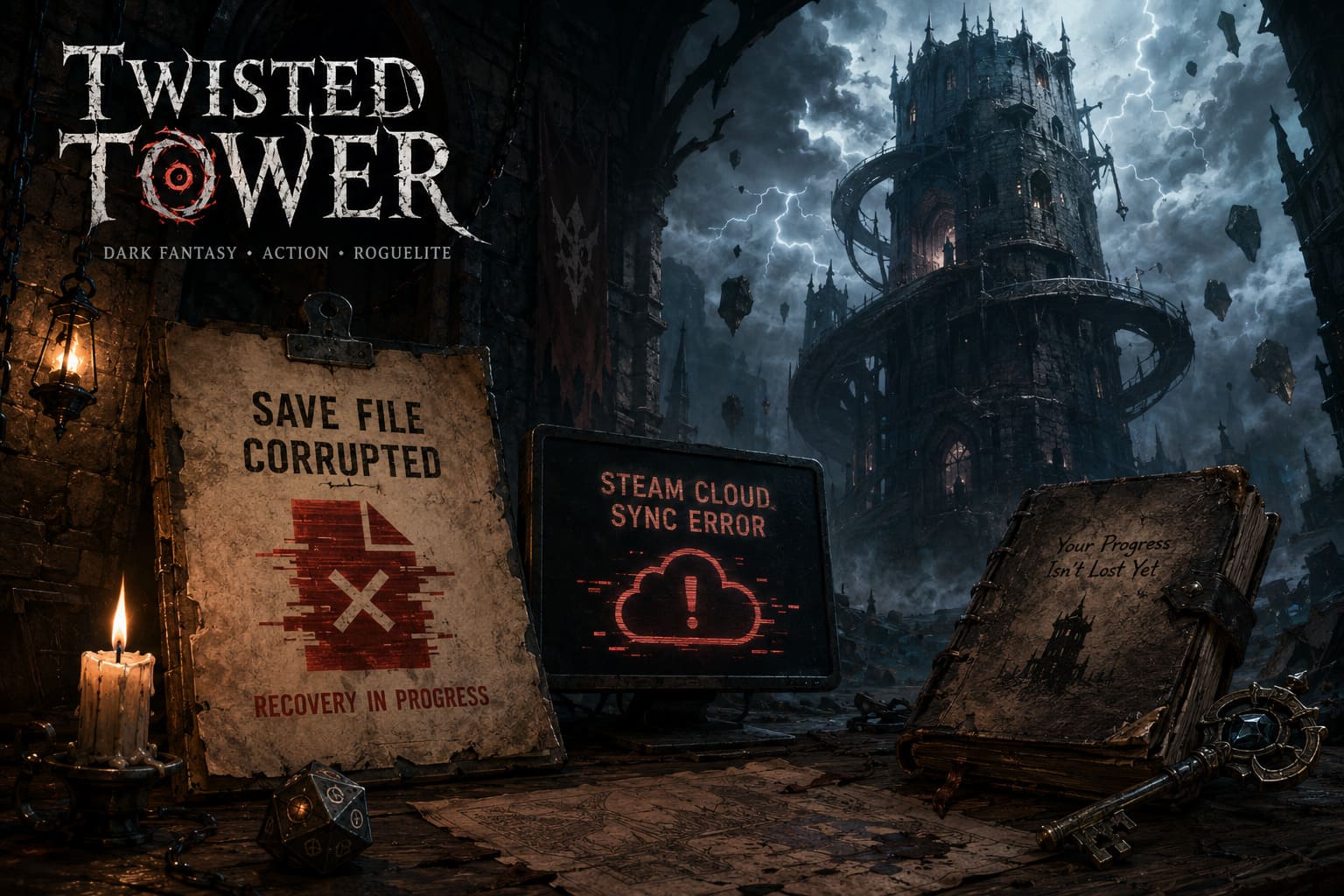
A crash during an autosave is probably the easiest example. If the game is halfway through writing a save and the process suddenly disappears, the resulting file may be incomplete. The same basic problem can happen after a forced shutdown, power interruption, or another unexpected system failure.
Steam Cloud adds another layer to the situation.
If Steam sees a newer local file and uploads it before realizing that the file is damaged, you can end up with a corrupted local copy and a corrupted cloud copy. At that point, reinstalling the game usually accomplishes nothing because your save data is separate from the game installation.
Here are the most common causes I would investigate first:
- Game crashes during autosaving
- Force-closing Twisted Tower while it is writing data
- Steam Cloud synchronization conflicts
- Interrupted network synchronization
- Windows or security software blocking file access
- Damaged local save files
- Conflicting save data between multiple PCs or handheld devices
The important distinction is that verifying game files does not normally repair a corrupted personal save. Steam is checking the installed game files, not magically rebuilding your progression.
Before Doing Anything: Protect the Damaged Save
This is the part I would not skip.
If Twisted Tower is asking whether you want to delete a corrupted save and start again, do not immediately accept the deletion prompt.
Close the game instead.
Press Alt + F4 if the game is still responding, or use Task Manager with Ctrl + Shift + Esc if it has frozen. The goal is to stop the game before it gets another opportunity to overwrite or replace the existing save.
This matters because troubleshooting is much easier when you still have the original files available.
Think of the corrupted save as evidence. Don’t destroy it before you know whether a backup exists.
Step 1: Disable Steam Cloud Temporarily
Steam Cloud is useful when everything works correctly. During recovery, however, it can become your worst enemy.
You don’t want Steam automatically downloading a questionable cloud save while you are trying to restore a healthy local copy.
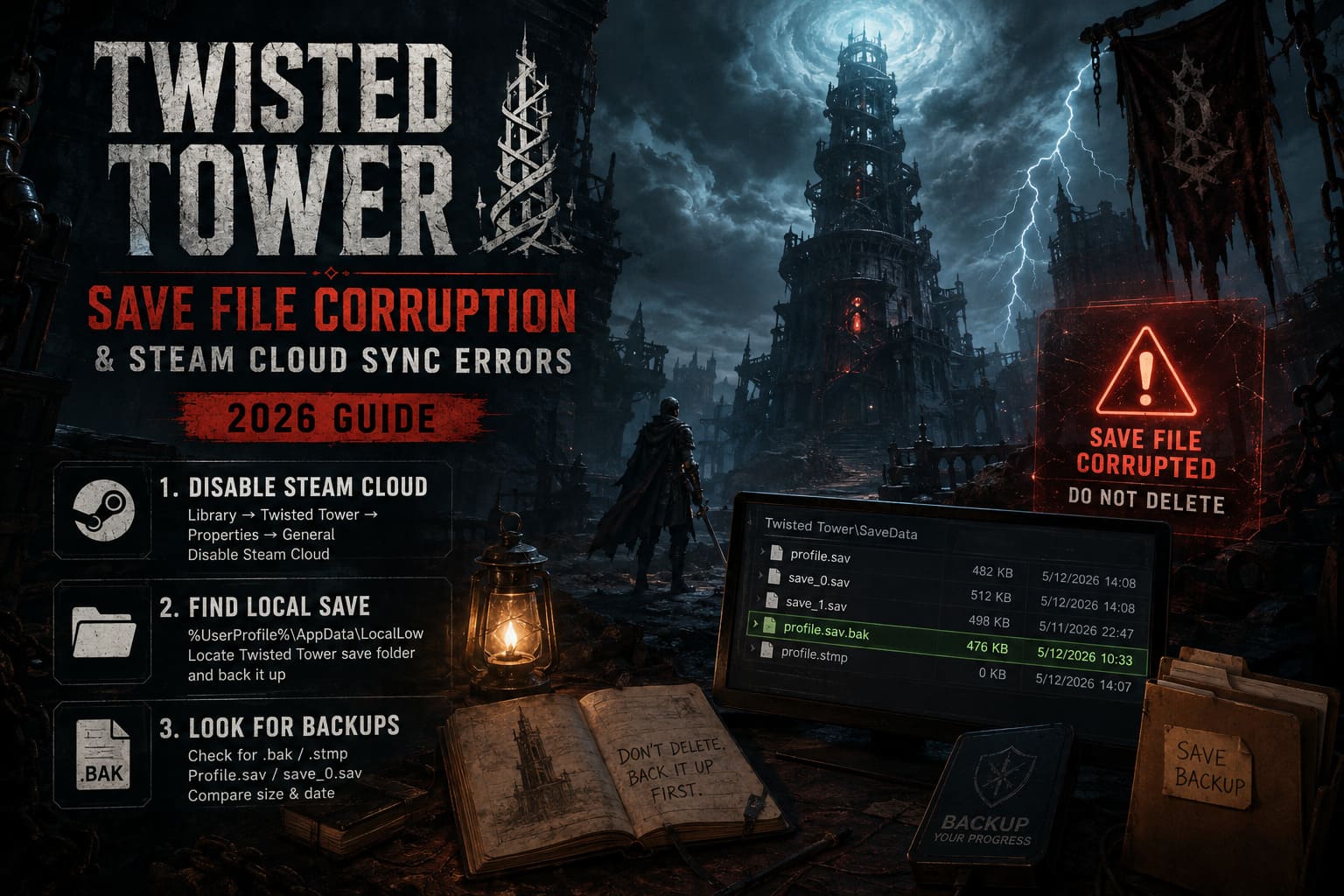
Open Steam and go to:
Library → Twisted Tower → Properties → General
Find the Steam Cloud setting and temporarily disable it.
After changing the option, I recommend completely exiting Steam rather than simply closing the window. Check the Windows system tray and choose Exit from the Steam icon.
Now you have a cleaner environment for examining the local save.
Step 2: Find the Local Twisted Tower Save
The exact folder can vary depending on how the game stores its data, so don’t panic if the directory name isn’t literally “TwistedTower.”
On Windows, press:
Windows Key + R
Then enter:
%UserProfile%\AppData\LocalLow
Press Enter.
From there, look for a folder associated with the developer, publisher, or Twisted Tower itself.
Depending on the game’s current build, you may find a directory containing names such as:
SaveDataSavedGamesSave- A folder containing profile or slot files
If you cannot immediately identify the correct directory, do not start deleting random folders. Take a little time to determine which files actually belong to the game.
Once you find the relevant save directory, copy the entire folder to your Desktop.
This backup is your safety net. If a recovery attempt goes wrong, you can return to the original state instead of starting from zero.
Step 3: Look for Backup Save Files
This is where things can get interesting.
Games sometimes create temporary or backup versions of saves. Depending on the game’s implementation, you may encounter files using extensions such as:
.bak
.stmp
or similarly named backup formats.
You may also see your primary save files using names resembling:
profile.sav
or
save_0.sav
Don’t assume the largest or newest file is automatically the correct one. Compare file sizes and modification dates.
A completely empty save file is obviously suspicious. A file that suddenly dropped from several hundred KB to 0 KB after a crash deserves even more attention.
If you have a .bak copy that appears healthy, make another backup of it before experimenting.
Step 4: Attempt a Local Save Rollback
Once your backup is secure, you can test a rollback.
Suppose you find:
profile.bak
and the main save is:
profile.sav
You can temporarily move the damaged .sav file somewhere safe rather than permanently deleting it.
Then make a copy of the .bak file and rename the copy so that it uses the expected .sav filename.
For example:
profile.bak → profile.sav
Do the same only when the file clearly corresponds to the save you are trying to restore.
I strongly prefer copying rather than renaming the only backup. That gives you an additional safety layer.
Launch Twisted Tower while Steam Cloud is still disabled.
If the game loads your old progress, immediately check several things. Don’t simply see your character and assume everything is fixed.
Load the save, inspect your progression, inventory, unlocked areas, and recent milestones. Then exit through the game’s normal menu and give it time to finish saving.
If everything looks correct, you have probably recovered the local profile.
A Quick Recovery Reference
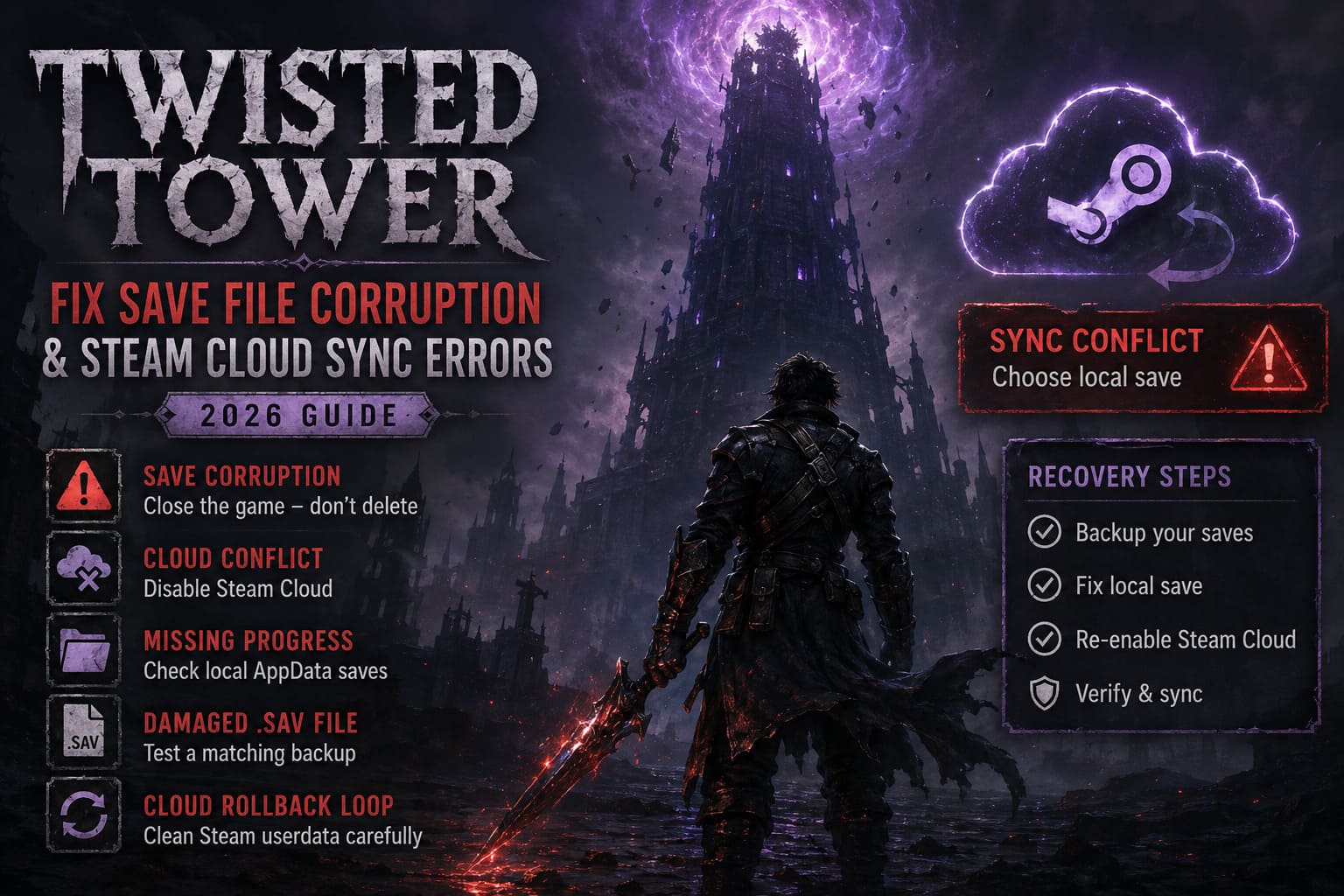
| Problem | First Thing to Try | Main Risk |
|---|---|---|
| Corruption warning | Close the game without deleting the save | Game may overwrite data |
| Cloud conflict | Disable Steam Cloud | Cloud copy remains unchanged |
| Missing progress | Inspect local AppData saves | Wrong folder may be edited |
Damaged .sav | Test a matching backup | Backup may also be outdated |
| Repeated cloud rollback | Clean Steam userdata carefully | Accidentally removing useful cloud data |
Step 5: Check Steam’s Userdata Folder
If the local save appears healthy but Steam keeps bringing back the broken version, the next suspect is Steam’s synchronization data.
The Steam userdata directory is commonly found here:
C:\Program Files (x86)\Steam\userdata
Inside it you’ll find folders represented by numeric IDs.
Your Steam account folder contains additional numbered directories for individual games. The exact AppID for Twisted Tower should be confirmed rather than guessed.
Inside the relevant game folder, Steam may maintain directories such as:
remote
and files such as:
remotecache.vdf
This is where I would slow down.
Do not blindly delete your entire userdata directory.
If you have identified the correct Twisted Tower AppID and already created a backup of your local save, you can remove or move the relevant synchronization data so Steam has to rebuild its local tracking information.
Personally, I prefer moving suspicious files into a temporary backup folder instead of permanently deleting them. Storage space is cheap. Lost saves aren’t.
Step 6: Restore Steam Cloud From the Healthy Local Save
Once you have confirmed that your local Twisted Tower save actually works, you can bring Steam Cloud back into the equation.
First, make absolutely sure the recovered files are still backed up somewhere outside the active save directory.
Then:
- Start Steam.
- Open Twisted Tower’s Properties.
- Re-enable Steam Cloud.
- Launch the game.
- Watch carefully for a synchronization conflict.
- If Steam asks which version to keep, select the local version only if you have verified that it is the healthy save.
- Allow synchronization to complete.
- Load the game and confirm your progression.
- Exit normally through the game’s menus.
This is the moment where patience matters.
Do not launch the game on another PC immediately after fixing the save. Give Steam time to complete the synchronization and confirm that the cloud status is up to date.
Otherwise, you risk creating another conflict before the corrected file has fully propagated.
What If Steam Keeps Downloading the Corrupted Save?
This is one of the most annoying versions of the problem.
You fix the local file, launch the game, and suddenly your old corrupted progress is back.
That usually means your cloud copy is still being treated as the preferred version somewhere in the synchronization process.
At this point, repeat the recovery process rather than repeatedly switching between local and cloud copies.
The basic sequence should be:
Healthy local backup → Steam Cloud disabled → verify local save → confirm progress → re-enable Cloud → choose healthy local data
The critical step is confirming that the local file actually works before turning synchronization back on.
Step 7: Verify Twisted Tower’s Game Files
If your save is healthy but the game itself still crashes or refuses to load it, check the installation.
In Steam:
Library → Twisted Tower → Properties → Installed Files → Verify integrity of game files
Let Steam complete the scan.
This can repair missing or corrupted installation files that might prevent the game from loading correctly.
There is an important distinction here, though.
File verification is not a save recovery tool.
If your .sav is genuinely corrupted, Steam’s verification process is unlikely to rebuild it. Its job is to repair the game installation.
That distinction has saved me a lot of wasted troubleshooting over the years. Reinstalling a game feels like the obvious nuclear option, but when the problem lives inside AppData, reinstalling the executable often changes absolutely nothing.
Should You Reinstall Twisted Tower?
Only after the save has been backed up.
If you uninstall the game before securing your local save data, you are making an already stressful situation harder.
If the installation itself appears damaged, reinstalling can be reasonable after you have:
- Backed up the save folder
- Disabled Steam Cloud
- Preserved any backup files
- Confirmed the save location
- Tested available rollback files
Once your personal data is safe, reinstalling becomes much less risky.
Does Twisted Tower Have Full Controller Support? Steam Deck Performance Guide
How to Prevent Another Twisted Tower Save Corruption
After dealing with a corrupted save once, I become much more cautious with games that rely heavily on autosaves.
My biggest recommendation is simple: don’t force-close the game while it might be saving.
Instead of hitting Alt + F4 immediately, use the game’s exit option and wait until Steam and the game have finished writing their data.
I would also avoid bouncing between several devices while a cloud sync is pending. If you play Twisted Tower on a desktop and then immediately launch it on a Steam Deck or another PC, make sure Steam has finished synchronization first.
A small manual backup after a major milestone is also worth the thirty seconds it takes.
Especially if you’ve just completed a difficult section that you absolutely do not want to repeat.
Is Twisted Tower a Pure Horror Game or Action Adventure? Genre Explained
Final Thoughts
Twisted Tower save corruption is the kind of PC problem that looks catastrophic at first glance. The corruption warning makes it tempting to accept the reset and start over, but that is exactly the moment when you should stop and investigate.
Don’t delete the save. Don’t immediately reinstall the game. Don’t let Steam Cloud blindly overwrite everything.
Start by isolating the local data, create a backup, disable Cloud synchronization, inspect the available save files, and test a rollback if a usable backup exists.
If the local save works, you can then rebuild the Steam Cloud state around that healthy copy.
There is no guaranteed recovery method for a genuinely destroyed save file, and backup files aren’t guaranteed to exist either. Still, following a careful recovery sequence gives you a much better chance than simply accepting the corruption prompt.
And after you’ve lost a save once, you’ll probably do what I eventually started doing with every game I care about: keep a backup before the game gives you a reason to.