Phantom Blade Zero Micro Stutters During Combat: Ultimate Fix Guide
If there is one thing Phantom Blade Zero absolutely cannot afford, it is a random hitch in the middle of a sword fight. This is a game built around speed, timing, counters, dodges, and brutally precise attacks. When the image freezes for even a fraction of a second during a deflect or boss combo, it does not just look ugly — it can completely wreck the rhythm of a fight.
After spending an unhealthy amount of time tweaking PC games and chasing those annoying frame-time spikes that never seem to show up in the average FPS counter, I know how frustrating this particular problem can be. You can be sitting at 100, 120, or even 144 FPS and still feel that something is wrong because the frame delivery is uneven.
That is exactly what Phantom Blade Zero micro stuttering during combat can feel like. The FPS number looks great, but the game suddenly hitches when enemies appear, effects explode across the screen, or a particularly demanding animation kicks in.
The good news is that there are several things worth trying. Some are simple Windows adjustments, while others involve graphics settings, shader caching, storage, and frame-rate synchronization.
Phantom Blade Zero High CPU Usage & 100% Spike How to Fix PC Stuttering
Why Phantom Blade Zero Can Stutter During Combat
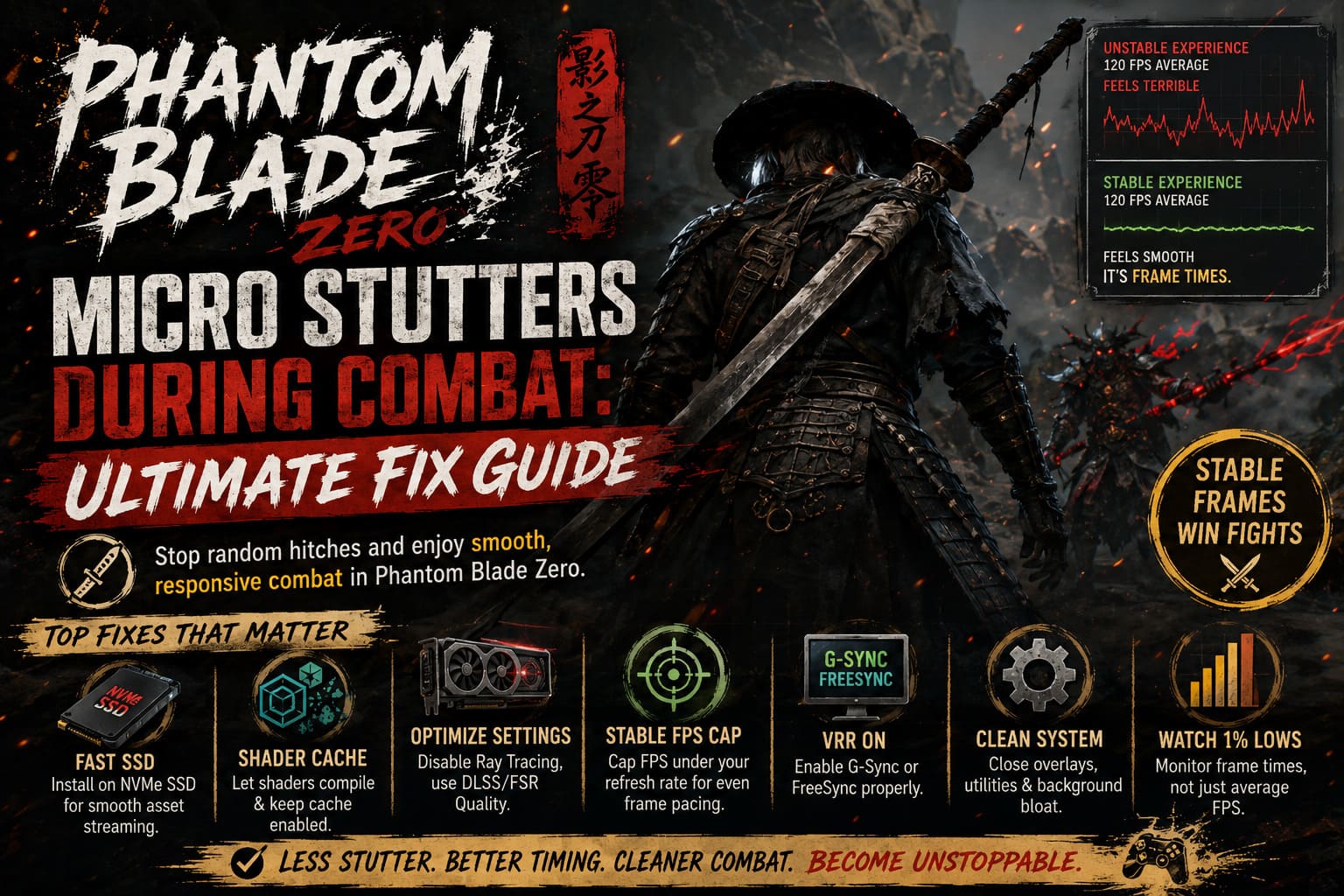
The first thing to understand is that average FPS does not tell the whole story. A game running at 120 FPS can still feel terrible if individual frames are delivered inconsistently.
Combat is particularly demanding because the game has to process a ridiculous amount of information at once. Enemy AI is moving, weapons are colliding, particles are appearing, lighting effects are changing, sound effects are being triggered, and new assets may be streamed into memory.
That means a system can suddenly hit a CPU, GPU, VRAM, RAM, or storage bottleneck even when the overall performance looks impressive.
| Possible Cause | Typical Symptom | What To Try |
|---|---|---|
| Shader compilation | Hitch when an effect appears for the first time | Let shaders finish compiling and maintain a large shader cache |
| Asset streaming | Stutter when entering combat or new areas | Install the game on a fast SSD |
| GPU overload | Drops during effects-heavy attacks | Lower Ray Tracing and use DLSS/FSR |
| Poor frame pacing | FPS looks high but motion feels uneven | Use a sensible FPS cap and VRR |
| Background processes | Random periodic hitches | Close overlays and hardware utilities |
| CPU latency | Stutters during intense encounters | Check power settings and background activity |
The goal is not necessarily to chase the highest possible FPS. Stable frame delivery is much more important in a precision action game.
1. Give Phantom Blade Zero a Cleaner Windows Environment
Windows has a lot going on behind the scenes while you are playing. Search indexing, cloud synchronization, browser processes, RGB software, hardware monitoring tools, launchers, and overlays can all compete for CPU time or storage access.
I would start with the boring stuff because it costs nothing.
Before launching the game, close applications you do not actually need. Discord, browsers with dozens of tabs, recording software, RGB control panels, motherboard utilities, and aggressive hardware-monitoring programs are all worth testing without.
You can also open Task Manager with Ctrl + Shift + Esc and check the Processes tab while the game is running. Look for applications suddenly consuming CPU, memory, or disk resources when a stutter occurs.
I would not recommend blindly setting the game to Realtime priority. Windows gives that option for a reason, and forcing a game into Realtime can create problems for other system processes. If you want to experiment, High priority is the safer option, but normal priority is perfectly fine on many systems.
2. Let Shader Compilation Finish
Shader compilation is one of the first suspects whenever a modern PC game produces short freezes during new visual effects.
The first time you encounter a particular attack, particle effect, lighting setup, or environmental material, the game and graphics driver may need to prepare shader data. Depending on the engine and driver behavior, this can produce a brief hitch.
If Phantom Blade Zero provides a shader-preparation or compilation process during startup, let it finish. Skipping it and immediately jumping into gameplay is not something I would recommend when troubleshooting stutters.
Your GPU driver also maintains a shader cache. Keep shader caching enabled in the NVIDIA or AMD driver software and avoid constantly clearing the cache unless you are specifically troubleshooting corrupted shader data.
A huge shader cache is not a magical fix, either. More cache can help prevent unnecessary recompilation, but it cannot repair every form of stuttering. I would treat this as one piece of the puzzle rather than the entire solution.
3. Install the Game on an NVMe SSD
This one is much less glamorous than changing graphics settings, but it can make a real difference in modern games.
Avoid running Phantom Blade Zero from an old mechanical HDD if you have an SSD available. Games increasingly stream textures, geometry, animations, audio, and other assets while you move through the world.
An NVMe SSD is the setup I would personally want for a demanding modern action game.
If the game is already installed on an SSD and you still experience combat stutters, check whether the drive is nearly full. SSD performance can suffer when there is very little free space available, and Windows also needs room for temporary operations.
External USB drives are another thing I would remove from the equation during troubleshooting. Put the game on your fastest internal SSD and see whether the problem changes.
4. Turn Down the Settings That Hurt Frame Pacing
This is where you can usually make the biggest difference.
If you are experiencing stutters specifically during large fights, start by reducing settings that cause sudden GPU workload spikes rather than simply dropping everything to Low.
Ray Tracing should be one of the first settings I would test with Off. Ray tracing can significantly increase GPU workload and VRAM usage, particularly when the screen is packed with characters, lighting effects, and particles.
Next, experiment with your upscaler. On a compatible NVIDIA GPU, DLSS Quality is a good starting point. AMD users can test FSR in a similar quality-oriented configuration.
Do not immediately jump to the most aggressive performance mode. Image quality can deteriorate quickly, and the whole point is to find a stable balance.
If your system cannot maintain a high refresh rate consistently, I would rather play at a locked 60 or 90 FPS than watch the counter bounce wildly between 140 and 80 FPS.
5. Stop Chasing Maximum FPS
This is one of those lessons that becomes obvious after playing enough PC games.
A game running at 160 FPS is not automatically smoother than one locked at 120 FPS. If the first setup constantly jumps between different frame times, while the second delivers frames consistently, the lower number can feel substantially better.
For Phantom Blade Zero, try setting an FPS cap below your monitor’s maximum refresh rate when using variable refresh rate technology.
For example, with a 144Hz display, a cap around 138–141 FPS can be worth testing. If your hardware cannot maintain that level during combat, drop the cap further.
The best cap is the one your PC can actually hold during the worst fights, not the number you see while staring at an empty corridor.
6. Configure G-Sync or FreeSync Properly
If you have a VRR monitor, make sure G-Sync or FreeSync is actually enabled and functioning correctly.
A common mistake is throwing every synchronization option into the mix at once. You want a consistent configuration rather than enabling V-Sync in the game, another synchronization method in the driver, and then adding a third-party limiter without understanding how they interact.
For troubleshooting, start simple.
- Enable G-Sync or FreeSync if your display supports it.
- Test the game’s V-Sync setting according to your VRR configuration.
- Use a reasonable FPS limit.
- Avoid stacking multiple frame-rate limiters unnecessarily.
- Compare the result with your previous setup.
RTSS can also be useful for frame limiting, particularly if the game’s internal limiter does not deliver consistent pacing. It is not a magic anti-stutter button, but it can be a valuable diagnostic tool.
7. Check Windows Power Settings
Power management can occasionally introduce latency or clock-speed transitions that become noticeable in demanding games.
On a desktop gaming PC, I generally prefer testing a performance-oriented Windows power plan when troubleshooting unexplained frame-time spikes.
Open Windows Search and look for Power Plan, then check your available power settings. Depending on your Windows version and motherboard configuration, you may have Balanced, High Performance, or another manufacturer-specific option.
You can also inspect advanced power settings and test PCI Express Link State Power Management with aggressive power saving disabled.
I would not start changing dozens of advanced settings at once, though. Change one thing, test the same combat encounter, and compare the results. Otherwise, you will have no idea which adjustment actually helped.
8. Shut Down RGB and Hardware Utility Software
This is the fix that people often ignore because the programs appear harmless.
Motherboard utilities, RGB applications, fan-control software, peripheral suites, and hardware monitoring tools constantly communicate with your system. Most of the time that is completely fine, but badly behaved utilities can cause periodic CPU activity or driver interruptions.
Try closing software such as motherboard control centers, RGB suites, peripheral managers, and aggressive monitoring applications before starting the game.
You do not have to uninstall everything. The objective is simply to determine whether one of these programs is responsible.
Also test the game without third-party overlays. Discord, GPU overlays, recording utilities, performance monitors, and similar tools can occasionally introduce their own problems.
9. Watch the 1% Lows and Frame Times
If you are serious about solving Phantom Blade Zero PC stuttering, stop looking exclusively at average FPS.
Use a reliable monitoring tool to observe frame times, GPU utilization, CPU utilization, VRAM usage, and 1% lows.
A sudden frame-time spike tells you much more than seeing “120 FPS” in the corner of your screen.
If GPU utilization is pinned near 99% when the stutter happens, reduce GPU-heavy settings. If GPU utilization suddenly drops while one CPU core becomes heavily loaded, you may be dealing with a CPU-side limitation.
If disk activity spikes exactly when the game hitches, asset streaming deserves more attention.
That detective work is far more effective than randomly turning every graphics option to Medium.
My Recommended Starting Configuration
If I were troubleshooting combat micro stutters on my own PC, this is the order I would follow:
- Install Phantom Blade Zero on an internal NVMe SSD.
- Let any initial shader compilation finish.
- Disable Ray Tracing.
- Enable DLSS or FSR in Quality mode.
- Set a stable FPS cap rather than leaving the game completely uncapped.
- Enable G-Sync or FreeSync if supported.
- Close unnecessary overlays and hardware utilities.
- Test a performance-oriented Windows power plan.
- Monitor frame times instead of relying only on average FPS.
- Change settings one at a time and retest the same combat scenario.
That last point matters more than it sounds. PC troubleshooting gets messy when you change ten things simultaneously. You might accidentally fix the problem without ever discovering what caused it.
Final Thoughts
Phantom Blade Zero is exactly the kind of game where micro stuttering feels worse than it would in a slower-paced title. When combat revolves around split-second reactions, a tiny hitch can make a perfectly timed counter feel late or make a dodge look like it registered a fraction of a second after you pressed the button.
There is no single universal fix because stuttering can come from completely different sources. One player’s problem might be shader compilation, while another is dealing with a GPU that is running out of VRAM or a game installed on a painfully slow drive.
My advice is to stop chasing the biggest FPS number and start chasing consistent frame times. A locked, stable experience with slightly lower visual settings is infinitely more enjoyable than a flashy 150 FPS average that turns into a brief slideshow every time a boss starts throwing sparks across the arena.
Once the storage, shader cache, graphics workload, synchronization, and background-process variables are under control, Phantom Blade Zero’s fast combat has a much better chance to feel as responsive as it was meant to be.