How to Fix The Last Disease Z Stuttering and FPS Drops on GTX 1660 Super
If you are playing The Last Disease Z on a GTX 1660 Super and the game keeps throwing random stutters at you, there is a good chance your graphics card is not actually the problem. I have spent enough time tweaking PC games to know the difference between a GPU that simply cannot keep up and an Early Access game that needs a little help from the player. The Last Disease Z currently feels much more like the second case.
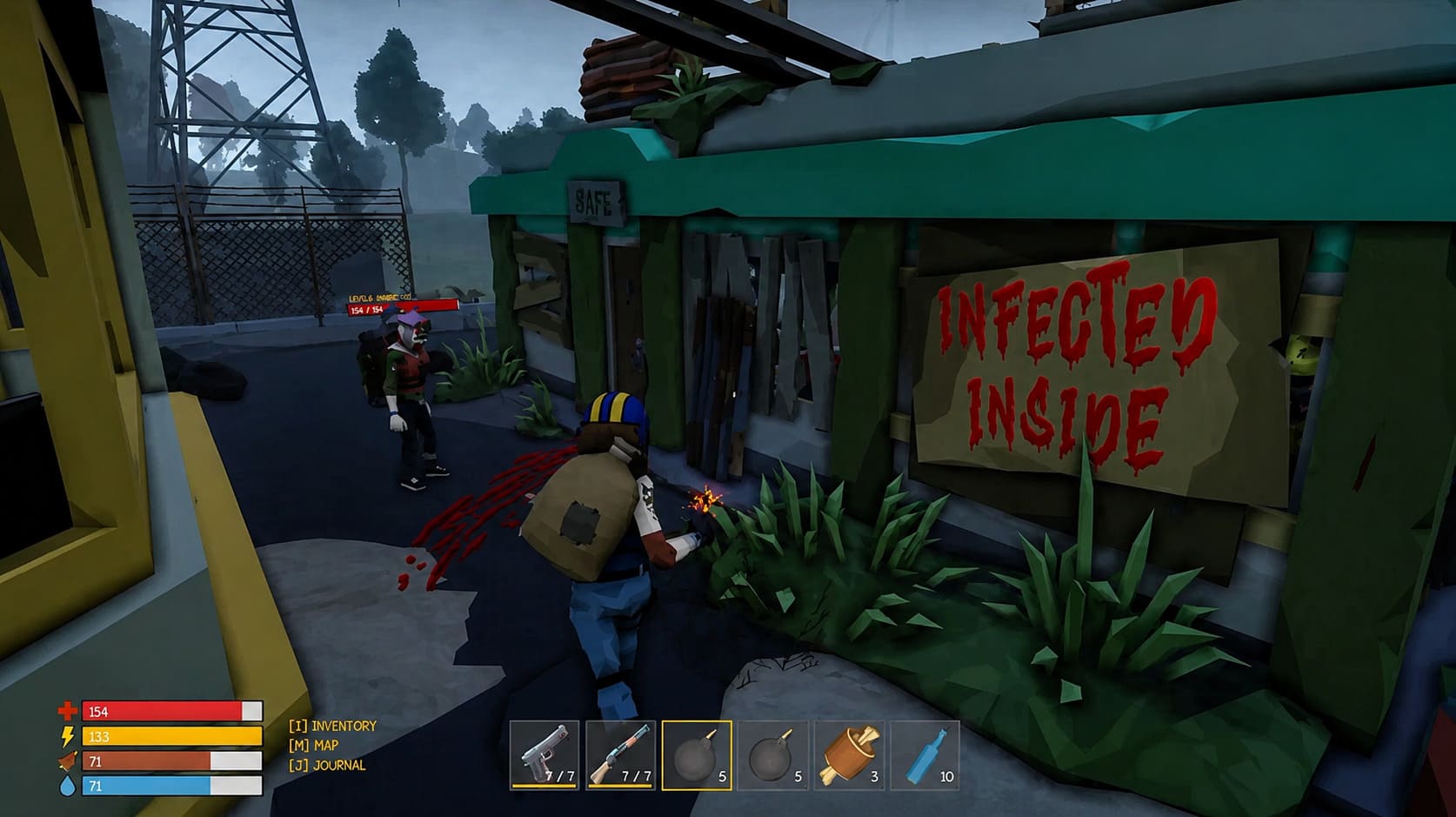
Bublig’s survival game has plenty going for it. The abandoned settlements, zombie-infested roads, mutants, hostile survivors, and huge open areas create the kind of atmosphere that makes you want to explore one more building even when you know you probably shouldn’t. The downside is that all those environments have to be streamed and processed while you move around the map, and that can expose some ugly frame-time spikes on mid-range hardware.
The GTX 1660 Super is still a perfectly respectable 1080p card. It is not going to brute-force every modern game at Ultra settings, but it absolutely should be capable of delivering a playable experience here with sensible settings. If your FPS suddenly collapses when entering a town, turning toward a large group of enemies, or sprinting through a new section of the map, these are the fixes I would try first.
The Last Disease Z RX 580 Low Spec Config: Best Settings Guide for 60 FPS
Why The Last Disease Z Stutters on GTX 1660 Super
The first thing to understand is that average FPS does not tell the whole story. You can see 60 or 70 FPS in an overlay and still have the game feel terrible if individual frames take dramatically longer to render. That is why frame pacing matters so much in an open-world survival game.
The GTX 1660 Super has 6GB of GDDR6 VRAM, which is enough for 1080p gaming in many situations. The problem is that high-resolution textures, shadows, volumetric effects, reflections, and constantly streamed world assets can push that memory surprisingly hard. Once the available VRAM becomes tight, the game may start moving data between VRAM, system RAM, and storage, and that is exactly the sort of behavior that creates those nasty little freezes.
There can also be CPU-side problems. The game has to load new objects, process AI, handle physics, and populate areas as you move through the world. When all of that happens at once, the GPU can sit there waiting for the CPU, making the FPS counter look confusingly healthy while the actual gameplay feels jerky.
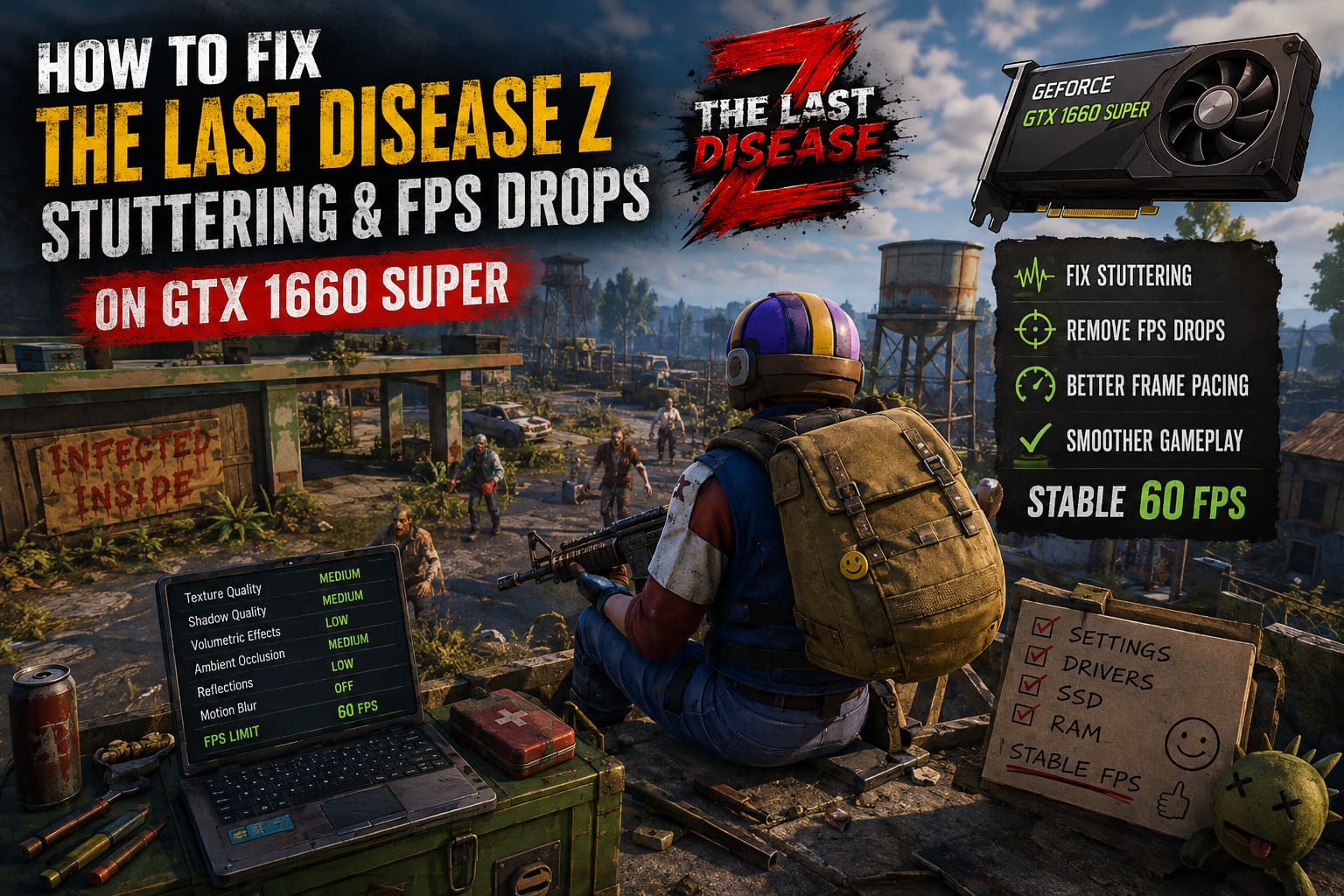
Best The Last Disease Z Settings for GTX 1660 Super
I would not start by destroying the entire graphics preset and setting everything to Low. That is usually the lazy solution, and it often makes games look considerably worse without fixing the actual source of the stuttering. Instead, target the settings that have the biggest impact on VRAM usage and frame times.
| Setting | Recommended Value | Why It Helps |
|---|---|---|
| Resolution | 1920×1080 | Good balance for GTX 1660 Super |
| Texture Quality | Medium | Reduces VRAM pressure |
| Shadow Quality | Medium | Improves GPU performance |
| Volumetric Effects | Low/Medium | Reduces heavy frame-time spikes |
| Ambient Occlusion | Medium | Keeps depth without excessive cost |
| Screen Space Reflections | Low/Medium | Helps during busy scenes |
| Motion Blur | Off | Cleaner image and less visual clutter |
Texture quality deserves special attention. It is tempting to leave textures on High because this setting often has a relatively small effect on raw FPS. The catch is that VRAM usage is a different story. On a 6GB card, I would rather sacrifice some texture quality than deal with constant asset streaming and ugly hitching every time I enter a new location.
Volumetric fog is another setting I would immediately reduce. Atmospheric effects can look fantastic in screenshots, but when a game is already struggling with frame pacing, fancy fog is not worth a sudden 20-millisecond frame-time spike while you are trying to fight a pack of zombies.
Cap Your FPS Instead of Chasing Maximum FPS
This is one of those tweaks that sounds boring but can make a surprisingly large difference. If your GTX 1660 Super is constantly jumping between 55, 72, 64, 81, and 58 FPS, the experience can feel much worse than a locked 60 FPS.
Try setting a 60 FPS limit first. If the system cannot maintain 60 consistently, test 50 or 45 FPS instead. A stable frame rate is far more enjoyable in a survival game than a higher number that constantly bounces around.
You can use the game’s built-in limiter if it behaves properly. Otherwise, an external limiter such as RTSS can give you more consistent frame pacing. I generally prefer a stable cap over running the GPU at 99–100% usage every second of the session.
NVIDIA Control Panel Tweaks for The Last Disease Z
After fixing the in-game settings, I would create a dedicated profile for The Last Disease Z in the NVIDIA Control Panel. You do not need to change every option available. A few settings are enough.
- Power Management Mode: Prefer Maximum Performance.
- Vertical Sync: Off if you are using another frame-sync method.
- Max Frame Rate: Use a stable limit such as 60 FPS.
- Shader Cache: Keep shader caching enabled and allow sufficient disk space.
The power-management setting is particularly useful for troubleshooting. If the GPU aggressively changes clocks between lighter and heavier areas, you can sometimes get inconsistent frame behavior. Locking the profile to maximum performance removes one variable from the equation.
I would not blindly force every possible NVIDIA setting to maximum performance, though. More aggressive settings are not automatically better, and changing a dozen driver options at once makes troubleshooting much harder. Change one or two things, test the game, and see whether the frame-time behavior actually improves.
Shader Compilation Can Look Like a GPU Problem
One of the most annoying forms of PC stuttering is shader compilation. You move into a new location, turn the camera, see an effect for the first time, and suddenly the game freezes for a fraction of a second. Then it happens again somewhere else.
If The Last Disease Z is building or caching shaders while you play, some stutters may be unavoidable in the current build. That does not mean your GTX 1660 Super is dying. It means the engine is doing work at exactly the wrong time.
Make sure shader caching is enabled in the NVIDIA driver and avoid constantly deleting your shader cache while troubleshooting. If you clear it before every test, you are effectively forcing the game to repeat the same compilation process.
Install The Last Disease Z on an SSD
If you are running this game from an old mechanical HDD, this would be near the top of my upgrade list. Modern open-world games constantly pull textures, models, audio, animation data, and other assets from storage. An HDD can become a serious bottleneck when the game is rapidly moving through new areas.
An SSD will not magically increase your average GPU FPS, but it can reduce the severity of asset-streaming stutters. This distinction matters. Your FPS counter might barely change after moving the game to an SSD, yet the game can still feel noticeably smoother when entering cities, military facilities, forests, and other dense areas.
Also leave some free space on the drive. A nearly full SSD is not an ideal environment for a game that is constantly reading and caching data.
Check Your RAM Before Blaming the GTX 1660 Super
Sixteen gigabytes of RAM should be the practical starting point for this type of game. If you are still using 8GB, especially in a single-stick configuration, you may be creating a system-wide bottleneck that looks like a graphics problem.
Dual-channel memory can make a meaningful difference in CPU-heavy games. Check that your RAM sticks are installed in the correct motherboard slots and that your memory profile, such as XMP or the equivalent BIOS setting, is actually enabled. Running memory at its slow default speed while wondering why an open-world game feels inconsistent is an easy mistake to make.
Disable Overlays and Background Software
I have lost count of how many times a supposedly mysterious stutter turned out to be an overlay or background application doing something stupid. The more software you have hooking into a game, the more variables you introduce.
- Disable the Discord overlay.
- Turn off Xbox Game Bar if you do not use it.
- Test the game without the Steam overlay.
- Close unnecessary browser tabs and launchers.
- Check Task Manager for unusual CPU or disk activity.
You do not have to turn your PC into a sterile gaming machine with every background process disabled. Just test the game with the obvious offenders removed. If the stuttering disappears, you can start adding programs back one at a time until you find the culprit.
Consider a Clean NVIDIA Driver Installation
If The Last Disease Z started stuttering after several driver updates, a clean driver installation is worth trying. Years of installing new drivers over old ones can leave behind profiles, shader data, and configuration remnants that occasionally cause strange behavior.
For a serious troubleshooting session, tools such as DDU can be used to remove the existing NVIDIA driver before installing a fresh Game Ready Driver. This is more work than clicking the normal update button, so I would not make it the first thing you do. If the simpler fixes fail, however, a clean driver install gives you a much cleaner baseline.
My Recommended GTX 1660 Super Setup
If I were sitting down to play The Last Disease Z on a GTX 1660 Super, I would aim for stable 1080p performance rather than maximum visual quality. Medium textures, medium shadows, reduced volumetrics, restrained reflections, and a sensible FPS cap make much more sense to me than Ultra settings followed by constant hitching.
Here is the setup I would start with:
- 1080p resolution
- Medium textures
- Medium shadows
- Low or Medium volumetrics
- Medium ambient occlusion
- Low or Medium screen-space reflections
- 60 FPS cap
- Game installed on an SSD
- 16GB or more dual-channel RAM
This is the kind of configuration I prefer for demanding Early Access games. It keeps the game looking respectable while giving the hardware enough breathing room to handle those sudden moments when the world gets busy.
Final Thoughts on The Last Disease Z Performance
The GTX 1660 Super is getting older, but I would not write it off because The Last Disease Z stutters. The card still has enough muscle for a sensible 1080p setup, and most of the problems come down to how the game manages its world, shaders, VRAM, CPU workload, and asset streaming.
The biggest mistake is chasing the highest possible FPS number. In a game like this, consistent frame times are king. A stable 50–60 FPS experience feels dramatically better than a supposedly faster setup that freezes every time you enter a new settlement.
Start with textures, volumetric effects, shadows, and an FPS cap. Then check your SSD, RAM configuration, background applications, and driver installation. If the game still produces heavy stutters after all of that, there is a good chance you are dealing with an engine or Early Access optimization issue rather than a problem you can completely solve through graphics settings.
And honestly, that distinction matters. Sometimes the best PC optimization trick is knowing when to stop blaming your hardware. The GTX 1660 Super can still put up a good fight in The Last Disease Z; it just needs a little breathing room.