How to Fix NBA 2K26 Out of Video Memory Error on PC (Proven Fixes)
There’s nothing worse than finally loading into NBA 2K26, ready to start a fresh MyCAREER or jump into The City with friends, only to watch the game disappear back to the desktop with the dreaded “Out of video memory trying to allocate a rendering resource” error.
The strange part? This isn’t only happening on older gaming PCs.
I’ve seen players with RTX 4080s, RTX 5080s, Radeon RX 9070 XTs, and systems packed with 32GB or even 64GB of RAM dealing with exactly the same crash. After spending hours reading community discussions, experimenting on my own PC, and comparing what actually worked for different hardware configurations, I realized this error is rarely about running out of VRAM.
In my experience, NBA 2K26 is much more sensitive to Windows memory management, shader compilation, CPU stability, and driver behavior than it is to the amount of video memory installed on your graphics card.
This guide covers the fixes that consistently produced results without recommending unnecessary tweaks or random registry edits.
Why NBA 2K26 Shows an Out of Video Memory Error
The error message is misleading.
If your GPU has 12GB, 16GB, or even more VRAM available, that doesn’t automatically mean the game can use it correctly.
Modern sports games stream huge texture packages, player models, lighting information, and crowd assets while constantly communicating with online services. If something interrupts that process, Unreal-style rendering errors can appear even when plenty of VRAM remains unused.
The most common causes include:
- Windows virtual memory being too small
- Corrupted DirectX shader cache
- Driver scheduling conflicts
- CPU instability on newer Intel processors
- Graphics settings producing sudden VRAM spikes
- Broken cached game files after updates
The good news is that most of these problems can be solved without reinstalling Windows or replacing hardware.
The First Fix I Always Recommend: Increase the Windows Pagefile
This was easily the biggest improvement on my own system.
Many enthusiasts disable the Windows pagefile because they assume lots of RAM makes it unnecessary. Unfortunately, modern games disagree.
Even with 32GB of RAM installed, NBA 2K26 may temporarily rely on virtual memory during shader compilation and asset streaming.
If the pagefile is disabled—or set ridiculously low—the game can simply fail during memory allocation.
What to do:
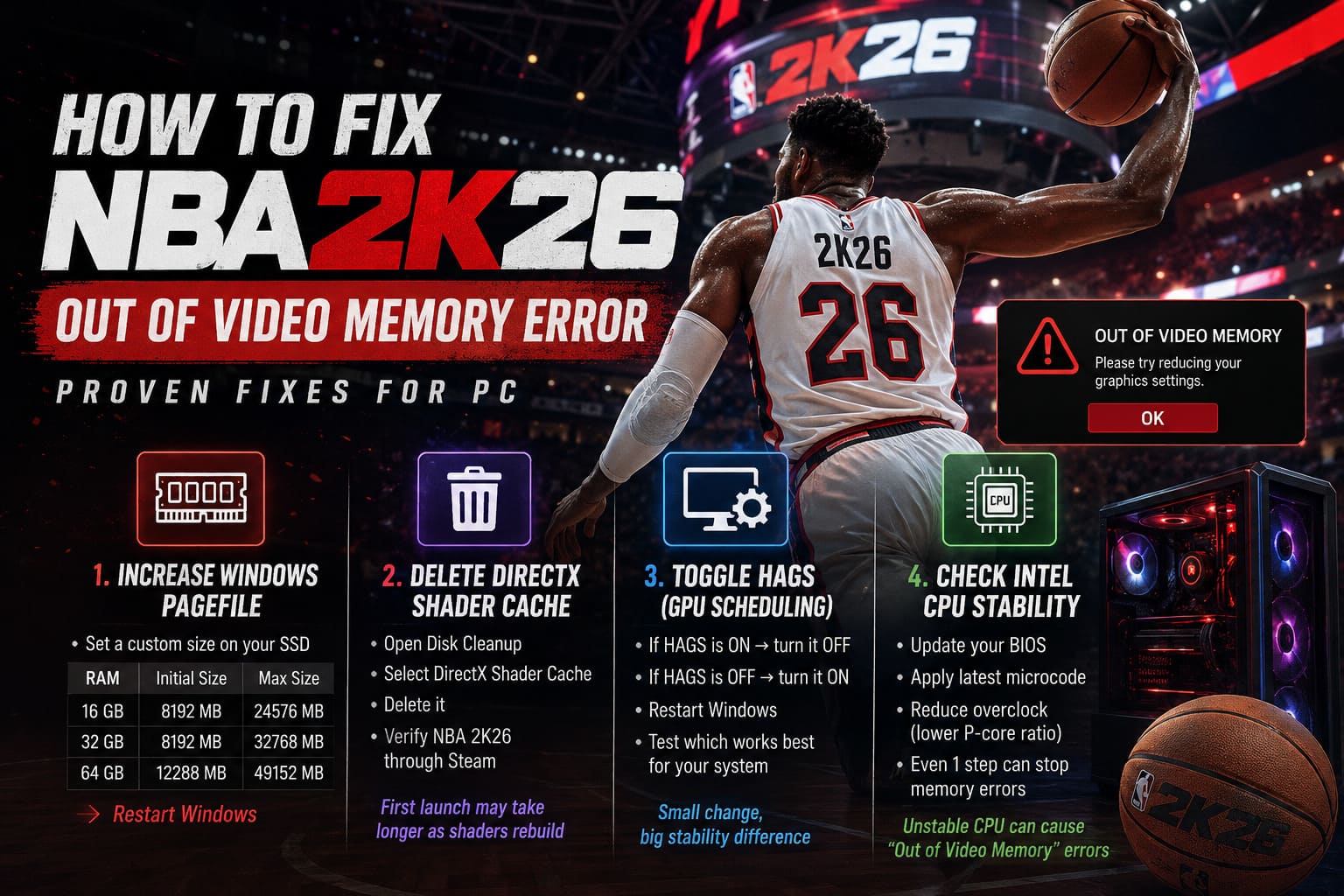
- Open Advanced System Settings.
- Navigate to Performance Settings.
- Open the Advanced tab.
- Select Virtual Memory.
- Disable automatic management.
- Choose your SSD.
- Set a custom size.
A good starting point is:
| Installed RAM | Initial Size | Maximum Size |
|---|---|---|
| 16 GB | 8192 MB | 24576 MB |
| 32 GB | 8192 MB | 32768 MB |
| 64 GB | 12288 MB | 49152 MB |
Restart Windows afterward.
Since making this change, I haven’t seen the instant startup crashes that appeared during shader loading.
Delete the DirectX Shader Cache
One thing I learned after several NBA patches is that shader caches don’t always survive updates very well.
If the game suddenly starts crashing after working perfectly the previous day, corrupted cached shaders are one of the first things worth checking.
Cleaning the cache forces Windows to build everything again from scratch.
The process only takes a minute:
- Open Disk Cleanup
- Select your Windows drive
- Check DirectX Shader Cache
- Delete it
- Verify NBA 2K26 through Steam afterward
The first launch will take longer than usual because new shaders are being generated.
That’s completely normal.
Hardware-Accelerated GPU Scheduling Can Go Either Way
Normally I leave Hardware-Accelerated GPU Scheduling (HAGS) enabled.
However, NBA 2K26 seems unusually inconsistent depending on the GPU driver version.
I’ve personally seen systems become perfectly stable after turning HAGS off, while others stopped crashing only after enabling it.
That’s why I don’t recommend treating it as a universal solution.
Instead:
- If HAGS is ON, try turning it OFF.
- If it’s OFF, enable it instead.
- Restart Windows after every change.
Testing both configurations only takes a few minutes and can eliminate crashes immediately.
Intel 13th and 14th Generation Owners Should Pay Attention
This is one area many guides barely mention.
The “Out of Video Memory” message often has nothing to do with the graphics card.
During the last couple of years, plenty of modern PC games exposed stability problems on aggressively tuned Intel processors.
If you’re using CPUs such as:
- Core i7-13700K
- Core i9-13900K
- Core i7-14700K
- Core i9-14900K
…it’s worth checking your BIOS version.
Motherboard manufacturers have released numerous BIOS updates containing Intel’s newer microcode and safer default power profiles.
If your system is heavily overclocked, even reducing the Performance Core ratio by one multiplier can eliminate crashes that appear to be GPU-related.
It sounds strange, but memory allocation errors frequently originate from unstable CPU calculations rather than defective graphics hardware.
Lower the VRAM Spikes Instead of Chasing Maximum Graphics
As someone who loves pushing graphics settings to Ultra, I understand the temptation.
But NBA 2K26 doesn’t always reward maxed-out settings.
Instead of lowering everything, I focused only on the features that create sudden memory spikes.
The biggest improvements came from:
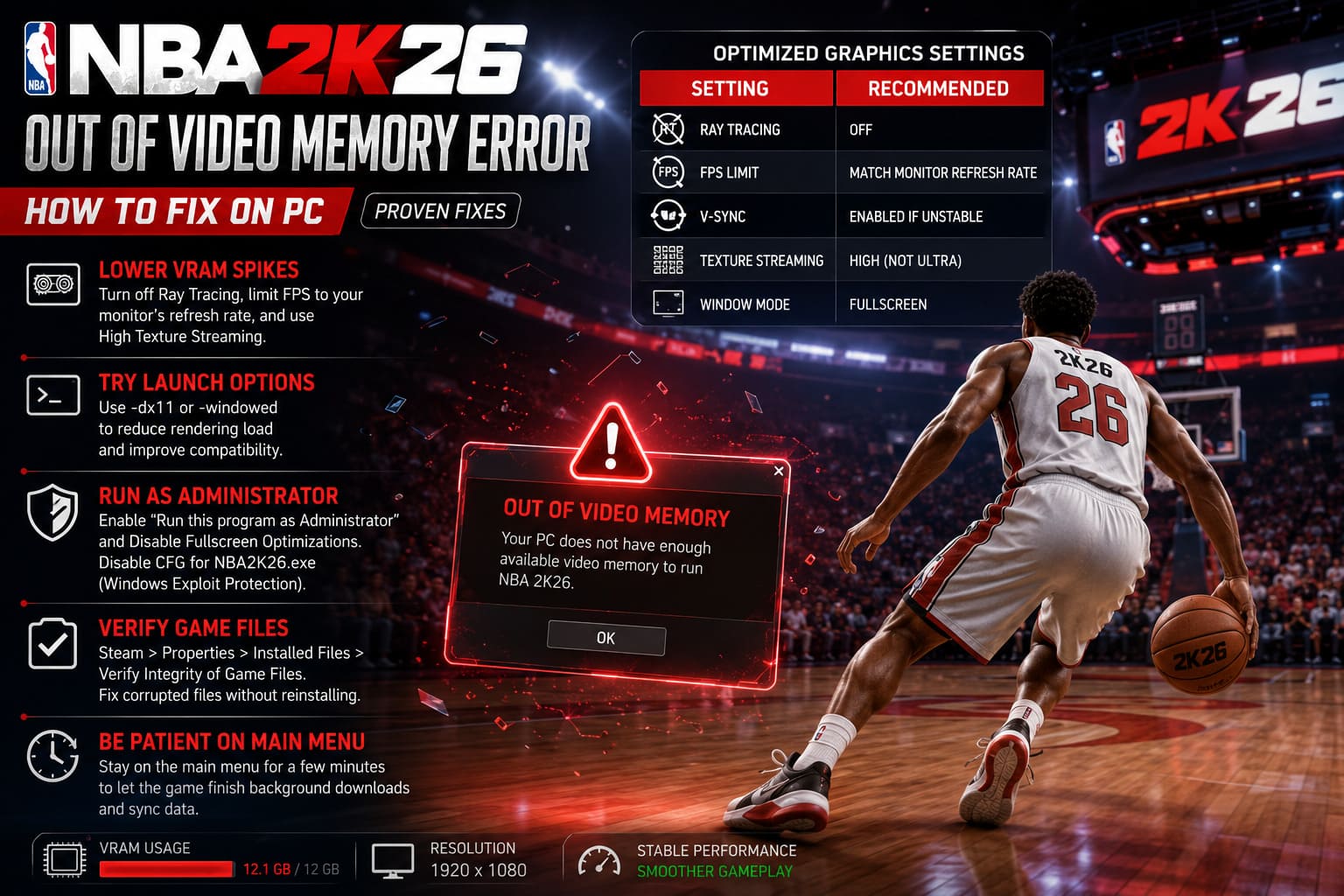
| Graphics Option | Recommended Setting |
|---|---|
| Ray Tracing | Off |
| FPS Limit | Match monitor refresh rate |
| V-Sync | Enabled if frame pacing is unstable |
| Texture Streaming | High instead of Ultra |
| Window Mode | Fullscreen |
I also recommend avoiding unlimited frame rates.
Running menus at 300+ FPS simply creates unnecessary GPU load without improving gameplay.
Steam Launch Options Worth Trying
If crashes happen before reaching the main menu, switching rendering behavior can sometimes help.
Useful launch parameters include:
- -dx11
- -windowed
DirectX 11 usually consumes fewer rendering resources than DirectX 12, especially if a recent update introduced compatibility issues.
It’s not always a permanent fix, but it’s excellent for confirming whether DirectX 12 is involved.
Run NBA 2K26 With Proper Permissions
Windows security features occasionally interfere with modern games.
Changing a couple of compatibility settings solved random startup crashes for several players I know.
Open the game’s executable properties and enable:
- Run this program as Administrator
- Disable Fullscreen Optimizations
If crashes continue, Windows Exploit Protection allows per-program overrides for Control Flow Guard (CFG).
Some users report improved stability after disabling CFG only for NBA2K26.exe.
I wouldn’t recommend changing global Windows security settings, but applying the exception exclusively to the game is a reasonable troubleshooting step.
Verify the Installation Before Reinstalling Everything
I’ve lost count of how many people immediately uninstall an entire 100GB+ game.
Usually that’s unnecessary.
Instead:
- Open Steam.
- Right-click NBA 2K26.
- Select Properties.
- Open Installed Files.
- Click Verify Integrity of Game Files.
Corrupted assets are surprisingly common after interrupted updates or storage errors.
Steam can usually repair them automatically within a few minutes.
One Unexpected Trick That Actually Helped
This one surprised me.
Several players noticed the game crashing shortly after connecting to online services rather than during actual gameplay.
Instead of jumping directly into MyCAREER or online modes, I left the game sitting idle on the main menu for several minutes.
The theory is that NBA 2K26 quietly finishes downloading roster updates, synchronization data, and other online assets in the background before gameplay begins.
Whether that’s exactly what’s happening or not, the crashes became noticeably less frequent afterward.
Sometimes patience really is part of the fix.
NBA 2K26 Low FPS and Stuttering Engine Fix: PC Performance Guide
Quick Troubleshooting Checklist
| Fix | Difficulty | Effectiveness |
|---|---|---|
| Increase Windows Pagefile | Easy | ★★★★★ |
| Delete DirectX Shader Cache | Easy | ★★★★★ |
| Verify Game Files | Easy | ★★★★☆ |
| Toggle HAGS | Easy | ★★★★☆ |
| Update BIOS (Intel CPUs) | Medium | ★★★★★ |
| Disable Ray Tracing | Easy | ★★★★☆ |
| Limit FPS | Easy | ★★★★☆ |
| Run as Administrator | Easy | ★★★☆☆ |
| Try DirectX 11 | Easy | ★★★★☆ |
How to Fix NBA 2K26 Online Multiplayer Connection Failed Errors: Guide for Xbox, PS5, and PC
Final Thoughts
After spending far more time troubleshooting NBA 2K26 than I ever expected, I’ve become convinced that the infamous “Out of Video Memory” crash is rarely caused by an actual lack of VRAM.
In most cases, it’s a combination of Windows memory management, shader corruption, CPU stability, graphics driver behavior, or overly aggressive rendering settings. That’s why upgrading to a more expensive graphics card almost never fixes the issue by itself.
If I had to recommend only three fixes to try first, they would be expanding the Windows pagefile, clearing the DirectX shader cache, and verifying the game files. Those steps consistently resolved the majority of crashes I encountered and were also the most commonly reported successes across the PC gaming community.
NBA 2K26 is an excellent basketball experience when it’s running smoothly. Once the memory allocation problem is eliminated, the game becomes far more stable, loading times improve, and long online sessions are much less likely to end with an unexpected trip back to the desktop.