How to Fix Warhounds Crash on Launch on PC (Windows 11 Guide 2026)
There are few things more annoying than buying or installing a game, waiting for it to finish downloading, and then watching it crash before you even reach the main menu. Warhounds can be especially frustrating when the problem happens immediately after pressing Play. Instead of getting into a tactical battle, you may be staring at a black screen, a frozen window, or the Windows desktop.
I’ve played enough PC games over the years to know that startup crashes are rarely caused by one magical setting. Sometimes it is a broken game file. Sometimes a GPU driver is the problem. In other cases, an overlay, shader cache, Windows component, or aggressive hardware tuning is enough to stop a game before it has even finished loading.
So rather than throwing ten random “FPS fixes” at the problem, I would work through the following checklist in order. These are the troubleshooting steps I’d personally try on a Windows 11 machine, starting with the simple fixes and moving toward the more serious ones.
Quick Warhounds Crash Fix Checklist
| Fix | What It Can Solve | Difficulty |
|---|---|---|
| Run as Administrator | Permission-related startup crashes | Easy |
| Verify Game Files | Missing or corrupted files | Easy |
| Disable Overlays | Conflicts with rendering hooks | Easy |
| Try DX11 | DX12-related crashes | Easy |
| Clear Shader Cache | Black screens and loading crashes | Easy |
| Reinstall GPU Drivers | Driver corruption | Medium |
| Repair Windows Files | Damaged system components | Medium |
| Disable HAGS | Certain GPU scheduling conflicts | Medium |
| Repair Visual C++ | Missing runtime components | Medium |
| Disable Overclocking | Hardware instability | Medium |
1. Start With Administrator Permissions
This is one of those fixes that sounds too simple, but I’ve seen it solve strange PC game problems more times than I’d like to admit.
Windows 11 is fairly aggressive about permissions. If Warhounds or its launcher is trying to access a protected folder, create configuration data, or interact with another component and doesn’t have the permissions it expects, the result can be an immediate crash.
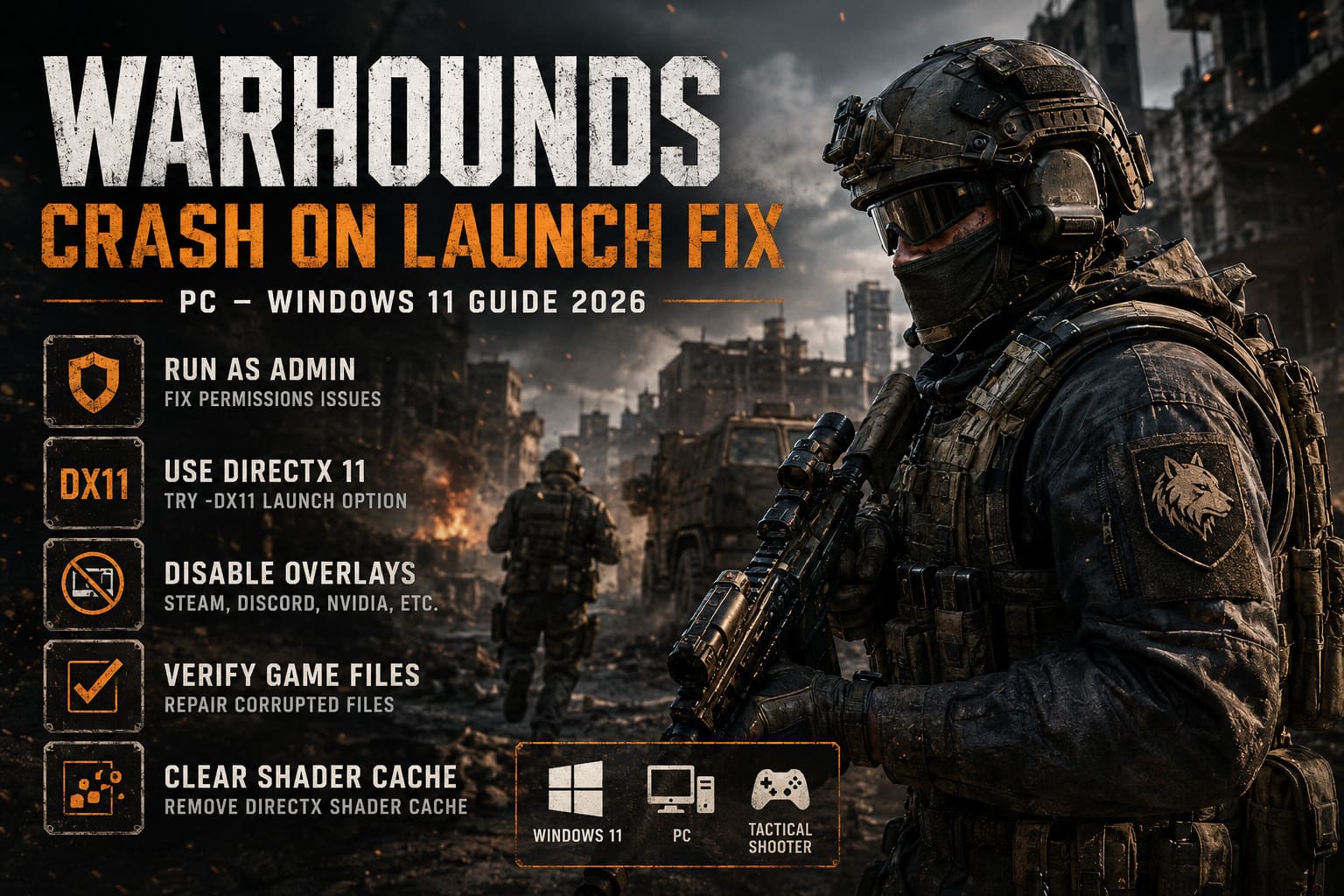
Find the game’s executable inside its installation directory. On Steam, right-click the game, choose Manage, and select Browse local files.
Find the main .exe file, right-click it, open Properties, and go to Compatibility.
Enable:
- Run this program as an administrator
- Disable fullscreen optimizations
Apply the changes and launch the game again.
I’d also test the launcher itself with administrator privileges if the game still refuses to start.
Don’t keep changing five things at once. Test the game after each major change so you know which fix actually helped.
2. Try Launching Warhounds With DirectX 11
If there’s one workaround I always keep in mind when troubleshooting a new PC game, it’s trying an alternative graphics API.
Newer games increasingly favor DirectX 12, but DX12 can expose problems involving specific driver versions, GPUs, shader compilation, or engine configurations. If Warhounds crashes during the first loading sequence, switching to DirectX 11 is worth testing.
On Steam:
- Open your Library.
- Right-click Warhounds.
- Select Properties.
- Stay on the General tab.
- Find Launch Options.
- Enter
-dx11. - Close the window and launch the game.
If that doesn’t work, some games accept -d3d11 instead, although command-line support depends on the game’s engine and implementation.
My advice: don’t assume DX11 is automatically better. It’s a troubleshooting experiment. If the game launches successfully with it, you’ve learned that the crash may be connected to the DX12 rendering path.
3. Turn Off Every Overlay You Can
This is another fix that I consider mandatory when diagnosing a crash on launch.
Overlays inject themselves into games so they can display notifications, FPS counters, recording controls, chats, or hardware information. Most of the time they work perfectly. Occasionally, two different overlay systems don’t play nicely together.
For testing, disable:
- Steam Overlay
- Discord Overlay
- NVIDIA or AMD recording/overlay features
- MSI Afterburner overlay
- RivaTuner Statistics Server
- Other FPS counters or monitoring software
Don’t just disable the visual overlay if the associated application continues running background hooks. For something like RTSS or an aggressive monitoring utility, I’d completely close it while testing.
Once Warhounds launches reliably, you can enable these programs again one at a time.
4. Verify Warhounds’ Game Files
Before doing anything complicated, make sure the installation itself isn’t damaged.
A failed update, interrupted download, corrupted archive, or unexpected shutdown can leave a game with one or two broken files. You might never notice until the game tries to load the affected asset during startup.
For the Steam version:
Library → Warhounds → Properties → Installed Files → Verify integrity of game files
Let Steam finish the entire process.
If it finds damaged or missing files, it should download replacements automatically.
This is probably the first fix I’d try after restarting the PC. It’s quick, safe, and doesn’t involve changing Windows settings.
5. Clear the DirectX Shader Cache
Shader compilation is a common source of weird behavior in modern PC games. After an update or driver change, old shader data can sometimes become incompatible with the current game environment.
Windows 11 gives you a relatively easy way to clean the DirectX shader cache.
Search Windows for Disk Cleanup, open it, select your Windows drive, and look for:
DirectX Shader Cache
Select it and remove the cached data.
The next launch may take slightly longer because the game and driver have to rebuild some shaders. That’s normal.
If you’re experiencing a black screen followed by a crash, I’d definitely put this relatively high on the troubleshooting list.
6. Clear the Steam Download Cache
If Warhounds behaves strangely after an update, Steam’s download cache is another thing I’d test.
Open Steam and go to:
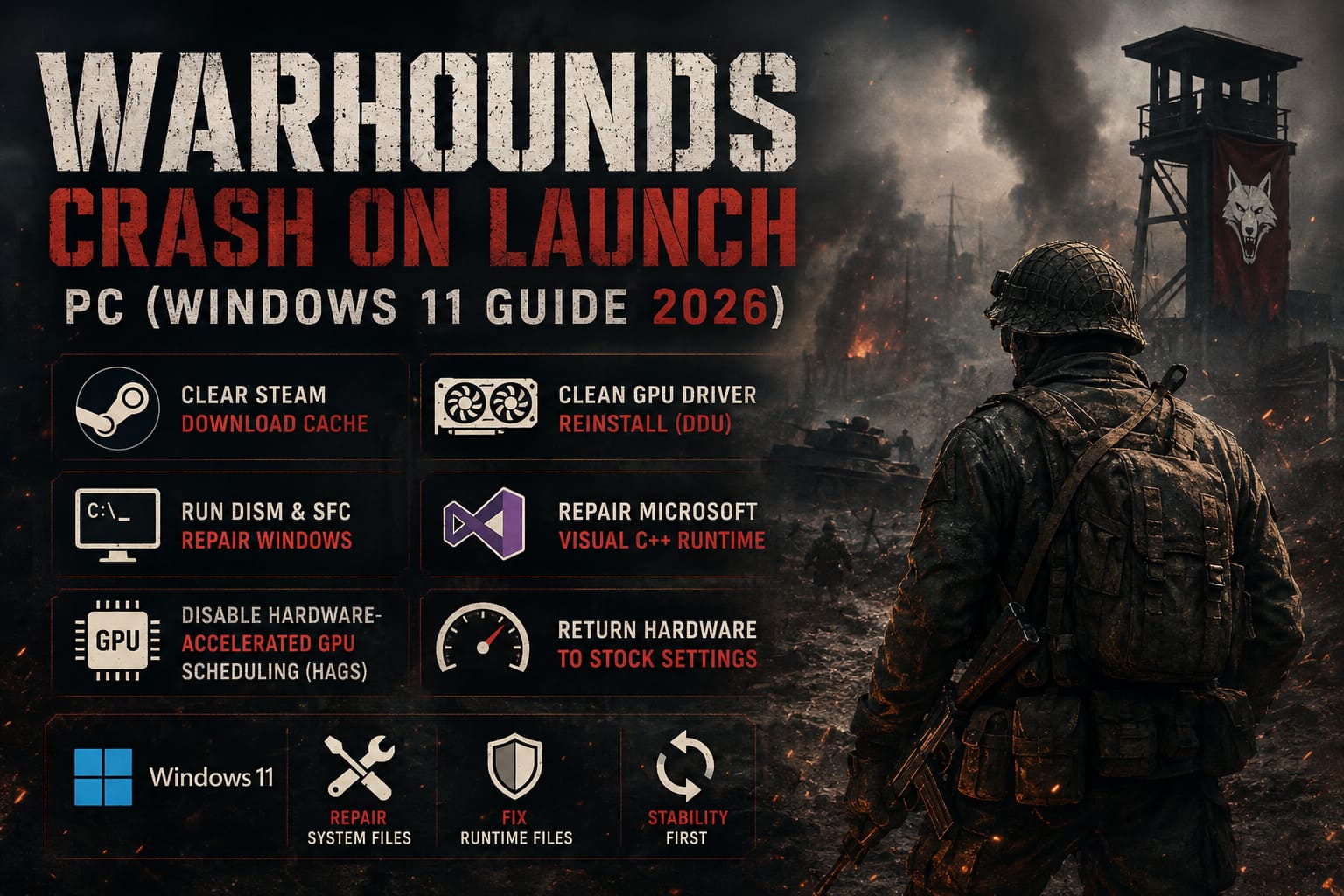
Steam → Settings → Downloads → Clear Download Cache
Steam will restart and you’ll generally need to sign back in.
This doesn’t magically repair the game itself, but it can clear problematic download data that may have appeared around a patch or installation.
7. Do a Proper GPU Driver Reinstallation
This is where I’d become more aggressive if the easy fixes haven’t worked.
Simply installing the newest NVIDIA, AMD, or Intel driver over an existing installation doesn’t always eliminate every problem. If you’ve upgraded GPUs, changed driver branches repeatedly, or experienced crashes in several different games, a genuinely clean driver installation makes more sense.
A common approach is using Display Driver Uninstaller (DDU) in Windows Safe Mode.
The general process is:
- Download DDU from its official source.
- Download the appropriate GPU driver directly from your GPU manufacturer’s website.
- Boot Windows 11 into Safe Mode.
- Run DDU.
- Select your graphics driver manufacturer.
- Choose the option to Clean and restart.
- Install the fresh driver after Windows starts normally.
- Restart once more.
I’d only go this far if basic troubleshooting fails. There is no reason to use DDU every time a game crashes once.
If Warhounds is the only game giving you trouble, I’d first suspect the game, its configuration, or its files. If several games are suddenly crashing, the GPU driver becomes a much stronger suspect.
8. Repair Windows With DISM and SFC
Sometimes the game isn’t actually the problem.
Windows relies on a huge number of system components, libraries, and supporting files. If something has become corrupted, games can fail in ways that don’t provide a useful error message.
Open Command Prompt as Administrator and run:
DISM /Online /Cleanup-Image /RestoreHealth
Allow it to finish.
Then run:
sfc /scannow
Once both commands have completed, restart your PC.
I wouldn’t run these commands every time a game crashes, but they’re worthwhile when you’ve started seeing unusual Windows behavior alongside your game problems.
9. Repair Microsoft Visual C++ Runtime Files
Some PC games depend on Microsoft Visual C++ runtime components. If the required runtime is missing or damaged, the game may simply close without giving you a useful explanation.
Install or repair the current Microsoft Visual C++ Redistributable packages, particularly the x64 and x86 versions.
If Windows gives you a Repair option instead of Install, use it.
Afterward, restart Windows and test Warhounds again.
This is particularly worth checking if you’ve recently reinstalled Windows, moved the game to another machine, or removed older Microsoft runtime packages.
10. Disable Hardware-Accelerated GPU Scheduling
Windows 11’s Hardware-Accelerated GPU Scheduling (HAGS) can be useful, but when troubleshooting a stubborn crash, I prefer removing variables rather than assuming every optimization is helping.
Go to:
Settings → System → Display → Graphics → Change default graphics settings
Find Hardware-accelerated GPU scheduling and temporarily switch it off.
Restart Windows before testing Warhounds.
If nothing changes, you can simply turn HAGS back on. I wouldn’t permanently disable a Windows feature based on one failed launch.
11. Return Your Hardware to Stock Settings
This is the fix that gets overlooked constantly.
If you’re running a CPU overclock, GPU undervolt, GPU overclock, XMP, or EXPO memory profile, your system can appear completely stable in everyday use and still crash in a particular game.
I’ve had games expose hardware instability that synthetic benchmarks never seemed to find. A demanding game isn’t just “another benchmark”; it can stress different combinations of CPU, RAM, GPU, storage, and drivers.
For testing, return everything to stock:
- Reset GPU overclocking.
- Remove GPU undervolts.
- Temporarily disable CPU overclocking.
- Disable XMP or EXPO.
- Remove custom RAM timings.
- Close tuning applications.
Then launch Warhounds.
If the crash disappears, don’t immediately blame the game. Your previous settings may simply need adjustment.
Warhounds Operator Leveling Guide: How to Level Up Operators Fast in 2026
What I’d Try First
If I were sitting at my own PC with Warhounds crashing before the main menu, I wouldn’t perform all eleven fixes immediately.
I’d use this order:
Restart PC → Verify game files → Disable overlays → Try DX11 → Clear shader cache → Update/reinstall GPU driver → Repair Windows → Test stock hardware settings.
That sequence gives you a good balance between easy fixes and deeper troubleshooting.
The biggest mistake is changing too many settings simultaneously. If you disable HAGS, reinstall your driver, clear every cache, disable XMP, and force DX11 at the same time, you may get the game working but have no idea why.
Warhounds 2026: How to Unlock All Secret Mercenary Characters
Final Thoughts
A Warhounds crash on launch in Windows 11 can look like a complicated technical problem, but in many cases it comes down to something surprisingly ordinary: a corrupted file, a graphics driver conflict, an overlay, stale shader data, or an unstable hardware profile.
I wouldn’t start by reinstalling Windows or tearing apart your entire PC. Start with the boring fixes. Verify the files, remove overlays, try DX11, and clear the shader cache. Those steps cost almost nothing and can solve a surprising number of startup problems.
If those fail, move toward a clean GPU driver installation, Windows repair commands, Visual C++ runtime repairs, and finally stock hardware settings.
And if Warhounds suddenly starts crashing after working perfectly for weeks, pay close attention to what changed immediately beforehand. A new GPU driver, Windows update, game patch, overlay update, or hardware tweak is often a much better clue than the crash itself.