How to Fix Beastfolk Barber High CPU Usage, Lag, and Stutters on PC
Beastfolk Barber looks like the kind of game your PC should be able to run without breaking a sweat. The colorful city, expressive animal characters, relaxed barber-shop gameplay, and dialogue-heavy presentation don’t exactly scream ‘CPU killer.’ Yet some PC players have discovered the annoying reality: Beastfolk Barber can sometimes push CPU usage extremely high, resulting in stutters, inconsistent frame pacing, input delay, FPS drops, and fans that suddenly sound like they’re preparing for takeoff.
That is especially frustrating because this isn’t a game where you need 200 FPS to have a good time. Beastfolk Barber is built around conversations, character interactions, hair styling, and the small decisions that shape Freddie’s working day. When the game starts hitching every few seconds while you’re trying to give a customer the perfect haircut, the cozy atmosphere disappears pretty quickly.
I’ve put together this guide for players dealing with Beastfolk Barber high CPU usage, lag, stuttering, overheating, and unstable FPS on PC. Some fixes take less than a minute, while others involve Windows or GPU settings. You don’t need to apply every tweak blindly. Start with the simple solutions and work down the list until your CPU usage and frame pacing look normal.
Beastfolk Barber Indie Game Impressions Why This Cozy Simulation Is Capturing Steam
Why Is Beastfolk Barber Using So Much CPU?
The first thing to understand is that high CPU usage doesn’t automatically mean your processor is too weak. Modern games can generate heavy CPU workloads through simulation systems, rendering preparation, physics, AI, animation, background logic, and other engine tasks.
Beastfolk Barber has more going on behind its charming presentation than you might expect. The game constantly handles NPC behavior, conversations, customer reactions, environmental elements, hair and character rendering, and various gameplay systems. If one of those systems isn’t properly optimized on a particular PC configuration, CPU utilization can climb dramatically.
There is another common culprit: uncapped FPS.
If Beastfolk Barber is allowed to render as many frames as possible, your system may produce far more frames than your monitor can actually display. Your GPU isn’t the only component working harder. The CPU also has to prepare frames, process game logic, handle draw calls, and keep the rendering pipeline moving.
That means a game running at 240 FPS can potentially consume considerably more CPU resources than the same game locked to 60 or 120 FPS.
Quick Beastfolk Barber Performance Checklist
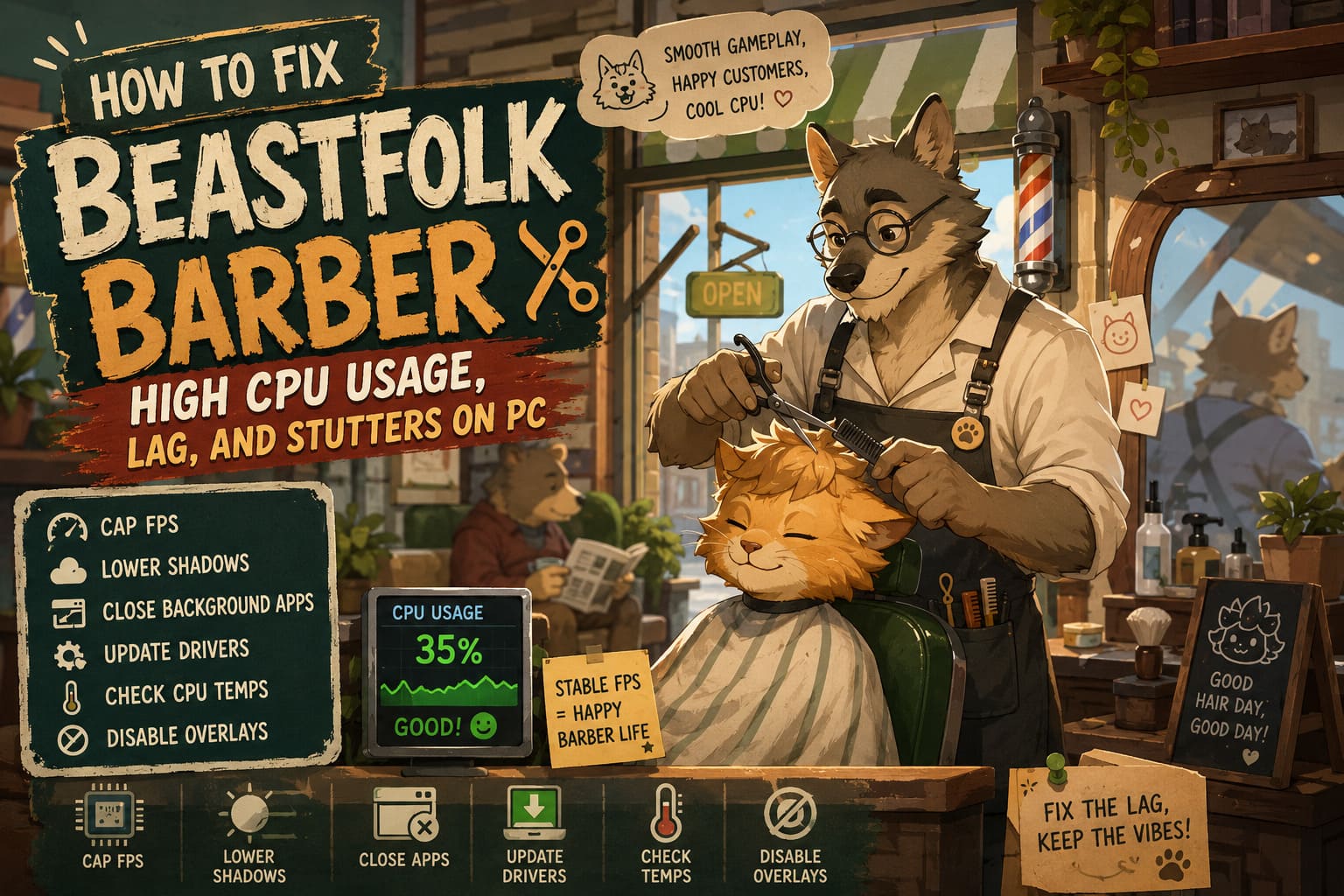
Before changing advanced Windows settings, try these basic fixes first:
- Cap the game’s FPS to 60, 120, or your monitor’s refresh rate.
- Lower Shadow Quality and other CPU-heavy graphical options.
- Disable unnecessary overlays and background applications.
- Install current GPU and chipset drivers.
- Check CPU temperatures while playing.
- Try Windows’ Above Normal process priority if stuttering persists.
- Use a performance-oriented Windows power mode when appropriate.
- Restart the PC after driver or system-level changes.
For many players, the combination of an FPS cap and fewer background applications will make the biggest difference.
1. Cap Beastfolk Barber’s FPS
If I had to recommend one fix first, this would be it.
An uncapped frame rate is one of the easiest ways to make a CPU work unnecessarily hard. Your PC might happily push 180, 220, or even 300 FPS in a relatively simple scene, but your monitor may only display 60, 120, or 144 frames per second.
You’re effectively asking the processor to do extra work that doesn’t improve what you actually see.
NVIDIA GPU Users
Open NVIDIA Control Panel and find the program-specific settings for Beastfolk Barber. Locate Max Frame Rate and set it according to your display.
A good starting point is:
| Monitor Refresh Rate | Suggested FPS Cap |
|---|---|
| 60 Hz | 60 FPS |
| 75 Hz | 75 FPS |
| 120 Hz | 120 FPS |
| 144 Hz | 144 FPS |
| 165 Hz | 165 FPS |
| 240 Hz | 240 FPS |
If your CPU is overheating or constantly sitting near 100%, try 60 FPS even if you own a high-refresh-rate monitor. For a narrative simulation game, stable frame pacing is much more valuable than chasing a huge FPS number.
AMD users can accomplish the same basic idea through AMD Software using the available frame-rate limiting options.
2. Lower CPU-Heavy Graphics Settings
Not every graphics option affects the GPU equally. Some settings increase the amount of work the CPU has to prepare before the GPU can render the final image.
Start by lowering Shadow Quality. Dynamic shadows can create additional rendering work, particularly when there are multiple characters, objects, and animated elements on screen.
You can also experiment with:
- Shadow Quality
- Ambient Occlusion
- View Distance
- Effects Quality
- Crowd or NPC density, if available
- Volumetric effects
- Reflection quality
Don’t immediately turn everything to Low. That’s usually unnecessary.
A better approach is to change one setting at a time and monitor CPU usage. If dropping shadows from Ultra to Medium suddenly removes a large portion of your CPU load, you’ve found a setting worth keeping lower.
3. Make Sure Your FPS Isn’t Fluctuating Wildly
Sometimes the problem isn’t simply ‘low FPS.’ You can have an average of 100 FPS and still experience awful stuttering.
The important metric is frame consistency.
Imagine the game delivers frames at 9 ms, 10 ms, 11 ms, 10 ms, and then suddenly takes 70 ms for one frame. The average FPS might still look respectable, but you’ll absolutely feel that hitch.
CPU spikes can create exactly this kind of inconsistent frame pacing.
Use an FPS overlay or monitoring tool to watch both FPS and CPU utilization. If the CPU repeatedly jumps toward 100% at exactly the same moment your FPS drops, the processor workload is likely part of the problem.
4. Close Background Programs
Windows loves multitasking.
Your browser is open with 25 tabs. Discord is running. Steam is downloading something. OneDrive is syncing files. Another application is recording your screen. Windows decides it needs to perform maintenance in the background.
Meanwhile, you’re trying to run Beastfolk Barber.
Open Task Manager with Ctrl + Shift + Esc and inspect the Processes tab. Sort applications by CPU usage and look for programs consuming significant processor resources.
You don’t need to close every Windows process you don’t recognize. In fact, don’t start randomly terminating system services.
Instead, close obvious unnecessary applications such as:
- Web browsers with heavy tabs
- Video editing software
- Recording applications
- Unused launchers
- Large file compression tools
- Cloud synchronization programs
- Other games
- Hardware monitoring utilities you don’t need
A few percentage points here and there may not matter. But if another application is already consuming 20–30% CPU, the difference can be significant.
5. Disable Steam and Discord Overlays
Overlays are useful, but they aren’t mandatory.
Steam’s overlay, Discord’s overlay, recording software, GPU overlays, and other background hooks can occasionally contribute to stuttering or unusual CPU behavior.
For Steam, open the application’s settings and find the In-Game section. Disable the Steam Overlay for Beastfolk Barber and test the game again.
You can do the same with Discord if you have its overlay enabled.
Don’t assume overlays are always responsible. The point is to remove additional variables while troubleshooting.
If performance improves immediately, you’ve found a conflict worth investigating.
6. Try Above Normal Process Priority
Windows normally decides how CPU resources are distributed between applications. In some cases, giving the game slightly higher scheduling priority can reduce intermittent stutters.
Launch Beastfolk Barber and leave it running.
- Press
Ctrl + Shift + Esc. - Open Task Manager.
- Go to the Details section.
- Find the Beastfolk Barber executable.
- Right-click it.
- Select Set Priority.
- Choose Above Normal.
I strongly recommend stopping there.
Don’t use Realtime priority because it sounds faster. It isn’t a magic performance mode. Giving a game extreme priority can interfere with Windows processes and other applications and may actually make the system less stable.
Above Normal is enough for testing.
If it makes no difference, return the process to Normal.

7. Check Your CPU Temperature
High CPU usage isn’t automatically dangerous, but high CPU usage combined with high temperatures can cause thermal throttling.
When your processor reaches its thermal limits, it may reduce clock speeds to protect itself. That’s when you can get the particularly annoying combination of:
100% CPU usage + high temperature + decreasing clock speed + FPS drops.
Monitor your CPU temperature while Beastfolk Barber is running.
If temperatures are unusually high, check:
- CPU cooler installation
- Case airflow
- Dust buildup
- Fan curves
- Thermal paste condition
- Background CPU usage
- Whether the CPU cooler is actually running correctly
If the system is overheating, lowering graphical settings isn’t always the real solution. You may have a cooling problem rather than a game optimization problem.
8. Update Your Chipset Drivers
Gamers often remember to update their GPU driver and completely forget about the chipset.
That’s a mistake.
Chipset drivers can influence communication between the CPU, motherboard, storage, USB devices, and other hardware. Modern CPUs also rely heavily on sophisticated scheduling and power-management behavior.
Install the latest chipset package appropriate for your platform from the official AMD or Intel support resources.
After installing it, restart your PC and test Beastfolk Barber again.
Don’t use random driver-download websites. Get chipset and BIOS files from your motherboard manufacturer or CPU platform’s official support pages.
9. Check for a BIOS Update
BIOS updates can sometimes improve CPU scheduling, memory compatibility, power management, and system stability.
However, this is one tweak where I wouldn’t tell everyone to immediately flash their BIOS.
If your computer is stable and your BIOS is reasonably current, don’t update it simply because one game is using too much CPU. BIOS flashing carries more risk than changing an in-game graphics setting.
If your motherboard manufacturer has released a newer BIOS specifically addressing CPU compatibility, system stability, or scheduling problems relevant to your hardware, then it may be worth considering.
Follow the motherboard manufacturer’s instructions exactly.
10. Experiment With Windows Power Settings
Power management can have a noticeable impact on gaming performance, especially on laptops.
If Windows is aggressively prioritizing energy savings, the processor may change clock speeds more frequently. That can create inconsistent performance when the game suddenly needs additional CPU resources.
On desktop systems, try a performance-oriented Windows power mode and compare the results.
On laptops, keep in mind that maximum performance usually means:
more heat + more fan noise + lower battery life.
Don’t leave an aggressive performance mode enabled permanently if you don’t need it.
For Beastfolk Barber, you may find that the normal balanced mode already provides perfectly smooth performance once the FPS is capped.
11. Don’t Ignore Windows Updates
Windows itself can occasionally be the source of strange performance behavior.
Make sure your operating system is fully updated, particularly if you’re experiencing CPU spikes across multiple games rather than just Beastfolk Barber.
The distinction matters.
If Beastfolk Barber alone consumes 95–100% CPU while everything else behaves normally, the game or its engine configuration becomes a much stronger suspect.
If several games suddenly show abnormal CPU usage, investigate your Windows installation, drivers, background software, temperatures, and hardware.
12. Test With a Clean Launch
For serious troubleshooting, create a controlled test.
Restart the PC.
Don’t launch Discord. Don’t open Chrome. Don’t start recording software. Don’t run another game. Start Steam, launch Beastfolk Barber, and load the same area where you normally experience stuttering.
Now compare CPU utilization and frame pacing.
This simple test can tell you more than changing ten settings simultaneously. If performance is suddenly smooth, a background application or overlay is probably involved.
If the CPU still sits near 100% even after an FPS cap, you’ve eliminated one of the biggest variables.
What Settings Should You Use?
For a mid-range gaming PC, I’d start with something conservative rather than immediately dropping everything to Low.
| Setting | Recommended Starting Point |
|---|---|
| FPS Limit | Monitor Refresh Rate |
| Shadows | Medium |
| Ambient Occlusion | Medium/Off |
| Textures | High |
| Effects | Medium |
| Resolution | Native |
| Frame Generation | Off for troubleshooting |
| Overlays | Disabled during testing |
The goal isn’t to make Beastfolk Barber look ugly.
The goal is stable performance.
There’s little value in gaining 30 extra FPS if the game constantly produces random frame-time spikes.
Beastfolk Barber Still Uses 90–100% CPU
If you’ve capped FPS, closed background programs, disabled overlays, updated drivers, checked temperatures, and lowered CPU-heavy settings, but Beastfolk Barber still consumes nearly the entire processor, don’t immediately assume your hardware is defective.
The game itself may have an optimization problem.
New releases and demos can ship with inefficient CPU scheduling, excessive background simulation, poor frame limiting, shader compilation behavior, or engine-specific bugs. These problems are often improved through patches after launch.
Pay attention to whether the high CPU usage happens:
- Only in certain locations
- During conversations
- When entering the barber shop
- During camera movement
- When many NPCs are visible
- At the main menu
- Even when the game is paused
That information can help identify whether the issue is connected to rendering, simulation, or an actual runaway process.
Best Fixes for Beastfolk Barber CPU Problems
If you don’t want to spend an entire evening tweaking Windows, I’d follow this order:
- Cap FPS.
- Lower shadows and other heavy settings.
- Disable Steam and Discord overlays.
- Close unnecessary background applications.
- Check CPU temperatures.
- Update GPU and chipset drivers.
- Test Above Normal process priority.
- Try a performance-oriented Windows power mode.
- Check for BIOS and Windows updates.
- Wait for a game patch if the problem clearly appears to be engine-related.
This approach keeps troubleshooting logical instead of turning your PC into a science experiment.
Final Thoughts
Beastfolk Barber is the kind of game where smooth frame pacing matters more than massive FPS numbers. You’re spending time talking to customers, shaping hairstyles, exploring the city, and watching Freddie’s story unfold. Constant CPU spikes and hitching can wreck that experience even when the game technically reports a decent average frame rate.
The good news is that high CPU usage doesn’t automatically mean you need a new processor. In many cases, an FPS cap, a few sensible graphics adjustments, cleaner background processes, and updated drivers are enough to bring the workload back under control.
If none of those fixes work, keep an eye on future Beastfolk Barber patches. When a game consistently produces abnormal CPU behavior across different hardware configurations, the long-term solution may need to come from the developer rather than another Windows tweak.
For now, lock the FPS first, keep an eye on temperatures, eliminate background software, and prioritize stable frame times over benchmark numbers. Your virtual barber shop doesn’t need 300 FPS. It just needs to stop stuttering while you’re trying to give the next customer a decent haircut.