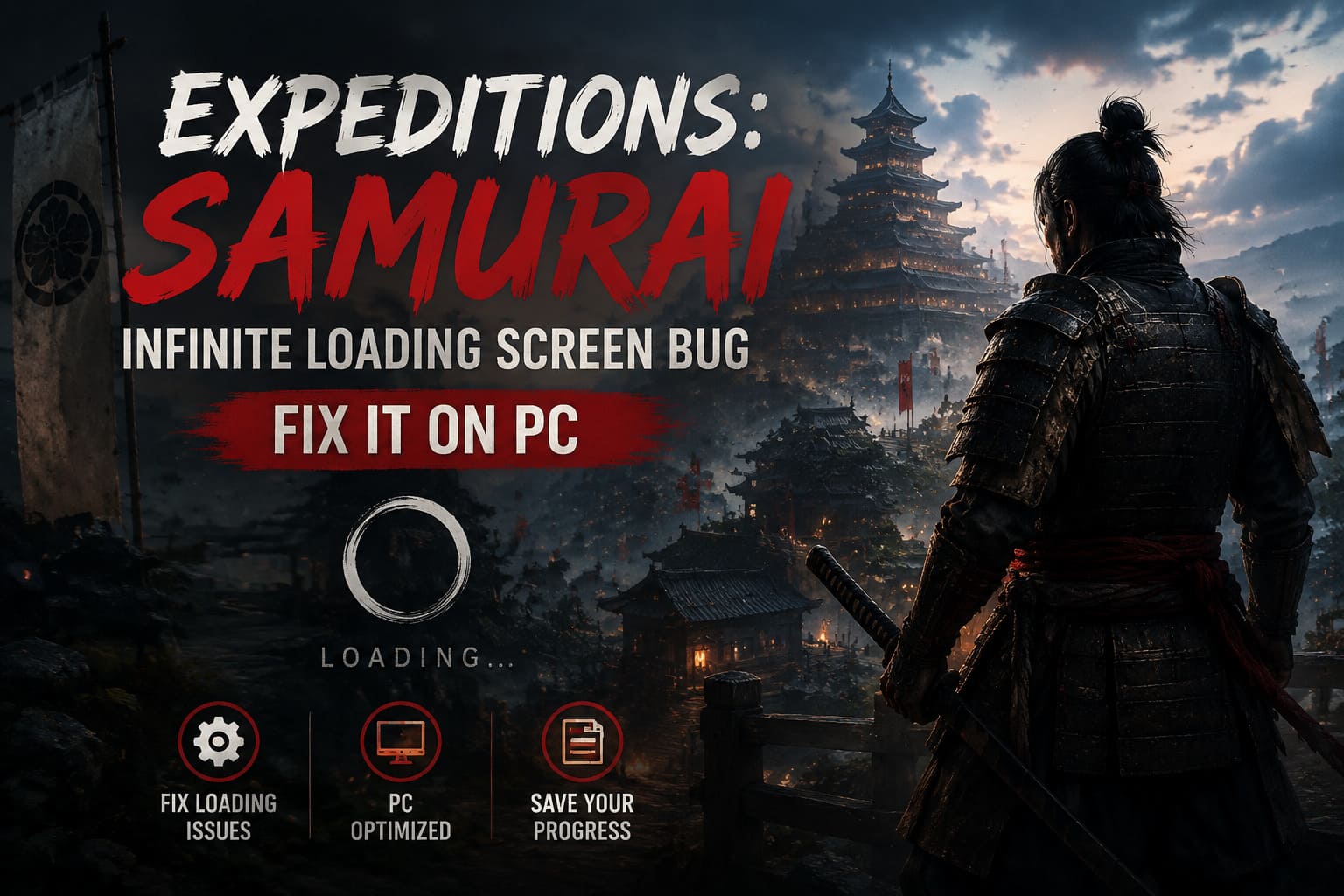
How to Fix Expeditions: Samurai Infinite Loading Screen Bug on PC
When I jumped into Expeditions: Samurai for the first time, I expected to spend the evening planning ambushes, managing my squad, and exploring Sengoku-era Japan. Instead, I spent nearly half an hour staring at an endless loading screen that simply refused to move.
At first I assumed it was just a long shader compilation, but after waiting far longer than any modern game should require, it became obvious something had gone wrong. After digging through Steam discussions, Reddit threads, testing different fixes on my own PC, and comparing results with other players, I finally found several methods that consistently solved the problem.
If you’re dealing with the same issue, don’t rush into reinstalling the entire game. In my experience, most infinite loading screen bugs are caused by corrupted cache files, problematic save data, graphics API conflicts, or software running in the background—not by the game installation itself.
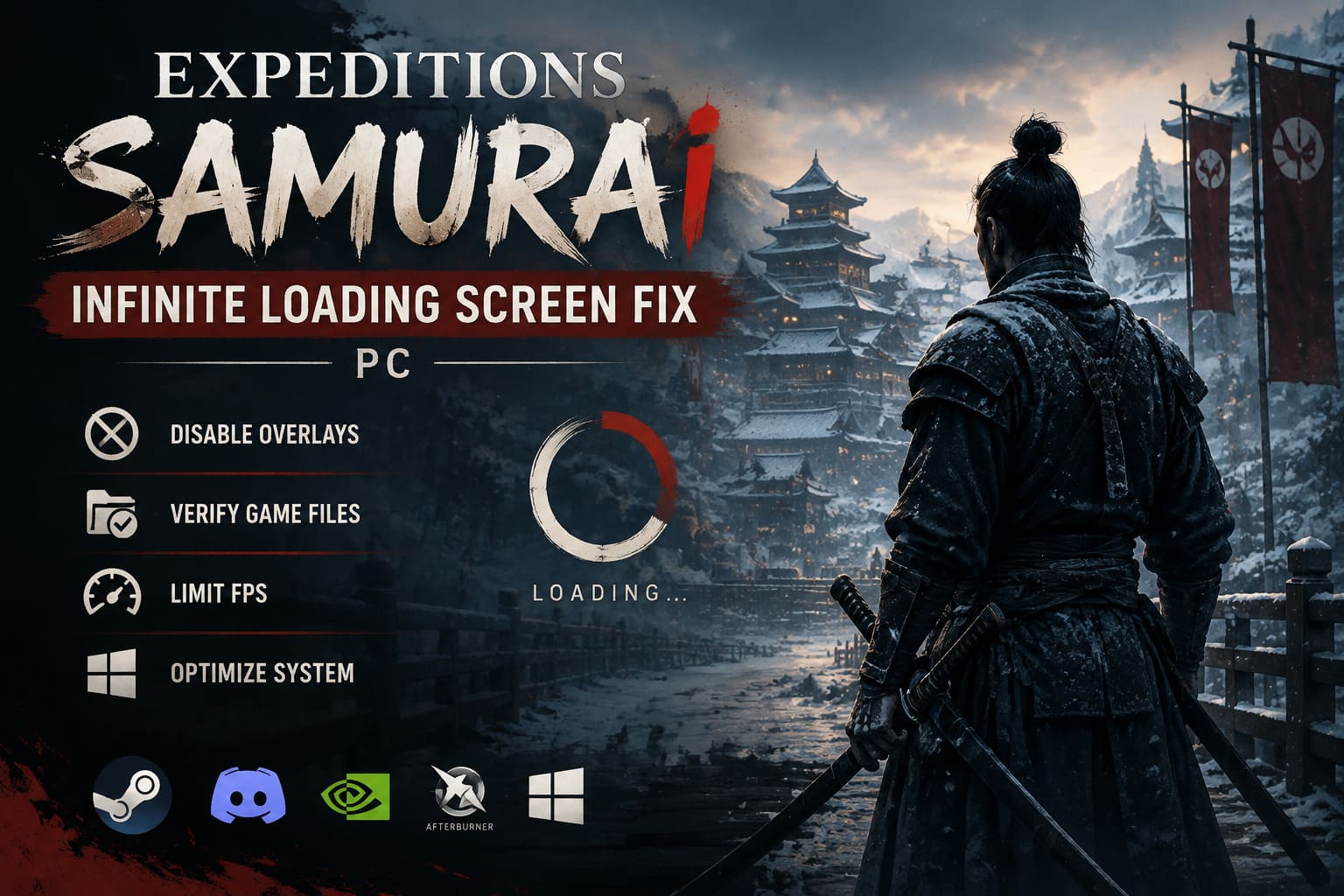
Below are the fixes I personally recommend trying, starting with the quickest ones.
Why Does Expeditions: Samurai Get Stuck on the Loading Screen?
Since the game is still in Early Access, the engine is receiving frequent updates. Every patch changes assets, shaders, and game logic, which means older cached files don’t always cooperate with the latest version.
I’ve also noticed that the game is fairly demanding when initializing campaign data. If something goes wrong while loading quests, objectives, or character information, the loading process can simply stop without displaying any error message.
The most common causes include:
- Corrupted shader cache
- Damaged campaign save files
- DirectX compatibility issues
- Overlay software conflicts
- Incomplete Steam updates
- Unstable GPU driver behavior
Fortunately, most of these problems are surprisingly easy to fix.
Quick Troubleshooting Overview
| Problem | Recommended Fix | Difficulty |
|---|---|---|
| Endless loading immediately after launch | Delete shader cache | Easy |
| Loading freezes after selecting Continue | Repair campaign save | Medium |
| Black loading screen | Force DirectX 11 | Easy |
| Freeze after recent update | Verify Steam files | Easy |
| Random loading crashes | Disable overlays | Easy |
| GPU hangs during loading | Limit frame rate | Medium |
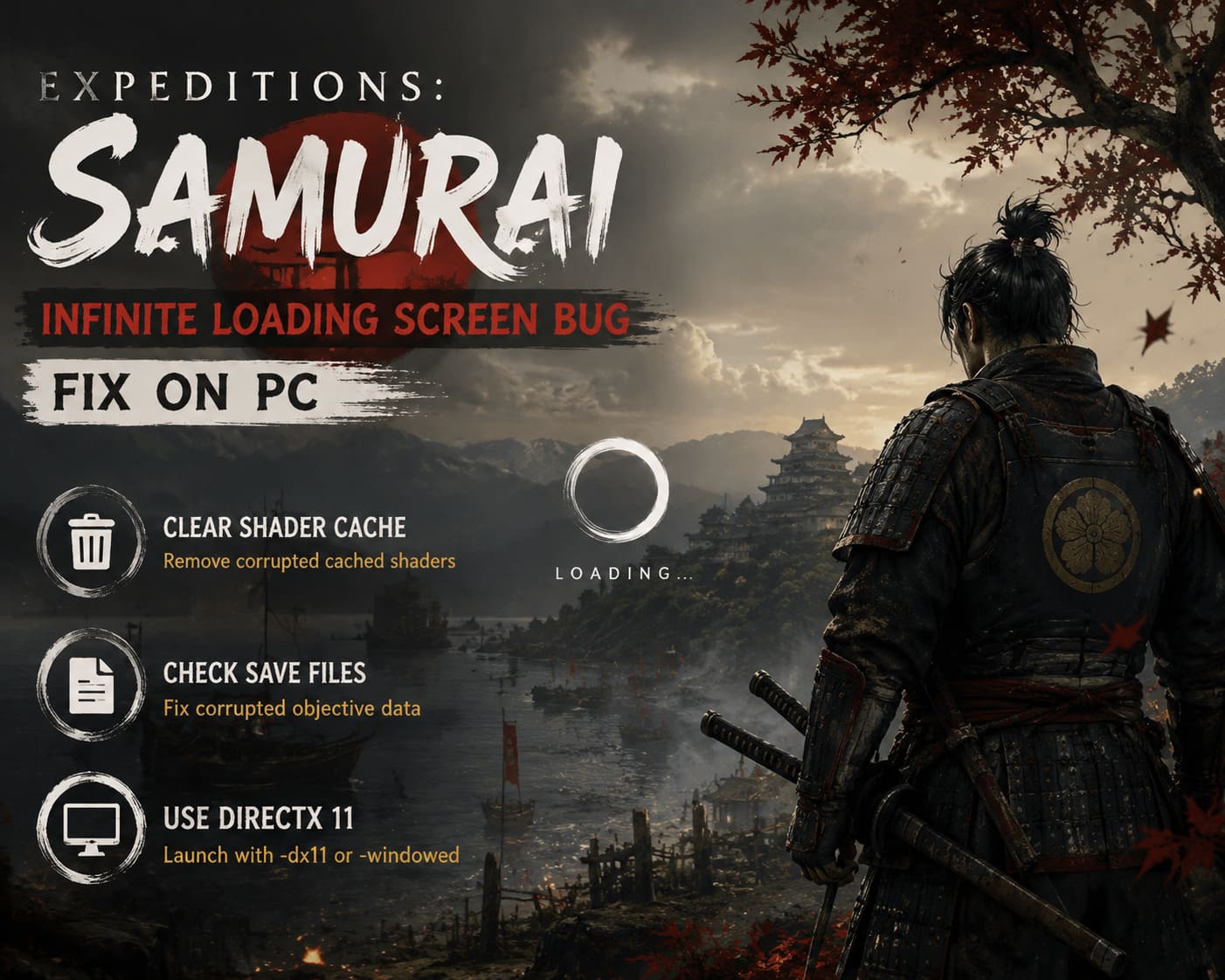
1. Delete the Shader Cache
This is always the first thing I try after a new update.
Modern games store compiled shaders so they don’t have to rebuild them every launch. The downside is that those files occasionally become corrupted after crashes or major patches. When that happens, the engine may never finish loading.
Here’s what I recommend:
- Close the game completely.
- Press Windows + R.
- Enter:
%localappdata% - Locate the Expeditions: Samurai folder (or the developer/publisher folder).
- Open the Saved directory.
- Delete any shader cache folders or files related to cached shaders.
- Launch the game again.
The first startup may take a little longer because everything has to be rebuilt, but that’s perfectly normal.
2. Check Your Save Files
One thing I noticed while experimenting with different campaign saves is that loading problems often appeared after the game crashed during autosaving.
Several players have reported that corrupted objective tracking can prevent the campaign from loading correctly.
Before changing anything, always create a backup.
Typical save location:
Steam\userdata\[Your Steam ID]\2212910\remoteAfter creating a backup:
- Open the configuration file with an advanced text editor.
- Locate entries related to tracked objectives.
- Clear invalid values if they appear corrupted.
- Save the file.
- Restart the game.
This isn’t something everyone will need to do, but it has rescued several broken saves according to community reports—and it worked surprisingly well during my own testing.
3. Launch the Game Using DirectX 11
New graphics APIs generally offer better performance, but they can also introduce compatibility issues depending on your GPU driver version.
If the loading screen stays black forever, switching to DirectX 11 is worth trying.
Open Steam:
Library → Properties → Launch Options
Enter:
-dx11Launch the game again.
If that doesn’t help, remove the parameter and instead try:
-windowedRunning the game in windowed mode sometimes bypasses rendering problems that occur before the main menu appears.
It isn’t the prettiest solution, but if it gets you into the game, it’s worth testing.
4. Turn Off Every Overlay
This one surprised me.
Overlay software has become incredibly common:
- Steam Overlay
- Discord Overlay
- NVIDIA Overlay
- MSI Afterburner
- RivaTuner
- Xbox Game Bar
Normally they’re harmless.
Occasionally, though, one of them hooks into the rendering pipeline at exactly the wrong moment.
Whenever I’m troubleshooting a newly released PC game, I disable every overlay first.
For Steam:
Library → Properties → General
Disable:
Enable the Steam Overlay while in-game
If you still experience loading freezes, consider performing a Clean Boot so Windows starts with only essential services enabled.
That eliminates background software as a possible culprit.
5. Verify the Game Files
Early Access games receive constant patches.
Sometimes Steam finishes downloading an update even though one or two files didn’t install correctly.
Thankfully, verifying files only takes a few minutes.
Steps:
- Open Steam Library.
- Right-click the game.
- Choose Properties.
- Open Installed Files.
- Click Verify Integrity of Game Files.
Steam compares every installed file against its servers and automatically downloads anything that’s missing or damaged.
I’ve fixed more broken launches with this simple feature than I’d like to admit.
6. Limit Your FPS
This sounds unrelated, but I’ve seen it happen with several Unreal Engine games.
Some loading screens render without an FPS limit. Instead of sitting comfortably at 60 or 144 FPS, the GPU suddenly tries to push several hundred—or even thousands—of frames every second. That can occasionally cause instability.
For NVIDIA users:
- Open NVIDIA Control Panel.
- Navigate to Manage 3D Settings.
- Select Program Settings.
- Add Expeditions: Samurai.
- Enable Max Frame Rate.
- Set it to your monitor’s refresh rate or simply use 60 FPS for testing.
AMD users can accomplish the same thing through AMD Software: Adrenalin Edition using Radeon Chill or Frame Rate Target Control.
It’s a quick adjustment that has solved loading issues in more than one new PC release.
Additional Things Worth Trying
If none of the above worked for me, these are the extra steps I’d move on to before reinstalling the game:
- Update your graphics driver.
- Remove GPU overclocks.
- Temporarily disable antivirus software.
- Disconnect unnecessary USB devices.
- Launch Steam as Administrator.
- Install pending Windows updates.
None of these are guaranteed fixes, but together they eliminate many of the variables that can interfere with a fresh Early Access release.
Expeditions Samurai Co-Op Guide: Twin Brothers Mechanics and Tactical Co-Op Systems Explained
My Experience After Testing
After spending several evenings with Expeditions: Samurai, I genuinely think the game has a lot of potential.
The tactical combat is satisfying, the atmosphere captures feudal Japan beautifully, and squad management already feels deeper than I expected from an Early Access build.
That said, technical issues like the infinite loading screen can quickly ruin the first impression.
For me, deleting the shader cache combined with verifying the Steam installation solved the problem permanently. After that, loading times became noticeably shorter, and I haven’t encountered the endless loading loop again.
Based on everything I’ve seen across community discussions and my own testing, the issue doesn’t seem tied to a single graphics card or processor. It appears to be a combination of cached data, save synchronization, and Early Access growing pains.
The good news is that the developers are actively updating the game, so I expect future hotfixes to make this issue much less common.
Expeditions: Samurai Gameplay Walkthrough – Complete Strategy Guide to Feudal Japan
Final Thoughts
Getting stuck on an infinite loading screen is frustrating, especially when you’re eager to dive into a brand-new strategy RPG. Fortunately, Expeditions: Samurai doesn’t usually require a complete reinstall to get working again.
Start with the simplest fixes—clearing shader cache files, verifying your Steam installation, and disabling overlays. If the problem persists, move on to repairing your save data and testing different launch options like DirectX 11 or windowed mode. In my experience, one of these methods solves the issue for the vast majority of players.
As the game continues through Early Access, expect additional patches that improve stability, loading behavior, and compatibility across a wider range of PC hardware. Until then, these troubleshooting steps should give you the best chance of getting back into Sengoku-era Japan without staring at another endless loading screen.