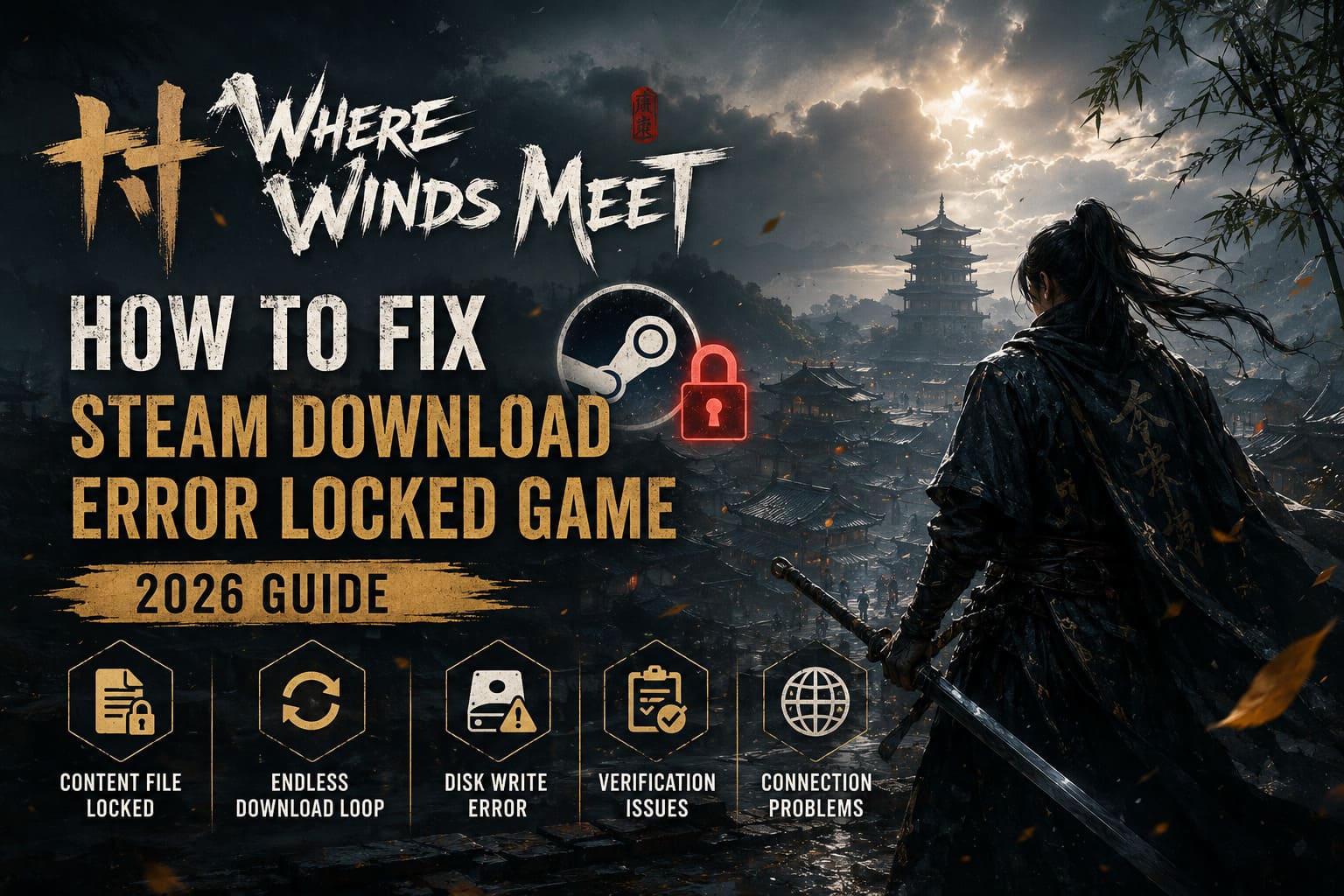
How to Fix Where Winds Meet Steam Download Error Locked Game (2026 Guide)
I have played PC games for well over a decade, and if there’s one thing I’ve learned, it’s that launch week problems are almost inevitable. Whether it’s an MMO, a massive RPG, or an online action game, there’s always one issue that ends up affecting thousands of players at the same time.
Where Winds Meet is no exception.
The game itself is fantastic. Its blend of Wuxia combat, exploration, historical China, and open-world freedom easily makes it one of the most interesting releases of 2026. Unfortunately, many PC players never even reach the character selection screen because Steam throws errors like Content File Locked, Disk Write Error, endless download loops, or freezes during patch installation.
I personally ran into the download validation loop after one of the early updates. Steam insisted that several gigabytes needed downloading again, then suddenly started verifying files forever before reporting another error. After trying multiple solutions—and reading through countless Steam discussions, Reddit posts, and community recommendations—I finally found what consistently works.
This guide combines those experiences into one place. Instead of throwing random fixes at you, I’ll explain why these problems happen and which solutions are actually worth your time.
Why Does Where Winds Meet Keep Locking Files on Steam?
Unlike many traditional Steam games, Where Winds Meet uses a fairly complex launcher structure combined with online authentication and frequent asset updates.
Whenever Steam patches the game, several things happen simultaneously:
- Large archive files are replaced.
- Background authentication checks run.
- Steam validates every modified file.
- Windows security software may begin scanning new data.
If even one of those processes refuses to release a file, Steam reports it as Content File Locked, even if the file itself isn’t damaged.
In my experience, the problem becomes much more common after major content updates.
The Most Common Errors
| Error | Possible Cause | Difficulty to Fix |
|---|---|---|
| Content File Locked | File in use by Windows or Steam | Easy |
| Endless Download Loop | Corrupted patch cache | Easy |
| Disk Write Error | Drive permissions or storage issue | Medium |
| Verification Never Finishes | Damaged game files | Medium |
| Failed to Retrieve Character Data | Network or regional connection issue | Medium |
Most players only experience one of these, but sometimes they’re connected.
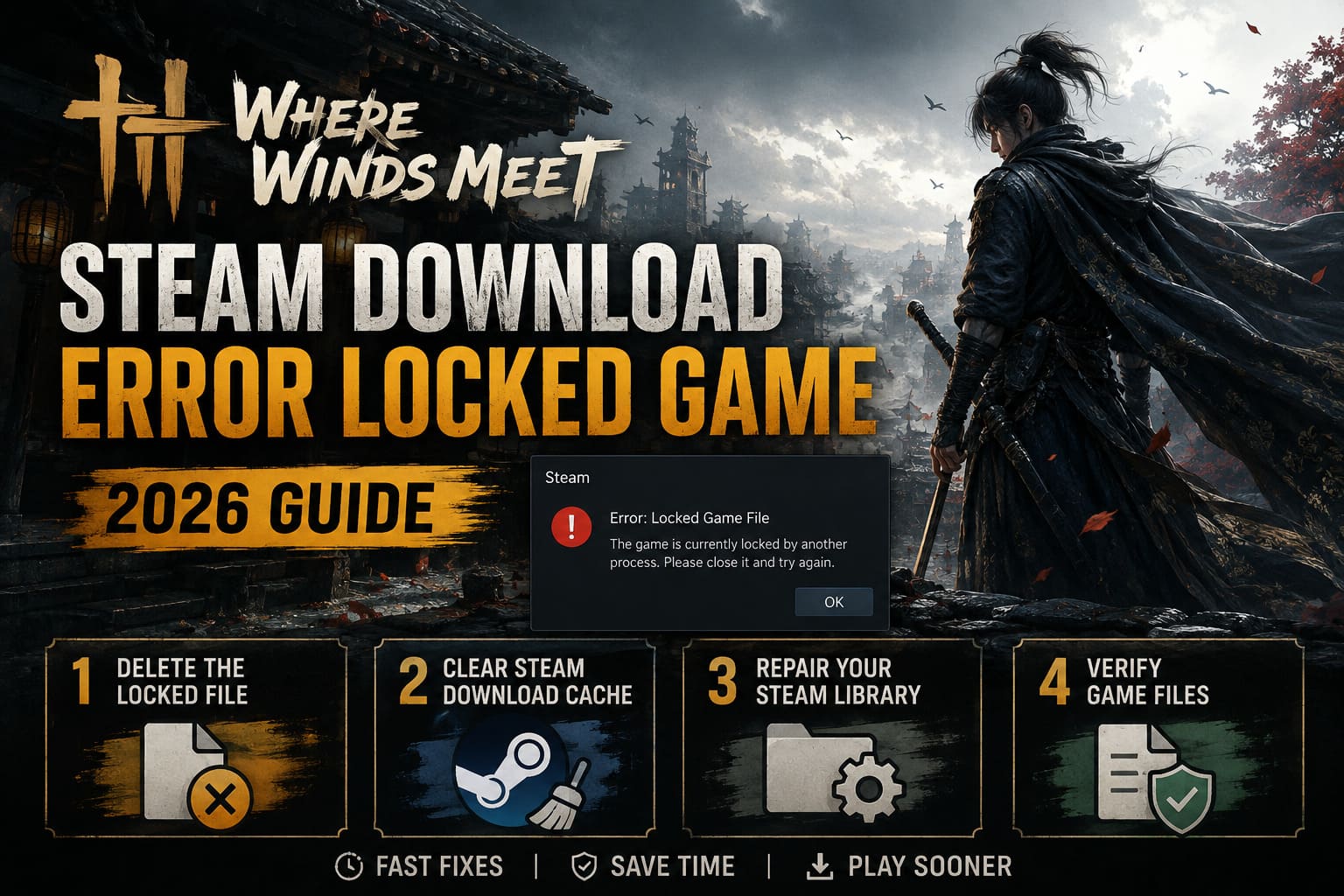
Fix 1: Delete the Locked File Instead of Reinstalling Everything
This was the first solution that actually worked for me.
Many people immediately uninstall the entire 90+ GB game.
Don’t.
Usually only one file is causing the entire installation to fail.
Here’s what I recommend:
- Close Steam completely.
- Open Task Manager and end every Steam-related process.
- Navigate to your game installation folder.
- Find the exact file Steam reports as locked.
- Delete only that file.
- Launch Steam again.
- Resume the update.
Steam will automatically download a fresh copy of the missing file.
This takes minutes instead of downloading the whole game again.
Fix 2: Clear Steam’s Download Cache
One thing I’ve noticed over the years is that Steam’s download cache can become surprisingly stubborn after interrupted updates.
Whenever a patch crashes halfway through, Steam sometimes keeps trying to install broken temporary files.
Clearing the cache removes those leftovers.
The process is simple:
- Open Steam Settings.
- Go to Downloads.
- Click Clear Download Cache.
- Log back into Steam.
- Restart the download.
After that, verify the game files before launching.
For many players, this alone fixes endless validation loops.
Fix 3: Repair Your Steam Library
This is one of Steam’s most overlooked features.
If your drive permissions become corrupted—or Windows changes ownership after an update—Steam may lose write access to certain folders.
Repairing the library often restores those permissions automatically.
Navigate to your storage settings inside Steam, repair the library folder, and then verify the game files afterward.
It’s a quick fix that can save a full reinstall.
Fix 4: Verify the Game Files
I almost always do this before trying anything more complicated.
Steam’s file verification compares every installed file against the latest version on its servers.
If something is missing or corrupted, Steam replaces only the damaged data.
It’s especially useful after:
- Interrupted downloads.
- Unexpected PC shutdowns.
- Failed updates.
- SSD write errors.
The scan can take several minutes, but it’s worth waiting for it to finish.
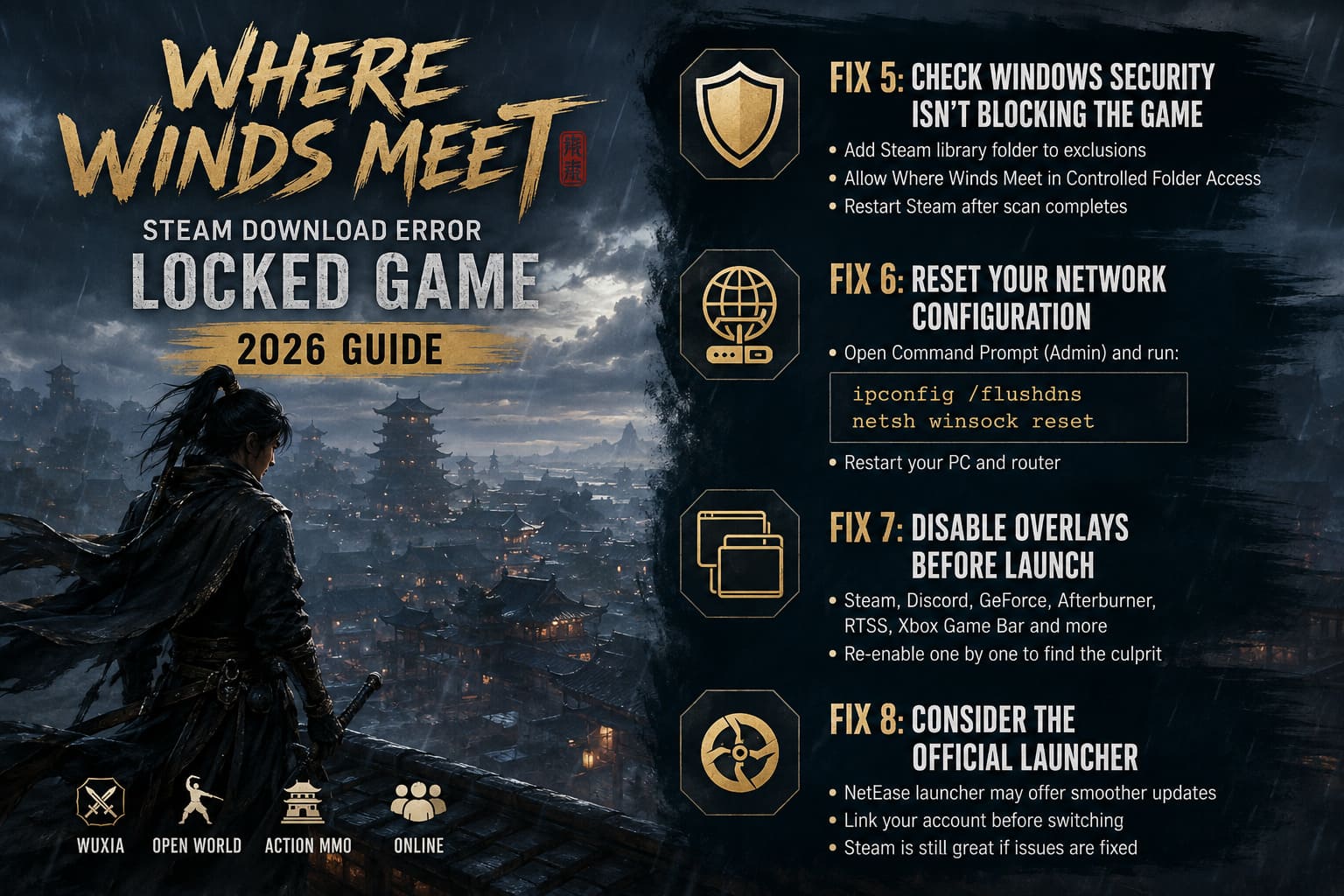
Fix 5: Check Whether Windows Security Is Blocking the Game
This issue surprised me the first time I encountered it.
Sometimes Windows Defender or another antivirus begins scanning newly downloaded game files while Steam is attempting to replace them.
Steam sees the file as “busy” and immediately reports it as locked.
Instead of disabling your antivirus completely, try:
- Adding the Steam library folder to exclusions.
- Allowing Where Winds Meet through Controlled Folder Access (if enabled).
- Restarting Steam after the scan finishes.
This is much safer than turning off your security software entirely.
Fix 6: Reset Your Network Configuration
Not every “locked” error is actually caused by files.
Several players—including myself—have seen launch failures caused by network authentication problems.
Symptoms usually include:
- Black loading screen.
- Character data cannot be retrieved.
- Infinite connecting screen.
- Login timeout.
Resetting Windows networking can help.
Run Command Prompt as Administrator and execute:
ipconfig /flushdnsnetsh winsock reset
Restart your PC afterward.
If your router has been online for weeks, rebooting it isn’t a bad idea either.
Fix 7: Disable Overlays Before Launching
Modern PCs often have several overlays running at once.
- Steam Overlay
- Discord Overlay
- GeForce Experience
- MSI Afterburner
- RTSS
- Xbox Game Bar
Usually they’re harmless.
Occasionally they interfere with launch protection or DirectX initialization.
Whenever I troubleshoot a new PC game, I temporarily disable every overlay before testing again.
If the game launches successfully afterward, re-enable them one by one until you identify the culprit.
Fix 8: Consider the Official Launcher
This suggestion isn’t for everyone, but it deserves mentioning.
Some members of the community report significantly smoother updates after switching to the official NetEase launcher instead of Steam.
The native launcher tends to install patches faster and appears less prone to validation loops.
Before switching, however, make sure your account is properly linked so your progress remains available.
If you prefer Steam achievements and playtime tracking, staying on Steam is perfectly reasonable—as long as the download issues are resolved.
My Troubleshooting Order
After years of dealing with PC launch problems, this is the order I personally follow.
| Priority | Solution | Success Rate (My Experience) |
|---|---|---|
| 1 | Delete the locked file | Very High |
| 2 | Verify game files | Very High |
| 3 | Clear Steam download cache | High |
| 4 | Repair Steam library | High |
| 5 | Restart networking | Medium |
| 6 | Disable overlays | Medium |
| 7 | Check Windows security permissions | Medium |
| 8 | Switch to official launcher | High (Long-term) |
Doing the fixes in this order usually saves the most time.
Where Winds Meet Hidden Mountain Guide: How to Unlock, Best Tips, and Mohist Sect Walkthrough
Additional Tips That Helped Me
A few smaller habits have prevented problems during later updates:
- Keep at least 20–30 GB of free SSD space before major patches.
- Avoid pausing downloads repeatedly, especially during large updates.
- Restart Steam after every failed installation instead of repeatedly pressing Resume.
- Update GPU drivers regularly, especially after major game releases.
- Install the game on an internal SSD whenever possible instead of an external drive.
These aren’t guaranteed fixes, but they’ve reduced installation issues across many different games, not just Where Winds Meet.
Final Thoughts
After spending plenty of time with Where Winds Meet, I genuinely think the game is worth the effort. The martial arts combat feels fluid, exploration is rewarding, and the world has far more personality than I expected. That’s why it’s frustrating when technical issues stop players before they even get started.
The good news is that most Steam download and locked-file errors aren’t permanent. In many cases, you don’t need to reinstall the entire game. Deleting the problematic file, verifying the installation, repairing the Steam library, or clearing the download cache is often enough to get everything working again.
If none of those methods solve the issue, trying the official launcher may provide a more stable long-term experience, particularly if future updates continue causing Steam validation problems.
Hopefully, the developers continue improving the patching process over the coming months. Until then, these are the fixes that I found the most reliable after testing them myself and comparing results with the wider PC gaming community.