Assassin’s Creed Black Flag Resynced Low-End PC Optimization Guide: Fix Low FPS & Stuttering (2026 Remake)
When I first launched Assassin’s Creed Black Flag Resynced, I immediately realized this wasn’t simply the 2013 classic with sharper textures. Ubisoft rebuilt nearly every visual system. The Caribbean has never looked better, but all those beautiful waves, dynamic lighting, dense vegetation, and modern rendering techniques come with a serious hardware cost.
I’ve spent years tweaking games on everything from budget laptops to aging desktop PCs, and after testing dozens of combinations, I found that this remake can become surprisingly playable even on older hardware. No, you won’t magically transform a GTX 1050 into an RTX 5080, but you can eliminate most of the annoying stuttering, stabilize frame times, and enjoy smooth sailing without constantly staring at your FPS counter.
This guide isn’t about chasing benchmark numbers. It’s about making the game feel good to play.
Why Black Flag Resynced Is So Much Harder to Run
One thing became obvious after just a few hours.
The biggest problem isn’t necessarily the average FPS—it’s the frame pacing.
Modern rendering systems constantly stream new assets while you’re sailing across the ocean. Every island, fort, ship, weather transition, and city district loads far more detail than the original game ever attempted.
On weaker systems, this usually creates three noticeable problems:
- Random FPS drops
- Micro-stutters while moving
- Inconsistent frame times during combat
Even if your GPU technically meets the minimum requirements, limited VRAM or a slower CPU can quickly become the bottleneck.
My Recommended Graphics Settings
After plenty of testing, I stopped chasing maximum visual quality and instead focused on consistency. A locked frame rate always feels better than wildly fluctuating performance.

| Setting | Recommendation | Why |
|---|---|---|
| Display Mode | Fullscreen | Gives Windows exclusive focus and reduces background overhead. |
| VSync | Off | Removes additional input latency and prevents uneven frame pacing. |
| FPS Cap | 30 or 40 FPS | Stable frame delivery feels much smoother than unstable 50+ FPS. |
| Aspect Ratio | Native | Avoid unnecessary scaling artifacts. |
I personally preferred a 40 FPS cap whenever possible. If your PC can’t hold it, locking the game to 30 FPS provides a much more enjoyable experience than letting performance fluctuate constantly.
Turn Ray Tracing Off Immediately
If I could recommend only one optimization, this would be it.
The ray tracing implementation looks impressive during sunsets and interior lighting, but on lower-end hardware the performance cost simply isn’t worth it.
Disabling ray tracing instantly made the game feel dramatically smoother during:
- Naval exploration
- Jungle environments
- City streets
- Storms at sea
The visual downgrade is surprisingly small once you’re actually playing.
The Upscaling Option I Recommend
Upscaling technology has become one of the best tools for extending the life of older graphics cards.
Here’s what I found worked best.
| GPU | Recommended Upscaler |
|---|---|
| GTX Series | AMD FSR |
| Older Radeon Cards | AMD FSR |
| Intel Arc | Intel XeSS |
| RTX 20/30 Series | DLSS |
For quality presets, I usually recommend:
- Balanced for 1080p.
- Performance for older GPUs.
- Avoid Ultra Performance unless absolutely necessary.
Ultra Performance introduces too much blur for a game with so many detailed environments.
The Settings That Hurt Performance the Most
After testing numerous locations, a handful of graphics options consistently caused the biggest FPS losses.
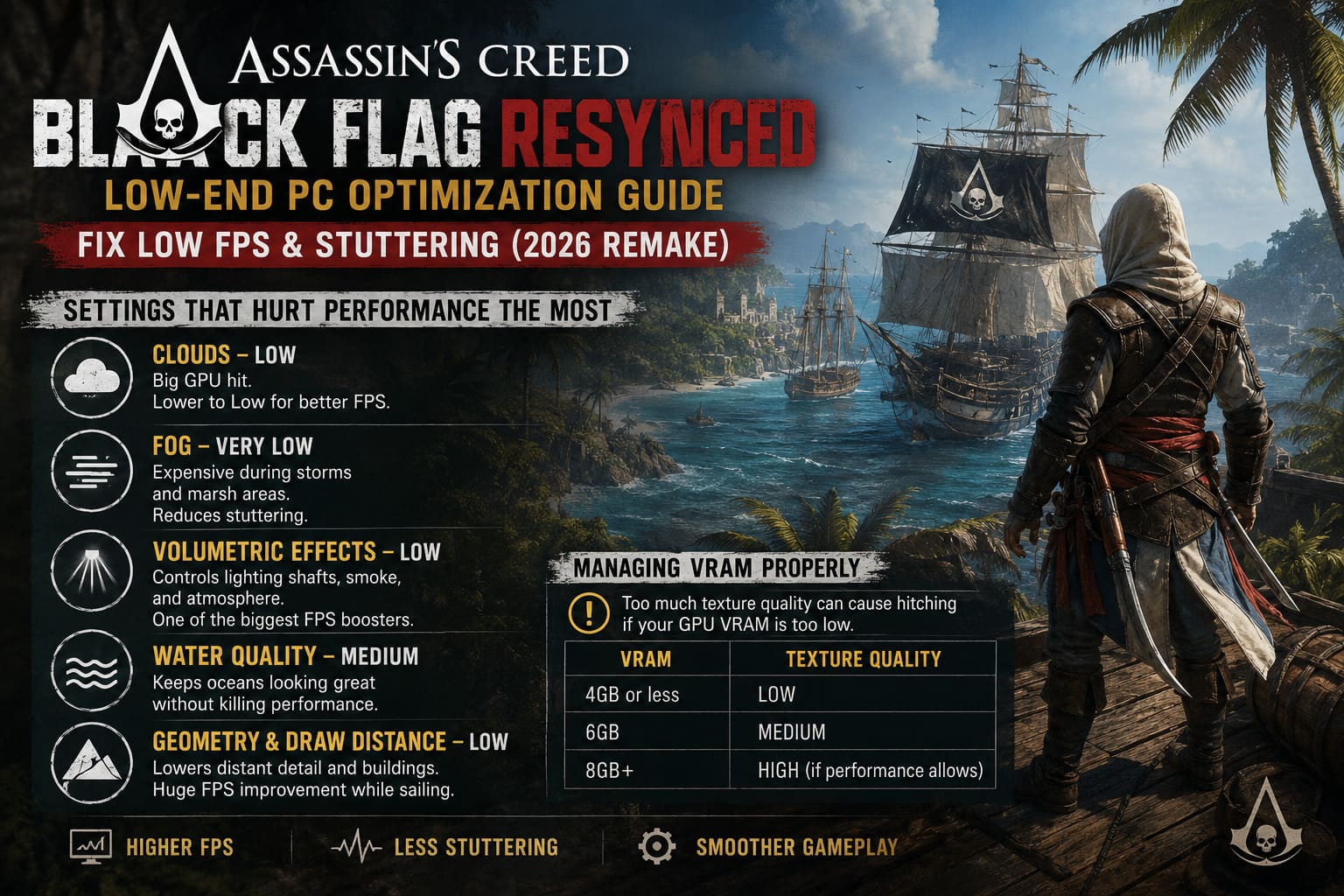
Clouds
Dynamic cloud rendering looks fantastic from the deck of your ship.
Unfortunately, it also eats GPU resources.
I saw almost no gameplay difference after lowering cloud quality to Low, while performance improved noticeably.
Fog
Dense fog during storms and marsh areas is another surprisingly expensive feature.
Reducing it to Very Low helped eliminate several annoying stutters during exploration.
Volumetric Effects
This controls lighting shafts, atmospheric effects, and environmental smoke.
Setting it to the lowest option provides one of the largest free FPS gains in the game.
Water Quality
Since Black Flag is built around naval gameplay, I didn’t want to ruin the ocean visuals completely.
Instead of dropping water quality to the minimum, I found Medium to be the perfect compromise.
The waves still look convincing while freeing valuable GPU resources.
Geometry and Draw Distance
These settings mostly affect distant buildings and environmental detail.
Lowering both to Low greatly reduced GPU load during sailing without making nearby environments look noticeably worse.
Managing VRAM Properly
One mistake I see many players make is choosing texture settings based purely on what looks good.
If your GPU only has 4GB of VRAM, high textures are almost guaranteed to create hitching.
My recommendations are simple.
| VRAM | Texture Quality |
|---|---|
| 4GB or less | Low |
| 6GB | Medium |
| 8GB+ | High (if performance allows) |
Keeping texture quality within your VRAM limits is far more important than squeezing out slightly sharper surfaces.
Small Visual Tweaks That Add Up
Several seemingly minor options collectively recovered a surprising amount of performance.
I recommend lowering:
- Scatter Density
- Particle Quality
- Screen Space Effects
- Deformation
- Post Processing
Meanwhile, I completely disabled:
- Hair Strands
- Motion Blur
- Camera Effects
Hair simulation looks nice during cutscenes, but once combat starts, I honestly never noticed its absence.
Motion blur, on the other hand, only made fast movement harder to read.
Windows Optimizations Worth Doing
Game settings alone aren’t enough.
Some Windows adjustments consistently helped reduce stuttering.
Install the Game on an SSD
This made the biggest difference outside the graphics menu.
Running Resynced from an older mechanical hard drive caused obvious streaming delays while entering large cities and during fast ship travel.
An SSD dramatically reduced those loading hiccups.
Enable Hardware Accelerated GPU Scheduling
If your GPU supports it, turning on Hardware-Accelerated GPU Scheduling (HAGS) is worth trying.
While the FPS improvement wasn’t huge, frame delivery felt noticeably smoother on my test system.
As always, restart Windows after enabling it.
Close Background Applications
This sounds obvious, but it matters.
Before launching the game I usually close:
- Browsers
- RGB software
- Recording utilities
- Unnecessary launchers
- Wallpaper software
Every bit of available RAM helps when playing demanding modern titles.
Disable Overlays
Steam, Discord, Ubisoft Connect, and graphics software overlays can all consume valuable resources in the background.
Whenever I’m troubleshooting performance, I disable every overlay before starting the game. It’s a small adjustment that often helps reduce stuttering on lower-end systems.
Don’t Ignore Your GPU Power Settings
One setting many players overlook is GPU power management.
Inside the NVIDIA Control Panel or AMD Software, changing the power profile from the default balanced mode to Maximum Performance prevents aggressive clock speed drops.
On older GPUs, this alone helped eliminate occasional FPS dips during long gameplay sessions.
Should You Lower Your Resolution?
Sometimes there simply isn’t enough hardware available.
If you’ve already optimized every setting and performance is still poor, reducing the rendering resolution becomes the most effective solution.
For a 1080p monitor I recommend trying:
| Native Resolution | Alternative |
|---|---|
| 1920×1080 | 1600×900 |
| 1920×1080 | 1280×720 |
Pairing a lower resolution with FSR Balanced often produces a much sharper image than running native 720p without upscaling.
I was pleasantly surprised by how playable the game became using this combination on older hardware.
Assassin’s Creed Black Flag Resynced: GTX 1080 Ti Optimization Guide (Low Budget FPS Boost)
Final Thoughts
I’ve optimized countless PC games over the years, and Black Flag Resynced reminds me of many modern Unreal Engine releases where the default presets simply expect hardware far beyond what many players own.
What impressed me, though, is how scalable the engine actually is.
Once I stopped trying to preserve every graphical effect and instead focused on consistency, the experience improved dramatically.
A stable 35–40 FPS with good frame pacing felt far better than an unstable 60 FPS that constantly dipped into the twenties during battles.
The Caribbean remains beautiful even with reduced settings because the game’s strongest feature has never been ultra-quality shadows or cinematic fog—it’s the atmosphere. Sailing into a sunset, boarding enemy ships, listening to the crew sing sea shanties, and exploring tropical islands still delivers that unmistakable Black Flag magic regardless of whether clouds are set to Ultra or Low.
If you’re gaming on older hardware, don’t get discouraged by the default performance. With the right graphics configuration, sensible Windows optimizations, and realistic expectations, Assassin’s Creed Black Flag Resynced can provide a smooth and enjoyable experience without requiring an expensive PC upgrade. Sometimes the smartest optimization isn’t chasing prettier screenshots—it’s creating a game that feels consistently responsive from the first voyage to the final battle.