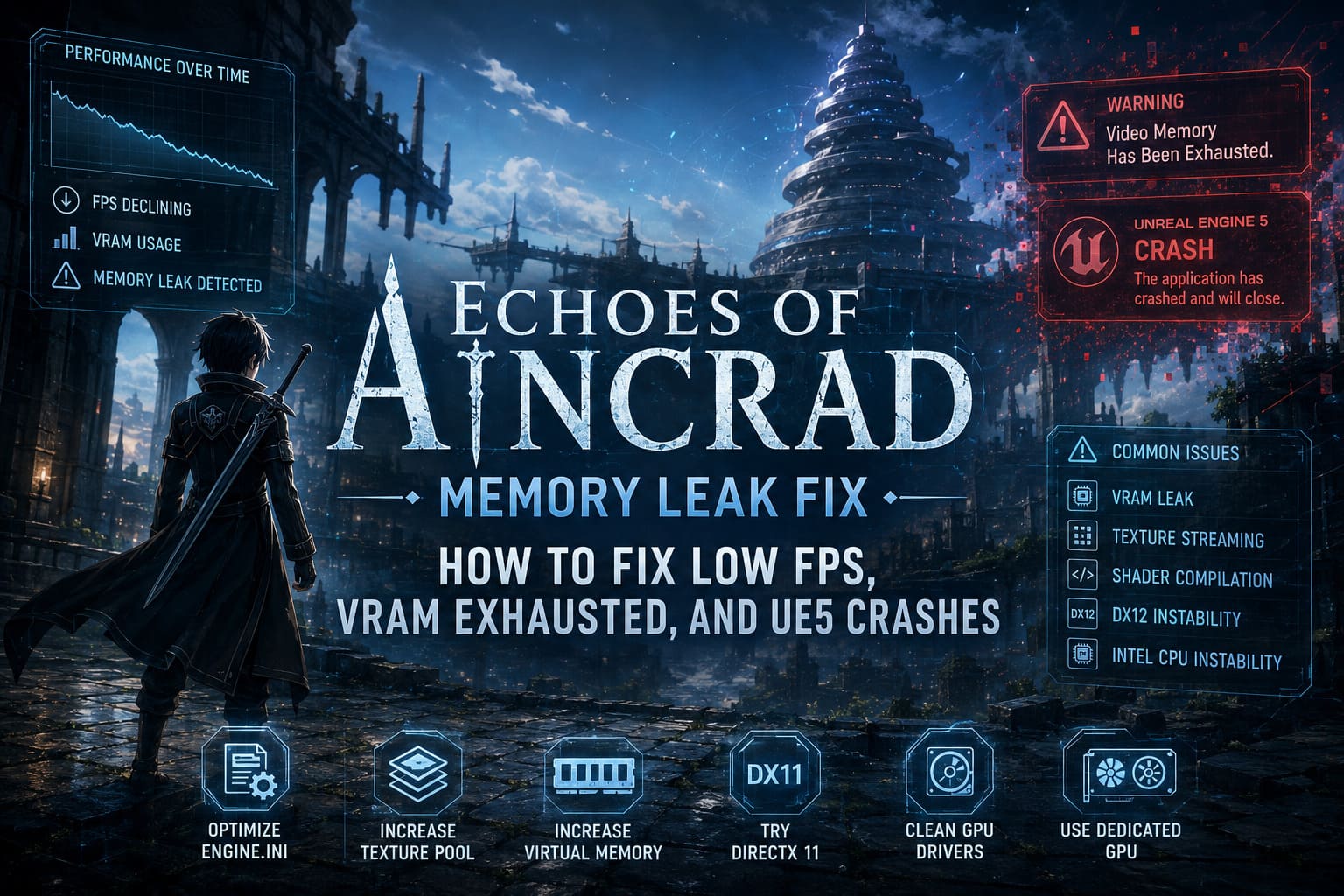
Echoes of Aincrad Memory Leak Fix: How to Fix Low FPS, VRAM Exhausted, and UE5 Crashes
When I first launched Echoes of Aincrad, I was honestly blown away. The recreation of Aincrad feels incredible, combat is satisfying, and Unreal Engine 5 delivers some of the best lighting and environmental detail I’ve seen in an anime RPG. The first hour was fantastic.
Then things slowly started falling apart.
My FPS, which had been comfortably sitting well above 140, gradually dropped until it hovered around 50. The GPU became hotter than expected, stuttering appeared every few seconds, and eventually Unreal Engine decided it had enough and greeted me with an Out of Video Memory crash.
After spending hours experimenting, reading community discussions, and testing different configurations, I realized this isn’t simply “bad optimization.” Most of these issues behave exactly like a classic UE5 memory leak, something we’ve already seen in several Unreal Engine 5 releases over the past few years.
If you’re dealing with FPS that keeps getting worse the longer you play, random crashes, shader compilation freezes, or VRAM exhaustion, these are the fixes that made the biggest difference for me.
Why Performance Gets Worse Over Time
One thing that immediately stood out is that performance doesn’t usually start badly.
Instead, the game slowly becomes heavier the longer you explore Aincrad.
That’s usually a strong sign that memory isn’t being released correctly.
UE5 constantly loads:
- high-resolution textures
- world geometry
- lighting information
- shader data
- environmental effects
Normally these assets should disappear from memory once they’re no longer needed.
Instead, Echoes of Aincrad appears to keep accumulating them during long sessions, eventually filling both VRAM and system RAM.
Typical symptoms include:
- FPS gradually decreasing every 20–40 minutes
- longer loading times
- increased GPU memory usage
- heavier CPU usage
- stuttering while entering new zones
- Unreal Engine crash windows
- “Video Memory Has Been Exhausted” errors
The Biggest Problems I Noticed
From both my own testing and community reports, there seem to be several major troublemakers.
| Issue | What Happens |
|---|---|
| VRAM Leak | GPU memory slowly fills until performance collapses. |
| Texture Streaming Problems | New textures load correctly, but older ones don’t seem to unload efficiently. |
| Shader Compilation | Background shader compilation causes heavy CPU spikes. |
| DirectX 12 Instability | Some systems experience worse memory behavior under DX12. |
| Intel CPU Issues | Certain 13th and 14th Gen processors may encounter instability during heavy UE5 workloads. |
None of these issues are unique to Echoes of Aincrad, but together they create one frustrating experience.
Fix #1 — Increase the Texture Streaming Budget
One of the first things I experimented with was Unreal Engine’s texture streaming pool.
If the engine constantly runs out of streaming memory, it starts aggressively swapping textures, causing hitching and unstable frame pacing.
I added custom launch parameters through Steam and noticed smoother exploration during longer sessions.
For players with GPUs that have plenty of VRAM, giving Unreal Engine a larger streaming pool can reduce unnecessary texture management.
This won’t completely eliminate the memory leak, but it delays VRAM saturation considerably.
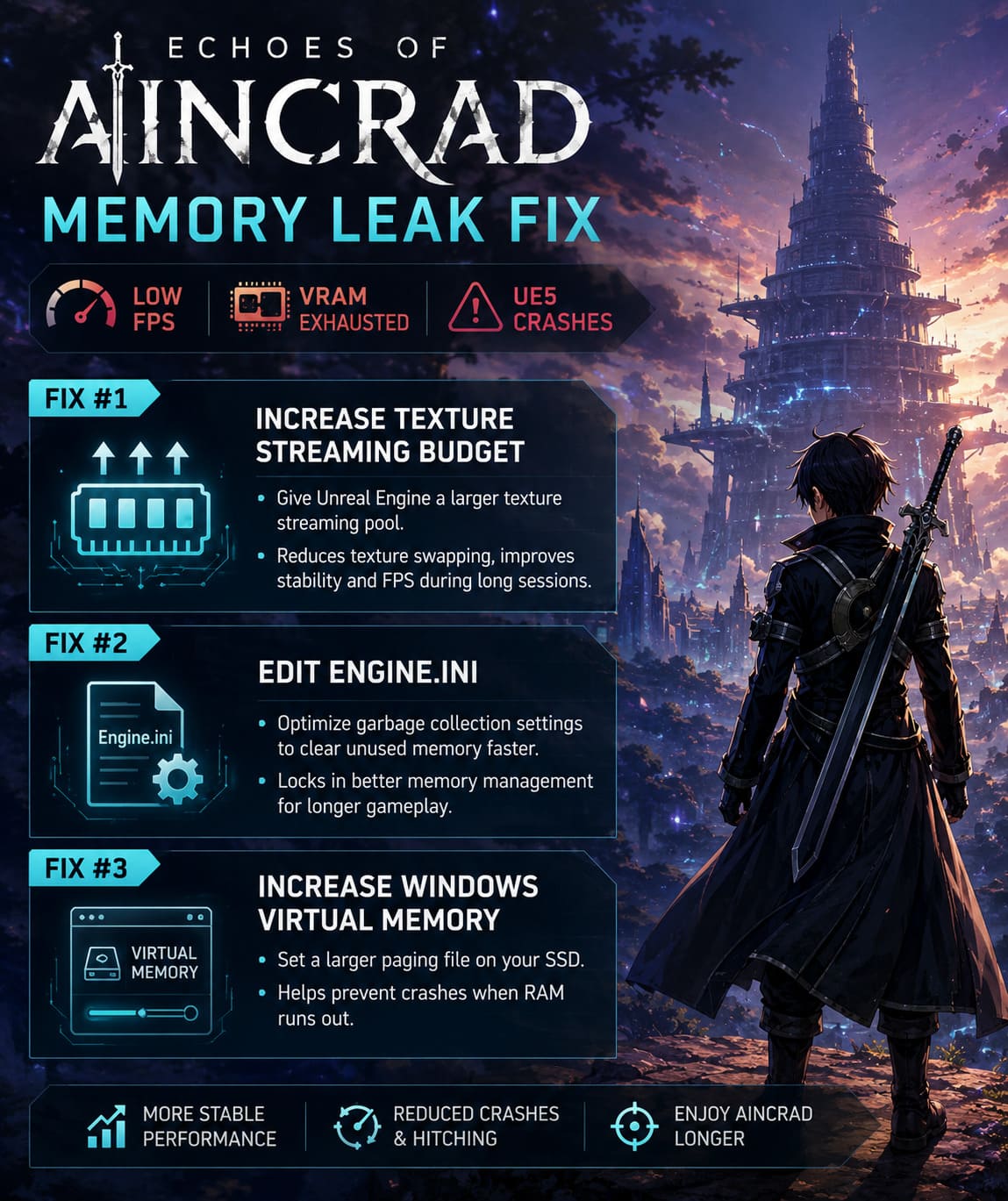
Fix #2 — Edit Engine.ini
This is probably the tweak that produced the most noticeable long-session improvement for me.
Unreal Engine includes an internal garbage collection system responsible for removing unused objects from memory.
If that cleanup happens too infrequently, memory usage keeps climbing.
Adding optimized garbage collection settings inside the Engine.ini file encouraged the engine to recycle unused resources much more aggressively.
I also locked the configuration file afterward to prevent the game from overwriting the changes during updates.
It isn’t a miracle fix—but it definitely slowed down memory growth during extended play.
Fix #3 — Increase Windows Virtual Memory
A lot of people ignore the paging file because modern PCs often have plenty of RAM.
Unfortunately, Unreal Engine loves consuming enormous amounts of memory.
When physical RAM becomes exhausted, Windows depends on virtual memory to keep applications alive.
If the paging file is too small—or disabled completely—the game often crashes instantly instead of recovering.
I strongly recommend manually setting a generous paging file on an SSD.
Especially if you only have 16 GB of RAM, this can make a surprisingly big difference.
Fix #4 — Intel 13th & 14th Generation CPUs
This isn’t technically Echoes of Aincrad’s fault.
Over the past couple of years, many Unreal Engine 5 games have exposed instability on some high-end Intel processors.
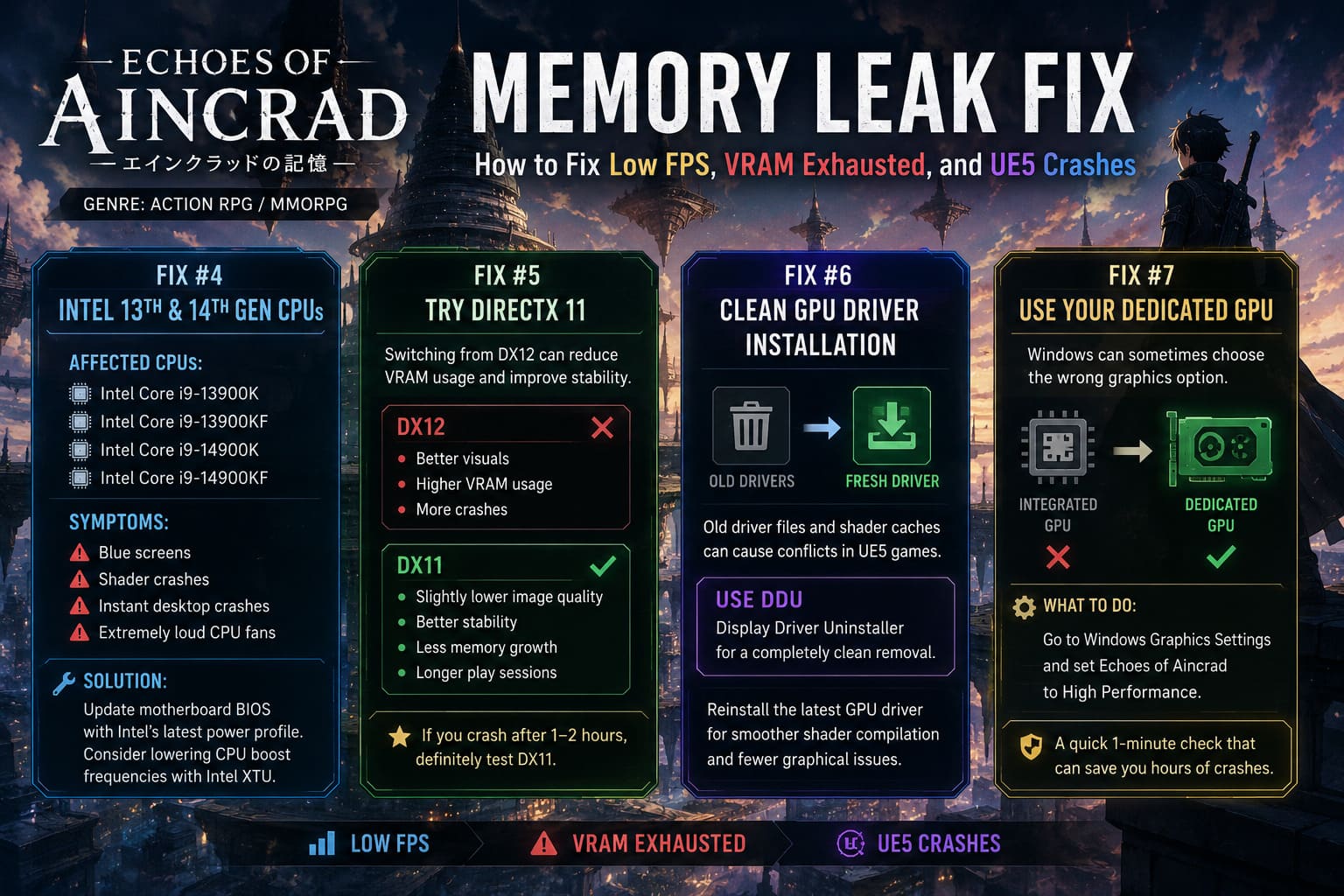
If you’re using CPUs like:
- Intel Core i9-13900K
- Intel Core i9-13900KF
- Intel Core i9-14900K
- Intel Core i9-14900KF
and you’re experiencing:
- blue screens
- shader crashes
- instant desktop crashes
- extremely loud CPU fans
It’s worth checking your motherboard BIOS.
Installing the latest BIOS with Intel’s recommended power profile dramatically improves stability on many systems.
Some players also report success with a small reduction in CPU boost frequencies using Intel XTU.
Fix #5 — Try DirectX 11
I know.
Nobody likes disabling modern rendering features.
But if your priority is actually playing instead of troubleshooting, DirectX 11 deserves a chance.
Switching from DX12 removes access to some advanced UE5 rendering features, but it also reduces VRAM usage and often delivers much smoother frame pacing.
In my experience:
DX12
- Better visuals
- Higher VRAM usage
- More crashes
DX11
- Slightly lower image quality
- Better stability
- Less memory growth
- Longer play sessions
For anyone constantly crashing after an hour or two, I’d absolutely recommend testing DX11.
Fix #6 — Clean GPU Driver Installation
Simply updating graphics drivers isn’t always enough.
Over time, shader caches and previous driver remnants can create conflicts with new Unreal Engine releases.
Using Display Driver Uninstaller (DDU) for a completely clean installation helped eliminate several strange graphical issues on my system.
After reinstalling the newest graphics driver, shader compilation also felt noticeably smoother.
Fix #7 — Make Sure the Game Uses Your Dedicated GPU
This sounds obvious, but Windows occasionally makes questionable decisions.
I’ve seen games accidentally launch using integrated graphics or rely too heavily on shared system memory.
Checking Windows Graphics Settings and forcing Echoes of Aincrad to use the dedicated GPU only takes a minute.
It’s one of those simple checks that’s worth doing before diving into more advanced troubleshooting.
My Recommended In-Game Settings
After several evenings of testing, this combination gave me the most consistent experience.
| Setting | Recommendation |
|---|---|
| Texture Quality | High |
| Shadows | High |
| Ray Tracing | Off |
| Motion Blur | Off |
| Frame Rate Limit | Match monitor refresh rate |
| Upscaling | DLSS/FSR Quality when available |
| DirectX | DX11 if crashes continue |
I know it’s tempting to leave every option on Epic, but reducing texture quality by one preset barely changes visuals while significantly lowering VRAM pressure.
How to Fix Echoes of Aincrad DirectX 12 Crash on Launch: Complete 2026 PC Troubleshooting Guide
Quick Optimization Checklist
Before starting another long session, I recommend checking these basics:
- Update your graphics driver
- Install the newest motherboard BIOS
- Increase your Windows paging file
- Optimize Engine.ini
- Cap your FPS
- Disable Ray Tracing if stability matters
- Test DirectX 11
- Verify the game files through Steam
- Restart the game every couple of hours if memory usage keeps climbing
None of these fixes completely solve the underlying problem, but together they create a much more stable experience.
SAO Echoes of Aincrad Low FPS in City of Beginnings: Performance Fix Guide
Final Thoughts
I genuinely love what Bandai Namco has created with Echoes of Aincrad. Walking through Aincrad while hearing familiar music and seeing those iconic environments recreated with Unreal Engine 5 feels like a dream for longtime Sword Art Online fans.
Unfortunately, the current PC version clearly suffers from memory management problems that become increasingly noticeable during long play sessions. The good news is that most of the worst symptoms—progressive FPS loss, VRAM exhaustion, stuttering, and random UE5 crashes—can be reduced with a handful of practical tweaks.
The biggest improvements for me came from optimizing Engine.ini, expanding virtual memory, using a sensible texture streaming setup, and, when stability mattered more than visuals, switching to DirectX 11. None of these are permanent fixes, and they won’t replace proper engine updates from the developers, but they can make the game far more enjoyable while we wait for official patches.
If you’re planning to spend hours climbing Aincrad rather than constantly restarting after crashes, it’s worth taking a few minutes to apply these optimizations. Until Bandai Namco releases updates that address the underlying UE5 memory behavior, these workarounds remain the best way I’ve found to keep performance consistent and let the adventure—not the troubleshooting—be the focus.