How to Fix Assassin’s Creed Black Flag Resynced Crashing on Launch (Epic Games PC Guide)
The return to the Caribbean in Assassin’s Creed Black Flag Resynced should have been all about naval battles, hidden coves, and becoming the most feared pirate on the seas. Instead, for a surprising number of PC players, the adventure ends before it even begins. Click Play in the Epic Games Launcher… black screen. Instant crash. Nothing happens. Back to desktop.
As someone who spends way too much time testing new releases, tweaking graphics settings, and helping friends fix broken game launches, I can honestly say this isn’t the worst launch I’ve seen—but it’s definitely one of the more frustrating ones.
The good news? Most startup crashes aren’t caused by your hardware. In fact, after digging through community discussions, trying different fixes myself, and comparing experiences from other players, I noticed that the same handful of solutions keep solving the problem.
If you’re stuck staring at a frozen splash screen or the game refuses to launch at all, here’s everything worth trying before giving up and waiting for a patch.
Why Black Flag Resynced Refuses to Launch
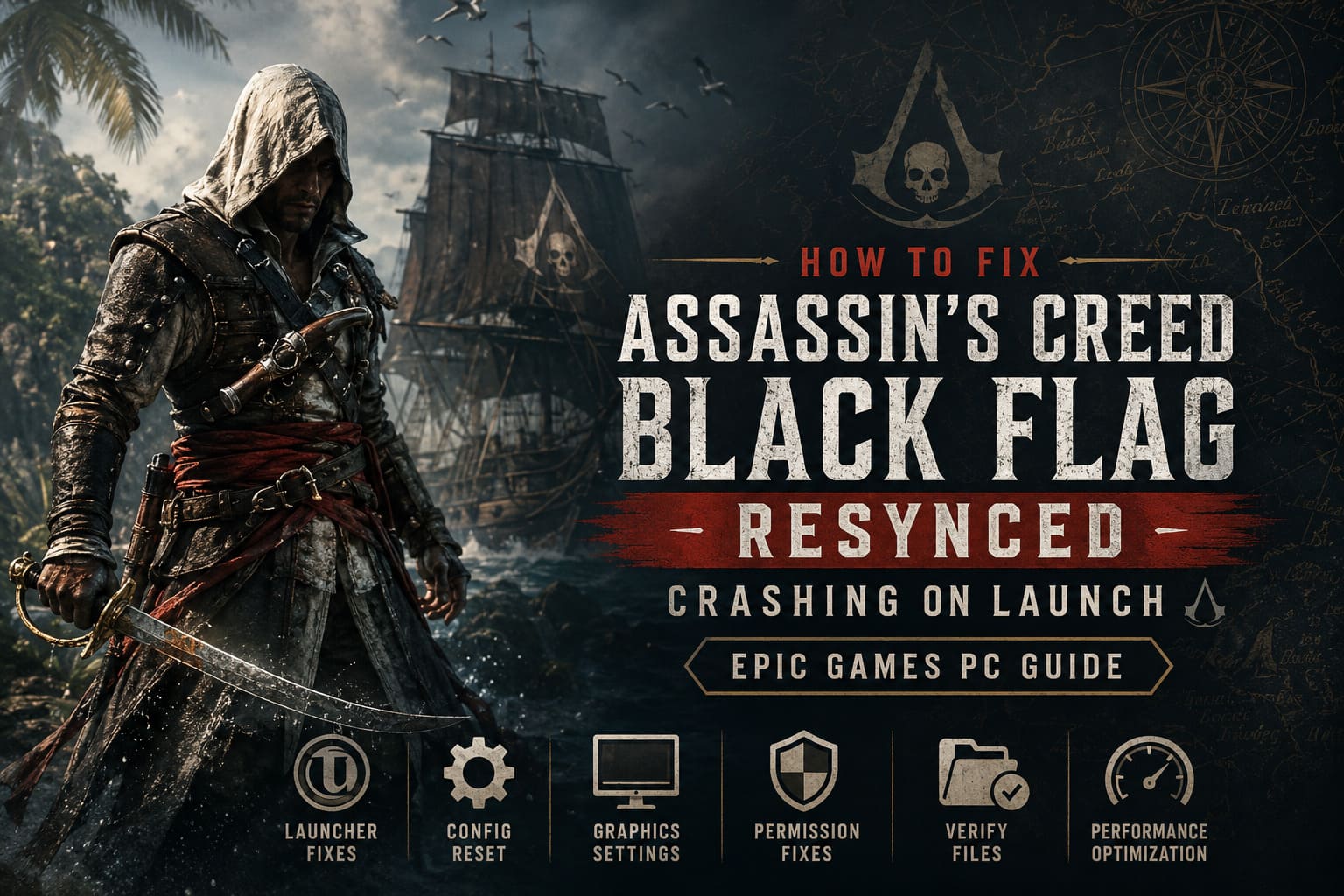
Modern Ubisoft releases have an extra layer of complexity compared to many other PC games. Buying through the Epic Games Store means the game still relies on Ubisoft Connect, so two launchers have to communicate perfectly every single time you press Play.
When that connection breaks—or something else interferes during startup—the game often crashes before reaching the main menu.
From what I’ve seen, these are the most common reasons:
- Ubisoft Connect fails to authenticate your Epic Games license.
- Damaged configuration files load incorrect graphics settings.
- Windows blocks the executable from accessing required folders.
- Overlay software conflicts with the game’s rendering engine.
- Corrupted installation files prevent proper startup.
- GPU settings force incompatible rendering features.
The good news is that none of these problems usually require reinstalling Windows or replacing hardware.
Start With the Launcher Problem
If I had to bet on one fix, this would be it.
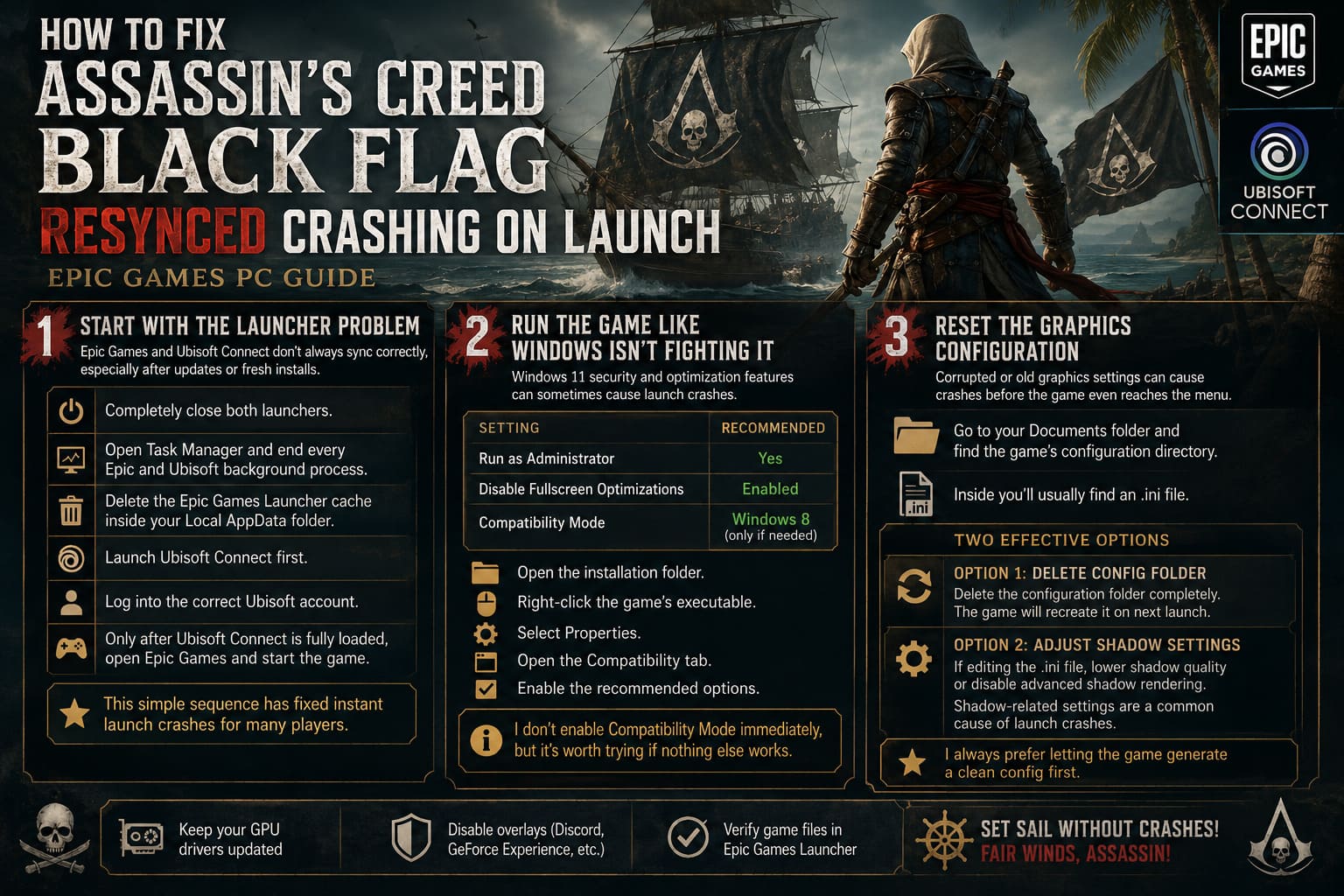
Epic Games and Ubisoft Connect don’t always synchronize correctly, especially after updates or fresh installations.
Before launching the game:
- Completely close both launchers.
- Open Task Manager and end every Epic and Ubisoft background process.
- Delete the Epic Games Launcher cache located inside your Local AppData folder.
- Launch Ubisoft Connect first.
- Log into the correct Ubisoft account.
- Only after Ubisoft Connect is fully loaded should you open Epic Games and start the game.
It sounds almost too simple, but this has solved instant launch crashes for a huge number of players.
Run the Game Like Windows Isn’t Fighting It
Windows 11 has introduced several security and optimization features that don’t always play nicely with certain PC games.
I almost always change these settings when troubleshooting:
| Setting | Recommended |
|---|---|
| Run as Administrator | Yes |
| Disable Fullscreen Optimizations | Enabled |
| Compatibility Mode | Windows 8 (only if needed) |
To change them:
- Open the installation folder.
- Right-click the game’s executable.
- Select Properties.
- Open the Compatibility tab.
- Enable the recommended options.
I don’t enable Compatibility Mode immediately, but it’s worth trying if nothing else works.
Reset the Graphics Configuration
One thing I’ve learned over the years is that configuration files can become surprisingly stubborn.
Sometimes the game keeps trying to load graphics settings that simply don’t work on your current hardware or driver version.
Navigate to your Documents folder and locate the game’s configuration directory.
Inside you’ll usually find an .ini file.
Instead of endlessly editing dozens of values, I recommend two approaches:
- Option 1: Delete the configuration folder completely. The game will recreate it during the next launch.
- Option 2: If you’re comfortable editing configuration files, lower the shadow quality or disable advanced shadow rendering.
Several players have reported that shadow-related settings trigger crashes before the menu even appears.
Personally, I always prefer letting the game generate a clean config first.
Verify the Installation Before Reinstalling
This step takes a while, but it’s far faster than downloading the entire game again.
Epic Games includes a built-in verification tool that compares every installed file against the official version.
If even one important asset became corrupted during installation, verification will replace it automatically.
Whenever a new game crashes immediately after launch, this is one of the first things I run.
It has saved me multiple unnecessary reinstalls.

Make Sure Windows Uses Your Dedicated GPU
Laptop users encounter this issue far more often than desktop gamers.
Windows sometimes decides that the integrated graphics chip is “good enough,” even for demanding AAA titles.
Open Graphics Settings in Windows.
Add the game’s executable if it isn’t already listed.
Then manually select:
High Performance
This forces Windows to launch the game using your dedicated NVIDIA or AMD graphics card instead of integrated graphics.
It’s a small change that can completely eliminate startup problems.
Disable Every Overlay You Can Find
If you’ve been gaming on PC for years, you’ve probably collected an army of background applications.
Discord.
Steam.
Ubisoft Connect.
GeForce Experience.
AMD Software.
MSI Afterburner.
RivaTuner.
RGB utilities.
Recording software.
Every one of these injects itself into running games.
Normally that’s fine.
Sometimes it isn’t.
When troubleshooting launch crashes, I temporarily disable:
- Discord Overlay
- Ubisoft Overlay
- NVIDIA Overlay
- AMD Overlay
- MSI Afterburner
- RivaTuner Statistics Server
I’ve seen overlay conflicts crash games before the first logo even appears.
Once the game launches successfully, you can gradually enable them again.
Don’t Force Driver Features
Modern GPUs offer dozens of driver-level enhancements.
Frame Generation.
Forced V-Sync.
Low Latency Mode.
Image Scaling.
Anti-Lag.
Reflex.
They’re great—until they aren’t.
If you’ve customized your NVIDIA Control Panel or AMD Software with global overrides, switch everything back to:
Use the application settings
Let the game decide how rendering should work.
Driver overrides can interfere with engine initialization, especially in newly released titles.
Keep Drivers Updated (But Don’t Chase Every Beta)
Graphics drivers matter.
Really.
Game-ready drivers frequently include fixes specifically targeting launch-day problems.
However, I usually recommend sticking to stable Game Ready or WHQL releases instead of experimental beta versions.
If you’re already on the newest driver and crashes started immediately afterward, rolling back one version can occasionally help as well.
It’s rare, but it happens.
Assassin’s Creed Black Flag Resynced Low FPS Fix: NVIDIA DLSS 4.5 and Stuttering Guide (2026)
Should You Reinstall the Game?
Only after you’ve exhausted everything else.
Reinstalling is time-consuming, and in many cases it solves nothing because the actual issue lives inside launcher communication or configuration files.
If you do decide to reinstall:
- Remove the existing installation.
- Restart your PC.
- Install the game on an internal SSD.
- Avoid external USB drives.
- If possible, use your primary NVMe drive.
Modern games stream thousands of files during startup, and faster storage genuinely improves stability.
Assassin’s Creed Black Flag Resynced Jackdaw Upgrade Guide: Best Material Farming Routes & Exploits
My Personal Take
I’ve tested enough PC launches over the years to notice a pattern.
When a game crashes instantly, most players assume it’s poor optimization.
Sometimes that’s true.
But surprisingly often, it’s actually a launcher issue, corrupted settings file, or an overlay conflict hiding in the background.
With Assassin’s Creed Black Flag Resynced, the launcher handshake between Epic Games and Ubisoft Connect feels like the weakest link. Once that connection works properly, most systems seem to run the game without major issues.
If I were helping a friend, I’d follow this exact order:
- Restart both launchers.
- Open Ubisoft Connect first.
- Verify game files.
- Delete the configuration folder.
- Disable every overlay.
- Force the dedicated GPU.
- Update graphics drivers.
- Reinstall only as a last resort.
That approach fixes the overwhelming majority of startup crashes while avoiding unnecessary downloads.
Final Thoughts
There’s nothing more disappointing than buying a new game only to spend your first hour troubleshooting instead of playing. Thankfully, Assassin’s Creed Black Flag Resynced doesn’t appear to suffer from one catastrophic bug—it’s more a combination of launcher quirks, Windows permissions, graphics settings, and software conflicts.
Work through the fixes patiently rather than trying everything at once. Test the game after each change so you know exactly what solved the issue.
Once you’re finally standing on the deck of the Jackdaw with the Caribbean stretching out before you, the troubleshooting will feel like a distant memory—and you can get back to doing what Black Flag has always done best: chasing treasure, hunting legendary ships, and living the pirate fantasy that few games have ever matched.