How to Fix Controller Not Working in Avatar Legends: The Fighting Game Steam Beta
When a new fighting game launches, I’m usually the first person in my circle jumping online to test every mechanic, lab combos, and see how the netcode feels under pressure. That’s exactly what I did when the Avatar Legends: The Fighting Game beta became available on Steam.
The good news? The game is genuinely fun. The animation is gorgeous, the bending mechanics feel distinct, and the rollback netcode performed far better than I expected during my first online sessions.
The bad news? I spent almost as much time fighting my controller as I did fighting opponents.
Like many PC players, I launched the beta expecting to jump straight into matches, only to discover that my controller wasn’t responding correctly. The Steam overlay detected it. Windows detected it. Other games detected it. Avatar Legends simply refused to cooperate.
After testing multiple setups, reading community discussions, and experimenting with different configurations, I found several solutions that consistently solved the issue. If you’re stuck at the menu screen or your fightstick suddenly stops responding once a match starts, this guide covers everything that worked for me.
Why Avatar Legends Beta Is Having Controller Problems
From my experience, this doesn’t appear to be a hardware failure or a broken controller. The issue seems to be related to how the beta build handles different input devices.
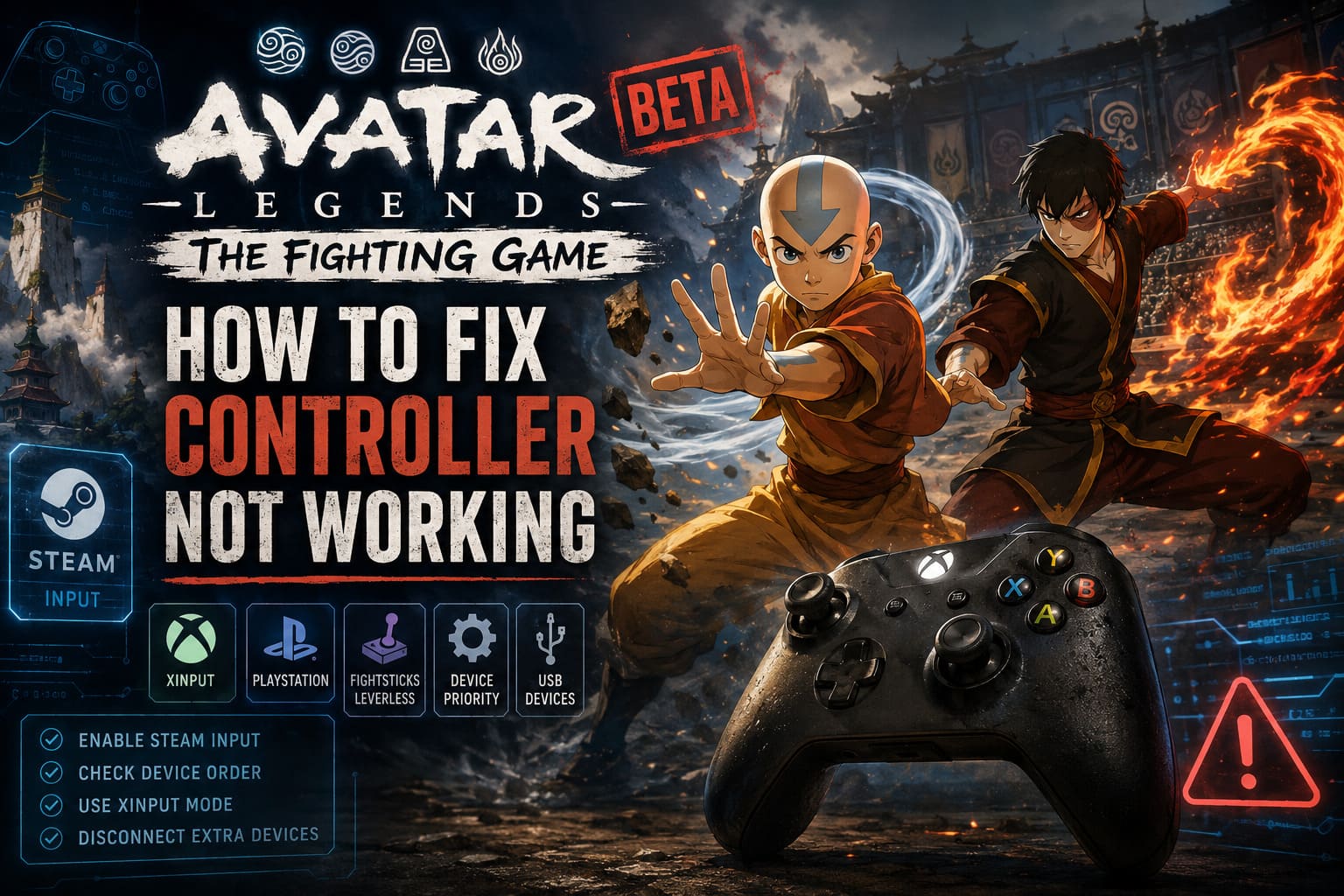
Many modern PC fighting games rely on a mix of native controller support and Steam Input translation. During beta periods, that interaction isn’t always polished. In Avatar Legends, certain devices seem to be recognized incorrectly or assigned to the wrong player slot.
The most common victims appear to be:
| Controller Type | Potential Issue |
|---|---|
| Xbox Controllers | Steam Input conflicts |
| PlayStation Controllers | Native detection inconsistencies |
| Leverless Controllers | DirectInput recognition errors |
| Arcade Fightsticks | Incorrect input mode selection |
| Generic USB Gamepads | Missing XInput translation |
If your controller works perfectly in every other game, don’t panic. There’s a good chance the problem can be fixed in just a few minutes.
The First Fix I Recommend: Enable Steam Input Manually
This was the solution that immediately fixed the issue on one of my test systems.
Instead of letting Steam decide how to handle the controller, force Steam Input manually for Avatar Legends.
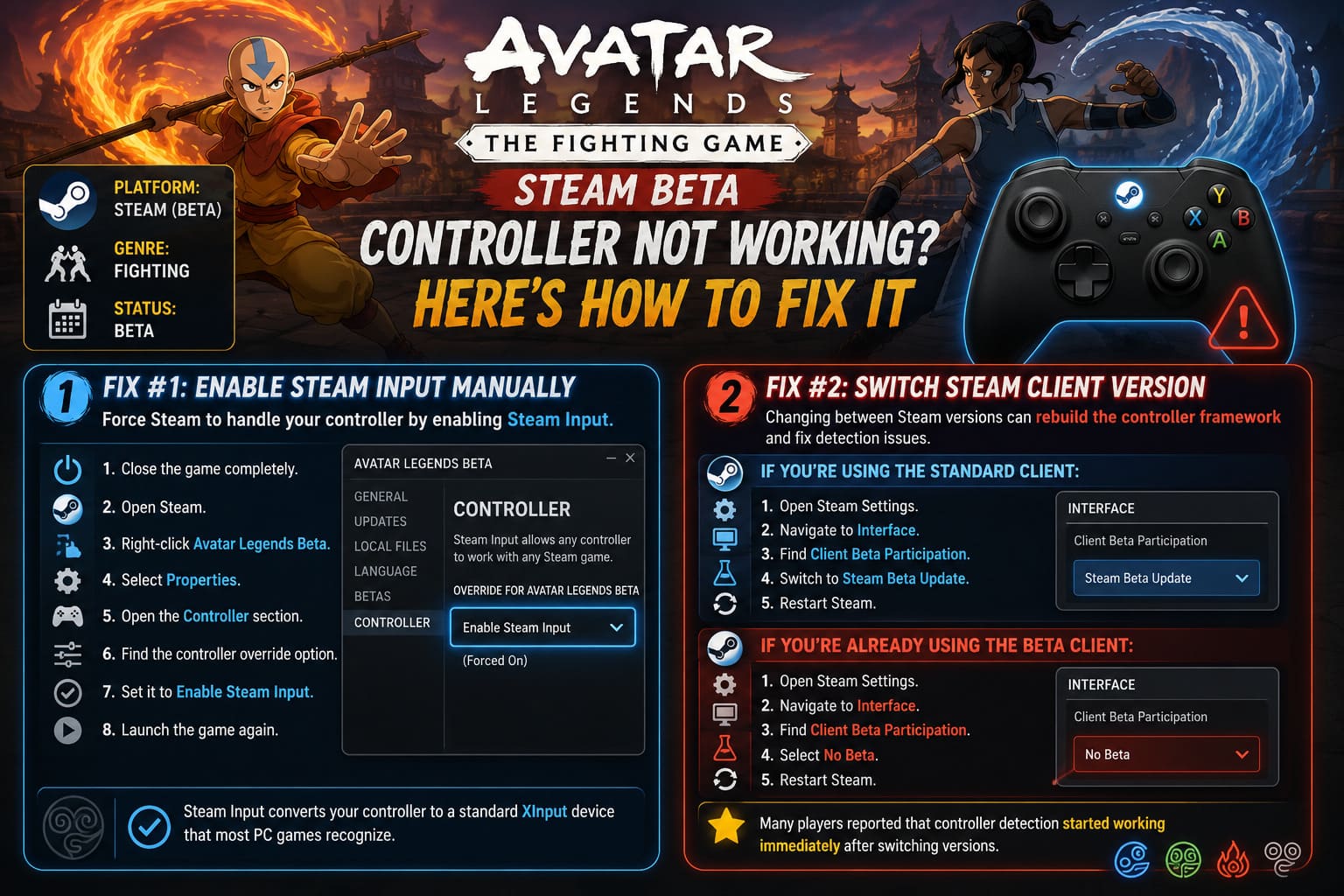
Follow these steps:
- Close the game completely.
- Open Steam.
- Right-click Avatar Legends Beta.
- Select Properties.
- Open the Controller section.
- Find the controller override option.
- Set it to Enable Steam Input.
- Launch the game again.
The reason this works is simple. Steam converts your controller into a standardized XInput device that most PC games understand without additional configuration.
For Xbox controllers, this often resolves the issue instantly. For PlayStation controllers, it can eliminate compatibility problems that occur between the game’s native support and Steam’s controller layer.
Steam Beta Client Could Be Causing the Problem
One interesting thing I noticed while troubleshooting was that controller behavior changed dramatically depending on which version of Steam I was using.
Some players reported issues while running the Steam Beta Client. Others experienced problems on the stable version.
That sounds contradictory, but there is a logical explanation. Switching between versions forces Steam to rebuild parts of its controller framework.
If you’re currently using the standard client:
- Open Steam Settings.
- Navigate to Interface.
- Find Client Beta Participation.
- Switch to Steam Beta Update.
- Restart Steam.
If you’re already using the beta client:
- Return to the same menu.
- Select No Beta.
- Restart Steam.
Several players I spoke with reported that controller detection started working immediately after performing this refresh.
Fightsticks and Leverless Controllers Need Special Attention
As someone who occasionally streams fighting games using a leverless setup, I quickly discovered that specialized controllers are more likely to encounter problems than standard gamepads.
Many fightsticks can operate in multiple modes:
- Xbox (XInput)
- PlayStation
- Switch
- DirectInput
Avatar Legends Beta appears to prefer XInput devices.
Before launching the game:
- Disconnect the controller.
- Open Steam Big Picture Mode.
- Navigate to Controller Settings.
- Enable support for Xbox, PlayStation, and Generic Controllers.
- Reconnect your fightstick.
- Switch the device into Xbox/XInput mode if supported.
- Launch the game.
In my testing, forcing XInput mode dramatically improved compatibility.
Several community-created layouts inside Steam also helped when the default profile failed to recognize certain buttons correctly.
Check Which Device Steam Thinks Is Player One
This was probably the strangest bug I encountered.
On one PC, Steam had assigned a USB audio device as the primary controller.
Yes, seriously.
The actual gamepad was sitting in a secondary slot, meaning Avatar Legends completely ignored my inputs.
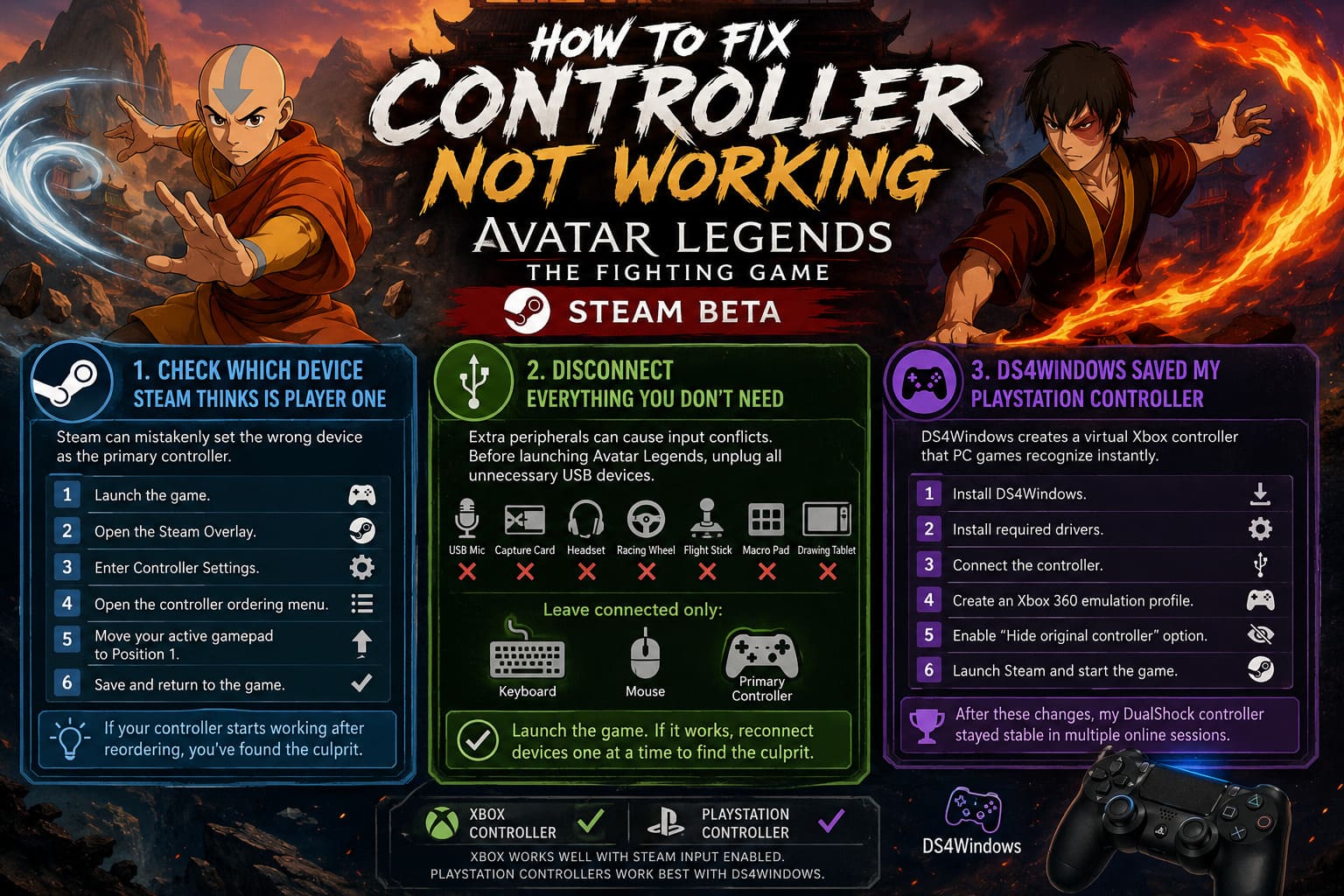
To verify controller priority:
- Launch the game.
- Open the Steam Overlay.
- Enter Controller Settings.
- Locate the controller ordering menu.
- Move your active gamepad into Position 1.
- Save and return to the game.
If your controller suddenly starts working after reordering devices, you’ve found the culprit.
Disconnect Everything You Don’t Need
This sounds overly simple, but it solved the problem for one of my streaming setups.
Modern gaming PCs often have a surprising number of connected peripherals:
- USB microphones
- Capture cards
- Headsets
- Macro pads
- Drawing tablets
- Racing wheels
- Flight sticks
Every one of those devices has the potential to create input conflicts.
Before launching Avatar Legends, try disconnecting all unnecessary USB hardware and leave connected only:
- Keyboard
- Mouse
- Primary controller
Then launch the game again.
If the controller starts functioning normally, reconnect devices one at a time until the conflicting peripheral is identified.
DS4Windows Saved My PlayStation Controller
I tested the beta with both Xbox and PlayStation controllers.
The Xbox controller worked relatively well after enabling Steam Input, but the PlayStation controller occasionally behaved inconsistently.
Using DS4Windows provided the most reliable solution.
The software creates a virtual Xbox controller that many PC games recognize instantly.
The process is straightforward:
- Install DS4Windows.
- Install required drivers.
- Connect the controller.
- Create an Xbox 360 emulation profile.
- Enable the option that hides the original controller.
- Launch Steam and start the game.
After making these changes, my DualShock controller remained stable throughout multiple online sessions.
Generic Controllers May Need Additional Help
If you’re using a budget USB controller or an older arcade stick, native support can be hit or miss.
In these situations, x360ce remains one of the most useful tools available.
The software translates controller inputs into an Xbox-compatible format and can often rescue devices that modern games refuse to recognize.
While it isn’t necessary for most players, it’s worth considering if every other solution fails.
How to Fix Black Screen on Startup in Avatar Legends: The Fighting Game Playtest
Extra Tweaks That Improved Stability
Disable Overlays
Third-party overlays occasionally interfere with game focus.
Consider temporarily disabling:
- Discord Overlay
- NVIDIA Overlay
- MSI Afterburner Overlay
- Other monitoring tools
Run Steam as Administrator
Giving Steam elevated permissions can improve communication with certain USB devices and controller drivers.
Use Borderless Windowed Mode
Some systems behave better in Borderless Windowed mode than Exclusive Fullscreen mode.
This won’t fix every controller issue, but it helped eliminate occasional focus-related problems during testing.
How to Fix Avatar Legends: The Fighting Game Crash on Launch on Windows 11 (2026 Guide)
My Final Thoughts After Several Days with the Beta
Despite the controller frustrations, I came away impressed with Avatar Legends: The Fighting Game.
The core gameplay is strong, the presentation is excellent, and the online infrastructure shows real promise. Most importantly, the controller problems appear to be software-related rather than hardware-related, which means they are the type of issues developers can realistically fix before launch.
If I had to recommend a troubleshooting order based on my own experience, I would prioritize:
- Enable Steam Input.
- Switch Steam Beta participation status.
- Force XInput mode on fightsticks.
- Reorder controller priority.
- Disconnect unnecessary USB devices.
- Use DS4Windows or x360ce if needed.
One of those solutions resolved the issue on every setup I tested.
Hopefully the developers release additional patches throughout the beta period, but until then, these workarounds should get you back into the arena and bending elements instead of troubleshooting hardware.
And trust me, once the controller finally starts cooperating, the game is absolutely worth the effort.