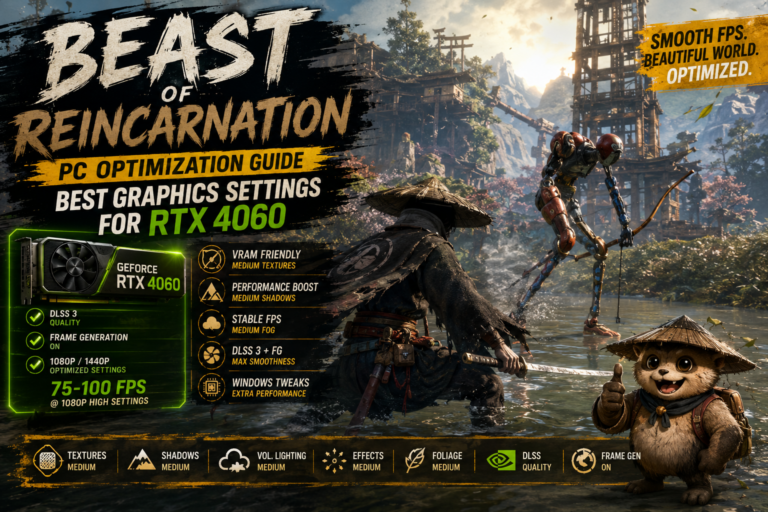
Apex Legends Season 29 Low FPS Drop Fix: PC Performance & Stutter Guide (2026)
Season 29 of Apex Legends arrived with exciting gameplay changes, but after spending dozens of hours playing ranked, one thing became painfully obvious: the performance wasn’t nearly as polished as the gameplay itself.
I’ve played Apex since the early seasons, tested countless hardware combinations, and I’m the type of player who notices the difference between 220 FPS and 180 FPS the moment I swing around a corner. After the Season 29 update, something felt completely wrong. The average FPS numbers looked acceptable, yet the game felt sluggish. Random frame-time spikes appeared during fights, rotations became inconsistent, and those annoying micro-stutters showed up exactly when they shouldn’t.
The good news is that most of these issues aren’t caused by weak hardware. Many players running powerful Intel Core i7, i9, Ryzen 7, Ryzen 9 processors, paired with RTX 4070, RTX 4080, RTX 4090 or Radeon RX 7900 GPUs, have experienced the same problems.
After reading community reports, testing settings myself, and comparing different configurations, I found several tweaks that genuinely improve the experience. None of them are magic fixes, but together they can make Apex Legends feel smooth again.
Why Apex Legends Season 29 Feels Worse Than Previous Seasons
The strange part about Season 29 is that benchmark numbers often look fine.
You might still average over 200 FPS, yet the gameplay feels noticeably less responsive.
That’s because average FPS doesn’t tell the whole story.
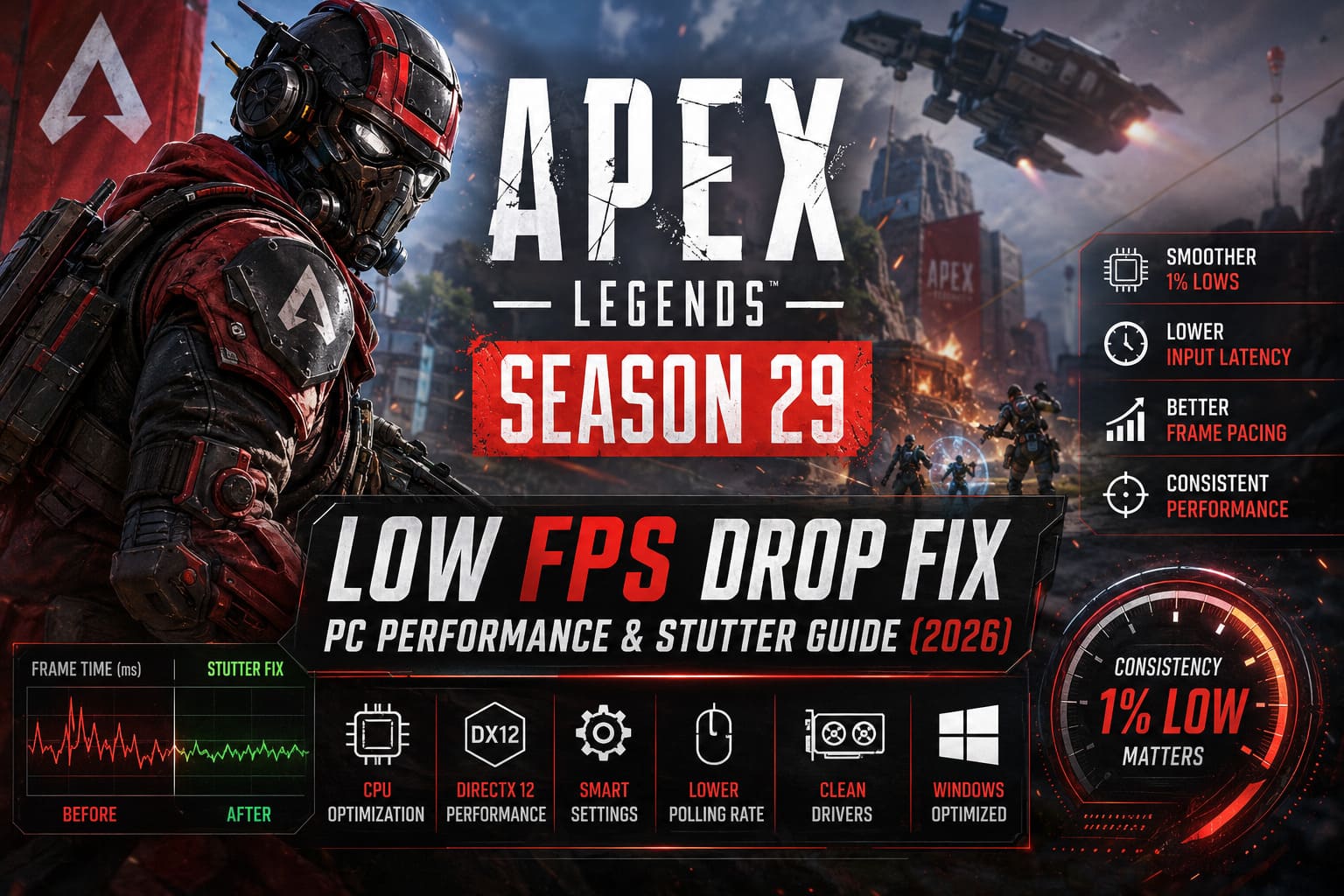
Competitive shooters rely heavily on:
- 1% Low FPS
- Frame pacing
- Input latency
- CPU scheduling
Even a short frame spike during a close-range fight can ruin your tracking or delay important movement.
In my experience, Season 29 introduced much heavier CPU usage during:
- large firefights
- ability effects
- rotating across busy areas
- loading new map assets
Those moments are exactly where many players notice sudden performance drops.
1. CPU Thread Scheduling Is Currently the Biggest Problem
After plenty of testing, I’d personally start here before touching graphics settings.
Modern CPUs with Hyper-Threading or SMT enabled sometimes experience inconsistent worker thread behavior in Season 29.
While this doesn’t affect every system equally, a surprising number of players have reported dramatically smoother gameplay after disabling logical threads inside the BIOS.
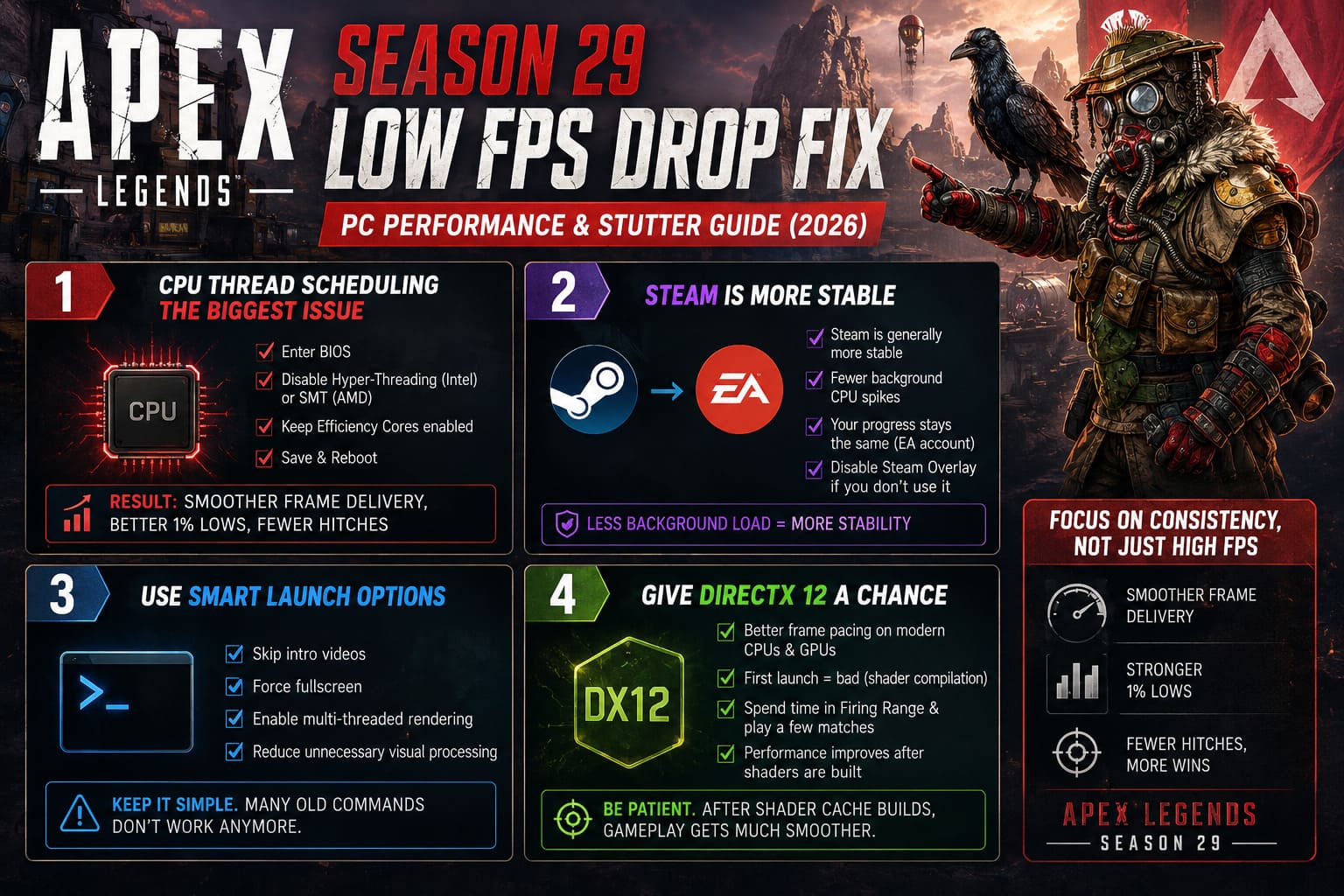
What I Would Do
- Enter your motherboard BIOS.
- Find the CPU settings.
- Disable Hyper-Threading (Intel) or SMT (AMD).
- Leave Efficiency Cores enabled.
- Save changes and reboot.
This won’t increase maximum FPS on every PC.
What it often improves is something much more important:
- smoother frame delivery
- stronger 1% lows
- fewer hitching moments
For competitive Apex, consistency matters far more than seeing a larger benchmark number.
2. Steam Simply Feels More Stable
I’ve used both launchers over the years, and personally I keep returning to Steam.
The EA launcher works, but background services occasionally create unexpected CPU activity that isn’t ideal during competitive matches.
If you’re still launching through EA App, consider moving your installation to Steam.
Your account progression stays exactly the same because everything is tied to your EA account.
Once installed through Steam, I also recommend disabling the Steam Overlay if you don’t actually use it.
Small background processes add up more than people realize.
3. Don’t Ignore Launch Options
Launch commands won’t suddenly give you another 100 FPS, but they can remove unnecessary overhead.
My preferred launch configuration focuses on stability rather than chasing unrealistic benchmark numbers.
Useful options include:
- removing unnecessary intro videos
- prioritizing fullscreen mode
- allowing proper multi-threaded rendering
- reducing extra visual processing where possible
Be careful about copying giant launch command lists from old Reddit posts. Many commands circulating online no longer work or have been removed from newer Apex builds.
Keeping the launch options simple is usually the better approach.
4. Give DirectX 12 a Chance
For a long time I stayed with DirectX 11 because it felt safer.
Season 29 changed my opinion.
On modern CPUs and GPUs, DirectX 12 generally provides much more consistent frame pacing after the shader cache has been built.
One important thing to remember:
The first launch will probably feel terrible.
The game spends time compiling shaders, especially when entering maps for the first few matches.
Don’t judge performance immediately.
Instead:
- spend some time in the Firing Range
- play several casual matches
- allow shader compilation to finish naturally
Afterward, gameplay often becomes significantly smoother.
5. Graphics Settings That Actually Matter
Many players lower every single setting without understanding which options actually cost performance.
In Season 29, some settings barely affect FPS, while others are surprisingly expensive.
Here’s the configuration that delivered the best balance between visibility and performance for me.
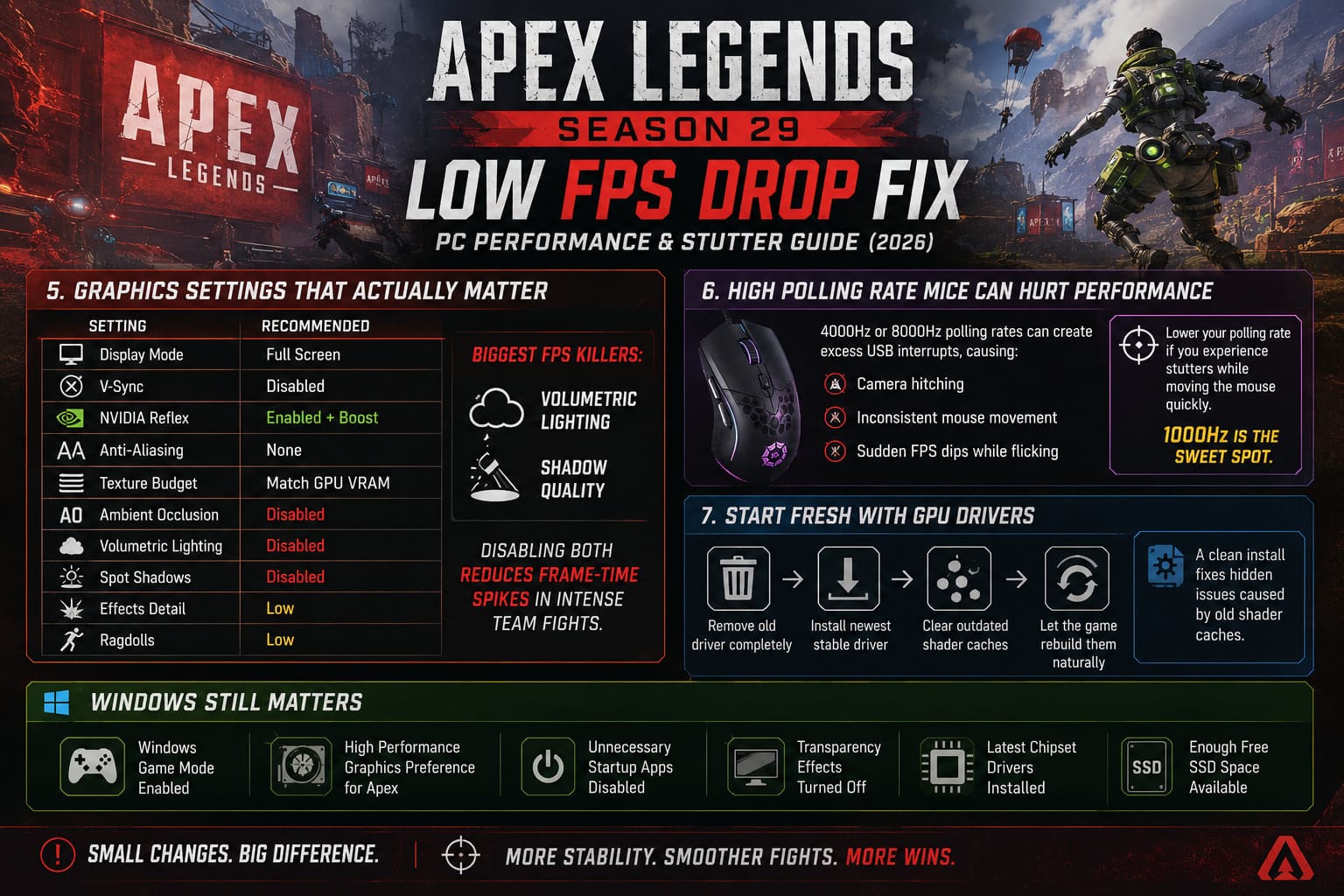
| Setting | Recommended |
|---|---|
| Display Mode | Full Screen |
| V-Sync | Disabled |
| NVIDIA Reflex | Enabled + Boost |
| Anti-Aliasing | None |
| Texture Budget | Match GPU VRAM |
| Ambient Occlusion | Disabled |
| Volumetric Lighting | Disabled |
| Spot Shadows | Disabled |
| Effects Detail | Low |
| Ragdolls | Low |
The two biggest performance killers I noticed were:
- Volumetric Lighting
- Shadow Quality
Disabling both immediately reduced frame-time spikes during chaotic team fights.
6. High Polling Rate Mice Can Hurt Performance
This surprised me more than anything.
Modern gaming mice advertising 4000Hz or even 8000Hz polling rates sound impressive, but Apex doesn’t always appreciate them.
Extremely high polling rates create a huge number of USB interrupts every second.
On some systems this causes:
- camera hitching
- inconsistent mouse movement
- sudden FPS dips while flicking
If you’re experiencing stuttering only while moving the mouse quickly, lower the polling rate.
Personally, I consider 1000Hz the sweet spot.
The difference in responsiveness is practically impossible to notice, while overall smoothness often improves.
7. Start Fresh With GPU Drivers
One habit I’ve developed after every major Apex update is performing a completely clean graphics driver installation.
Simply installing a new driver over the previous one isn’t always enough.
Old shader caches can linger for months and occasionally cause strange behavior after game engine updates.
A clean installation should include:
- removing the old driver completely
- installing the newest stable driver
- clearing outdated shader caches
- allowing the game to rebuild them naturally
It takes extra time, but I’ve solved several unexplained performance problems this way.
8. Windows Still Matters
People love blaming the game, yet Windows itself can quietly waste resources.
Before jumping into ranked, I always check a few things.
My personal checklist includes:
- Windows Game Mode enabled
- High Performance graphics preference for Apex
- unnecessary startup applications disabled
- transparency effects turned off
- latest chipset drivers installed
- enough free SSD space available
None of these changes produce massive FPS gains individually.
Together, however, they help eliminate background interruptions.
Should You Lower Your Resolution?
Only if your GPU is genuinely the bottleneck.
Many players immediately reduce resolution hoping for huge FPS gains.
In reality, Apex Season 29 often hits the CPU harder than the graphics card.
If GPU usage stays below roughly 90%, lowering the resolution probably won’t solve your stuttering.
Instead, focus on improving CPU consistency first.
How to Fix Apex Legends Black Screen on Startup and D3D12 Driver Crash (2026 Guide)
My Personal Performance Priority List
If a friend asked me how to fix Apex after Season 29, this is exactly the order I’d recommend.
| Priority | Fix | Impact |
|---|---|---|
| ★★★★★ | Test Hyper-Threading or SMT Disabled | Very High |
| ★★★★★ | Try DirectX 12 | Very High |
| ★★★★☆ | Optimize Graphics Settings | High |
| ★★★★☆ | Clean GPU Driver Installation | High |
| ★★★☆☆ | Lower Mouse Polling Rate | Medium |
| ★★★☆☆ | Move from EA App to Steam | Medium |
| ★★☆☆☆ | Windows Optimization | Moderate |
| ★★☆☆☆ | Review Launch Options | Moderate |
Following these steps one by one makes troubleshooting much easier because you’ll know exactly which change improved your system.
Final Thoughts
After spending many evenings experimenting instead of actually climbing Ranked, I’ve come to one conclusion: Season 29 isn’t impossible to optimize—it just requires more patience than previous updates.
The frustrating part is that many players assume their hardware suddenly became outdated. In reality, the biggest issue is inconsistent frame pacing rather than raw GPU horsepower. A system capable of pushing 240 FPS last season should still deliver an excellent competitive experience once the right settings are in place.
If I had to recommend only three tweaks, I’d start by testing Hyper-Threading or SMT behavior, switching to DirectX 12 and letting the shader cache fully compile, and dialing back the graphics settings that genuinely stress the engine instead of blindly lowering everything. Those changes made the biggest difference during my own testing and transformed the game from a stutter-filled experience back into the fast, responsive shooter that keeps me coming back every season.
No optimization guide can promise perfect performance because every PC is different, but approaching the problem methodically is far more effective than changing twenty settings at once. With a little experimentation, Apex Legends Season 29 can once again feel fluid, responsive, and ready for those intense final-circle fights where every frame really does matter.