Don’t Starve Together Cursed Confrontation Crash on Launch Fix (2026 Guide)
I’ve spent thousands of hours surviving in Don’t Starve Together, testing mods, creating dedicated servers, and jumping into every major seasonal update. One thing I’ve learned is that every big expansion brings fresh content… and sometimes fresh technical headaches.
The latest 2026 content updates introduced new mechanics, balance adjustments, backend changes, and preparations for future content. While the gameplay itself remains fantastic, many players—including people I regularly play with—started encountering an annoying problem: the game crashes before reaching the main menu.
Sometimes it’s a black screen. Other times Windows simply closes the game without an error message. I’ve also seen cases where the game freezes on startup before becoming “Not Responding.”
After digging through community discussions, testing different solutions myself, and comparing dozens of player reports, I noticed that most startup crashes come from only a handful of causes.
This guide collects the fixes that consistently produce the best results. I recommend following them in order instead of randomly trying everything.
Why Don’t Starve Together Suddenly Crashes on Launch
One mistake many players make is assuming the latest update itself is broken.
In reality, the update usually exposes an existing problem on your PC. The game becomes less tolerant of outdated files, broken mods, damaged settings, or software conflicts that previously went unnoticed.
The most common reasons include:
- Outdated Workshop mods
- Corrupted player configuration files
- Damaged Steam installation files
- Overlay software interfering with the game
- Graphics driver conflicts
- Windows permission issues
Once you identify which category your crash belongs to, fixing it becomes much easier.
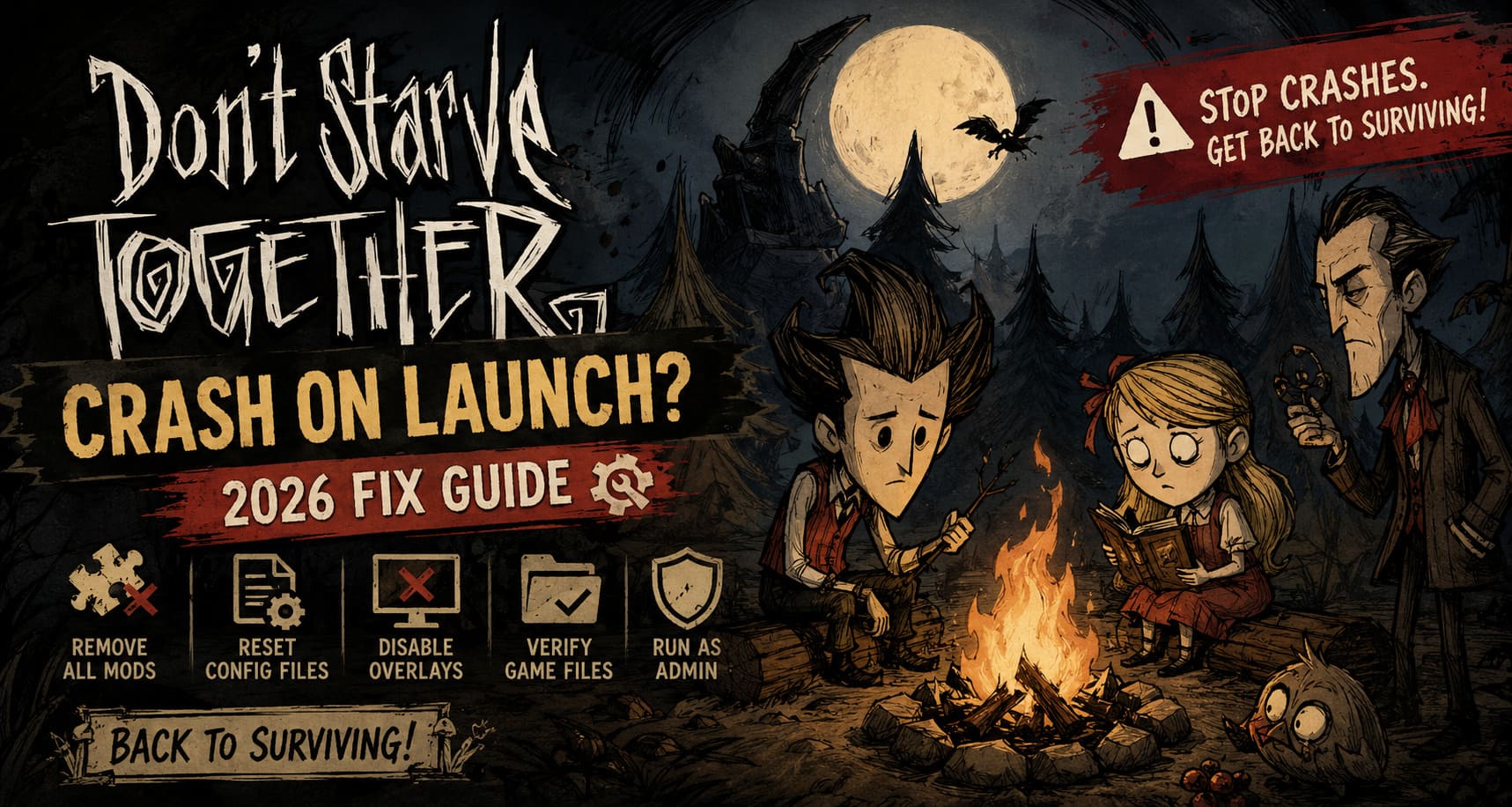
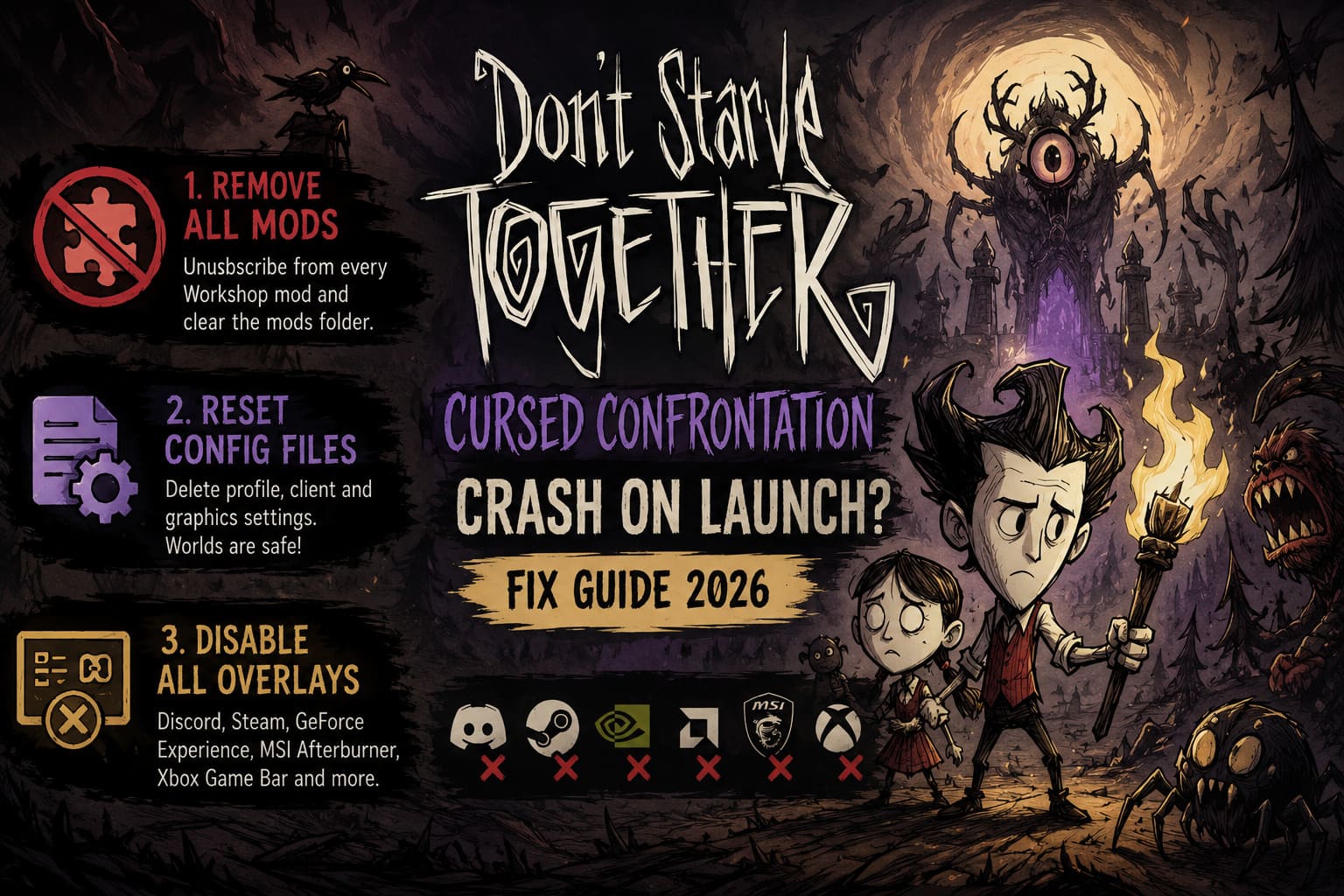
Remove Every Mod Before Anything Else
If there’s one piece of advice I’d give every player, it’s this:
Disable every single mod—even the ones you think are harmless.
I’ve seen players spend hours reinstalling Windows only to discover an abandoned Workshop mod was crashing the game.
Even cosmetic mods can become incompatible after major updates.
Here’s what I recommend:
- Open Steam.
- Go to your Workshop subscriptions.
- Unsubscribe from every DST mod.
- Open your local installation folder.
- Delete everything inside the mods directory.
- Launch the game without reinstalling any mods.
If the game starts successfully, you’ve already found the culprit.
Only reinstall mods one at a time afterward.
Reset Your Local Configuration Files
Another surprisingly common issue comes from corrupted local settings.
Fortunately, your worlds are stored separately, meaning you can safely reset most configuration files without losing your progress.
Navigate to your Don’t Starve Together documents folder and remove:
- profile configuration
- client settings
- graphics preferences
The game automatically recreates clean versions during the next launch.
I’ve personally fixed startup crashes this way more than once after experimenting with different monitor setups.
Disable Every Overlay Running in the Background
Modern PC gamers usually have several overlays running without realizing it.
- Discord
- Steam
- GeForce Experience
- AMD Software
- MSI Afterburner
- RivaTuner
- Xbox Game Bar
Any of them can interfere with the game’s rendering initialization.
When troubleshooting, I always recommend temporarily disabling every overlay.
It takes only a minute and has solved launch crashes for countless players.
Verify the Game Files Through Steam
This step sounds basic, but it’s incredibly effective.
Power outages, interrupted updates, antivirus software, or storage errors can damage game files without Steam warning you.
Using Steam’s Verify Integrity of Game Files option forces the client to compare every installed file against the official version.
Missing or corrupted files download automatically.
Even if verification reports only one damaged file, that single replacement can completely solve startup crashes.
Run the Game with Administrator Rights
Windows security has become stricter over the years.
Sometimes the game simply doesn’t have permission to access required folders during launch.
I recommend enabling:
- Run as Administrator
- Disable Fullscreen Optimizations
These two options eliminate many strange startup issues on Windows 10 and Windows 11.
Older systems may also benefit from running the executable in Windows 8 compatibility mode, although I wouldn’t try compatibility settings unless the previous fixes fail.
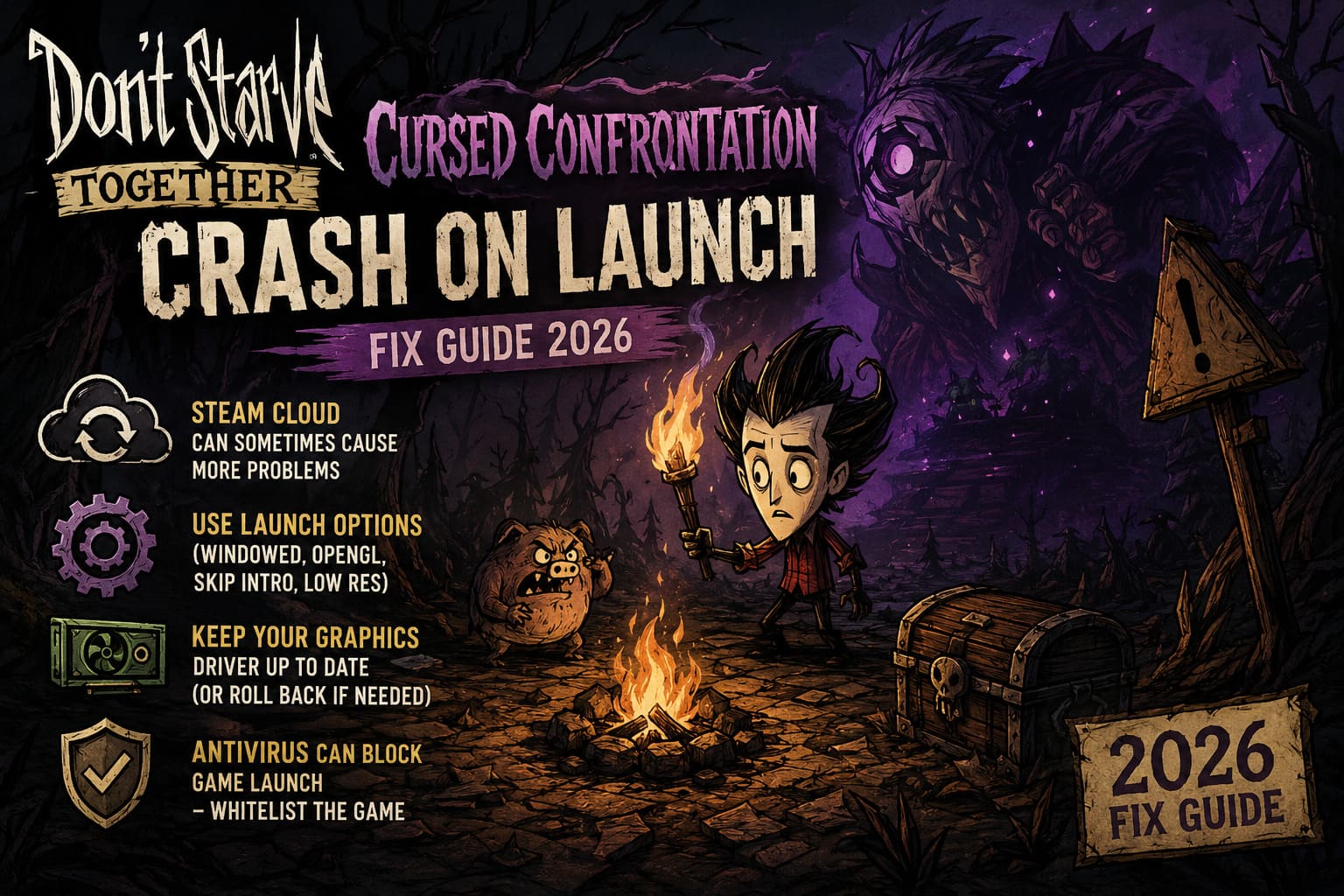
Steam Cloud Can Sometimes Cause More Problems Than It Solves
Cloud synchronization is convenient—until corrupted data gets synchronized across every device.
I’ve seen situations where a damaged configuration immediately returned after being deleted because Steam Cloud restored it during launch.
To test this:
- Clear Steam’s download cache.
- Restart Steam.
- Temporarily disable Steam Cloud synchronization.
- Launch the game.
If everything suddenly works, you’ve narrowed the issue down considerably.
Later, you can selectively restore your saves after confirming they’re healthy.
Force Safer Launch Parameters
When nothing else works, launch options can make a surprising difference.
I often use windowed mode while troubleshooting because it avoids several fullscreen initialization problems.
Useful launch arguments include:
- windowed mode
- lower startup resolution
- skip intro videos
- OpenGL fallback (for older hardware)
These parameters don’t permanently change your game—they simply make startup more reliable while you’re diagnosing the issue.
Once the game launches normally, you can remove them one by one.
Don’t Ignore Your Graphics Driver
A lot of players automatically install every new GPU driver the day it’s released.
Ironically, that’s sometimes exactly what causes problems.
If your crashes began immediately after updating NVIDIA, AMD, or Intel graphics software, consider testing an earlier stable driver.
Likewise, if you haven’t updated your driver in years, installing the latest certified version may completely eliminate the crash.
Driver issues rarely affect everyone equally, which explains why some players launch the game perfectly while others crash instantly using similar hardware.
Antivirus Software Can Also Block Game Startup
One cause that often gets overlooked is security software.
Some antivirus suites mistakenly flag modified game files, Workshop content, or temporary cache generation as suspicious behavior.
Before assuming the game itself is broken, temporarily whitelist the Don’t Starve Together installation folder inside your antivirus settings.
If the crash disappears afterward, you’ve found the conflict.
Remember to only download mods and game files from trusted sources.
A Completely Clean Start Is Sometimes the Fastest Solution
If you’ve tried everything above and nothing changes, performing a clean installation can save hours of frustration.
My preferred process looks like this:
- Remove all Workshop subscriptions.
- Uninstall the game.
- Delete leftover installation folders.
- Delete cached configuration files.
- Restart Windows.
- Install the game again.
- Verify files immediately.
- Launch without mods.
This method removes years of leftover files that updates sometimes leave behind.
While it takes longer than individual fixes, it often resolves stubborn startup problems in one attempt.
Quick Troubleshooting Table
| Problem | Most Likely Cause | Recommended Fix |
|---|---|---|
| Black screen immediately | Overlay conflict | Disable Discord, Steam, MSI Afterburner, and RivaTuner. |
| Instant desktop crash | Broken Workshop mods | Remove every installed mod. |
| Game freezes before menu | Corrupted profile | Reset configuration files. |
| Crash after update | Damaged installation | Verify Steam game files. |
| Launch worked yesterday | GPU driver issue | Update or roll back the graphics driver. |
| Endless crash loop | Steam Cloud synchronization | Temporarily disable Steam Cloud. |
Don’t Starve Together 2026 Roadmap: Future of DST and Don’t Starve Elsewhere Explained
My Personal Advice
I’ve been playing survival games for years, and Don’t Starve Together remains one of those titles I always return to. That’s why startup crashes are especially frustrating—they stop you before the adventure even begins.
From everything I’ve tested, mods are by far the biggest offender. Nearly every major update breaks at least a handful of Workshop creations, even ones that seemed perfectly stable for months.
The second biggest culprit is old configuration data that quietly survives multiple game updates until one patch finally refuses to load it.
My recommendation is simple:
- Start with a completely clean version of the game.
- Get it launching consistently first.
- Only then begin restoring your favorite mods one by one.
It takes a little patience, but it’s much easier than chasing random crashes caused by several issues happening at once.
Don’t Starve Together Cursed Confrontation Update Guide: Sanctum Boss, Loot, and Strategies
Final Thoughts
Startup crashes in Don’t Starve Together can look intimidating, but they’re rarely permanent. In most cases, the issue comes down to outdated mods, corrupted local settings, overlay conflicts, damaged installation files, or driver incompatibilities.
Working through each solution methodically is far more effective than reinstalling the game repeatedly or making random system changes.
Once you’ve confirmed the game launches correctly, restore your preferred settings gradually, re-enable overlays one at a time if needed, and reinstall Workshop mods individually. That approach makes it easy to identify exactly what caused the crash while keeping your installation stable for future updates.
With a little troubleshooting, you’ll be back exploring, crafting, surviving, and inevitably starving with your friends instead of staring at a crash screen.