How to Fix Controller Input Delay in NBA 2K27 on Steam (PC Latency Guide)
If there is one thing that can completely ruin NBA 2K27 on PC, it is controller input delay. You can have a powerful GPU, a 165Hz monitor, a fast SSD, and a perfectly stable frame rate, but if your player reacts a split second after you press the button, none of that matters.
I have dealt with input lag in plenty of PC games over the years, and basketball games are among the most frustrating places to notice it. In a shooter, you might blame a missed shot on aim. In NBA 2K27, you immediately notice when something feels wrong. Your dribble moves come out late, defensive slides feel sluggish, and suddenly your jump-shot timing seems completely different from what you practiced.
The important thing is that not every type of delay has the same cause. Sometimes it is the controller. Sometimes it is Steam. Sometimes it is your graphics settings. And when you are playing online, network latency can make a perfectly responsive controller feel terrible.
After testing different controller configurations and graphics settings across PC games, I put together the fixes that I would personally try first. You do not necessarily need to change everything in this guide. Start with the simple fixes, test NBA 2K27, and then move toward the more advanced options if the problem remains.
First, Figure Out What Kind of Input Lag You Actually Have
Before changing a dozen Windows settings, I recommend figuring out whether the problem is local or network-related. This sounds obvious, but it saves a surprising amount of time.
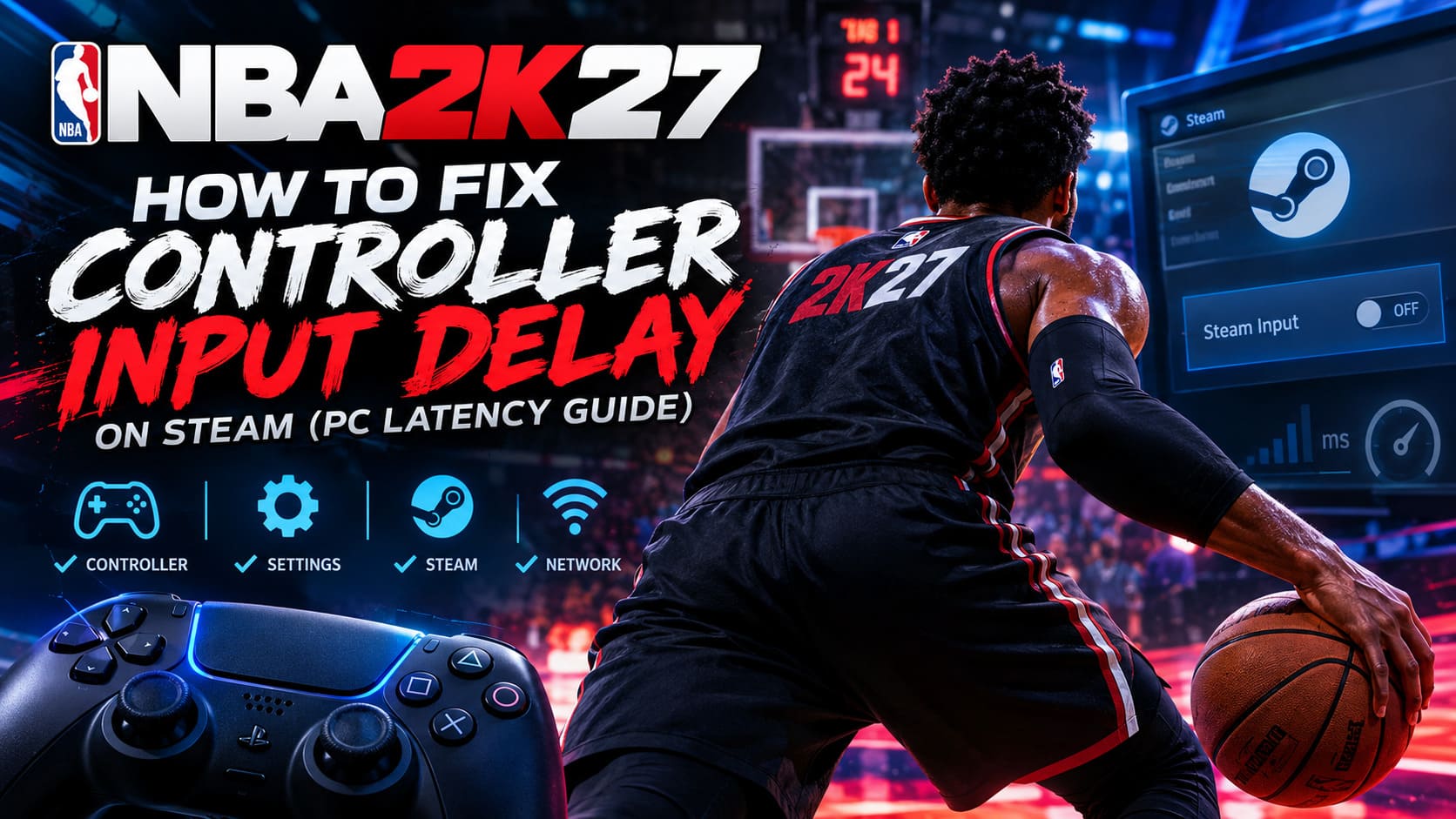
If your controller feels delayed even while navigating menus or playing offline, I would immediately look at the controller connection, Steam Input, USB configuration, and frame latency.
If offline gameplay feels responsive but everything becomes sluggish in the Rec, Park, or other online modes, your internet connection may be contributing to the problem. That is a completely different issue and changing controller drivers will not magically fix it.
| What You Notice | Most Likely Cause | What I Would Check First |
|---|---|---|
| Buttons feel delayed everywhere | Controller or software input | USB connection, Steam Input |
| Offline feels fine, online feels slow | Network latency | Ethernet, ping, packet loss |
| Input feels inconsistent | Frame-time spikes | V-Sync, FPS, GPU settings |
| Controller occasionally stops responding | Device or driver conflict | Windows HID devices |
1. Start With V-Sync and Frame Pacing
This is probably the first graphics setting I would change. I have played enough competitive games to know that a game can look beautiful while feeling awful to control. High graphics quality does not automatically mean good responsiveness.
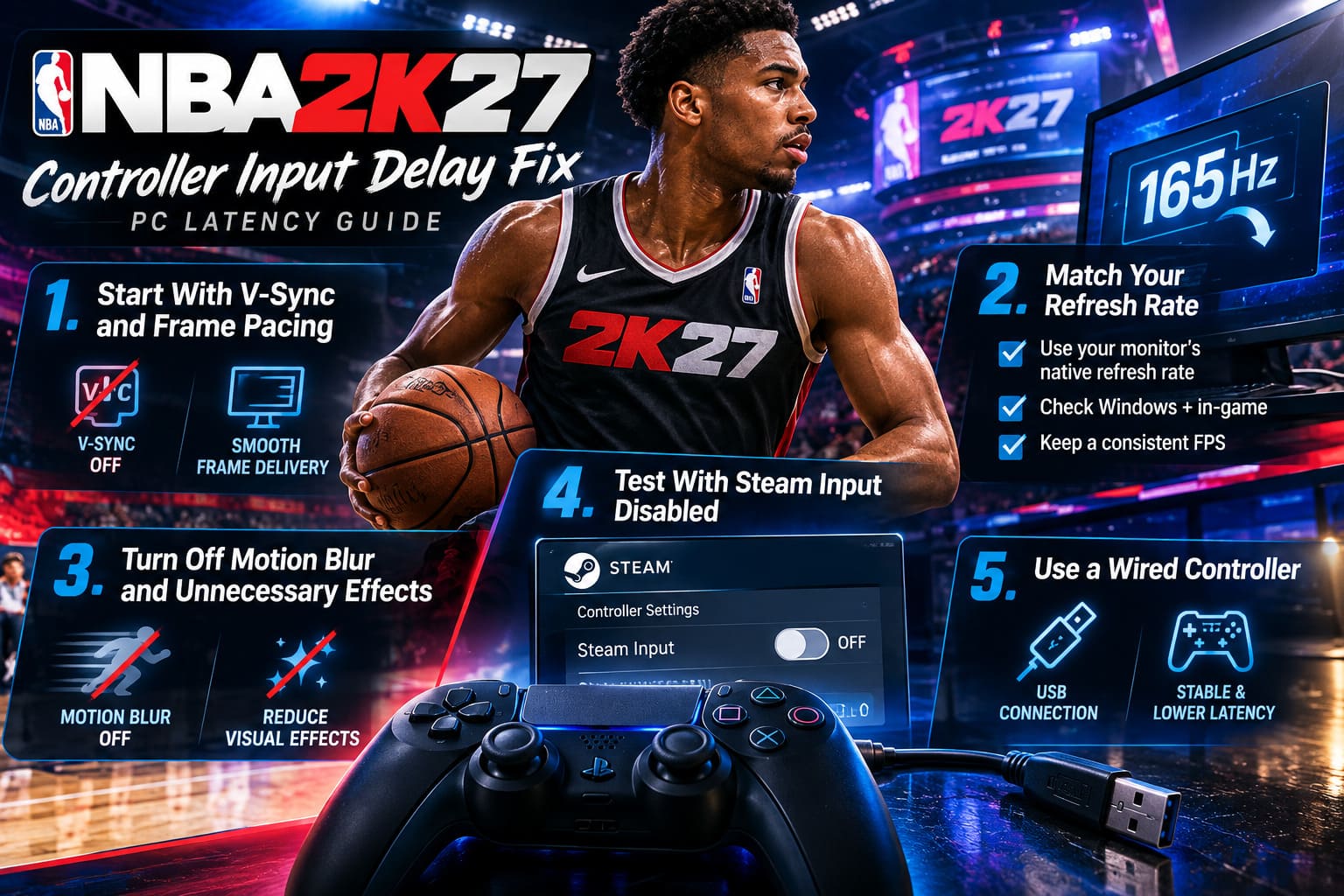
V-Sync is one of the first things I would test with NBA 2K27. Depending on your hardware and display, it can increase the amount of time between an input and the frame where you actually see the result.
Open the game’s video settings and turn Vertical Sync off. Then play for a few minutes and see how the controller feels. You may notice some screen tearing, particularly if your frame rate is not synchronized with your monitor, but the reduction in latency can be worth it.
I would also avoid chasing an enormous FPS number just for the sake of it. What matters is consistent frame delivery. A stable frame rate often feels much better than a higher number that constantly jumps up and down.
2. Match Your Refresh Rate to Your Monitor
Windows and games do not always end up using the configuration you expect. If you have a 144Hz, 165Hz, or 240Hz monitor, make sure NBA 2K27 is actually running at the refresh rate you intend to use.
Check your Windows display settings first, then verify the refresh-rate option inside the game if one is available. I also recommend using the monitor’s native resolution instead of unnecessarily changing resolution just to gain a few extra frames.
For example, if you own a 2560×1440 165Hz display, I would start with native 1440p and a stable frame rate before experimenting with aggressive scaling or other performance tricks.
Consistency is the keyword here. In a timing-sensitive game, predictable frame delivery is much more valuable than constantly fluctuating performance.
3. Turn Off Motion Blur and Unnecessary Visual Effects
Motion blur is one of those effects that I disable in almost every competitive game. I understand why developers use it in cinematic experiences, but when I am trying to time a jump shot or react to a ball handler, I want a clean image.
Go through NBA 2K27’s graphics options and disable motion blur. If the game provides resolution scaling options, I would also avoid settings that constantly change resolution unless your PC genuinely needs them to maintain playable performance.
This is not necessarily going to remove several milliseconds of controller latency by itself. The bigger advantage is that you are reducing unnecessary processing and making the image easier to read during fast movement.
4. Test NBA 2K27 With Steam Input Disabled
This is one of the first Steam-specific changes I would make if I were troubleshooting a controller on PC.
Steam Input is incredibly useful. I use it regularly with games that do not properly support certain controllers, and it is fantastic for remapping buttons or making unusual hardware work. However, when a game already has good native controller support, I prefer to keep the input path as simple as possible.
Go to your Steam Library, right-click NBA 2K27, open Properties, and find the controller settings. Look for the Steam Input override and test the game with Steam Input disabled.
The exact behavior can depend on the controller you use. Xbox controllers generally have a straightforward XInput experience, while PlayStation controllers can sometimes behave differently depending on how the game detects them.
If disabling Steam Input makes your controller disappear completely, simply turn it back on. There is no reason to sacrifice a working controller just to follow a latency tweak blindly.
5. Try Playing With a Wired Controller
If you are serious about reducing controller latency, this is one of the easiest recommendations I can make: use a USB connection whenever possible.
Bluetooth is convenient, and I use wireless controllers myself when playing slower single-player games. But NBA 2K27 is a different situation. When I am playing competitively, I would rather remove one more variable from the equation.
Connect the controller directly to a USB port on the motherboard if possible. I would avoid cheap USB hubs, questionable extension cables, and front-panel connections while troubleshooting.
You do not necessarily need an expensive gaming cable either. A good-quality data-capable USB cable is enough. The point is simply to create a stable wired connection.
6. Do Not Immediately Blame the Controller
One mistake I see often is assuming that a delayed controller automatically means the controller itself is defective. Windows can have several Human Interface Devices installed at the same time, and some applications can create virtual controller devices.
Open Device Manager and expand the Human Interface Devices section. If you see multiple game-controller-related entries, take a moment to understand what is actually connected before disabling anything.
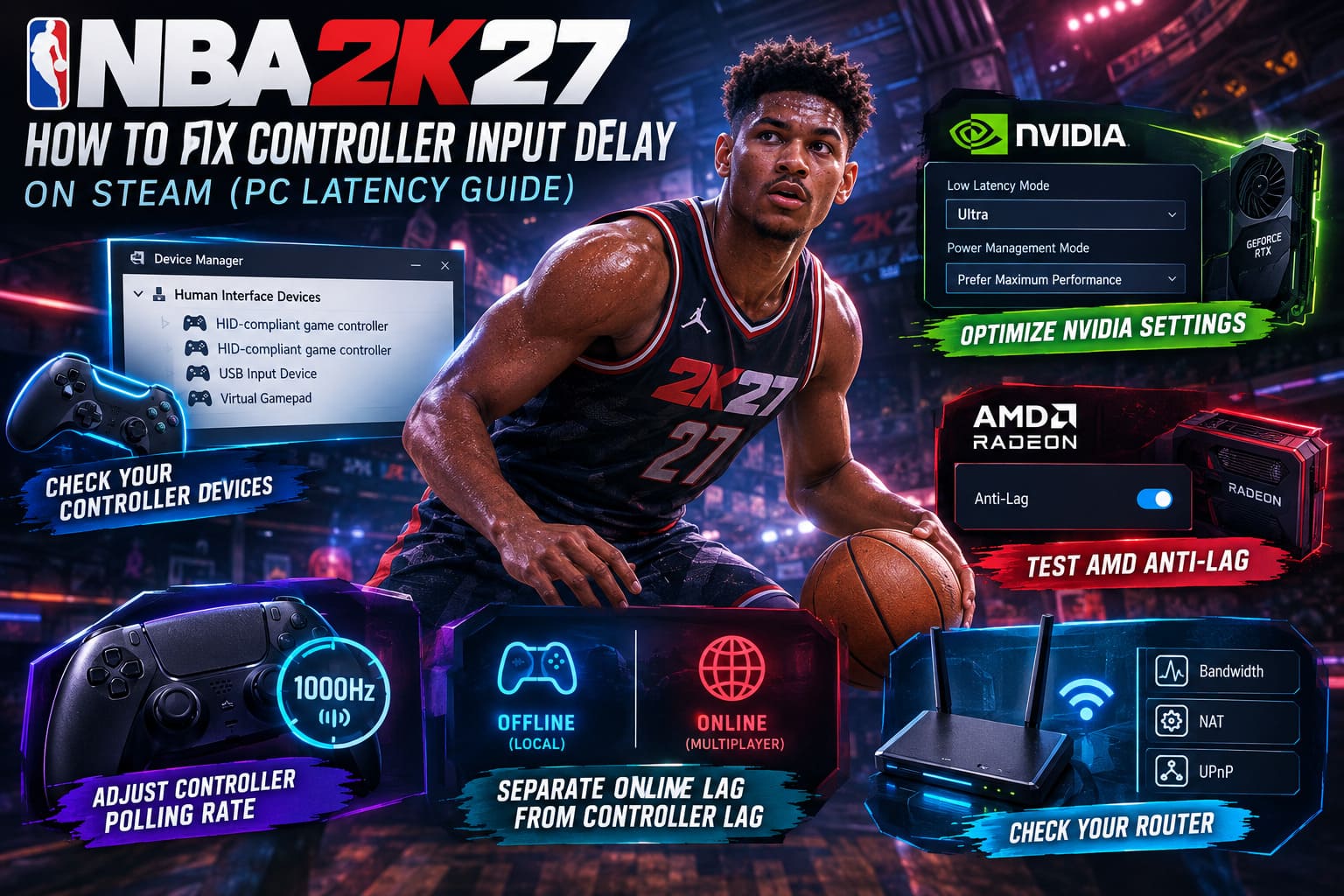
I would be particularly careful here. Do not randomly disable HID devices just because their names look unfamiliar. Some entries belong to your keyboard, mouse, headset, touchscreen, or other hardware.
If you have identified an old controller or a known virtual device that is creating a conflict, disabling that specific device can be worth testing. But this should be treated as a troubleshooting step rather than a universal FPS or latency boost.
7. NVIDIA Settings: Keep the GPU From Getting Lazy
If you are running an NVIDIA GPU, open the NVIDIA Control Panel and create a profile for NBA 2K27.
One setting worth testing is Low Latency Mode. Depending on the game’s own rendering pipeline and your driver version, Ultra can reduce queued frames in some situations. However, I would not treat this as a magic switch that guarantees lower latency on every system.
I would also test Prefer Maximum Performance for the game’s profile. The idea is to prevent aggressive power-state changes from contributing to performance fluctuations during gameplay.
My approach with driver settings is simple: change one thing, test it, and keep it only if the game actually feels better. PC optimization becomes a mess when you change fifteen settings simultaneously and then have no idea which one helped.
8. AMD Users Should Test Anti-Lag
AMD users have a similar option through AMD Software: Adrenalin Edition. If you have a compatible Radeon GPU, look for the NBA 2K27 profile and test AMD Anti-Lag.
The purpose of Anti-Lag is to reduce the amount of time frames spend waiting between CPU and GPU processing. In games where responsiveness matters, that can make a noticeable difference.
Again, I would test rather than assume. Driver features can behave differently depending on the game, GPU, driver version, and frame-rate situation.
9. Controller Polling Rate: Advanced Users Only
This is where I would stop recommending changes to casual PC players and start talking to people who genuinely enjoy tweaking their setup.
Controller polling rate determines how frequently the device reports information to the PC. Higher polling rates can reduce the theoretical time between controller updates, which is why tools such as HIDUSBF are sometimes used by PC enthusiasts.
A 1000Hz polling configuration sounds impressive on paper, but do not expect it to transform a badly configured NBA 2K27 installation into an instant-response machine. The difference between controller hardware latency, USB reporting, game processing, rendering latency, and network latency matters much more than a single number.
If you decide to experiment with polling-rate modifications, create a restore point first and make sure you understand exactly which device you are modifying. I would not recommend installing random controller tools from unofficial download sites simply because a forum post claims they reduce latency.
10. Separate Online Lag From Controller Lag
This is probably the most important part of the entire guide.
NBA 2K27 can feel completely different online compared with offline gameplay. If your player reacts instantly in a local or offline environment but feels delayed in online modes, your controller might actually be working perfectly.
Network latency, jitter, packet loss, server conditions, and connection routing can all affect the experience. You cannot fix server-side latency by changing your controller’s polling rate.
For online play, I strongly prefer Ethernet. Wi-Fi has improved enormously over the years, and modern wireless networking can be very good, but competitive gaming is about eliminating variables. A wired connection removes wireless interference from the equation.
11. Check Your Router Before Blaming NBA 2K27
If online input feels delayed, check whether other devices are consuming a large amount of bandwidth. Someone streaming high-resolution video, downloading a huge game, or uploading files can create congestion that becomes noticeable during online gaming.
Your router’s NAT configuration can also affect connectivity. If you consistently have matchmaking problems or connection instability, checking UPnP and your router configuration is worthwhile.
However, I would not blindly start forwarding ports from a random guide. Router configurations vary, and incorrect settings can create more problems than they solve.
My Recommended NBA 2K27 Low-Latency Setup
If I were setting up a fresh PC installation specifically for NBA 2K27, I would keep things simple at first. This is the configuration I would personally test before touching advanced Windows modifications.
| Setting | My Starting Point | Why |
|---|---|---|
| V-Sync | Off | Reduces potential rendering latency |
| Motion Blur | Off | Cleaner image during fast movement |
| Display Mode | Fullscreen if stable | Simple, consistent presentation |
| Refresh Rate | Native monitor maximum | Better responsiveness potential |
| Controller | USB | Removes wireless interference |
| Steam Input | Disabled if native support works | Removes an unnecessary translation layer |
| Online Connection | Ethernet | More predictable latency and jitter |
Twitch Drops for NBA 2K27: Guide to Free Rewards & Locker Codes (2026)
What I Would Not Do
There is a lot of questionable PC optimization advice floating around, and I would avoid turning your Windows installation upside down for a tiny theoretical gain.
I would not start deleting random registry keys, installing mysterious “gaming optimization” programs, disabling dozens of Windows services, or downloading unknown controller drivers from file-sharing sites.
I also would not assume that 1000Hz polling automatically equals zero input lag. It does not. The entire chain matters: controller → USB/Bluetooth → Windows → Steam/game input → CPU → GPU rendering → monitor → network synchronization in online modes.
If one part of that chain is slow, improving another part may barely change what you feel.
Should You Upgrade to NBA 2K27 if You Already Have NBA 2K26? A Complete Breakdown
Final Thoughts
Controller input delay in NBA 2K27 on PC is one of those problems that can be incredibly annoying because there is rarely one universal fix. After playing a lot of different PC games, I have learned that the best approach is to eliminate variables one at a time rather than blindly applying every tweak you find online.
Start with the basics: turn off V-Sync, use a sensible frame-rate configuration, disable motion blur, test Steam Input, and connect your controller through USB. Those steps are simple, reversible, and give you a much cleaner baseline.
After that, look at your NVIDIA or AMD driver configuration. If the problem only appears online, stop focusing exclusively on the controller and investigate your network connection instead.
For most players, you do not need an extreme 1000Hz polling-rate setup or a pile of obscure Windows tweaks. A stable frame rate, responsive display, clean controller connection, and reliable internet connection will make a much bigger difference.
And honestly, that is how I prefer to optimize games. I would rather spend ten minutes making five sensible changes and then actually play basketball than spend three hours modifying Windows only to gain a theoretical millisecond.
NBA 2K27 should feel responsive the moment you move the stick or press the button. If it does not, work through the chain methodically. Once you identify whether the delay is coming from rendering, the controller, Windows, Steam, or the network, the problem becomes much easier to solve.