Can You Play Bodycam on ASUS ROG Ally X at 60FPS? Best Settings Guide (2026)
Can Bodycam actually run at 60 FPS on the ASUS ROG Ally X? After spending a lot of time testing demanding PC games on handheld hardware, I went into Bodycam expecting the usual compromises: blurry visuals, aggressive upscaling, and a frame rate that would collapse whenever the game got serious. Bodycam is one of those games that makes even powerful desktop PCs work for their performance, so expecting a handheld with an integrated GPU to handle it smoothly sounds optimistic.
Surprisingly, the ROG Ally X can make it work. But there is an important catch: you should forget about native 1080p, High settings, and a locked 60 FPS. The Ally X needs some help from upscaling and frame generation to deliver the kind of smooth experience most players are looking for.
After trying different resolutions, power profiles, VRAM allocations, and FSR configurations, I found that the best overall approach is to target a sensible internal resolution, keep the heavy Unreal Engine 5 settings under control, and let frame generation handle the final push toward 60 FPS. The result is much better than I initially expected.
Why Bodycam Is So Difficult to Run on a Handheld
Bodycam is not an ordinary competitive shooter. Its entire visual identity depends on looking almost uncomfortably realistic. The Unreal Engine 5 technology behind the game produces detailed environments, complex lighting, reflections, shadows, and dense geometry. On a desktop gaming PC, this already creates a serious workload. On a handheld, the challenge becomes much more obvious.
I have tested plenty of PC games on handheld devices, and one thing I’ve learned is that raw GPU power isn’t always the only problem. Memory bandwidth, shared system memory, thermal limits, power consumption, and the resolution you’re targeting can all make a huge difference.
This is where the ASUS ROG Ally X has an advantage over many other handheld PCs. Its Ryzen Z1 Extreme isn’t dramatically different from the chip found in the original ROG Ally, but the surrounding hardware makes the machine much more comfortable with demanding games.
ROG Ally X Hardware: Why It Helps Bodycam
| Hardware | Why It Matters for Bodycam |
|---|---|
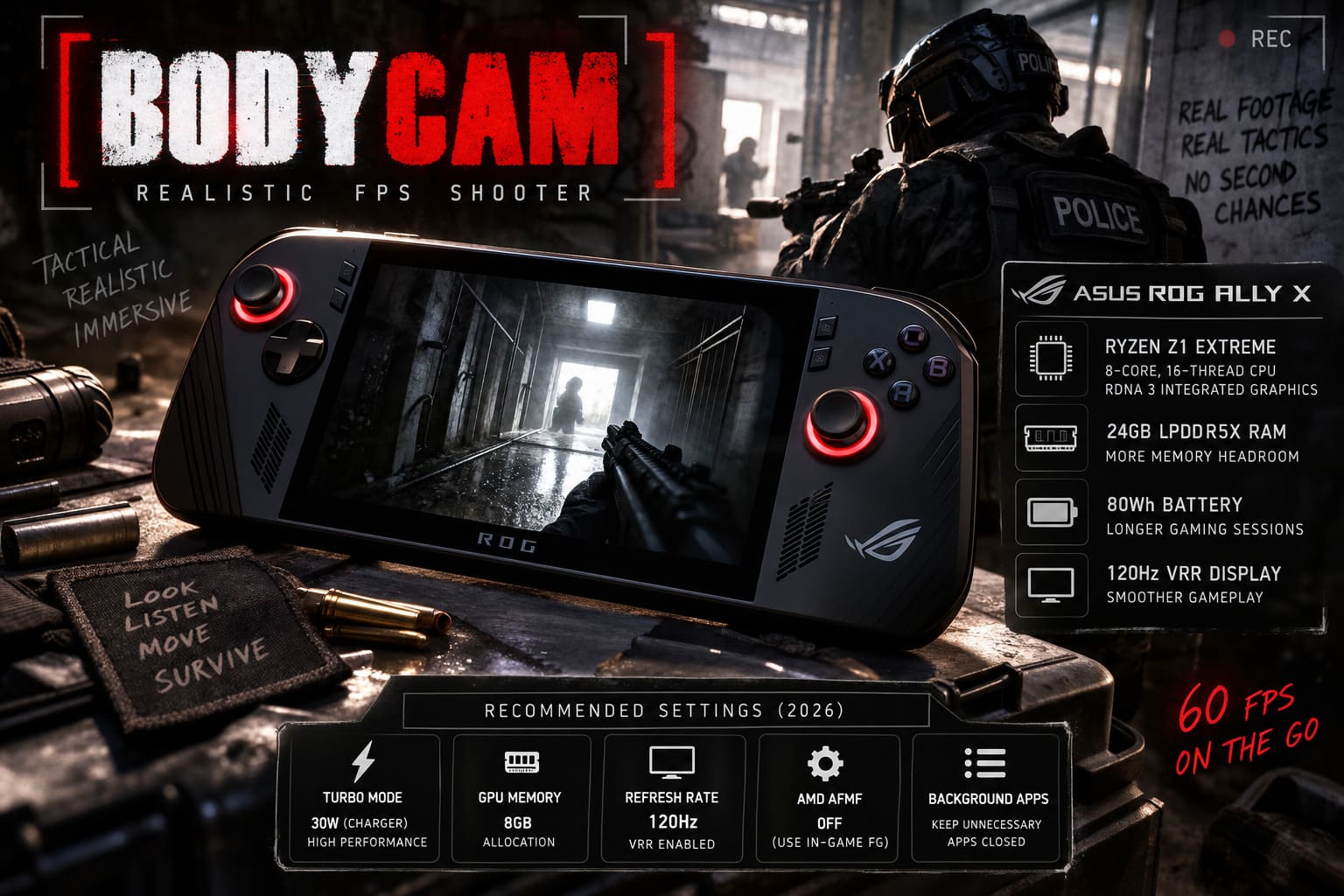
| Ryzen Z1 Extreme | 8-core, 16-thread CPU with RDNA 3 integrated graphics |
| 24GB LPDDR5X RAM | More shared memory headroom for Windows, the game, and GPU workloads |
| 80Wh Battery | Allows longer high-power gaming sessions |
| 120Hz VRR Display | Makes fluctuating frame rates feel significantly smoother |
The biggest improvement for a game like Bodycam is arguably the 24GB of RAM. The Z1 Extreme uses shared system memory for its graphics processing, so having more RAM gives you considerably more flexibility than a 16GB handheld.
That doesn’t magically turn the integrated GPU into a desktop graphics card, but it can reduce the pressure caused by Windows, background applications, game assets, and graphics memory all fighting over the same pool.
The 80Wh battery is another major quality-of-life improvement. It doesn’t increase FPS by itself, but it makes using higher power profiles for longer periods much more practical. Anyone who has played a demanding game on a handheld at maximum power knows how quickly a small battery can disappear.
My Reality Check: Don’t Expect Native 1080p at 60 FPS
This is the first thing I would tell anyone buying the Ally X specifically for Bodycam: don’t chase native 1080p performance.
I’ve made this mistake with other demanding handheld games. You see a 1080p option in the menu and naturally want to use it because the display is capable of showing it. Unfortunately, that doesn’t mean the GPU is powerful enough to render a game like Bodycam at that resolution while maintaining a competitive frame rate.
At native 1080p with demanding visual settings, the Ally X simply has too much work to do. The result is a frame rate that can fall into the 20s or low 30s depending on the scene. At that point, Bodycam stops feeling like a competitive shooter and starts feeling like a technical demonstration.
The trick is to stop thinking about 60 FPS as a native rendering target. Instead, you want a healthy base frame rate and then use modern upscaling and frame generation to create a smoother final presentation.
Best ROG Ally X Settings for Bodycam in 2026
After experimenting with different combinations, this is the setup I would start with. You can obviously push individual settings higher if you’re willing to sacrifice some performance, but this configuration offers the balance I prefer for actual multiplayer matches.
Recommended System Settings
- Operating Mode: Turbo
- Power: 30W when connected to the charger
- GPU Memory Allocation: 8GB
- Display Refresh Rate: 120Hz
- VRR: Enabled
- AMD AFMF: Off when using Bodycam’s own frame generation
- Background Apps: Keep unnecessary applications closed
If you’re playing unplugged, the Ally X will have to work within its battery power limits. I personally prefer playing Bodycam while connected to the charger when I’m specifically chasing the highest possible frame rate. The difference isn’t just about peak FPS; sustained performance is what matters in a long multiplayer session.
My Recommended In-Game Graphics Settings
| Setting | Recommended Value | My Take |
|---|---|---|
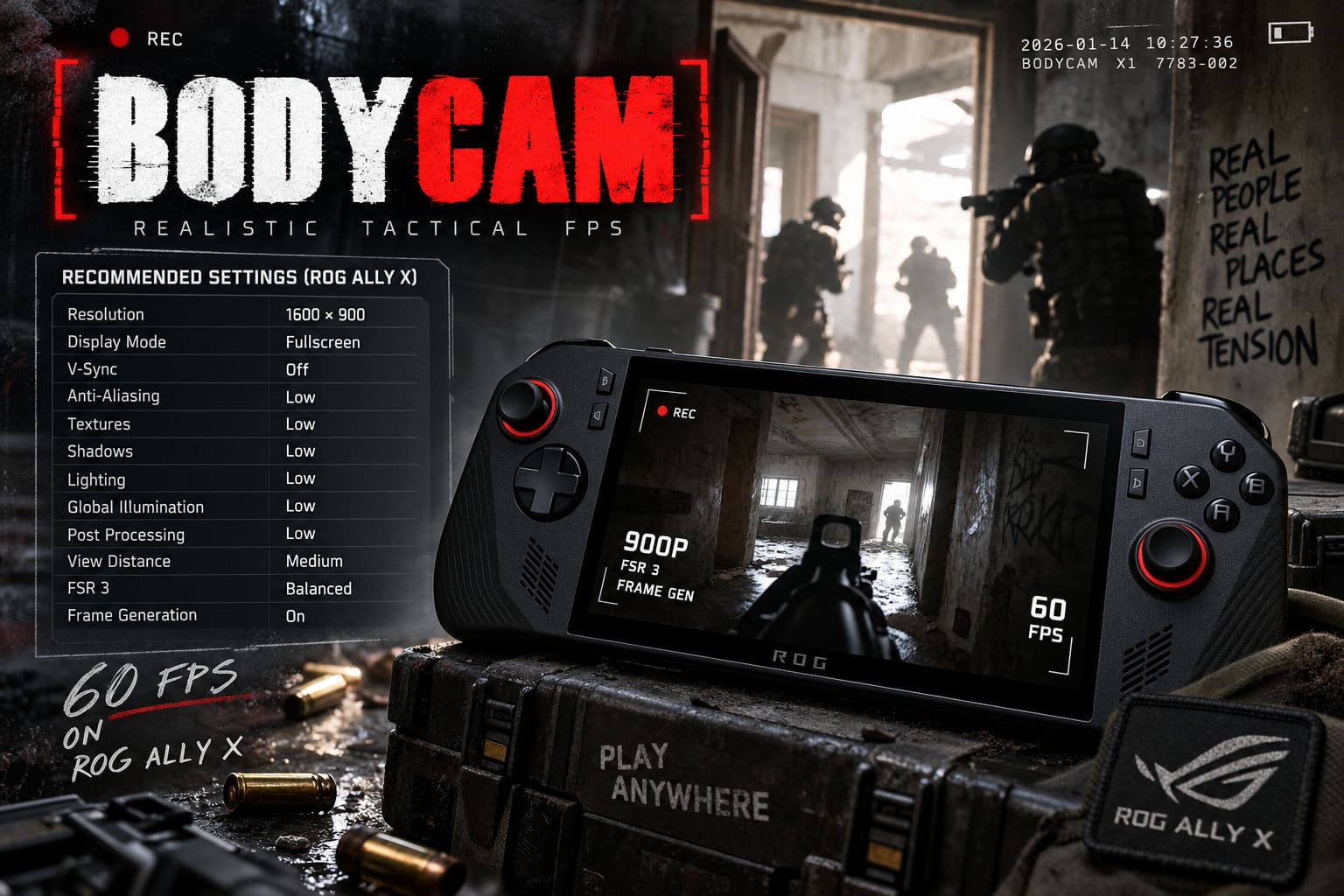
| Resolution | 1600×900 | Best balance of clarity and performance |
| Display Mode | Fullscreen | Preferred for consistent performance |
| V-Sync | Off | Better suited to VRR |
| Anti-Aliasing | Low | Reduces GPU workload |
| Textures | Low | Useful for maintaining performance |
| Shadows | Low | One of the settings I wouldn’t raise first |
| Lighting | Low | Helps in demanding scenes |
| Global Illumination | Low | Important for UE5 performance |
| Post Processing | Low | Easy performance win |
| View Distance | Medium | Worth keeping for competitive visibility |
| FSR 3 | Balanced | My preferred starting point |
| Frame Generation | On | Useful for reaching the 60 FPS target |
I prefer 900p Balanced over immediately dropping everything to 720p. On a small handheld screen, 720p certainly improves performance, but the image can become noticeably softer. Bodycam already has a deliberately processed camera aesthetic, and aggressive upscaling can make distant objects and fine details look messy.
If performance isn’t good enough at 900p, however, 720p is absolutely worth trying. In my experience, it is much better to have a sharp-enough 720p image running smoothly than a higher-resolution image constantly bouncing between uncomfortable frame rates.
Why FSR 3 Makes Such a Big Difference
FSR 3 is basically the key to making Bodycam practical on the ROG Ally X. Instead of asking the integrated GPU to render every frame at the full output resolution, the game renders internally at a lower resolution and reconstructs the image.
That alone can provide a significant performance improvement. Frame generation then takes things another step by creating additional frames between traditionally rendered frames.
There is an important distinction here, though. Frame generation does not magically make a 20 FPS game feel like native 60 FPS. The underlying frame rate still matters enormously.
For Bodycam, I would try to maintain roughly a 30 FPS or higher base frame rate before relying heavily on frame generation. If the actual rendered frame rate becomes too low, the generated frames may make the counter look impressive while the controls still feel sluggish.
720p vs. 900p: Which Should You Use?
This is probably the easiest decision to make.
Choose 900p if you want the better-looking image. It gives Bodycam a much cleaner presentation while still allowing the Z1 Extreme to use FSR effectively.
Choose 720p if performance is your priority. The lower rendering resolution gives the GPU considerably more breathing room, especially on demanding outdoor maps or during chaotic firefights.
Personally, I’d start at 900p. If you notice frequent drops that affect your ability to play competitively, switch to 720p before lowering everything else even further.
What Performance Should You Actually Expect?
Performance in Bodycam isn’t perfectly consistent because the workload changes dramatically depending on the map, lighting, player density, and what is happening on screen.
| Scenario | Expected Experience |
|---|---|
| Indoor / Small Maps | Approximately 60–70+ FPS with frame generation |
| Outdoor Areas | Around 50–60 FPS depending on the scene |
| Heavy Lighting Effects | Occasional drops into the high 40s |
| Native 1080p | Not recommended |
These numbers shouldn’t be treated as a guaranteed benchmark because handheld performance varies with power mode, temperature, drivers, game updates, and background processes. What matters more is the general behavior: the Ally X can produce a 60 FPS-class experience with the right combination of settings and frame generation, but it isn’t rendering a completely native 60 FPS at high resolution.
What About Lossless Scaling?
If you aren’t happy with Bodycam’s built-in frame generation, another option worth experimenting with is Lossless Scaling. I’ve used external scaling and frame-generation solutions in several demanding PC games, and they can be surprisingly useful on handheld hardware.
The basic idea is to run the game at a lower resolution and allow Lossless Scaling to upscale and generate additional frames externally. You can experiment with LSFG modes and see which configuration gives you the best balance between smoothness and responsiveness.
I’d treat this as an alternative rather than automatically assuming it is better. Every additional layer between the game and the display can introduce its own quirks. If Bodycam’s native FSR 3 implementation feels good on your system, I would stick with it.
Input Lag: The Part FPS Counters Don’t Tell You
This is where I think handheld optimization guides sometimes get carried away. A screenshot showing 70 or 80 FPS looks great, but competitive shooters are about how the game feels, not just what the FPS counter says.
Frame generation can introduce additional latency because generated frames aren’t the same thing as fully rendered frames responding directly to your latest input.
For Bodycam, I recommend keeping these points in mind:
- Keep the base frame rate around 30 FPS or higher.
- Use AMD Anti-Lag where appropriate.
- Don’t stack multiple frame-generation technologies.
- Use VRR to smooth out fluctuations.
- Prefer a stable configuration over a higher peak FPS number.
That last point is especially important. I’d rather play Bodycam at a relatively consistent 55–65 FPS than watch the counter jump from 45 to 90 while the controls constantly change in feel.
Bodycam Zombies Mode Co-Op Guide: How to Play, Best Strategies, and 2026 Status
Don’t Ignore Your Wi-Fi Connection
There is another issue that can easily be mistaken for poor graphics performance: network instability.
Bodycam is a fast multiplayer shooter, so packet loss, latency spikes, and unstable Wi-Fi can make movement appear choppy. You may think the Ally X is dropping frames when the actual problem is your connection.
If possible, use a strong 5GHz or 6GHz Wi-Fi connection and avoid playing far away from your router. A wired Ethernet connection through a suitable dock is even better when you’re playing at home.
Bodycam Game: PT Points vs R Points Explained (Rank & Currency Guide)
My Verdict: Is Bodycam Worth Playing on the ROG Ally X?
Yes, but only if you approach it like a handheld game rather than a desktop PC game.
The ASUS ROG Ally X is powerful for its size, but the Ryzen Z1 Extreme’s integrated graphics still has limits. Bodycam is one of those games that exposes those limits immediately if you insist on native resolution and high graphical settings.
Once you accept that, the experience becomes much more impressive. With 900p, low-to-medium graphics settings, FSR 3 Balanced, VRR, and frame generation, the Ally X can deliver a surprisingly smooth portable Bodycam experience. Dropping to 720p gives you additional performance headroom when you need it.
Would I choose the Ally X over a powerful desktop for competitive Bodycam? Absolutely not. A desktop with a dedicated GPU is still going to provide higher native image quality, lower latency, and much more consistent performance.
But that’s not really the point of the Ally X.
What impressed me most is that I can take a game as demanding as Bodycam, launch it on a handheld, and actually get something that feels playable rather than merely technically functional. I’ve played plenty of PC games where handheld optimization feels like an afterthought. Bodycam definitely requires compromises, but once those compromises are made intelligently, the result is genuinely enjoyable.
My recommended starting point is 900p, 30W Turbo, 8GB VRAM allocation, Low graphics settings, Medium View Distance, FSR 3 Balanced, Frame Generation enabled, and VRR at 120Hz. From there, adjust only one setting at a time. If you need more performance, move to 720p before destroying the visual quality of the game.
So, can the ROG Ally X play Bodycam at 60 FPS in 2026? Yes — with an important asterisk. You’re aiming for a 60 FPS-class experience created through a combination of real rendering, upscaling, and frame generation, not native 1080p/60 performance. For a handheld running one of the more demanding Unreal Engine 5 shooters around, that’s still a pretty impressive result.