How to Fix WARDOGS High Ping and Packet Loss: Network Optimization Guide (2026)
There are few things more infuriating in a competitive shooter than landing what looks like a perfect shot, only for the enemy to keep running as if nothing happened. In WARDOGS, that frustration can be amplified dramatically.
Bulkhead’s large-scale tactical shooter throws up to 100 players into massive battles divided between three factions. With vehicles, destructible environments, shifting objectives, artillery, and constant player movement happening at the same time, the amount of information being exchanged between your PC and the game server is substantial.
That makes a stable connection incredibly important.
During the beta period and Early Access launch, some players have encountered high ping, packet loss, rubber-banding, delayed hit registration, and sudden latency spikes. And honestly, network problems are particularly nasty in a game like WARDOGS. You can have excellent aim and make the right tactical decision, but if your connection decides to take a vacation during a firefight, none of that matters.
The good news is that not every connection problem requires a new router or an expensive internet upgrade.
The trick is figuring out what kind of network problem you’re actually dealing with before changing random settings.
High Ping vs. Packet Loss: Know What You’re Fighting
These two problems often get lumped together, but they behave very differently.
Ping, or latency, measures how long it takes for information to travel between your PC and the WARDOGS server and return. It’s normally measured in milliseconds.
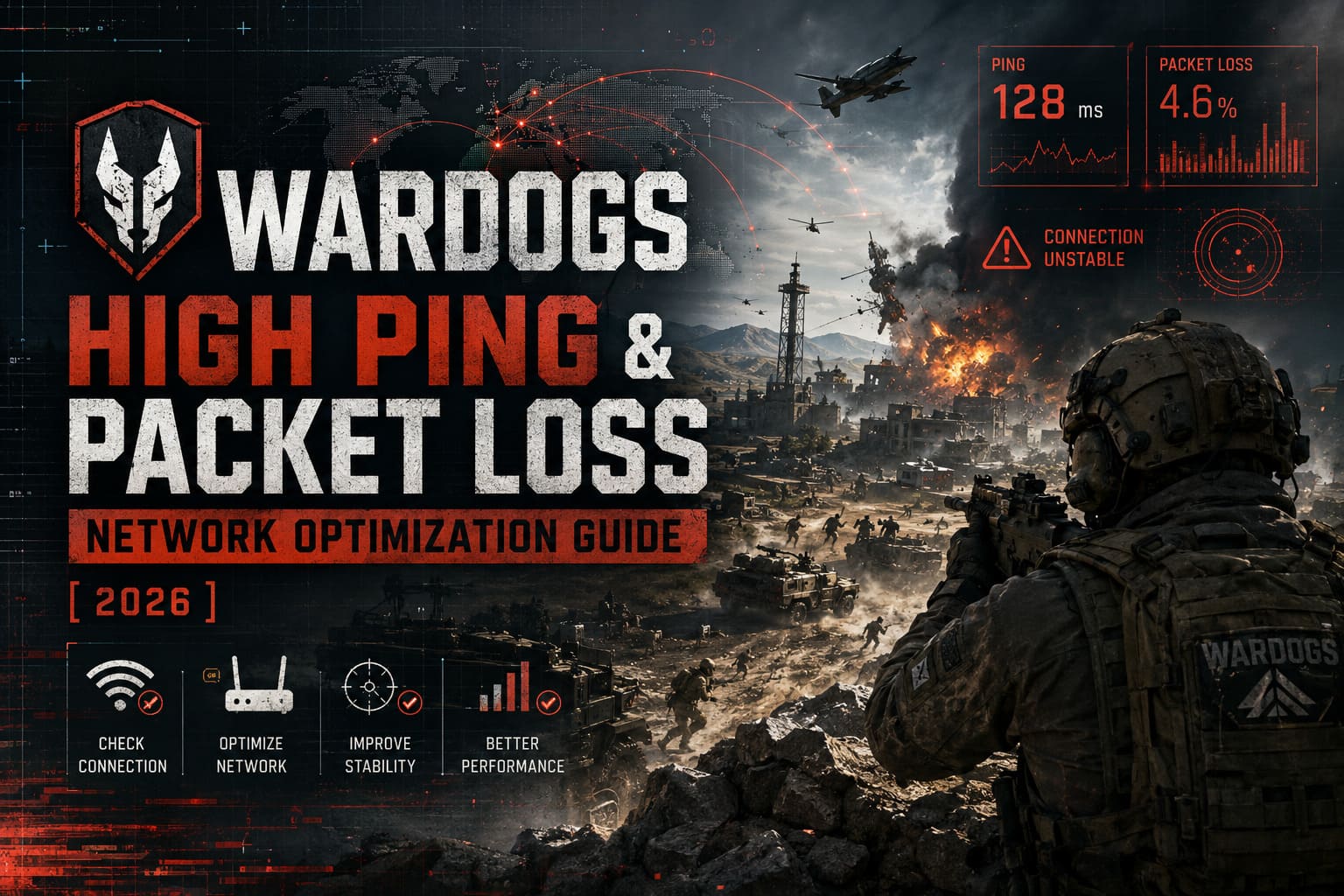
A 150ms connection, for example, creates a noticeable delay between your input and the server’s response. Your game may still look relatively stable, but everything feels slightly behind.
Packet loss is much uglier.
Packet loss happens when packets of information fail to reach their destination. You might have a perfectly respectable 20ms ping and still experience a completely miserable match if packets are constantly disappearing.
Typical symptoms include:
- Rubber-banding and teleporting
- Delayed or inconsistent hit registration
- Players suddenly snapping to different positions
- Brief freezes followed by rapid movement
- Actions appearing to happen several moments late
If WARDOGS’ network diagnostic overlay shows both latency and packet-loss information, keep it visible while troubleshooting. Don’t rely solely on how the game feels. The numbers can tell you whether you’re chasing the right problem.
| Problem | Typical Symptom | Most Likely Cause |
|---|---|---|
| High Ping | Constant input delay | Server distance or ISP routing |
| Ping Spikes | Sudden bursts of lag | Wi-Fi, congestion, background traffic |
| Packet Loss | Rubber-banding/freezes | Wireless interference or routing problems |
| Hit Registration Delay | Shots feel late | Latency or server instability |
| Network Stutter | Short recurring freezes | Bufferbloat or unstable connection |
1. Check the WARDOGS Server and Your Region First
Before you start messing around with Windows commands, routers, DNS settings, or network software, check whether the problem is actually on your end.
This is the mistake I see players make constantly: they spend an hour “optimizing” their PC when the server itself is having a rough night.
WARDOGS uses regional server infrastructure, so your first priority should be connecting to the closest practical region.
If you’re located in Europe, for example, there’s little reason to voluntarily connect to a North American server unless you have a specific reason for doing so. Distance matters because your data physically has to travel between locations.
Look at the available regional options and choose the one geographically closest to you.
You should also pay attention to the server you’re joining. A 100-player battle with vehicles, destruction, explosions, and multiple objectives can create a very different workload from a relatively quiet lobby.
If one particular server feels terrible while another feels completely fine, that’s a major clue.
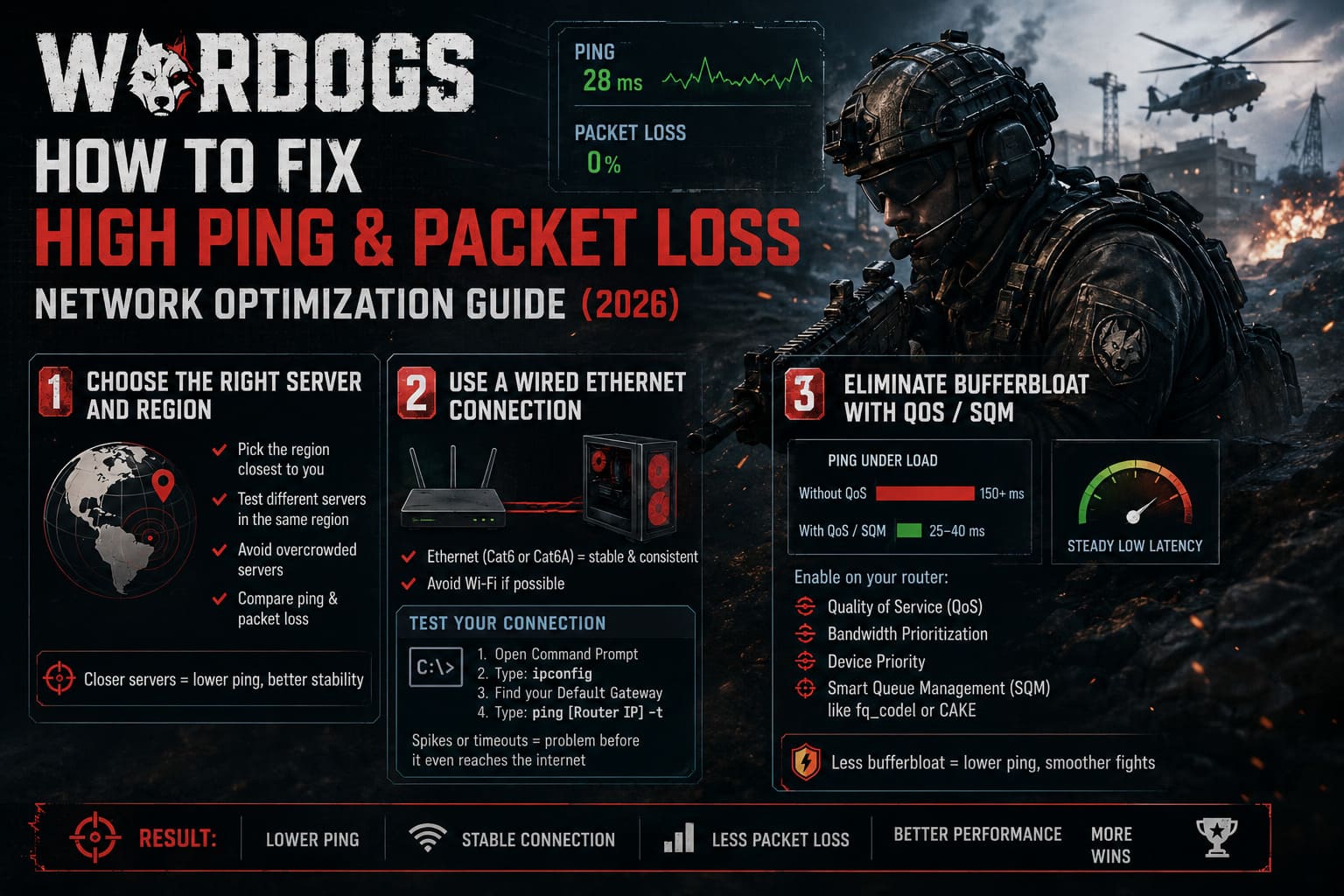
Try this quick test:
- Join your normal region.
- Record your average ping and packet loss.
- Leave and join another server in the same region.
- Compare the results.
- Try another region only as a diagnostic test.
If your connection suddenly becomes stable on another server, don’t immediately start blaming your Ethernet cable. The original server or its route may be the culprit.
2. Stop Using Wi-Fi If You Can Run Ethernet
I’ll be blunt here: if you’re playing a competitive 100-player shooter over questionable Wi-Fi, you’re making life harder for yourself.
Wi-Fi isn’t automatically bad. Modern wireless standards can be extremely fast. The problem is consistency.
Your signal has to deal with walls, other networks, household electronics, distance from the router, interference, and whatever else is happening around your home.
Streaming Netflix might survive a tiny interruption without you noticing. A competitive shooter absolutely will not.
The simplest solution is an Ethernet connection directly from your gaming PC to your router.
A Cat6 or Cat6A cable is more than sufficient for a modern gaming setup and gives you a much more predictable physical connection.
Still Stuck on Wi-Fi?
You can test whether the wireless connection itself is unstable.
Open Windows Command Prompt and run:
ipconfigFind your Default Gateway address. Then run:
ping [Your Router IP] -tLeave the test running while you’re playing or recreating the issue.
If your latency to your own router suddenly jumps dramatically or you see repeated timeouts, the problem may be happening before your traffic even reaches the internet.
That’s a huge clue.
3. Kill Bufferbloat With QoS or SQM
This is one of those networking problems that can make you question your sanity.
Your internet speed test might say you have an excellent connection. Your download speed might be fantastic. Yet the second someone starts uploading a huge file or watching high-resolution video, WARDOGS suddenly feels like it’s running through mud.
That’s often bufferbloat.
Bufferbloat occurs when network equipment builds up large queues of packets while handling heavy traffic. Your bandwidth may technically be available, but latency shoots upward because your game packets are waiting behind other traffic.
Test Your Connection Under Load
Use a reputable latency-under-load or bufferbloat test and compare your normal latency with your latency while the connection is busy.
If your ping goes from something like 25ms to 150ms or more whenever your connection is saturated, your router may be struggling with queue management.
That’s where Quality of Service (QoS) becomes useful.
Open your router’s administration panel and look for options such as:
- Quality of Service
- QoS
- Bandwidth Prioritization
- Device Priority
Prioritize your gaming PC where possible.
If your router supports Smart Queue Management (SQM), that’s even more interesting. Technologies such as fq_codel and CAKE are designed to manage queues more intelligently and reduce latency under heavy traffic.
This can be a night-and-day difference in a busy household.
4. Shut Down Background Bandwidth Hogs
You’d be amazed at how much network traffic your PC can generate without you actively doing anything.
Windows, game launchers, cloud storage clients, browsers, recording software, and other applications can all compete for bandwidth.
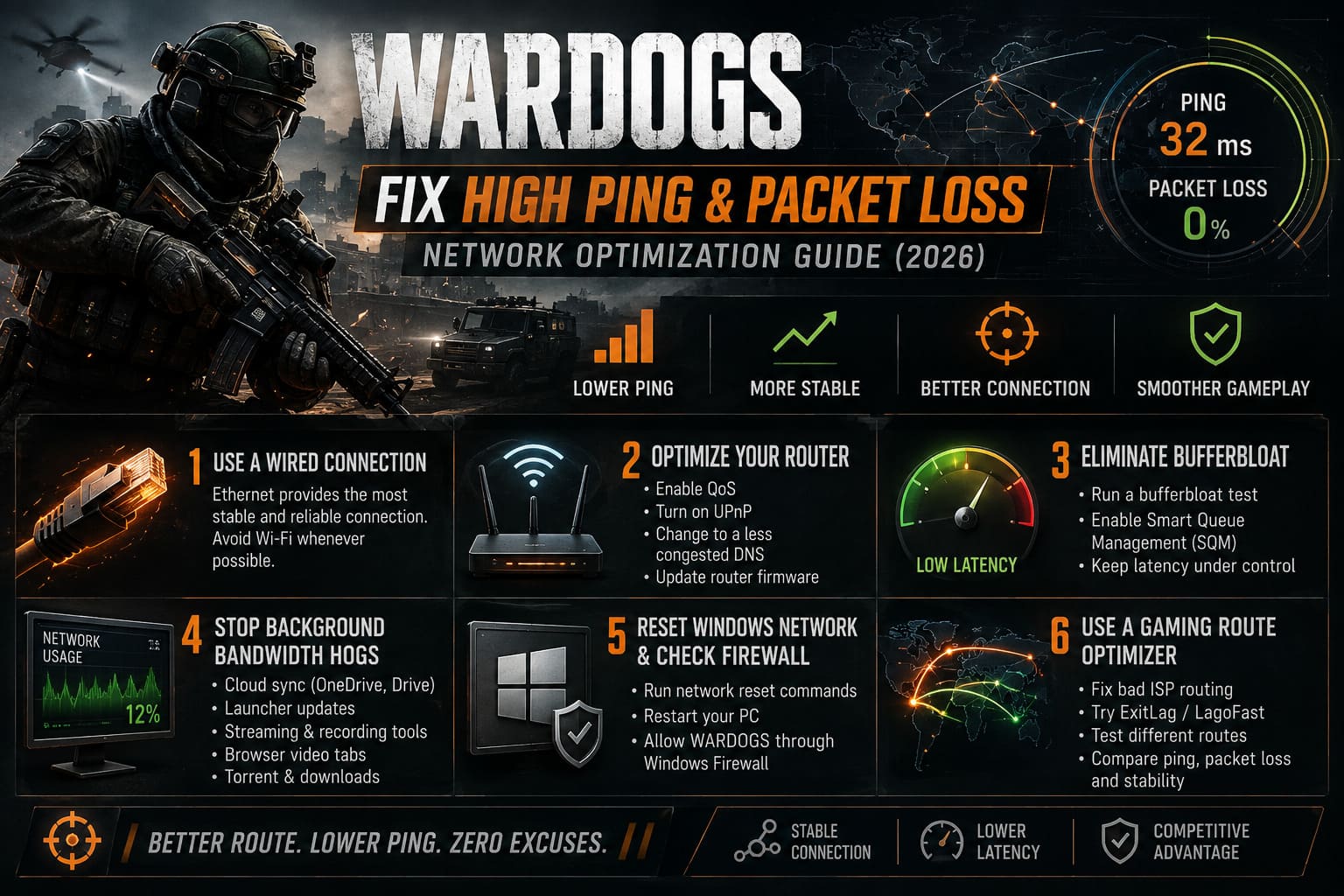
Before launching WARDOGS, check what’s actually using your connection.
Press:
Ctrl + Shift + Esc
to open Windows Task Manager.
Look at the network usage and identify anything consuming substantial bandwidth.
Common offenders include:
- OneDrive and other cloud synchronization services
- Google Drive or Dropbox
- Steam and other game launcher updates
- Torrent applications
- Browser tabs streaming video
- Automatic backup software
- Cloud-based recording or clipping tools
Steam and other launchers can be especially annoying when they decide that right now is the perfect moment to download a 40 GB update.
Disable or restrict background downloads while gaming.
You don’t need to shut down every application on your PC. The goal is simply to eliminate unnecessary network traffic that can compete with your game.
5. Reset Windows Networking and Check the Firewall
Sometimes Windows networking simply needs a cleanup.
If you’ve changed adapters, installed VPN software, experienced driver problems, or dealt with strange connection behavior over time, resetting parts of the network stack can be worthwhile.
Open Command Prompt as Administrator and run these commands individually:
ipconfig /flushdns
ipconfig /registerdns
ipconfig /release
ipconfig /renew
netsh winsock reset
Restart your PC afterward.
Keep in mind that these commands aren’t a magical “lower ping” button. They won’t somehow turn a 100ms connection into 20ms. Their purpose is to clear and rebuild parts of your local networking configuration when something is behaving incorrectly.
You should also check your Windows Firewall.
Go to:
Control Panel → System and Security → Windows Defender Firewall → Allow an app or feature through Windows Defender Firewall
Find WARDOGS and make sure the appropriate Private and Public network permissions are enabled.
If the game isn’t listed, use the option to allow another application and locate the game’s executable.
Don’t randomly disable your entire firewall. That’s a terrible troubleshooting habit. Allow the game through it instead.
6. Try a Gaming Route Optimizer If Your ISP Is the Problem
Here’s where things get more interesting.
If your PC is connected through Ethernet, your router isn’t suffering from bufferbloat, background traffic is under control, and other online games work perfectly, yet WARDOGS consistently has terrible latency, the problem could be ISP routing.
Your ISP doesn’t necessarily send your gaming traffic along the shortest or cleanest possible route to the game’s server.
Sometimes the route crosses congested nodes or takes an unnecessarily long path.
Services such as ExitLag and LagoFast are designed to address this by providing alternative routes for gaming traffic.
They won’t magically fix a broken server, and they can’t overcome the physical distance between you and the server. But if the normal ISP route is inefficient, an alternative route can sometimes produce noticeably better latency or stability.
If you use one, don’t blindly assume the automatic route is perfect.
Test different nodes and compare:
Ping → packet loss → stability → actual in-game feel.
The lowest theoretical ping isn’t always the best choice if the connection constantly spikes.
How to Fix WARDOGS Connection Failed Error & Error 1147405308
The Best WARDOGS Network Setup in 2026
If I were setting up a PC specifically for WARDOGS, this would be my baseline:
| Setting | Recommended Approach |
|---|---|
| Connection | Ethernet whenever possible |
| Wi-Fi | Use only when wired isn’t practical |
| Server Region | Closest available region |
| Router | QoS/SQM enabled if needed |
| Background Downloads | Disabled during matches |
| Cloud Sync | Paused while gaming |
| Firewall | WARDOGS explicitly allowed |
| DNS/Network Stack | Reset when troubleshooting |
| Gaming Route Tool | Test only if ISP routing appears problematic |
This isn’t about squeezing another 2ms out of your connection just for the sake of seeing a smaller number.
Stability matters more than bragging rights.
I’d take a consistent 45ms connection over one that jumps between 25ms and 120ms every few seconds without hesitation.
Is WARDOGS Crossplay Between PC and Console? 2026 Platform and Cross-Platform Guide
Final Verdict: Troubleshoot WARDOGS Like a Network Problem, Not a Guessing Game
The biggest mistake you can make with WARDOGS high ping and packet loss is changing ten things at once.
Don’t do that.
Start with the server. Check the region. Test Ethernet. Monitor your router. Look for packet loss between your PC and the gateway. Then investigate bufferbloat and background traffic. Only after you’ve eliminated the obvious local problems should you start looking at ISP routing and gaming route optimization services.
The process is much more straightforward when you isolate each variable.
If Wi-Fi is causing packet loss, Ethernet should expose that immediately. If another device is saturating your connection, QoS or SQM can tame it. If Windows networking is acting strangely, resetting the network stack can clean things up. And if everything on your end looks healthy but WARDOGS remains the only game giving you trouble, the route between your ISP and the server becomes a much more convincing suspect.
WARDOGS is built around huge battles where a fraction of a second can decide a firefight. You shouldn’t have to wonder whether the enemy actually outplayed you or your packets simply vanished into the void.
Get the connection stable first. Then worry about the scoreboard.