How to Fix WARDOGS Connection Failed Error & Error 1147405308
There are few things more frustrating in a multiplayer shooter than finally getting into the mood for a match, launching the game, and being greeted by “Connection Failed”. You wait, try again, watch the matchmaking screen spin for a while, and then get kicked straight back to the menu. Worse, WARDOGS can occasionally throw Error 1147405308, refuse to authenticate online services, or complain that it cannot reach the anti-cheat service.
I’ve played enough multiplayer games over the years to know that connection errors are rarely caused by one magical setting. Sometimes it is your PC. Sometimes it is Steam. Sometimes it is an anti-cheat service quietly fighting with another program in the background. And, especially during a closed beta, sometimes the honest answer is simply that the servers are having a bad day.
WARDOGS is particularly vulnerable to this kind of problem because it is built around large-scale multiplayer battles. With huge lobbies, destructible environments, matchmaking, authentication and anti-cheat verification all happening behind the scenes, there are a lot of moving parts between clicking Play and actually spawning into a match.
The good news is that most of the common WARDOGS Connection Failed problems can be approached systematically. You don’t need to start reinstalling Windows or randomly change twenty network settings. Start with the fixes below and work through them from the simplest to the more involved solutions.
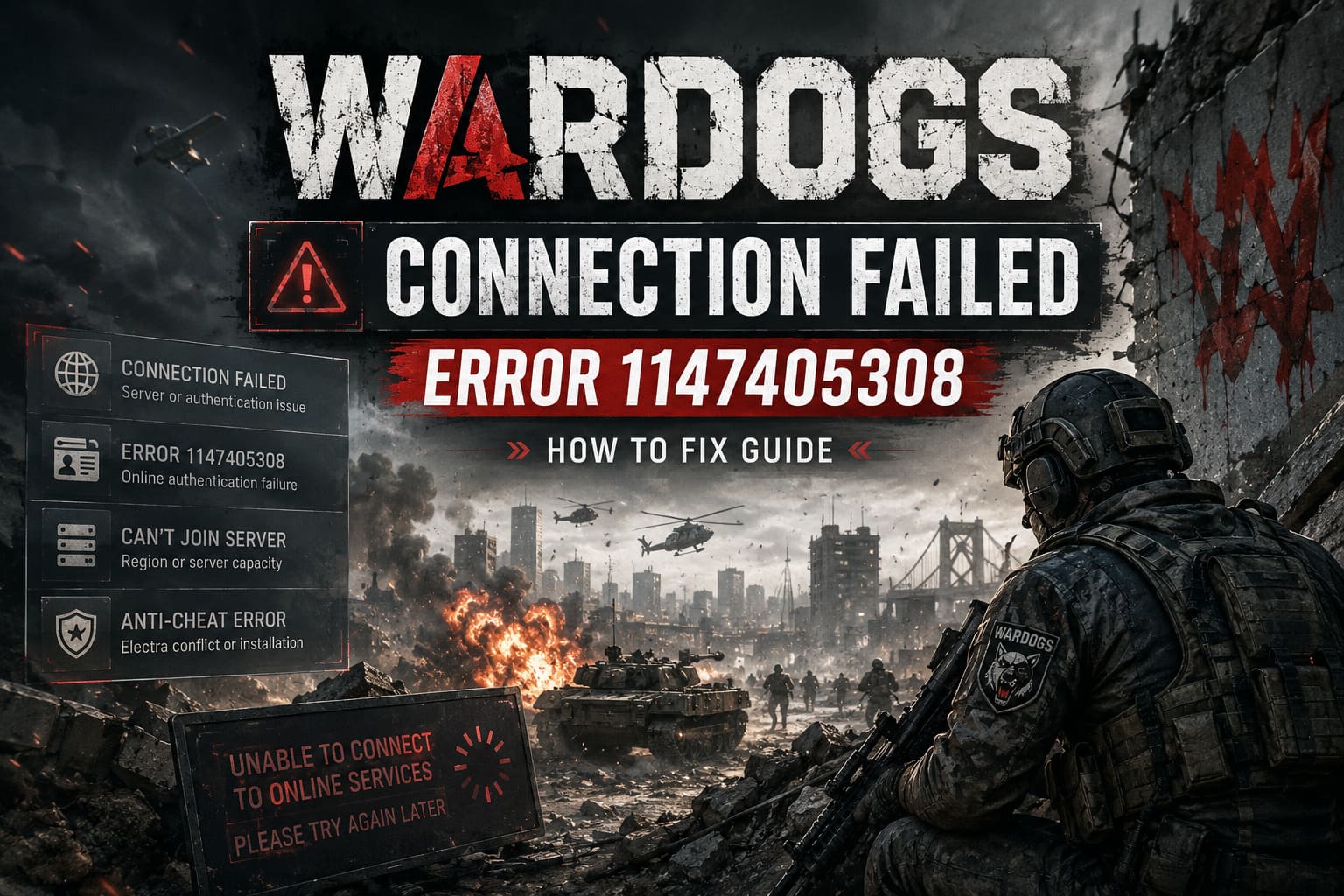
| Error or Problem | Likely Cause | Best First Fix |
|---|---|---|
| Connection Failed | Server, network or authentication issue | Restart Steam and check server status |
| Error 1147405308 | Online authentication failure | Restart Steam and flush DNS |
| Can’t Join Server | Region, matchmaking or server capacity | Select one server region |
| Anti-Cheat Service Error | Electra conflict or damaged installation | Repair the anti-cheat installation |
Why Does WARDOGS Keep Saying Connection Failed?
The first thing to understand is that WARDOGS connection errors aren’t necessarily caused by your internet connection. This is where a lot of troubleshooting guides go wrong. If YouTube works, Discord works and every other game launches normally, that doesn’t automatically mean WARDOGS is fine on the server side.
A multiplayer title has to complete several checks before you can enter a match. Steam has to recognize your account, the game has to communicate with its online services, the matchmaking system has to find a suitable server, and the anti-cheat layer has to approve the client. If any part of that chain fails, the game may simply present a generic connection error.
During a beta, the situation becomes even more unpredictable. Developers are intentionally pushing the infrastructure harder than they normally would, which can expose authentication bottlenecks, regional server problems and unusual client conflicts.
From a player’s perspective, this can make two completely different problems look identical. That’s why I recommend testing the easy local fixes first, but not wasting an hour changing network settings if hundreds of other players are experiencing the exact same error.
Fix 1: Disable Riot Vanguard and Other Anti-Cheat Software
This is one of the first things I would test if WARDOGS refuses to connect while other games work perfectly. Modern anti-cheat systems run surprisingly deep inside Windows, and having several of them installed isn’t always as harmless as it sounds.
Riot Vanguard is especially worth checking. If you have a Riot game installed, Vanguard may still be active even when you aren’t playing that game. Other anti-cheat systems can potentially create similar conflicts.
Try this:
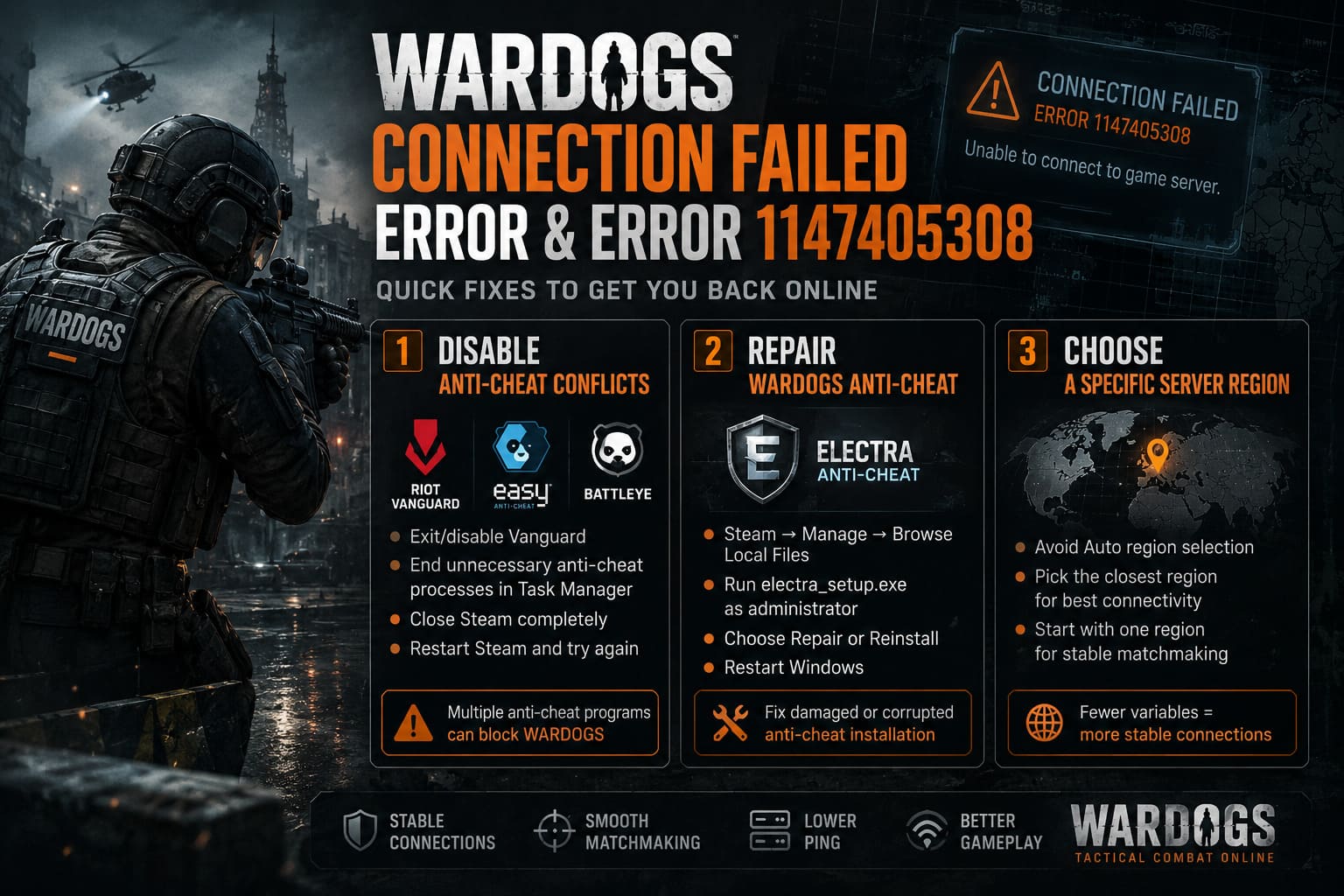
- Look for the Vanguard icon in the Windows system tray.
- Right-click it and choose the option to exit or disable Vanguard.
- Open Task Manager with Ctrl + Shift + Esc.
- Check for unnecessary Vanguard, Easy Anti-Cheat or BattlEye processes.
- Close Steam completely rather than simply closing the game window.
- Restart Steam and launch WARDOGS again.
I wouldn’t permanently uninstall another game’s anti-cheat just because WARDOGS fails once. Instead, use this as a diagnostic step. If the game suddenly connects after Vanguard is disabled, you’ve found a much more useful clue than simply reinstalling everything.
Fix 2: Repair the WARDOGS Anti-Cheat Installation
If WARDOGS specifically says that it couldn’t reach the anti-cheat service online, I would investigate the anti-cheat installation before touching your router settings.
According to the troubleshooting information surrounding the beta, WARDOGS uses an Electra anti-cheat component. If that installation becomes damaged or its permissions are incorrect, the game may fail its online verification before matchmaking even begins.
To try a repair:
- Open Steam and go to your Library.
- Right-click WARDOGS and select Manage → Browse Local Files.
- Look for the folder associated with the Electra anti-cheat installation.
- Find the setup or installer executable, such as electra_setup.exe, if present in your current build.
- Right-click the installer and choose Run as administrator.
- If a Repair or Reinstall option is available, run it.
- Restart Windows before testing WARDOGS again.
The exact files and folder names can change between beta builds, so don’t panic if your installation doesn’t look identical. The important point is to use the anti-cheat installer that actually ships with your current version rather than downloading a random replacement from the internet.
Fix 3: Stop Using Automatic Server Region Selection
This is a simple fix, but it’s one I like trying early because it takes less than a minute.
If WARDOGS is set to automatically search across several regions, matchmaking has more variables to work through. During periods of heavy traffic, that can potentially contribute to failed connections or strange server-selection behavior.
Open the game’s matchmaking or network settings and look for the Server Region option. If it is set to Auto, choose the closest appropriate region manually instead.
For example, if you are located in Europe, there is little reason to deliberately prioritize distant North American servers unless your normal matchmaking setup requires it.
My advice: don’t select every available region just because it appears to give you more matchmaking options. Start with one sensible region. If that works consistently, you’ve eliminated another source of uncertainty.
Fix 4: Flush DNS and Reset Windows Network Components
If Error 1147405308 keeps appearing, a network reset is worth trying. This doesn’t magically improve your internet speed, but it can clear stale DNS information and reset Windows networking components that may have become confused.
Open Command Prompt as Administrator and run:
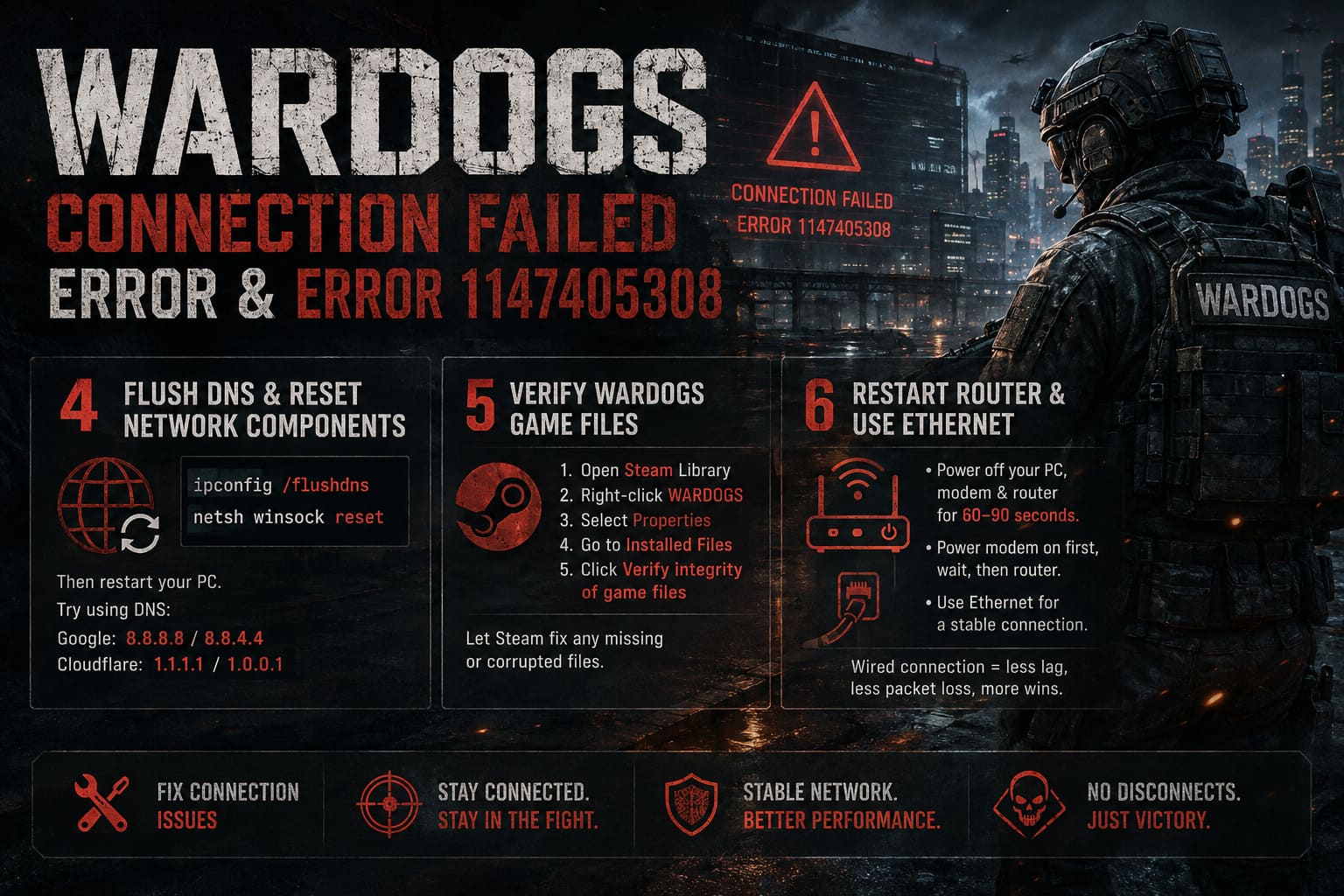
ipconfig /flushdns
Then run:
netsh winsock reset
Restart your PC afterward.
The next step is optional: changing your DNS provider. Google’s public DNS uses 8.8.8.8 and 8.8.4.4, while Cloudflare provides 1.1.1.1 and 1.0.0.1.
Personally, I wouldn’t treat changing DNS as a guaranteed WARDOGS fix. DNS isn’t a magic latency button. However, if your ISP’s DNS routing is behaving badly, switching providers can sometimes resolve problems reaching a particular service.
Fix 5: Verify WARDOGS Game Files Through Steam
This is probably the least exciting recommendation in the guide, but it is also one of the safest.
Beta games receive frequent updates, and occasionally a file doesn’t download correctly. A damaged or incomplete client can produce anything from crashes to matchmaking failures, especially if your local build no longer matches what the server expects.
In Steam:
- Open your Library.
- Right-click WARDOGS.
- Select Properties.
- Open Installed Files.
- Click Verify integrity of game files.
Let Steam finish the process. If it discovers missing or corrupted files, allow it to download the replacements before launching the game again.
This is one of those fixes I recommend even when you’re not completely convinced it will work. It is quick, official, and doesn’t involve messing around with Windows system files.
Fix 6: Restart Your Router and Use Ethernet If Possible
Sometimes the old advice is still good advice.
If WARDOGS is disconnecting while other online applications are also behaving strangely, restart your networking hardware. Shut down your PC, unplug the modem and router, and leave them powered off for roughly 60–90 seconds. Then power the modem back on, wait for it to reconnect, followed by the router.
Once everything is stable, boot the PC and test WARDOGS again.
If you’re playing over Wi-Fi, try Ethernet if you have the option. You don’t need a gigabit fiber connection to play a shooter comfortably, but a stable wired connection eliminates a lot of the random interference and packet loss that can occur over wireless.
And if you’re sitting several rooms away from your router with a weak Wi-Fi signal, don’t blame the WARDOGS servers immediately. I’ve seen perfectly good gaming PCs struggle simply because the wireless connection was unreliable.
What If None of These WARDOGS Fixes Work?
This is the part where knowing when not to troubleshoot becomes important.
If you’ve verified your files, restarted Steam, repaired the anti-cheat, reset your network and still receive the same connection error, there is a reasonable chance the problem isn’t on your end.
During a closed beta, server capacity can become a serious issue. A 100-player shooter places a much heavier demand on matchmaking and backend services than a small co-op game. When a large number of players attempt to connect simultaneously, authentication and matchmaking services can become overloaded even if the actual game servers appear to be online.
Before making drastic changes to your PC, check the official WARDOGS community channels, Steam announcements and developer updates. If a large number of players suddenly report Error 1147405308 at the same time, that’s a pretty strong indication that you should wait rather than reinstall Windows.
Is WARDOGS Crossplay Between PC and Console? 2026 Platform and Cross-Platform Guide
My Recommended Order for Troubleshooting WARDOGS
If you don’t want to read through every possible fix, this is the order I would personally use:
- Restart WARDOGS and Steam completely.
- Check whether the servers are experiencing problems.
- Disable Vanguard and unnecessary third-party anti-cheat software.
- Verify WARDOGS files through Steam.
- Repair the Electra anti-cheat installation if the error specifically mentions anti-cheat.
- Set one appropriate matchmaking region instead of Auto.
- Flush DNS and reset Winsock.
- Restart your modem/router and test with Ethernet.
There is no reason to jump straight to the most complicated solution. If restarting Steam fixes the problem, you’ve saved yourself twenty minutes of unnecessary network troubleshooting.
WARDOGS Best Loadouts Guide: Early Access Meta Weapon Builds (2026)
Final Thoughts: Don’t Assume Every Connection Error Is Your Fault
WARDOGS has the kind of multiplayer design that makes server stability absolutely critical. Huge battles, multiple teams, destructible environments and a large number of players all create additional pressure on matchmaking and backend services. During a beta, that pressure is amplified even further.
The biggest mistake you can make is assuming that every WARDOGS Connection Failed message means something is broken on your PC. Sometimes it is Vanguard. Sometimes it is a corrupted file. Sometimes your DNS needs a refresh. And sometimes the servers simply aren’t cooperating.
Error 1147405308 can be particularly frustrating because it gives you very little useful information about what actually went wrong. That’s why a methodical approach works better than randomly changing settings.
Start with Steam and anti-cheat issues, verify the game files, then move toward network troubleshooting. If other players are reporting the same problem at the same time, stop changing things and watch for an official server-side update.
For a game like WARDOGS, especially during its testing period, some connection problems are unfortunately part of the process. The goal isn’t to find a magical setting that fixes every error forever. It’s to quickly determine whether the problem is your client, your network, or the servers themselves.
Once you know which side is responsible, the solution usually becomes much easier to find.