Best Graphics Settings for 33 Days till Extraction RTX 3060: Max FPS & Optimization Guide
If you’re playing 33 Days till Extraction on an RTX 3060, you’ve probably already discovered the annoying part: the game can look absolutely fantastic right up until your frame rate decides to take a vacation. The gritty sci-fi environments, dynamic lighting, explosions, particles, and chaotic encounters create a fantastic atmosphere, but pushing every graphics option to Ultra isn’t necessarily the smartest move.
I’ve spent enough time tweaking PC games to know the trap. You load into a new game, see a beautiful Ultra preset, hit Apply, and think you’ve just unlocked the definitive experience. Then a fight starts, several effects explode across the screen, the environment gets busy, and suddenly that supposedly ‘smooth’ 60 FPS experience starts feeling anything but smooth.
The NVIDIA GeForce RTX 3060 is still a very capable GPU for this kind of game, particularly the popular 12GB version. The trick is knowing which settings actually matter and which ones are basically visual vanity. For 33 Days till Extraction, you can cut a few expensive options without turning the game into a blurry mess.
33 Days Till Extraction Stuttering on High End PC: Complete Fix Guide
How Well Does the RTX 3060 Handle 33 Days till Extraction?
The RTX 3060 sits in a comfortable position for 1080p gaming and can also handle 1440p if you’re willing to use sensible settings and upscaling. Its 12GB of VRAM is especially useful when a game throws large textures and detailed environments at the GPU.
33 Days till Extraction is not a game where you need to sacrifice everything just to hit 60 FPS. That’s the good news. The bad news is that some of the game’s most attractive settings are also among the most expensive.
Dynamic shadows, global illumination, environmental detail and particle effects can become noticeably heavier during nighttime raids or encounters packed with enemies and abilities. Those are exactly the situations where average FPS isn’t the whole story. Stable frame pacing matters just as much when you’re trying to react quickly.
I’ve always preferred a consistent 70 FPS over a benchmark screenshot showing 90 FPS followed by ugly drops into the 40s. In a game built around tactical movement and extraction runs, consistency wins.
The Graphics Settings That Actually Matter
Not every option deserves equal attention. If you’re trying to optimize an RTX 3060, start with the settings that have the biggest performance impact.
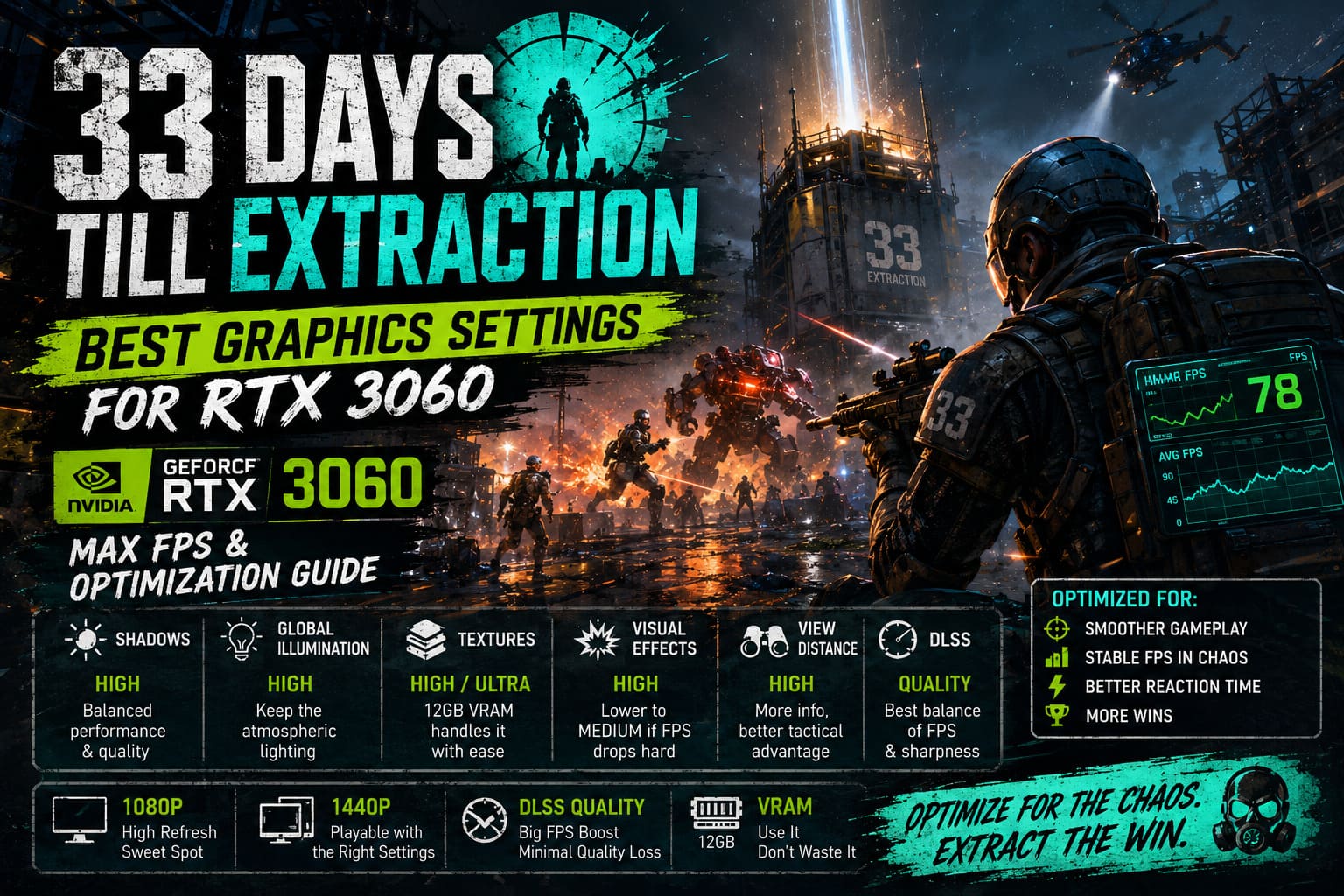
Shadow Quality
Shadows are one of the easiest places to gain performance.
The day-and-night system makes shadows particularly important in 33 Days till Extraction. Dynamic lighting, artificial light sources and flashlight effects all require additional rendering work, and the GPU pays for it.
Ultra shadows can look great when you’re standing still and admiring the environment. During actual gameplay, however, the difference between Ultra and High is surprisingly difficult to notice.
I recommend High for players who want good image quality, while Medium is the better choice if you’re chasing a higher and more stable frame rate.
Global Illumination
Global illumination is another setting that can quietly murder your FPS.
It gives the world much of its atmospheric lighting, especially in darker areas where light bounces around the environment. The problem is that Ultra can demand a lot from a mid-range GPU.
High is the sweet spot for the RTX 3060. You retain most of the lighting quality while avoiding the unnecessary performance hit of maximum settings.
Texture Quality
This is where the RTX 3060 12GB earns its keep.
If you have the 12GB model, there is little reason to aggressively lower texture quality at 1080p or 1440p. High textures are a safe recommendation, while Ultra can be perfectly reasonable if VRAM usage remains comfortable on your particular system.
Textures generally aren’t the first thing I’d sacrifice for FPS. Lowering them too far can make the game look noticeably worse while giving you a much smaller performance improvement than reducing shadows or effects.
Visual Effects
This setting becomes particularly important when the screen turns into absolute chaos.
Tech abilities, explosions, sparks, lasers and other combat effects can generate a ridiculous amount of visual clutter. That’s exactly when GPU load can spike.
Set Visual Effects to High. If you’re still experiencing major drops during intense fights, Medium is worth testing.
Foliage and Environment Detail
Foliage isn’t necessarily the most important visual feature in a sci-fi extraction game, but dense environmental detail can still consume valuable performance.
Medium or High foliage is a sensible choice for the RTX 3060. I’d personally choose High first and only drop it if your performance data says you need to.
View Distance
This is one setting I don’t recommend cutting too aggressively.
Being able to see enemies, patrols, environmental objects and important locations from a distance can have actual gameplay value. In a tactical game, visual information isn’t just decoration.
Keep View Distance on High if your system can handle it. I’d rather lose a few frames elsewhere than suddenly discover an enemy because my graphics settings decided they weren’t worth rendering yet.
Best RTX 3060 Settings for 1080p and 1440p
Here’s the preset I’d start with if I were building an RTX 3060 setup specifically for 33 Days till Extraction.
| Setting | 1080p Recommendation | 1440p Recommendation |
|---|---|---|
| Display Mode | Fullscreen | Fullscreen |
| Resolution | 1920×1080 | 2560×1440 |
| V-Sync | Off | Off |
| FPS Limit | Monitor Refresh Rate | Monitor Refresh Rate |
| Anti-Aliasing | Off/Low | Off/Low |
| Texture Quality | High/Ultra | High |
| Shadow Quality | High | Medium/High |
| Global Illumination | High | High |
| Visual Effects | High | High |
| Post-Processing | Medium | Medium |
| Foliage Quality | High | Medium |
| View Distance | High | High |
| Ambient Occlusion | High | High |
| Motion Blur | Off | Off |
| DLSS | Quality | Balanced/Quality |
This isn’t some sacred combination that must never be changed. PC hardware behaves differently depending on your CPU, RAM, background applications, temperatures and even the specific area of the game you’re playing.
Still, it’s a much better starting point than simply selecting Ultra.
DLSS Is Your Best Friend on an RTX 3060
If your goal is higher FPS without destroying image quality, NVIDIA DLSS should be one of the first things you experiment with.
At 1080p, start with DLSS Quality. It provides additional performance while keeping the image reasonably sharp. If you’re moving to 1440p, Quality can still work well, although Balanced becomes useful when you need more performance.
I wouldn’t immediately jump to the most aggressive performance mode. Sure, the FPS counter will smile at you, but the image can become softer and less satisfying, particularly when you’re trying to identify distant objects.
For DLSS sharpening, something around 0.3–0.5 is a reasonable starting point. Personally, I’d rather use a moderate sharpening value than crank it up until every edge starts looking like it’s been outlined with a marker.
What About Anti-Aliasing?
If you’re using DLSS, traditional anti-aliasing becomes less important.
The exact options available can vary depending on the game’s current graphics implementation, but there’s little reason to stack expensive anti-aliasing on top of an upscaling solution that already handles reconstruction.
If the image looks clean with DLSS enabled, keep the additional anti-aliasing workload low.
Windows Tweaks for Better RTX 3060 Performance
Graphics settings aren’t the entire story. A badly configured Windows installation can create frame-time problems even when your GPU settings are perfect.
Hardware-Accelerated GPU Scheduling
If your system supports it, Hardware-Accelerated GPU Scheduling (HAGS) is worth testing. You can find the option under Windows graphics settings.
It isn’t a magical FPS button, and results can vary between systems, but it can improve scheduling and frame pacing in some configurations.
NVIDIA Control Panel
For a dedicated 33 Days till Extraction profile, I’d test these settings:
- Power Management Mode: Prefer Maximum Performance
- Texture Filtering – Quality: High Performance
- Threaded Optimization: Auto or On
- Low Latency Mode: Test On if input latency is a concern
- Vertical Sync: Off if you’re using an in-game limiter or another sync solution
Don’t change twenty NVIDIA Control Panel options just because somebody on a forum claims they are ‘mandatory.’ PC optimization is full of placebo tweaks. Change one thing, test it, and keep it only if it actually improves your experience.
Should You Use 1080p or 1440p?
For the RTX 3060, 1080p is the easiest recommendation if your priority is maximum FPS.
A high-refresh-rate 1080p monitor gives the GPU plenty of breathing room, and DLSS Quality can push performance even further. This is particularly attractive if you want a frame rate well above 60 FPS.
1440p is more demanding, but the RTX 3060 12GB can still make a convincing attempt at it with optimized settings. I’d start with High textures, Medium/High shadows, High global illumination and DLSS Quality or Balanced.
The visual upgrade from 1080p to 1440p can be substantial on a larger monitor, so I’d personally accept a lower frame rate for the sharper image if the game remains comfortably above your target.
My Recommended Competitive-Style Preset
If I wanted smooth gameplay rather than screenshot-quality graphics, this is the setup I’d actually use:
1080p + Fullscreen + DLSS Quality + High Textures + High View Distance + Medium Shadows + High Global Illumination + High Effects + Medium Post-Processing + High Ambient Occlusion + Medium Foliage + Motion Blur Off.
That’s the configuration I’d choose for a serious play session. It keeps the important visual information intact while cutting back on settings that mostly exist to make screenshots look prettier.
If FPS is still dropping, lower Shadows first, followed by Foliage, Post-Processing, and Visual Effects. Don’t immediately destroy texture quality.
Don’t Chase Ultra Just Because You Can
There’s a weird obsession in PC gaming with running everything on Ultra. I’ve fallen into that trap myself more times than I’d like to admit.
The problem is that Ultra often represents the highest possible visual setting rather than the best balance between quality and performance. The difference can be almost invisible during normal gameplay, while the GPU cost is very real.
In 33 Days till Extraction, that matters even more because the game can suddenly become extremely busy. An extraction run isn’t the time to discover that your graphics preset was designed for standing still and staring at walls.
A stable frame rate makes aiming, movement and situational awareness feel better. That’s worth far more than slightly prettier shadows.
Final Verdict: The RTX 3060 Still Has Plenty of Fight Left
The RTX 3060 remains a solid GPU for 33 Days till Extraction, especially the 12GB version. You don’t need to turn the game into a blurry low-detail mess to get smooth performance.
The biggest wins come from making intelligent compromises: keep textures high, preserve view distance, use DLSS, and reduce expensive effects such as shadows and foliage. At 1080p, the RTX 3060 has plenty of room to deliver a smooth experience, while 1440p becomes realistic with the right combination of settings and upscaling.
My biggest piece of advice is simple: optimize for the moments when the game gets ugly and chaotic, not the moments when you’re standing in your bunker admiring the lighting.
If your frame rate stays stable when enemies swarm you, abilities fill the screen and the extraction timer is screaming at you, you’ve built the right setup. Everything else is just graphical decoration.