How to Fix Supermarket Chaos Crash on Launch, Freezing, and Startup Black Screen Issues
If there’s one thing that instantly ruins the excitement of jumping into a new management simulator, it’s pressing Play… only to watch the game crash before you even reach the main menu.
I’ve spent hundreds of hours across supermarket sims, city builders, tycoon games, and management titles, so when Supermarket Chaos started throwing startup crashes, random freezes, and black screens, I wasn’t exactly surprised. PC launches are rarely perfect. What surprised me was how many different causes could trigger exactly the same problem.
After digging through community discussions, testing fixes myself, and comparing dozens of player reports, I noticed a clear pattern. Most crashes don’t come from the game itself—they’re caused by leftover files, Windows conflicts, corrupted caches, or outdated drivers.
This guide collects the solutions that consistently solve launch problems without forcing you to reinstall Windows or waste hours experimenting.
Why Does Supermarket Chaos Crash on Startup?
Simulation games are much heavier than they appear. While you’re simply placing shelves and selling groceries, the game is constantly calculating customer behavior, inventory positions, AI navigation, physics, lighting, and economy values in real time.
When just one component fails during initialization, the entire application can shut down instantly.
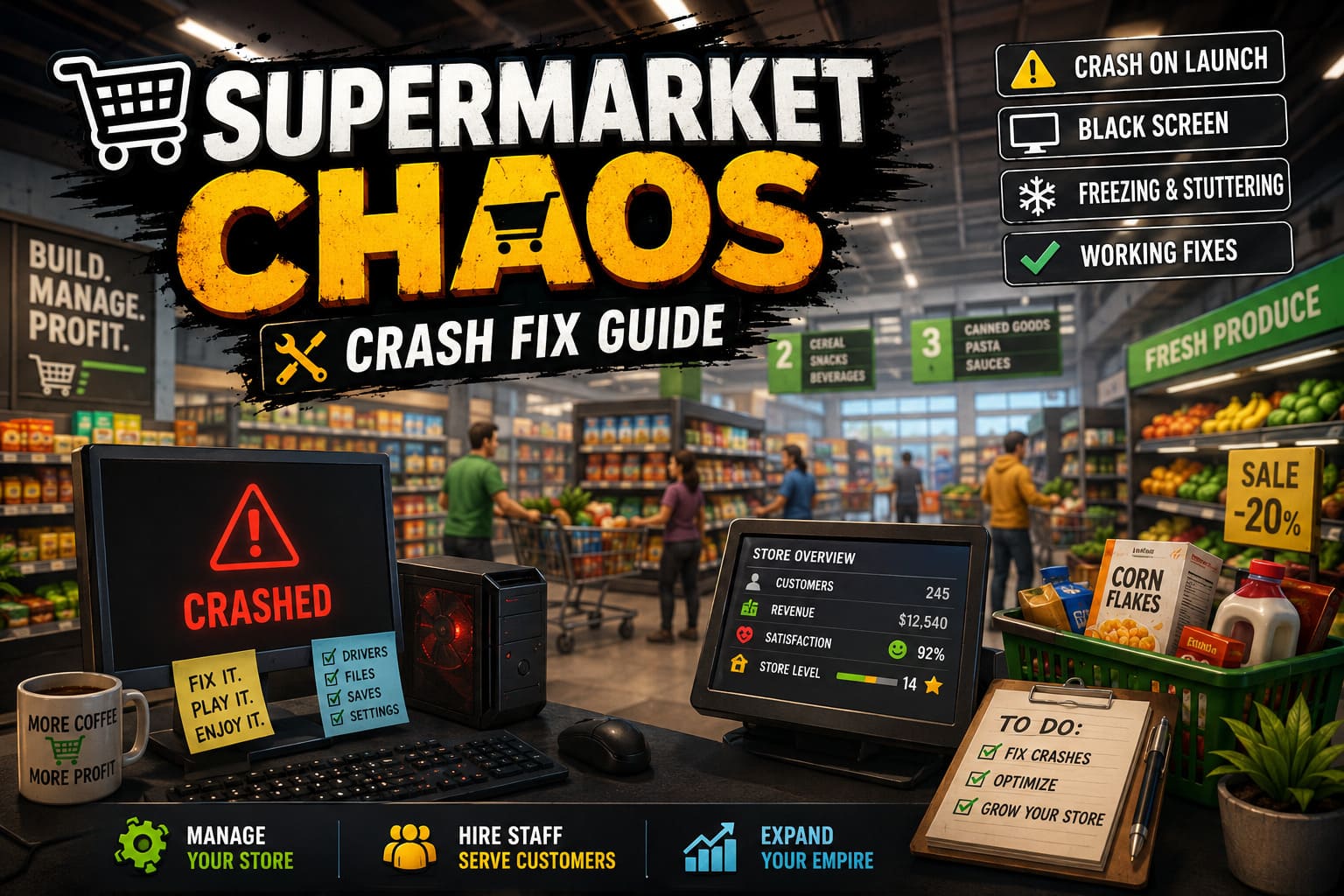
The most common causes include:
- Leftover mod files from previous versions
- Damaged game installation files
- Graphics driver incompatibilities
- Antivirus blocking executable files
- Windows permission conflicts
- Refresh-rate synchronization issues
- Corrupted save data
- AI pathfinding overload inside existing stores
Fortunately, nearly every one of these problems has a straightforward fix.
1. Remove Every Trace of Old Mods
If you’ve ever experimented with mods—even months ago—this should be the first thing you check.
One forgotten folder is often enough to prevent the newest version of the game from launching correctly.
Look inside your installation directory for folders like:
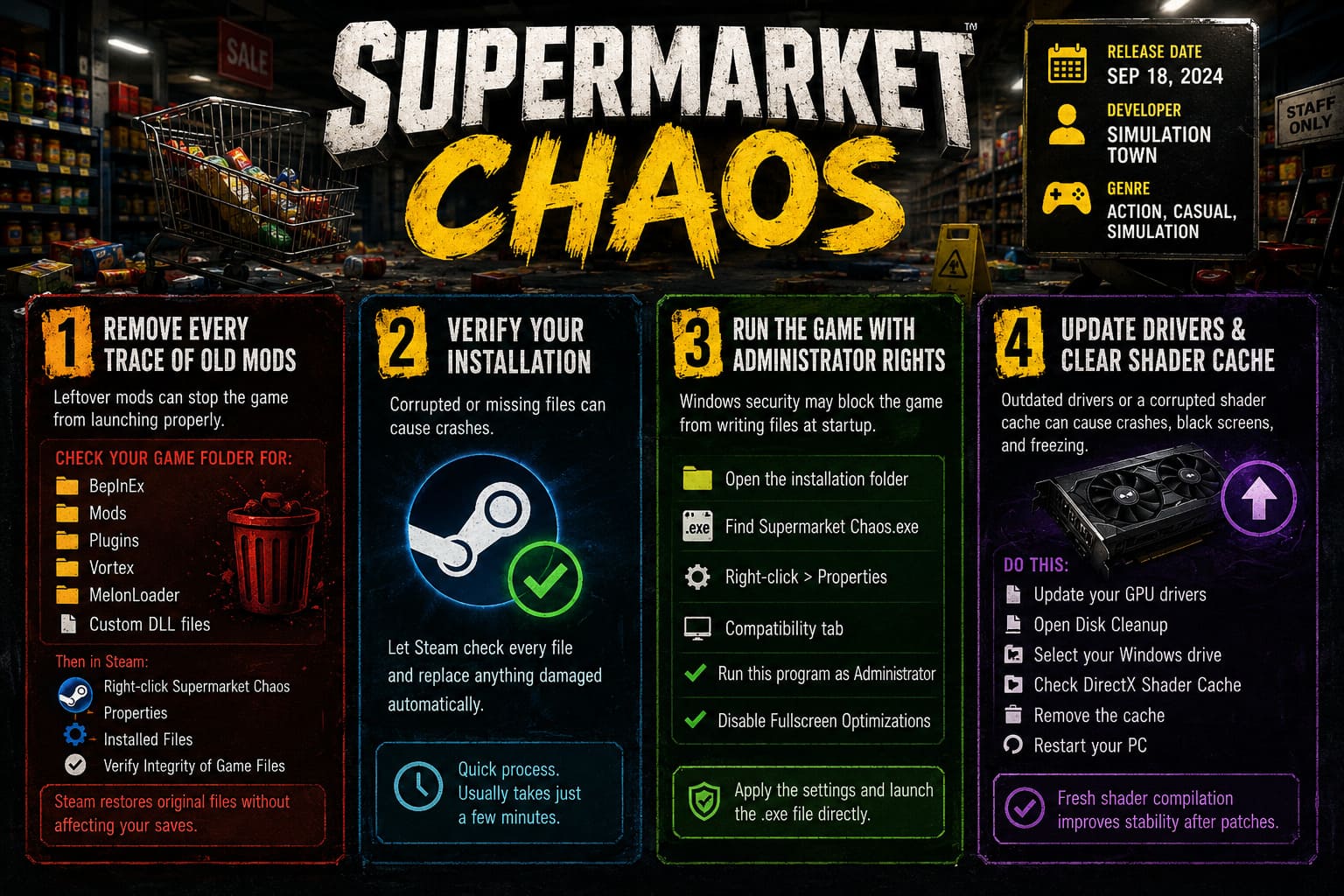
- BepInEx
- Mods
- Plugins
- Vortex
- MelonLoader
- Custom DLL files
Delete anything that wasn’t installed by the official game.
Once everything unofficial is removed:
- Open Steam.
- Right-click Supermarket Chaos.
- Open Properties.
- Select Installed Files.
- Click Verify Integrity of Game Files.
Steam will automatically restore only the original files while leaving your save progress untouched.
In my experience, this single fix solves more startup crashes than every other method combined.
2. Verify Your Installation Before Reinstalling
A surprising number of crashes happen because one file became corrupted during an update or download.
Instead of downloading the entire game again, let Steam compare every installed file against its official version.
If anything is damaged or missing, Steam replaces it automatically.
This process usually finishes within just a few minutes and saves a lot of unnecessary downloading.
3. Run the Game with Administrator Rights
Windows security has become much stricter over the years.
Sometimes the game simply isn’t allowed to create cache files or write save information during startup.
Here’s what I usually do:
- Open the installation folder.
- Find Supermarket Chaos.exe.
- Right-click it.
- Open Properties.
- Select the Compatibility tab.
- Enable Run this program as Administrator.
- Also enable Disable Fullscreen Optimizations.
After applying those settings, launch the executable directly instead of using a desktop shortcut.
It’s a tiny adjustment, but I’ve seen it eliminate black screen issues more than once.
4. Update Graphics Drivers and Clear Shader Cache
Graphics drivers aren’t only about getting more FPS.
They’re responsible for how DirectX communicates with your GPU, loads shaders, and initializes rendering pipelines.
A damaged shader cache can produce:
- Instant crashes
- Infinite loading
- Black screens
- Random freezing
- Driver timeout errors
Update your GPU drivers first.
Then:
- Open Disk Cleanup
- Select your Windows drive
- Check DirectX Shader Cache
- Remove the cache
- Restart the PC
Fresh shader compilation often fixes startup instability after major game patches.
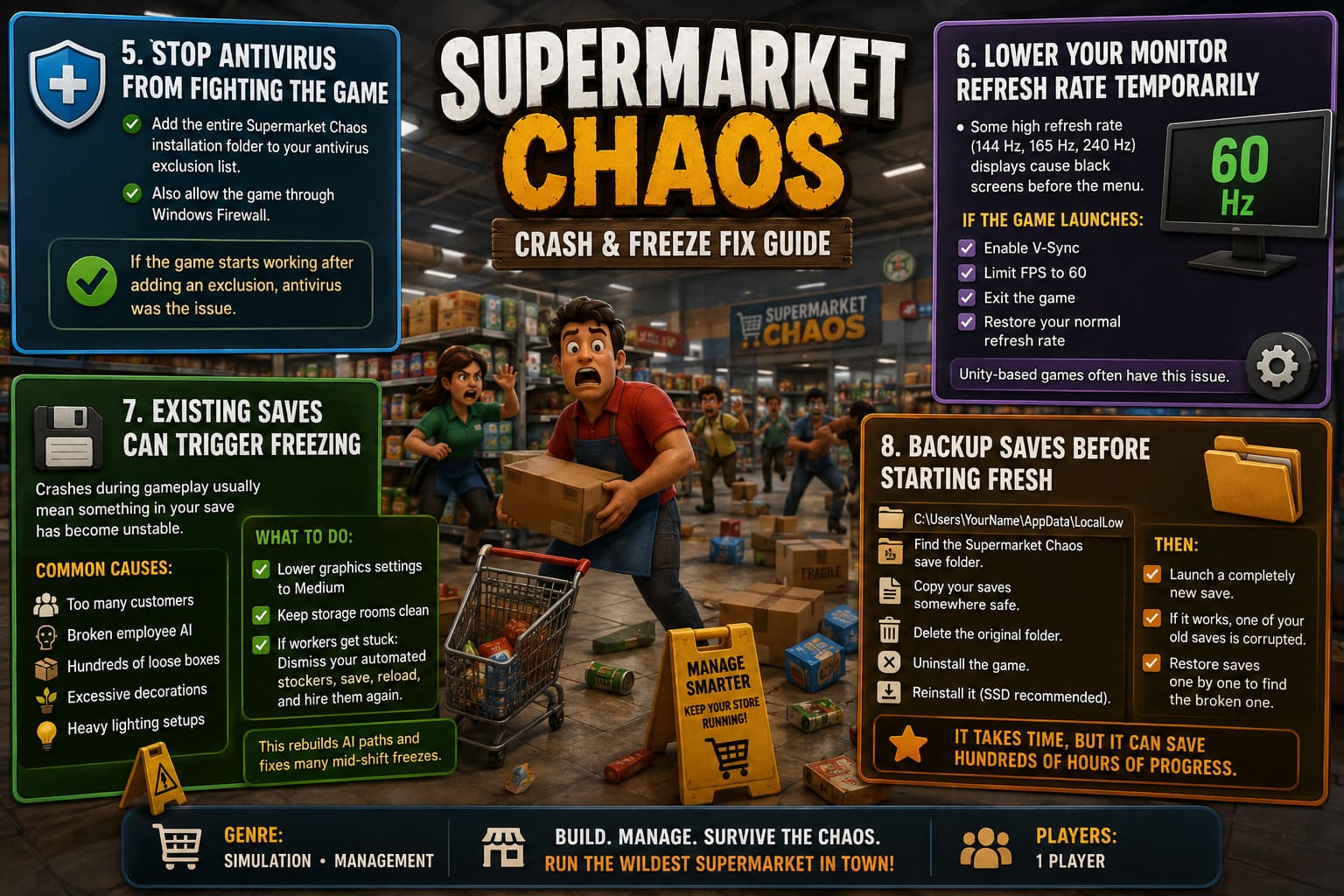
5. Stop Antivirus from Fighting the Game
I’ve seen Windows Security quarantine perfectly safe indie games more times than I can count.
Sometimes nothing gets deleted.
Instead, Windows silently blocks the executable from launching.
Add the entire Supermarket Chaos installation folder to your antivirus exclusion list.
Also make sure the executable is allowed through Windows Firewall.
If the game suddenly starts working after adding an exclusion, you’ve found the culprit.
6. Lower Your Monitor Refresh Rate Temporarily
This sounds ridiculous.
It also works.
Some players running 144 Hz, 165 Hz, or 240 Hz displays experience black screens before reaching the menu.
Try switching Windows to 60 Hz temporarily.
If the game launches:
- Enable V-Sync
- Limit FPS to 60
- Exit the game
- Restore your normal refresh rate
Several Unity-based simulation games have shown similar behavior over the years.
7. Existing Saves Can Trigger Freezing
Not every crash happens during startup.
Sometimes the game loads perfectly and freezes ten minutes later.
That’s usually a sign that something inside your current save has become unstable.
Common examples include:
- Too many customers
- Broken employee AI
- Hundreds of loose inventory boxes
- Excessive decorations
- Heavy lighting setups
Try lowering graphical settings to Medium.
Clean storage rooms instead of leaving boxes everywhere.
If workers become stuck, dismiss your automated stockers, save the game, reload, and hire them again.
That forces the AI to rebuild navigation paths.
Oddly enough, it fixes many mid-shift freezes.
8. Backup Saves Before Starting Fresh
If every other solution fails, isolate the problem.
Navigate to:
C:\Users\YourName\AppData\LocalLow
Locate the Supermarket Chaos save folder.
Copy your saves somewhere safe.
Delete the original folder.
Now uninstall the game completely.
Reinstall it—preferably onto an SSD if you have one.
Before restoring your backup, launch a completely new save.
If the fresh game works perfectly, one of your older save files was likely corrupted.
Restore saves individually until you identify the broken one.
It takes longer, but it’s much better than losing hundreds of hours of progress.
Quick Troubleshooting Checklist
If you just want the fastest path toward fixing the game, work through this list:
- Remove every leftover mod folder.
- Verify Steam files.
- Run the game as Administrator.
- Disable Fullscreen Optimizations.
- Update GPU drivers.
- Clear DirectX Shader Cache.
- Add antivirus and firewall exclusions.
- Test 60 Hz refresh rate.
- Lower graphics settings.
- Reduce AI workload inside large stores.
- Backup saves before reinstalling.
Most players won’t need every step.
Usually the problem disappears after completing the first three or four.
Supermarket Chaos Story Mode Details and Game Ending Explained (2026)
Minimum Hardware Requirements
| Component | Minimum Specification |
|---|---|
| Operating System | Windows 10 or Windows 11 (64-bit) |
| Processor | Intel Core i5 or AMD Ryzen 5 |
| Memory | 8 GB RAM |
| Graphics | NVIDIA GTX 1050 or AMD Radeon RX 560 |
| Storage | 5 GB available space (SSD recommended) |
Running below these specifications doesn’t always prevent the game from launching, but it dramatically increases the chances of freezes, long loading times, and unstable performance.
Final Thoughts
Nothing is more frustrating than buying a new simulator, getting excited to organize shelves and grow your dream grocery empire, only to stare at a black screen instead of a checkout counter.
The good news is that Supermarket Chaos doesn’t appear to suffer from one massive, unsolvable bug. Nearly every reported crash points back to a handful of recurring PC issues: leftover mods, damaged game files, graphics driver conflicts, security software interference, or corrupted saves.
If I had to recommend an order, I’d start by deleting every unofficial mod file, verifying the installation through Steam, updating GPU drivers, and checking Windows Security. Those four fixes account for the overwhelming majority of successful community reports. Only after exhausting those options would I move on to reinstalling the game or rebuilding save files.
Once everything is working properly, the game becomes exactly what it was meant to be—a surprisingly addictive management simulator where the biggest challenge should be keeping shelves stocked and customers happy, not fighting startup crashes every time you press Play.