Shroom and Gloom Save File Location: How to Find, Backup, and Transfer Your Progress
There are few things more painful in PC gaming than booting up a game you’ve spent dozens of hours playing and discovering that your progression has mysteriously vanished. All those unlocked cards? Gone. Character progress? Wiped. That ridiculous run where you somehow built a completely broken combo? History.
For a game like Shroom and Gloom, losing a save can be especially brutal.
Team Lazerbeam’s strange fungal-punk dungeon crawler isn’t the kind of game where every run feels disposable. Its unusual double-deck system encourages experimentation, unlocking new cards, discovering synergies, and slowly building up your overall progression. When you’re deep into the game’s strange underground world, you quickly start accumulating progress that you really don’t want to lose.
That’s why knowing the Shroom and Gloom save file location is worth your time.
Whether you’re playing on Windows, jumping between a gaming PC and Steam Deck, preparing for a major Early Access update, or simply want a manual backup before experimenting with your files, this guide covers where to look, how to back everything up, and what to do when Steam Cloud decides to make your life unnecessarily complicated.
Why You Should Back Up Your Shroom and Gloom Saves
I’ll be blunt: Steam Cloud is useful, but I never trust cloud synchronization as my only backup for an Early Access game.
Shroom and Gloom is still evolving, which means updates, balance changes, bug fixes, and larger content patches are part of the experience. Most updates will obviously work without touching your progression, but Early Access is exactly when I prefer having a spare copy of important saves sitting somewhere safe.

The game’s progression can include things such as:
- Unlocked characters and classes
- Cards and other progression-related content
- Run history and progression
- Unlocks earned during previous sessions
- Various configuration and profile data
A manual backup takes a couple of minutes. Rebuilding hours of progression from scratch can take considerably longer.
There’s another reason to know the save location: troubleshooting. If the game suddenly launches with a fresh profile, or Steam Cloud presents a conflict between two versions of your save, knowing where the local data lives gives you considerably more control.
Shroom and Gloom Save Location on Windows PC
For the Windows version, the first place I would check is the game’s LocalLow application data directory.
The standard location is:
C:\Users\[Your Windows Username]\AppData\LocalLow\Team Lazerbeam\Shroom and Gloom\
Windows hides the AppData directory by default, so don’t worry if you can’t see it when casually browsing your user folder.

The Fastest Way to Open the Folder
You don’t need to dig through Windows Explorer manually.
- Press Windows + R.
- Enter:
%USERPROFILE%\AppData\LocalLow\ - Press Enter.
- Look for the Team Lazerbeam folder.
- Open Shroom and Gloom.
If the exact developer or game folder name differs between builds, don’t immediately assume your saves are gone. Early Access builds can occasionally organize their application data differently.
The important thing is to check the LocalLow directory rather than searching only inside the game’s Steam installation folder.
Can’t See AppData?
Open File Explorer and enable Hidden items from the View menu.
Once hidden folders are visible, navigate through:
C:\Users\[Username]\AppData\LocalLow\
From there, look for the folders associated with Shroom and Gloom.
What About the Steam Userdata Folder?
Steam can also maintain cloud-related game data inside its own userdata structure.
A typical Windows Steam installation uses:
C:\Program Files (x86)\Steam\userdata\
Inside this directory you’ll find folders corresponding to individual Steam accounts. Those folders contain numbered subdirectories for individual games.
For Shroom and Gloom, the relevant Steam AppID is 3271280, so the Steam userdata structure may look like:
C:\Program Files (x86)\Steam\userdata\[Steam User ID]\3271280\
Depending on how the game handles its current build and Steam Cloud implementation, the files you see here may not be a simple duplicate of the LocalLow data. Don’t assume that the Steam userdata folder is automatically your primary save directory.
If you’re trying to make a reliable backup, I recommend checking the actual game-specific folder under LocalLow first and then examining Steam’s userdata directory if you’re troubleshooting synchronization.
Shroom and Gloom Save Location on Steam Deck
This is where things get a little more Linux-y.
Steam Deck runs SteamOS, and Windows games commonly run through Proton. Proton creates a virtual Windows environment for each game, which means a Windows-style AppData directory exists inside the game’s compatibility prefix.
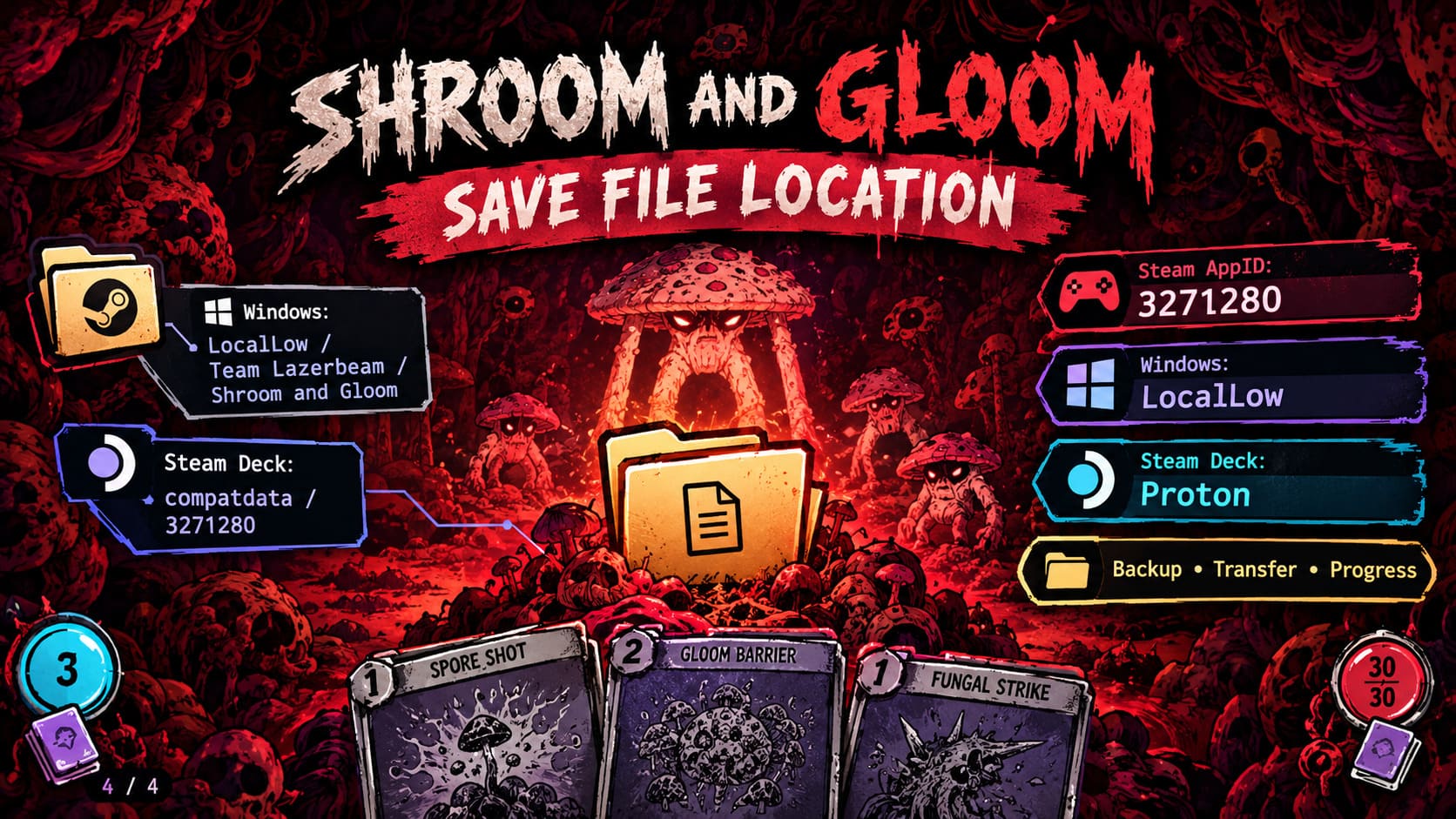
For Shroom and Gloom, the path is expected to follow this structure:
~/.local/share/Steam/steamapps/compatdata/3271280/pfx/drive_c/users/steamuser/AppData/LocalLow/Team Lazerbeam/Shroom and Gloom/
If you haven’t spent much time inside SteamOS’s desktop environment, that path can look absolutely cursed at first glance.
Don’t worry. It’s easier than it looks.
How to Find the Save Folder on Steam Deck
- Switch the Steam Deck to Desktop Mode.
- Open Dolphin File Manager.
- Enable Show Hidden Files.
- Open your Home directory.
- Navigate to .local.
- Open share, then Steam.
- Go to steamapps → compatdata.
- Find the 3271280 folder.
- Open pfx.
- Follow drive_c → users → steamuser → AppData → LocalLow.
- Look for Team Lazerbeam and then Shroom and Gloom.
The .local directory is hidden because its name begins with a period. That’s why enabling hidden files in Dolphin is important.
My Recommended Way to Back Up Your Save
If you’re about to install a major update, move between machines, reinstall Windows, or simply don’t want to gamble with your progress, make a manual copy.
Here’s the method I use with games that have important progression:
- Close Shroom and Gloom completely.
- Give Steam a moment to finish its Cloud synchronization.
- Open the game’s local save directory.
- Copy the entire Shroom and Gloom folder rather than grabbing random individual files.
- Create a separate backup folder somewhere outside the original directory.
- Give it a useful name, such as
Shroom and Gloom Backup - September 2026. - Keep another copy on an external drive or trusted cloud storage if the save is particularly important.
I strongly recommend keeping multiple dated backups instead of constantly overwriting one single copy.
For example:
Shroom and Gloom Backups
├── September 08 - Before Update
├── September 10 - Fresh Install
└── September 15 - Working Save
That gives you an escape hatch if a newer backup turns out to be the broken one.
How to Restore a Shroom and Gloom Save
Restoring a backup is essentially the reverse process.
First, close the game and Steam if necessary. Make a temporary copy of the current save folder before replacing anything. Then restore the backup into the original location.
Do not delete your current save without keeping a copy first.
If your backup doesn’t work, you can always put the original data back.
This is particularly important when experimenting with different versions of an Early Access game. A save created by a newer build isn’t necessarily something you want to blindly overwrite an older version with.
Dealing With Steam Cloud Save Conflicts
Steam Cloud is fantastic when it works quietly in the background.
It’s considerably less fantastic when it suddenly asks you which version of your save you want to keep.
This can happen if you play Shroom and Gloom on your Steam Deck while offline and later launch the game on your PC before the Deck has synchronized its latest changes.
When Steam detects different local and cloud versions, slow down and read the timestamps.
Don’t blindly click the first button just because you want to launch the game.
If the Steam Deck contains your latest run, for example, restoring an older cloud version could erase that progress. On the other hand, if your desktop PC contains the newest version, choosing the Deck’s local data could send you backwards.
When in doubt:
- Check the modification times.
- Make a manual copy of the local save.
- Determine which machine contains your latest progress.
- Only then choose the Steam Cloud version you actually want.
For players who prefer complete manual control, Steam Cloud can also be disabled for the game through its Steam properties. Just remember that doing this removes the convenience of automatic synchronization between machines.
What If Shroom and Gloom Starts With a Fresh Profile?
Seeing a completely empty progression screen can be terrifying, but don’t immediately assume your save has been permanently deleted.
First, close the game and check the local save directory.
If the files are still there, the problem may be related to permissions, synchronization, a changed profile location, or another issue preventing the game from reading its existing data.
You should also verify the game installation through Steam:
Steam Library → Shroom and Gloom → Properties → Installed Files → Verify integrity of game files
This checks the game’s installation files and can repair damaged components.
Importantly, verifying the game files is very different from deleting your save directory. It should be one of the safer troubleshooting steps to try before doing anything drastic.
Don’t Overlook Windows Backups
If you’ve accidentally deleted your Shroom and Gloom save folder, Windows may have another possible recovery route.
Right-click the relevant game folder and check its Properties for a Previous Versions tab.
If Windows or another backup system has created a usable snapshot, you may be able to recover an earlier version.
This isn’t guaranteed. Windows doesn’t magically keep historical versions of every folder forever, but checking takes almost no time.
How to Fix Shroom and Gloom Low FPS: 2026 Performance Optimization Guide
Shroom and Gloom Save Locations at a Glance
| Platform | Save Location |
|---|---|
| Windows PC | AppData\LocalLow\Team Lazerbeam\Shroom and Gloom\ |
| Steam Windows | Steam\userdata\[Steam ID]\3271280\ |
| Steam Deck | compatdata\3271280\pfx\drive_c\users\steamuser\AppData\LocalLow\... |
| Cloud Backup | Managed through Steam Cloud |
| Manual Backup | Any separate safe storage location |
Shroom and Gloom Best Cards Guide: Combat and Explore Synergies
Final Thoughts
Shroom and Gloom is exactly the kind of roguelike where losing progress hurts more than it should. You start experimenting with the combat and exploration decks, find a ridiculous card interaction, unlock another class, and suddenly you’re several hours deeper than you expected.
That’s when a save problem becomes a disaster.
The good news is that backing up your Shroom and Gloom save doesn’t require anything complicated. Find the LocalLow directory, copy the game’s folder, and store that backup somewhere separate from the original.
If you’re playing on Steam Deck, remember that Proton changes the location dramatically. Your Windows-style save data lives inside the game’s compatibility prefix, which is why the compatdata\3271280 directory is the key landmark.
My biggest recommendation is simple: make a backup before major Early Access updates and before moving your save between machines. It takes minutes and can save an entire evening of painful progression recovery.
Steam Cloud is a great safety net, but a manual backup is the parachute I’d rather have when things go sideways.
And in a game called Shroom and Gloom, things going sideways is practically part of the experience.