Star Wars Zero Company Best PC Graphics Settings: FPS Optimization Guide
Star Wars Zero Company is exactly the kind of tactical game that makes you want to stop moving the camera and just admire the battlefield for a second. The Clone Wars atmosphere, dense environments, detailed characters, dramatic lighting, and Unreal Engine 5 effects can look absolutely fantastic on a decent gaming PC.
Then the camera moves across a huge battlefield.
Your FPS drops.
The GPU is sitting there at 70–80% utilization, the CPU suddenly starts sweating, and the game develops that lovely little hitch that makes you wonder whether your PC has decided to take the rest of the turn for itself.
I have spent enough time tweaking PC games to know that this is usually not a simple case of “turn everything to Low.” Star Wars Zero Company has several settings that behave very differently from what their visual quality sliders might suggest. Some hammer the GPU. Others put considerably more pressure on the CPU, and that distinction matters enormously in a tactical game built around large environments and complex battlefield simulation.
So if you’re trying to hit a stable 60 FPS, push toward 120/144 FPS, or simply get rid of those irritating camera-panning stutters, these are the settings I would start with.
Why Star Wars Zero Company Can Be So Demanding on PC
The first thing to understand is that Zero Company isn’t just rendering pretty Clone Wars scenery.
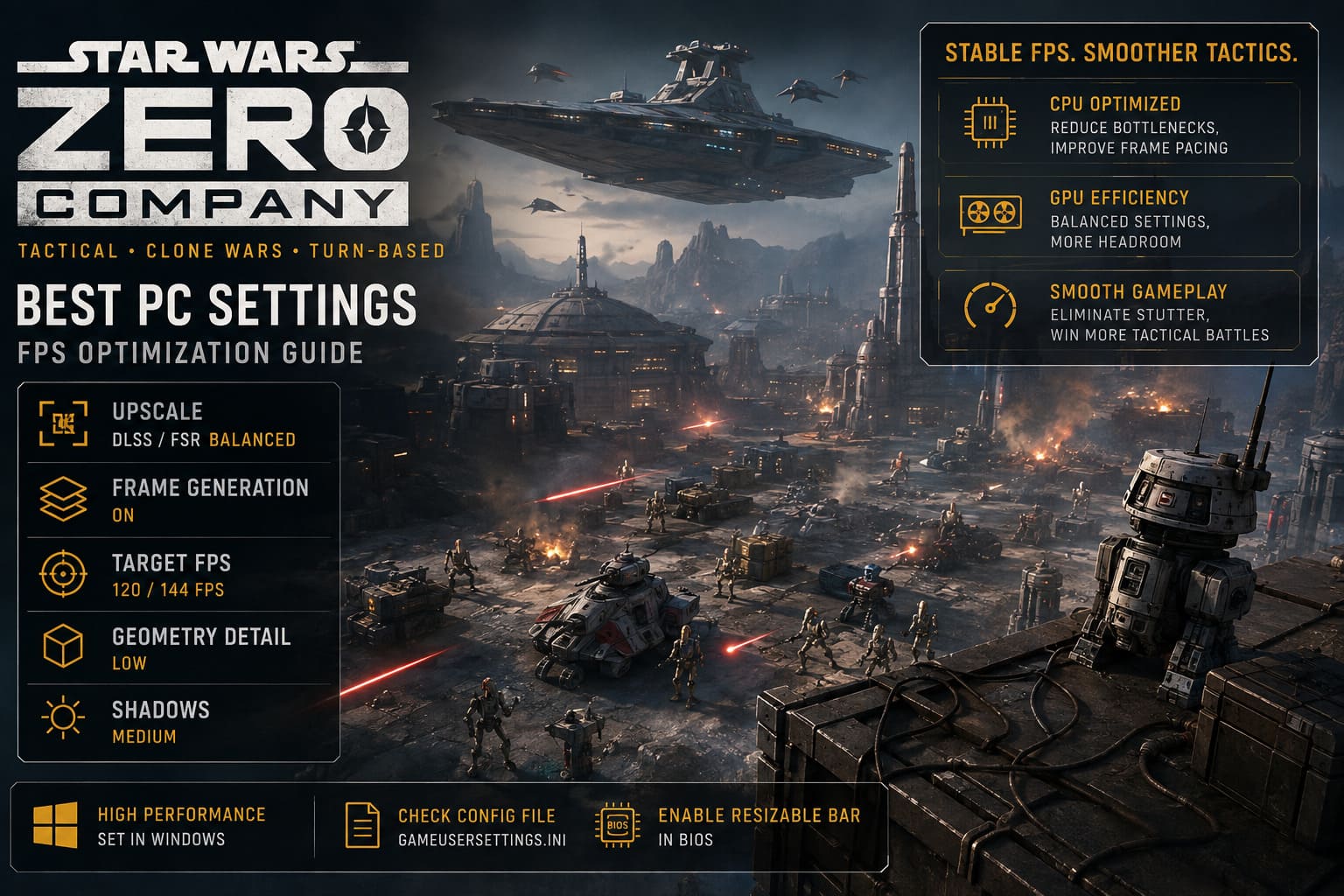
The game has to manage a lot of information simultaneously: battlefield geometry, environmental objects, tactical units, animations, effects, visibility calculations, and asset streaming. Unreal Engine 5 is doing a lot of work behind the scenes while you’re busy deciding whether your squad should flank that battle droid or take the safer route.
That’s where the CPU bottleneck becomes particularly annoying.
You can have a powerful graphics card installed and still experience poor frame pacing because the processor can’t feed the GPU quickly enough. This is especially noticeable when the camera sweeps across a large map, when combat begins, or when the game suddenly has to process a large number of environmental and gameplay elements.
A classic symptom is easy to spot:
CPU utilization climbs hard while your GPU isn’t anywhere close to 95–100%.
If that is happening, buying an even faster GPU probably isn’t going to magically solve the problem. You need to reduce settings that affect CPU-side rendering and scene complexity.
This is also why simply lowering the resolution doesn’t always fix Zero Company’s worst performance dips. You can make the GPU’s job easier, but a CPU-limited scene is still CPU-limited.
Best Star Wars Zero Company Graphics Settings for PC
Before touching advanced tweaks, I’d establish a clean baseline. Don’t immediately start editing configuration files and changing Windows settings. Get the game running with a sensible preset first, then attack whatever bottleneck remains.
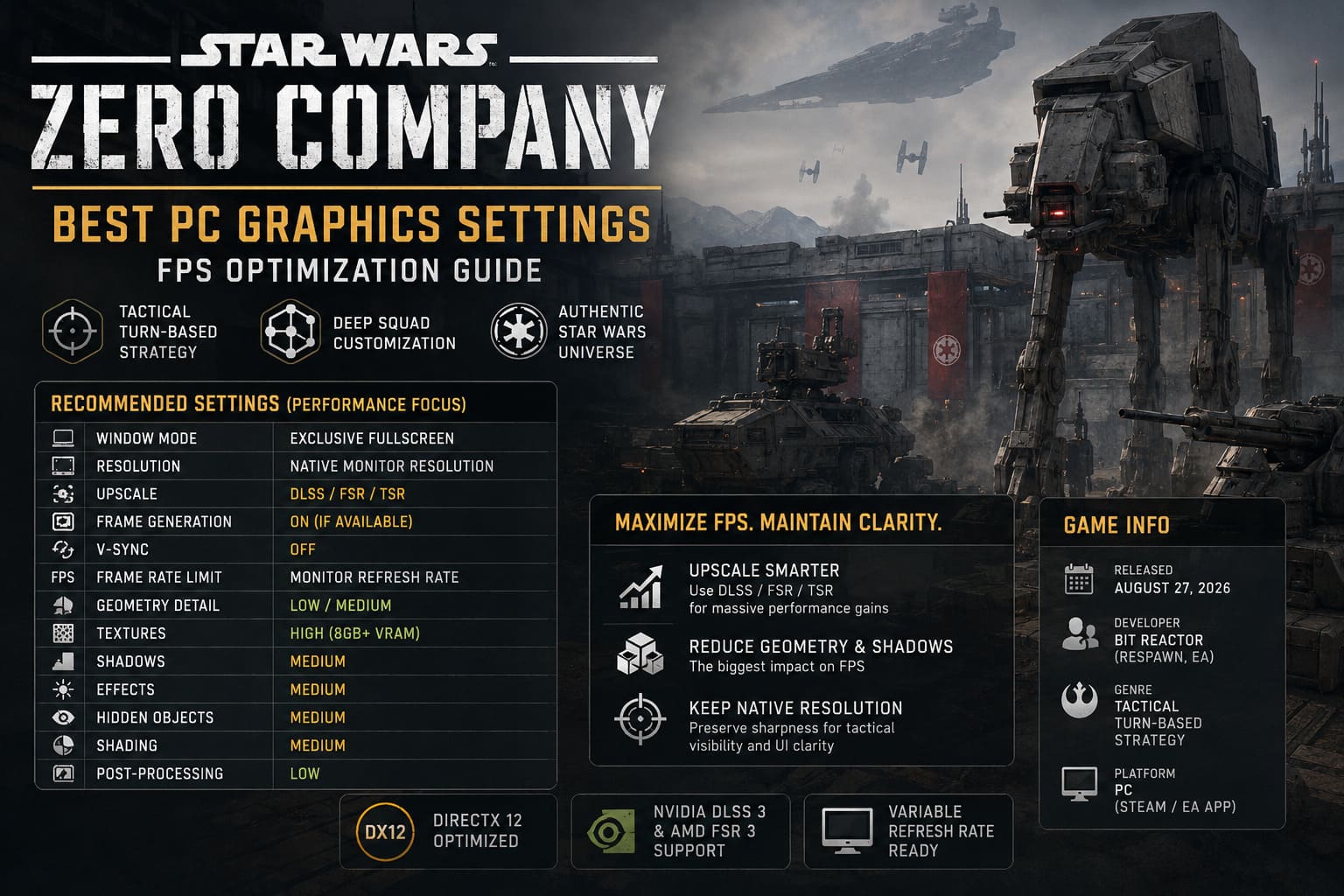
| Setting | Recommended | Performance Priority |
|---|---|---|
| Window Mode | Exclusive Fullscreen | Medium |
| Resolution | Native Monitor Resolution | High |
| V-Sync | Off | Medium |
| Frame Rate Limit | Monitor Refresh Rate | High |
| Upscaling | DLSS / FSR / TSR | Very High |
| Frame Generation | On, If Available | Very High |
| Geometry Detail | Low / Medium | Very High |
| Textures | High with 8GB+ VRAM | Medium |
| Shadows | Medium | High |
| Effects | Medium | High |
| Hidden Objects | Medium | High |
| Shading | Medium | Medium |
| Post-Processing | Low | Low |
The big three here are upscaling, geometry detail, and shadows. Those are the settings I’d experiment with first rather than blindly sacrificing texture quality.
Display Settings: Start With a Clean Foundation
Exclusive Fullscreen
I’d use Exclusive Fullscreen whenever the game supports it properly.
The goal is simple: give the game as much control over the display pipeline as possible and minimize unnecessary interference from desktop applications.
It’s not going to turn a struggling PC into a monster gaming rig, but when you’re chasing consistent frametimes, small advantages can add up.
Resolution
Keep your monitor’s native resolution whenever possible.
If you’re playing at 2560×1440, stay at 1440p and use an upscaler instead of dropping the entire output resolution to 1080p.
Why?
Because tactical games have a ridiculous amount of small visual information. Unit outlines, foliage, armor details, environmental objects, UI elements, and distant geometry can become noticeably blurry when you use a lower native output resolution.
I’d rather render at native resolution with DLSS, FSR, or TSR doing the heavy lifting.
V-Sync
Set V-Sync to Off if you’re using G-Sync or FreeSync.
Pair your variable-refresh display with an appropriate FPS cap instead. This generally gives you better control over latency and frame pacing.
And yes, I know this is a turn-based strategy game. Input latency isn’t remotely as important as it is in a competitive shooter. But responsive camera movement still matters, especially when you’re constantly rotating around the battlefield.
The Most Important Setting: Upscaling
If you’re serious about getting more FPS in Star Wars Zero Company, don’t ignore the upscaling options.
Running completely native rendering at demanding resolutions can be brutally expensive. Modern reconstruction technologies give you a much better performance-to-image-quality tradeoff.
For 4K
I’d start with:
DLSS/FSR: Performance
This renders internally at a much lower resolution and reconstructs the final 4K image.
Yes, Performance mode can look softer than Quality. But at 4K, the overall image can remain surprisingly convincing while giving the GPU significantly more breathing room.
For 1440p
My preferred starting point is:
DLSS/FSR: Balanced
1440p Balanced is a particularly nice middle ground. You gain substantial GPU headroom without turning every distant clone trooper into a blurry smear.
If your graphics card is powerful enough, Quality is also worth trying.
For 1080p
Use:
DLSS/FSR: Quality
At 1080p, aggressive upscaling becomes much more obvious. Fine geometry, vegetation, distant objects, and small battlefield details can start shimmering or losing definition.
For a 1080p display, I would sacrifice some raw FPS before dropping the internal resolution too aggressively.
Frame Generation: Worth Using?
Yes, if your hardware supports it and you’re primarily chasing higher perceived FPS.
Star Wars Zero Company isn’t a twitch shooter where an extra frame of latency can decide whether you win or lose a gunfight. That makes frame generation considerably easier to justify.
You can see a major increase in perceived smoothness, particularly when the base frame rate is already reasonably stable.
The important part is that Frame Generation shouldn’t be used to disguise an awful base FPS.
If your system is struggling to maintain a consistent 30 FPS and you throw frame generation on top, you’re not actually fixing the underlying problem. You’re generating more frames between already-poor frames.
Get the base performance under control first.
Then enable it.
NVIDIA Reflex and AMD Anti-Lag
If your GPU supports a latency-reduction technology such as NVIDIA Reflex or AMD Anti-Lag, enable it.
I particularly like using these features when running with frame generation because they help keep the rendering pipeline from feeling unnecessarily sluggish.
Again, Zero Company isn’t a competitive FPS, so this isn’t something I’d obsess over. But there is very little reason to tolerate unnecessary latency when the option is available.
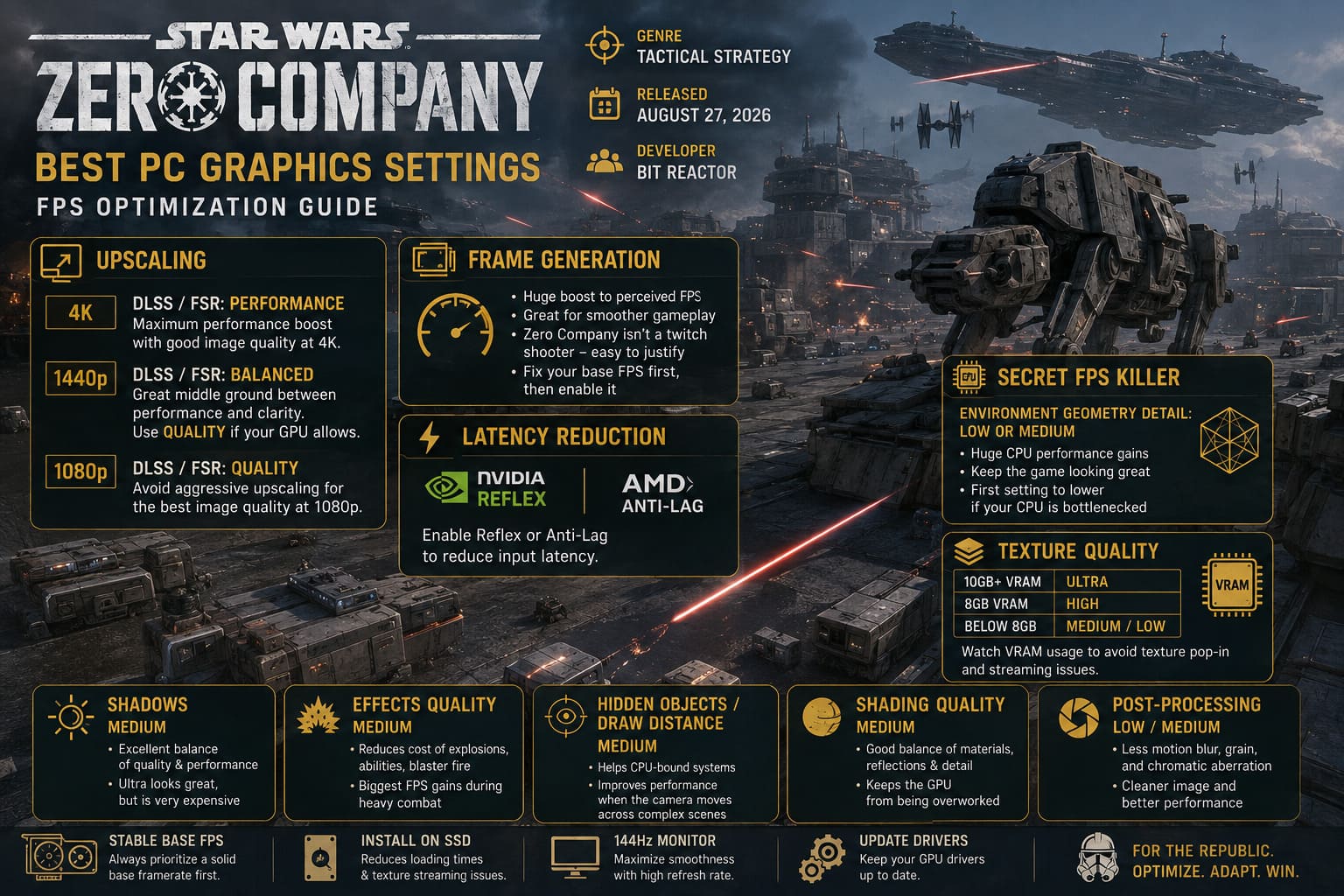
The Secret FPS Killer: Environment Geometry
This is the setting I would attack before textures.
Environment Geometry Detail: Low or Medium
There is a temptation to leave geometry on Ultra because the game is beautiful. I get it. I really do.
But geometry complexity can become expensive when the CPU is already struggling to process a complicated battlefield.
Lowering this setting can produce surprisingly large gains in heavy scenes, particularly on mid-range CPUs.
And here’s the important part: the game can still look good.
You’re not turning Zero Company into a PS2 game by dropping geometry from Ultra to Medium. The battlefield remains detailed, the characters remain attractive, and the overall art direction survives just fine.
If you’re experiencing massive FPS drops while your GPU isn’t fully utilized, this is one of the first settings I’d change.
Texture Quality: Don’t Lower It Without Checking VRAM
Textures are a different beast.
They are primarily constrained by VRAM capacity, so reducing texture quality won’t necessarily fix a CPU bottleneck.
My general starting point would be:
- 10GB+ VRAM: Ultra is reasonable.
- 8GB VRAM: High.
- Below 8GB: Medium or Low.
The reason I don’t recommend automatically maxing textures is asset streaming.
When a game doesn’t have enough VRAM available, it can start aggressively moving assets in and out of memory. That’s when you can encounter texture pop-in, blurry surfaces, and unpleasant transitions when the camera changes.
If you’re seeing textures suddenly become sharp a second after the camera moves, don’t immediately blame the SSD. Check your VRAM usage and texture setting first.
Shadows: Medium Is the Sweet Spot
Shadows: Medium
This is one of those settings where Ultra looks fantastic when you stop and stare at it, but Medium often provides a much better performance-to-quality ratio.
High-end shadow rendering can be surprisingly expensive, especially across large environments.
Medium keeps the battlefield’s lighting depth intact without forcing your GPU to spend a ridiculous amount of resources perfecting every tiny shadow.
I’d rather have a stable frame rate and slightly simpler shadows than gorgeous shadows accompanied by constant hitching.
Effects Quality
Blaster fire, explosions, abilities, plasma effects and other combat visuals can become expensive when multiple effects appear simultaneously.
Set:
Effects Quality: Medium
This is particularly useful if your FPS drops during intense combat sequences rather than during normal exploration.
You may notice the biggest improvement when several characters use grenades or area-of-effect abilities in the same turn.
Hidden Objects and Draw Distance
Another setting that deserves more attention than it usually gets is Hidden Objects / Draw Distance.
Set it to:
Medium
Reducing the amount of inactive environmental content the game needs to keep aggressively processed can help CPU-bound systems.
This is one of those settings where the difference isn’t always obvious when you’re standing still. The advantage appears when the camera moves rapidly across a complicated environment.
And that’s exactly where Zero Company likes to expose CPU limitations.
Shading and Post-Processing
For Shading Quality, I’d use Medium.
This gives you a reasonable balance between material quality, reflections, and other rendering details without pushing the GPU unnecessarily hard.
For Post-Processing, I’d go with Low or Medium.
Personally, I prefer Low.
Tactical games don’t need aggressive motion blur, film grain, or chromatic aberration hiding the battlefield. I want to see exactly what is happening.
If lowering post-processing gives me a cleaner image while also saving a few frames, that’s an easy win.
My High-FPS Star Wars Zero Company Preset
If I were setting up a reasonably powerful gaming PC for high-refresh-rate play, this is the configuration I’d use as my starting point:
- Exclusive Fullscreen
- Native Monitor Resolution
- 144/165/240 FPS Cap
- V-Sync Off
- DLSS or FSR Balanced
- Frame Generation On
- NVIDIA Reflex / AMD Anti-Lag Enabled
- Environment Geometry: Low
- Textures: High
- Shadows: Medium
- Effects: Medium
- Hidden Objects: Medium
- Shading: Medium
- Post-Processing: Low
Don’t obsess over reaching 200+ FPS if your CPU simply can’t sustain it.
A stable 120–144 FPS can feel much better than bouncing between 170 and 80 FPS every time the camera moves.
Frame pacing matters.
Best Low-End PC Settings for a Stable 60 FPS
For an older or budget gaming PC, I’d take a completely different approach.
Your target isn’t benchmark bragging rights.
It’s consistency.
Try:
- Exclusive Fullscreen
- 60 FPS Cap
- V-Sync Off
- TSR or FSR
- 70–75% Resolution Scale
- Frame Generation Off
- Environment Geometry: Low
- Textures: Medium/Low
- Shadows: Low
- Effects: Low
- Hidden Objects: Low
- Shading: Low
- Post-Processing: Low
If you can hold a clean 60 FPS with those settings, stop there.
There’s no prize for running the game at Ultra while your frame rate collapses every time a mission starts.
Three PC Tweaks Worth Trying
1. Give Zero Company High Windows Graphics Priority
Windows allows you to specify which GPU preference an application should use.
Go to Windows Settings → System → Display → Graphics.
Add the Star Wars Zero Company executable under Desktop apps, open its options, and select:
High Performance
This is particularly useful on laptops and systems with integrated and dedicated graphics processors.
2. Check GameUserSettings.ini
If the game’s resolution options aren’t behaving correctly, you can manually inspect the configuration file.
Press Windows + R, enter:
%localappdata%
Then look for the game’s configuration directory, commonly under the SWZeroCompany folder:
Saved → Config → WindowsNoEditor / WindowsClient
Find:
GameUserSettings.ini
Open it with Notepad and look for:
ResolutionSizeX
and
ResolutionSizeY
For a 2560×1440 monitor, those values should correspond to:
2560 × 1440
Save the file and launch the game again.
If the game repeatedly overwrites your settings, you can experiment with making the configuration file Read-Only, but I’d keep a backup first. Configuration edits can occasionally create their own problems after patches.
3. Check Resizable BAR
If you’re using a modern Intel Arc, NVIDIA, or AMD graphics card, make sure Resizable BAR is enabled in your motherboard BIOS when your platform supports it.
Resizable BAR allows the CPU to access a larger portion of the GPU’s VRAM address space rather than relying on smaller transfers.
It’s not a magical “+50 FPS” switch, but modern games can benefit from it, and there is little reason to leave performance features disabled on a compatible system.
Star Wars Zero Company Best Late Game Squad Synergies & Team Compositions
What I Would Change First
If you’re sitting in the settings menu wondering what to sacrifice, don’t start randomly turning everything down.
Use this order:
- Enable DLSS/FSR/TSR.
- Lower Environment Geometry.
- Reduce Shadows.
- Reduce Effects if combat causes drops.
- Lower Hidden Objects / Draw Distance if camera movement causes stutter.
- Adjust Textures only after checking VRAM usage.
- Lower Post-Processing last.
That’s the approach I’d use on my own machine.
The goal isn’t to make Star Wars Zero Company ugly. The goal is to remove the settings that cost a ridiculous amount of performance while giving you barely noticeable visual improvements.
Final Verdict: Smooth Beats Ultra
Star Wars Zero Company is one of those PC games where “Ultra” isn’t automatically the best experience.
The tactical genre gives you plenty of time to notice frame pacing problems. You’re constantly rotating the camera, surveying enormous battlefields, checking cover positions, watching units move, and scanning the environment for tactical information.
A sudden hitch during all of that is far more distracting than slightly reduced shadow quality.
My preferred setup is therefore pretty straightforward: native output resolution, intelligent upscaling, Medium shadows and effects, Low/Medium geometry, sensible textures based on VRAM, and a frame-rate cap that your CPU can actually maintain.
If you’re CPU-bound, stop chasing GPU-only solutions. If you’re VRAM-limited, don’t blindly max textures. If your GPU is sitting at 70% while the CPU is screaming, lowering resolution alone isn’t going to save you.
That’s the real trick with Star Wars Zero Company PC optimization.
Don’t just lower everything.
Find the setting responsible for your particular bottleneck, cut it aggressively, and keep everything else as high as your hardware can comfortably handle.
Do that, and the game can go from a stuttery tactical headache to the smooth Clone Wars campaign it should have been from the start.