Corsair Cove Water Rendering Lag on RTX 4070: Best Fixes & Optimization Guide
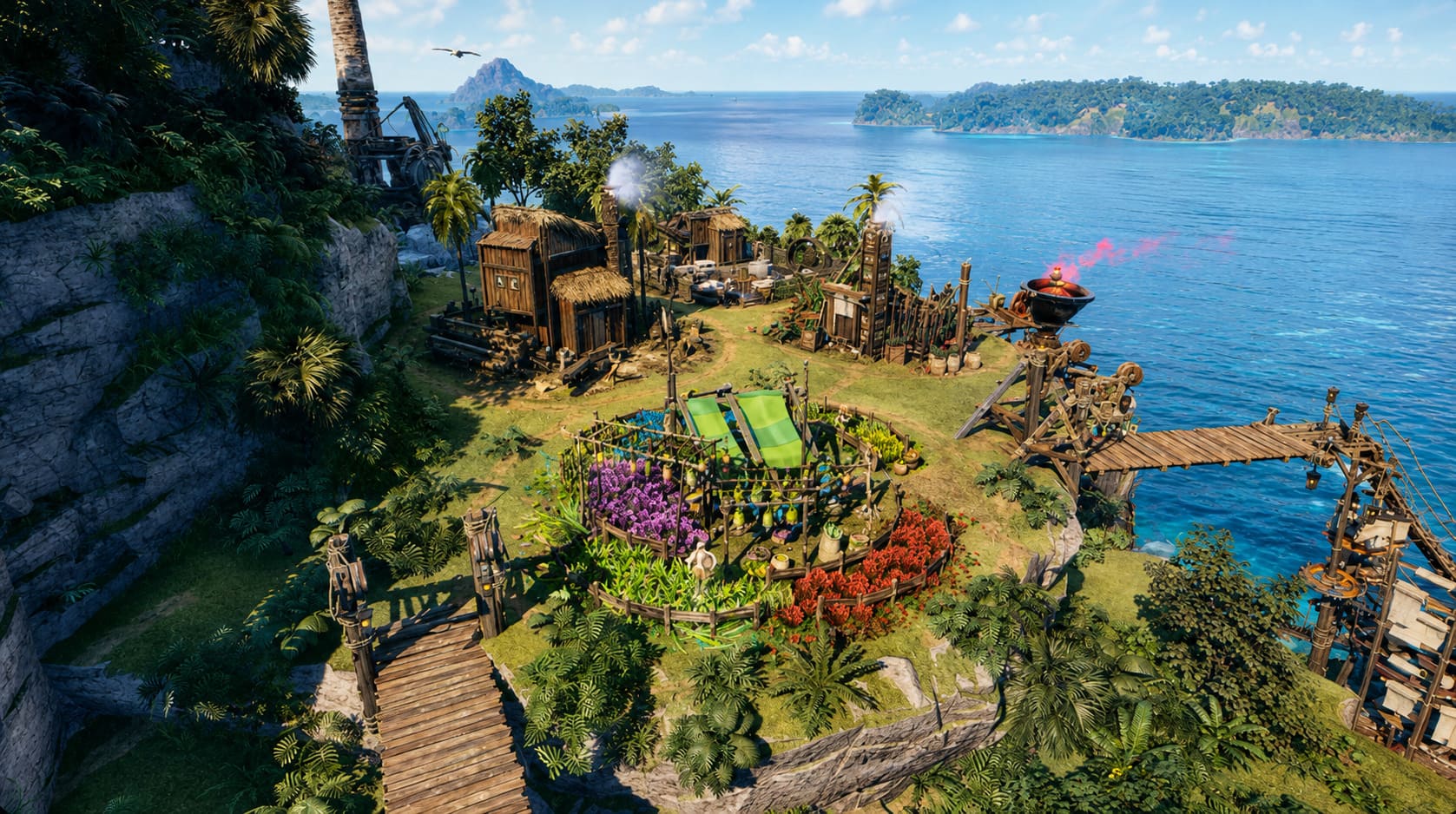
I have spent a ridiculous amount of time testing strategy games, city builders, and simulation-heavy titles where one bad optimization issue can completely ruin the experience. Corsair Cove immediately caught my attention because it combines pirate management, vertical construction systems, and deep production chains in a way that feels fresh. Building a massive island fortress, connecting logistics routes, and watching ships move through your harbor is exactly the kind of gameplay loop that can keep you glued to the screen for dozens of hours.
However, even powerful gaming PCs are running into a frustrating problem. Many players using the NVIDIA GeForce RTX 4070 have reported serious performance drops when looking over large oceans, rotating the camera near coastlines, or entering intense naval battles. The strange part is that the RTX 4070 is more than capable of handling a game like Corsair Cove on paper.
The issue is not raw GPU power. The problem comes from how the game handles water effects, reflections, physics calculations, and asset streaming. A smooth 80–100 FPS experience can suddenly turn into annoying stutters when the camera moves across a huge ocean area.
After digging through performance settings and testing different configurations, these are the changes that make the biggest difference for RTX 4070 owners.
Corsair Cove Cliff Face Building Snapping Fix How to Build Vertically Without Bugs
Why Does Corsair Cove Have Water Rendering Problems on RTX 4070?
At first glance, water seems like a simple visual feature. In reality, modern games treat oceans as extremely demanding systems. Corsair Cove does not use a basic animated texture for its seas. The water interacts with ships, weather effects, lighting systems, and the surrounding environment.
When your camera looks across a large section of ocean, the engine has to process multiple expensive effects at the same time:
| Feature | Performance Impact |
|---|---|
| Dynamic water simulation | High CPU/GPU usage |
| Screen-space reflections | Heavy GPU workload |
| Water lighting effects | Increased shader calculations |
| Ocean physics | Additional simulation load |
| Volumetric fog effects | Extra rendering overhead |
The RTX 4070 has enough horsepower for these effects, but the problem appears when several systems hit the GPU simultaneously. During camera movement, the engine may suddenly load new shaders, increase VRAM usage, or struggle with DirectX 12 optimization.
The result is familiar to many PC gamers: random FPS drops, micro-stuttering, and inconsistent frame pacing.
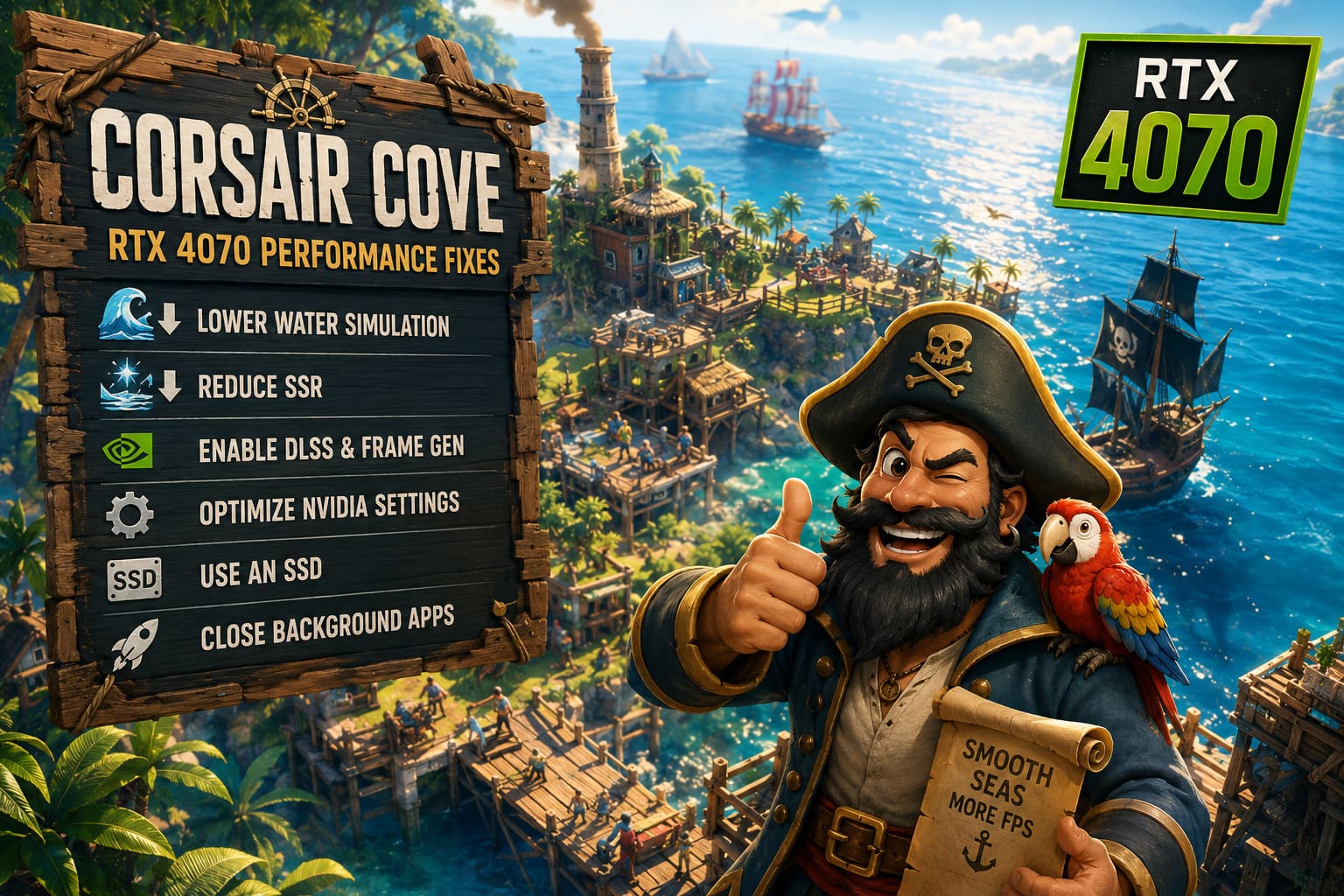
Best Corsair Cove RTX 4070 Water Lag Fixes
1. Lower Water Simulation Settings First
If you only want to change one thing, start with water quality. This setting creates one of the biggest differences between a stable experience and constant stuttering.
The highest water preset looks impressive, but honestly, the visual upgrade is not worth the performance hit. After a few minutes of gameplay, most players will barely notice the difference between Ultra and High.
Recommended settings:
- Water Simulation Quality: High or Medium
- Water Effects: High
- Ocean Detail: High
- Water Caustics: Medium
Reducing these options lowers the amount of physics calculations happening every second while keeping Corsair Cove’s beautiful pirate atmosphere intact.
2. Reduce Screen-Space Reflections (SSR)
Reflections are one of the biggest FPS killers in modern strategy games. Corsair Cove’s vertical island structures create hundreds of reflective surfaces that appear on the water.
When SSR is set to Ultra, your RTX 4070 constantly calculates detailed reflections of:
- Cliffs
- Buildings
- Ships
- Weather effects
- Lighting changes
The performance difference is surprisingly large.
| Setting | Recommended Value |
|---|---|
| Screen-Space Reflections | Medium |
| Shadow Quality | High |
| Texture Quality | Ultra |
| Ambient Occlusion | High |
You keep the game looking sharp while removing one of the biggest causes of ocean stutter.
3. Enable NVIDIA DLSS for Better FPS Stability
Corsair Cove benefits greatly from NVIDIA DLSS, especially at higher resolutions.
If you are playing at 1440p, use:
DLSS Quality Mode
This keeps image quality almost identical while reducing the rendering workload.
For 4K players, switch to:
DLSS Balanced Mode
Native 4K rendering combined with complex water effects can push even the RTX 4070 harder than expected.
If available, enable:
DLSS Frame Generation
Frame Generation helps smooth out moments where the simulation becomes heavy, especially during:
- Large naval battles
- Massive harbor areas
- Late-game cities with complex logistics
It will not magically fix every engine problem, but it can make gameplay feel much smoother.
4. Update NVIDIA Drivers for Corsair Cove
New games often launch with driver-related problems. NVIDIA regularly releases Game Ready Driver updates that improve compatibility with new releases.
Before spending hours changing settings, make sure your GPU drivers are current.
Follow these steps:
- Open the NVIDIA App or GeForce Experience.
- Check for the latest Game Ready Driver.
- Install the update.
- Restart your PC.
- Test Corsair Cove again.
A clean driver installation is recommended if you are also experiencing crashes, graphical glitches, or unusual GPU behavior.
5. Optimize NVIDIA Control Panel Settings
Sometimes Corsair Cove’s biggest problems are not inside the game menu. NVIDIA Control Panel adjustments can improve frame consistency.
Open:
NVIDIA Control Panel → Manage 3D Settings → Program Settings → Corsair Cove
Use these settings:
| NVIDIA Setting | Recommended Option |
|---|---|
| Power Management Mode | Prefer Maximum Performance |
| Shader Cache Size | 10GB or Unlimited |
| Low Latency Mode | On |
| Vertical Sync | Use NVIDIA Control Panel |
The power management setting prevents your RTX 4070 from lowering clock speeds when switching between different areas of the map.
The larger shader cache is also important because Corsair Cove constantly loads new environments, ships, and visual effects.
6. Install Corsair Cove on an SSD
This is an easy fix that many players ignore.
Corsair Cove is not just rendering graphics. It is constantly loading:
- Buildings
- Production chains
- NPC movement
- Ship locations
- Environmental data
Running the game from an old HDD can create noticeable stuttering when moving the camera.
For the best experience:
Use an NVMe SSD whenever possible.
A faster drive will not increase your average FPS dramatically, but it can massively reduce those annoying loading spikes.
7. Close Background Apps Before Playing
Modern games compete with many background programs for CPU and memory resources.
Before launching Corsair Cove, close unnecessary applications:
- Browser tabs
- Discord hardware acceleration
- Streaming software
- RGB monitoring tools
- Background recording programs
This is especially useful during late-game saves when your island becomes huge and the simulation becomes much heavier.
Recommended RTX 4070 Settings for Corsair Cove
Here is a balanced configuration that delivers great visuals without destroying performance:
| Graphics Option | Setting |
|---|---|
| Resolution | 1440p |
| DLSS | Quality |
| Frame Generation | Enabled |
| Water Simulation | High |
| SSR | Medium |
| Texture Quality | Ultra |
| Shadows | High |
| Volumetric Fog | Medium |
| VSync | NVIDIA Control Panel |
This setup keeps the pirate world looking detailed while preventing sudden FPS drops when exploring the ocean.
Final Thoughts: Is Corsair Cove Still Worth Playing on RTX 4070?
Corsair Cove is one of those games where the gameplay ideas are stronger than some of the early technical problems. The combination of pirate city building, vertical construction, and complex logistics is genuinely addictive, but the water rendering issues can definitely ruin the atmosphere when your expensive GPU starts struggling.
The good news is that the RTX 4070 is absolutely capable of running this game smoothly. The problem is mostly related to optimization rather than hardware limitations.
Lowering water simulation, reducing SSR, enabling DLSS, adjusting NVIDIA settings, and using an SSD can completely change the experience. Once the stuttering disappears, Corsair Cove becomes the relaxing pirate empire simulator it was meant to be.
Hopefully, future updates from Limbic Entertainment will improve these engine-level problems even further. Until then, these tweaks should help RTX 4070 players enjoy smoother sailing across the open seas.