How to Mute Players in The Binding of Isaac: Multi-Platform Voice Chat Guide
There’s a very specific kind of chaos that only The Binding of Isaac: Repentance multiplayer can generate. One moment you’re carefully managing items and planning synergy builds, the next your headset is flooded with keyboard clacks, background noise, or someone who clearly forgot their microphone exists.
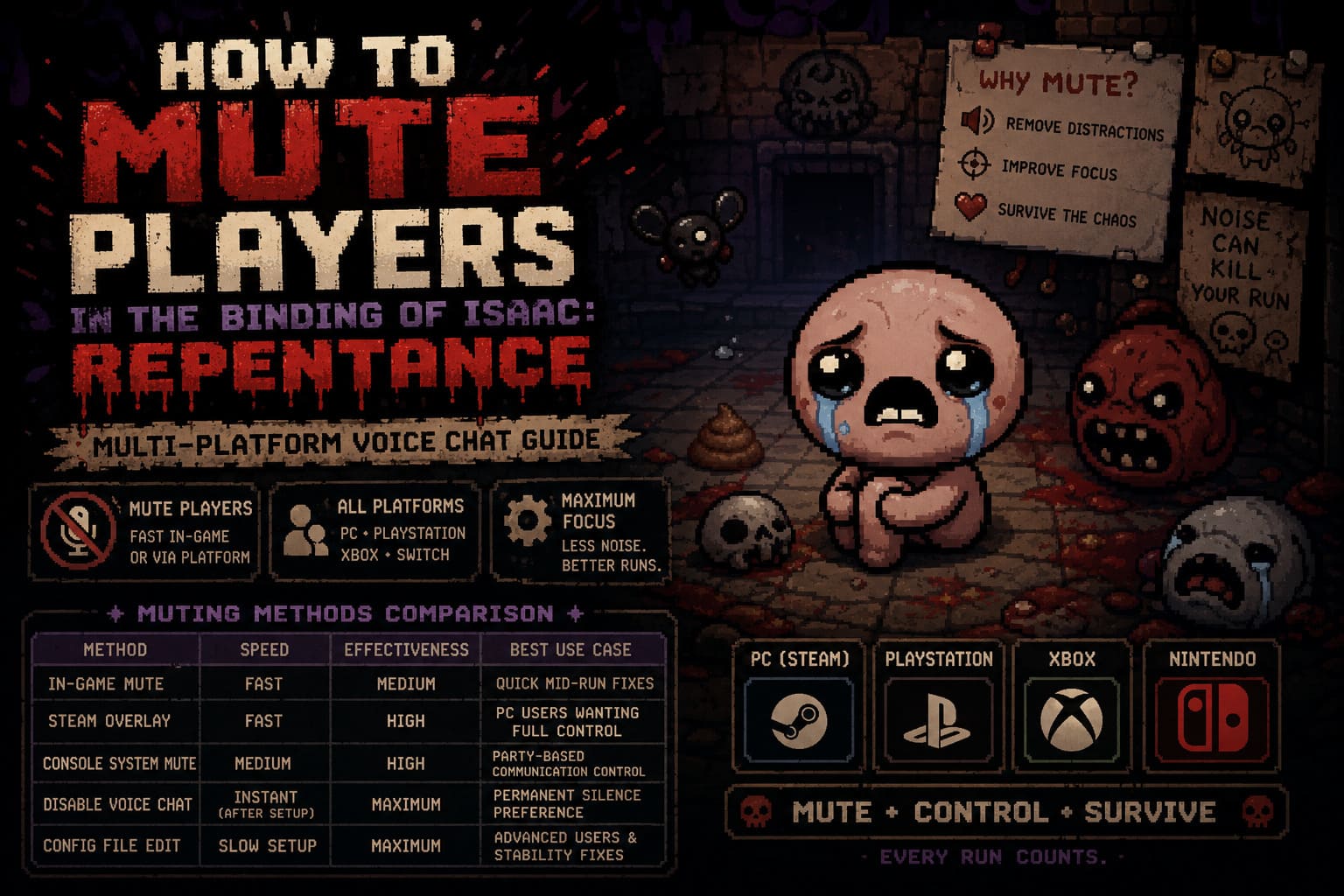
And in a roguelike where a single mistake can end a long run, audio distractions don’t just annoy you — they actively sabotage your focus. Knowing how to mute players quickly becomes less of a “nice feature” and more of a survival mechanic.
How to Disable EOS Crossplay in The Binding of Isaac: Repentance
Multiplayer Voice Chat in Isaac Feels Minimal for a Reason
The multiplayer system in Repentance isn’t designed like modern competitive co-op games. There’s no polished comm wheel, no advanced moderation UI, and no deep audio settings dashboard baked into the gameplay interface.
Instead, voice chat is handled mostly through platform systems like Steam or console services. The result is a very lightweight experience that keeps the screen clean but makes audio controls feel hidden and unintuitive.
This is why so many players end up confused when they first encounter chaotic lobbies — the tools exist, but they’re not exactly advertised.
Fast In-Game Method to Mute Players
If someone’s microphone suddenly turns your run into a noise festival, you don’t need to quit. There’s a quick in-game way to handle it.
Step 1: Open Pause Menu
Press Esc on PC or the pause button on your controller. This brings up the in-game interface without fully interrupting your session flow.
Step 2: Locate Player List
Look for sections labeled Players, Lobby, or Party. This area shows everyone currently in your session along with their character icons.
Step 3: Select the Player
Highlight the username of the player causing problems. Usually, you’ll know exactly who it is within seconds.
Step 4: Mute
Use the on-screen prompt to mute them. A muted microphone icon should appear next to their name, confirming the action worked.

Steam Overlay Method (PC Players’ Best Option)
On PC, Steam overlay is usually the most reliable way to control voice chat because it operates outside the game itself.
Step 1: Open Steam Overlay
Press Shift + Tab while in-game to bring up Steam’s interface.
Step 2: Open Friends Panel
Navigate to the friends and chat section where your current game session is displayed.
Step 3: Find the Lobby Group
Look for the active The Binding of Isaac: Repentance session list with connected players.
Step 4: Mute or Block
Right-click the player and choose Mute Voice Chat or Block Communication. Blocking is the full shutdown option if someone is being especially disruptive.
Console Mute Methods
Console players rely on system-level voice controls, which means everything is handled outside the game itself.
PlayStation (PS4 / PS5)
Open the Control Center, go to Game Base, enter the active voice chat, select the player, and choose mute from the options.
Xbox (Series X|S / Xbox One)
Open the Guide, go to Parties & Chats, select your current session, then mute the gamertag from the participant list.
Nintendo Switch
Switch voice chat support is fragmented and often relies on external apps or limited in-game implementations. In most cases, muting is handled outside the game itself or through mobile-linked voice systems.
Turning Voice Chat Off Completely
If muting individual players feels like too much effort, you can simply disable voice chat entirely and play in silence.
In-Game Settings
Go to Options → Audio or Network settings and disable Voice Chat or set volume to zero. This is the easiest long-term solution for players who prefer pure gameplay focus.
Config File Method (Advanced PC Users)
For more control, you can manually edit the configuration file. Navigate to your Documents folder, open the Isaac configuration directory, and find options.ini. Locate the line EnableVoiceChat=1 and change it to EnableVoiceChat=0.
This forces the game to disable voice chat completely on launch, bypassing potential menu bugs or overwritten settings.
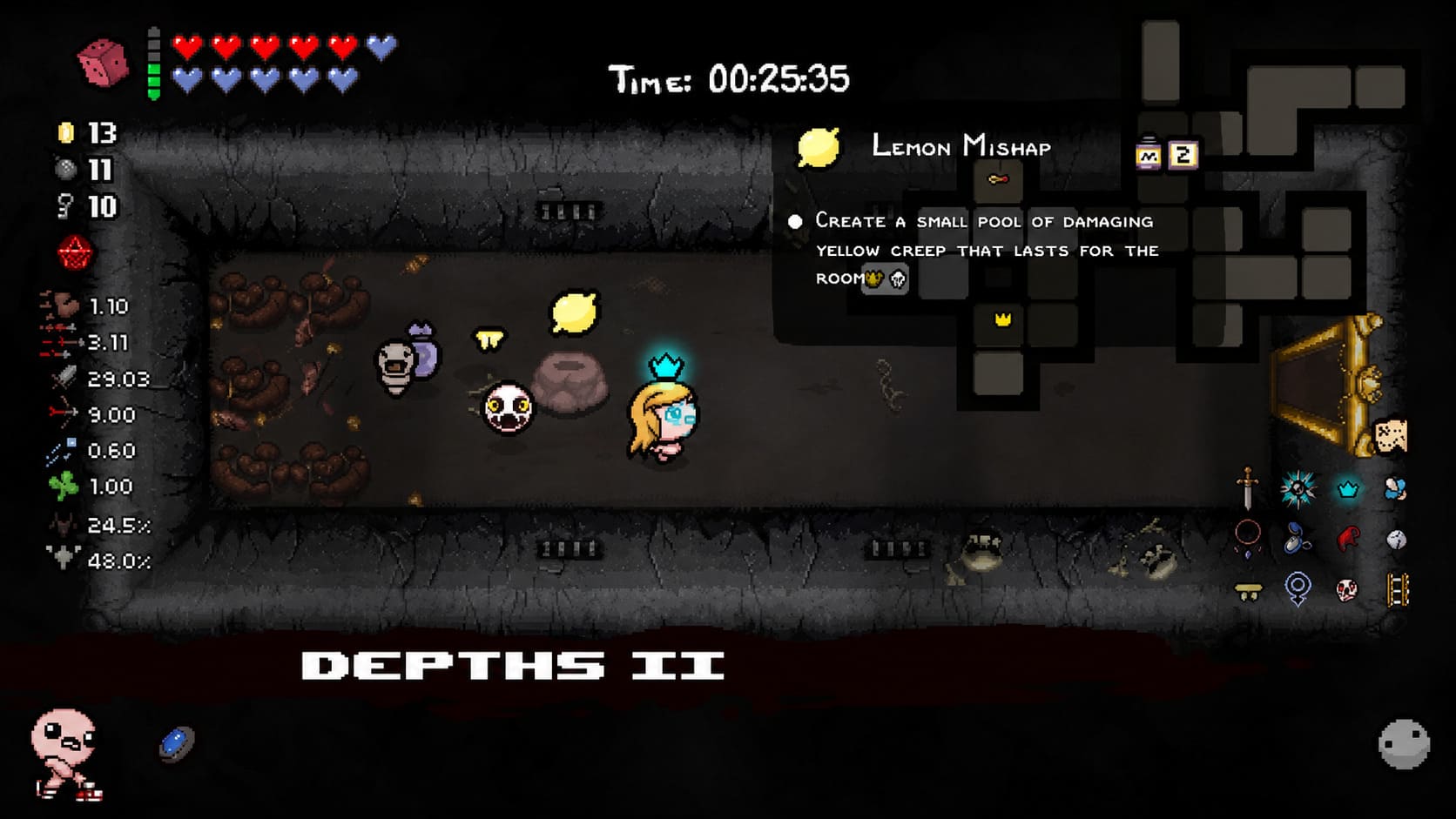
Comparison of Muting Methods
| Method | Speed | Effectiveness | Best Use Case |
|---|---|---|---|
| In-Game Mute | Fast | Medium | Quick mid-run fixes |
| Steam Overlay | Fast | High | PC users wanting full control |
| Console System Mute | Medium | High | Party-based communication control |
| Disable Voice Chat | Instant (after setup) | Maximum | Permanent silence preference |
| Config File Edit | Slow setup | Maximum | Advanced users and stability fixes |
Why Muting Actually Impacts Gameplay Performance
It might seem like a small quality-of-life feature, but audio control directly affects performance in Repentance. The game demands constant attention, especially in later floors where enemy patterns become overwhelming.
When audio is clean, reaction time improves and decision-making stays stable. When it isn’t, even subtle distractions can cause missed dodges or poor item decisions that snowball into a lost run.
In a game built around RNG chaos, removing avoidable chaos is one of the few things you can actually control.
Final Thoughts
The Binding of Isaac: Repentance multiplayer is already unpredictable enough without adding microphone noise into the mix. Between cursed rooms, item RNG, and sudden boss spikes, the game constantly tests your focus.
Using mute tools — whether through Steam, console systems, or fully disabling voice chat — gives you back control over your experience. And in a game where every run can swing from broken to dead in seconds, that control matters more than it seems.
Sometimes the best co-op strategy isn’t better communication. It’s just turning the noise off and letting the run speak for itself.