How to Fix Fell & Sell Low FPS, Stuttering, and Lag (2026 PC Guide)
Fell & Sell is the kind of game where performance problems become noticeable almost immediately. When everything is running properly, the tactical gameplay feels responsive and the action moves at a steady pace. When the frame rate starts bouncing around, though, even simple camera movement can feel strangely heavy.
I’ve spent a ridiculous amount of time tweaking PC games over the years. Sometimes the solution is obvious: lower shadows, cap the FPS, update a driver. Other times, you can change ten different settings and somehow make the game feel worse. Fell & Sell falls somewhere in the middle.
If you’re dealing with low FPS, micro-stuttering, inconsistent frame times, input delay, or general lag in Fell & Sell, I’d start with the fixes below. These are the changes I’d personally make before touching a bunch of random Windows optimization tools.
What Usually Causes Fell & Sell Stuttering?
Before changing everything at once, it helps to understand what you’re actually trying to fix.
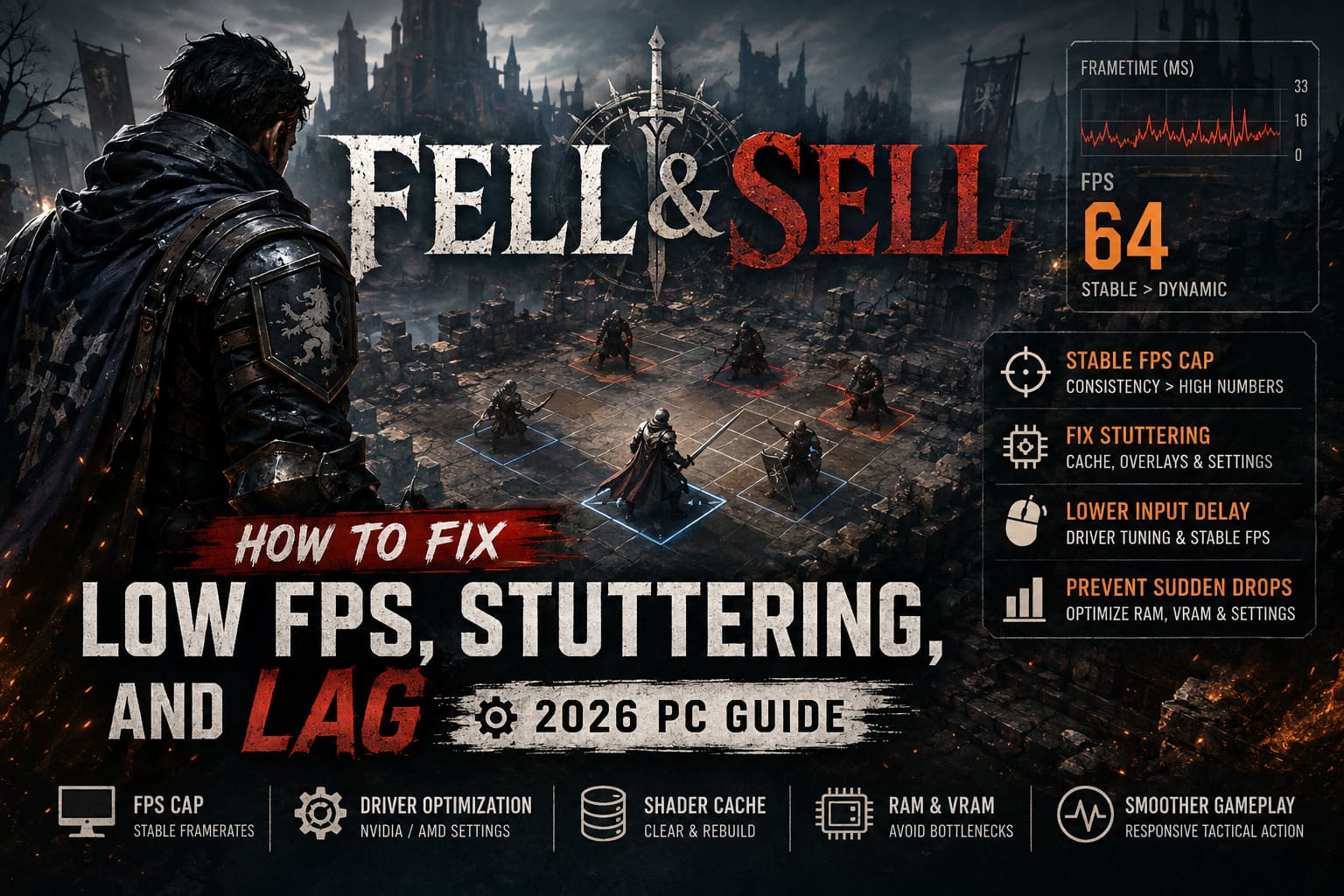
A PC can show 100 FPS and still feel terrible if the frame delivery is inconsistent. That’s why the number in the corner of your screen isn’t always the best indicator of performance. Frame time matters just as much as average FPS.
In my experience, Fell & Sell performance problems generally fall into four categories:
| Problem | What You May Notice | First Thing I’d Try |
|---|---|---|
| Unstable FPS | FPS jumps up and down | Use a sensible frame cap |
| Micro-stuttering | Tiny pauses during movement | Clear shader cache and reduce background software |
| Input latency | Controls feel slightly delayed | Stable FPS and GPU driver tuning |
| Sudden drops | Performance collapses during busy scenes | Lower demanding graphics settings and check RAM/VRAM usage |
There’s also an important distinction between FPS problems and internet lag. If characters or actions appear to snap backward, that’s potentially a network issue. If the entire image becomes choppy while your controls still respond normally, you’re probably dealing with local performance instead.
1. Start With a Stable FPS Cap
This is the first thing I would change.
A lot of PC players immediately set their graphics settings as low as possible and leave FPS completely uncapped. I’ve done it myself. Sometimes it works. Quite often it just makes the GPU run at full speed for no real benefit.
If your monitor is 60Hz, running the game at 180 FPS doesn’t automatically make the experience three times better.
For a 60Hz display, I’d start around 60 FPS. On a 120Hz or 144Hz monitor, you can experiment with a matching target or a slightly lower cap if you’re using adaptive sync.
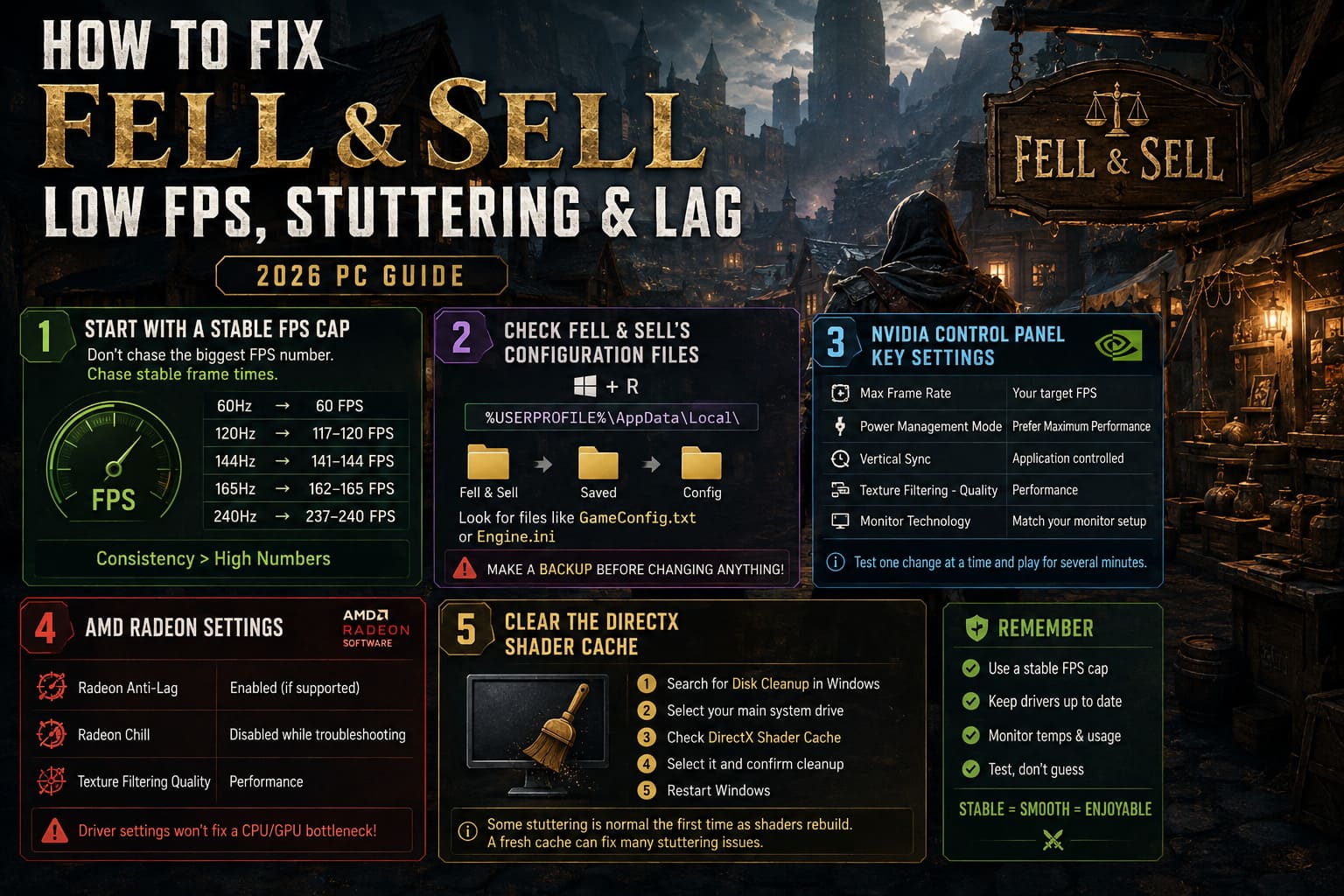
For example:
- 60Hz display → around 60 FPS
- 120Hz display → around 117–120 FPS
- 144Hz display → around 141–144 FPS
- 165Hz display → around 162–165 FPS
- 240Hz display → around 237–240 FPS
The important part is consistency.
A locked 60 FPS that delivers frames evenly can feel considerably better than an unstable 90 FPS that constantly jumps between 55 and 100.
Don’t chase the biggest FPS number. Chase stable frame times.
2. Check Fell & Sell’s Configuration Files
This is one of those troubleshooting steps I always keep in my back pocket.
Some games expose almost everything through their graphics menus. Others leave useful settings hidden inside configuration files. If Fell & Sell stores its settings locally, checking those files can reveal options that aren’t available through the normal interface.
Press Windows + R and enter:
%USERPROFILE%\AppData\Local\
Look for a Fell & Sell folder and check for directories such as Saved, Config, or similar folders.
Depending on the version of the game and how its files are structured, you may find configuration files such as GameConfig.txt or Engine.ini.
Make a backup before changing anything. This is important. If you break a configuration file, restoring the original is much easier than trying to remember every line you changed.
If the file contains graphics or frame-rate parameters, look for settings related to:
- FPS limits
- VSync
- rendering
- resolution
- frame pacing
- graphical effects
The configuration values supplied by one version of a game aren’t necessarily valid for another version, so I wouldn’t blindly paste random commands from an optimization video into the file.
That’s a lesson I learned the annoying way with older PC games: an optimization tweak is only useful if the game actually recognizes it.
3. NVIDIA Control Panel Settings Worth Trying
If you’re using an NVIDIA GeForce GPU, the driver panel gives you a few useful per-game options.
Open NVIDIA Control Panel → Manage 3D Settings → Program Settings, then add the Fell & Sell executable.
I wouldn’t change twenty settings here. More isn’t better.
These are the ones I’d experiment with:
| NVIDIA Setting | Recommended Starting Point | Why |
|---|---|---|
| Max Frame Rate | Your target FPS | Helps maintain consistent frame delivery |
| Power Management Mode | Prefer Maximum Performance | Can help prevent aggressive clock changes |
| Vertical Sync | Application controlled / appropriate to your display | Avoid unnecessary conflicts |
| Texture Filtering – Quality | Performance if GPU-limited | Small performance gain in some situations |
| Monitor Technology | Match your monitor setup | Important when using adaptive sync |
If you’re using G-SYNC or another adaptive-sync technology, don’t automatically disable it just because someone on a forum recommended doing so. Your monitor setup matters.
I’d test one configuration at a time and actually play for several minutes. That’s much more useful than changing everything and then wondering which option fixed the problem.
4. AMD Radeon Settings
AMD users have a similar set of driver-level options through Radeon Software.
For Fell & Sell, I’d start with Radeon Anti-Lag enabled if input responsiveness is a priority and your system supports the feature properly.
I’d also leave Radeon Chill disabled while troubleshooting. Chill dynamically adjusts frame rates, and introducing another frame-rate control while you’re already trying to solve inconsistent pacing can make diagnosis unnecessarily complicated.
Texture filtering can also be set toward performance if you’re struggling for GPU headroom.
Again, don’t expect miracles from driver settings. If your GPU is already running at 99% usage because the game is too demanding, changing texture filtering isn’t going to magically double your FPS.
5. Clear the DirectX Shader Cache
This is one of the fixes I’d definitely try if the game starts stuttering after an update or driver change.
Modern PC games rely heavily on shaders. Your system stores compiled shader information so it doesn’t have to perform the same work repeatedly.
Sometimes a cache can become outdated after a driver or game update.
The easiest Windows method is:
- Search for Disk Cleanup in Windows.
- Select your main system drive.
- Look for DirectX Shader Cache.
- Select it and confirm the cleanup.
- Restart Windows afterward.
You may notice some temporary stuttering the next time you launch a game because shader data has to be rebuilt. Don’t panic if the first few minutes aren’t perfect.
I’ve seen this happen in plenty of PC games. A fresh cache can make a noticeable difference when the previous cache was causing problems, but it isn’t a universal cure for every type of stutter.
6. Disable Overlays Before Blaming Your GPU
This one gets overlooked constantly.
Discord, Steam, NVIDIA’s overlay, recording utilities, RGB software, motherboard utilities, hardware monitoring programs, and other background applications can all interact with a game.
Most of the time, they’re harmless. But when you’re troubleshooting stuttering, I prefer removing as many variables as possible.
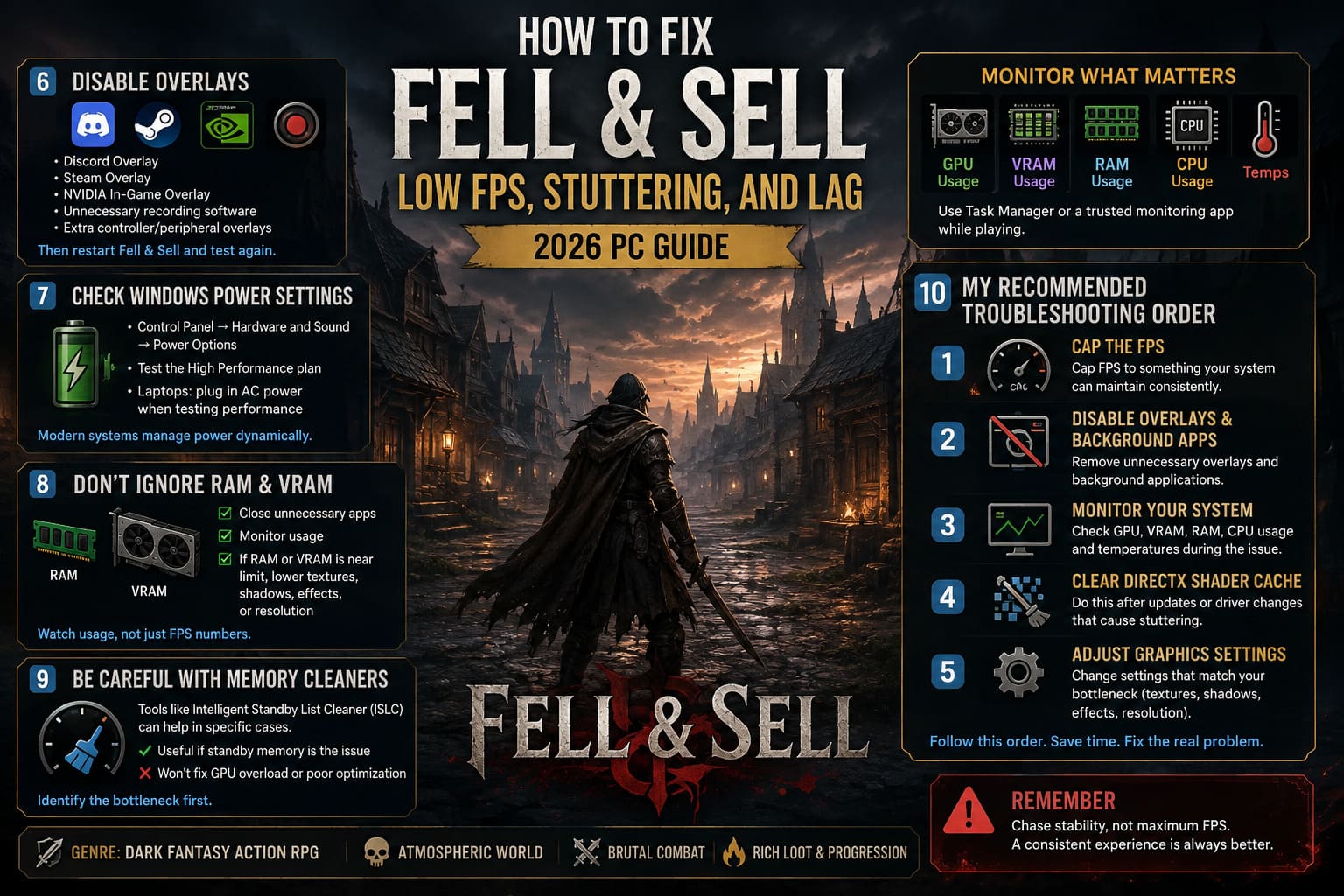
Try disabling:
- Discord Overlay
- Steam Overlay
- NVIDIA In-Game Overlay
- Unnecessary recording software
- Extra controller/peripheral overlays
Then restart Fell & Sell and test the same scenario again.
Don’t disable every Windows service you can find. That’s another popular “optimization” trick that can create more problems than it solves.
7. Check Windows Power Settings
If you’re on a desktop PC, Windows power management is usually not the first place I’d look. On laptops, however, it can matter considerably.
Open:
Control Panel → Hardware and Sound → Power Options
You can test the High Performance power plan if your system is behaving strangely under load.
For laptops, also make sure you’re actually plugged into AC power when testing performance. A laptop running in a battery-saving mode can behave completely differently from the same machine connected to its charger.
I’d avoid obsessively forcing every processor setting to 100%. Modern Windows systems and modern CPUs are designed to manage power dynamically. Maximum power isn’t automatically the best setting for every computer.
8. Don’t Ignore RAM and VRAM
This is where a lot of “low FPS fixes” become misleading.
If your PC has limited system RAM and you’re running Fell & Sell alongside Chrome, Discord, Steam, recording software, and a dozen background applications, Windows can start moving data around to keep everything alive.
That can create hitching.
The same applies to VRAM. If your graphics card is running close to its VRAM limit, reducing texture quality, shadows, effects, or resolution can be more effective than changing obscure driver settings.
I’d watch your resource usage with Task Manager or another trusted monitoring application while playing.
If RAM or VRAM is consistently close to its limit, that’s a much stronger clue than simply seeing the FPS number drop.
9. Be Careful With Memory Cleaner Programs
Tools such as Intelligent Standby List Cleaner (ISLC) are popular in the PC gaming community, particularly among players who are troubleshooting memory-related stutters.
Personally, I wouldn’t install one as the first solution.
If you’re experiencing severe memory pressure and have already confirmed that standby memory is contributing to the issue, a tool like this can be worth testing. But if Fell & Sell is stuttering because the GPU is overloaded, a memory cleaner isn’t going to solve the underlying problem.
I’d rather spend five minutes identifying the bottleneck than install another program and hope it fixes everything.
10. My Recommended Fell & Sell Troubleshooting Order
If I had just installed Fell & Sell and immediately noticed poor performance, this is the order I’d follow.
First, cap the FPS to something your system can maintain consistently.
Second, disable overlays and unnecessary background applications.
Third, check GPU usage, VRAM, RAM, CPU usage, and temperatures while the problem is happening.
Fourth, clear the DirectX shader cache if the stuttering appeared after an update or driver change.
Fifth, adjust the graphics settings that actually correspond to your bottleneck.
Only after that would I start experimenting with configuration files and driver-level tweaks.
This order saves a lot of time.
Fell & Sell Store Strategy 2026: Best Shelf Items and Profit Pricing Formulas
Final Thoughts: Make Fell & Sell Feel Consistent
After years of troubleshooting PC games, I’ve learned that performance optimization is rarely about finding one magical setting.
With Fell & Sell, I’d focus on stability first. A sensible FPS cap, clean shader cache, fewer overlays, sensible GPU settings, and enough RAM/VRAM headroom can make the game feel dramatically better even when the average FPS number hasn’t changed much.
If you’re still getting stutters after all of this, don’t immediately assume the game needs another obscure Windows tweak. Monitor the system while the problem occurs. Find out whether the CPU, GPU, RAM, VRAM, storage, temperature, or network connection is actually hitting a limit.
That’s the approach I use with almost every PC game I play: find the bottleneck first, then change the setting that affects it.
Fell & Sell Beginner’s Guide: Dungeon Crawling and Shop Management Tips
And if Fell & Sell receives a major engine, driver, or graphics update, expect to revisit your settings. PC optimization isn’t a one-time job. A configuration that feels perfect today can behave differently after the next patch.