How to Fix The Last Disease Z Black Screen Crash on AMD Radeon RX 6700 XT
If you are trying to play The Last Disease Z on an AMD Radeon RX 6700 XT and your monitor suddenly goes black, I know exactly how annoying that can be. There is nothing worse than finally getting into a survival game, gathering some supplies, building up a decent base, and then watching the entire display disappear because the GPU decided it had had enough.
The situation is especially frustrating because a black screen is different from an ordinary game crash. Sometimes the game simply closes. With this problem, the screen can lose signal completely while the PC itself continues running, the fans can ramp up, and in the worst cases you are forced to restart the entire machine. I have dealt with enough temperamental PC games over the years to know that these crashes are usually worth troubleshooting from several angles instead of immediately blaming the graphics card.
The RX 6700 XT is still a very capable 1440p GPU, and there is no reason to retire it just because The Last Disease Z is having a bad day. Early-access games can be particularly rough around the edges, especially when Unreal Engine, DirectX 12, shader compilation, display features, and GPU drivers all collide. Here are the fixes I would try first, starting with the ones that can eliminate the biggest number of possible causes.
The Last Disease Z Performance Guide: Best RTX 4070 Graphics Settings for High FPS
Why Does The Last Disease Z Go Black on the RX 6700 XT?
A black screen does not automatically mean that your RX 6700 XT is dying. In a new PC game, the problem can come from several different places, including corrupted drivers, unstable GPU clocks, DX12 rendering issues, Windows display features, variable refresh rate settings, or even inadequate power delivery.
The important clue is when the black screen happens. If the display disappears immediately after launching the game, I would investigate drivers and rendering APIs first. If it happens only after 20 or 30 minutes of heavy gameplay, GPU stability, temperatures, power delivery, and clock behavior become much more interesting suspects.
| Problem | What To Try First |
|---|---|
| Black screen at launch | Clean GPU driver installation and DX11 |
| Black screen during gameplay | Lower GPU clock and check temperatures |
| Monitor loses signal | Disable FreeSync and MPO |
| GPU fans suddenly hit 100% | Check power cables and system stability |
| Crashes started after a driver update | Perform a DDU cleanup |
1. Start With a Proper AMD Driver Cleanup
This is the first thing I would do before touching obscure Windows settings. Installing a new AMD driver over several older versions can leave behind enough cached data and configuration leftovers to make troubleshooting unnecessarily complicated. DX12 games are particularly good at exposing this kind of mess because shaders and rendering profiles can behave differently after driver changes.
The cleanest approach is to use Display Driver Uninstaller (DDU) from Windows Safe Mode. Download the current AMD Adrenalin driver package first, then disconnect your PC from the internet so Windows Update does not immediately install its own display driver while you are cleaning the system.
- Boot Windows into Safe Mode.
- Run DDU and select AMD as the GPU manufacturer.
- Choose the option to clean the driver and restart.
- Install the fresh AMD Adrenalin driver after Windows starts normally.
- Restart the PC once more before launching The Last Disease Z.
If you normally use the full Adrenalin software package, I would also consider starting with a minimal driver installation. Extra overlays and background features are useful, but when you are chasing a black screen, simplicity is your friend. Once the game becomes stable, you can gradually enable the features you actually use.
2. Disable Windows Multiplane Overlay
Multiplane Overlay, or MPO, is one of those Windows features most players never think about until something goes wrong. It is designed to make desktop and display composition more efficient, but certain AMD GPU and monitor combinations have historically experienced flickering, driver resets, black screens, and lost display signals when MPO gets involved.
For an RX 6700 XT owner dealing with repeated display blackouts, disabling MPO is a reasonable troubleshooting step. The change is made through the Windows Registry, so I would create a restore point or back up the relevant registry section before modifying anything. This is not the kind of setting I recommend changing blindly.
After applying the MPO change, restart Windows and test the game again. If the black screens disappear, you have found a strong lead. If nothing changes, simply move on to the next fix instead of stacking dozens of registry tweaks on top of each other.
3. Lower the RX 6700 XT Maximum Clock
This is one of my favorite troubleshooting tricks when an otherwise healthy GPU crashes only in a particular game. Factory-overclocked RX 6700 XT models can run substantially higher clocks than the reference specification, and some games are surprisingly good at exposing marginal stability that never appears in benchmarks.
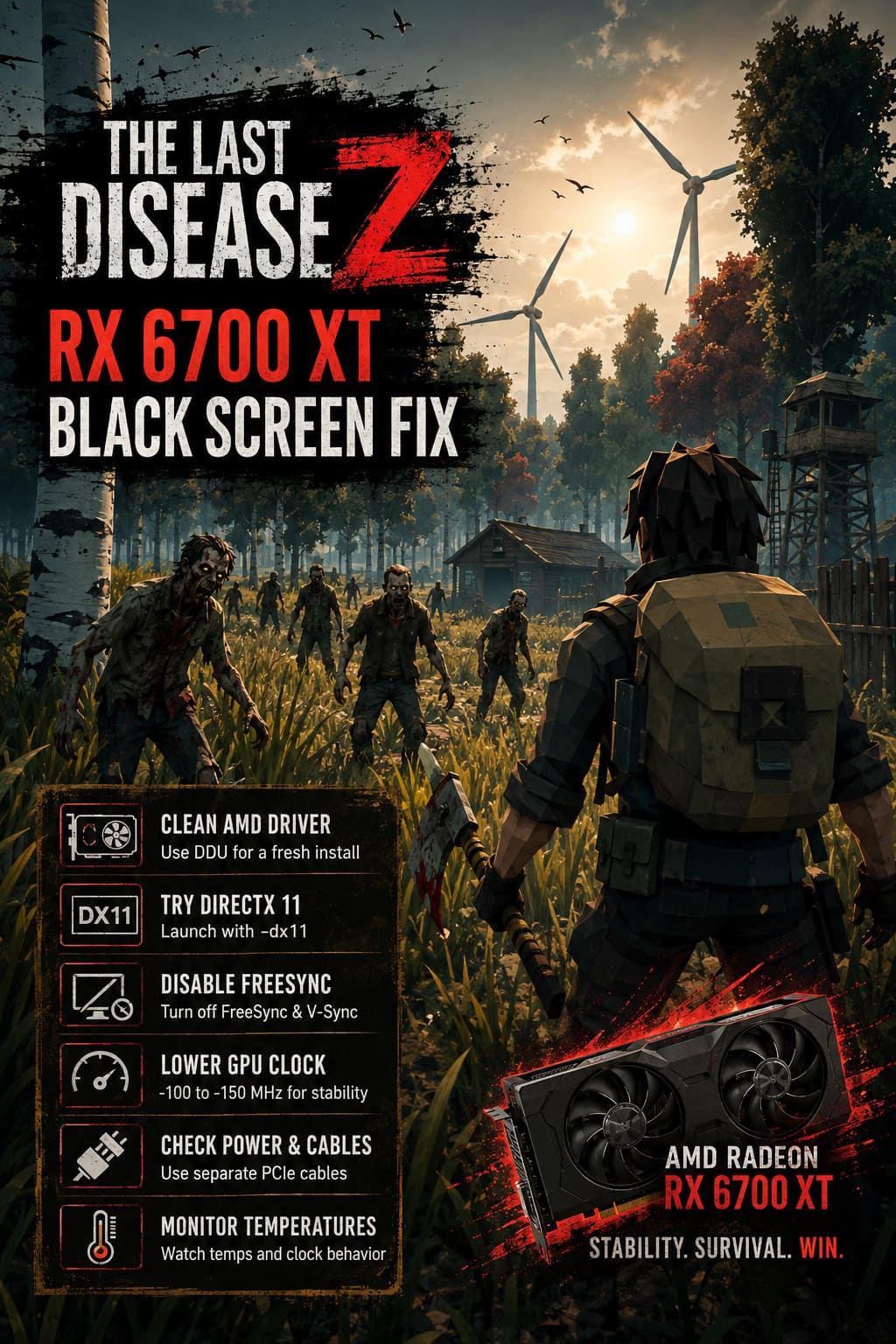
Open AMD Adrenalin and go to Performance > Tuning. Switch from automatic tuning to a custom profile, enable GPU tuning, and expose the advanced frequency controls. Instead of allowing the card to push its normal maximum frequency, try reducing the maximum clock by roughly 100–150 MHz.
For example, if your card is configured around 2600 MHz, testing something in the 2450–2500 MHz range can be a useful starting point. You are not turning the RX 6700 XT into a slow GPU; you are simply giving it a little more stability headroom.
I particularly like this test because the performance loss can be tiny while stability can improve dramatically. If The Last Disease Z suddenly stops black-screening after the clock reduction, you have a very useful piece of information about the original problem.
4. Force The Last Disease Z to Use DirectX 11
DirectX 12 is great when a game is properly optimized for it. When an early-access title is still ironing out its renderer, however, DX12 can become the source of some spectacularly ugly crashes. A black screen immediately after the splash screen is exactly the sort of situation where I would test an alternative rendering API.
Steam makes this easy. Open your Steam Library, right-click The Last Disease Z, choose Properties, and find the Launch Options field. Enter:
-dx11
Close the properties window and start the game normally. This tells the game to initialize its renderer using DirectX 11 instead of the default DX12 pathway.
You may lose access to certain rendering improvements or see slightly different performance, but that is not the point of this test. If DX11 eliminates the black screen completely, I would happily take a stable game over a handful of extra graphical effects while the developers continue improving the DX12 implementation.
5. Turn Off FreeSync and In-Game V-Sync
Variable refresh rate technology is fantastic when everything cooperates. I use it whenever possible, but when troubleshooting a game that is repeatedly killing the display signal, I want as few moving parts as possible. AMD FreeSync, V-Sync, fullscreen behavior, refresh-rate switching, and certain monitor firmware combinations can occasionally create strange interactions.
Temporarily disable FreeSync in AMD Adrenalin. Then launch The Last Disease Z and turn off V-Sync in the game’s graphics settings. Test the game for a while before changing anything else.
If the black screen disappears, you can start rebuilding your preferred settings one at a time. For example, enable FreeSync first and test it. If everything remains stable, experiment with your frame-rate limit afterward. This approach is much better than changing five settings simultaneously and having no idea which one fixed the problem.
6. Check Your RX 6700 XT Power Connections
This is the part that gets overlooked surprisingly often. Software problems are easy to blame because the crash happens inside a game, but a complete loss of display signal accompanied by fans suddenly spinning at maximum speed can point toward a hardware stability or power-delivery problem.
Check how your RX 6700 XT is connected to the PSU. If the card uses two PCIe power connectors, I prefer using separate PCIe cables from the power supply rather than relying on one daisy-chained cable for both connectors. It gives the GPU a cleaner power path and removes one more potential variable from the equation.
Your power supply should also have enough capacity for the entire system, not just the graphics card. Around 650W or higher is a sensible baseline for many RX 6700 XT systems, although the ideal PSU depends on the CPU, other components, PSU quality, and the specific GPU model.
Do not ignore the physical connections either. Shut the PC down, switch off the PSU, and make sure the PCIe connectors are firmly seated. A cable that looks connected is not necessarily making perfect contact.
7. Watch GPU Temperature and Clock Behavior
If the game runs perfectly for ten minutes and then suddenly turns the monitor black during a large fight or while entering a busy area, keep an eye on your GPU telemetry. The RX 6700 XT can handle demanding workloads, but temperatures, hotspot temperature, clock behavior, and power consumption can tell you a lot about what is happening immediately before the crash.
Use AMD Adrenalin’s monitoring tools or another trusted hardware-monitoring application. Pay particular attention to the GPU hotspot temperature rather than looking only at the standard GPU temperature. A large gap between the two readings can be a useful clue when investigating cooling or stability problems.
Also check whether the GPU clock suddenly jumps, drops, or becomes unstable immediately before the display disappears. If lowering the maximum clock fixes the issue, that is a much stronger signal than simply saying the game “”doesn’t like AMD.””
The Last Disease Z RX 6700 XT Fix Order I Recommend
If you want to avoid spending an entire evening changing random settings, I would troubleshoot this in a controlled order. Start with the driver because it is relatively straightforward, then test the rendering API, display features, GPU clocks, and finally the physical hardware.
- Clean-install the AMD GPU driver with DDU.
- Test The Last Disease Z with -dx11.
- Disable FreeSync and V-Sync temporarily.
- Disable MPO if the display still cuts out.
- Reduce the RX 6700 XT maximum frequency by 100–150 MHz.
- Inspect PSU capacity and PCIe power connections.
Do not apply every change at once. That makes troubleshooting almost useless because you will never know which setting actually solved the crash. Change one thing, play for a while, and then move to the next step if the problem returns.
My Take on the RX 6700 XT Black Screen Problem
I would not write off the RX 6700 XT because of a few ugly crashes in an early-access survival game. This GPU has plenty of horsepower for modern 1080p and 1440p gaming, and a black screen in one particular title is not enough evidence that the hardware itself is finished.
My first three tests would be a completely clean AMD driver installation, DX11 instead of DX12, and a modest reduction in the GPU’s maximum clock. Those steps cover a surprisingly large portion of the problems that can cause display-driver crashes without forcing you to gut your entire Windows installation.
If none of those solutions work, start looking outside the game. Check temperatures, PSU quality, PCIe cables, Windows Event Viewer, and whether other demanding games produce similar crashes. If The Last Disease Z is the only title doing it, I would put much more suspicion on the game’s current build than on your RX 6700 XT.
Early-access games are messy by nature. Patches can completely change performance from one week to the next, and a problem that looks like a hardware failure today can disappear after a renderer update tomorrow. Until then, a few sensible configuration changes can turn an otherwise frustrating black-screen problem into a stable survival session.