How to Fix Trails in the Sky SC Crashing on Startup Windows 11 (2026 Guide)
The Legend of Heroes: Trails in the Sky SC is one of those JRPGs that reminds you why older games are still worth playing. Estelle Bright, Joshua, the Kingdom of Liberl, that ridiculously good soundtrack — SC has a personality that plenty of modern RPGs would struggle to recreate. But getting the game to actually start on a modern Windows 11 PC can sometimes feel like the first boss fight.
The problem is easy to recognize. You click Play in Steam or launch the game through GOG, the screen flashes black, and then… nothing. Back to the desktop. No useful error message. Sometimes the configuration tool refuses to cooperate, while other players get a crash before the game even has a chance to show its title screen.
I’ve spent enough time with older PC games to know that these situations are rarely caused by one magical setting. Trails in the Sky SC was built around technology from a very different era of Windows gaming, and Windows 11 brings modern graphics drivers, display scaling, hybrid GPUs, security features, high-refresh-rate monitors, and newer audio configurations into the equation.
The good news is that SC is usually fixable. You don’t need to reinstall Windows or start throwing random DLL files into system folders. Start with the simple solutions below and work toward the more specific ones only if necessary.
Why Does Trails in the Sky SC Crash at Startup?
The game’s age is both its charm and its biggest technical weakness. SC relies on an old rendering and audio environment that modern PCs don’t always handle exactly as older machines did.
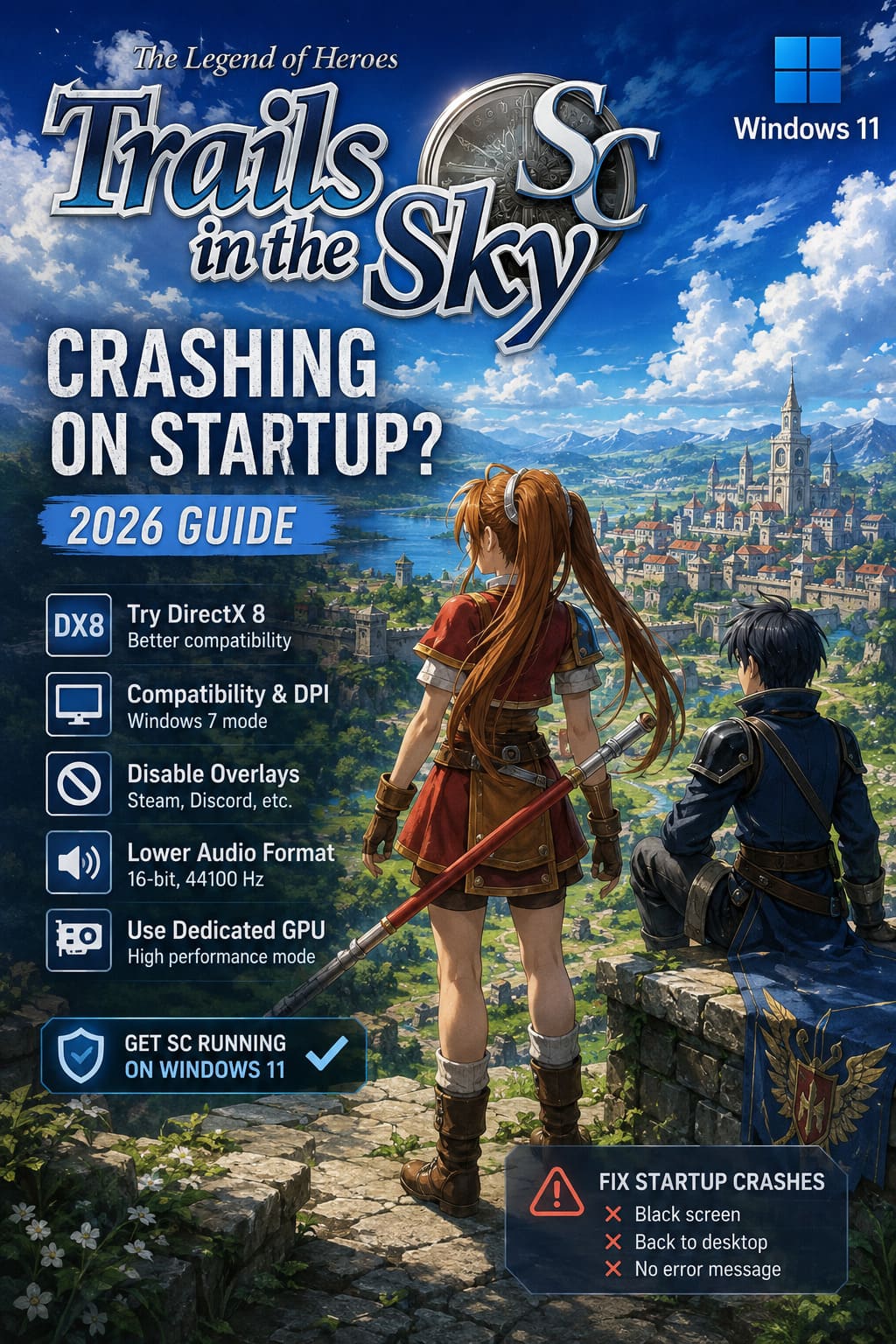
Windows 11 itself isn’t necessarily the enemy. The bigger issue is the combination of the old engine with modern hardware and software. A laptop may launch the configuration utility on its integrated graphics chip, a 4K monitor may introduce DPI scaling that the game doesn’t understand, or an overlay can interfere with the game’s rendering process.
Before changing anything complicated, I recommend trying the fixes in this order. Start with the DirectX version, compatibility settings, and overlays. Those are the first things I’d check on my own machine.
| Fix | Best For | Difficulty |
|---|---|---|
| Switch to DirectX 8 | Immediate startup crashes | Easy |
| Compatibility & DPI settings | Black screen and display crashes | Easy |
| Disable overlays | Crashes after launching | Easy |
| Change audio format | Silent crashes during startup | Easy |
| Force dedicated GPU | Gaming laptops | Easy |
| Change graphics settings | Configuration-related crashes | Easy |
| Install legacy DirectX files | Missing DLL errors | Medium |
| Check Exploit Protection | Persistent Windows security conflicts | Advanced |
1. Try the DirectX 8 Version First
This is the first thing I’d try. Trails in the Sky SC offers different rendering options, and the older DirectX 8 path can behave surprisingly well on modern systems.
It sounds backwards, doesn’t it? Your Windows 11 PC has a modern graphics card, yet you’re deliberately choosing an older API. With legacy games, however, newer doesn’t automatically mean more compatible. Sometimes the old rendering path simply avoids the particular driver interaction that’s killing the game during initialization.
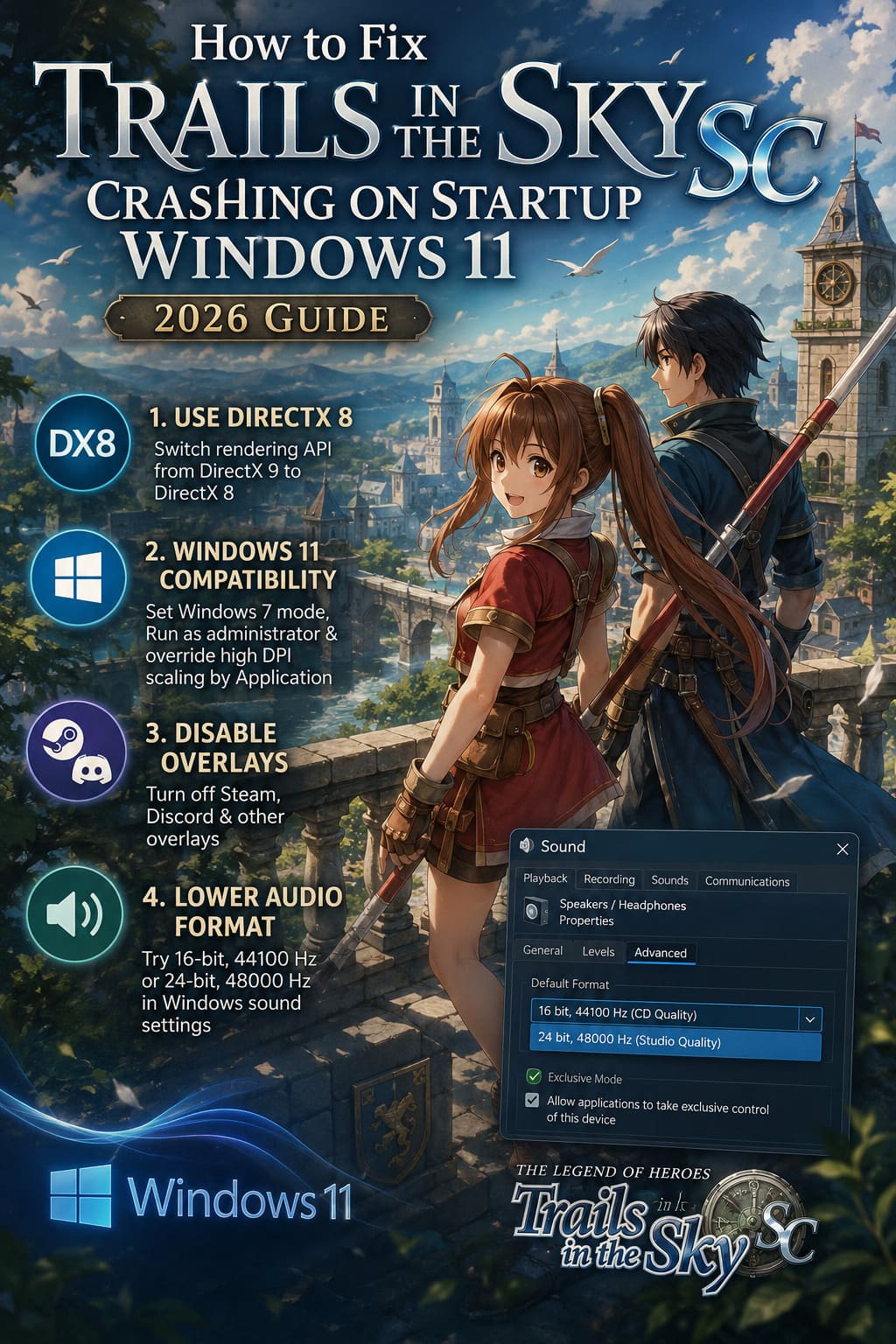
- Open Steam or GOG and find Trails in the Sky SC.
- Choose the option to launch the game’s configuration tool.
- Look for the rendering or graphics API selection.
- Change DirectX 9 to DirectX 8.
- Save the settings and launch the game.
If the configuration utility crashes before you can change anything, open the installation directory manually and locate ed6_win2_config.exe. Right-click it and try Run as administrator.
Personally, I wouldn’t worry about losing visual quality here. SC isn’t a game where switching rendering APIs suddenly turns beautiful backgrounds into a blurry mess. If DirectX 8 gets you back into Liberl, take the win.
2. Fix Windows 11 Compatibility and DPI Scaling
Modern Windows scaling can be surprisingly troublesome for older games. This becomes especially relevant if you’re using a 1440p or 4K monitor with display scaling enabled.
The game expects an environment that simply doesn’t exist on many current PCs. Giving the executable control over DPI scaling can prevent Windows from interfering with the way SC initializes its window.
- Open your game folder through Steam’s Browse local files option.
- Find ed6_win2.exe.
- Right-click it and select Properties.
- Open the Compatibility tab.
- Experiment with compatibility mode for Windows 7.
- Enable Run this program as an administrator.
- Open Change high DPI settings.
- Enable Override high DPI scaling behavior.
- Set scaling to be performed by the Application.
- Apply the changes.
Do the same for ed6_win2_config.exe.
I would try Windows 7 compatibility first rather than immediately jumping to XP mode. SC is old, but your operating system doesn’t necessarily need to pretend it’s 2008 to launch it.
3. Kill Steam and Discord Overlays
Overlays are convenient until they aren’t. Steam, Discord, GPU software, recording utilities, and performance monitoring tools can all inject themselves into a game’s rendering environment.
Modern games are generally built with this stuff in mind. An older Falcom engine isn’t exactly designed around today’s ecosystem of overlays.
For Steam, open the game’s properties and disable the Steam Overlay for SC. In Discord, go into User Settings > Game Overlay and disable the in-game overlay.
I’d also temporarily shut down things such as MSI Afterburner, RivaTuner, recording software, and other overlay-heavy utilities if the crash continues.
Don’t underestimate this fix. I’ve seen old PC games go from instant desktop crashes to completely normal behavior simply because an overlay stopped trying to hook into the executable.
4. Lower Your Windows Audio Format
This is one of the less obvious fixes, which is exactly why it’s easy to overlook.
Older games can be picky about how Windows presents audio hardware. If your sound device is configured for an unusually high sample rate and bit depth, SC may have trouble initializing its audio system.
- Press Windows + R.
- Enter mmsys.cpl.
- Open the Playback tab.
- Right-click your active headphones or speakers.
- Select Properties.
- Open the Advanced tab.
- Try 16-bit, 44100 Hz.
- If necessary, test 24-bit, 48000 Hz instead.
- Apply the changes and launch SC again.
You don’t need an exotic studio configuration to enjoy the soundtrack. And let’s be honest: if changing the Windows audio format gets you back to Estelle’s adventure, that’s a very small price to pay.
5. Force the Game to Use Your Dedicated GPU
This one is particularly important for gaming laptops.
Many laptops have both an integrated GPU and a dedicated NVIDIA or AMD GPU. Windows 11 normally decides which one should run a particular application, but old games and old configuration tools aren’t always recognized correctly.
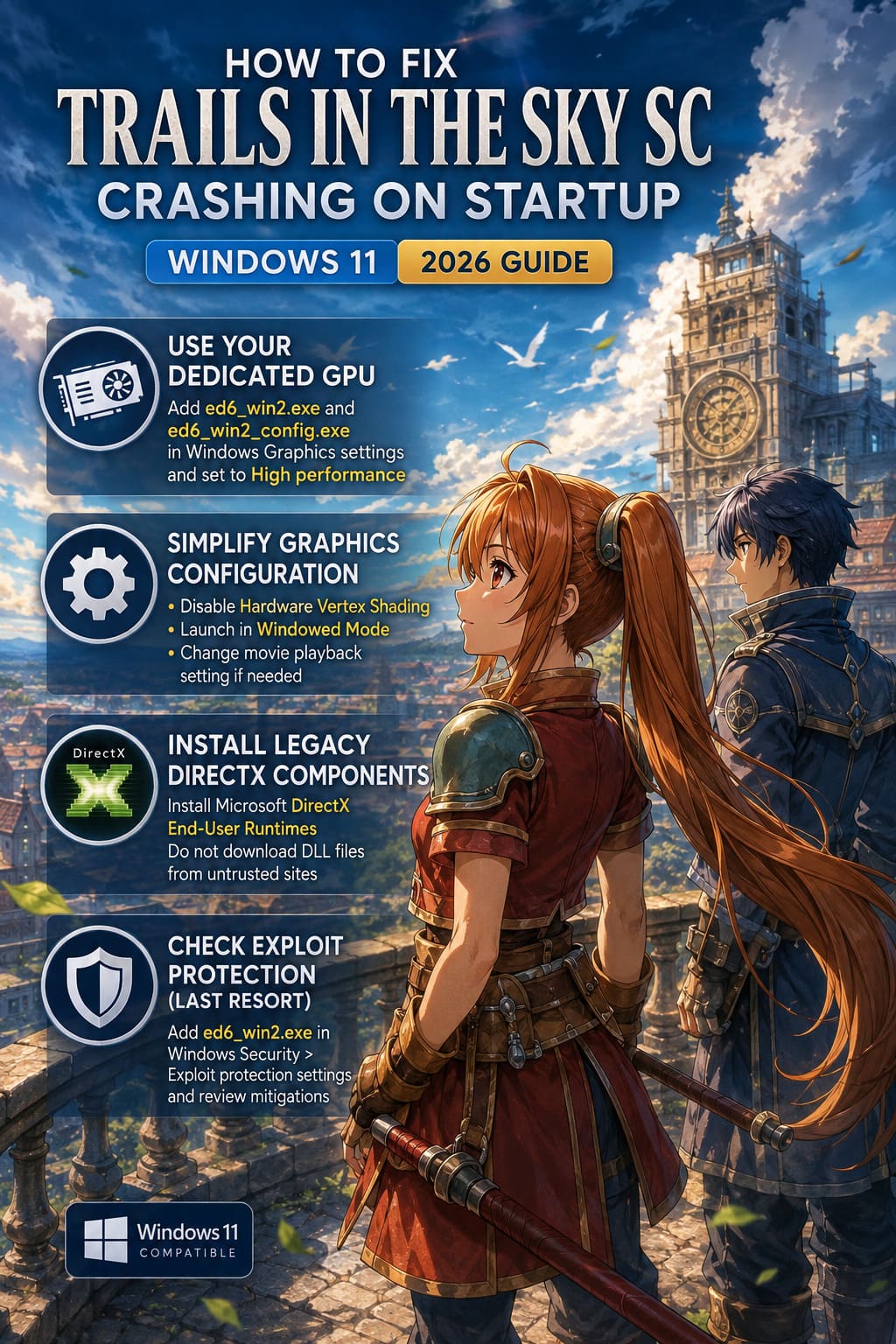
Open Windows Settings > System > Display > Graphics. Add ed6_win2.exe as a desktop application and select High performance under its graphics preference.
Do the same for ed6_win2_config.exe.
After saving the setting, restart the game. If SC was accidentally launching through the integrated graphics processor, this can make a surprisingly big difference.
6. Simplify the Graphics Configuration
If you can open the configuration utility, don’t immediately push every setting to maximum. SC doesn’t need it, and certain combinations can create problems on modern systems.
Try disabling Hardware Vertex Shading and launch the game in Windowed Mode first.
If the game works perfectly in a window, you’ve learned something important: the core engine is functioning, and the problem is probably connected to fullscreen or display initialization.
From there, try Alt + Enter to switch modes. If fullscreen causes the crash again, keep using windowed mode or experiment with a borderless-window solution.
Also pay attention to movie playback. If SC crashes around the opening sequence, temporarily changing the movie playback setting can help identify whether an old video codec is involved.
7. Install the Legacy DirectX Components
Here’s a common misunderstanding with Windows 11: having DirectX 12 installed doesn’t mean every legacy DirectX component required by an older game is automatically available.
Older PC games can depend on specific legacy runtime files that aren’t part of the modern DirectX installation. If SC is complaining about a missing DLL or simply closes when it tries to initialize graphics, installing Microsoft’s official DirectX End-User Runtimes can be worthwhile.
Use Microsoft’s official installer rather than downloading individual DLL files from random websites. Never grab d3dx DLL files from some suspicious “DLL download” page just because a search result told you to. That’s an unnecessary security risk.
The legacy runtime is designed to coexist with modern DirectX versions rather than replacing DirectX 12.
8. Check Windows Exploit Protection Only as a Last Resort
If you’ve tried everything above and SC still refuses to start, Windows security settings may be interfering with the old executable.
Windows 11 includes Exploit Protection features designed to prevent certain forms of malicious code execution. That’s good for your PC, but occasionally an old legitimate executable can behave badly when particular mitigations are applied.
Open Windows Security > App & browser control > Exploit protection settings. From the Program settings section, add ed6_win2.exe and review the available mitigation options.
Be careful here. I would not randomly disable security protections across the entire system. If you need to experiment, limit the change to the specific Trails in the Sky executable and restore the default settings if it doesn’t help.
Trails in the Sky SC Ultimate Weapons Crafting Guide: How to Get Every Zemurian Ore
My Recommended Order of Attack
If SC were refusing to launch on my PC, I wouldn’t change eight things simultaneously. That makes troubleshooting miserable because you won’t know which setting actually fixed the problem.
I’d go in this order:
- Switch DirectX 9 to DirectX 8.
- Disable Steam and Discord overlays.
- Try Windowed Mode.
- Apply Windows 7 compatibility and DPI settings.
- Force the dedicated GPU on laptops.
- Change Windows audio to 16-bit/44.1 kHz.
- Install Microsoft’s legacy DirectX components.
- Investigate Exploit Protection only if everything else fails.
Trails in the Sky SC Hard Mode Party Guide: Best Character Setups & Builds
Don’t Let a 2000s JRPG Beat Your Windows 11 PC
There is something slightly ridiculous about needing compatibility tricks to play a JRPG that can run on hardware vastly more powerful than anything its developers could have expected. But that’s PC gaming. Sometimes the technically weaker option is the one that works, and sometimes a checkbox buried inside an old configuration utility is the difference between playing for three hours and staring at your desktop.
Trails in the Sky SC is absolutely worth the effort. The combat, character writing, world-building, and Estelle’s journey still hold up remarkably well. If you’re coming back to Liberl after years away, the last thing you want is Windows 11 deciding that a DirectX 9 executable from the mid-2000s is unacceptable.
Start with DirectX 8, remove overlays, simplify the display configuration, and work through the remaining fixes one at a time. In most cases, you don’t need some elaborate compatibility setup. You just need to give this old engine the environment it understands.
And once it finally launches? Turn the lights down, put on the soundtrack, and enjoy the game. That’s a much better use of your evening than fighting with Windows.