Crimson Moon Steam Deck Compatibility: Best Settings and Bazzite OS Performance Guide
Crimson Moon looks like exactly the kind of game that makes Steam Deck owners nervous. It is a dark fantasy action RPG packed with enormous environments, flashy combat, particle-heavy supernatural abilities, and the kind of bosses that apparently exist just to make your GPU sweat. ProbablyMonsters is aiming for a September 1, 2026 release, and the PC requirements already suggest that this isn’t going to be a lightweight indie adventure that casually cruises at 60 FPS on a handheld.
I’ve spent enough time tweaking demanding games on portable hardware to know how this usually goes. You install the game, fire it up with completely unrealistic expectations, crank everything to High because apparently we never learn, and then wonder why the frame rate collapses the moment an entire army appears on screen. With Crimson Moon, the smart approach is different: accept the Steam Deck’s limitations, tune the settings intelligently, and aim for consistency rather than chasing a number that the hardware simply wasn’t built to deliver.
Crimson Moon Deluxe Edition vs Standard: Which Should You Buy?
Crimson Moon PC Requirements: The First Warning Sign
The official PC requirements make one thing very clear: Crimson Moon is a demanding game. The minimum configuration calls for an Intel Core i5-8400 or AMD Ryzen 5 2600, paired with a GTX 1070 or Radeon RX 5700, 16 GB of RAM, and Windows 11. The recommended specification jumps considerably higher, asking for processors such as the Core i7-10700K or Ryzen 5 5600X, alongside an RTX 3070 or Radeon RX 6700 XT and 32 GB of memory.
That is a pretty serious hardware target for an action RPG. The Steam Deck’s AMD APU is nowhere near the recommended desktop configuration, and even its CPU/GPU combination sits below the listed minimum on paper. But anyone who has used a Steam Deck for a few years knows that raw specifications don’t tell the entire story.
Valve’s handheld benefits from a tightly controlled hardware platform, Linux optimizations, shader caching, Proton, aggressive resolution scaling, and a massive community obsessed with squeezing another couple of frames out of every game imaginable. So the real question isn’t whether the Deck matches the minimum requirements. It doesn’t. The real question is whether Crimson Moon can be made enjoyable at 30 FPS.
Steam Deck Compatibility: What to Expect at Launch
At launch, Crimson Moon does not have an official Steam Deck Verified rating. That alone isn’t enough to write the handheld version off, though. Plenty of games have arrived without Valve’s blessing and ended up working surprisingly well after a little Proton experimentation.
The game’s DirectX 12 foundation makes Proton particularly important. For a first attempt, I’d start with Proton Experimental rather than immediately downloading a dozen community builds. If graphical glitches appear around shadows, particles, cinematics, or the Nephilim’s transformation sequences, switching Proton versions should be one of the first things you try.
Don’t expect a locked 60 FPS experience. That isn’t the target I’d recommend here. A properly tuned 30 FPS lock is a much more realistic goal, and honestly, that’s perfectly acceptable for a slower, cinematic action RPG. Stable frame pacing during combat matters far more than watching the FPS counter jump between 37 and 52 while the game feels inconsistent.
Best Crimson Moon Steam Deck Settings
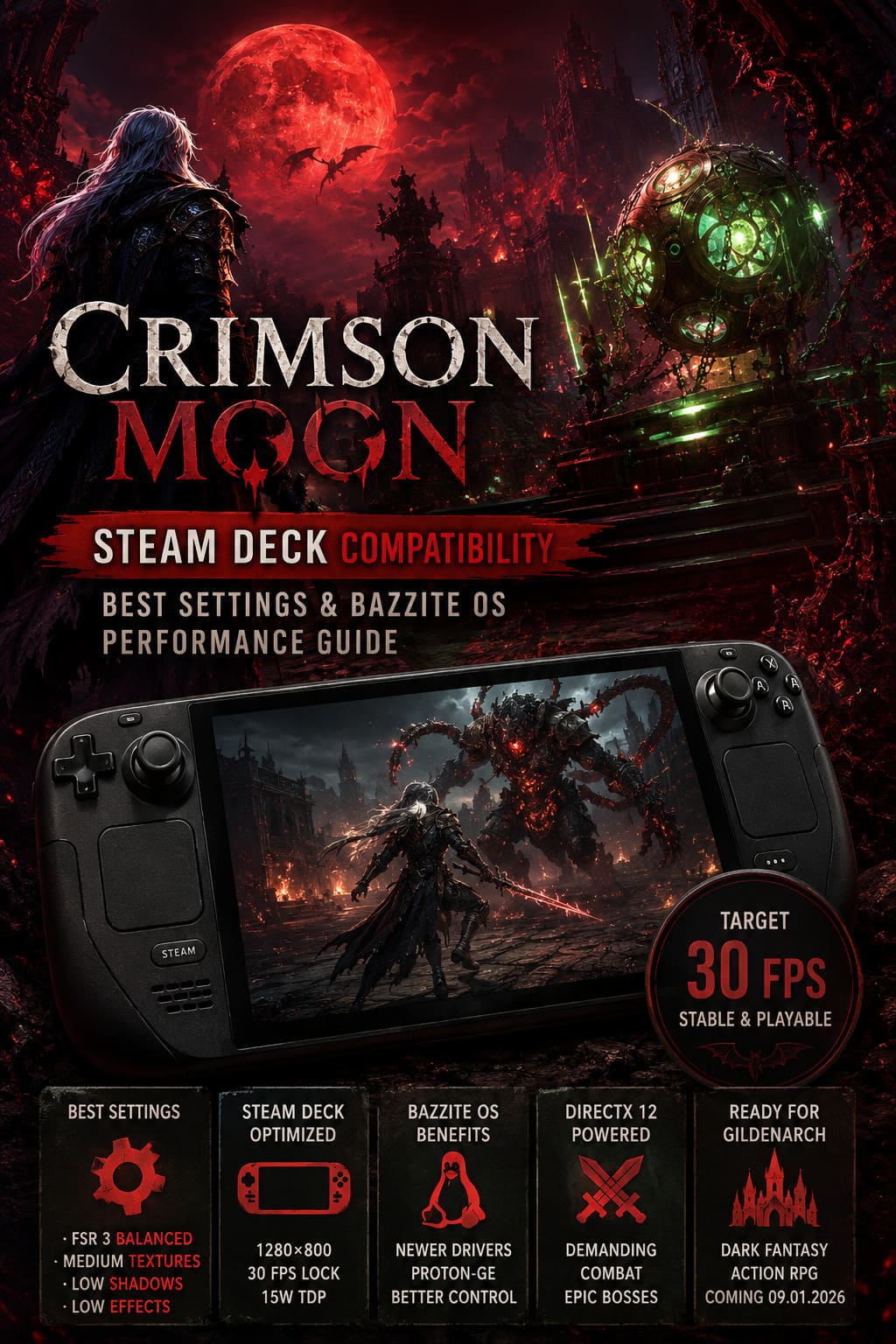
If I were setting up Crimson Moon on a Steam Deck on day one, this is the configuration I’d start with. The idea isn’t to turn the game into an ugly potato. We’re cutting the settings that are expensive while protecting the ones that actually make the world look good.
| Setting | Recommended Value | Why |
|---|---|---|
| Display Mode | Borderless Windowed | Reliable handheld behavior |
| Resolution | 1280×800 | Native Steam Deck resolution |
| V-Sync | Off | Let the system handle frame pacing |
| Anti-Aliasing | High | Helps reduce visible upscaling artifacts |
| Upscaling | AMD FSR 3 | Major performance advantage |
| FSR Quality | Balanced | Good compromise between clarity and FPS |
| Textures | Medium | Reduces memory pressure |
| Shadows | Low | One of the easiest settings to sacrifice |
| Effects | Low | Helps during chaotic combat |
| Post-Processing | Medium | Keeps the image from looking overly stripped down |
| Foliage / Hellgrowth | Low | Reduces environmental GPU load |
FSR is going to be your best friend here. I’d begin with Balanced mode. If the image looks too soft, move up to Quality and see whether the frame rate remains stable. Performance mode should be treated as the emergency button for areas where the Deck simply can’t keep up.
I’d also avoid pushing texture quality to High. This is one of those settings that looks fantastic in screenshots but can create headaches on hardware with shared memory. Medium textures should provide a much healthier balance, especially when you’re moving through dense areas and the game is constantly loading new assets.
30 FPS or 40 FPS on Steam Deck?
This is where things get interesting. A 30 FPS cap should be the safest starting point for the LCD model, especially during demanding battles and exploration through heavily populated areas. If the game proves more efficient than expected, a 40 FPS target could become an excellent option, particularly on the Steam Deck OLED with its 90 Hz display.
But don’t blindly lock 40 FPS just because the screen supports it. A stable 30 is dramatically better than a 40 FPS target that repeatedly collapses into the low 30s whenever a boss starts throwing magical nonsense across the arena. For a melee-focused game, consistent frame delivery makes dodging, blocking, and timing attacks feel much better.
Why Bazzite Could Be Interesting for Crimson Moon
Now we get into the enthusiast territory. Bazzite OS is a Fedora-based Linux distribution designed with gaming devices in mind, and it has become increasingly popular among people who want more control over their handheld hardware.
For a game like Crimson Moon, that flexibility could be useful. Bazzite provides access to newer graphics drivers, kernel updates, performance utilities, Proton-GE integration, and various system-level tweaks. None of these things magically turn a Steam Deck into an RTX 4090, obviously, but they can help with frame-time consistency and compatibility when a game has rough Linux support at launch.
The biggest potential advantage is simply having more tools available. If the standard SteamOS setup works perfectly, great. I’d stay with it. If you’re experiencing shader stutter, weird video playback issues, crashes, or inconsistent performance, Bazzite becomes much more attractive.
What Bazzite Can Bring to the Table
- Newer Mesa and kernel components can improve compatibility with modern rendering workloads.
- Proton-GE support gives enthusiasts another option when standard Proton builds misbehave.
- ZRAM and memory management tools can help reduce pressure during long gaming sessions.
- Performance utilities provide more control over power consumption, clocks, and frame-rate targets.
That said, I wouldn’t recommend installing an entirely different operating system just because you’re hoping for five extra FPS. Bazzite makes the most sense for users who already enjoy tinkering. If the phrase ‘custom kernel’ makes you want to close the browser and play something instead, SteamOS is probably the better choice.
Recommended Steam Deck Performance Settings
On the Steam Deck performance menu, I’d start with a 30 FPS frame-rate limit and a 15 W TDP target. If you’re using an OLED model and testing a stable 40 FPS configuration, monitor temperatures and battery drain before deciding that you’ve found the perfect setup.
A manual GPU clock can also be useful when the system is bouncing between CPU and GPU workloads. A range around 1200–1400 MHz is a reasonable starting point for experimentation, but I wouldn’t treat that range as a universal magic setting. Every game behaves differently, and Crimson Moon’s busiest combat sequences will ultimately determine whether a particular clock target is actually worthwhile.
Crimson Moon Steam Deck Troubleshooting
Launch-day PC games can be messy, and Linux handhelds sometimes expose problems that never appear on a standard Windows desktop. If Crimson Moon refuses to cooperate, don’t immediately assume the Steam Deck can’t run it.
Try Proton-GE
If Proton Experimental produces crashes, broken cinematics, missing audio, or strange graphical behavior, Proton-GE is worth testing. ProtonUp-Qt makes installing alternative Proton versions relatively painless, and community builds can sometimes address game-specific problems surprisingly quickly.
Experiment With DX11
If DirectX 12 produces severe stuttering or repeated crashes, testing a -dx11 launch option may be worthwhile if the game supports it. You could lose some performance or visual features, but stability is the priority. There is absolutely no point squeezing out a few additional frames if the game crashes every time you reach a boss arena.
Install Crimson Moon on the Internal SSD
This one is simple: use the internal SSD whenever possible. Crimson Moon reportedly requires around 50 GB of storage, and a demanding open environment can be particularly sensitive to storage performance. A slow microSD card can contribute to texture streaming problems, pop-in, loading delays, or audio interruptions.
How Will Crimson Moon Actually Feel on Steam Deck?
This is ultimately more important than any benchmark number. If Crimson Moon can maintain a dependable 30 FPS while retaining decent image quality, I’d call that a successful handheld version. The gothic architecture, dark streets of Gildenarch, supernatural effects, and huge enemies are exactly the sort of visuals that can make a portable RPG feel ridiculously impressive when the settings are balanced correctly.
The danger is chasing visual quality too aggressively. Cranking shadows, effects, textures, and foliage while forcing the game into an unstable 40 or 60 FPS target is the fastest way to turn an impressive handheld experience into a stutter festival. I’d rather play a clean-looking Medium/Low configuration at a locked 30 FPS than spend the entire game watching the performance graph bounce around like a heart monitor.
Steam Deck vs. Bazzite: Which Setup Makes Sense?
| Feature | SteamOS | Bazzite |
|---|---|---|
| Ease of Use | Excellent | Good |
| Default Gaming Experience | Excellent | Excellent |
| Advanced Tweaking | Good | Excellent |
| Alternative Proton Versions | Available | Very Flexible |
| Driver/Kernels | Conservative | More Flexible |
| Best For | Most Players | Power Users |
For most players, SteamOS should be the first choice. It’s simpler, familiar, and perfectly capable of delivering a playable Crimson Moon experience if Proton compatibility is solid at launch. Bazzite is the option I’d keep in my back pocket if I’m chasing better frame pacing or dealing with problems that SteamOS can’t solve.
My Verdict: Don’t Expect a Miracle, Expect a Good Handheld Port
Crimson Moon on Steam Deck looks like a challenge, not an impossible mission. The PC requirements are intimidating, and nobody should expect this gothic action RPG to behave like a lightweight indie title. But the Steam Deck has a ridiculous talent for making games work when you stop demanding desktop-level settings from it.
My target would be 1280×800, FSR 3 Balanced, Medium textures, Low shadows and effects, and a locked 30 FPS. Once that’s stable, I’d experiment with Quality upscaling or a 40 FPS target. Bazzite is worth considering for enthusiasts who want deeper control, but it shouldn’t be necessary for ordinary players if the Proton launch experience is polished.
And honestly, there’s something pretty cool about the idea of carrying a huge dark fantasy adventure like Crimson Moon around in a backpack. If ProbablyMonsters manages to keep the frame pacing under control, I’m absolutely willing to sacrifice some shadows and foliage to make that happen. I’d rather slash demons in Gildenarch at a steady 30 FPS on the couch than admire prettier shadows while my handheld turns into a portable space heater.