Assassin’s Creed Black Flag Resynced FOV Guide: How to Change Field of View
If there’s one thing I’ve learned after spending thousands of hours across open-world games—from classic RPGs to modern Ubisoft adventures—it’s that camera settings can completely change how a game feels. You can have incredible graphics, responsive combat, and beautiful environments, but if the camera sits too close to the character, every fight starts feeling cramped.
That was one of the first things I noticed in Assassin’s Creed Black Flag Resynced. The remake is visually stunning. The Caribbean looks more alive than ever, storms are spectacular, and every island feels handcrafted. Yet after several hours exploring Havana, stalking guards through plantations, and spending even more time commanding the Jackdaw, I found myself adjusting the Field of View almost immediately.
Thankfully, unlike the original Black Flag from 2013, the new remake actually gives players proper camera customization without forcing everyone to rely on third-party utilities.
This guide explains how to change your FOV, which values I personally recommend, and when going beyond the default settings actually becomes a disadvantage.
Why FOV Matters More Than Many Players Think
Field of View determines how much of the world you can see on your screen at once. A lower value creates a cinematic, zoomed-in perspective, while a higher value pulls the camera farther back and increases your peripheral vision.
In a game like Black Flag Resynced, that affects almost every activity:
- sword combat
- stealth infiltration
- rooftop parkour
- naval exploration
- treasure hunting
The difference isn’t just visual. A wider camera often lets you react faster because enemies entering from the sides become visible sooner.
On the other hand, pushing FOV too high can make distant targets appear smaller and slightly reduce immersion during story scenes.
Finding a balance is much more important than simply choosing the highest number available.
How to Change the FOV in the Game Menu
The easiest method is built directly into the remake.
Open the pause menu and navigate to the Video Settings section. Ubisoft finally included a dedicated Field of View slider, something fans requested for years.
The process is simple:
- Pause the game.
- Open Options.
- Select Video.
- Find the Field of View slider.
- Increase the value.
- Save the changes.
Unlike many PC games that display camera values in degrees, Black Flag Resynced uses a percentage-based slider.
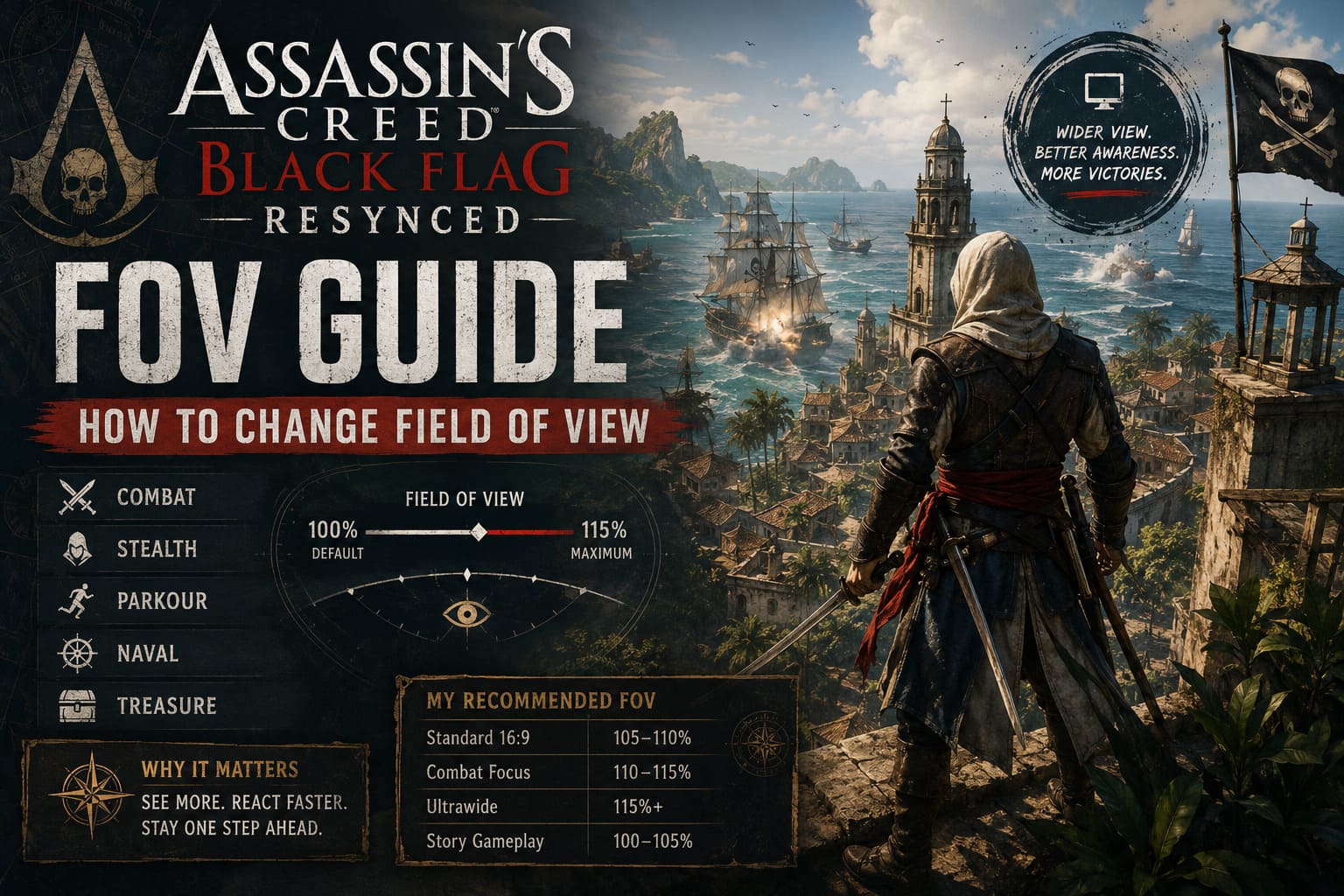
The default value sits at 100%, while the official maximum reaches 115%.
For most players, that’s more than enough.
My Recommended FOV Settings
After experimenting across dozens of hours, these are the values I personally found the most comfortable.
| Situation | Recommended FOV |
|---|---|
| Standard 16:9 monitor | 105–110% |
| Competitive combat focus | 110–115% |
| Ultrawide monitor | 115%+ (config edits) |
| Story-focused gameplay | 100–105% |
I eventually settled on 110%.
It keeps Edward visible without making him dominate the center of the screen, while still providing enough environmental awareness during larger fights.
At 115%, combat feels excellent, but some cinematic moments lose a little of their dramatic framing.
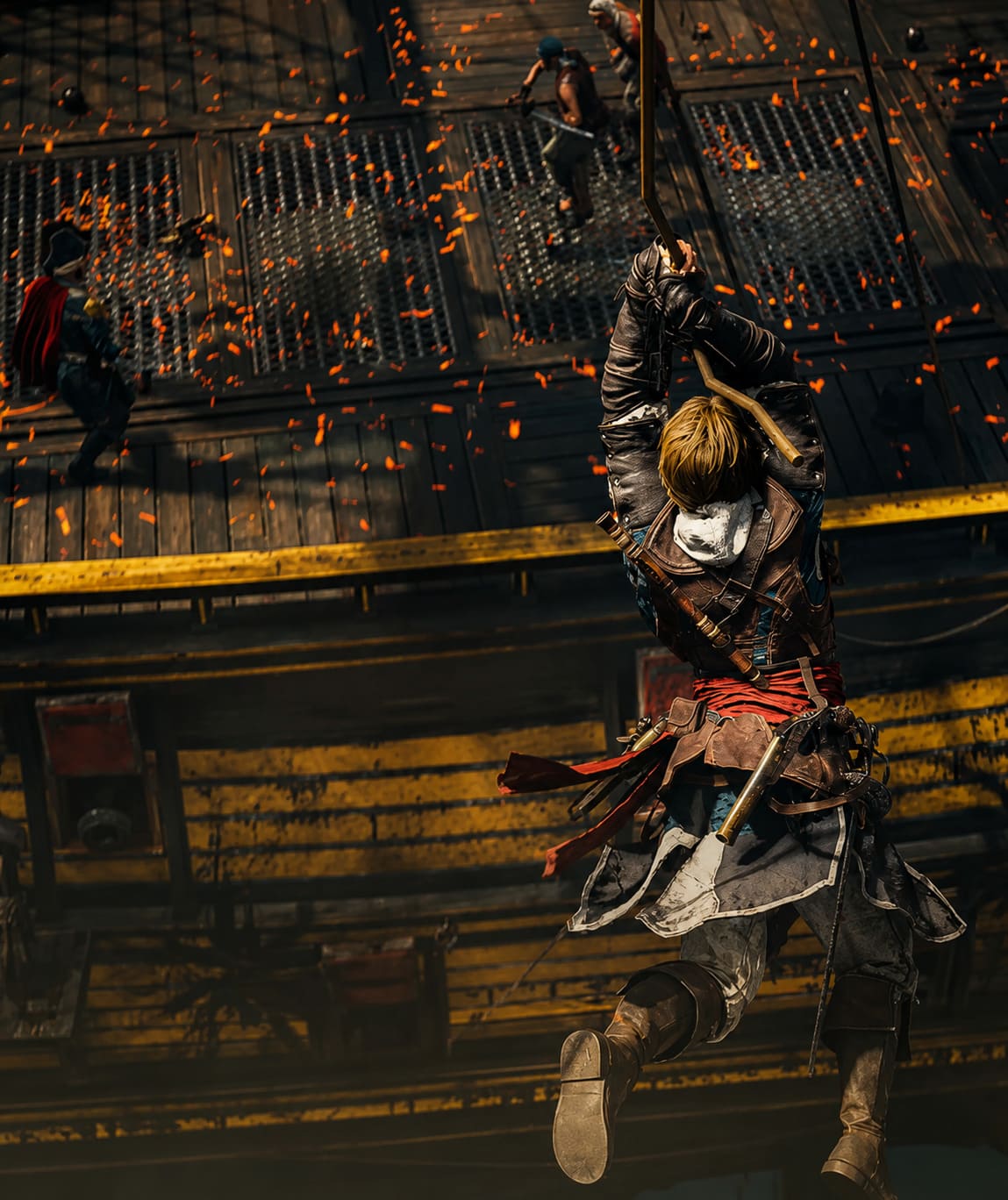
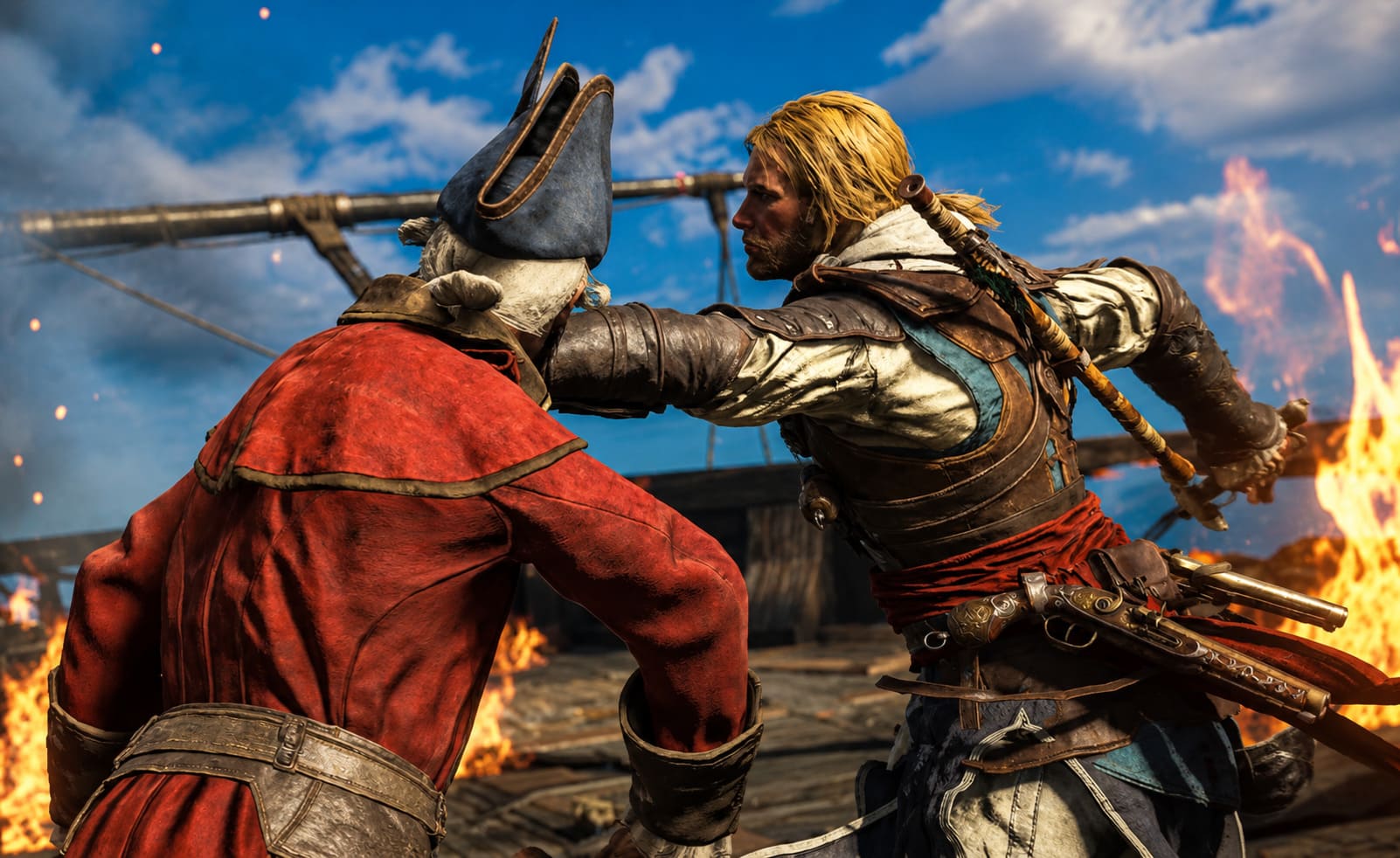
The Difference During Combat
The updated combat system encourages movement much more than the original release.
Enemies flank more aggressively, officers reposition frequently, and larger encounters can become surprisingly chaotic.
With the default camera I occasionally lost track of opponents approaching from behind.
After increasing the FOV, those situations almost disappeared.
The wider perspective lets you:
- identify incoming attacks earlier
- monitor multiple enemies simultaneously
- better read spacing during counterattacks
- navigate crowded environments more comfortably
It doesn’t make the game easier.
It simply gives you better information.
Exploration Feels Better with a Wider Camera
Black Flag has always been about exploration as much as combat.
You’re constantly climbing towers, diving into shipwrecks, searching islands, or running across rooftops.
A slightly wider camera makes traversal feel much more natural.
I especially noticed improvements while:
- climbing synchronization viewpoints
- moving through jungle paths
- exploring pirate settlements
- crossing busy colonial cities
Instead of constantly rotating the camera, you naturally see more of your surroundings.
It’s one of those quality-of-life improvements that becomes difficult to give up once you’ve experienced it.
Editing the Configuration File (PC)
PC players using ultrawide displays may still find the official slider too restrictive.
Fortunately, the game stores camera settings inside its configuration files.
After closing the game completely:
- Open the Documents folder.
- Locate the Assassin’s Creed Black Flag Resynced directory.
- Open the configuration file.
- Search for the camera scaling value.
- Increase it carefully.
- Save the file.
Many players experiment with values between 1.20 and 1.30.
Personally, I wouldn’t recommend going much higher.
The engine starts showing minor visual oddities that become noticeable during close animations.
Should You Lock the File as Read-Only?
Some players prefer marking the configuration file as Read-Only after editing it.
This prevents automatic resets after future launches.
It’s a useful trick if you frequently notice your custom values disappearing after updates.
However, remember that major game patches may introduce new graphics options.
If that happens, temporarily removing Read-Only allows the game to update its configuration properly before applying your custom settings again.
How Different Gameplay Modes Handle the Camera
One detail I appreciate about Resynced is that the camera isn’t static.
The game subtly adjusts it depending on what you’re doing.
Exploration
While walking through towns or forests, the camera remains relatively close to highlight environmental detail.
Combat
During sword fights, the engine automatically pulls back slightly to improve visibility.
This works well together with a higher FOV.
Naval Battles
The Jackdaw already uses a much wider perspective because players need to track enemy ships, incoming cannon fire, and surrounding obstacles.
Increasing your overall FOV makes these sequences even more comfortable without dramatically changing their feel.
Are Community Mods Worth Using?
Only in certain situations.
For most players, the official camera slider is perfectly adequate.
Still, the PC community has already started creating additional tools aimed primarily at ultrawide users.
Popular solutions generally focus on:
- unlocking higher camera limits
- correcting aspect ratio issues
- improving support for unusual monitor resolutions
Some enthusiasts also use memory-editing utilities for real-time camera adjustments.
Personally, I rarely recommend those unless you’re testing screenshots or running specialized display setups.
Every game update has the potential to break unofficial modifications, so relying on native settings is usually the safer long-term option.
Does a Higher FOV Reduce Performance?
Technically, yes.
A wider camera means the game renders more objects simultaneously.
The performance impact isn’t enormous, but it’s measurable.
On mid-range systems you may notice a few frames per second disappearing after increasing the FOV.
If that happens, I’d adjust these settings first:
| Graphics Option | Suggested Change |
|---|---|
| Shadow Quality | High → Medium |
| Screen Space Reflections | High → Medium |
| Motion Blur | Off |
| Camera Effects | Reduced |
| DLSS / FSR | Enabled |
These changes usually recover more performance than lowering textures, while having a relatively small impact on overall image quality.
Assassin’s Creed Black Flag Resynced PS5 Pro Performance Guide: How to Fix Frame Drops
Finding the Right Balance
One mistake I see players make in almost every game is assuming that the highest FOV is automatically the best.
It isn’t.
An extremely wide camera can:
- make enemies appear farther away
- reduce environmental scale
- slightly distort image edges
- weaken the cinematic presentation
Meanwhile, an overly narrow camera limits awareness.
The ideal setting sits somewhere in the middle.
For me, 110% delivers the sweet spot.
Everything feels open without becoming exaggerated.
Final Thoughts
Assassin’s Creed Black Flag Resynced modernizes one of Ubisoft’s most beloved adventures in meaningful ways, and the addition of native Field of View controls is one of those improvements that doesn’t grab headlines but dramatically improves day-to-day gameplay.
After years of playing open-world games, I’ve learned that comfort matters just as much as graphics. A camera that suits your monitor and your playstyle reduces fatigue, improves awareness, and simply makes long gaming sessions more enjoyable.
My advice is simple: start around 105%, spend an hour exploring, complete a few naval battles, fight through several enemy camps, and then adjust upward if you still feel boxed in. Most players will likely find their ideal balance somewhere between 108% and 112%, while ultrawide users can experiment with slightly higher values through configuration tweaks if needed.
The Caribbean is too beautiful to experience through a cramped camera. Take a few minutes to tune your FOV, and you’ll likely enjoy every voyage aboard the Jackdaw just a little bit more.