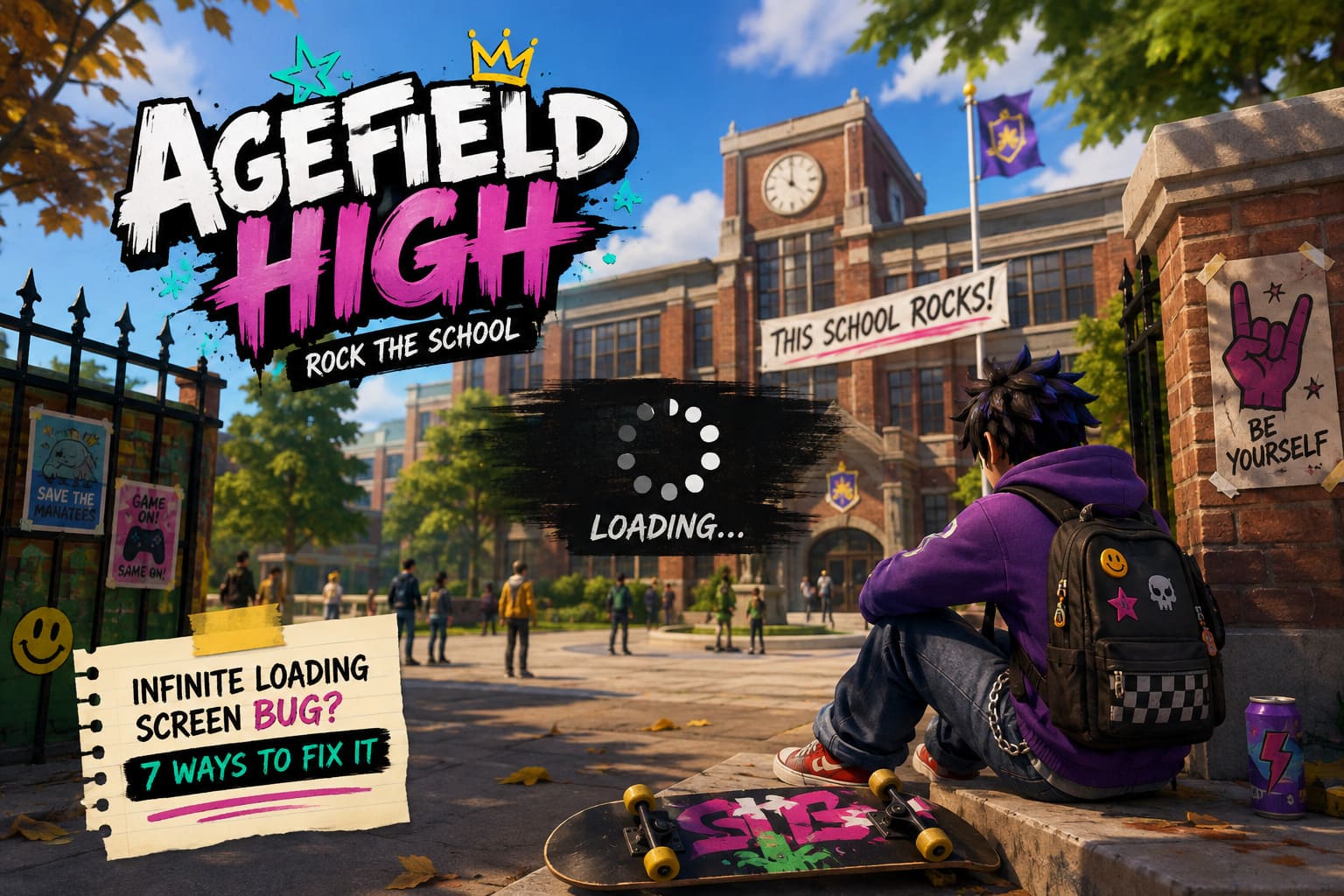
Agefield High Infinite Loading Screen: 7 Ways to Fix the Stuck on Loading Bug
If there is one thing that can instantly ruin the excitement of a new game, it is watching a loading screen spin forever. I have been playing PC games for years, and honestly, there is something especially annoying about a game refusing to let you reach the main menu after you have just installed it.
That is exactly what some players are running into with Agefield High: Rock the School.
Refugium Games’ open-world school adventure is clearly aiming for that chaotic early-2000s sandbox feeling, and as someone who genuinely enjoys games that are willing to be weird, colorful, and unapologetically fun, I was excited to jump into it. The problem is that an infinite loading screen can stop the whole experience before it even begins.
The good news? A loading freeze does not automatically mean your installation is broken beyond repair. In many cases, the problem can be connected to corrupted files, shader caches, save data, drivers, overlays, or even the drive where the game is installed.
I went through the most useful troubleshooting methods and put together seven fixes for the Agefield High infinite loading screen bug. You do not necessarily need to try everything. Start with the simpler solutions and work your way down the list.
| Fix | Best For | Difficulty |
|---|---|---|
| Verify Game Files | Missing Or Corrupted Files | Easy |
| Clear Shader Cache | Loading Freeze After Launch | Easy |
| Test A New Save | Save-Related Loading Issues | Medium |
| Increase CPU Priority | Severe Initialization Stalls | Medium |
| Update Drivers | Graphics And Rendering Problems | Easy |
| Disable Overlays | Conflicts And Freezes | Easy |
| Move To SSD | Extremely Long Loading Times | Easy |
1. Verify Agefield High Game Files on Steam
This is always the first thing I recommend when a new PC game starts behaving strangely.
New releases can occasionally have installation problems, especially when Steam has been downloading a large number of files at once. Even one damaged or missing asset can potentially cause the game to hang while it is trying to load an environment.
The process is incredibly simple:
- Open Steam and go to your Library.
- Right-click Agefield High: Rock the School.
- Select Properties.
- Open Installed Files.
- Choose Verify integrity of game files.
- Wait for Steam to finish checking the installation.
Steam will compare the files on your PC with the expected versions and replace anything that is missing or corrupted.
Personally, I would do this before changing any Windows settings. It takes very little effort and can eliminate one of the most common causes of strange launch behavior.
After the verification finishes, restart Steam and try launching the game again.
2. Clear the Shader and Local Cache
If Agefield High launches but gets stuck while loading the school, town, or another large area, I would look at cached graphics data next.
Modern games build and store shader information so they do not have to recreate everything every time they launch. The downside is that a corrupted cache can sometimes become the exact reason a game refuses to finish loading.
Before deleting anything, make sure the game and Steam are completely closed.
Press Windows + R, enter:
%localappdata%
Then look for the folder associated with Agefield High or Refugium Games.
Depending on the current build, useful temporary data may be located inside a Saved, cache, or shader-related folder. If you find a clearly labeled shader cache or HTML cache, remove that temporary data rather than deleting your entire game directory.
The next time you launch Agefield High, the game should rebuild the necessary cache files.
The first launch after clearing shaders can actually take a little longer than usual, so don’t immediately assume the fix failed. Give it some time.
3. Check Whether Your Save File Is Causing the Freeze
This is one of the most important distinctions to make.
Does Agefield High load normally until you select your existing save, and then get stuck?
If yes, I would strongly suspect the save rather than the entire installation.
Save corruption can happen after crashes, forced shutdowns, interrupted writes, or synchronization problems. If the loading screen only appears when continuing a particular game, testing a fresh save is a very useful diagnostic step.
Navigate to the game’s local data through %localappdata% and look for its Saved and save-game directories.
Before touching anything, make a backup.
Move the newest save files to another folder, such as your desktop, rather than permanently deleting them. Then launch Agefield High and try creating a completely new game.
If the new game loads successfully, you’ve learned something important: the installation itself is probably fine, while the original save may be the problem.
If Steam Cloud is enabled, temporarily disabling synchronization can also be useful while testing. Otherwise, Steam may simply download the problematic save again.
I always recommend making a backup first. Losing hours of progress because you deleted the wrong folder is much worse than an infinite loading screen.
4. Give the Game More CPU Priority
This is a more experimental solution, but it is worth trying if the game appears to be doing something in the background rather than completely crashing.
Agefield High is an open-world sandbox, so there is plenty happening behind the scenes. The game has to initialize environments, characters, AI behavior, streaming assets, and other systems before you can start running around the world.
While the game is stuck loading, press:
Ctrl + Shift + Esc
to open Task Manager.
Go to Details, find the Agefield High executable, right-click it, and choose Set Priority.
You can test High priority and then return to the game.
I would not recommend using Realtime priority unless you know exactly what you are doing. It can cause Windows to prioritize the game too aggressively and potentially make the rest of your system less responsive.
For most players, High is more than enough for testing.
If the game suddenly gets past the loading screen, you may have found a resource-allocation issue rather than a broken installation.
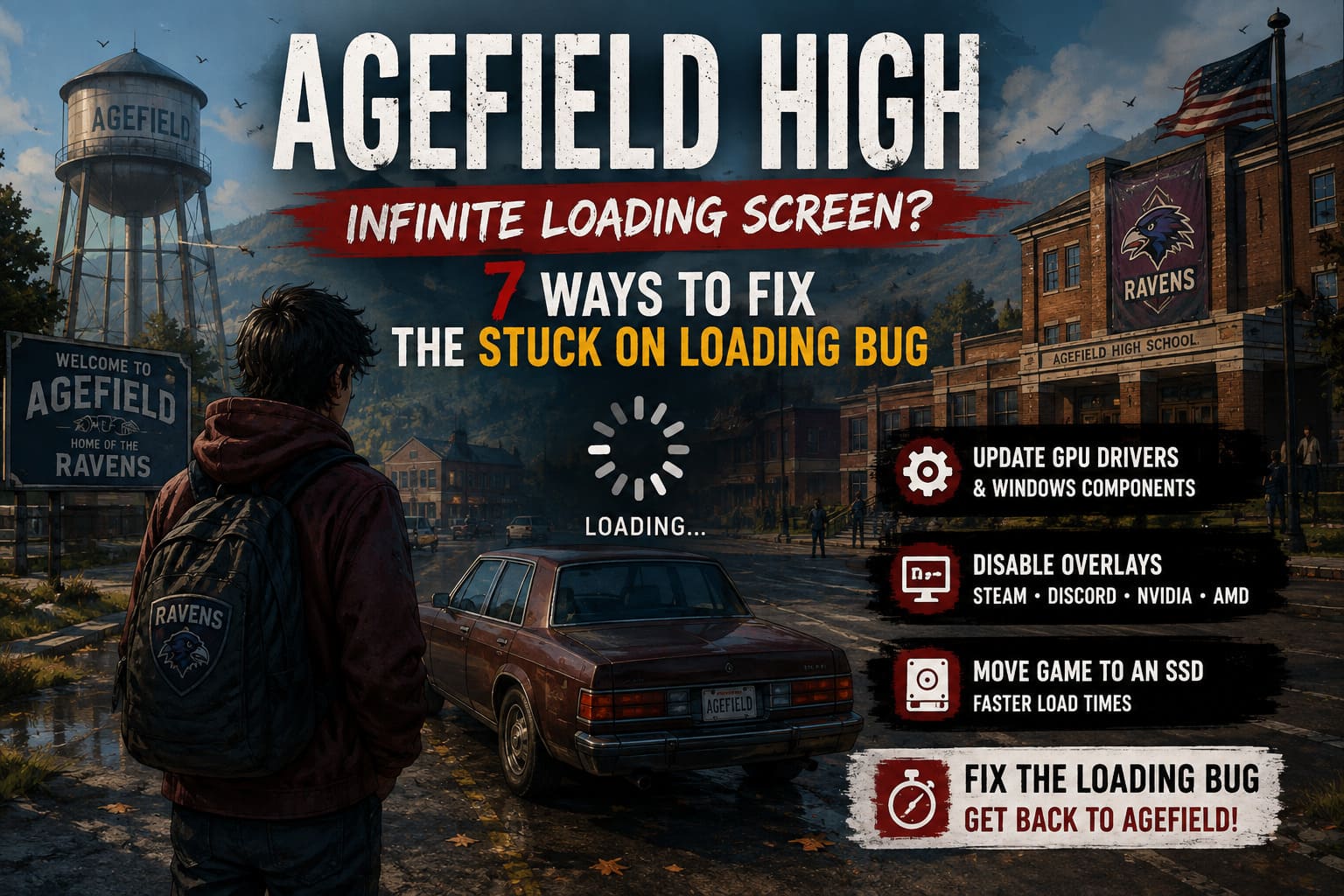
5. Update Your GPU Drivers and Windows Components
This sounds obvious, but it is especially important with freshly released games.
Graphics drivers are constantly being updated to improve compatibility with new titles. If your NVIDIA, AMD, or Intel driver is several months old, you may be missing important fixes.
For NVIDIA hardware, check the latest Game Ready driver. AMD users should check AMD Software: Adrenalin Edition, while Intel users should use the latest graphics driver available for their hardware.
I would also make sure Windows is fully updated.
Another component worth checking is the Microsoft Visual C++ Redistributable. Games frequently depend on these runtime libraries, and damaged or incomplete installations can create strange startup behavior.
DirectX components are worth checking as well.
This is not the most exciting fix on the list, but keeping the basic Windows gaming stack updated can prevent a surprising number of launch and rendering problems.
6. Disable Steam, Discord, and GPU Overlays
Here is one of those fixes that I personally test fairly early when troubleshooting a new PC game.
Overlays are convenient. I use them all the time for screenshots, performance monitoring, chatting with friends, and checking hardware statistics.
But every overlay is another piece of software interacting with the game.
For testing, temporarily disable:
- Steam Overlay
- Discord Overlay
- NVIDIA Overlay
- AMD Overlay
- Other hardware-monitoring or recording overlays
For Steam, open the game’s properties and look for the option that enables the Steam Overlay while playing.
You can also experiment with your display configuration.
If the game is trying to start in an unusual resolution or fullscreen configuration, switch to Borderless Windowed or regular Windowed mode if you can access the graphics settings.
I would also avoid throwing every possible graphics enhancement at the game on your first launch. Start with a normal resolution and reasonable settings, confirm that the game works, and then increase quality afterward.
That approach saves a lot of unnecessary troubleshooting.
7. Move Agefield High From an HDD to an SSD
This one is particularly relevant if you are still running a large modern game from an old mechanical hard drive.
Open-world games constantly stream data. The game is not necessarily loading the entire world into memory at once. It can be pulling textures, geometry, audio, characters, and environmental assets from storage as you move around.
An HDD can handle this, but its mechanical read speeds are dramatically slower than those of a modern SSD.
If Agefield High is installed on an HDD and you are experiencing extremely long loading times, moving it to an SSD is absolutely worth testing.
You do not need to reinstall the entire game.
In Steam:
- Right-click the game.
- Select Properties.
- Open Installed Files.
- Choose Move install folder.
- Select an available SSD.
- Confirm the transfer.
Afterward, try launching the game again.
If the problem was caused by extremely slow asset streaming, you should notice a substantial improvement in loading performance.
PEAK The Final Ascent: Gloom Biome Walkthrough and Strategy Guide
What I Would Try First
If I were sitting at my own PC with Agefield High stuck on an infinite loading screen, I would not immediately start changing Windows priorities or messing around with system files.
I’d go in this order:
Verify the game files → clear temporary shader/cache data → disable overlays → test a new save → update GPU drivers → move the game to an SSD → experiment with CPU priority.
That order keeps things relatively safe and makes it easier to identify what actually solved the problem.
The save-file test is especially useful because it tells you whether you’re dealing with a game installation problem or a specific corrupted save.
PEAK The Citadel Biome Guide: Strategy to Survive the Final Ascent Traps
Final Thoughts
I really like what Agefield High: Rock the School is trying to do. Games that capture the messy, ridiculous energy of classic school sandbox adventures are becoming increasingly rare, and the combination of open-world exploration, teenage chaos, and early-2000s nostalgia gives this one plenty of personality.
That is why an infinite loading screen is so frustrating. You bought a new game because you wanted to play it, not stare at a spinning icon.
Fortunately, most of the fixes above are straightforward and do not require advanced PC knowledge. Start with Steam’s file verification, then work through the cache, save, driver, overlay, and storage checks. Don’t delete your saves without making a backup, and don’t jump straight to aggressive Windows tweaks unless the simpler solutions fail.
If your Agefield High loading screen is still stuck after all seven methods, the issue may be related to a specific version of the game rather than your PC. In that situation, keeping an eye on Refugium Games’ official updates and Steam Community discussions is the smartest move, especially during the early post-launch period when hotfixes can arrive quickly.
For me, the biggest rule with a new PC game is simple: troubleshoot logically, change one thing at a time, and once it finally loads, stop tweaking and enjoy the game.