Can You Play Star Wars Zero Company on ROG Ally X at 60FPS? Performance Guide
There is something wonderfully ridiculous about playing a demanding Star Wars strategy game on a handheld. A few years ago, the idea of carrying around an XCOM-style game with modern cinematic visuals and then expecting it to run smoothly would have sounded like fantasy. In 2026, though, the ROG Ally X makes that conversation surprisingly realistic.
Star Wars Zero Company is exactly the sort of game I wanted to test on a handheld. It has tactical maps packed with characters, destructible environments, particle effects, cinematic abilities, and a fully explorable third-person hub. It isn’t some lightweight strategy title that can coast along on integrated graphics. Bit Reactor has clearly aimed for a much more ambitious visual presentation.
The good news? The ROG Ally X can deliver a very playable 60 FPS experience.
The bad news is that you aren’t going to get there by launching the game at 1080p, selecting Medium, and calling it a day.
That approach gets ugly surprisingly quickly.
The combination of the Ally X’s Ryzen Z1 Extreme APU, RDNA 3 graphics, and 24GB of LPDDR5X memory gives the handheld plenty of muscle, but Zero Company can put serious pressure on both the CPU and GPU. The result is a game that rewards a little tweaking.
After spending time with the settings, I would describe the goal as “60 FPS where it matters, with sensible compromises elsewhere.” That is much more realistic than chasing a completely locked 60 FPS in every single corner of the game.
Why Star Wars Zero Company Is Surprisingly Heavy
If you’ve played older XCOM games, don’t assume Zero Company will behave the same way.
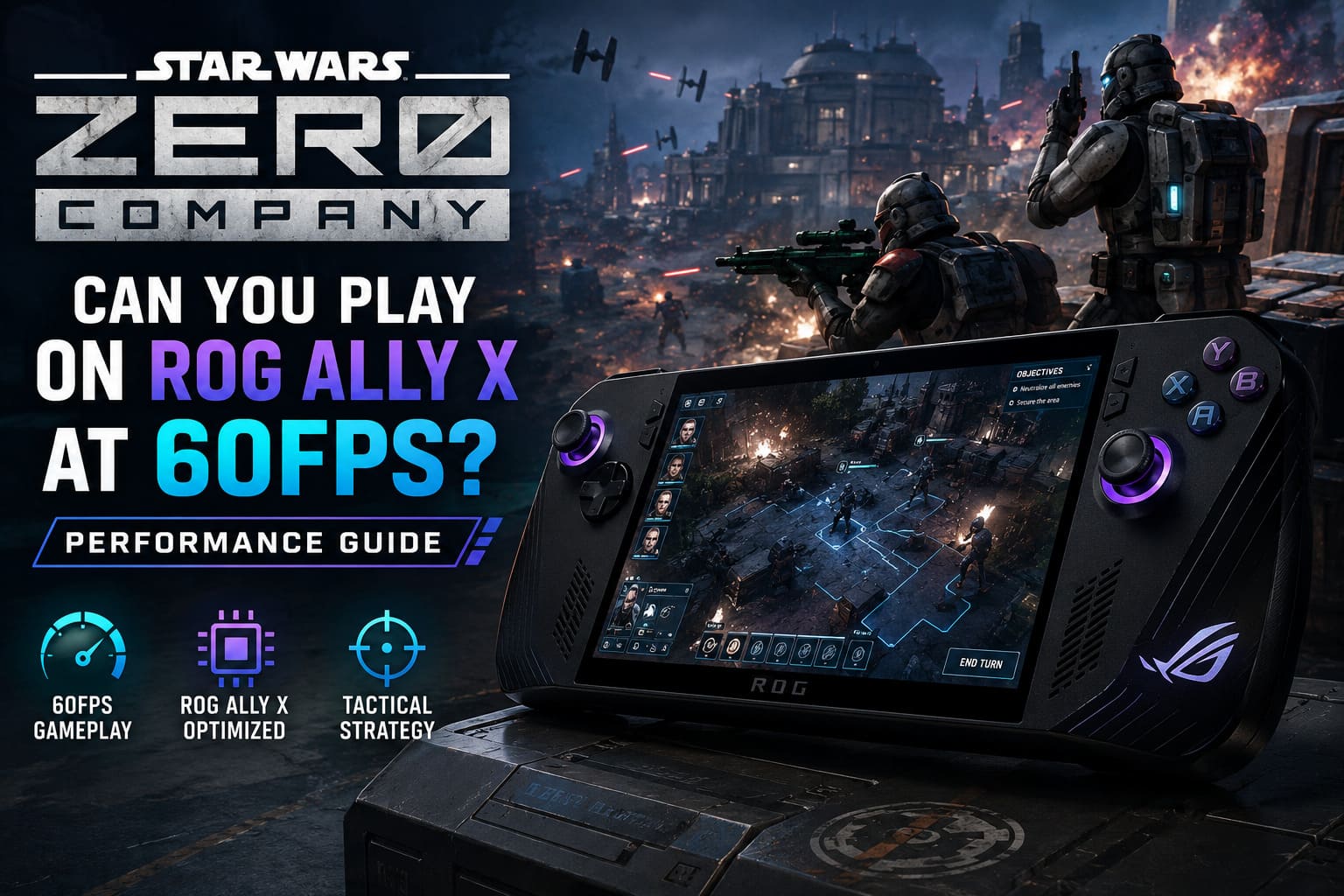
Bit Reactor has pushed the presentation much closer to modern cinematic Star Wars games. Characters have detailed models, environments contain significantly more geometry, and battles throw around lighting effects, explosions, blaster fire, smoke, debris, and environmental destruction.
Then there is The Den, the game’s third-person headquarters.
This is one of the areas where the handheld’s limitations become obvious. Tactical maps primarily challenge the GPU, but the hub can put considerably more pressure on the CPU because of NPC activity, environmental detail, animation, and asset streaming.
That’s why simply lowering resolution doesn’t magically solve every performance problem.
You can reduce the rendering workload dramatically and still encounter moments where the frame rate dips because the processor is busy handling everything happening behind the scenes.
For a handheld, that’s the classic performance headache: you’re not always GPU-limited.
My Recommended ROG Ally X Configuration
Before touching the game’s graphics menu, I’d configure the handheld itself.
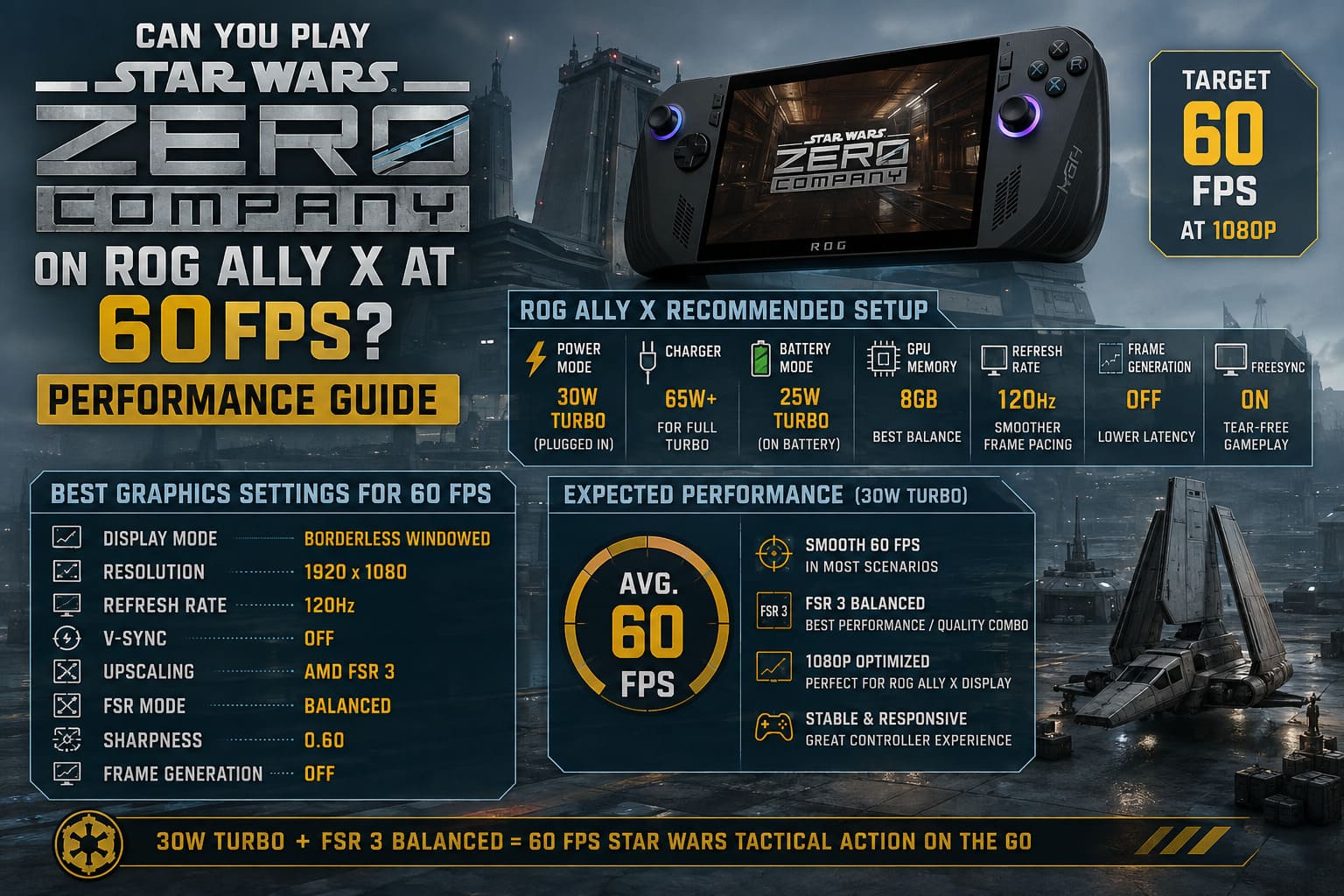
| Setting | Recommended Value | Why It Matters |
|---|---|---|
| Power Mode | 30W Turbo | Maximum sustained performance |
| Charger | 65W+ | Allows the full Turbo profile |
| Battery Mode | 25W Turbo | Best portable compromise |
| GPU Memory | 8GB | Gives the game plenty of graphics memory |
| Refresh Rate | 120Hz | Better frame pacing flexibility |
| Frame Generation | Off | Lower latency and cleaner UI |
| FreeSync | On | Helps eliminate tearing |
If you’re plugged into a decent charger, 30W Turbo should be your starting point.
This isn’t a game where I’d recommend trying to squeeze everything into the 15W Performance profile. Sure, you can make it run, but you’re sacrificing too much performance for relatively little benefit.
On battery, the 25W Turbo profile is the more sensible choice. You’ll obviously pay for it in battery life, but that’s the price of turning a handheld into a tiny gaming PC.
What About the 8GB VRAM Allocation?
I’d stick with 8GB of GPU memory on the Ally X.
The machine has 24GB of LPDDR5X memory, so allocating 8GB to the graphics processor still leaves enough system memory for Windows and the game.
You don’t need to go crazy with this setting. The objective isn’t to reserve as much memory as possible for the GPU. It’s to give the game enough breathing room without unnecessarily starving the CPU and operating system.
Best Star Wars Zero Company Graphics Settings for 60 FPS
Here is the configuration I’d personally start with.
Display Settings
- Display Mode: Borderless Windowed
- Resolution: 1920×1080
- Refresh Rate: 120Hz
- V-Sync: Off
- Upscaling: AMD FSR 3
- FSR Mode: Balanced
- Sharpness: 0.60
- Frame Generation: Off
The important setting here is FSR 3 Balanced.
Running the game natively at 1080p looks excellent, but the Ally X simply doesn’t have enough GPU headroom to make that the sensible choice if 60 FPS is the priority.
FSR Balanced gives the handheld considerably more breathing room while still producing a surprisingly clean image on the Ally X’s relatively small screen.
And honestly, this is one of those situations where handheld displays work in your favor. Fine reconstruction artifacts that might annoy me on a large 27-inch monitor are far less obvious on a seven-inch screen.
Recommended Graphics Preset
Forget the game’s standard presets. Go custom.
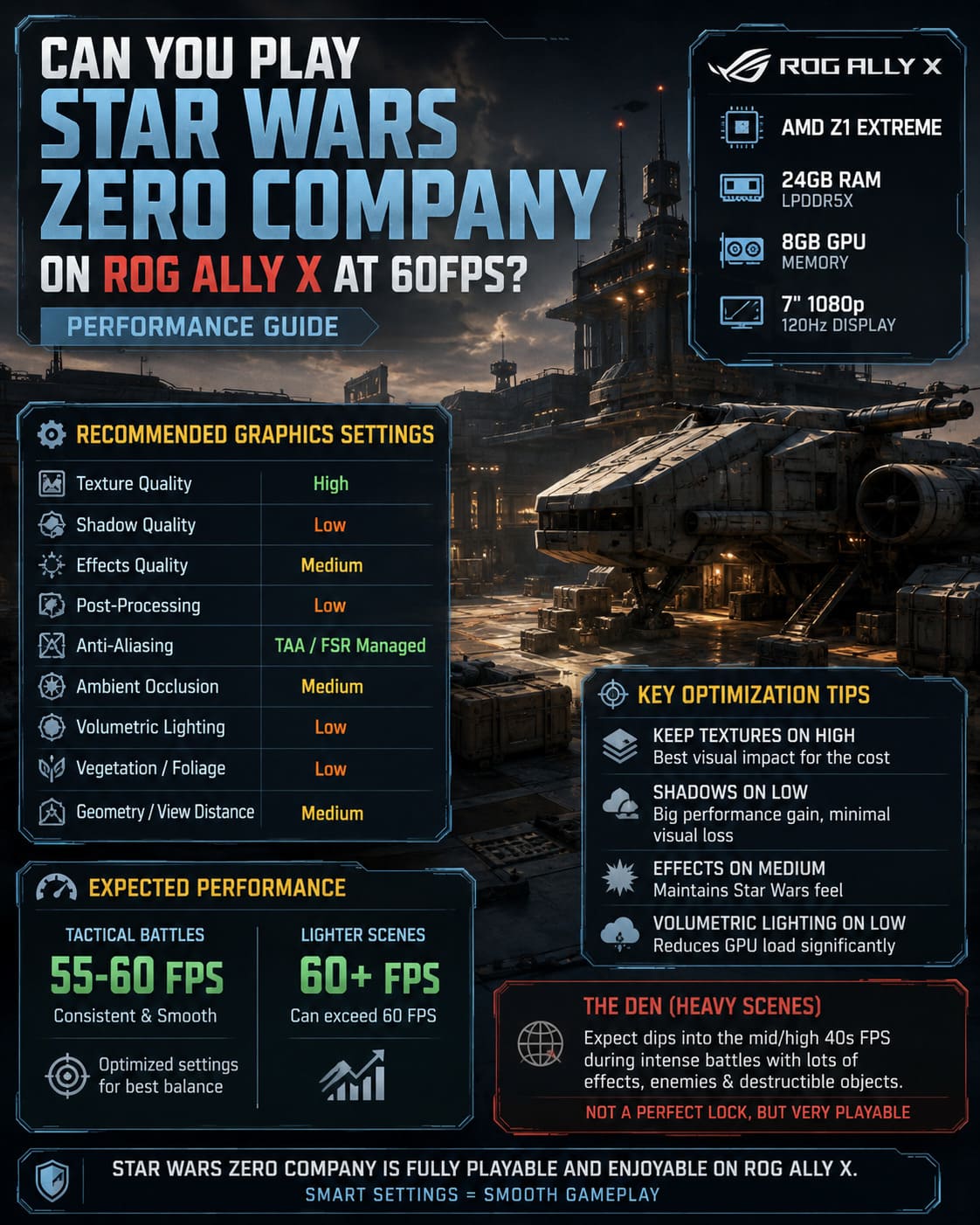
| Graphics Option | Recommended Setting |
|---|---|
| Texture Quality | High |
| Shadow Quality | Low |
| Effects Quality | Medium |
| Post-Processing | Low |
| Anti-Aliasing | TAA / FSR Managed |
| Ambient Occlusion | Medium |
| Volumetric Lighting | Low |
| Vegetation/Foliage | Low |
| Geometry/View Distance | Medium |
The biggest mistake would be dropping Texture Quality first.
Textures aren’t the setting I’d sacrifice on the Ally X. With 8GB allocated to the GPU, keeping textures on High gives the game considerably more visual punch without being the primary source of your frame-rate problems.
Shadows are a completely different story.
Set them to Low.
Complex shadows can be surprisingly expensive, particularly in environments containing multiple light sources and destructible objects. On a handheld where every watt matters, Low shadows are one of the easiest compromises to make.
You won’t suddenly look at the game and think, “Wow, this looks terrible.”
You will, however, notice fewer nasty frame-time spikes.
Effects and Volumetrics: Where the Extra FPS Hide
I’d keep Effects at Medium rather than immediately dropping them to Low.
Blaster fire, explosions, Force abilities, grenades, smoke, and environmental effects are a huge part of what makes Zero Company feel like Star Wars. Cutting them too aggressively makes the game look flatter than it needs to.
Volumetric Lighting is different.
Set it to Low.
Fog, atmospheric lighting, dust, and other volumetric effects can hammer a small RDNA 3 GPU, especially when combined with several characters and effects on screen.
This is one of those settings where the visual difference is relatively small while the performance benefit can be worthwhile.
What Performance Should You Actually Expect?
Here’s where I want to temper expectations.
If you’re expecting a mathematically perfect 60 FPS lock everywhere, I wouldn’t promise that.
The Ally X can get very close in the right circumstances, but Star Wars Zero Company has different workloads depending on where you are.
On a typical tactical battlefield, the optimized configuration should target the high-50s through the 60 FPS range, with lighter scenes capable of pushing beyond 60 FPS.
The tactical missions are where the Ally X feels most impressive.
Moving your squad around the battlefield feels responsive, camera movement is smooth, and the game’s turn-based nature means occasional frame-time irregularities are much less irritating than they would be in a competitive shooter.
Then you enter The Den.
That’s where things get interesting.
The Den Is the Real Handheld Stress Test
The Den is much more demanding than it initially appears.
It isn’t just a menu disguised as a 3D environment. You’re moving through a fully rendered space populated with characters and interactive elements, and the game is constantly managing background assets.
This can push the Ally X into roughly the 50–55 FPS territory in heavier areas.
And you know what?
I wouldn’t lose sleep over it.
This isn’t Counter-Strike. You’re not trying to win a gunfight against someone with a 240Hz monitor. You’re walking around your mercenary headquarters, talking to characters, managing your crew, and preparing for the next operation.
I’d much rather have 50–55 FPS in The Den and 60-ish FPS during tactical combat than destroy the game’s image quality trying to force an arbitrary number everywhere.
Should You Use AMD Frame Generation?
I’d leave it off.
Frame generation sounds tempting when you’re trying to get 60 FPS from a handheld, but Zero Company isn’t necessarily the perfect environment for it.
The game involves constant camera movement across tactical grids, character selection, targeting indicators, UI elements, and precise interactions.
Adding generated frames can make the game look smoother, but it doesn’t magically make the underlying input response faster.
For this particular game, I’d rather have a strong native frame rate with FSR than a lower base frame rate padded with generated frames.
If future patches improve frame pacing or frame-generation behavior, that recommendation could change. At launch, though, raw performance wins.
Fixing Stutter on the ROG Ally X
There is another issue that shouldn’t be confused with the Ally X simply being too slow: shader and asset compilation stutter.
If your first few minutes feel rough, don’t immediately start changing every setting imaginable.
Give the game time.
Let the Initial Shader Work Finish
After launching for the first time, sit at the main menu for several minutes before jumping directly into the opening mission.
Modern PC games increasingly rely on shader compilation and background asset preparation. If that work is happening while you’re actively playing, you can experience sudden frame-time spikes that aren’t representative of normal performance.
This is especially annoying on handhelds because a short hitch can feel much more dramatic when you’re expecting consistent frame pacing.
Disable Fullscreen Optimizations
If you’re dealing with strange Windows-related stutters, another troubleshooting step worth testing is disabling fullscreen optimizations for the game’s executable.
Find the game’s executable, open Properties → Compatibility, and enable Disable fullscreen optimizations.
I wouldn’t blindly apply this to every game on your PC. But if Zero Company is behaving strangely with borderless/fullscreen transitions, it’s an easy experiment and takes practically no time.
Star Wars Zero Company PS5 Pro Graphics vs Performance Mode: Which Is Better?
Should You Play at 1080p or 720p?
For me, 1080p with FSR Balanced is the sweet spot.
The Ally X screen is small enough that the combination of 1080p output and FSR reconstruction looks considerably better than you’d expect.
720p is still an excellent emergency option if you’re chasing maximum performance or trying to extend battery life.
But if you’re sitting in Turbo mode with the charger connected, I’d absolutely start at 1080p.
The whole point of the Ally X is that it gives you enough hardware to avoid making the image look like a blurry compromise.
How to Fix Star Wars Zero Company Shader Compilation Stuttering on Startup (PC Guide)
Final Verdict: The ROG Ally X Is a Great Fit for Zero Company
After looking at what the game demands, my verdict is pretty straightforward: yes, the ROG Ally X is capable of delivering an excellent portable Star Wars Zero Company experience.
Just don’t approach it like a desktop PC.
The winning strategy is to prioritize frame-time consistency rather than visual preset bragging rights.
Run 30W Turbo when plugged in, allocate 8GB of memory to the GPU, use 1080p with FSR Balanced, keep textures High, and aggressively cut the expensive settings such as shadows and volumetrics.
The result is a game that looks surprisingly good while staying around the 60 FPS target through the tactical gameplay that actually matters.
The occasional dip inside The Den isn’t a deal breaker. Neither is the odd frame-time spike during particularly busy encounters.
In fact, Star Wars Zero Company might be one of those games that makes the most sense on a handheld. Tactical battles naturally lend themselves to sitting on the couch, lying in bed, or playing during a long trip. You can take your time with every turn instead of worrying about twitch reflexes.
My recommended setup is simple: 30W Turbo + 8GB VRAM + 1080p + FSR 3 Balanced + High Textures + Low Shadows.
That’s the configuration I’d use myself.
And once Hawks and the Zero Company squad are fighting across the Clone Wars from a device small enough to fit in a backpack, it’s hard not to appreciate just how far handheld PC gaming has come.