How to Fix “Cannot Join Game” in Aliens Fireteam Elite 2: Multiplayer & Crossplay Solutions
If you fired up Aliens: Fireteam Elite 2 expecting to drop into a mission with your friends, only to get slapped with “Cannot Join Game”, “Game No Longer Exists”, or a similar multiplayer error, you already know how frustrating it can be. Nothing kills the mood faster than spending five minutes getting the squad together, sending invites, and then watching the game dump everyone back into their own hangars.
For a co-op shooter built around teamwork, this is especially annoying. You want to be shooting Xenomorphs, not troubleshooting your router.
The good news is that these connection problems usually come down to a handful of repeat offenders: crossplay settings, lobby configuration, incomplete introductory progression, firewall restrictions, NAT problems, corrupted files, or a bad host connection. You don’t necessarily need to reinstall the whole game or start changing obscure Windows settings.
I’ve put together this guide around the fixes I’d try myself first. Start with the simple stuff, then move toward network troubleshooting if the problem refuses to die.
What Causes the “Cannot Join Game” Error in Aliens: Fireteam Elite 2?
Before throwing every possible fix at the problem, it helps to understand what is actually happening.
Aliens: Fireteam Elite 2 depends heavily on online multiplayer services and player-to-player connection handling. When you join a friend’s session, several things have to line up at the same time: game version, crossplay availability, lobby permissions, platform services, network configuration, and the host’s connection.
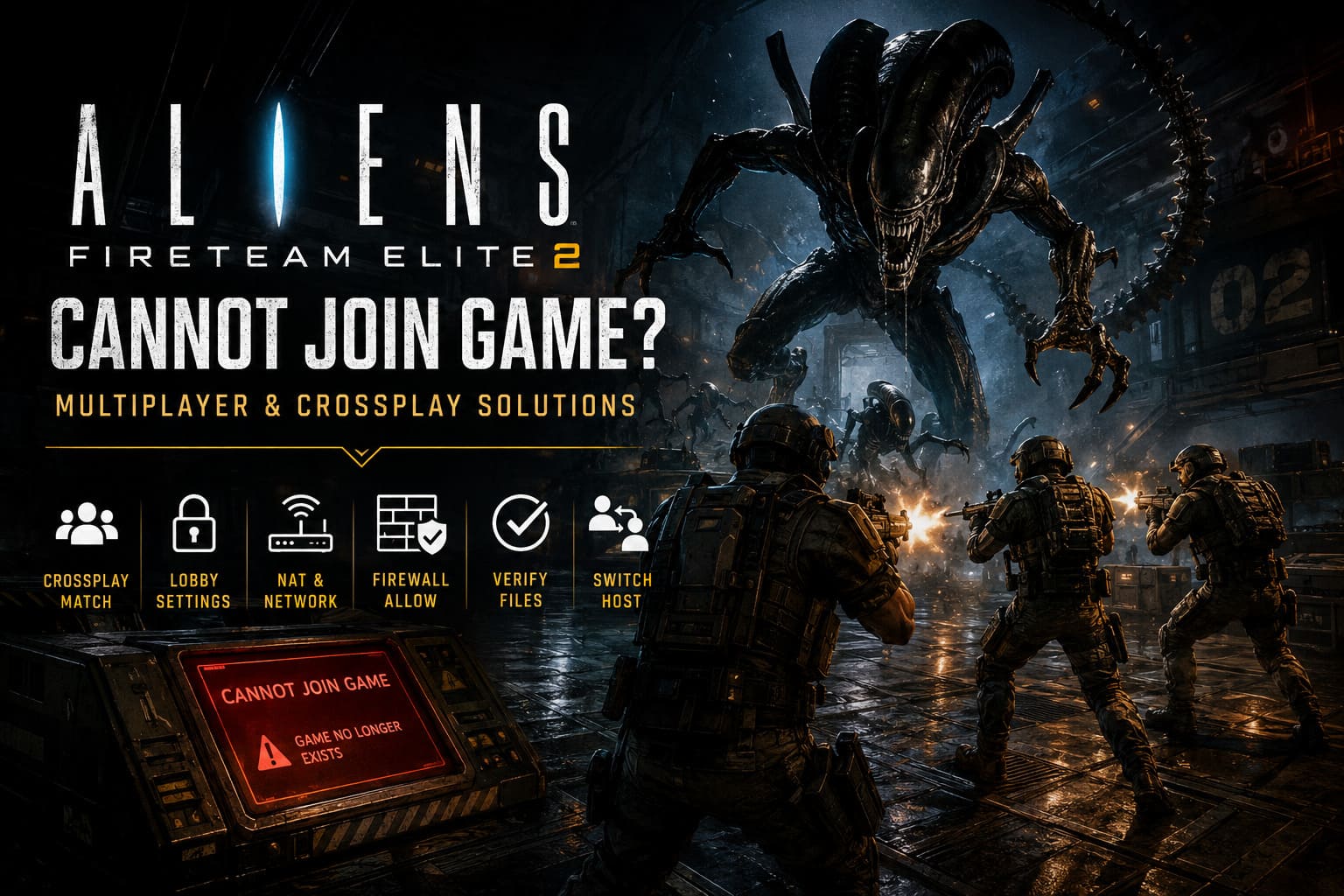
If even one part of that handshake fails, the game can spit out a wonderfully unhelpful message instead of telling you exactly what went wrong.
The most common trouble spots include:
| Problem | What It Can Cause | First Fix To Try |
|---|---|---|
| Crossplay mismatch | Friend cannot join lobby | Match crossplay settings |
| Lobby restrictions | Invitations fail | Change privacy settings |
| NAT problems | Connection timeout | Enable UPnP / check NAT |
| Firewall blocking | PC cannot connect | Allow the game through Firewall |
| Corrupted files | Multiplayer errors after updates | Verify game files |
| Bad host connection | One player cannot join | Switch hosts |
The important part is not to assume the problem is always on your end. If you can join other players but one specific friend cannot connect to you, the host’s network configuration may be the real culprit.
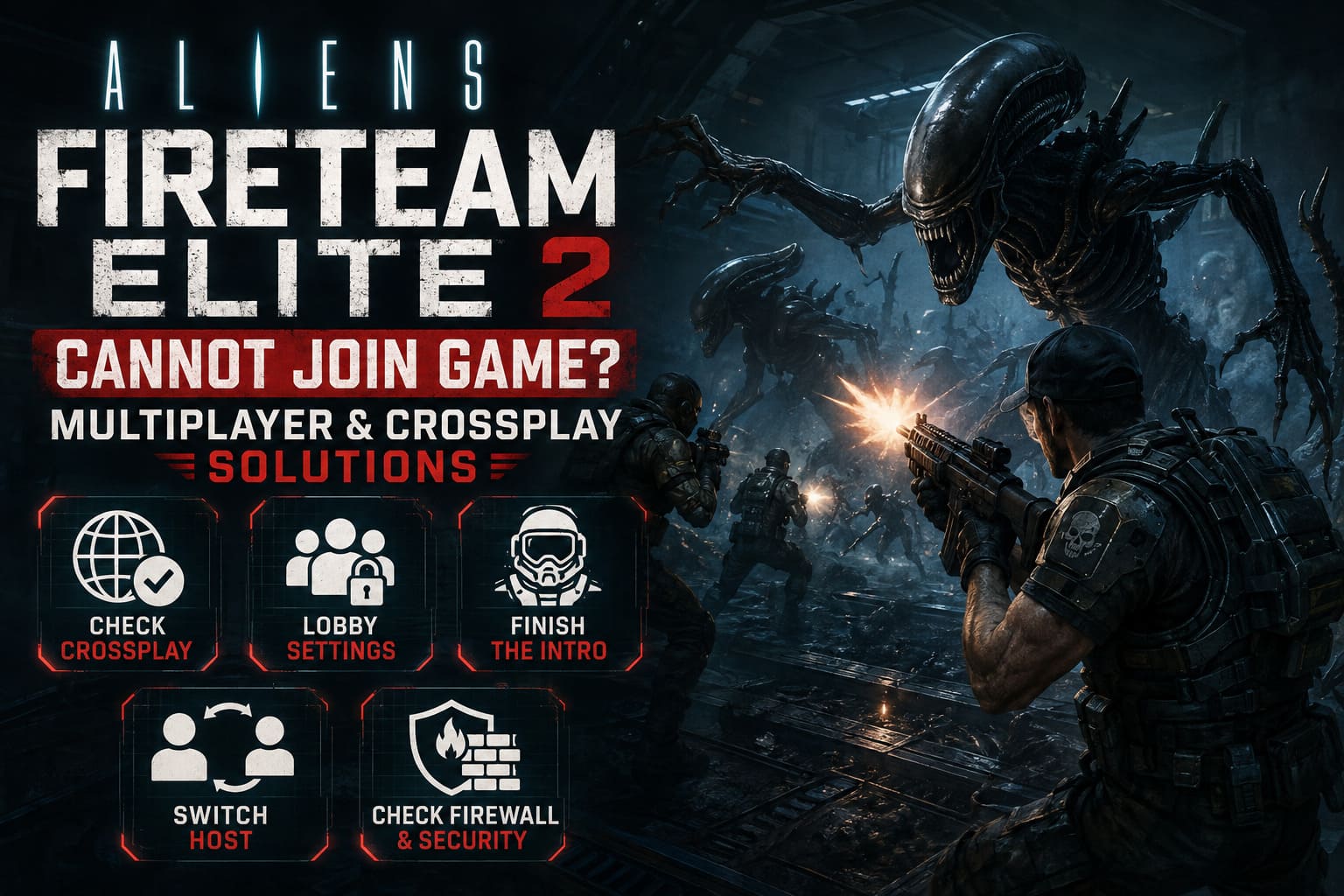
1. Check Crossplay Before Doing Anything Complicated
This is the first thing I’d check because it takes about thirty seconds and can save you a ridiculous amount of troubleshooting.
If your squad is spread across PC, PlayStation 5, and Xbox Series X/S, everyone needs to have compatible multiplayer and crossplay settings.
Open the game’s settings and look for the Crossplay option under the gameplay or online settings. Make sure your squad members aren’t using conflicting configurations.
If one player has crossplay disabled while another is attempting to connect from a different platform, the invitation can fail before the actual session gets established.
Try This
- Open Settings > Gameplay > Crossplay.
- Check the crossplay setting for every player.
- Make sure everyone is using compatible settings.
- Turn crossplay off and back on if the option appears to be stuck.
- Restart the game after changing the setting.
That last step sounds ridiculously basic, but multiplayer games sometimes don’t properly refresh network permissions until you return to the main menu or completely restart the application.
Don’t change five other settings at the same time. Change crossplay, restart, and test the connection. That’s how you identify the actual culprit instead of turning troubleshooting into roulette.
2. Check Your Lobby Privacy Settings
The next thing to investigate is the lobby itself.
If the host has created a private session while you’re trying to connect through matchmaking, or the lobby is configured differently from what your squad expects, invitations can become unnecessarily complicated.
For a friends-only session, the host should create a private lobby and invite the intended players directly. If you’re looking for random teammates, use the appropriate public matchmaking configuration.
Also make sure everyone is actually in a state where multiplayer invitations are available. I’ve seen plenty of co-op games where one player is technically still inside a restricted introductory state while everyone else is ready to deploy.
Quick Lobby Reset
If the lobby seems broken:
- Everyone leaves the current party.
- Return to the main hangar or hub.
- Close any active matchmaking search.
- Have one player create a fresh lobby.
- Send new invitations.
- Try joining again.
Sometimes the fastest fix is simply burning the broken lobby and starting another one.
3. Finish the Introductory Content
If you’re a brand-new player, don’t overlook the tutorial or introductory sequence.
Games often restrict online features until the player has completed certain early objectives. That can include tutorial missions, hub interactions, introductory dialogue, or other onboarding steps.
If the Team or multiplayer-related menu options aren’t available, don’t assume your game is broken.
Complete the opening sequence first. Explore the hub, follow the required objectives, and talk to the important NPCs until the game confirms that multiplayer functionality has been unlocked.
Then return to the hangar and try the invitation again.
This is one of those fixes that isn’t glamorous, but it beats spending an hour messing with your router when the game simply hasn’t unlocked your multiplayer features yet.
4. Switch the Lobby Host
This is probably my favorite troubleshooting trick for peer-to-peer multiplayer because it immediately tells you whether the problem is attached to a specific host.
Let’s say:
Player A hosts → Player B cannot join.
Don’t immediately blame Player B’s internet.
Have Player B create the lobby instead.
If the connection suddenly works, you’ve learned something important: the original host’s network configuration is probably involved.
A restrictive NAT type, double NAT, packet loss, router configuration, or firewall issue can prevent other players from completing the connection handshake.
If you have three or four people in the squad, test multiple hosts.
The person with the most stable connection should generally be your first choice. A fast download speed isn’t everything. Consistency, low packet loss, and a clean NAT configuration matter just as much.
5. Allow Aliens: Fireteam Elite 2 Through Windows Firewall
PC players should check Windows Firewall if multiplayer works inconsistently or friends can’t connect at all.
A firewall can block network traffic without producing an especially useful explanation in the game itself.
To check Windows Firewall:
- Press the Windows key and search for Windows Firewall.
- Select Allow an app through Windows Firewall.
- Click Change settings.
- Find Aliens: Fireteam Elite 2 or its relevant executable.
- Make sure the appropriate Private and Public network permissions are enabled.
- Save the changes.
- Restart the game.
If you’re running a third-party antivirus or security suite, check its application-control or firewall settings as well.
Security software such as Malwarebytes, Avast, or Bitdefender can occasionally interfere with multiplayer applications when network traffic is aggressively filtered.
I wouldn’t recommend blindly disabling your antivirus. That’s overkill. Instead, use the software’s trusted application or exclusion controls and add the game’s installation folder or executable where appropriate.
6. Verify Your Game Files on Steam
If the multiplayer problem appeared immediately after an update, file verification is absolutely worth trying.
A damaged or incomplete file can create bizarre behavior that doesn’t look like a file problem at all. Multiplayer is especially sensitive to version mismatches.
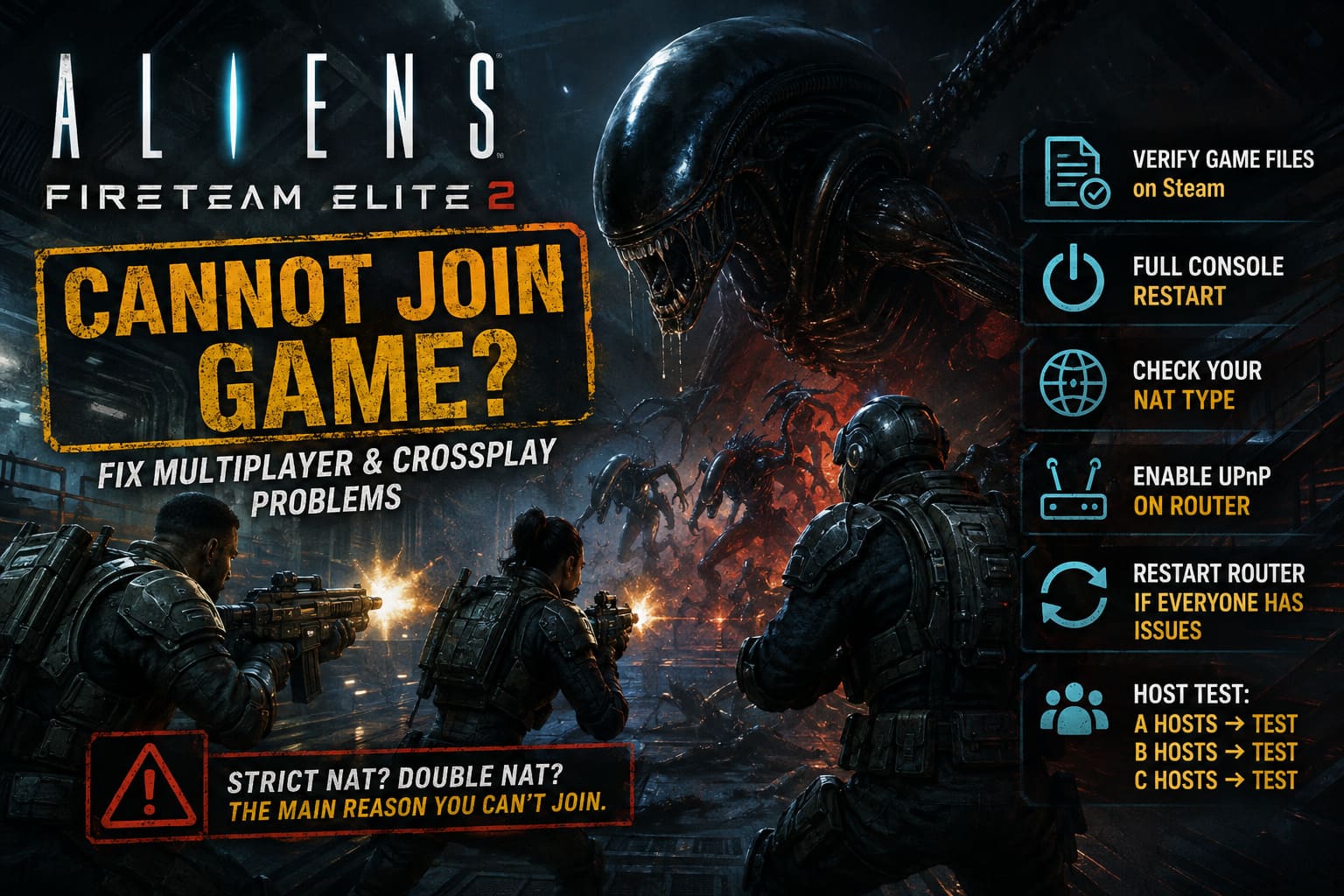
On Steam:
- Open your Steam Library.
- Right-click Aliens: Fireteam Elite 2.
- Select Properties.
- Open Installed Files.
- Choose Verify integrity of game files.
- Wait for the scan to finish.
- Restart Steam and launch the game again.
Don’t interrupt the verification process just because it appears to pause. Let Steam finish.
After a major patch, I would also make sure everyone in the squad has completely updated the game. If one player is running a different build, multiplayer matchmaking can become a complete mess.
7. Perform a Full Console Restart
Console players have a similar low-effort option.
A simple restart can clear temporary network and game-state issues, but if the problem keeps returning, perform a proper cold shutdown rather than relying on Rest or Standby mode.
Completely shut down the console, disconnect its power for roughly a minute, reconnect it, boot it up, and launch the game again.
Then test the multiplayer connection before changing anything else.
It’s not magic. You’re simply forcing the console to start fresh instead of carrying a potentially stuck application or network state forward.
8. Check Your NAT Type
Now we’re getting into the stuff that actually matters if the basic fixes haven’t worked.
Your NAT type determines how freely your system can communicate with other players over the internet. A strict NAT configuration can make peer-to-peer multiplayer considerably more difficult.
On Xbox, check the network settings and run the NAT test. Ideally, you want an Open NAT configuration.
On PlayStation, check your connection status and look at the reported NAT type. A restrictive NAT configuration can cause problems with incoming peer connections.
If you see warnings such as Strict NAT or Double NAT, your router setup deserves attention.
The First Router Fix: Enable UPnP
If your router supports UPnP, enabling it can allow compatible games and devices to automatically negotiate the network mappings they need.
Log into your router’s administration interface, locate the UPnP setting, enable it, save the configuration, and restart the router if required.
Afterward, restart the console or PC and test Aliens: Fireteam Elite 2 again.
If you have two routers connected in sequence, such as an ISP gateway feeding into your own router, you may have a double-NAT situation. That’s a much bigger red flag than simply having a slower internet connection.
9. Restart the Router If Everyone Suddenly Has Problems
There’s another useful diagnostic trick.
Ask your entire squad whether multiplayer is suddenly broken for everyone.
If several players are reporting connection problems at the same time, don’t immediately start changing individual PC settings. The issue may be on the game’s service side or with a temporary network problem.
If the problem is isolated to your home connection, restart your router and modem.
Unplug the equipment, wait a short period, reconnect it, and allow the connection to stabilize before launching the game again.
It sounds like the oldest trick in the book because it is. And annoyingly, it still works often enough to deserve a place in every multiplayer troubleshooting guide.
10. The Host Test Is Your Best Diagnostic Tool
If you want to narrow the problem down instead of randomly trying fixes, use a simple host test.
Have three players attempt the following:
Player A hosts → Test
Then:
Player B hosts → Test
Then:
Player C hosts → Test
If everyone can join Player B but nobody can reliably join Player A, you’ve isolated the problem to Player A’s network environment.
That could mean:
- Strict NAT
- Double NAT
- Firewall restrictions
- Router configuration
- Packet loss
- ISP-level restrictions
- Platform network problems
This is much more useful than reinstalling the entire game because you’re actually identifying where the failure occurs.
Aliens Fireteam Elite 2 High Ping: How to Fix Lag and Packet Loss (2026 Guide)
Aliens: Fireteam Elite 2 Multiplayer Quick Fix Checklist
Before you start digging through router menus, run through these basics with the whole squad:
- Match crossplay settings between all players.
- Make sure everyone has completed the required introductory content.
- Confirm the lobby is using the correct privacy settings.
- Leave the current party and create a fresh lobby.
- Try a different host.
- Verify PC game files through Steam.
- Check that the game is allowed through Windows Firewall.
- Perform a full console restart if you’re playing on PS5 or Xbox.
- Check your NAT type.
- Enable UPnP if your router supports it.
- Restart your modem/router if the problem appears isolated to your connection.
Final Verdict: Don’t Reinstall Before You Test the Host
The “Cannot Join Game” error in Aliens: Fireteam Elite 2 looks worse than it usually is.
In most cases, you don’t need to nuke your installation and start downloading the entire game again. Start with the boring stuff: crossplay, lobby settings, tutorial progression, and a fresh invitation. Then test a different host.
If that doesn’t work, move into the network layer: Windows Firewall, NAT, UPnP, router configuration, and game-file verification.
The host-swap test is especially valuable because it can tell you whether you’re dealing with a game-wide multiplayer problem or something specific to one player’s connection.
And honestly, that’s the approach I’d recommend to any squad. Don’t turn four friends into amateur network engineers for two hours because one lobby is cursed. Test the simple variables first, isolate the problem, and only then start messing with router settings.
Once the connection finally behaves, get back into the hangar, pick your loadout, regroup with the squad, and go make the Xenomorphs regret spawning.