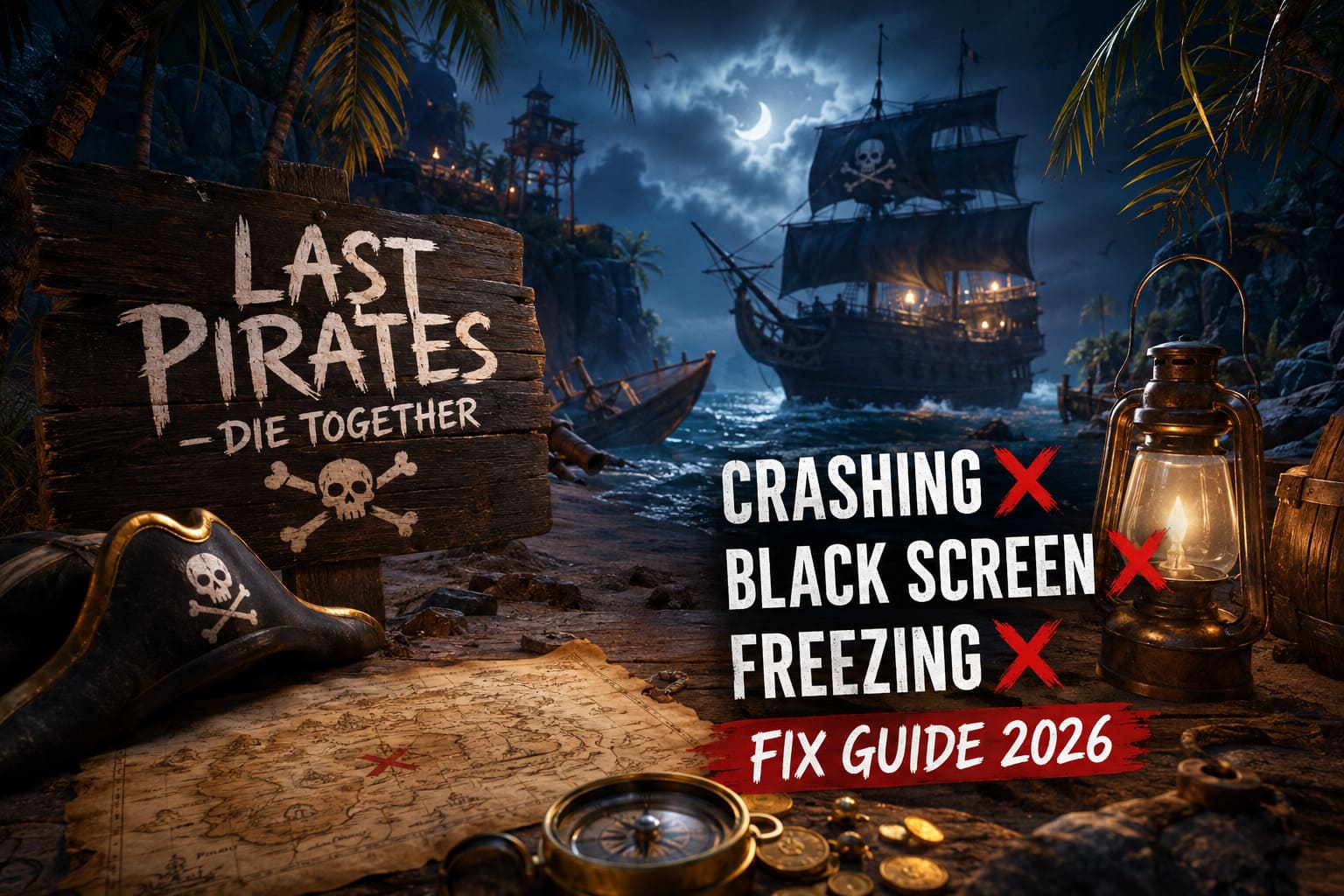
How to Fix Last Pirates: Die Together Crashing on Startup, Freezing, and Black Screen Launch Issues (2026 Guide)
There are few things more annoying than getting a group of friends together for a new co-op game, only to spend the next 30 minutes staring at a desktop instead of playing. I have lost count of how many PC games have launched with some combination of crashes, black screens, frozen loading screens, broken audio, or mysterious launch errors. Early Access games are especially prone to this stuff, and Last Pirates: Die Together is no exception.
RetroStyle Games’ chaotic co-op horror title has plenty going for it. The combination of pirate-themed survival, ridiculous ragdoll physics, proximity voice chat, and genuinely creepy exploration makes it exactly the sort of game that can produce some unforgettable multiplayer moments. But before you get to those moments, the game actually has to start.
If Last Pirates: Die Together crashes on startup, freezes during loading, closes immediately after pressing Play, or gives you a black screen, there are several things worth checking before assuming your PC cannot run it.
Why Is Last Pirates: Die Together Crashing on Startup?
A startup crash can happen for several completely different reasons, which is why there is no single magic fix that works for every player.
The most common possibilities include corrupted Steam files, outdated GPU drivers, conflicting overlays, damaged Microsoft runtimes, problematic graphics settings, or Windows permission issues. Early Access builds can add another variable because the game itself may still contain bugs that have nothing to do with your hardware.
That distinction is important.
If your PC runs several demanding games without problems and Last Pirates: Die Together is the only title crashing immediately, I would not start blaming your GPU. Check the game installation and software environment first.
Here is the order I recommend:
| Problem | First Fix I Would Try |
|---|---|
| Game closes immediately | Verify Steam files |
| Black screen | Windowed launch |
| Crash after update | Clean GPU driver installation |
| Loading screen freeze | Disable overlays |
| Missing runtime error | Repair Visual C++ |
| Strange graphics crash | Reset launch options and settings |
1. Verify Last Pirates: Die Together Game Files
This is boring advice, but it is also one of the first things I do whenever a newly installed Steam game refuses to launch.
A game can download successfully while still ending up with a damaged or incomplete file. You might never notice the problem until the executable tries to load a particular asset or system component.
Steam has a built-in verification tool, so there is no reason not to use it.
Open Steam, go to your Library, right-click Last Pirates: Die Together, and select Properties. Find Installed Files and choose Verify integrity of game files.
Let Steam finish the entire process before launching the game again.
If Steam reports that files need to be replaced, allow it to download them. Once the process is complete, restart Steam and try again.
I especially recommend doing this after a failed update or if the game previously launched correctly but suddenly started crashing.
Do not skip this step simply because the game was installed yesterday. A fresh installation is not automatically a perfect installation.
2. Update Your NVIDIA or AMD Graphics Driver
The GPU driver is another obvious suspect, particularly when a game uses newer rendering technology or has just received a major update.
If you have not updated your driver for several months, do it before spending an hour changing Windows settings.
For NVIDIA cards, download the latest appropriate Game Ready Driver from NVIDIA’s official driver support page. During installation, choose the custom installation option if available and use the clean-install option.
AMD users should install the latest compatible Adrenalin Edition driver for their Radeon GPU. If your driver installation has become messy after multiple updates, AMD’s reset or clean-install options can be useful.
There is one important caveat here: newer is not always automatically better.
If Last Pirates: Die Together started crashing immediately after a brand-new GPU driver update, consider whether the timing is suspicious. Sometimes a previously stable driver can behave better with an Early Access game than a newly released one.
In other words, don’t blindly update everything at once. Make one change, test the game, and then move on.
3. Disable Discord, Steam, and Other Overlays
Overlays are convenient until they aren’t.
I have encountered plenty of PC games where the actual game was fine, but an overlay, recording application, hardware monitor, or audio utility caused the crash.
For testing purposes, temporarily disable:
- Steam Overlay
- Discord Overlay
- NVIDIA or AMD overlay features
- MSI Afterburner/RivaTuner overlays
- Screen recording software
- Third-party FPS counters
- Virtual audio or microphone routing software
You don’t necessarily need to uninstall anything. Just close the applications completely and test Last Pirates: Die Together again.
If the game suddenly works, you have already narrowed the problem down considerably.
I would particularly pay attention to programs that inject themselves into games. Anything that displays FPS, temperatures, chat windows, recording controls, or other information on top of the game can potentially interfere with the rendering process.
4. Try Launching the Game in Windowed Mode
A black screen immediately after launching is slightly different from a straightforward crash.
Sometimes the game is actually running, but it is failing while switching into fullscreen mode or selecting a resolution that your display configuration does not like.
Steam launch options can be useful for testing this.
Right-click the game in Steam, choose Properties, and look for the Launch Options field.
Try:
-windowedIf that doesn’t help, you can test:
-windowed -noborderThe idea is simple: instead of allowing the game to immediately take exclusive control of your display, you force it to start in a safer windowed configuration.
If the game launches successfully, you can enter the graphics settings and gradually switch back toward your preferred fullscreen configuration.
What About DirectX 11?
You may also see suggestions online telling players to force DirectX 11 with a launch command such as -dx11.
This is worth testing only if the game actually supports that parameter. Launch commands are not universal magic switches. A parameter that works for one Unreal Engine game may do absolutely nothing in another.
If an option has no effect, remove it rather than collecting a dozen commands in the Launch Options box.
That is something I have learned the hard way over the years: more launch parameters do not necessarily mean more stability.
5. Reset Your Graphics Configuration
If Last Pirates: Die Together used to launch but now crashes before reaching the main menu, a corrupted or incompatible graphics configuration is another possibility.
This can happen after changing resolution, graphics quality, display mode, or advanced rendering options.
First, try launching in windowed mode. If that works, immediately lower the graphics settings and restart the game normally.
If you cannot get far enough to reach the settings menu, you may need to locate the game’s configuration files and temporarily rename or remove the relevant configuration folder.
I recommend renaming rather than deleting anything important.
For example, you can rename a configuration folder to something like:
LastPirates_BackupThis gives you a way back if the configuration turns out not to be the problem.
The exact location and folder structure can change between game versions, so don’t randomly delete folders inside the Steam installation directory.
6. Run the Game With Administrator Permissions
This is not the first fix I would try, but it can help when Windows permissions interfere with configuration or cache files.
First, open Steam and navigate to:
Library → Last Pirates: Die Together → Manage → Browse Local Files
Find the game’s main executable, right-click it, and open Properties.
Under Compatibility, you can test Run this program as an administrator.
You can also test Disable fullscreen optimizations if you’re dealing specifically with fullscreen crashes or display problems.
I would not permanently enable compatibility settings just because someone online recommended them, though. If the game works perfectly without administrator access, there is no real advantage to keeping unnecessary compatibility options enabled.
7. Repair Microsoft Visual C++ Redistributables
This is one of those fixes that doesn’t look exciting but can solve surprisingly strange PC game problems.
Many Windows games depend on Microsoft Visual C++ runtime components. If one of those installations is damaged or incomplete, the game may fail before you ever see a useful error message.
Download the current Microsoft Visual C++ Redistributable packages from Microsoft and install or repair the appropriate x64 and x86 versions.
If the installer gives you a Repair option, use it.
Afterward, restart Windows.
I strongly recommend downloading these packages from Microsoft rather than grabbing random DLL files from third-party websites. Manually replacing DLLs from questionable sites is unnecessary and can create even bigger problems.
8. Check Windows Updates
This is another basic step that gets overlooked when people are troubleshooting a new game.
Make sure Windows is fully updated, particularly if you are running an older installation that has not received recent system updates.
At the same time, don’t start updating ten different components simultaneously.
My preferred troubleshooting approach is simple:
Change one thing → launch the game → test → record the result.
That way, if the game suddenly starts working, you actually know what fixed it.
9. Close Background Applications Before Testing
If you are still crashing, give the game a clean environment.
Restart your PC, launch Steam, and avoid opening everything you normally have running in the background.
Close unnecessary browsers, recording programs, RGB control utilities, hardware monitoring applications, macro software, audio routing tools, and other game-related utilities.
This isn’t something you should necessarily have to do every time you play. It is a diagnostic test.
If Last Pirates: Die Together launches perfectly after a clean reboot but crashes when your usual collection of applications is running, you have found an important clue.
Start reopening those applications one at a time until you identify the conflict.
10. Don’t Ignore the Possibility of an Early Access Bug
This is probably the most important point in the entire guide.
Not every Last Pirates: Die Together crash is something you can fix on your PC.
Early Access games are works in progress. Developers can fix crashes, memory problems, GPU compatibility issues, and loading bugs through patches. Sometimes the best troubleshooting step is simply confirming that your installation and system are healthy before reporting the problem.
If every other game works, your drivers are current, Steam verifies the installation successfully, overlays are disabled, and the game still crashes at exactly the same point, there may be a genuine game-side issue.
Pay attention to whether other players are reporting the same behavior after the latest update.
That information is often more useful than trying twenty random Windows tweaks.
How to Fix Last Pirates Die Together Low FPS and Stuttering on PC
My Recommended Troubleshooting Order
After years of dealing with PC game crashes, this is the order I would personally use rather than following an enormous list of complicated registry fixes.
- Verify the game files in Steam.
- Restart the PC.
- Update or clean-install your GPU driver.
- Disable Steam, Discord, GPU, and monitoring overlays.
- Try windowed or borderless mode.
- Reset problematic graphics settings.
- Repair Microsoft Visual C++ Redistributables.
- Test administrator permissions and fullscreen optimization settings.
- Close background applications.
- Check whether the problem is affecting other Early Access players.
This approach keeps the troubleshooting process controlled instead of turning your Windows installation into an experiment.
Last Pirates Die Together Lore Explored: Secrets, Mechanics, and the Mystery of the Captain
Final Thoughts
Last Pirates: Die Together is exactly the sort of co-op game that becomes more enjoyable when you have a group of friends ready to cause trouble together. That’s why a crash at startup feels particularly frustrating: everyone else is waiting while you’re staring at Steam.
Fortunately, most launch problems are worth attacking systematically.
Start with Steam file verification, then move to GPU drivers and overlays. If you’re getting a black screen, experiment with windowed mode. If the game suddenly stopped launching after changing graphics settings, reset the configuration. For unexplained runtime failures, repairing Visual C++ is worth trying.
And don’t forget the Early Access factor. Sometimes the correct answer isn’t another obscure Windows command. Sometimes the game simply needs a patch.
The biggest mistake is changing ten things at once. Take one step, launch the game, and see what changed. That makes troubleshooting much faster and gives you a much better chance of identifying the real cause.
If you’ve worked through the entire list and Last Pirates: Die Together still crashes instantly, don’t assume your PC is broken. At that point, collect the crash details, check whether other players are experiencing the same issue, and report it to the developers.
Hopefully, though, you’ll never get that far. With a clean installation, updated drivers, disabled overlays, and sensible graphics settings, you should be able to get back to the part that actually matters: getting your friends killed on a cursed island.