How to Fix Twisted Tower Audio Cutting Out Bug: Full Guide (2026)
There are few things more annoying in a horror game than finally getting pulled into the atmosphere, creeping through a dark hallway, hearing something move behind you… and then the entire audio system decides to disappear.
If you’re playing Twisted Tower on PC and dealing with sound randomly cutting out, dialogue vanishing, crackling effects, missing ambient noise, or audio that suddenly dies during combat or certain story sequences, you’re definitely not the only one running into this problem.
The frustrating part is that the game may otherwise run perfectly. Your FPS can be stable, your GPU temperature can be completely normal, and the game itself might not crash even once. Then suddenly, the sound starts breaking. Maybe it happens after opening the pause menu. Maybe it kicks in during a hectic fight. Maybe a specific location, such as Teddy’s Theater, seems to trigger it over and over again.
From a player’s perspective, this is one of those bugs that can make you think your headset is dying when the actual problem is somewhere between the game, Windows audio settings, background software, and performance spikes.
After digging through the most common causes and troubleshooting paths, these are the fixes I would personally try first if Twisted Tower audio keeps cutting out.
Why Does Twisted Tower Audio Keep Cutting Out?
The problem doesn’t always come from one single source. In games with lots of environmental effects, combat sounds, dialogue triggers, and streaming assets, audio can become unstable when multiple systems start fighting for the same resources.
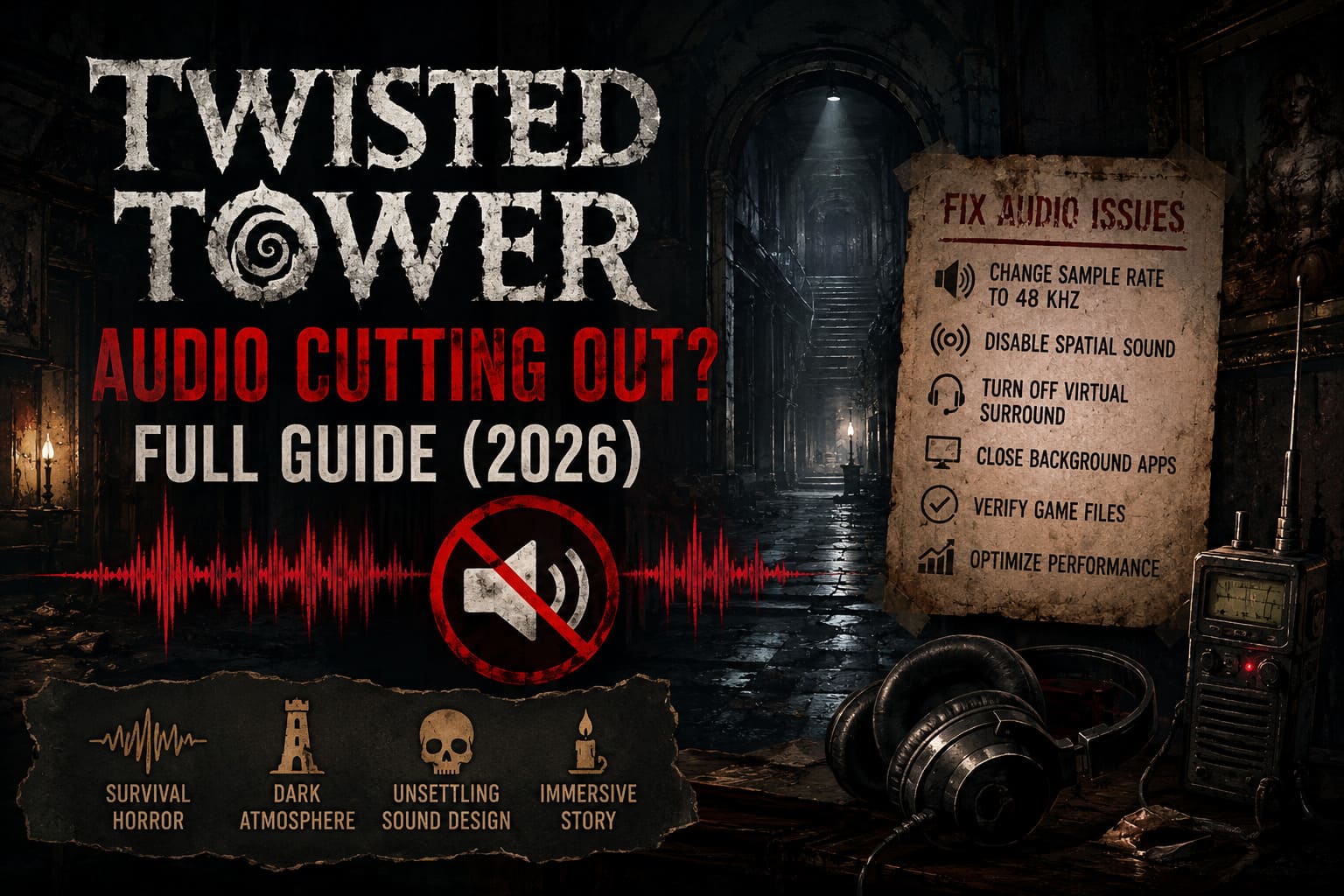
The biggest suspects are usually:
- Audio trigger bugs caused by gameplay actions
- Windows sample rate mismatches
- Spatial audio and virtual surround conflicts
- Exclusive control from another application
- Heavy CPU or shader-related performance drops
- Corrupted or incomplete game files
That means there isn’t always one magical button that instantly fixes everything. Still, working through the solutions below in order gives you the best chance of finding the actual culprit.
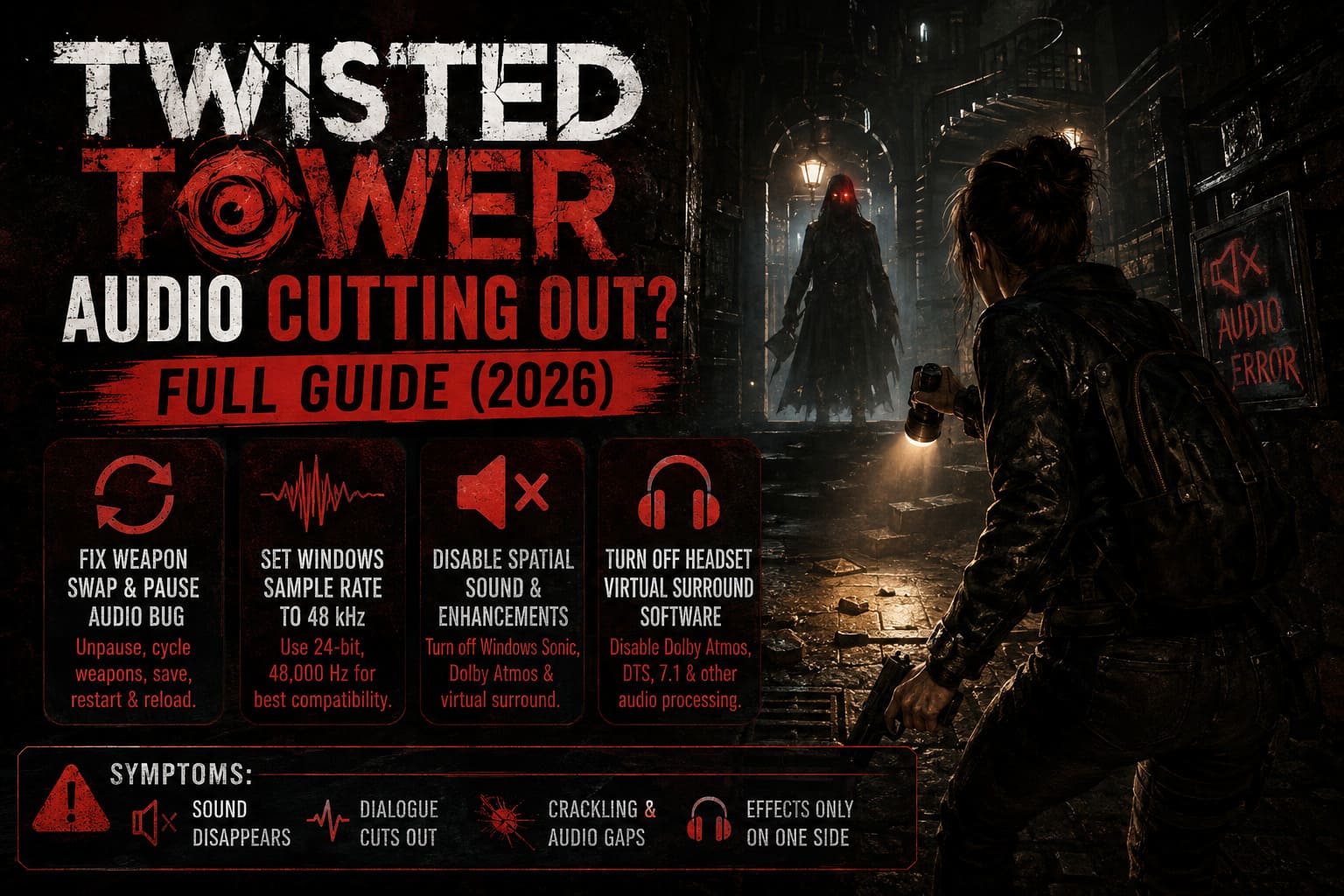
Fix 1: Avoid the Weapon Swap and Pause Menu Audio Bug
One of the strangest situations reported by players involves the combination of pausing the game and switching weapons.
If audio disappears shortly after rapidly changing weapons, opening menus, or jumping in and out of the pause screen, the game may have failed to restore certain active sound sources correctly.
When this happens, don’t immediately assume your Windows sound device is broken.
Try this:
- Fully unpause the game.
- Return to normal gameplay.
- Cycle through your available weapons slowly.
- Open and close your inventory normally.
- Reach a checkpoint and save your progress.
- Exit Twisted Tower completely.
- Relaunch the game and load your save again.
It’s also worth avoiding rapid weapon swapping while the pause menu is opening or closing.
Yes, this sounds weird. But gaming bugs are weird. Anyone who has spent hundreds of hours troubleshooting PC games knows that sometimes a ridiculous interaction between two completely unrelated actions can break an entire system.
If the audio only starts dying after certain gameplay actions, this should be one of the first things you test.
Fix 2: Change Your Windows Audio Sample Rate to 48 kHz
This is probably the most important Windows-side fix to try.
High-end headsets and audio interfaces often support extremely high sample rates such as 96 kHz or even 192 kHz. That sounds great on paper, but games don’t always behave perfectly when Windows, drivers, and the game’s own audio engine are operating with different expectations.
For Twisted Tower, switching to a standard 48,000 Hz sample rate is worth testing.
How to Change the Sample Rate
- Press Windows + R.
- Type mmsys.cpl.
- Press Enter.
- Open the Playback tab.
- Find the device currently marked as your default output.
- Right-click it and select Properties.
- Open the Advanced tab.
- Under Default Format, select one of these options:
| Recommended Setting | Best For |
|---|---|
| 24-bit, 48,000 Hz | Most gaming headsets and modern audio devices |
| 16-bit, 48,000 Hz | Older devices or compatibility testing |
| 24-bit, 44,100 Hz | Secondary troubleshooting option |
Start with 24-bit, 48,000 Hz.
Click Apply, then OK, restart your PC, and launch the game again.
If you were previously running your headset at an ultra-high sample rate, this change can make a surprisingly big difference.
Fix 3: Disable Windows Sonic, Dolby Atmos, and Virtual Surround
Virtual surround sound is great when it works.
When it doesn’t, it can turn into an absolute headache.
Features such as Windows Sonic, Dolby Atmos, DTS Headphone:X, and manufacturer-specific 7.1 virtualization can interfere with games that already manage positional audio internally.
The result can include:
- Sound disappearing when you turn the camera
- Dialogue cutting out
- Effects playing only on one side
- Random audio gaps in enclosed rooms
- Crackling during heavy action
Turn Off Windows Spatial Sound
Open your Windows sound settings and locate your active playback device.
Then:
- Open More Sound Settings.
- Right-click your headset or speakers.
- Select Properties.
- Open the Spatial Sound tab.
- Set Spatial Sound to Off.
If you have additional surround or enhancement options enabled, disable them temporarily for testing.
Fix 4: Disable Virtual Surround in Your Headset Software
Windows isn’t the only thing that can mess with your audio.
Headset software can add its own processing layer on top of the game’s audio engine.
If you’re using software from Logitech, Razer, SteelSeries, Corsair, Turtle Beach, or another gaming headset manufacturer, check whether features such as these are enabled:
- Dolby Atmos
- DTS Headphone:X
- 7.1 Virtual Surround
- AI Noise Processing
- Environmental Audio Effects
- Custom Spatial Profiles
For troubleshooting, switch everything back to a simple stereo configuration.
You can always turn the fancy stuff back on later. The goal here is to figure out whether the additional processing layer is causing Twisted Tower’s audio to collapse.
Personally, I would test the game in plain stereo before spending an hour tweaking EQ curves and surround profiles. Keep the setup boring first. Once the game is stable, start experimenting again.
Fix 5: Stop Other Applications From Taking Exclusive Control of Your Audio Device
Background applications can sometimes grab exclusive control of your sound hardware.
Discord, OBS, browser tabs, virtual audio software, recording tools, and other programs can all add another possible point of failure.
To rule this out:
- Press Windows + R.
- Type mmsys.cpl.
- Open your active playback device.
- Select Properties.
- Go to the Advanced tab.
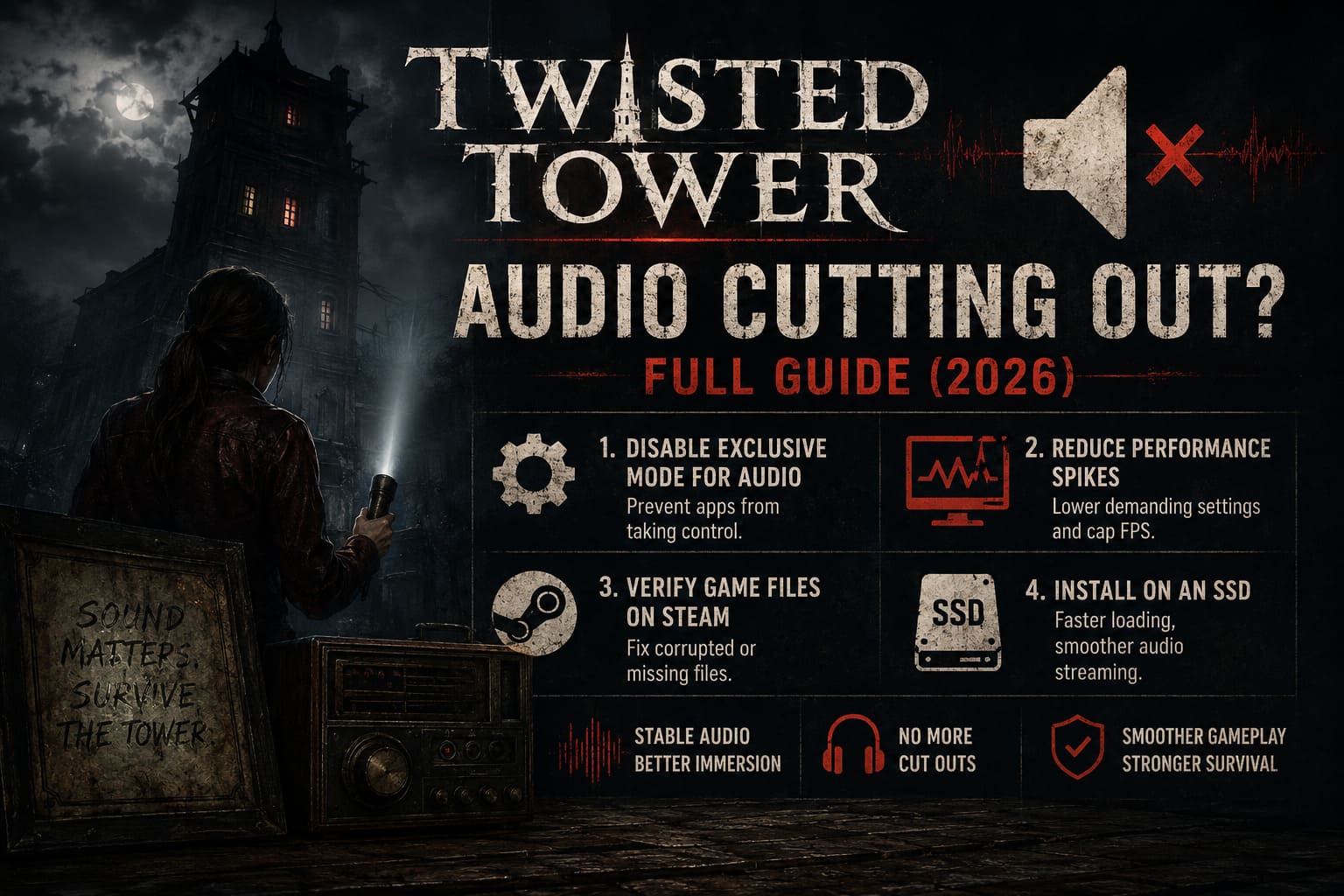
- Find the Exclusive Mode section.
- Disable both exclusive mode options.
- Click Apply.
You should also test Twisted Tower with unnecessary background programs closed.
I would specifically shut down anything related to:
- Voice chat
- Streaming
- Audio routing
- Recording
- Virtual mixers
- Browser-based media
You don’t necessarily need to uninstall anything. Just remove as many variables as possible while testing.
Fix 6: Reduce Performance Spikes and Shader-Related Stuttering
Sometimes the audio problem isn’t really an audio problem.
That’s the nasty part.
If your CPU is getting slammed during shader compilation, large environmental transitions, AI-heavy encounters, or sudden graphical effects, the game’s audio processing can start stuttering alongside the frame rate.
If you notice the sound cutting out at the same time your FPS drops, try lowering a few demanding graphics options.
The settings I’d test first are:
| Graphics Setting | Recommended Troubleshooting Value |
|---|---|
| Overall Preset | High or Medium |
| Volumetric Lighting | Medium or Low |
| Dynamic Shadows | Medium |
| Ambient Occlusion | Medium or Low |
| Frame Rate Limit | Match your display refresh rate |
| Unlimited FPS | Disable for testing |
Don’t underestimate the FPS cap.
Running a game at unlimited frame rates can sometimes push CPU or GPU usage unnecessarily high. If your system is constantly fighting to render every possible frame, background systems can have less breathing room.
Try capping the game at 60 FPS, 120 FPS, or your monitor’s normal refresh target and see whether the audio becomes more stable.
If the crackling happens during major frame drops, you’ve probably found an important clue.
Fix 7: Verify the Twisted Tower Game Files Through Steam
If the audio always cuts out in the same room, during the same dialogue scene, or when entering the same hallway, corrupted or incomplete files become much more likely.
Fortunately, Steam makes this part easy.
Open the game properties for Twisted Tower and verify the installation files:
- Open your Steam Library.
- Right-click Twisted Tower.
- Select Properties.
- Open Installed Files.
- Choose Verify integrity of game files.
- Wait for the scan to finish.
- Restart Steam if files are replaced.
Steam will compare your local installation against the expected game data and redownload anything that appears damaged or missing.
If a particular sound effect or dialogue line is permanently broken, this is one of the first fixes I would try.
Fix 8: Move the Game to an SSD if Audio Loads Slowly
This isn’t always the direct cause of the bug, but storage speed can still matter.
Games constantly stream textures, effects, music, dialogue, and environmental audio while you move through larger areas.
If Twisted Tower is installed on an old mechanical HDD and you notice audio stuttering during major area transitions, installing it on an SSD is worth considering.
This is especially relevant if:
- The game freezes briefly when entering new rooms
- Audio starts late after loading
- Dialogue begins after the character animation
- Ambient effects pop in seconds after you enter an area
An SSD won’t magically fix every software bug, but it can remove storage bottlenecks from the equation.
The Sinking City 2 Demo Walkthrough Guide and Save File Carry Over Explained
Quick Twisted Tower Audio Fix Checklist
If you just want the short version before jumping back into the game, this is the order I recommend:
- Don’t rapidly swap weapons while pausing or opening menus.
- Set your Windows audio format to 48,000 Hz.
- Disable Windows Sonic and Spatial Sound.
- Turn off Dolby, DTS, and virtual 7.1 in headset software.
- Disable Exclusive Mode for your playback device.
- Close Discord, OBS, virtual mixers, and other audio-heavy apps.
- Cap your FPS instead of using Unlimited.
- Verify the Twisted Tower game files.
- Test the game from an SSD if you’re experiencing loading-related audio delays.
Twisted Tower Playtest Feedback & Changes: Bioshock Meets Disney Horror Evolution
Final Thoughts: Don’t Immediately Blame Your Headset
When Twisted Tower audio starts cutting out, it’s easy to assume your headphones are failing or that your drivers are broken.
I wouldn’t jump to that conclusion.
If other games, music, and videos sound completely normal, there’s a good chance the problem is related to the interaction between Twisted Tower, Windows audio settings, spatial processing, background applications, or performance spikes.
My personal troubleshooting order would be simple: restart the game, set the sample rate to 48 kHz, disable all spatial audio, turn off Exclusive Mode, close background audio software, and verify the Steam files.
That’s the fastest path to eliminating the usual suspects without randomly changing twenty Windows settings and making things even worse.
If the audio only breaks after a specific action or inside a specific location, pay attention to exactly what happened before the sound disappeared. That little detail can be more useful than endlessly reinstalling drivers.
Twisted Tower is at its best when the sound design is doing its job—building tension, selling every strange room, and making you wonder whether that noise behind you was actually part of the game.
When the audio cuts out, that atmosphere goes straight into the trash.
Hopefully, one of these fixes gets your sound back where it belongs before your next trip through the tower.