Where Winds Meet Best Graphics Settings: Ultimate FPS Boost & Optimization Guide (2026)
When I first launched Where Winds Meet, I honestly wasn’t thinking about frame rates. I wanted to get lost in its incredible Wuxia world. Ancient cities, misty mountains, bamboo forests, and some of the smoothest martial arts animations I’ve seen in years—it immediately became one of those games that makes you stop just to admire the scenery.
Then I reached one of the larger cities.
My FPS dropped harder than I expected, camera movement became inconsistent, and every crowded marketplace reminded me that even beautiful games can have rough technical edges. Instead of simply lowering every setting to “Low,” I spent several evenings experimenting with different configurations, comparing hardware behavior, reading discussions from experienced PC players, and testing dozens of combinations myself.
After many hours of tweaking, I finally found a setup that keeps the game looking fantastic while delivering much smoother performance. If you’re trying to enjoy Where Winds Meet instead of constantly watching your FPS counter, these are the settings I’d recommend.
Why This Game Is So Demanding
Unlike many modern open-world RPGs, Where Winds Meet constantly streams huge amounts of world data while you’re moving across the map.
The countryside is fairly easy on most modern GPUs, but once you enter large cities filled with NPCs, shops, dynamic lighting, and multiplayer players, the workload shifts dramatically toward your processor.
That’s why many players report situations like:
- High average FPS but terrible stuttering
- Smooth exploration that suddenly turns into slideshow moments in cities
- Excellent GPU usage but an overloaded CPU
- Random hitching despite powerful graphics cards
This isn’t always a graphics card problem. In many situations, the processor and storage drive are doing much more work than people realize.
My First Rule: Never Trust the Highest Preset
One thing I quickly noticed is that simply selecting Ultra isn’t the smartest approach.
Sure, screenshots look gorgeous.
Actual gameplay? That’s another story.
I’ve found much better results by starting with a lower overall preset and then increasing only the settings that actually make a visible difference.
Some options destroy performance while barely improving image quality. Others barely cost anything yet noticeably improve the visuals.
Finding that balance is where the real optimization happens.
Display Settings I Recommend
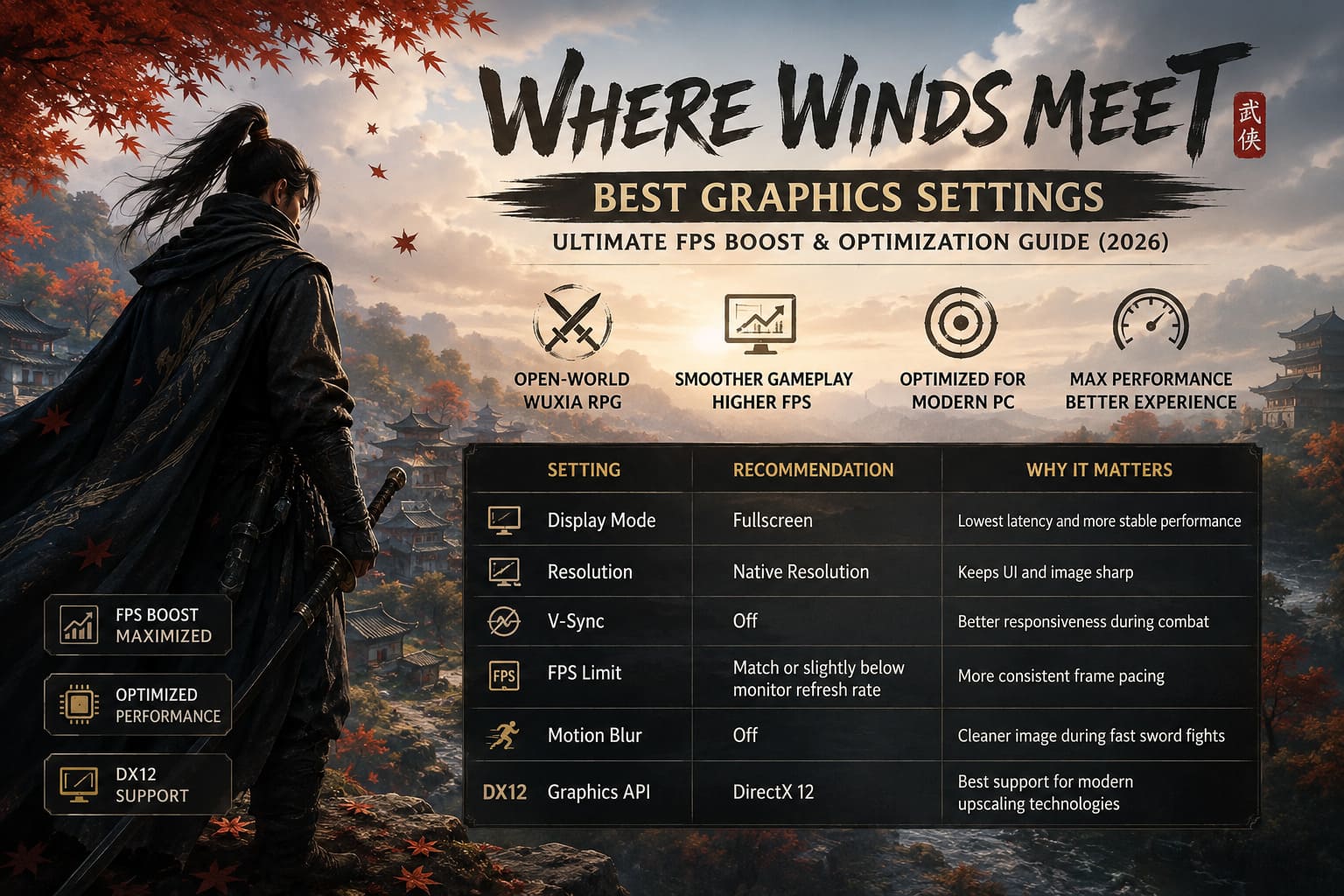
Before touching the advanced graphics menu, I always change a few basic options.
| Setting | Recommendation | Why |
|---|---|---|
| Display Mode | Fullscreen | Lowest latency and more stable performance |
| Resolution | Native Resolution | Keeps UI and image sharp |
| V-Sync | Off | Better responsiveness during combat |
| FPS Limit | Match or slightly below monitor refresh rate | More consistent frame pacing |
| Motion Blur | Off | Cleaner image during fast sword fights |
| Graphics API | DirectX 12 | Best support for modern upscaling technologies |
These changes alone won’t magically add 40 FPS, but they create a much smoother foundation before adjusting the heavier settings.
The Graphics Settings That Matter Most
After testing countless combinations, these are the options that gave me the biggest improvements without making the game look noticeably worse.
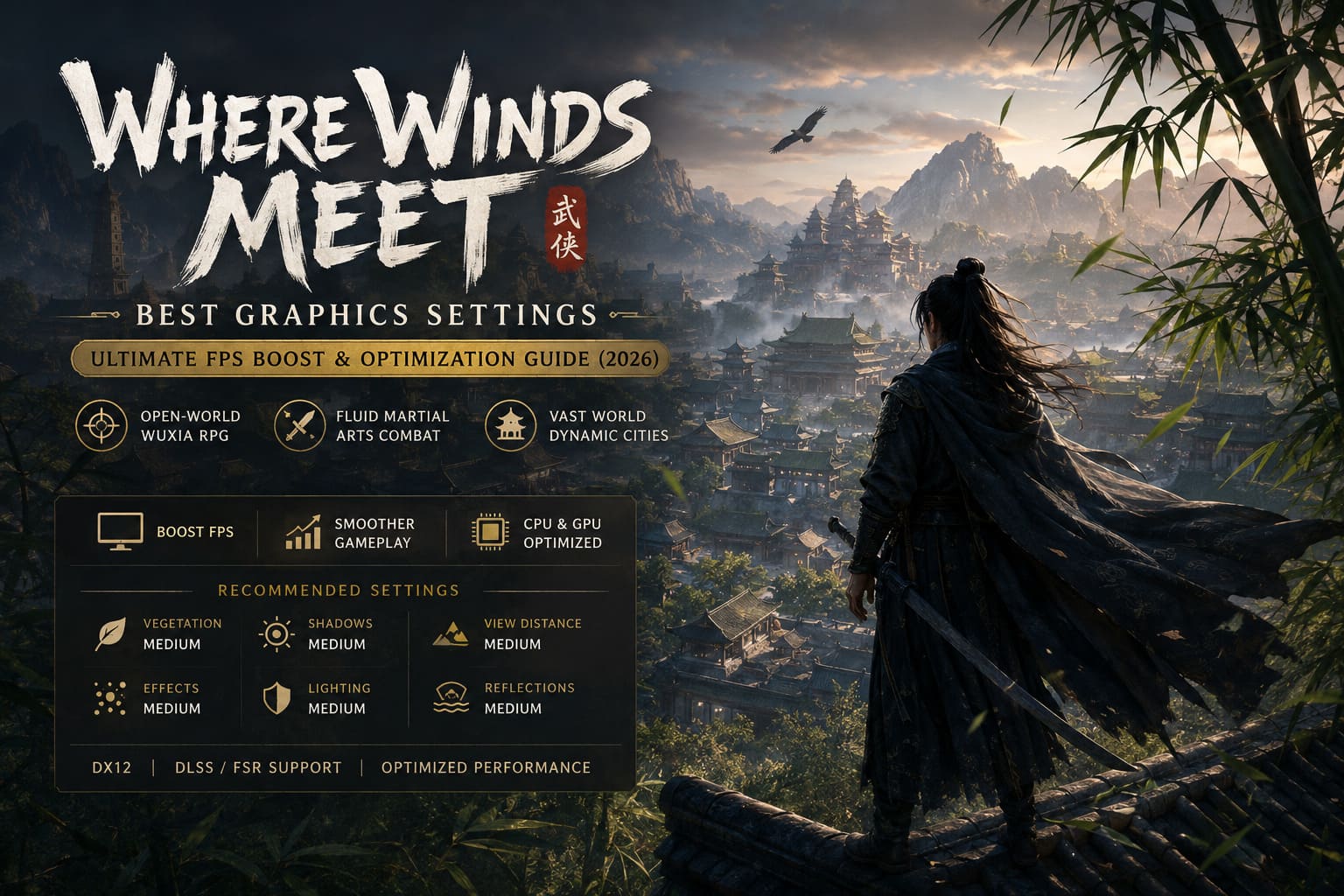
Vegetation Quality — Medium
If I had to point at a single graphics option responsible for huge FPS losses, this would probably be it.
Ultra vegetation looks impressive if you’re standing still taking screenshots.
While actually playing?
I barely notice the difference.
Medium keeps forests looking dense while recovering a surprising amount of GPU performance.
View Distance — Medium
This setting mainly affects CPU load.
Increasing it sounds tempting because distant buildings appear earlier, but in crowded cities it can absolutely punish your processor.
Medium feels like the sweet spot.
If you’re running one of AMD’s newest X3D processors or another high-end CPU, High is perfectly reasonable.
Otherwise, Medium is where I’d stay.
Shadows — Medium
Ultra shadows are expensive.
Really expensive.
Medium still produces natural-looking environments without sacrificing double-digit percentages of your frame rate.
I honestly couldn’t justify running anything higher during normal gameplay.
Lighting — Medium
Lighting is another option where diminishing returns appear quickly.
High looks slightly richer.
Ultra looks almost identical while demanding considerably more GPU power.
Medium keeps the atmosphere intact while allowing your graphics card to breathe.
Effects Quality — Medium
Combat in Where Winds Meet can become incredibly chaotic.
Sword trails.
Explosions.
Dust.
Magic effects.
Particle-heavy ultimate attacks.
Running Effects on High made my frame times noticeably less stable during large battles.
Medium maintained nearly the same visual spectacle while feeling much smoother.
Ambient Occlusion — Medium
This setting mainly affects contact shadows around rocks, walls, and buildings.
Medium provides enough depth to keep environments realistic.
Anything above that becomes increasingly difficult to notice unless you’re actively searching for differences.
Reflections — Medium
Water reflections certainly help sell the atmosphere.
However, Ultra reflections quickly become expensive.
Medium keeps lakes and rivers looking convincing without turning every puddle into a GPU stress test.
My Recommended Overall Configuration
Here’s the setup I currently use.
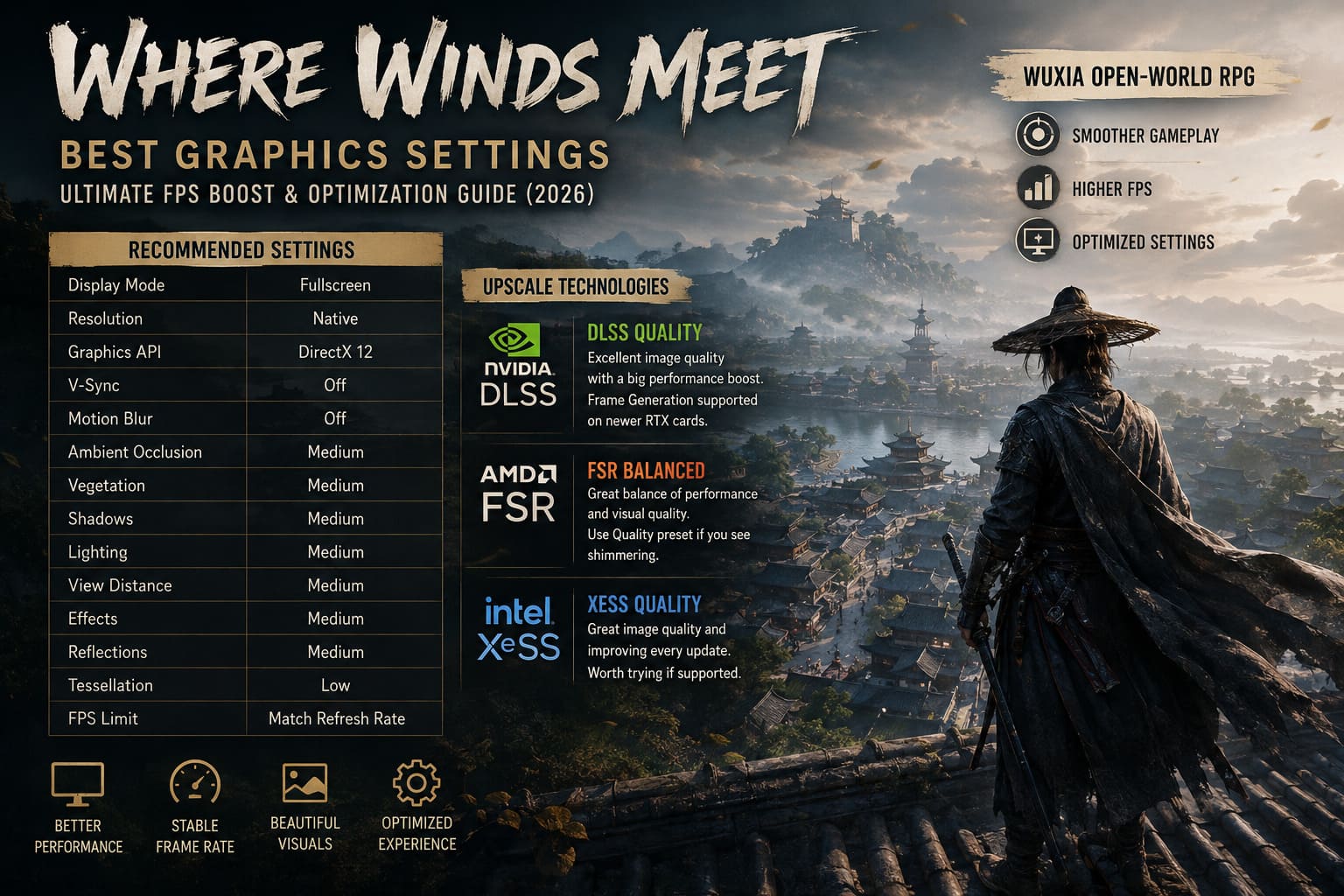
| Graphics Option | Recommended Setting |
|---|---|
| Display Mode | Fullscreen |
| Resolution | Native |
| Graphics API | DirectX 12 |
| V-Sync | Off |
| Motion Blur | Off |
| Ambient Occlusion | Medium |
| Vegetation | Medium |
| Shadows | Medium |
| Lighting | Medium |
| View Distance | Medium |
| Effects | Medium |
| Reflections | Medium |
| Tessellation | Low |
| FPS Limit | Match Refresh Rate |
DLSS, FSR, and XeSS
Modern upscaling technologies have become surprisingly good.
Instead of lowering your resolution, I’d almost always recommend using one of them.
NVIDIA
DLSS Quality is my first choice.
If you’re playing at 1440p or 4K, image quality remains excellent while performance receives a significant boost.
Owners of newer RTX cards can also enable Frame Generation for an even smoother experience.
AMD
FSR has improved considerably over the last few years.
Balanced usually provides an excellent compromise if your GPU is struggling.
If you notice shimmering around trees or thin vegetation, switching back to the Quality preset often improves image stability.
Intel
XeSS continues getting better with each update.
Quality mode surprised me during testing, especially compared to older spatial upscaling methods.
If your hardware supports it, it’s definitely worth trying.
Where Winds Meet Crossplay Guide: How to Play Across PC, PS5, Xbox, and Mobile (2026)
Small Windows Tweaks That Actually Help
I’m usually skeptical about miracle optimization tricks.
Most “FPS boost” videos promise ridiculous gains that simply don’t exist.
That said, there are a few system tweaks that consistently helped me.
- Enable Hardware-Accelerated GPU Scheduling — Modern Windows versions handle VRAM management more efficiently with HAGS enabled.
- Use High Performance Power Mode — This prevents unnecessary CPU downclocking during heavy world streaming.
- Clear Shader Cache After Large Updates — Whenever the developers release major patches, rebuilding the shader cache can eliminate random stutters that weren’t present before. It’s one of those maintenance tasks many people forget.
- Install the Game on an NVMe SSD — This may actually be more important than another graphics setting. Fast storage dramatically reduces streaming delays while exploring large regions. If you’re still running the game from an older hard drive, upgrading your storage can provide a noticeably smoother experience.
Is Where Winds Meet Free to Play on Xbox? Cost, Platforms, and Gameplay Guide
Final Thoughts
As someone who genuinely enjoys exploring visually rich RPGs, I don’t like sacrificing graphics unless there’s a real benefit.
Where Winds Meet deserves to be experienced with its incredible art direction intact. The landscapes, architecture, weather effects, and combat animations are some of the biggest reasons to play it in the first place.
Thankfully, you don’t need the absolute highest settings to appreciate all of that.
By focusing on the handful of options that actually matter—especially vegetation, shadows, view distance, lighting, and effects—you can recover a substantial amount of performance while keeping the game looking remarkably close to its maximum settings.
For me, that’s always the goal.
I’d rather enjoy a stable, responsive adventure with smooth sword fights than chase screenshots at Ultra while enduring constant stutters. After dozens of hours exploring this beautiful world, this configuration has become my personal default, and I don’t see myself changing it anytime soon.