How to Fix NBA 2K26 Corrupted Save Files and Cloud Sync Errors on PS5, Xbox, and PC
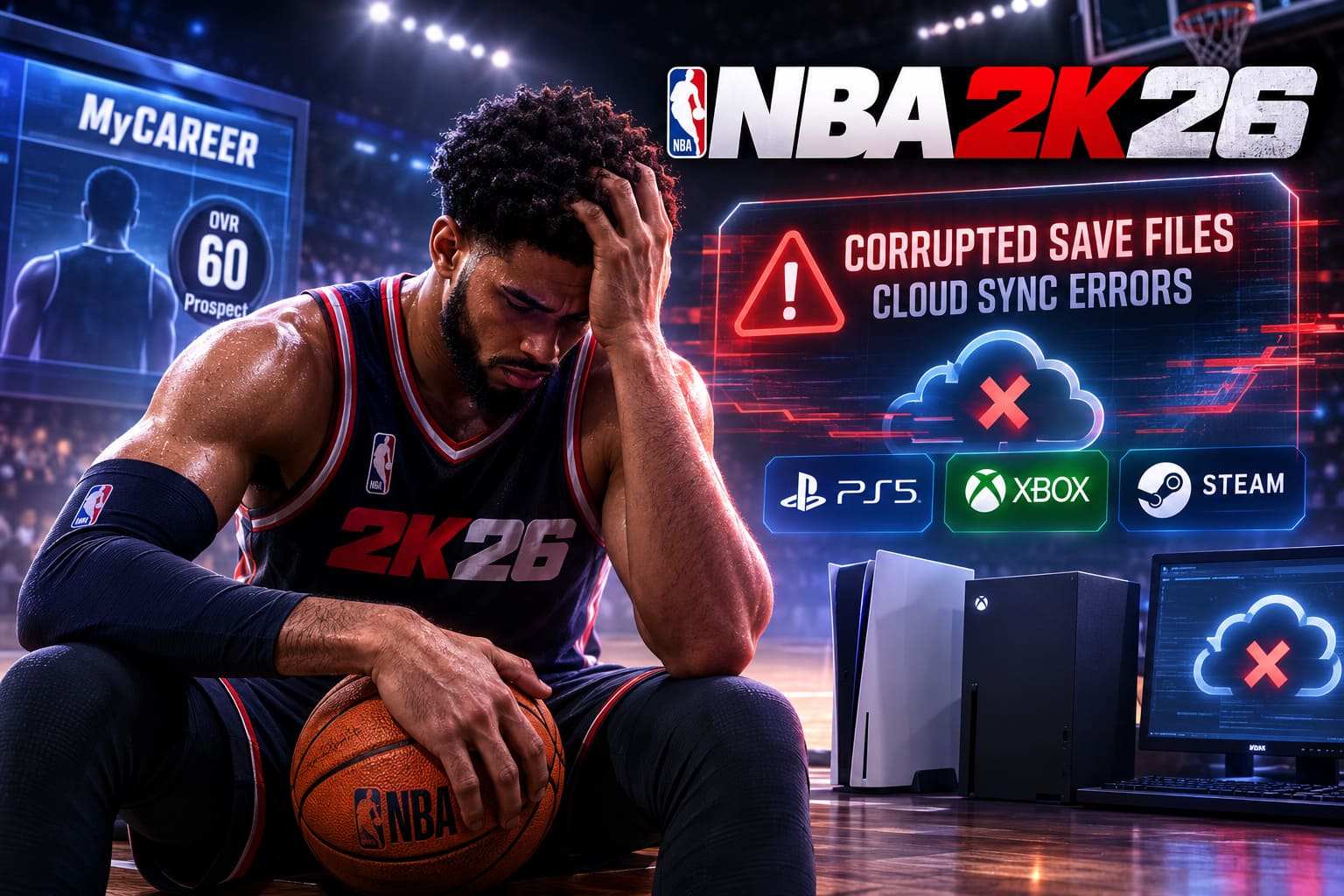
There are few things in gaming that hurt more than spending dozens of hours building the perfect MyCAREER player, only to launch the game one day and discover everything is gone. I’ve played NBA 2K for years, and every new release somehow manages to surprise us with fresh bugs alongside the fresh content. NBA 2K26 has been one of the most enjoyable basketball games in the series for me so far, but I can’t ignore one issue that keeps appearing across PlayStation, Xbox, and PC—corrupted saves and cloud synchronization errors.
When I first saw the infamous corrupted save warning, my immediate reaction was the same as everyone else’s: panic. A maxed-out build, badges, animations, VC investments—it feels like months of progress disappear in seconds. Thankfully, after testing different recovery methods myself and reading through countless discussions from the community, I realized that most saves aren’t actually lost forever.
In this guide I’ll walk you through the methods that have consistently worked for players. These are the solutions I would personally try before ever thinking about creating a brand-new character.
Why NBA 2K26 Save Files Become Corrupted
One thing many players misunderstand is that NBA 2K26 doesn’t rely on a single save file.
Your progress is connected through several systems at once:
- Local storage on your console or PC
- Cloud backup services
- Your online 2K profile
- Platform account synchronization
Whenever one of those components becomes out of sync, problems begin.
Common causes include:
- Unexpected game crashes
- Power outages
- Closing the game during autosave
- Interrupted cloud synchronization
- Steam Cloud conflicts
- Console firmware updates
- Network interruptions while loading MyCAREER
In many situations, your actual player still exists on the servers. The game simply fails to connect the correct save information.
That’s why deleting everything immediately is usually the worst decision you can make.
First Thing I Always Try
Before touching any save files, I perform a complete restart.
This sounds almost too simple, but I’ve seen it fix multiple “Prospect” save bugs.

Here’s my routine:
- Fully close NBA 2K26.
- Make sure it isn’t sitting in Quick Resume.
- Restart the entire system.
- Verify you’re connected to the internet.
- Launch the game again.
Sometimes the game reconnects with the online profile correctly and your player magically returns.
If you see a generic 60 OVR Prospect file, don’t overwrite it immediately. Give the servers another chance to sync first.
PlayStation 5 Recovery Guide
PlayStation users have one major advantage: manual cloud downloads.
If your local save becomes corrupted but your cloud backup remains healthy, recovery is often straightforward.
Navigate to:
Settings → Saved Data and Game/App Settings → Saved Data (PS5) → Cloud Storage → Download to Console Storage
Before downloading anything, compare the backup date.
If the cloud version was created before the corruption occurred, download it and allow it to replace the damaged local files.
One thing I personally recommend is temporarily disabling automatic synchronization afterward.
This prevents a damaged local save from instantly overwriting your healthy cloud backup during the next launch.
Xbox Series X|S Recovery
Xbox handles cloud saves differently.
Instead of manually downloading files, the console automatically restores them when local data disappears.
The important part is deleting only the local copy.
Inside Manage Game & Add-ons, locate your saved data and choose:
Delete from Console
Never select:
Delete Everywhere
That option removes your save from Microsoft’s cloud servers as well.
After restarting the console, launch NBA 2K26 while connected to the internet.
You’ll usually see the synchronization window appear automatically.
Let it finish completely before pressing any buttons.
Interrupting synchronization can restart the entire problem.
PC Players Have a Different Problem
As someone who plays plenty of sports games on Steam, I can confidently say PC users deal with a unique headache.
Steam Cloud metadata occasionally becomes confused.
The game believes your empty local save is newer than your actual cloud backup.
That leads to one of NBA 2K26’s strangest bugs:
You keep replaying the MyCAREER introduction forever.
The fix is surprisingly simple.
- Close Steam completely.
- Navigate to your Steam userdata directory.
- Inside the folder for NBA 2K26 locate remotecache.vdf.
- Delete the file.
- Launch Steam again and make sure Steam Cloud is enabled.
- When prompted, download the cloud version instead of uploading your local files.
Deleting the cache file forces Steam to rebuild its synchronization database and often restores the correct cloud save.
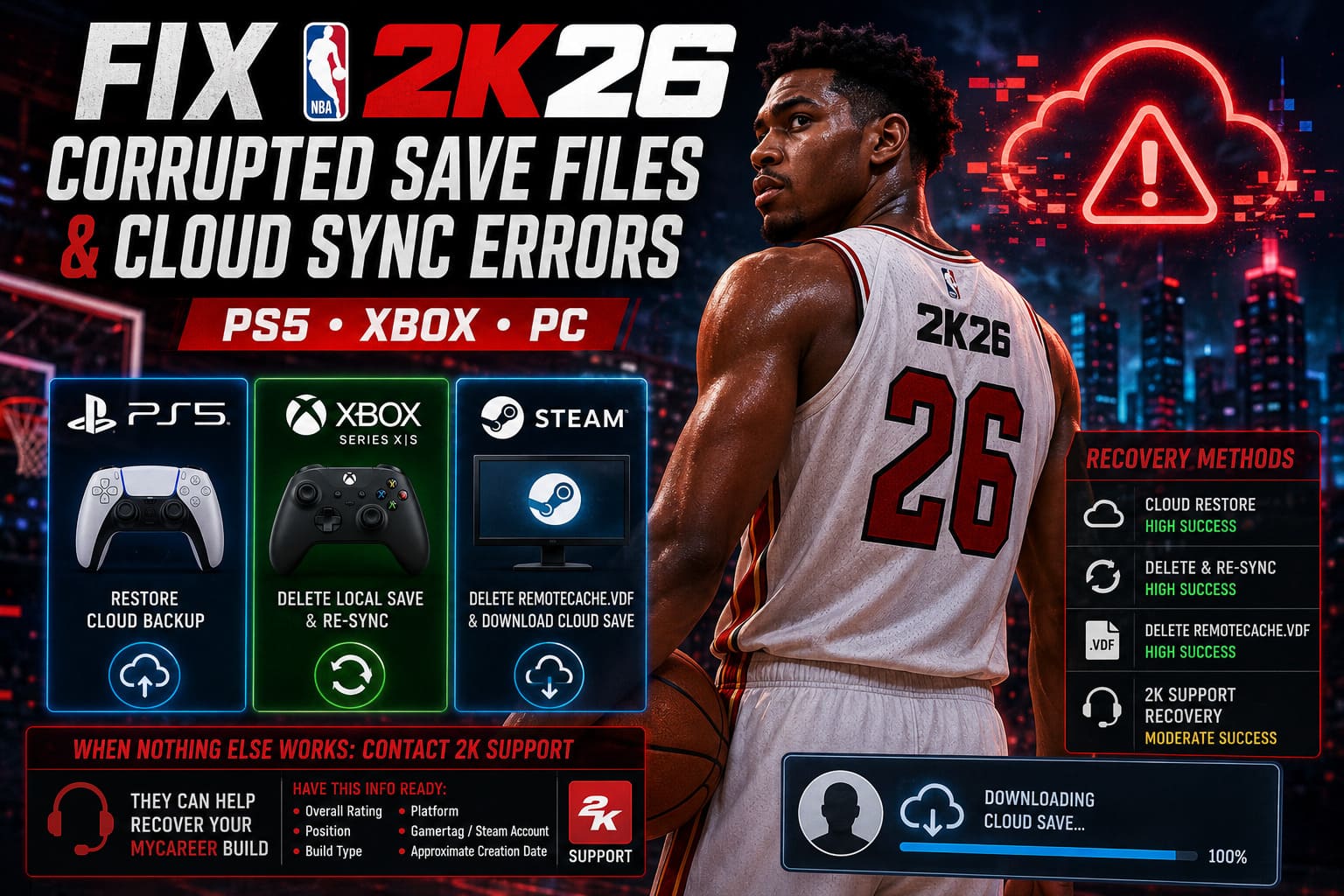
Recovery Methods Comparison
| Platform | Best Recovery Method | Difficulty | Success Rate |
|---|---|---|---|
| PS5 | Restore Cloud Backup | Easy | High |
| Xbox Series X/S | Delete Local Save & Re-sync | Easy | High |
| Steam PC | Remove remotecache.vdf | Medium | High |
| All Platforms | 2K Support Recovery | Medium | Moderate |
When Nothing Else Works
Sometimes corruption isn’t local.
Sometimes the damaged information exists inside your online profile.
That’s where 2K Support becomes your final option.
Many players don’t realize support agents can sometimes recreate MyCAREER builds.
If your account still contains enough server-side information, support may ask you to:
- Create a new placeholder character.
- Leave that save untouched.
- Provide your account information.
- Wait while your original profile is cloned.
It isn’t guaranteed.
However, I’ve seen numerous successful recoveries over the years, especially when the player could provide detailed information about the missing build.
Helpful information includes:
- Overall Rating
- Position
- Build Type
- Platform
- Gamertag or Steam Account
- Approximate Creation Date
The more details you provide, the easier it becomes for support to locate your lost profile.
How I Protect My Saves
After experiencing save corruption myself years ago, I completely changed how I manage sports games.
Now I follow a few simple habits.
- Always quit the game properly. Closing the application while autosaving is asking for trouble.
- Don’t shut down your system immediately. Give NBA 2K26 enough time to complete cloud synchronization.
- PC players should keep manual backups. Copying the Saves folder after every major session takes less than a minute and can save hundreds of hours.
- Use multiple save slots. Offline modes like MyNBA are much safer when you rotate between several manual saves.
How to Fix NBA 2K26 Out of Video Memory Error on PC (Proven Fixes)
Mistakes That Can Make Things Worse
The community often makes the same mistakes after corruption appears.
Try to avoid these common errors:
- Starting a new MyCAREER over the damaged slot.
- Accepting overwrite prompts immediately.
- Interrupting cloud synchronization.
- Selecting the wrong Steam Cloud version.
- Using “Delete Everywhere” on Xbox.
- Reinstalling Windows before backing up your saves.
Patience often saves far more progress than rushing through recovery menus.
NBA 2K26 Low FPS and Stuttering Engine Fix: PC Performance Guide
Final Thoughts
Despite the occasional frustration, I’m genuinely enjoying NBA 2K26. The gameplay feels smoother, player movement is more responsive, and creating a MyPLAYER has once again become one of the most addictive parts of the experience. That’s exactly why save corruption feels so devastating when it happens.
The good news is that a corrupted save doesn’t automatically mean your progress is gone forever. In many situations, your player data still exists somewhere—whether that’s inside your platform’s cloud storage or on 2K’s online servers. The challenge is simply reconnecting the game with the correct version of your save.
If there’s one lesson I’ve learned after years of playing the NBA 2K series, it’s this: never panic and never overwrite your files immediately. Spend a few minutes checking your cloud backups, let synchronization finish properly, and work through the recovery options before making any irreversible decisions.
With a little patience and the right recovery method, there’s an excellent chance you’ll be back on the court with your original MyCAREER player instead of spending another hundred hours rebuilding everything from scratch.