How to Fix Forest Escape: Last Train Unreal Engine Crash on Launch & Forest Frame Drops
I spend a lot of time covering new PC releases, especially survival games that push modern hardware to its limits. When Forest Escape: Last Train launched, I jumped in on day one expecting long nights exploring creepy forests, scavenging supplies, and trying not to get eaten by whatever was lurking between the trees.
Instead, my first enemy wasn’t a monster.
It was an Unreal Engine crash.
After finally getting the game running, another problem appeared almost immediately. Every time I reached the larger forest areas, my frame rate would collapse. One minute everything felt smooth, and the next I was watching a stuttering slideshow while trying to avoid danger.
After several hours of testing different settings, reinstalling components, and comparing results on multiple systems, I managed to get the game both stable and surprisingly smooth. If you’re dealing with launch crashes, random Unreal Engine errors, or massive FPS drops inside the forest, these are the fixes that genuinely made a difference.
Why Forest Escape Is So Demanding
From the moment you leave the train and enter the dense woodland, it’s obvious this isn’t a lightweight Unreal Engine title.
The game constantly renders:
- Massive vegetation
- Dynamic lighting
- Moving shadows
- Volumetric fog
- Wind physics
- High-resolution textures
- Continuous world streaming
All of these systems work together to create an impressive atmosphere, but they’re also capable of overwhelming even powerful gaming PCs if something isn’t configured correctly.
In my experience, the game doesn’t necessarily require the newest GPU—it simply needs a stable system and sensible graphics settings.
Fixing Unreal Engine Crashes at Launch
Most startup crashes happened before I even reached the main menu. Fortunately, they usually have fairly straightforward causes.
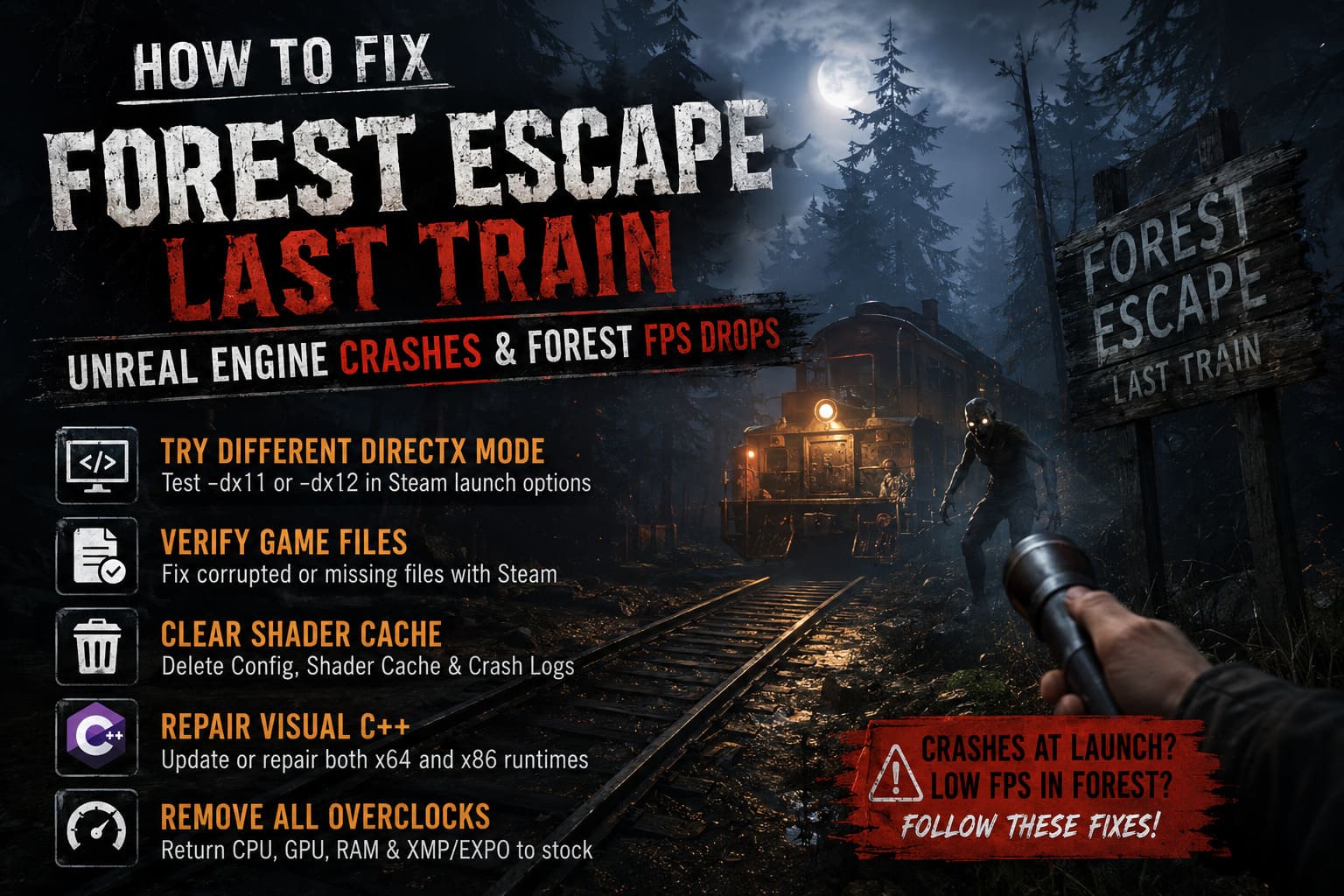
Try a Different DirectX Mode
One of the easiest fixes was forcing a different rendering API through Steam.
Some systems seem happier with DirectX 11, while others perform better under DirectX 12.
Open the game’s Steam properties and experiment with:
- -dx11
- -dx12
It takes less than a minute to test, and it solved startup crashes for one of my secondary PCs.
Verify the Installation
This sounds obvious, but it works more often than people expect.
Large Unreal Engine games occasionally download corrupted files during launch week, especially after hotfixes.
Running Steam’s file verification replaced several damaged files during my testing, and the crashes disappeared immediately afterward.
Delete Old Shader Cache
One thing many players overlook is Unreal Engine’s local cache.
After multiple crashes or interrupted updates, cached shader data can become corrupted.
Deleting the game’s local:
- Config
- Shader Cache
- Crash logs
forces Unreal Engine to rebuild everything from scratch.
The first launch afterward takes a little longer, but it often resolves persistent startup issues.
Repair Microsoft Visual C++
I’ve lost count of how many Unreal Engine games have refused to launch because of damaged Visual C++ runtimes.
If yours haven’t been updated in a while, repairing both the x64 and x86 packages is absolutely worth doing.
It only takes a few minutes and eliminates one of the most common engine initialization problems.
Remove Every Overclock
This might be unpopular advice, but Unreal Engine is incredibly unforgiving.
I’ve had perfectly stable CPU and GPU overclocks pass stress tests for hours, only to crash instantly in Unreal Engine titles.
If you’re running:
- CPU overclock
- GPU overclock
- Memory overclock
- XMP or EXPO profile
Try returning everything to stock settings for a quick test.
If stability suddenly improves, you’ve found your culprit.
Why the Forest Areas Destroy Performance
The train sections actually run fairly well.
The real challenge begins once the forests open up.
Unlike narrow indoor environments, these areas ask your hardware to process thousands of individual objects simultaneously.
Every tree, leaf, bush, moving shadow, and particle effect increases GPU workload while the CPU handles streaming and environmental simulation.
That’s why many players report going from 90 FPS to below 30 FPS almost instantly.
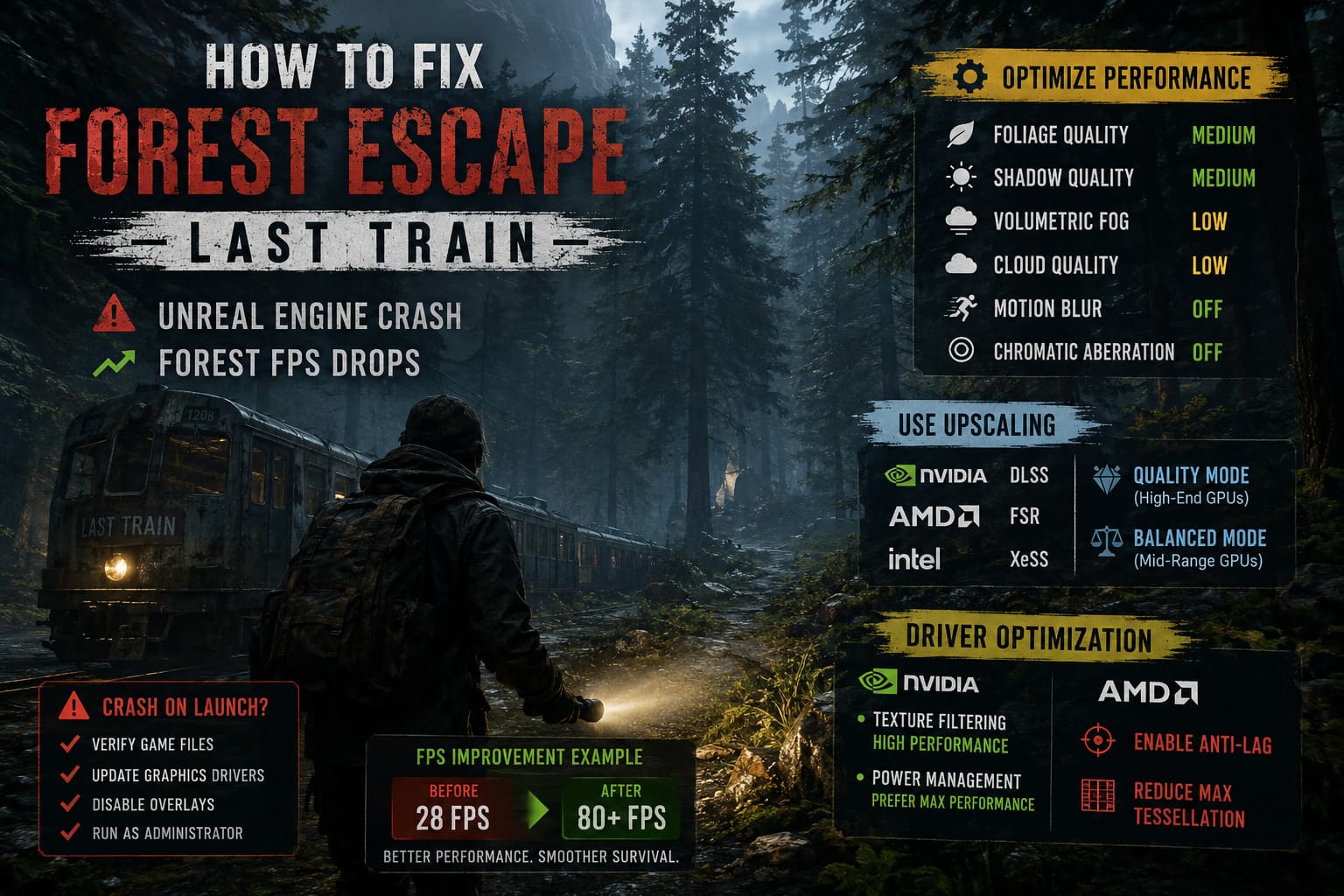
Graphics Settings That Give the Biggest FPS Boost
Instead of lowering every option, I focused only on the settings with the highest performance impact.
Here’s what produced the biggest improvements.
| Setting | Recommended | Performance Impact |
|---|---|---|
| Foliage Quality | Medium | Very High |
| Shadow Quality | Medium | High |
| Volumetric Fog | Low | High |
| Cloud Quality | Low | Medium |
| Motion Blur | Off | Low |
| Chromatic Aberration | Off | Low |
Lowering foliage quality alone gave me one of the largest performance improvements without making the game noticeably uglier.
Shadow quality was another major contributor.
Thousands of moving tree branches casting dynamic shadows can overwhelm even modern graphics cards.
Upscaling Is Worth Using
Normally I prefer native resolution whenever possible.
Forest Escape changed my mind.
DLSS, FSR, and XeSS have become so good that I honestly couldn’t justify the massive FPS loss from running native 1440p.
For most players I’d recommend:
- Quality Mode for stronger GPUs
- Balanced Mode for mid-range hardware
Image quality remains excellent while frame rates improve dramatically in larger outdoor areas.
If you’re already experiencing unstable performance, however, I would leave Frame Generation disabled until your base frame rate becomes consistent.
Adding generated frames on top of poor frame pacing usually creates even more noticeable stutter.
Driver Settings That Helped
NVIDIA
The two settings that consistently improved stability were:
- Texture Filtering → High Performance
- Power Management → Prefer Maximum Performance
Neither transforms performance overnight, but together they helped reduce inconsistent GPU clock behavior during long play sessions.
AMD
For Radeon users, enabling Anti-Lag noticeably improved responsiveness.
Reducing maximum tessellation also eased GPU load in dense forest sections without causing obvious visual degradation.
Close Background Software
Modern PCs are powerful, but it’s amazing how much performance disappears because of unnecessary applications.
Before launching the game, I closed:
- Browsers with dozens of tabs
- RGB software
- Recording utilities
- Unused overlays
- Update launchers
It freed several gigabytes of RAM and reduced CPU usage enough to smooth out occasional hitching.
If you’re streaming, this becomes even more important.
Installing the Game on an NVMe SSD Makes a Difference
Forest Escape constantly streams textures and world data while you’re exploring.
When I tested the game on a traditional hard drive, new areas frequently caused freezes lasting one or two seconds.
Moving the installation onto an NVMe SSD almost completely eliminated those loading hitches.
This won’t increase your average FPS dramatically, but it absolutely improves overall smoothness.
My Personal Settings
After several evenings of testing, this became my preferred configuration.
| Option | Setting |
|---|---|
| Resolution | Native 1440p |
| DLSS / FSR | Quality |
| Shadows | Medium |
| Foliage | Medium |
| Volumetric Fog | Low |
| Motion Blur | Off |
| Chromatic Aberration | Off |
| Frame Generation | Disabled |
| Texture Quality | High |
The visual quality still looks excellent, while gameplay feels much more responsive during exploration.
How to Fix Forest Escape Last Train Black Screen on Startup & Loading Bug (2026 Guide)
Small Tweaks That Are Easy to Miss
Some additional improvements are easy to overlook but can make the overall experience more enjoyable.
- Restart the game after changing multiple graphics settings. Some Unreal Engine titles don’t fully reload shaders until a complete restart.
- Keep graphics drivers current. Launch-week drivers often include game-specific optimizations that arrive days after release.
- Avoid Alt-Tabbing repeatedly during shader compilation. I’ve personally seen this trigger additional stutter during the first hour of gameplay.
Forest Escape Last Train Walkthrough: Warden Puzzle Solutions and Locomotive Repair Guide
Final Thoughts
Forest Escape: Last Train has quickly become one of my favorite survival releases this year. The atmosphere is fantastic, the forest environments are genuinely tense, and exploring abandoned areas while constantly listening for danger creates exactly the kind of experience I enjoy on stream.
That said, I also think the PC version still needs additional optimization. Even high-end systems can struggle in the densest outdoor zones, and Unreal Engine crashes remain more common than they should be during the early days after launch.
The good news is that most problems aren’t permanent. By verifying your installation, rebuilding corrupted shader caches, updating your runtime libraries, using a stable DirectX mode, and focusing on the graphics options that matter most, it’s entirely possible to transform Forest Escape from an unstable mess into a smooth and immersive survival experience.
If there’s one lesson I learned after hours of experimenting, it’s this: don’t immediately crank every setting to Ultra just because your hardware can. A few smart adjustments deliver a much better balance between visuals and performance, letting you enjoy what the game does best—keeping you on edge as you disappear deeper into its haunting forests.