Echoes of Aincrad VRAM Optimization Guide: How to Fix Low FPS, Stuttering, and Crash on PC
I spend a ridiculous amount of time testing new releases on stream, and one thing has become obvious over the last few years—beautiful games built on Unreal Engine 5 often arrive with incredible visuals and equally incredible hardware demands. Echoes of Aincrad is no exception.
The first time I jumped into Aincrad, I was genuinely impressed. The environments feel alive, lighting is gorgeous, and the atmosphere captures that classic Sword Art Online adventure better than I expected. Unfortunately, after the excitement of the opening hours, reality hit. My frame rate started bouncing all over the place, combat became inconsistent, and shader compilation caused more waiting than actual gameplay.
The good news is that the game isn’t impossible to optimize.
After experimenting with different hardware configurations, adjusting Unreal Engine settings, and comparing results with other PC players, I found several changes that noticeably improve stability without making the game look terrible. If you’re chasing a smooth experience instead of benchmark screenshots, this guide is for you.
Why Echoes of Aincrad Is So Demanding
Modern Unreal Engine 5 titles rely on technologies that create stunning worlds, but they also consume enormous hardware resources.
The biggest challenge isn’t usually your graphics card’s raw power—it’s VRAM management.
When the game continuously loads high-resolution textures, complex shadows, and advanced lighting effects, video memory fills up quickly. Once the available VRAM is exhausted, Windows starts moving data between GPU memory and system RAM. That process creates the stutters nearly every player recognizes immediately.
Typical symptoms include:
- Sudden FPS drops while exploring
- Micro-stutters during combat
- Freezes when entering new areas
- Long shader compilation
- Random Unreal Engine crashes
Even fairly capable GPUs can struggle if their available VRAM is limited.
Can Your PC Handle It?
Official requirements only tell part of the story.
On paper, plenty of mid-range systems meet the recommended specifications. In practice, overall performance depends heavily on VRAM capacity, CPU performance, and storage speed.
| Hardware | Expected Experience |
|---|---|
| GTX 1060 / RX Vega 56 | Playable at Low settings with compromises |
| RTX 2060 / RTX 3060 | Good at 1080p after optimization |
| RTX 3060 Ti / RX 6700 XT | Excellent balance for High settings |
| RTX 4070 and above | Comfortable 1440p with optimized settings |
| RTX 4080/5080 class | Easily handles Ultra, although shader stutters may still appear initially |
One thing I noticed during testing is that VRAM matters more than many players expect. A slower GPU with more available memory can sometimes deliver a smoother experience than a faster card constantly swapping textures.
The First Thing I Changed
Before touching any graphics sliders, I modified the game’s configuration files.
This isn’t about cheating or unlocking hidden graphics—it simply allows Unreal Engine to manage resources more efficiently.
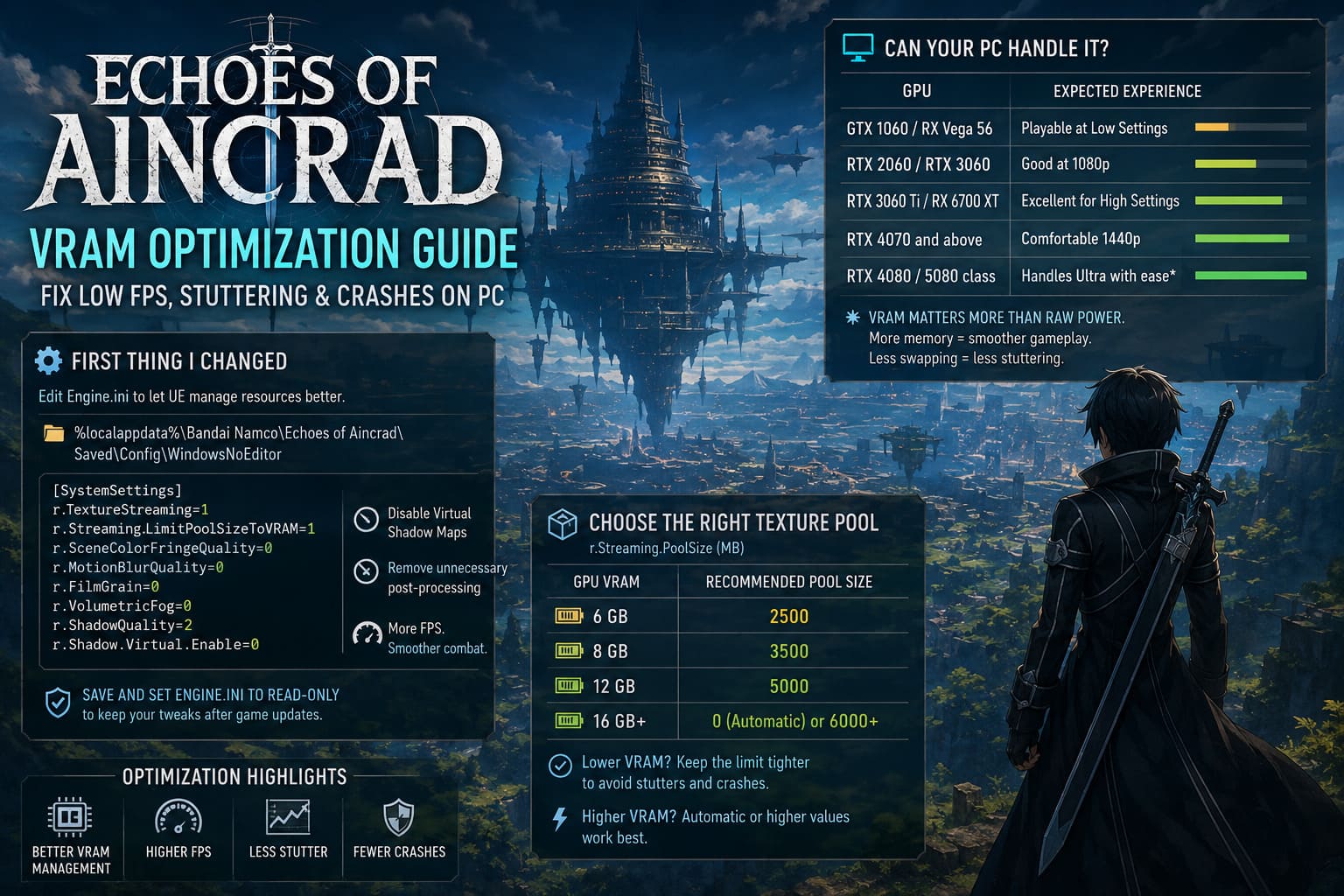
Navigate to your configuration folder:
%localappdata%
Bandai Namco
Echoes of Aincrad
Saved
Config
WindowsNoEditor
Open Engine.ini and add:
[SystemSettings]
r.TextureStreaming=1
r.Streaming.LimitPoolSizeToVRAM=1
r.SceneColorFringeQuality=0
r.MotionBlurQuality=0
r.FilmGrain=0
r.VolumetricFog=0
r.ShadowQuality=2
r.Shadow.Virtual.Enable=0
The biggest improvement came from disabling Virtual Shadow Maps and reducing unnecessary post-processing effects.
Motion blur and film grain might look cinematic during trailers, but during real gameplay they mostly waste performance while making combat feel less responsive.
After saving the file, I also recommend making Engine.ini read-only so future updates don’t overwrite your tweaks.
Choosing the Right Texture Pool
One value deserves special attention.
Streaming Pool Size directly affects how Unreal Engine allocates texture memory.
Here’s what worked best in my testing.
| GPU VRAM | Recommended Pool Size |
|---|---|
| 6 GB | 2500 |
| 8 GB | 3500 |
| 12 GB | 5000 |
| 16 GB+ | 0 (automatic) or 6000+ |
Lower-end cards benefit from stricter limits because they avoid excessive memory swapping.
Higher-end GPUs have enough headroom that automatic allocation usually performs well.
My Favorite Graphics Settings
I always try to preserve visual quality instead of turning everything into blurry pixels.
These settings gave me the best balance between image quality and stable performance.
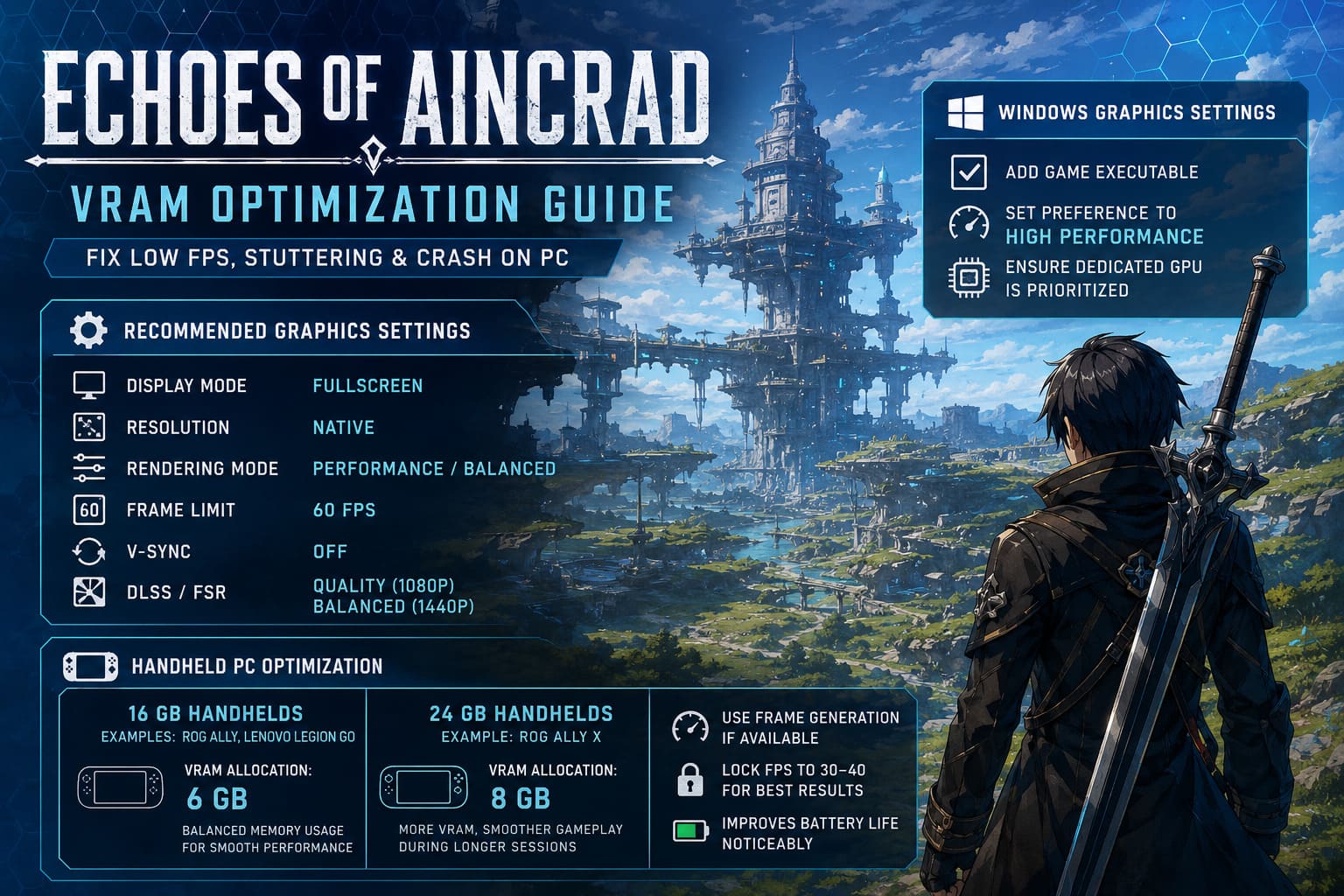
- Display Mode: Fullscreen
- Resolution: Native monitor resolution
- Rendering Mode: Performance or Balanced
- Frame Limit: 60 FPS
- V-Sync: Off (unless screen tearing appears)
- DLSS/FSR: Quality at 1080p, Balanced at 1440p
I know plenty of players immediately remove the frame cap.
Personally, I wouldn’t.
Unlocked frame rates make the GPU work harder than necessary and often introduce inconsistent frame pacing. During long streaming sessions, I’d much rather have a perfectly stable 60 FPS than constantly bouncing between 80 and 140.
Consistency always feels better than raw numbers.
Don’t Ignore Windows Graphics Settings
This step takes less than a minute but is surprisingly effective.
Windows occasionally launches games using less aggressive power management profiles.
Open Graphics Settings, add the game’s executable, and assign it to High Performance.
It sounds like a tiny adjustment, yet it ensures the operating system prioritizes your dedicated graphics card instead of treating the game like another background application.
Handheld PCs Need Special Attention
Portable gaming devices have become incredibly popular, but they require different optimization strategies.
Unlike desktop graphics cards, handheld systems often share memory between Windows and the integrated GPU.
My recommendations are simple.
16 GB Handhelds
Examples include:
- ROG Ally
- Lenovo Legion Go
Set VRAM allocation to 6 GB.
That still leaves enough system memory for Windows while giving the GPU enough breathing room.
24 GB Handhelds
Devices like the newer ROG Ally X have more flexibility.
Allocating 8 GB to VRAM produced the smoothest results during longer sessions.
If your handheld supports frame generation, combine it with a locked frame rate around 30–40 FPS rather than chasing higher native performance.
Battery life also improves noticeably.
CPU Performance Is More Important Than You Think
One misconception I keep hearing during streams is that every performance issue comes from the graphics card.
That’s simply not true.
Echoes of Aincrad performs a huge amount of shader compilation and world streaming on the processor.
If your CPU is already overloaded, you’ll experience:
- Longer loading times
- Random hitching
- Delayed asset loading
- Occasional Unreal Engine crashes
Clearing the DirectX shader cache before installing new GPU drivers helped eliminate several crashes on my test machine.
It’s a small maintenance step that’s easy to overlook.
Background Programs Can Ruin Performance
Whenever someone tells me their FPS suddenly drops after an hour of gameplay, I always ask the same question.
“What else is running?”
You’d be surprised how many hidden applications quietly consume CPU time.
Before launching the game, I usually close:
- Browser tabs I don’t need
- RGB management software
- Overlay applications
- Wallpaper animation tools
- Recording utilities that aren’t actively being used
Every little bit helps, especially if you’re streaming while gaming.
Echoes of Aincrad PS5 Performance vs Quality Mode: Which Should You Choose?
Is Ultra Worth It?
Honestly?
Not really.
Ultra settings look fantastic during screenshots, but while actually fighting monsters or dodging attacks, the visual difference becomes surprisingly small.
The performance difference, however, can be massive.
Dropping a few shadow settings or volumetric effects usually improves frame consistency far more than you’d expect.
That’s a trade I’ll gladly make every time.
SAO Echoes of Aincrad PC Optimization Guide: Best Settings for High FPS and Zero Stutter
My Final Thoughts
After several days of testing, I don’t believe Echoes of Aincrad is a poorly designed game.
I think it’s a technically ambitious title that pushes Unreal Engine 5 extremely hard, sometimes harder than current PC hardware comfortably allows.
Fortunately, most of the biggest issues aren’t impossible to work around.
A combination of smarter VRAM management, conservative graphics settings, updated drivers, and a few Unreal Engine tweaks transformed my experience from frustrating to genuinely enjoyable.
The world of Aincrad deserves to be explored without constant hitching every time you enter a new zone.
If you’re playing on a mid-range PC, don’t get discouraged by your first launch. Spend a few minutes optimizing the game before giving up. In my experience, those adjustments made a much bigger difference than simply lowering every graphics option to Low.
Once everything is configured properly, the combat feels smoother, exploration becomes more immersive, and the game finally gets a chance to show why so many Sword Art Online fans have been waiting for this adventure.