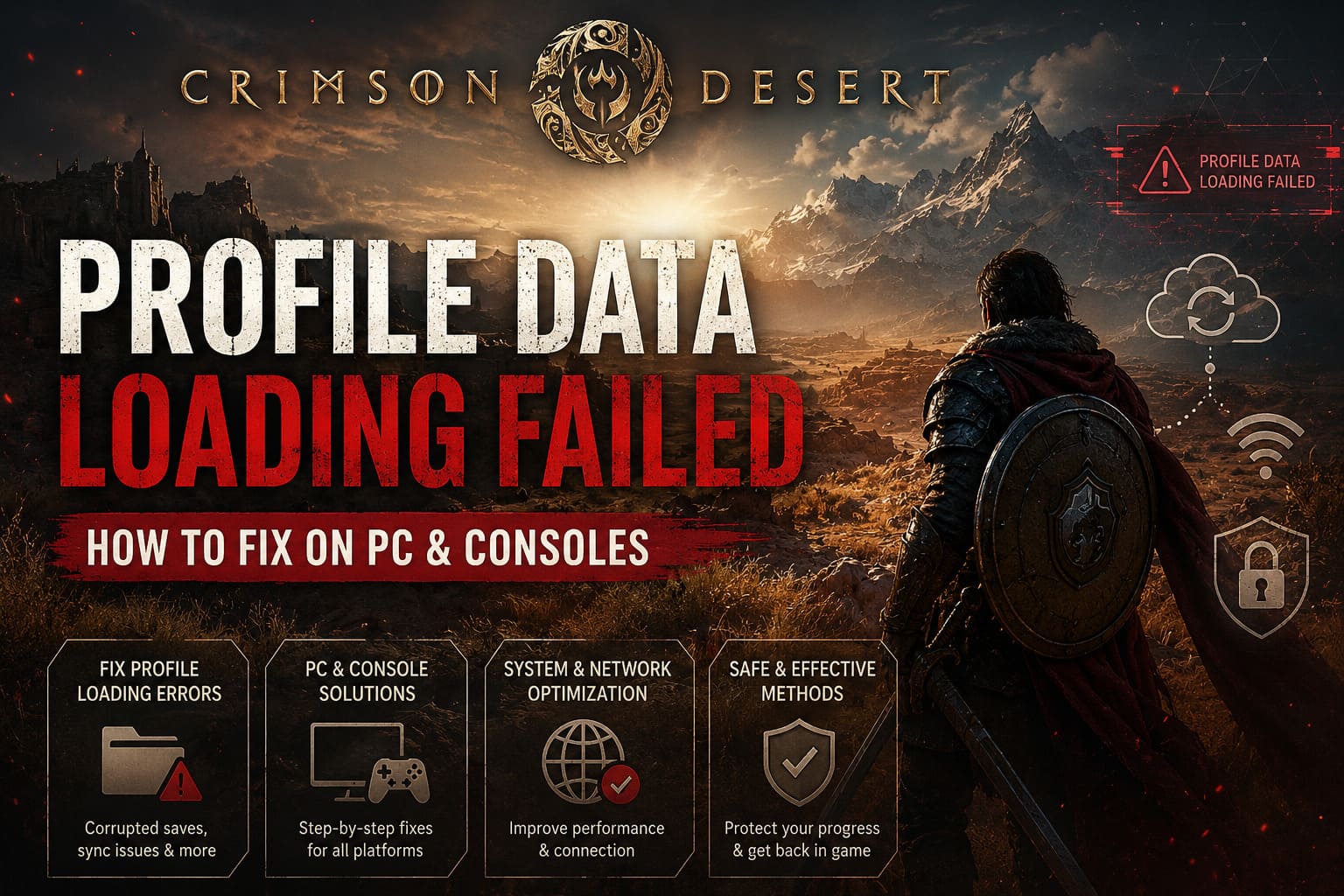
How to Fix Crimson Desert “Profile Data Loading Failed” Error on PC and Consoles
If you’ve spent any time watching my streams, you already know that I’m a huge fan of ambitious open-world RPGs. Games that take risks, push technology forward, and try to deliver something genuinely memorable always get my attention. That’s exactly why I was excited for Crimson Desert. The world of Pywel is gorgeous, the combat feels impactful, and the overall presentation is among the most impressive we’ve seen in recent years.
Unfortunately, like many major releases, Crimson Desert launched with a few technical issues. One problem that has frustrated a lot of players is the infamous “Profile Data Loading Failed” error. I encountered it myself during one of my first play sessions, and after digging through community discussions, testing solutions, and comparing player experiences, I found several methods that consistently helped.
This guide isn’t just a collection of random fixes copied from forums. It’s a practical breakdown of what actually makes sense, why the issue happens, and what I’d personally recommend trying first.
Why the Profile Data Error Happens
From what I’ve seen, this error isn’t usually caused by a single bug. Instead, it’s often the result of multiple systems failing to communicate correctly.
Crimson Desert relies heavily on profile synchronization, local save validation, cloud storage communication, shader compilation, and network authentication. When one of these systems runs into trouble, the game may fail to load your profile altogether.
The most common causes include:
- Corrupted local save information
- Cloud synchronization conflicts
- Network authentication failures
- Security software blocking game processes
- Broken cache files after updates
- Insufficient SSD performance or storage space
- Graphics API initialization issues
The good news is that most players can solve the problem without losing progress.
Fix #1: Let the Game Finish Its Background Work
This was actually the first solution that worked for me.
When Crimson Desert launches for the first time after an update, it performs a surprising amount of background processing. Shader compilation alone can take several minutes depending on your hardware.
Instead of immediately spamming buttons or repeatedly restarting the game, try this:
- Launch Crimson Desert normally.
- If the game attempts to connect to online services immediately, cancel the process.
- Stay on the main menu for several minutes.
- Avoid opening additional applications during this period.
- After waiting, manually reconnect and attempt to load your profile.
In my experience, many loading issues disappear once the game finishes preparing its shaders and cache files.
Why This Helps
The game is less likely to encounter resource conflicts when profile authentication occurs after shader generation has completed.
Fix #2: Create a Fresh Save Environment
One of the more effective solutions involves forcing the game to generate a clean set of profile files.
Before touching anything, always create a backup of your save data.
Recommended Process
| Step | Action |
|---|---|
| 1 | Locate your save folder |
| 2 | Move existing saves to a backup directory |
| 3 | Launch the game |
| 4 | Start a new game |
| 5 | Create a fresh save |
| 6 | Exit the game |
| 7 | Restore original save files |
The idea is simple: the game rebuilds important profile references using the new save structure. Once those references exist, older saves often become accessible again.
I’ve seen multiple players recover seemingly broken profiles using this method.
Fix #3: Check Your Antivirus and Security Software
This is one of those issues that many gamers overlook.
Modern security tools are excellent at protecting systems, but they’re not always great at distinguishing legitimate game services from suspicious behavior.
Crimson Desert performs various background validation checks while loading profiles. If security software interferes, the game may interpret the interruption as a failed profile authentication.
What I Recommend
Add the following to your security software exclusions:
- Main Crimson Desert installation folder
- Game executable files
- Launcher components
- Associated support services
Afterward:
- Reboot your system
- Launch the game as Administrator
- Attempt profile loading again
I’ve personally fixed several game-launching issues over the years simply by correcting overly aggressive antivirus settings.
Fix #4: Free Up SSD Space
This sounds basic, but it matters more than many people realize.
Crimson Desert is designed around extensive asset streaming. Modern games continuously load textures, environmental data, animations, and world information in real time.
When your SSD is nearly full, performance can degrade dramatically.
My Rule of Thumb
I try to maintain:
- At least 30 GB free for smaller modern games
- 50 GB or more for large open-world releases
If your drive is operating at extremely low free-space levels, profile validation and loading processes can become unstable.
Quick Cleanup Targets
- Temporary files
- Old game installations
- Unused recording footage
- Download folders
- System cache files
Freeing space often improves overall loading stability.
Fix #5: Refresh Your Network Configuration
Sometimes the problem isn’t the game at all.
Online profile systems depend on stable communication between your PC and authentication servers. If your network configuration becomes corrupted or outdated, the game may struggle to validate your account.
A few simple steps can help:
Network Maintenance Checklist
- Restart your router
- Flush local DNS cache
- Renew network connection
- Switch to reliable public DNS servers
- Disable VPN software temporarily
- Avoid large background downloads
Many players focus entirely on the game itself while forgetting that profile loading is ultimately a network-dependent process.
Fix #6: Experiment With Graphics API Settings
One surprising discovery from the community is that some profile-loading failures are actually tied to graphics initialization problems.
The error message suggests a profile issue, but in certain cases the game never fully completes its startup sequence because the graphics API encounters problems first.
Launch Parameters Worth Testing
| Option | Purpose |
|---|---|
| -dx11 | Forces DirectX 11 |
| -dx12 | Forces DirectX 12 |
| -windowed | Launches in windowed mode |
If you’re experiencing black screens, freezes, or crashes immediately before the profile error appears, graphics initialization may be the true culprit.
Console Players Are Not Safe Either
I’ve seen reports from both PlayStation 5 and Xbox Series X players dealing with the same problem.
Unlike PC users, console players have fewer troubleshooting options, but there are still a few effective solutions.
For PlayStation 5
Consider:
- Clearing system cache
- Rebuilding the database
- Restoring licenses
- Checking cloud save synchronization
For Xbox Series X
Try:
- Clearing persistent storage
- Performing a console reset while keeping games installed
- Resynchronizing cloud data
These procedures can resolve profile validation issues caused by corrupted system data.
Verify Your Installation
This should always be part of your troubleshooting routine.
Game updates occasionally leave behind damaged or incomplete files.
If you’re playing through a launcher that offers file verification, use it.
The process may take a while, but it’s far faster than reinstalling the entire game.
A file verification scan can detect:
- Missing assets
- Corrupted archives
- Broken update files
- Incomplete patch downloads
I’ve lost count of how many “mysterious” game issues turned out to be damaged installation files.
My Personal Recommendation
If you’re asking what I would do first after encountering the Profile Data Loading Failed error, here’s my order:
- Wait for shader compilation to finish.
- Verify game files.
- Check antivirus exclusions.
- Free SSD space.
- Refresh network settings.
- Test alternative DirectX launch options.
- Rebuild save references using a fresh save folder.
This sequence addresses the most common causes while minimizing the risk of affecting your progress.
Crimson Desert GPU Bypass Tool: How to Run the Game on Unsupported Graphics Cards
Final Thoughts
As someone who spends countless hours exploring new RPGs, I genuinely believe Crimson Desert is worth the effort. Technical problems can be frustrating, especially when they appear right before you’re ready to jump back into an adventure, but most cases of the Profile Data Loading Failed error are fixable.
The key is approaching the issue methodically instead of trying ten random fixes at once.
Start with the simplest solutions, create backups before making major changes, and work through the troubleshooting process step by step.
Hopefully, the developers continue refining the experience through future patches, because underneath these launch-day headaches lies one of the most promising open-world action RPGs released in recent years.
And trust me—as someone who spends way too many nights streaming new releases—that’s a journey worth getting back into.