Crimson Desert GPU Bypass Tool: How to Run the Game on Unsupported Graphics Cards
When Crimson Desert finally launched, I did what every obsessed gamer does: I cleared my schedule, stocked up on snacks, and prepared for a long journey through the beautiful yet brutal world of Pywel. Like many players, I was blown away by the game’s visuals, combat mechanics, and incredible attention to detail. Unfortunately, there was one major problem standing between thousands of gamers and their adventure — hardware restrictions.
Not everyone owns a cutting-edge graphics card. In fact, a huge portion of the PC gaming community still plays on older GPUs, budget gaming laptops, or systems that don’t meet the latest AAA requirements. While Crimson Desert offers several graphical presets, many players never even reach the main menu because of the infamous “Graphics Device Not Supported” message.
As someone who spends more time tweaking game settings than most people spend playing games, I’ve been closely following community discussions, optimization experiments, and compatibility solutions. The good news is that there are ways to get the game running on unsupported hardware. The bad news is that success depends heavily on your specific system and expectations.
This guide covers the most popular community methods, performance tweaks, and practical advice for running Crimson Desert on hardware that the game officially rejects.
Why Crimson Desert Is So Demanding
Pearl Abyss pushed visual technology extremely hard with Crimson Desert. The world feels alive thanks to dynamic weather systems, advanced lighting, dense vegetation, large-scale battles, and highly detailed character models.
The downside is obvious: all of these features require serious hardware power.
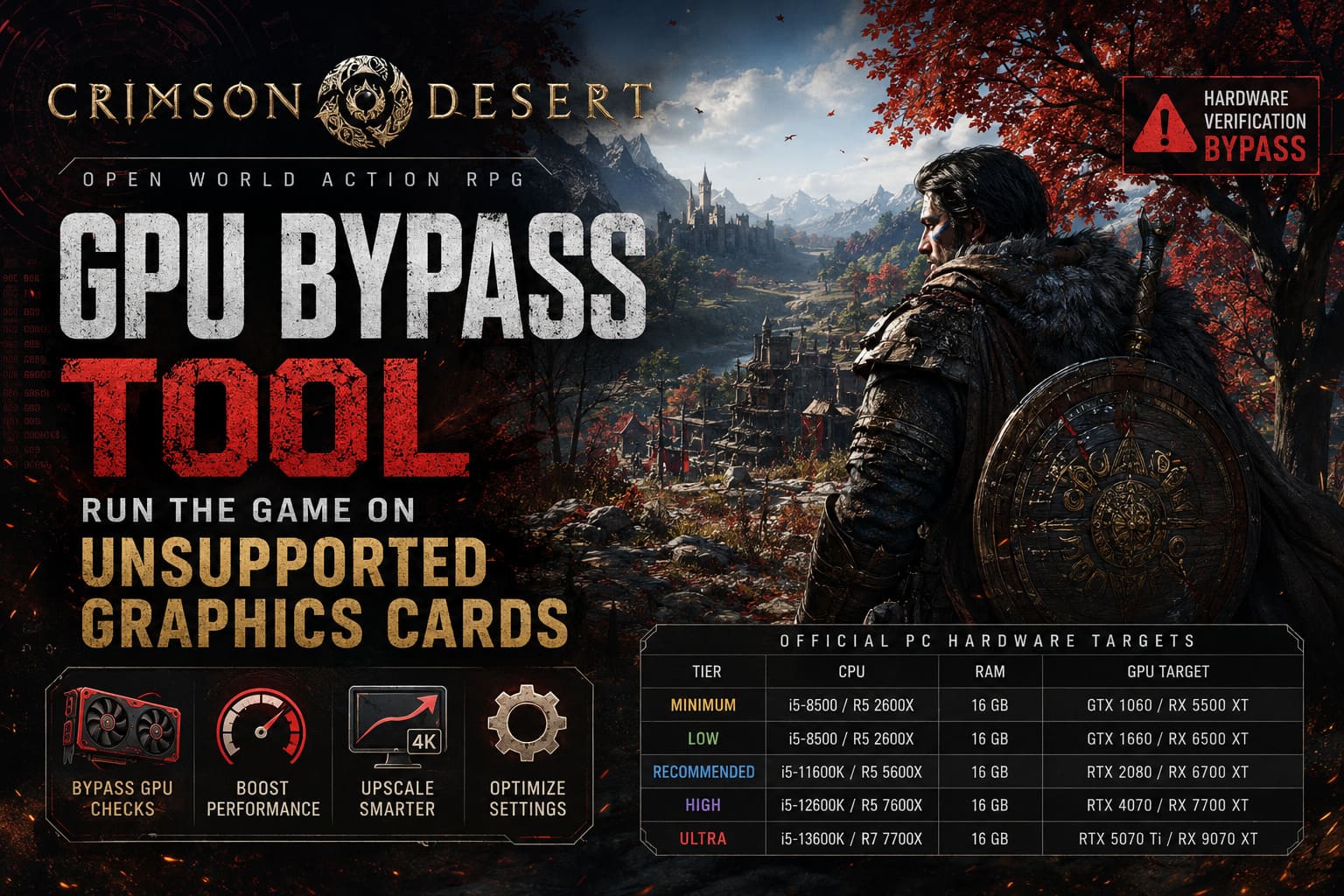
Here’s a simplified overview of the official PC hardware targets:
| Performance Tier | CPU | RAM | GPU Target |
|---|---|---|---|
| Minimum | Core i5-8500 / Ryzen 5 2600X | 16 GB | GTX 1060 / RX 5500 XT |
| Low | Core i5-8500 / Ryzen 5 2600X | 16 GB | GTX 1660 / RX 6500 XT |
| Recommended | Core i5-11600K / Ryzen 5 5600X | 16 GB | RTX 2080 / RX 6700 XT |
| High | Core i5-12600K / Ryzen 5 7600X | 16 GB | RTX 4070 / RX 7700 XT |
| Ultra | Core i5-13600K / Ryzen 7 7700X | 16 GB | RTX 5070 Ti / RX 9070 XT |
Even the minimum specification can be difficult for older systems to achieve.
What frustrates many players isn’t low performance — it’s the fact that the game sometimes refuses to launch at all.
The Hardware Verification Problem
Modern games increasingly rely on automated hardware detection systems. Crimson Desert is no exception.
Before the game fully launches, it checks several factors:
- GPU model identification
- Available VRAM
- Supported DirectX features
- Driver compatibility
- Hardware architecture support
If one of these checks fails, the game may terminate immediately.
This situation affects several groups of players:
Legacy GPU owners
Older NVIDIA and AMD cards often possess enough raw performance to run the game at low settings but fail compatibility checks because certain modern features are missing.
Alternative hardware users
Some players using less common GPU architectures have reported compatibility issues despite having powerful hardware.
Laptop gamers
Mobile versions of graphics cards sometimes trigger detection errors due to differences in drivers and device IDs.
For many gamers, the issue isn’t performance — it’s simply getting past the launch screen.
Community Bypass Solutions
As expected, the PC gaming community immediately began searching for workarounds.
Over the years I’ve learned one thing about PC gamers: tell them something can’t run, and they’ll spend all night proving you wrong.
Two major approaches have become popular.
1. Launch Parameter and Verification Bypass Methods
One of the earliest solutions involved bypassing the hardware verification process.
The concept is simple:
Instead of allowing the game to decide whether your GPU is supported, players use community-developed modifications or launch parameters that skip part of the verification sequence.
Typical workflow includes:
- Creating a shortcut for the game executable.
- Adding launch arguments recommended by the community.
- Launching directly through the modified shortcut.
- Testing stability and performance.
The exact parameters vary depending on game version, patches, and community tools available at the time.
This approach tends to work best for players whose hardware is technically capable of running the game but is blocked due to software restrictions.
2. DLL-Based Compatibility and Upscaling Tools
Getting into the game is only half the battle.
Even if Crimson Desert launches successfully, older graphics cards often struggle to maintain playable frame rates.
This is where compatibility wrappers and upscaling solutions enter the picture.
Many community tools work by intercepting communication between the game and the graphics API. They can expose additional options, improve compatibility, or unlock advanced upscaling features that significantly reduce GPU workload.
Potential benefits include:
- Higher frame rates
- Reduced GPU load
- Better frame pacing
- Access to advanced scaling technologies
- Improved compatibility with unsupported hardware
For many budget gamers, these tools can mean the difference between an unplayable slideshow and a surprisingly enjoyable experience.
My Personal Take on Upscaling
As a gamer, I used to hate upscaling.
Years ago, image quality often looked blurry and artificial. Modern technology has changed that completely.
In Crimson Desert, aggressive upscaling can be a lifesaver.
If you’re running older hardware, I’d much rather play at a stable 50 FPS with good upscaling than struggle at native resolution with constant stuttering.
The visual difference is usually much smaller than people expect, especially during combat when you’re focused on surviving rather than counting individual pixels.
Best Performance Settings After Bypassing GPU Checks
Once you successfully launch the game, optimization becomes the next challenge.
These settings typically offer the best balance between visual quality and performance.
Resolution Strategy
Do not force native resolution if your GPU is already struggling.
Recommended approach:
- Render internally at 720p or 900p
- Upscale to 1080p
- Use Balanced or Quality mode
This alone can provide a substantial performance boost.
Reduce Foliage Density
Pywel is packed with vegetation.
The forests look incredible, but rendering thousands of plants can overwhelm older graphics cards.
Lower:
- Grass quality
- Foliage density
- Vegetation draw distance
The visual sacrifice is surprisingly small compared to the FPS gains.
Disable Heavy Post-Processing
Several graphical effects consume valuable GPU resources.
Consider lowering or disabling:
- Motion Blur
- Depth of Field
- Film Grain
- Excessive Particle Effects
Combat often feels cleaner and more responsive with these effects reduced anyway.
Optimize Background Behavior
Many modern games continue rendering aggressively when minimized.
To prevent unnecessary GPU usage:
- Limit background FPS
- Use graphics driver frame caps
- Avoid leaving the game running idle for long periods
This can reduce heat output and lower power consumption.
Common Issues You May Encounter
Even successful bypass users occasionally run into problems.
Visual Artifacts
Some players report:
- Ghosting
- Texture flickering
- HUD instability
- Frame generation artifacts
These side effects are fairly common when forcing unsupported rendering paths.
Random Crashes
Crimson Desert pushes hardware hard.
Older GPUs may encounter:
- Driver resets
- Memory allocation errors
- Shader compilation crashes
Keeping drivers updated remains essential.
Higher Temperatures
This is the issue I personally monitor most closely.
A demanding open-world game can keep a GPU under heavy load for hours.
Always keep an eye on:
- GPU temperature
- Fan speeds
- CPU temperature
- System stability
No game is worth damaging your hardware.
Is Bypassing GPU Restrictions Worth It?
For me, the answer is yes — with realistic expectations.
If you’re hoping for ultra settings, ray tracing, and flawless 4K gameplay on outdated hardware, you’re likely going to be disappointed.
However, if your goal is simply to explore Pywel, experience the story, and enjoy the combat without immediately buying a new graphics card, these community solutions can be incredibly valuable.
The PC gaming community has always thrived on creativity. Modders, tinkerers, and hardware enthusiasts constantly find ways to extend the life of older systems, and Crimson Desert is another example of that tradition.
Crimson Desert Item Recovery Guide: How to Restore Lost, Sold, or Deleted Gear
Final Thoughts
Crimson Desert is one of the most visually ambitious games released in recent years. Its breathtaking world and demanding technology make it a showcase title for modern PC hardware, but that doesn’t mean players with older systems should automatically be left behind.
Through community-developed compatibility solutions, smart upscaling techniques, and careful graphics optimization, many gamers can still enjoy the adventure without immediately upgrading their entire PC.
The key is understanding your hardware’s limits. Don’t chase maximum settings. Focus on stability, smooth gameplay, and a consistent frame rate.
At the end of the day, the best graphics setting is the one that lets you stay immersed in the game instead of staring at an FPS counter.
And trust me — once you’re riding across the battle-scarred landscapes of Pywel, fighting through massive encounters and uncovering hidden stories, you won’t be thinking about benchmark numbers anyway.