Boba Cafe Simulator Multiplayer Lag Fix: How to Fix 8-Player Network Lag and Low FPS (2026 Guide)
Running a successful bubble tea shop is already hectic enough, but throw seven more friends into the kitchen and things can quickly turn into absolute chaos. I’ve spent countless hours playing management sims, and Boba Cafe Simulator instantly became one of those games that keeps pulling me back for “just one more shift.” There is something incredibly satisfying about organizing ingredients, rushing to finish customer orders, and somehow keeping the entire café from collapsing into complete disorder.
Unfortunately, the biggest enemy isn’t impatient customers.
It’s multiplayer lag.
After several long sessions with a full eight-player crew, I’ve noticed that once the café becomes busy, performance can fall apart. Characters begin teleporting, cups refuse to stay where you placed them, ingredients bounce around the kitchen, and suddenly everyone is asking whether the host’s internet exploded.
The good news is that most of these issues are actually fixable. Some require changing Windows settings, others depend on choosing the right host, while a surprising amount of lag simply comes from how players manage the café itself.
This guide collects the methods that consistently worked for my group and explains why they make such a difference.
Why Multiplayer Performance Falls Apart
Many players immediately blame their graphics card whenever FPS begins dropping, but that usually isn’t the real problem.
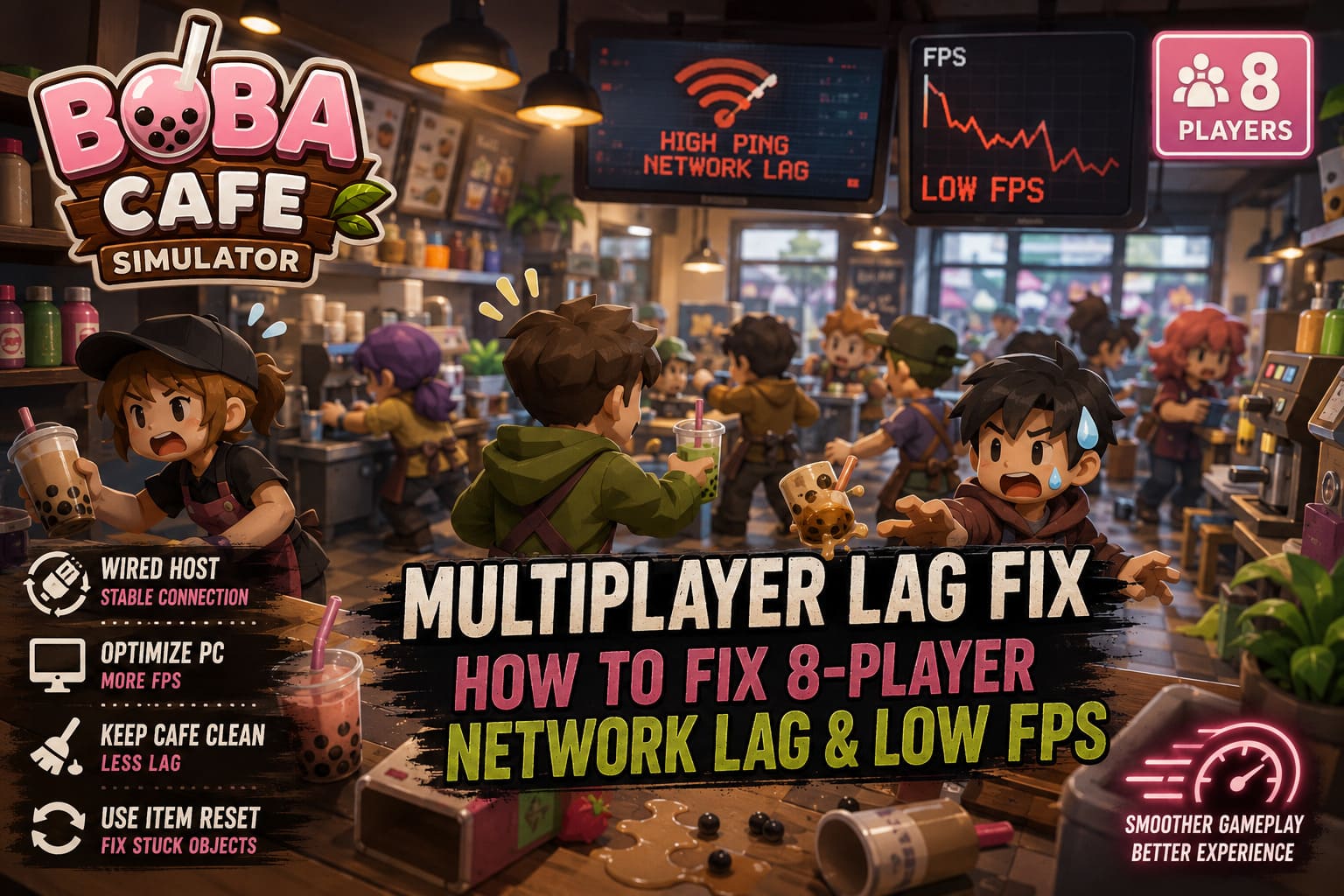
In large multiplayer sessions, the game has to constantly synchronize player movement, customer AI, drink preparation, physics objects, decorations, inventory updates, employee behavior, and order timers. With eight people interacting at once, that’s a massive amount of information being updated every second.
The host carries most of that workload, which means even powerful gaming PCs can become overwhelmed once the café grows larger.
The Host Makes or Breaks the Lobby
If there’s one lesson I’ve learned from hundreds of hours in cooperative simulation games, it’s this:
Never let the weakest PC host the session.
Unlike dedicated server games, Boba Cafe Simulator relies heavily on the host’s computer. Every customer, furniture interaction, recipe update, and physics calculation passes through that machine before reaching everyone else.
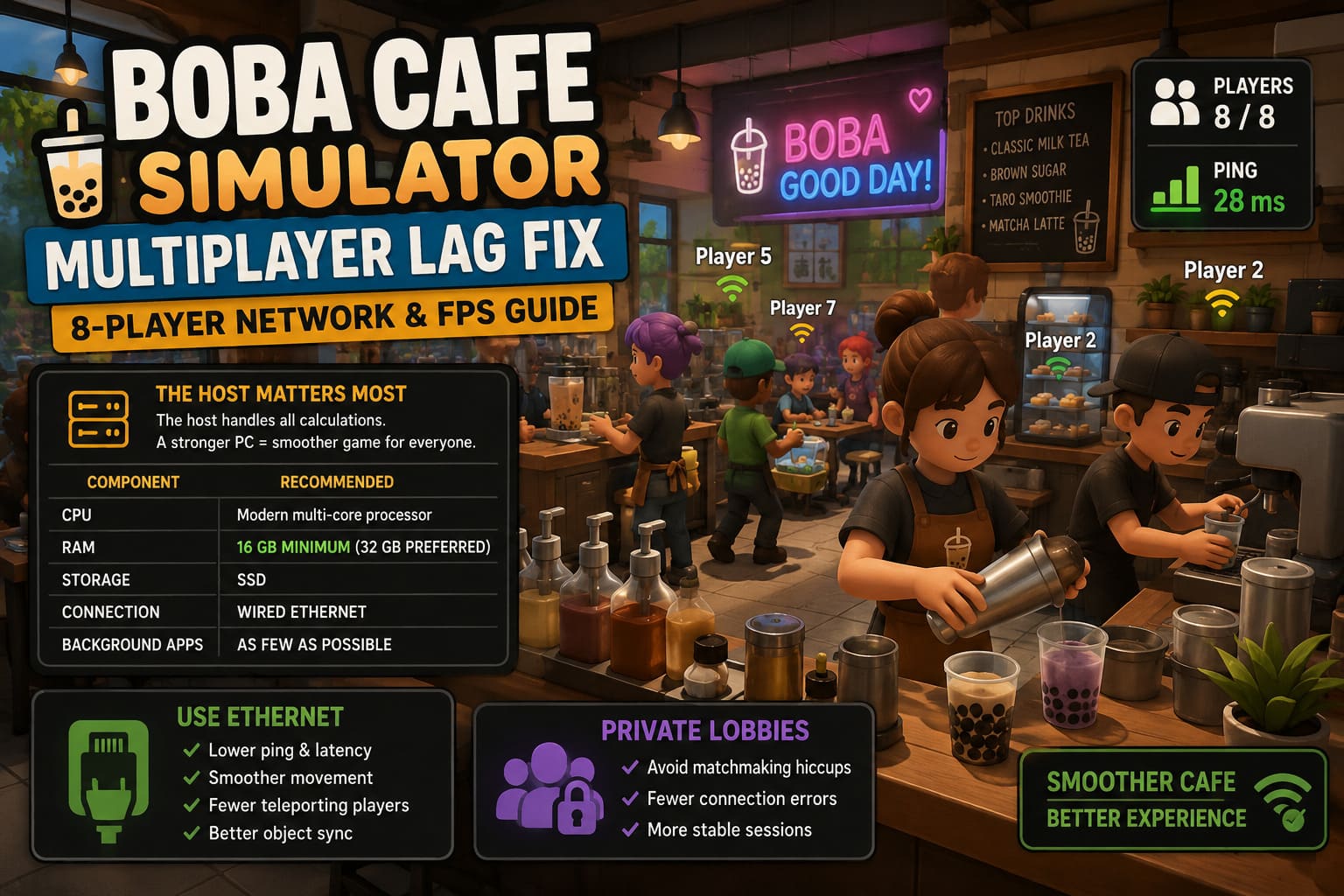
| Component | Recommended Choice |
|---|---|
| CPU | Modern multi-core gaming processor |
| RAM | 16 GB minimum (32 GB preferred for multitasking) |
| Storage | SSD |
| Connection | Wired Ethernet |
| Background Apps | As few as possible |
I’ve seen an average gaming PC handle four players perfectly while struggling badly with eight.
Sometimes switching hosts immediately solved nearly every networking problem without changing a single graphics setting.
Ethernet Is Still King
This advice sounds boring because people have heard it for years.
It’s still true.
Wi-Fi introduces random latency spikes that may only last a fraction of a second, but multiplayer synchronization notices every one of them.
If the host can connect through Ethernet instead of wireless, everyone in the lobby usually experiences:
- Smoother movement
- Fewer teleporting players
- More reliable object synchronization
- Reduced rubberbanding
Even modern Wi-Fi 6 routers aren’t always enough once dozens of synchronized physics objects fill the café.
Private Lobbies Usually Feel More Stable
Public matchmaking occasionally introduces unnecessary connection problems.
Whenever my friends and I experienced strange joining errors or repeated desynchronization, creating a private lobby and sending Steam invitations directly worked noticeably better.
It doesn’t magically improve internet quality, but it often avoids unnecessary matchmaking hiccups before the game even begins.
Windows Tweaks Worth Doing
I normally avoid recommending random “gaming optimizations” because many of them accomplish absolutely nothing.
These, however, are worth checking.
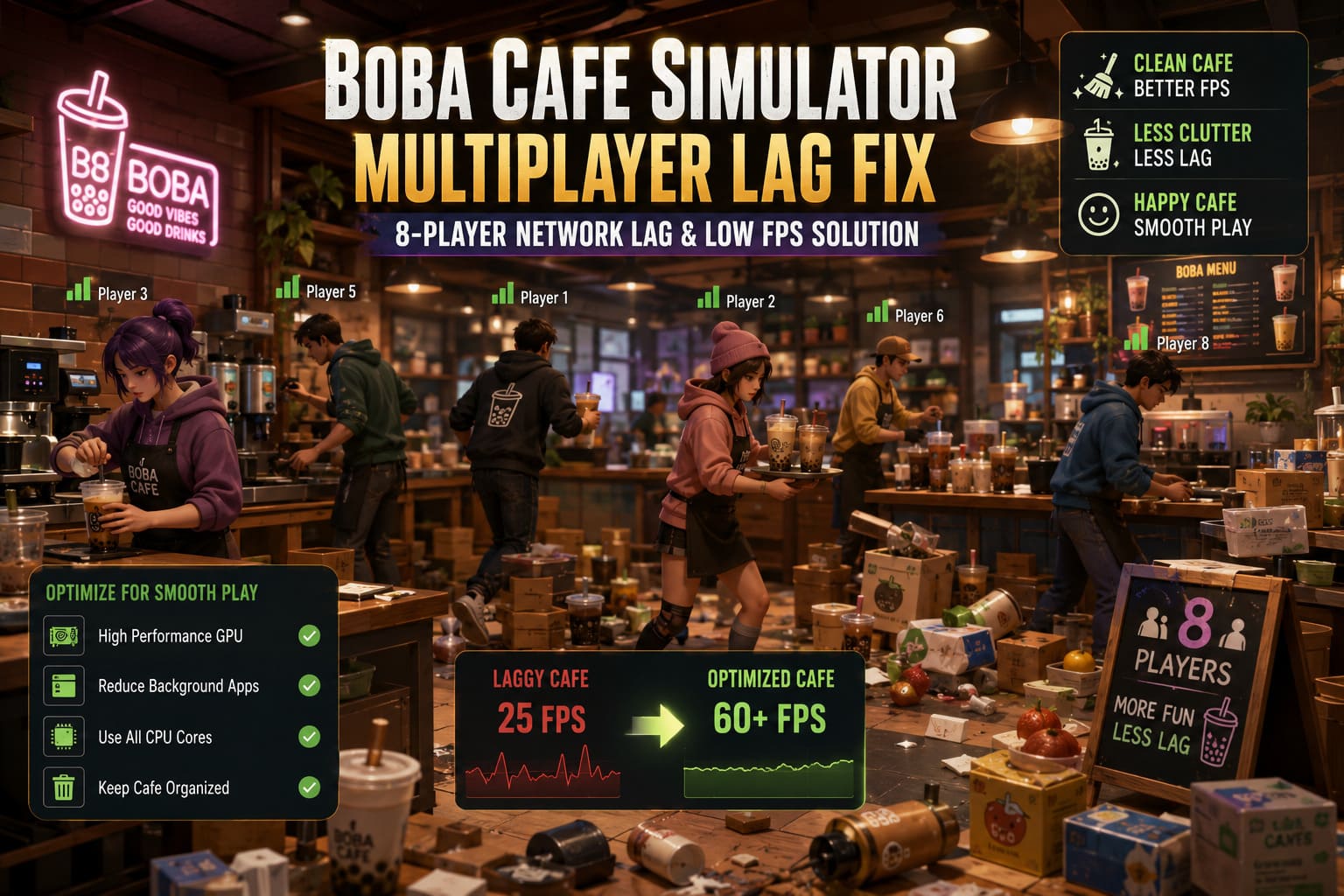
Enable High Performance Graphics
Tell Windows to prioritize Boba Cafe Simulator using the High Performance graphics preference.
This prevents Windows from making poor GPU scheduling decisions on some systems, especially laptops.
Reduce Background Load
Before launching the game I usually close:
- Web browsers with dozens of tabs
- Discord streaming
- RGB software
- Unnecessary launchers
- Video recording applications
Management simulators love CPU resources.
Every background application steals a little performance from the host.
Check Your CPU Configuration
Some players also verify that Windows is correctly utilizing all available processor cores through the system configuration utility.
While this doesn’t increase your hardware’s capabilities, ensuring Windows is properly configured can eliminate unusual scheduling issues on certain systems.
Graphics Settings That Actually Matter
Many people immediately lower every option to Low.
That’s usually unnecessary.
Instead, focus on the expensive settings first.
| Graphics Option | Recommended Setting |
|---|---|
| Shadows | Low or Medium |
| Anti-Aliasing | Medium |
| Resolution | 1080p if struggling |
| Frame Rate | Match monitor refresh rate |
| V-Sync | Optional depending on tearing |
Lowering shadows usually provides the largest FPS improvement while barely affecting the café’s cozy appearance.
Running uncapped frame rates also isn’t always beneficial.
If your GPU constantly pushes maximum utilization, temperatures rise and sustained performance can actually become worse during longer sessions.
The Biggest FPS Killer Nobody Talks About
Here’s something my friends didn’t believe until we tested it ourselves.
Messy cafés perform worse.
Boba Cafe Simulator tracks an incredible number of interactive objects.
Every cup.
Every ingredient.
Every cardboard box.
Every misplaced fruit.
Every object lying on the floor continues participating in physics calculations.
Now imagine hundreds of those objects while eight players constantly throw new ones around.
That’s a nightmare for synchronization.
Keeping the workplace organized isn’t just satisfying.
It’s one of the easiest ways to improve multiplayer performance.
Clean Up Constantly
Instead of letting trash pile up until closing time:
- Recycle empty containers
- Remove unused ingredient boxes
- Organize shelves
- Avoid throwing objects across rooms
- Keep preparation stations clean
Besides making the kitchen easier to navigate, you’ll also reduce unnecessary physics calculations.
Don’t Ignore the Item Reset Tool
One feature I wish more people knew about is the built-in item reset option.
Occasionally an object gets stuck inside furniture or begins vibrating endlessly against another item.
When that happens, the physics engine can waste valuable resources trying to solve impossible collisions.
Using the reset feature immediately restores those objects and often removes strange stuttering that appears out of nowhere.
It’s one of the first things I try before restarting an entire lobby.
More Automation Isn’t Always Better
Unlocking automated equipment feels rewarding.
Hiring employees makes the café seem more alive.
Decorating every empty corner is fun.
But every additional interactive object increases the amount of information that must stay synchronized across eight different players.
When my group plays with a full lobby, we actually reduce automation.
Why?
Because eight human workers are already handling nearly every task.
Extra NPCs simply create additional processing work for the host.
Sometimes the best optimization is letting your friends do the job instead.
Steam Maintenance Can Solve Strange Network Problems
Every major update introduces the possibility of corrupted files.
Whenever multiplayer starts behaving strangely after a patch, I always perform two quick maintenance steps:
- Verify the game files through Steam.
- Clear Steam’s browser cache.
Neither takes very long, and both have solved mysterious connection problems more than once.
It’s an easy troubleshooting step before spending hours changing graphics settings that were never responsible for the issue.
How to Play Boba Cafe Simulator with Friends Online: Multiplayer Guide (2026)
My Personal Multiplayer Routine
Whenever we’re planning a long session, this is the checklist I follow:
| Task | Priority |
|---|---|
| Choose strongest PC as host | ★★★★★ |
| Use Ethernet | ★★★★★ |
| Verify game files | ★★★★☆ |
| Lower shadow quality | ★★★★☆ |
| Keep café organized | ★★★★★ |
| Remove unnecessary automation | ★★★★☆ |
| Close background programs | ★★★★☆ |
| Reset bugged items when needed | ★★★★★ |
Most sessions become dramatically smoother simply by following these habits.
Boba Cafe Simulator Guide: Staff Hiring, Management, and Customer Flow Optimization
Final Thoughts
I genuinely think Boba Cafe Simulator shines brightest with a full group of friends. Few cooperative management games create the same frantic energy of eight people scrambling to prepare drinks while customers keep pouring through the front door.
The downside is that the game’s networking and physics systems are doing an incredible amount of work behind the scenes. Once your café fills with decorations, ingredients, employees, and loose objects, performance naturally begins to suffer—especially if the host’s hardware or connection can’t keep up.
In my experience, the biggest improvements don’t come from chasing obscure Windows tweaks or downloading questionable optimization software. Instead, they come from smart hosting, a stable wired connection, sensible graphics settings, and something surprisingly simple: keeping the café clean.
Treat your multiplayer session the same way you’d run a real bubble tea shop—organized, efficient, and clutter-free—and you’ll spend far less time fighting lag and far more time enjoying the wonderfully chaotic experience that makes Boba Cafe Simulator so addictive.