Crimson Desert Steam Deck Best Optimization Settings: 60 FPS Guide (2026)
I have spent countless hours testing games on handheld devices, and there is always a special kind of excitement when a massive open-world adventure tries to fit inside a tiny portable machine. Crimson Desert is exactly that kind of challenge. Pearl Abyss created a visually stunning fantasy world packed with detailed environments, huge battles, realistic lighting, and cinematic effects. On a desktop gaming PC, it can look absolutely incredible — but on the Steam Deck, the story is a little different.
The first time I launched Crimson Desert on Steam Deck, my expectations were realistic. This is not a lightweight indie title. It is the type of game that pushes modern hardware with its large open areas, advanced effects, and demanding engine. Out of the box, the experience can feel rough: unstable frame pacing, heavy stutters when entering new zones, and moments where the performance drops far below what you would want from a handheld.
But after experimenting with different settings, performance limits, and community-tested tweaks, I found that the game can become much more enjoyable. It will not magically turn into a native 60 FPS experience, but with the right configuration, Crimson Desert becomes a surprisingly good portable adventure.
This is my personal Steam Deck optimization setup for getting the best balance between graphics, battery usage, and smooth gameplay.
The Truth About Crimson Desert Performance on Steam Deck
Before changing anything, it is important to understand one thing: Crimson Desert is extremely demanding. The Steam Deck is powerful for its size, but it was never designed specifically for games built around next-generation visual technology.
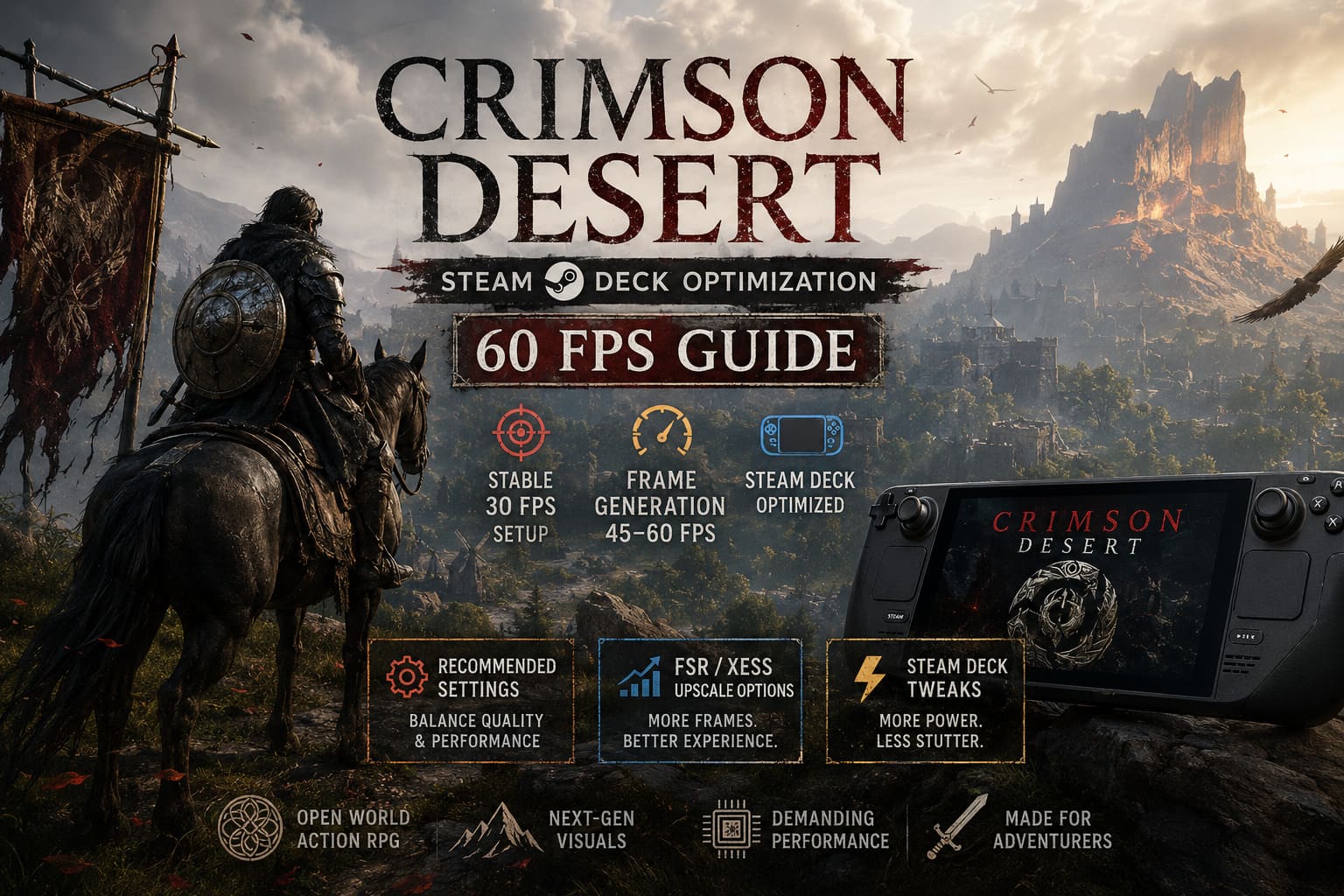
You have two realistic ways to play:
| Profile | Expected Result | Best For |
|---|---|---|
| Stable 30 FPS Setup | Consistent gameplay with lower latency | Players who want reliability |
| Frame Generation Setup | Smoother-looking 45-60 FPS experience | Players who prioritize visual fluidity |
Personally, I prefer a stable experience over chasing numbers. A locked 30 FPS with good frame pacing often feels better than an unstable 45 FPS that constantly jumps around.
However, if you enjoy smoother camera movement and do not mind a little extra latency, frame generation tools can completely change the feel of the game.
My Recommended Crimson Desert Steam Deck Graphics Settings
The biggest mistake many players make is trying to preserve every visual effect. On a small handheld screen, some ultra settings simply are not worth the performance hit.
I focused on keeping the world beautiful while removing the settings that punish the Steam Deck GPU the most.
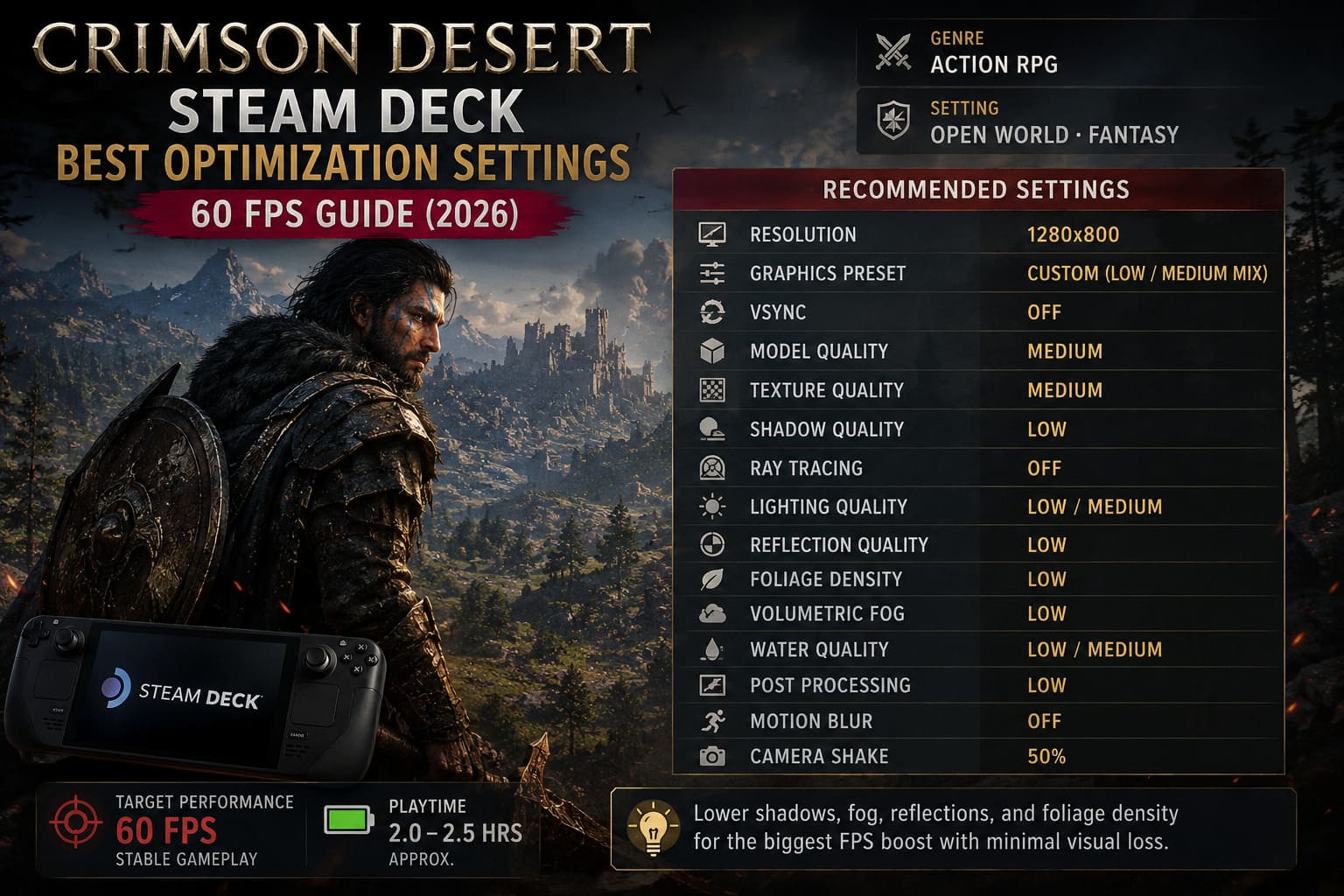
| Setting | Recommended Option |
|---|---|
| Resolution | 1280×800 |
| Graphics Preset | Custom Low/Medium Mix |
| VSync | Off |
| Model Quality | Medium |
| Texture Quality | Medium |
| Shadow Quality | Low |
| Ray Tracing | Off |
| Lighting Quality | Low or Medium |
| Reflection Quality | Low |
| Foliage Density | Low |
| Volumetric Fog | Low |
| Water Quality | Low/Medium |
| Post Processing | Low |
| Motion Blur | Off |
| Camera Shake | 50% |
The biggest improvements usually come from lowering shadows, fog, reflections, and foliage density.
Those settings look impressive in screenshots, but while actually playing, especially during combat, they consume a huge amount of GPU power. Turning them down gives you smoother movement without destroying the atmosphere.
Texture Quality: Do Not Go Too Low
One thing I noticed during testing is that lowering everything to minimum makes Crimson Desert look much worse than it needs to.
The Steam Deck display is small, and textures are one of the areas where you can keep some quality.
I recommend:
Texture Quality: Medium
This keeps armor details, landscapes, and character models looking sharp without pushing the hardware too hard.
Going to High settings can create memory pressure and cause more frequent loading issues, especially during exploration.
The Upscaling Choice: FSR, XeSS, or Native Resolution?
Modern games rely heavily on upscaling technology, and Crimson Desert is no exception.
Choosing the right option can completely change the experience.
AMD FSR
FSR is usually the easiest way to gain performance.
The advantages:
- Higher FPS numbers
- Lower GPU workload
- Better chance of maintaining stable performance
The downside is image quality. On Steam Deck’s display, aggressive FSR settings can sometimes create shimmering, softness, or a slightly noisy image.
My recommendation:
Use FSR Balanced first.
Performance mode gives more frames, but the visual downgrade is more noticeable.
Intel XeSS
Many handheld players prefer XeSS because it often produces a cleaner image.
In my experience, XeSS can handle:
- Hair details
- Character edges
- Fine environmental objects
better than aggressive FSR settings.
A good starting point:
XeSS Balanced
It may not always give the highest FPS, but the image quality trade-off is often worth it.
Native Resolution + Frame Generation
Another interesting option is running the game closer to native resolution and using external frame generation.
This avoids some upscaling blur, but the base performance needs to be stable first.
If your game cannot maintain around 30 FPS, frame generation will not completely fix the experience.
Steam Deck System Tweaks That Actually Help
The Steam Deck performance menu has several options that can make a noticeable difference.
Open the Quick Access menu and check these:
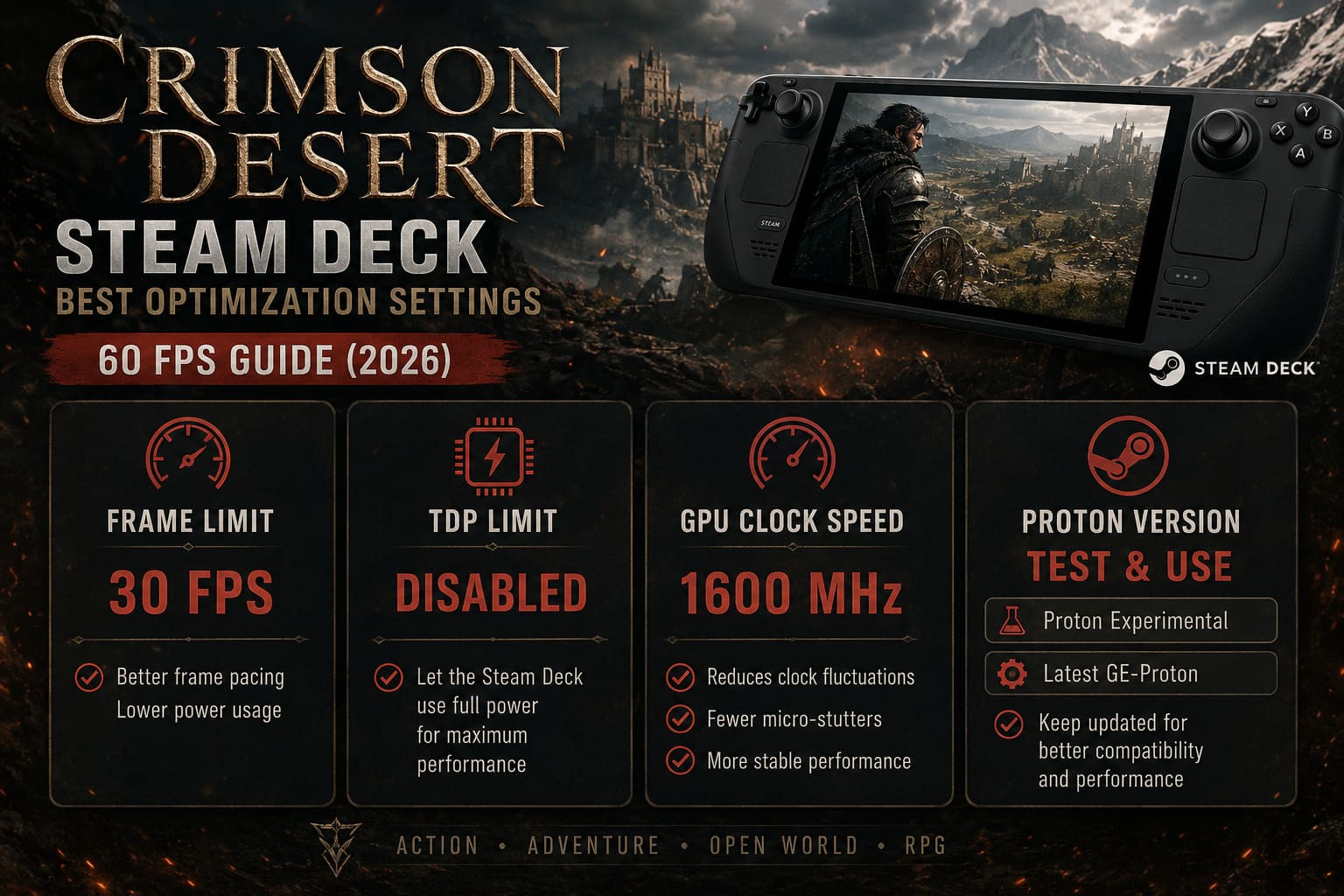
Frame Limit
For the stable setup:
30 FPS Limit
This creates better frame pacing and reduces unnecessary power usage.
For frame generation:
Leave it unlocked depending on your setup.
TDP Limit
I recommend leaving this disabled.
Crimson Desert needs every bit of power available, and restricting the processor can create unnecessary drops.
GPU Clock Speed
One of the most useful tricks is manually setting the GPU clock.
Try:
1600 MHz
This helps prevent the GPU from constantly changing speeds during heavy scenes.
The result is often:
- Fewer micro-stutters
- More consistent frame delivery
- Better combat performance
Proton Version
Compatibility matters.
I recommend testing:
- Proton Experimental
- Latest GE-Proton versions
Large open-world games sometimes receive improvements through compatibility updates, so keeping Proton current is important.
Using Frame Generation for a Smoother Experience
If 30 FPS feels too slow, frame generation can make Crimson Desert feel much more modern.
Tools like Lossless Scaling can create additional frames on top of the game’s existing performance.
A common setup:
- Base FPS: 25-30
- Frame Generation: 2X
- Target Feel: 50-60 FPS
| Option | Value |
|---|---|
| Frame Generation | LSFG 2X |
| Performance Mode | Enabled |
| Flow Scale | 50-60% |
This makes camera movement noticeably smoother.
However, remember one important thing: generated frames do not reduce the original input latency. Your controls still feel closer to the base FPS.
For exploration, this is fantastic. For extremely precise combat, a native 30 FPS lock may actually feel better.
Realistic Performance Expectations
| Situation | Expected Performance |
|---|---|
| Open World Exploration | 30 FPS stable / higher with generation |
| Normal Combat | 30-40 FPS range |
| Large Cities | Possible drops |
| Heavy Weather Effects | Occasional dips |
The hardest areas are usually cities and places with many NPCs. The CPU becomes the limiting factor, not only the GPU.
Some loading stutter during fast movement is normal because Crimson Desert constantly streams a huge amount of world data.
Crimson Desert Low FPS & Stuttering Fix: PC Performance Optimization Guide (2026 Update)
My Final Steam Deck Verdict
After tweaking everything, I can say that Crimson Desert is absolutely worth playing on Steam Deck, but you need the right expectations.
This is not a game where you press play and forget about settings. It requires a little work, but the reward is a massive fantasy adventure that you can carry anywhere.
My personal favorite setup:
- 1280×800 resolution
- Medium textures
- Low shadows
- Low fog
- XeSS Balanced
- 30 FPS cap
- 1600 MHz GPU clock
That combination keeps the game looking beautiful while avoiding the worst performance problems.
The Steam Deck will never replace a powerful desktop PC for a game like Crimson Desert, but with smart optimization, it can still deliver a surprisingly impressive handheld experience.