Onimusha Way of the Sword Low End PC Optimization Guide: Best Graphics Settings for High FPS
Onimusha: Way of the Sword is the kind of game where performance matters more than it does in many other action games. When you are fighting several Genma at once, waiting for the right moment to deflect an attack or trying to land an Issen, even a small frame-time spike can make the combat feel noticeably worse.
After spending a lot of time with demanding PC games and testing different graphics configurations over the years, I have learned one thing: simply selecting the Low preset is rarely the best way to optimize a modern game. Some settings barely affect performance, while others can eat a huge amount of GPU resources for a visual improvement you may not even notice during combat.
That is especially true with Onimusha: Way of the Sword. Capcom’s RE Engine can scale surprisingly well, but this game still has plenty of demanding effects, detailed environments, dynamic lighting and large combat encounters. Older GPUs such as the GTX 1060, GTX 1650 and Radeon RX 580 can require some manual tuning if you want a stable experience.
This guide focuses on what I would personally change first on a low-end or aging gaming PC. The goal isn’t to make the game look like a PS2 title. Instead, I want to keep the atmosphere, character detail and combat readability intact while cutting the settings that offer the worst performance-to-quality ratio.
Can a Low-End PC Run Onimusha: Way of the Sword?
The short answer is yes, provided your hardware is close to the minimum requirements and you are willing to make some compromises.
The official minimum configuration calls for a relatively modern quad-core CPU, 16GB of system memory and a GPU around the level of a GTX 1060 6GB or Radeon RX 5500 XT. An SSD is also important because the game relies heavily on modern asset streaming.
For me, the biggest mistake would be trying to force native 1080p with every setting turned down. You can end up with a game that still struggles while looking worse than it needs to. Modern upscaling is usually the smarter solution.
| Hardware Area | Recommended Target | Why It Matters |
|---|---|---|
| CPU | 4+ Modern Cores | Helps maintain stable frame times during combat |
| RAM | 16GB | Important for streaming and avoiding memory pressure |
| GPU | 6GB VRAM Preferred | Provides more room for textures and modern effects |
| Storage | SSD | Reduces asset-streaming problems and loading delays |
My First Recommendation: Use FSR Before Dropping Resolution
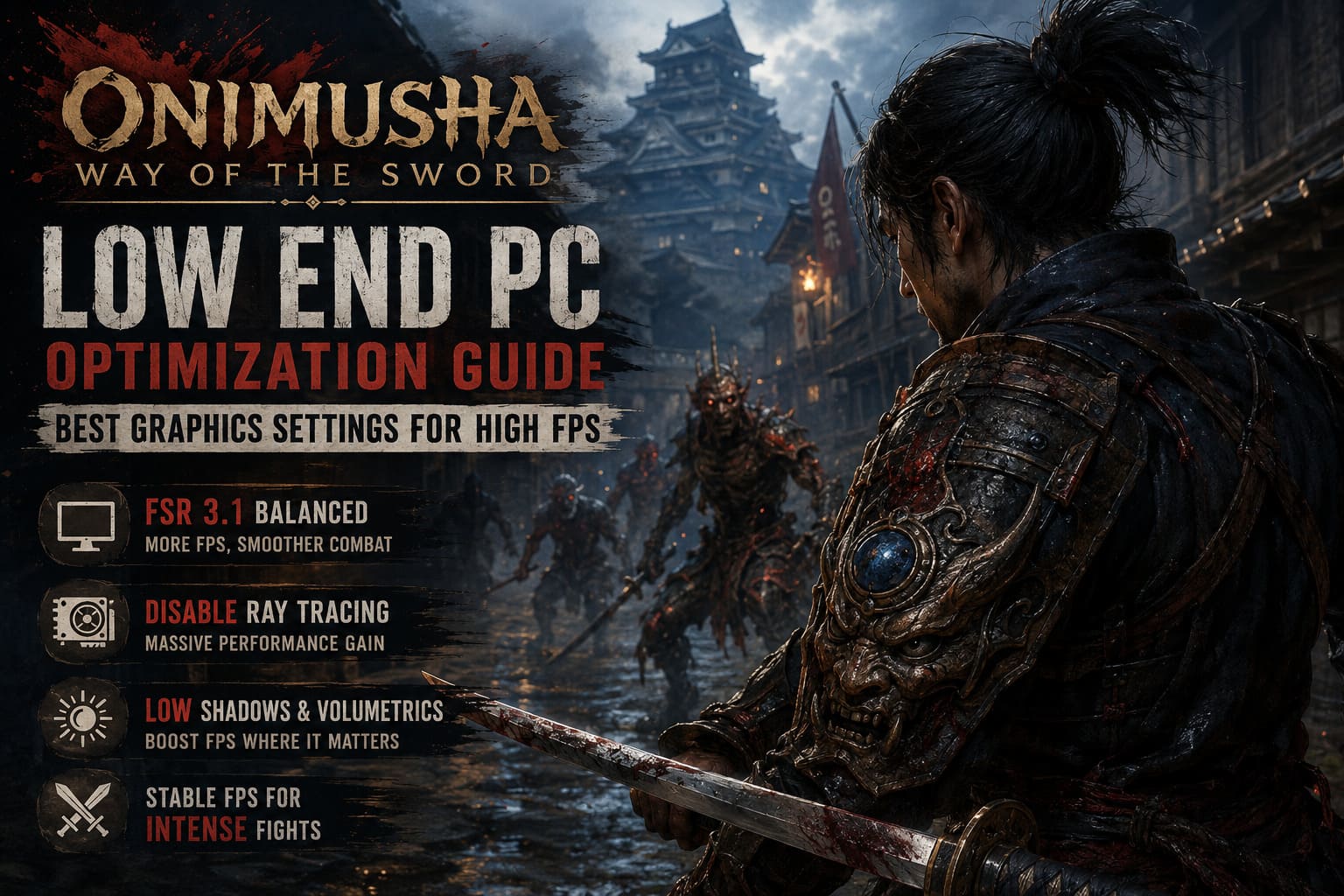
If your graphics card does not support DLSS, AMD FSR 3.1 is the setting I would experiment with first. It allows you to keep a 1920×1080 output while rendering the game internally at a lower resolution.
On an older GPU, this can make a much bigger difference than lowering several small quality options individually. The important part is choosing the right FSR mode.
- FSR Quality: Best image quality, but not always enough for weak GPUs.
- FSR Balanced: My preferred starting point for a GTX 1060-class system.
- FSR Performance: Useful when every frame matters more than image sharpness.
I would start with FSR Balanced. If the game still spends too much time below your target frame rate, move to Performance. I would rather use 1080p output with sensible upscaling than immediately switch the entire desktop resolution to 720p.
One important warning concerns frame generation. It is tempting to turn it on because the FPS counter suddenly looks much better, but generated frames cannot replace real GPU performance. For a reaction-heavy action game, I would only consider frame generation when the underlying frame rate is already reasonably high. If the game is genuinely struggling at 25-30 FPS, adding generated frames can make controls feel worse rather than better.
Best Onimusha: Way of the Sword Graphics Settings for Low-End PCs
Here is the configuration I would use as a starting point on an older gaming PC. It isn’t necessarily the prettiest setup, but it focuses on the settings that actually matter when you’re trying to eliminate major drops.
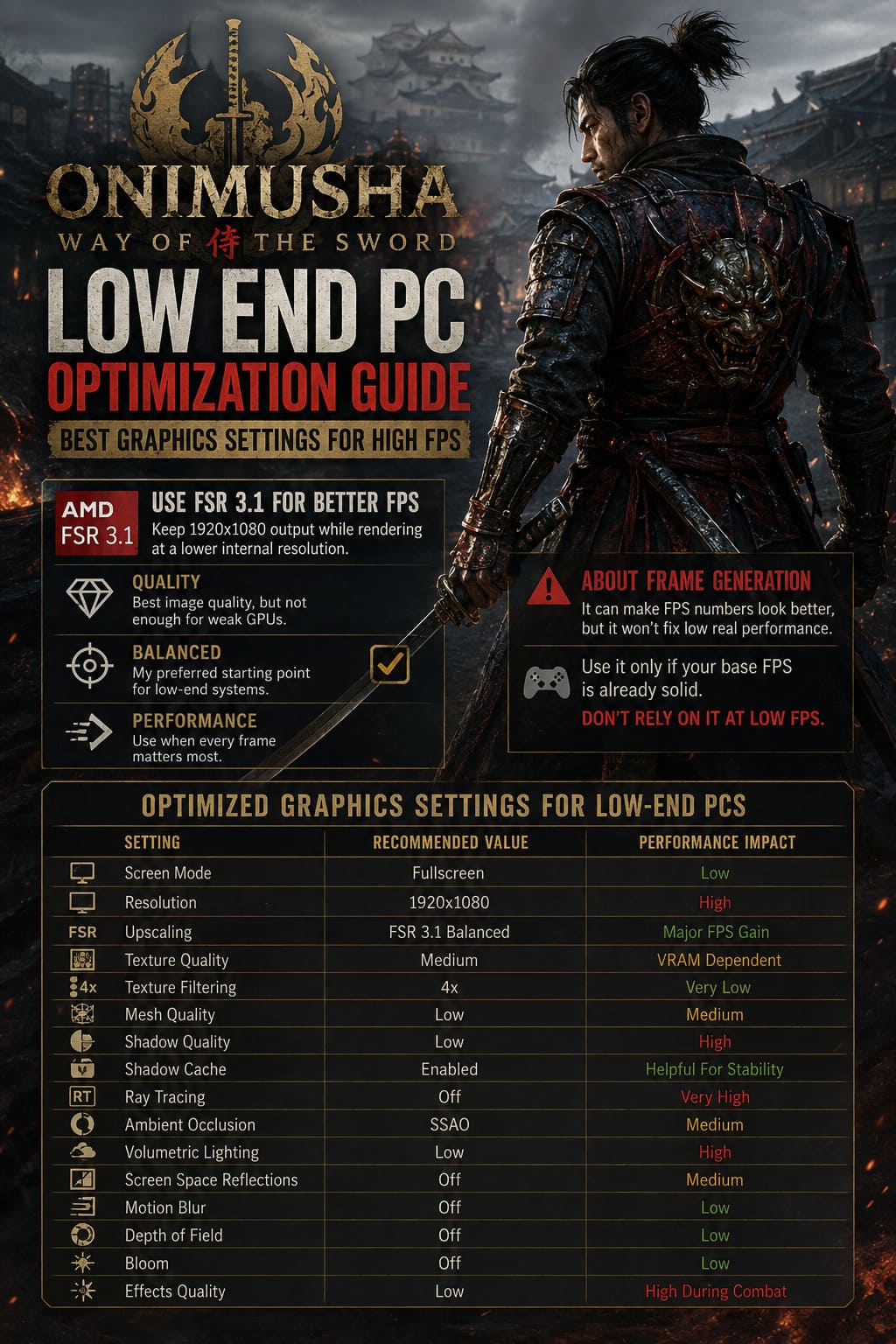
| Setting | Recommended Value | Performance Impact |
|---|---|---|
| Screen Mode | Fullscreen | Low |
| Resolution | 1920×1080 | High |
| Upscaling | FSR 3.1 Balanced | Major FPS Gain |
| Texture Quality | Medium | VRAM Dependent |
| Texture Filtering | 4x | Very Low |
| Mesh Quality | Low | Medium |
| Shadow Quality | Low | High |
| Shadow Cache | Enabled | Helpful For Stability |
| Ray Tracing | Off | Very High |
| Ambient Occlusion | SSAO | Medium |
| Volumetric Lighting | Low | High |
| Screen Space Reflections | Off | Medium |
| Motion Blur | Off | Low |
| Depth of Field | Off | Low |
| Bloom | Off | Low |
| Effects Quality | Low | High During Combat |
Textures: Don’t Automatically Set Them to the Lowest Option
Texture quality is one area where I wouldn’t blindly choose Low. Lowering textures can save VRAM, but it also makes characters, buildings and environmental surfaces look considerably worse. If your card has enough memory, Medium is usually a much better compromise.
For a 6GB GPU such as the GTX 1060 6GB, I would start with Medium and only increase it if there is plenty of VRAM headroom. With a 4GB graphics card, Medium may still work, but you should pay attention to stutters and sudden drops during area transitions.
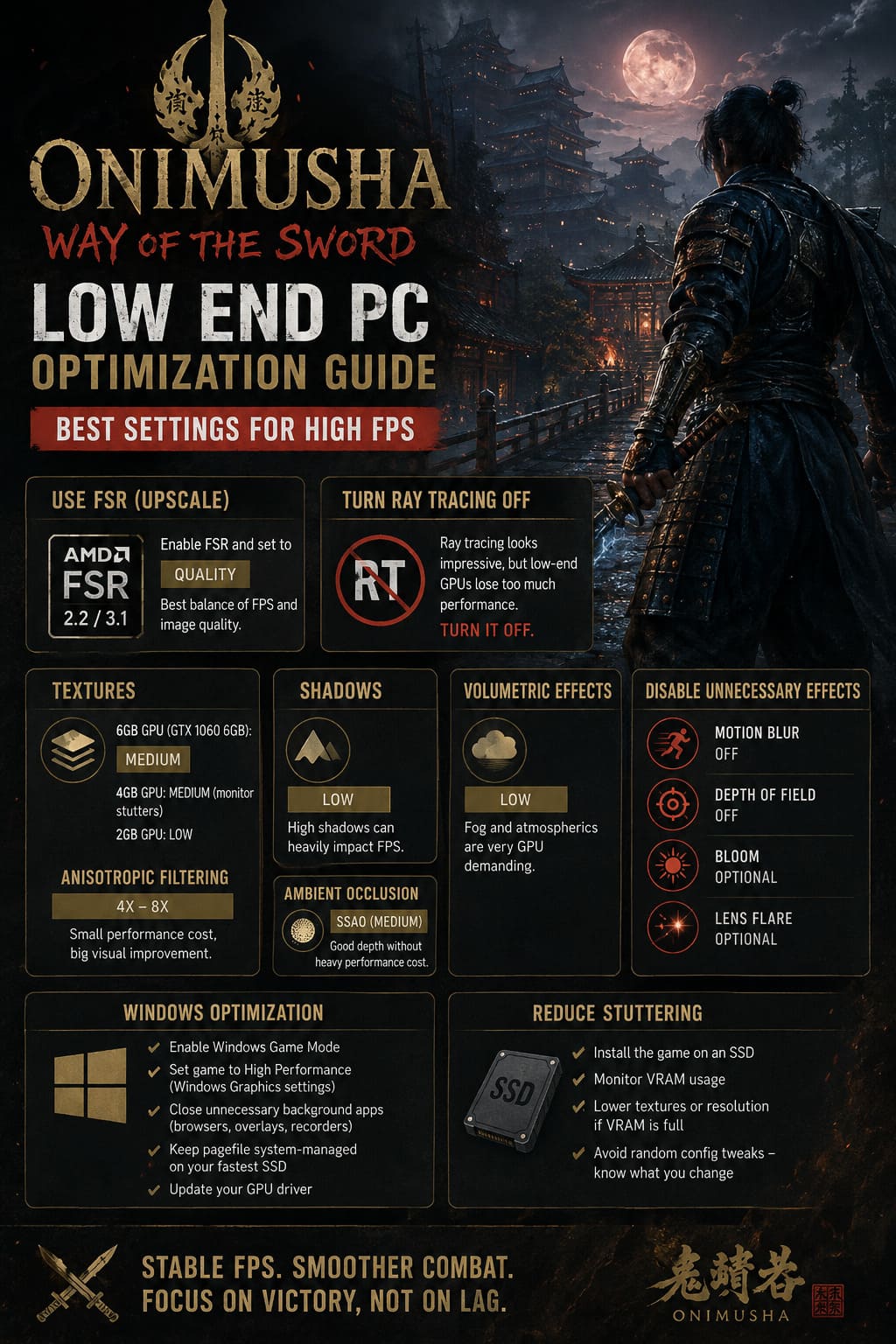
On very old 2GB GPUs, however, I would not fight the hardware. Low textures are the sensible choice.
Texture filtering is different. Anisotropic filtering generally has a relatively small performance cost compared with shadows, volumetric effects or ray tracing. 4x or 8x is therefore a good place to start, and there is little reason to obsess over squeezing out a few frames by completely destroying texture filtering.
Turn Ray Tracing Off — No Debate
This is probably the easiest recommendation in the entire guide.
If you are using an older GPU, turn ray tracing off. Completely off.
Ray-traced effects can look impressive in screenshots, especially on wet surfaces and highly detailed environments, but low-end hardware simply doesn’t have enough rendering power to justify them. In a game where precise reactions are more important than fancy reflections, I would always spend those GPU resources elsewhere.
The difference is particularly noticeable during demanding scenes. Instead of gaining anything meaningful from ray-traced lighting, you can end up with a substantial frame-rate penalty exactly when combat becomes busiest.
Shadows and Volumetric Effects Are Your Biggest Enemies
If you need more FPS after enabling FSR, my next step would be lowering shadow quality and volumetric lighting.
High-quality shadows require the GPU to process large shadow maps and additional lighting information. Meanwhile, volumetric effects can become extremely expensive when fog, atmospheric effects and supernatural abilities fill the screen.
I personally prefer Low shadows and Low volumetrics on a budget machine. The game still looks atmospheric, and you retain the important visual information needed to read enemy attacks.
Ambient occlusion is another setting where I would avoid going too aggressive immediately. SSAO is a reasonable compromise because it keeps some depth in interiors and around objects without the heavier cost associated with more advanced ambient shadowing.
Don’t Sacrifice Combat Clarity for a Few Extra Frames
There is an important distinction between optimizing a competitive shooter and optimizing an action game like Onimusha. You don’t need every single graphical option disabled just to see a huge FPS counter.
For example, I always recommend turning motion blur off. This isn’t only about performance. It makes sword swings and enemy movements easier to read, which is extremely useful when you’re learning the timing of parries and Issen counters.
Depth of field can also go. It is attractive in cinematic scenes, but during actual gameplay it contributes little. Bloom and lens flare are more subjective. If you like the cinematic presentation, leaving them enabled shouldn’t destroy performance. If you’re trying to squeeze out every possible frame, disable them.
Windows Tweaks That Are Actually Worth Trying
Graphics settings aren’t the entire story. On an older PC, background applications and Windows configuration can contribute to inconsistent frame times.
- Enable Windows Game Mode so the operating system gives gaming workloads higher priority.
- Set the game to High Performance under Windows Graphics settings, particularly on laptops with integrated and dedicated GPUs.
- Close unnecessary background applications, especially browsers with many tabs, recording software and overlays.
- Keep the pagefile system-managed and preferably located on your fastest SSD.
- Update your GPU driver if you’re experiencing unusual crashes or rendering problems.
I would not recommend applying dozens of random Windows registry tweaks from optimization videos. In my experience, these often create more problems than they solve. Start with the simple changes first and measure the result.
How to Reduce Stuttering on an Older PC
One of the most frustrating problems in modern games isn’t necessarily low average FPS. It is inconsistent frame pacing.
You can have a counter showing 50 FPS and still feel the game hitch every few seconds. Asset streaming, shader compilation, background applications and limited VRAM can all contribute to this problem.
The first thing I would check is storage. Install Onimusha: Way of the Sword on an SSD. Modern RE Engine games can stream a considerable amount of data while you move through environments. An old HDD can become a serious bottleneck.
Next, watch VRAM usage. If your GPU is constantly running out of available VRAM, lowering textures and resolution can help more than reducing minor post-processing effects.
I would also avoid blindly editing configuration files unless you know exactly what a particular parameter does. Community tweaks can occasionally help, but random values copied from another PC can just as easily cause instability.
How to Fix Low FPS, Stuttering, and Lag in Onimusha: Way of the Sword (PC Performance Guide)
My Recommended Low-End Preset
If you simply want the short version, this is where I would start:
- 1080p output + FSR 3.1 Balanced
- Textures: Medium on 6GB GPUs, Low on 2GB-4GB cards if necessary
- Shadows: Low
- Volumetrics: Low
- Ray Tracing: Off
- Mesh Quality: Low
- SSAO: On
- Screen Space Reflections: Off
- Motion Blur and Depth of Field: Off
- Effects: Low
From there, I would increase settings one at a time. Don’t change five options simultaneously. If you increase shadows and suddenly lose 8-10 FPS, you know exactly what caused it. This is much more useful than endlessly switching between presets without understanding what each option is doing.
What FPS Should You Realistically Expect?
Performance will obviously depend on the exact CPU, GPU, RAM configuration and game version, so I would treat any universal FPS promise with suspicion.
A GTX 1060-class PC should be approached as a 30-60 FPS target system, rather than a guaranteed 60 FPS machine. With aggressive settings and FSR, you may get close to 60 FPS in lighter areas, while busy combat scenes can still push performance lower.
| PC Type | Practical Target | Suggested Approach |
|---|---|---|
| GTX 1060 6GB / Similar | 40-60 FPS | 1080p FSR Balanced, Low-Medium |
| GTX 1650 / Similar | 30-45 FPS | FSR Performance, Low Settings |
| RX 580 8GB / Similar | 30-50 FPS | FSR Balanced/Performance |
| Very Weak Integrated GPU | 30 FPS Goal | Lowest Settings + Aggressive Upscaling |
Personally, I would rather lock the game around a stable 40 FPS than constantly bounce between 30 and 60 FPS. Consistent frame pacing makes timing-based combat feel much better than an impressive but unstable average.
Final Thoughts: Optimize for the Sword, Not the Screenshot
Onimusha: Way of the Sword is a game where gameplay should always come first. Beautiful lighting and detailed environments are part of the experience, but none of that matters when the frame rate collapses during a critical parry.
If you’re playing on an older PC, don’t be afraid of Low settings. The trick is knowing which settings deserve to be lowered and which ones can remain at Medium without destroying the visual quality.
My preferred approach is simple: use FSR 3.1 to handle resolution scaling, disable ray tracing, reduce shadows and volumetrics, keep textures appropriate for your VRAM capacity, and remove unnecessary post-processing effects. Then test the game in the areas where it normally performs worst.
Most importantly, don’t chase a magical FPS number. A stable frame rate with predictable frame times is much more valuable in Onimusha than a benchmark screenshot showing a higher average.
If your PC is sitting near the minimum requirements, a properly tuned configuration can make the difference between constantly fighting your hardware and simply enjoying Musashi’s journey. And for a game built around precise swordplay, that difference is absolutely worth chasing.