How to Fix The Blood of Dawnwalker Crashing and Not Launching on PC
The Blood of Dawnwalker throws players into a brutal dark fantasy world filled with vampires, plague, medieval politics, and dangerous supernatural powers. Rebel Wolves has built its debut RPG around a cinematic atmosphere and a massive Unreal Engine 5 presentation, and when everything works properly, the game can look absolutely spectacular.
The problem? Modern Unreal Engine 5 games can sometimes be a technical battlefield before you even reach the main menu.
If The Blood of Dawnwalker keeps crashing, refuses to launch, suddenly closes to the desktop, freezes during shader compilation, or gives you nothing but a black screen, you’re definitely not the only PC player dealing with it.
I’ve spent enough time troubleshooting demanding PC games to know one thing: when a big Unreal Engine title starts acting weird, randomly changing graphics settings usually isn’t the answer. You need to work through the likely causes one by one.
This guide covers the most effective fixes for The Blood of Dawnwalker crashing and not launching on PC, including Steam, GOG, and Xbox App troubleshooting. We’ll deal with corrupted files, GPU drivers, virtual memory, overlays, shader problems, HDR conflicts, overclocks, and the other usual suspects that love ruining launch day.
Why Is The Blood of Dawnwalker Crashing or Not Launching?
Before throwing random fixes at your PC, it’s worth understanding what can actually cause the problem.
The Blood of Dawnwalker is built around modern rendering technology and large-scale asset streaming. That means your system has to constantly handle textures, shaders, memory allocation, background processes, and GPU workloads.
The most common causes are usually:
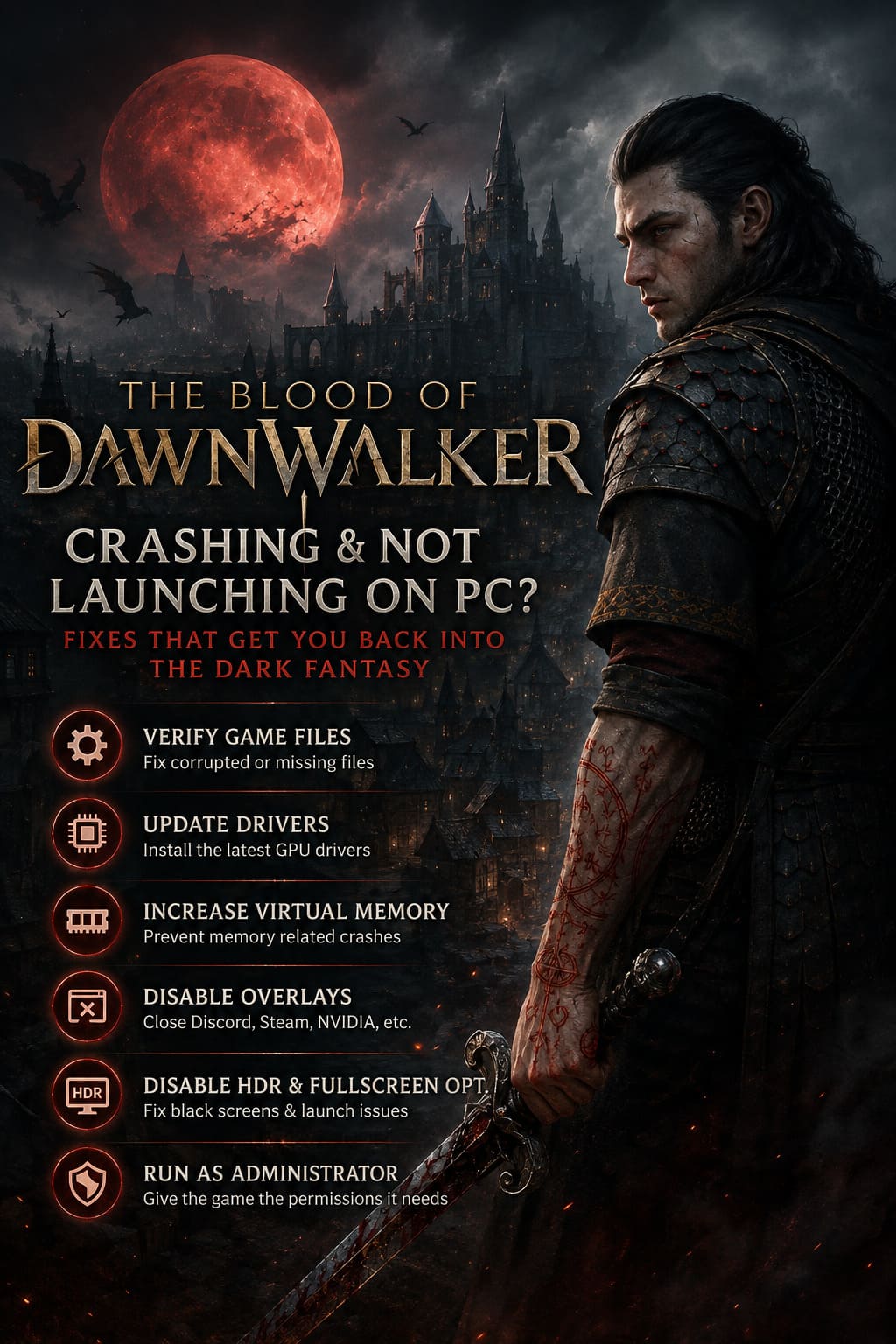
- Outdated or corrupted graphics drivers
- Broken or incomplete shader caches
- Corrupted game installation files
- Insufficient RAM or virtual memory
- GPU or CPU overclocks causing instability
- Discord, Steam, NVIDIA, or RTSS overlays
- Missing Microsoft Visual C++ runtime files
- HDR and fullscreen display conflicts
- Antivirus software blocking game files
One annoying thing about PC crashes is that several of these problems can produce the exact same result. A game closing instantly doesn’t automatically mean your GPU is broken, and a black screen doesn’t necessarily mean the installation is corrupted.
So don’t panic and reinstall Windows just yet. Let’s start with the fixes that usually solve launch problems first.
Fix The Blood of Dawnwalker Not Launching on PC
If you click Play, see a loading icon for a few seconds, and then absolutely nothing happens, the game is probably failing during its initial startup sequence.
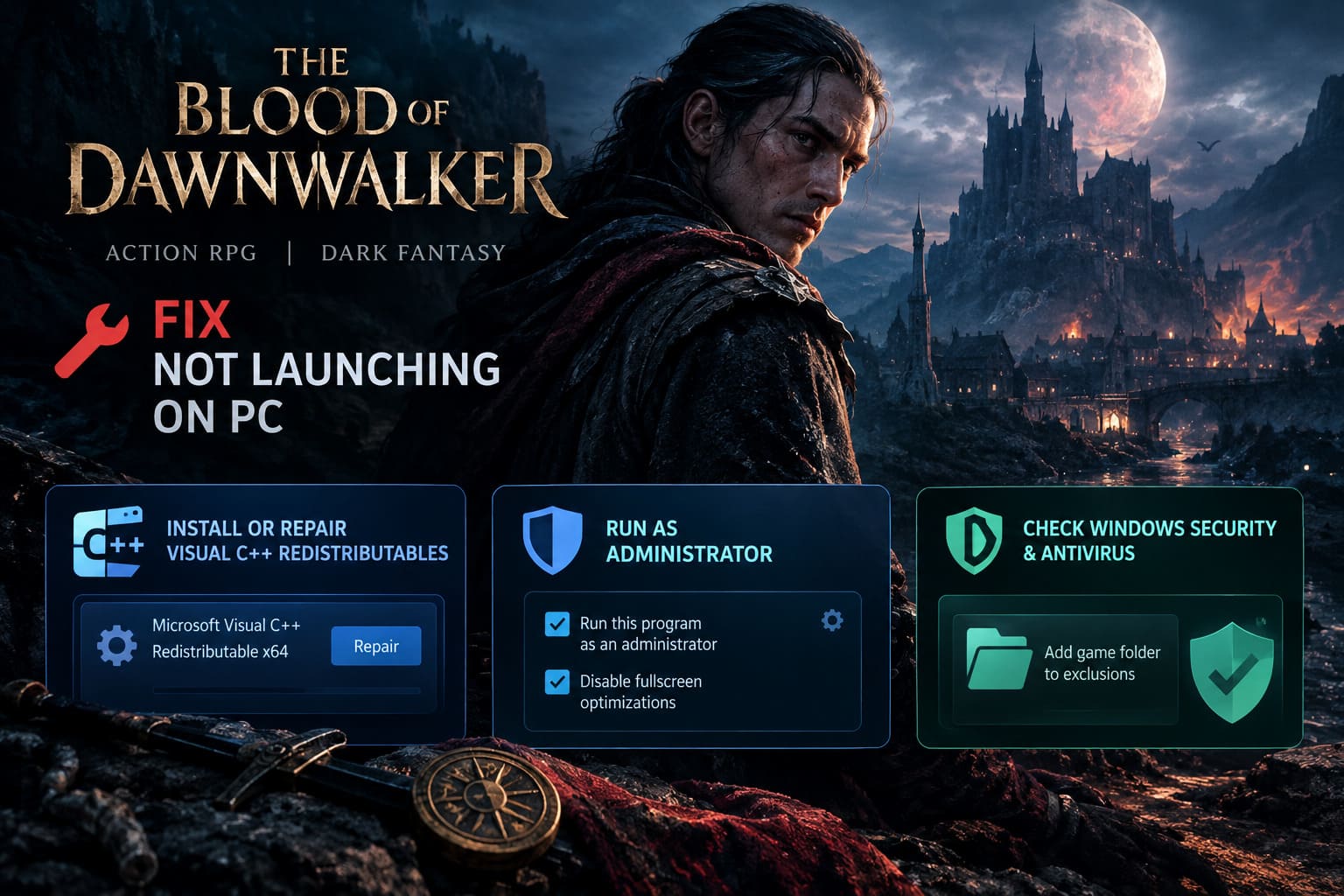
1. Install or Repair Microsoft Visual C++ Redistributables
This is one of those boring fixes that gamers often skip—and then somehow it ends up being the solution.
Modern PC games depend on Microsoft runtime libraries to execute various processes correctly. If those files are missing, damaged, or outdated, a game can crash before a window even appears.
Install the latest Microsoft Visual C++ Redistributable x64 package and choose Repair if it is already installed.
After installation:
- Restart your PC completely.
- Close unnecessary background applications.
- Launch The Blood of Dawnwalker again.
A full restart matters here. Don’t just close Steam and reopen it.
2. Run the Game as Administrator
Windows permissions can occasionally interfere with game startup, especially when a title needs to create configuration files, shader caches, or temporary folders.
For Steam players:
- Open your Steam Library.
- Right-click The Blood of Dawnwalker.
- Select Manage.
- Click Browse Local Files.
- Find the main
.exefile. - Right-click it and select Properties.
- Open the Compatibility tab.
Try enabling:
- Run this program as an administrator
- Disable fullscreen optimizations
Apply the changes and launch the game.
I wouldn’t recommend turning on compatibility mode as your first move. Windows 8 compatibility mode is more of a troubleshooting experiment than a universal fix, so only test it if the normal administrator settings don’t help.
3. Check Windows Security and Antivirus Software
Security software occasionally gets a little too enthusiastic.
Unreal Engine games perform complex memory operations and constantly access files during startup. Some third-party antivirus programs may incorrectly interfere with those processes.
You can add the game’s installation folder to your antivirus exclusions.
For Windows Security:
- Open Windows Security.
- Go to Virus & threat protection.
- Select Manage settings.
- Scroll down to Exclusions.
- Choose Add or remove exclusions.
- Add the main game installation folder.
Only exclude folders that you trust and that contain your legitimate game installation.
After adding the exclusion, restart your PC and test the game again.
How to Fix Random Crashes and CTDs in The Blood of Dawnwalker
A more frustrating situation is when the game actually launches, lets you play for several minutes, and then suddenly throws you straight back to the desktop.
That’s the classic CTD—Crash to Desktop experience. No warning, no explanation, just your desktop staring back at you.
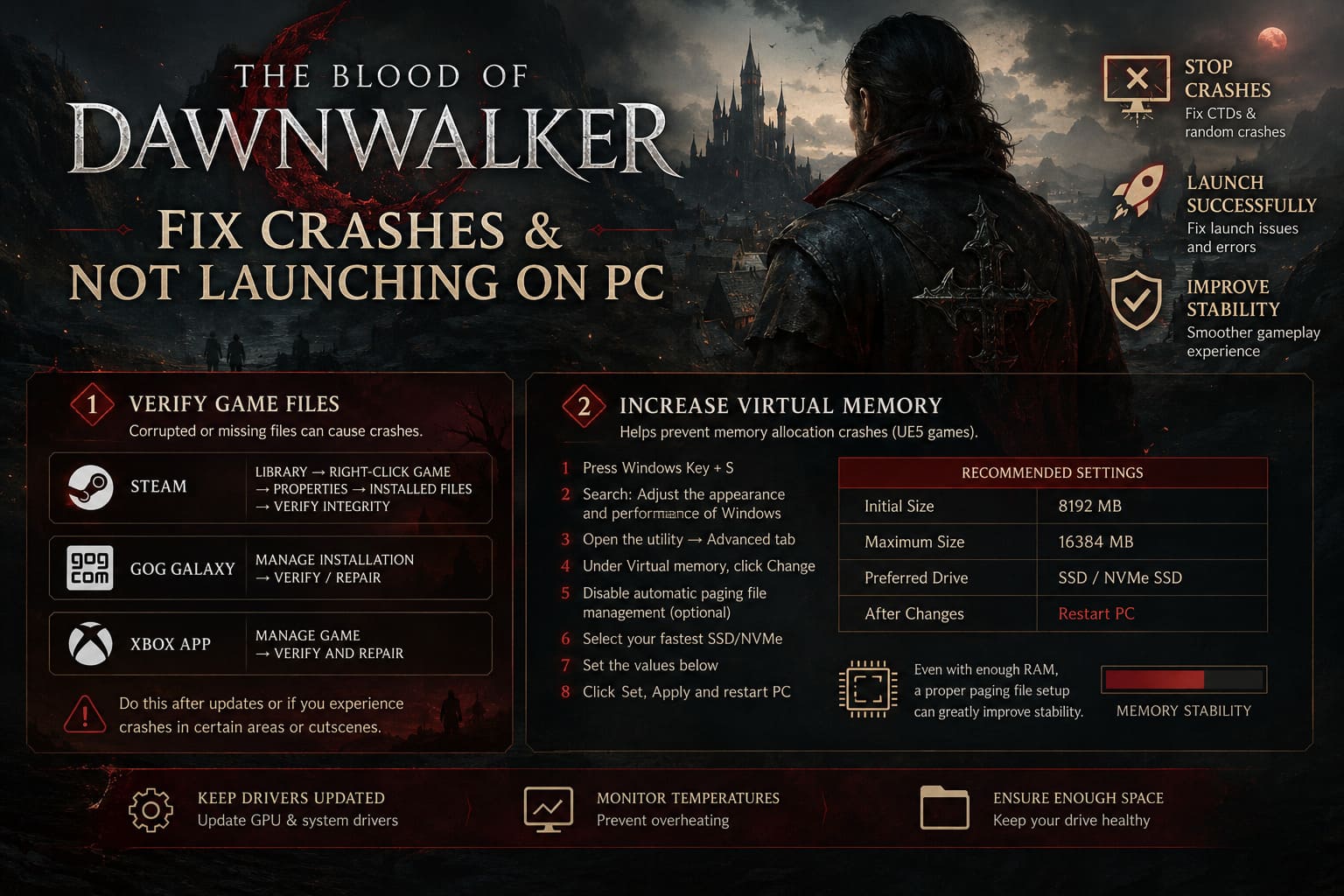
Verify Your Game Files
This should be one of the first things you do after a major update or preload.
Large open-world games contain thousands of files. One corrupted archive or missing asset can cause crashes during loading screens, dialogue sequences, cinematics, or specific areas.
Steam
Go to:
Library → Right-click The Blood of Dawnwalker → Properties → Installed Files → Verify integrity of game files
Steam will scan the installation and automatically replace damaged or missing files.
GOG Galaxy
Open the game’s settings menu and use:
Manage Installation → Verify / Repair
Xbox App
Open the game’s management options and look for the available Verify and Repair function under the installation or files section.
Don’t skip this step because the game launched successfully once. A corrupted asset may only cause a crash when you enter a specific location or trigger a particular cinematic.
Increase Virtual Memory to Prevent Memory Crashes
Unreal Engine 5 games can be absolutely hungry when it comes to memory.
Even if you have enough physical RAM, Windows may still run into trouble if your paging file configuration is disabled or extremely limited.
A stable virtual memory configuration can help prevent crashes caused by memory allocation failures.
Try the following:
- Press Windows Key + S.
- Search for Adjust the appearance and performance of Windows.
- Open the utility and select the Advanced tab.
- Find Virtual memory.
- Click Change.
- Disable automatic paging file management if you want to configure it manually.
- Select your fastest SSD.
A reasonable starting configuration is:
| Setting | Recommended Value |
|---|---|
| Initial Size | 8192 MB |
| Maximum Size | 16384 MB |
| Preferred Drive | SSD or NVMe SSD |
| After Changes | Restart PC |
Click Set, apply the changes, and reboot.
If you’re running a system with limited RAM, this can make a surprisingly big difference to stability.
Perform a Clean GPU Driver Installation
Graphics drivers are another major source of launch problems.
A normal driver update can sometimes leave behind old profiles and configuration data. Most of the time that’s fine, but around major game launches, weird driver conflicts can suddenly appear.
For serious troubleshooting, consider performing a clean driver installation.
The general process is:
- Download the latest driver for your GPU.
- Use Display Driver Uninstaller (DDU) if you’re comfortable with advanced driver cleanup.
- Run the cleanup process in Safe Mode.
- Install the fresh NVIDIA, AMD, or Intel driver.
For NVIDIA users, the installation process may also provide a Clean Installation option.
Important: Don’t download GPU drivers from random websites. Use your GPU manufacturer’s official driver source.
Disable Overclocks and Performance Overlays
This is where a lot of players get caught.
Your GPU might be perfectly stable in one game and crash constantly in another.
I’ve seen systems survive hours of one demanding title and then instantly explode into “Fatal Error” territory when a different Unreal Engine game starts hammering the GPU.
Temporarily reset:
- GPU core overclocks
- GPU memory overclocks
- CPU overclocks
- Aggressive undervolts
If crashes continue, testing your RAM configuration can also be worthwhile.
Temporarily disabling XMP or EXPO can help determine whether memory instability is involved, although you probably won’t want to leave those profiles disabled permanently unless they are actually causing problems.
Also close or disable overlays from:
- Discord
- Steam
- NVIDIA software
- AMD software
- RivaTuner Statistics Server
- MSI Afterburner monitoring tools
Once the game becomes stable, you can enable them again one at a time.
That approach is far better than guessing which overlay is causing trouble.
How to Fix The Blood of Dawnwalker Black Screen
A black screen can be especially annoying because the game may technically be running while your monitor refuses to display it properly.
Force Windowed Mode with Alt + Enter
When the black screen appears, press:
Alt + Enter
This classic shortcut can force the game into a windowed display mode.
If the picture suddenly appears, go straight into the game’s display settings and switch to:
Borderless Windowed
Then make sure the selected resolution matches your monitor’s native resolution.
Borderless mode is often more forgiving when dealing with fullscreen initialization problems.
Turn Off Windows HDR
HDR looks fantastic when everything is configured correctly.
When it isn’t, it can create some extremely weird launch behavior.
To test whether HDR is responsible:
- Right-click your desktop.
- Open Display Settings.
- Find the HDR option.
- Turn it Off.
- Launch The Blood of Dawnwalker again.
If the black screen disappears, you’ve probably found a display compatibility problem.
You can experiment with HDR again later after confirming that the game is stable.
Let Shader Compilation Finish Completely
Shader compilation is one of the biggest sources of first-launch stuttering and instability in modern games.
If The Blood of Dawnwalker displays a shader preparation process, let it finish completely.
Don’t force-close the game because the progress seems slow.
Don’t start loading into demanding areas while the system is still preparing assets if the game clearly indicates that compilation is happening.
Interrupting shader-related processes can leave you with a messy cache situation that causes stuttering, crashes, or repeated loading problems.
If shader issues continue, clearing and rebuilding relevant graphics shader caches may also help.
The Blood of Dawnwalker PC System Requirements
If you’ve tried every software fix and the game still refuses to behave, check your hardware.
| Component | Minimum | Recommended |
|---|---|---|
| Operating System | Windows 10 64-bit | Windows 11 64-bit |
| CPU | Intel Core i5-8400 / Ryzen 5 2600 | Intel Core i7-10700K / Ryzen 7 5800X |
| RAM | 16 GB | 32 GB |
| GPU | GTX 1070 / RX 5700 | RTX 3070 / RX 6800 XT |
| DirectX | Version 12 | Version 12 |
| Storage | 70 GB SSD | 70 GB NVMe SSD |
The Blood of Dawnwalker: PS5 vs Xbox Series X Performance and Graphics Analysis
SSD Storage Is Extremely Important
Trying to run a modern Unreal Engine 5 open-world game from an old mechanical HDD is asking for trouble.
The engine needs to stream massive amounts of data quickly. Slow storage can contribute to:
- Long loading screens
- Texture streaming delays
- Asset pop-in
- Stuttering
- Loading failures
- Potential startup instability
Install The Blood of Dawnwalker on an SSD whenever possible.
An NVMe drive is even better for systems that have one available.
The Blood of Dawnwalker Boss Guide: Best Combat Strategies and Weaknesses
Final Thoughts: Fix the Problem Systematically
The worst thing you can do when a game starts crashing is change twenty settings at the same time.
Then the game suddenly works, and you have absolutely no idea what actually fixed it.
Start with the basics:
- Verify game files
- Update or clean-install GPU drivers
- Install Visual C++ Redistributables
- Disable overlays and overclocks
- Check antivirus interference
- Increase virtual memory if necessary
After each major change, launch the game and test it.
The Blood of Dawnwalker is an ambitious dark fantasy RPG built on demanding modern technology, so launch-day patches and GPU driver updates may also improve stability over time. Keep the game updated, install new hotfixes when they become available, and don’t ignore driver releases specifically optimized for new PC games.
A properly configured system should let you spend your time exploring the game’s vampire-infested medieval world—not repeatedly watching Steam’s Play button turn blue, disappear, and pretend nothing happened.
And honestly, that’s the real final boss of PC gaming.