Crimson Moon Steam Deck Optimized Performance Guide: Best Graphics Settings and Layouts
Crimson Moon is shaping up to be exactly the kind of action RPG that makes me nervous about handheld performance. It has a gigantic gothic city, flashy combat, dense enemy encounters, magical effects flying everywhere, and the sort of dramatic lighting that looks fantastic on a powerful desktop but can absolutely bully a handheld APU.
The game launches on September 1, 2026, and ProbablyMonsters has confirmed Steam Deck support. That’s great news, but “supported” doesn’t automatically mean “runs perfectly.”
After spending a lot of time tuning demanding action RPGs on Steam Deck, I’ve learned one annoying truth: the default graphics preset is rarely the setting I actually want to use. A game can technically run while still feeling awful because frame times bounce around, shader effects cause little freezes, or the GPU spends too much power rendering details that are barely visible on a seven-inch display.
That’s particularly important in Crimson Moon.
Gildenarch is visually brutal for the Steam Deck. The gothic architecture, dynamic shadows, atmospheric fog, particle-heavy abilities, and crowded combat scenes can push the Aerith/Sephiroth-based hardware surprisingly hard. The worst moments aren’t necessarily quiet exploration. They’re the fights where several enemies, spell effects, weapon arts, and environmental effects hit the screen simultaneously.
For that reason, I wouldn’t chase an unstable 60 FPS target here. A locked 30 FPS or carefully tuned 40 FPS experience makes much more sense.
The good news? With the right compromises, Crimson Moon can still look seriously good on the Deck.
The Biggest Crimson Moon Performance Problems on Steam Deck
Before changing random settings, it’s worth understanding what is actually eating performance.
The Steam Deck has a relatively modest GPU compared with the hardware Crimson Moon is designed to support. Its eight RDNA 2 compute units have to share a limited power budget with the CPU, and that’s where things get interesting.
The most expensive settings are generally the ones that affect shadows, lighting, volumetric effects, ambient occlusion, and large quantities of transparent particles.
Gildenarch makes heavy use of all of them.
Dynamic shadows are particularly nasty because they can create a substantial GPU workload without producing an equally noticeable improvement on the small Steam Deck screen. Volumetric fog has a similar problem. It looks beautiful when you’re standing in a dramatic cathedral with shafts of light cutting through the air, but during combat it can become another expensive effect competing for GPU time.
Then there are the big combat sequences.
When a Nephilim activates a powerful ability while multiple enemies are on screen, the Deck can suddenly have to process particles, lighting, animation, shadows, physics and post-processing simultaneously. That’s where inconsistent frame times become much more noticeable.
My rule for Crimson Moon is simple: protect frame consistency before chasing visual quality.
A stable 30 FPS feels considerably better than a game constantly jumping between 27, 34 and 41 FPS.
Best Crimson Moon Steam Deck Settings
Start with a Custom graphics profile rather than one of the global presets. The preset system might look convenient, but manually controlling the expensive settings gives you much more predictable results.
Recommended Display Settings
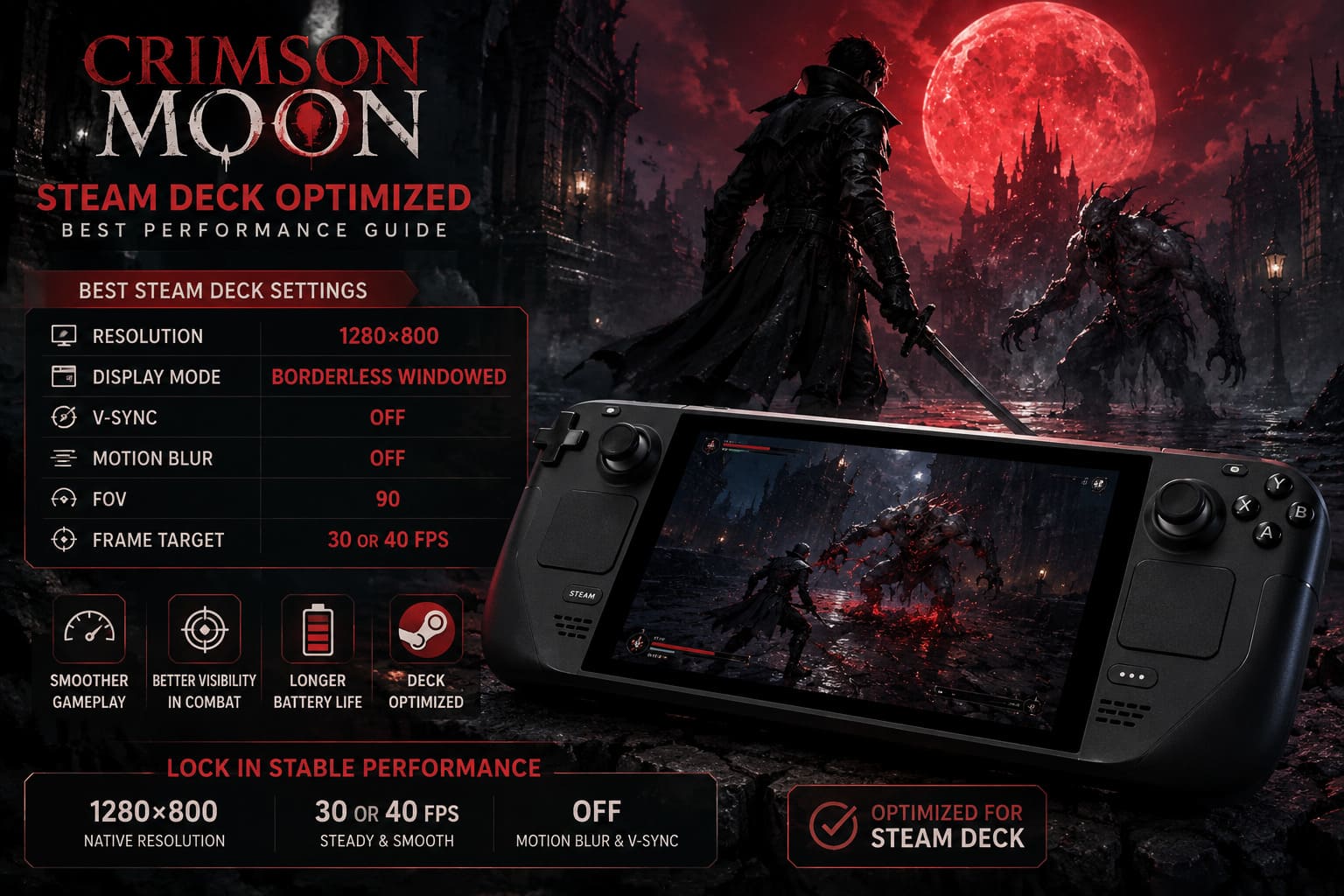
| Setting | Recommended Value |
|---|---|
| Resolution | 1280×800 |
| Display Mode | Borderless Windowed |
| V-Sync | Off |
| Motion Blur | Off |
| FOV | 90 |
| Frame Target | 30 or 40 FPS |
The native 1280×800 resolution is the obvious starting point. Crimson Moon’s dark environments actually benefit from keeping the image reasonably clean, and dropping too aggressively can make distant geometry and character silhouettes look noticeably soft.
I strongly recommend disabling Motion Blur.
This isn’t just a performance trick. In a game built around dodging, parrying and rapidly repositioning the camera, excessive blur makes combat harder to read. When you’re trying to identify an incoming attack animation, you don’t need the entire screen smeared across your display.
V-Sync should also stay off if you’re managing your frame target through SteamOS.
Crimson Moon Steam Deck Graphics Settings
Here’s where most of the actual optimization happens.
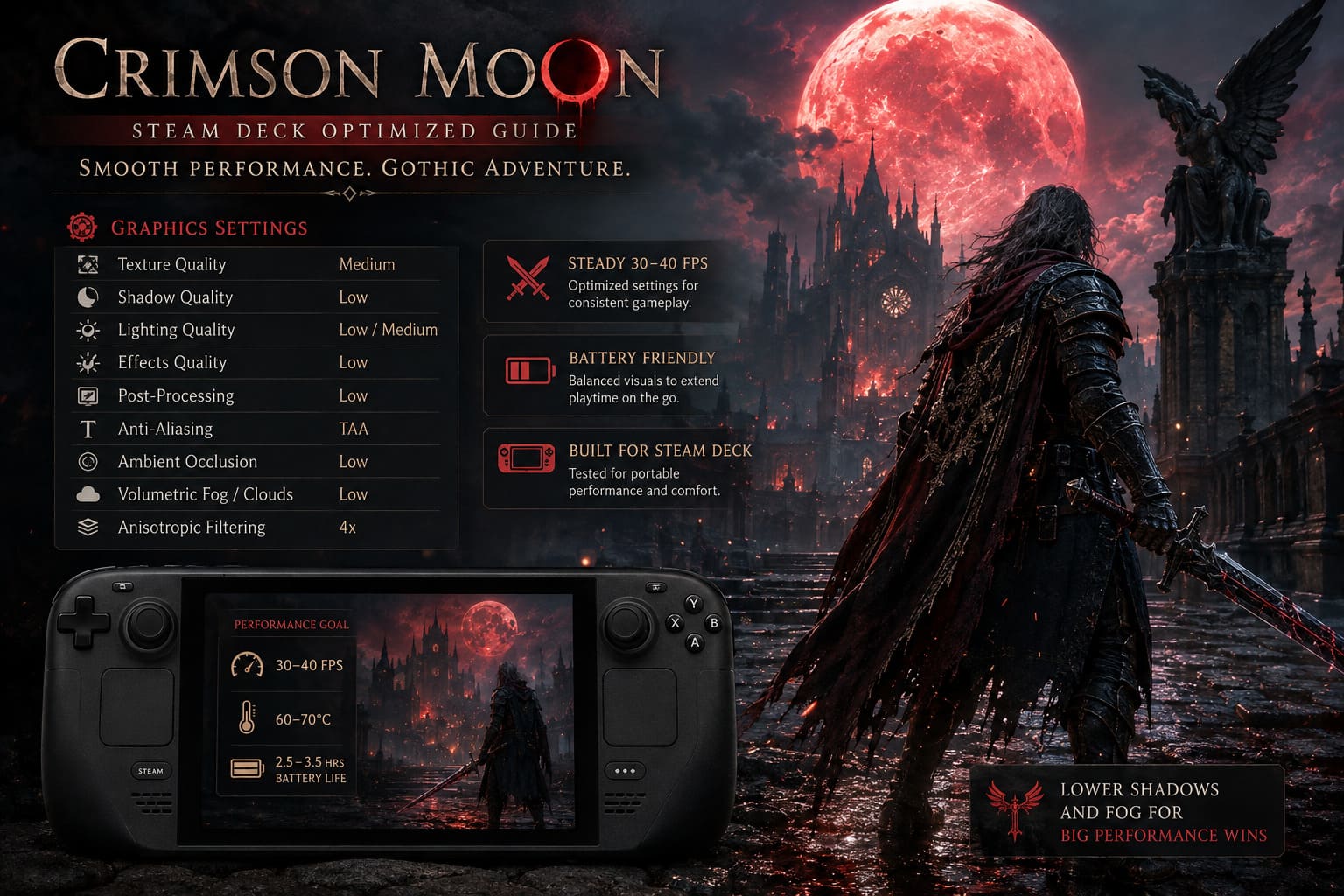
| Graphics Option | Best Setting |
|---|---|
| Texture Quality | Medium |
| Shadow Quality | Low |
| Lighting Quality | Low/Medium |
| Effects Quality | Low |
| Post-Processing | Low |
| Anti-Aliasing | TAA |
| Ambient Occlusion | Low |
| Volumetric Fog/Clouds | Low |
| Anisotropic Filtering | 4x |
Texture Quality: Medium
I wouldn’t immediately drop textures to Low.
The Steam Deck’s display is small enough that Medium textures can still look surprisingly sharp, while the reduction in memory pressure compared with a high-quality texture preset is useful.
Crimson Moon’s architecture is one of its biggest visual attractions. Brickwork, stone, armor and gothic interiors should retain enough detail to make Gildenarch feel like a real place rather than a collection of blurry surfaces.
Shadow Quality: Low
This is the setting I’d sacrifice without hesitation.
Set shadows to Low.
You lose some visual drama, but the performance savings are far more valuable during combat. High-quality dynamic shadows are one of those PC settings that look fantastic in screenshots but don’t necessarily justify their cost while you’re frantically rolling away from a giant demon.
If you’re looking for your first major performance improvement, start here.
Lighting Quality: Low or Medium
For maximum consistency, use Low.
If you’re playing solo and the frame rate has some headroom, Medium is worth trying. Crimson Moon’s lighting contributes heavily to its gothic atmosphere, so this is one area where I understand wanting more visual quality.
For co-op, though, I’d rather keep it at Low.
Two players generating abilities simultaneously is exactly the sort of scenario where extra lighting calculations can become painful.
Effects Quality: Low
Another easy cut.
Weapon Arts, magical attacks and celestial abilities can fill the screen with particles. High effects quality is expensive during the exact moments when you need the game to remain responsive.
Low effects doesn’t mean turning combat into a bland mess. It simply prevents the Deck from wasting precious GPU resources on effects that are difficult to appreciate when ten enemies are trying to kill you.
Ambient Occlusion: Low
Keep AO enabled, but use Low.
Completely removing ambient occlusion can make objects appear strangely flat, especially in dark environments. Low gives Gildenarch enough depth without putting unnecessary pressure on the GPU.
Volumetric Fog: Low
This one is another big win.
Gildenarch apparently loves atmospheric fog, but volumetric effects are notoriously demanding on weaker GPUs.
Set them to Low and don’t look back unless you’re testing a higher-quality profile for screenshots.
AMD FSR: The Sweet Spot for Crimson Moon
Native 800p rendering sounds great until you see what happens during a massive combat encounter.
That’s where AMD FSR becomes extremely useful.
I’d start with:
- Upscaler: AMD FSR
- Preset: Balanced
- Sharpness: 60–70%
- Resolution: 1280×800 output
Balanced is the setting I would use for general play.
Crimson Moon’s dark environments can hide some of the compromises introduced by temporal upscaling, while the additional performance headroom becomes extremely valuable during large encounters.
If you’re mostly exploring alone and want a cleaner image, try FSR Quality. It will generally produce a sharper picture, but I wouldn’t sacrifice a stable frame rate just to make distant stone walls slightly prettier.
The sharpness slider is also worth experimenting with.
Around 60–70% is a good starting point. Too little sharpening can make the image look soft; too much creates ugly halos around geometry and characters.
30 FPS vs 40 FPS: Which Should You Use?
This is one of the most important decisions you’ll make.
30 FPS Profile
Choose 30 FPS if:
- You want maximum stability.
- You play long sessions.
- You care about battery life.
- Co-op performance is more important than responsiveness.
- Large fights are causing dips at 40 FPS.
Set the Steam Deck to 30 Hz and 30 FPS.
It’s not glamorous, but a properly locked 30 FPS can feel surprisingly good in a slower, weightier action RPG.
40 FPS Profile
If your Deck can sustain it consistently, 40 FPS at 40 Hz is my preferred target.
The jump from 30 to 40 FPS makes camera movement and combat feel noticeably more responsive without demanding the same performance required for 60 FPS.
For Crimson Moon, that’s a fantastic compromise.
You get a smoother experience while still leaving the hardware some breathing room.
Steam Deck Performance Menu Settings
Once the in-game graphics are configured, open the Steam Deck’s Quick Access Menu and tune the performance controls.
I’d use this setup as a starting point:
| SteamOS Option | Recommended Setting |
|---|---|
| Frame Limit | 30 or 40 FPS |
| Refresh Rate | Match FPS |
| TDP Limit | Off |
| GPU Clock | 1400–1500 MHz Manual |
| Proton | Proton Experimental / Current GE-Proton |
Don’t Artificially Choke the APU
Leave the TDP limit unrestricted.
Crimson Moon is exactly the type of game where the Deck needs access to its full power envelope during demanding combat sequences. Limiting the APU might save battery, but it can also make the frame rate collapse when the game suddenly becomes busy.
If you’re already struggling for performance, don’t start by limiting power.
Manual GPU Clock
A manual GPU clock around 1400–1500 MHz can help maintain more consistent performance.
The important word here is consistency.
You aren’t necessarily trying to make Crimson Moon magically run faster. You’re trying to prevent the GPU from constantly changing clocks and creating inconsistent frame delivery.
I’d test 1400 MHz first. If performance still fluctuates heavily, 1500 MHz is worth trying.
What About 60 FPS on Steam Deck?
This is where I’m going to be blunt.
I wouldn’t make native 60 FPS the target for Crimson Moon.
The hardware simply has too much work to do in the game’s most demanding scenes. You can lower everything until Gildenarch starts looking like it was rendered through a potato, but that’s not necessarily a good trade.
There is another option, though.
Using LSFG for a 60 FPS Presentation
If you prioritize visual fluidity over competitive-level responsiveness, Lossless Scaling Frame Generation can be used to generate additional frames.
A possible configuration is:
1024×640 internal resolution → 30 FPS base → 2x frame generation → approximately 60 FPS output
It can look remarkably smooth during exploration.
But there is a catch.
Frame generation doesn’t create genuine additional game simulation. Your input is still fundamentally tied to the underlying 30 FPS frame rate, and generated frames can produce artifacts around fast-moving weapons, wings and particle effects.
For a souls-like combat system, that’s important.
I would not use frame generation for serious parry-heavy encounters. The additional latency and occasional ghosting aren’t worth it when you’re learning a boss’s attack pattern.
For relaxed exploration or casual co-op, however, it’s an interesting experiment.
The Best Steam Deck Control Layout for Crimson Moon
Crimson Moon’s standard controller setup should be perfectly usable, but the Deck’s rear buttons are too useful to ignore.
If you’re serious about the combat system, I’d remap the rear grips.
My Preferred Layout
- L4: Dodge/Dash
- R4: Item/Healing
- L5: Weapon Art
- R5: Boon/Build Ability
The biggest improvement is putting Dodge on a rear button.
Your right thumb can stay on the camera while your left thumb handles movement. That sounds like a small change, but in a combat-heavy RPG it can completely change how comfortable movement feels.
You’re essentially gaining another finger without sacrificing camera control.
If you’re playing a build that uses ranged celestial abilities, I’d also experiment with Gyro aiming. Keep the sensitivity low and enable it only when needed. You don’t want the camera constantly drifting every time you move the Deck.
Battery Life and Heat: What to Expect
Don’t expect Crimson Moon to be gentle on the battery.
A demanding 3D action RPG running near the Deck’s performance ceiling can push total system power considerably higher than lighter indie games.
The LCD model will naturally struggle more with endurance, while the OLED model benefits from its more efficient APU and larger battery.
For longer sessions, I strongly recommend prioritizing a locked 30 FPS profile.
You’ll lose some responsiveness compared with 40 FPS, but you’ll gain a much more predictable thermal and battery profile.
Also, don’t cover the intake vents.
It sounds obvious, but it’s surprisingly easy to partially block them while playing in bed or holding the Deck in an awkward position. If the system starts getting too hot, performance can suffer as the hardware attempts to manage temperatures.
My Recommended Crimson Moon Steam Deck Profiles
If you don’t want to spend an hour tweaking every slider, these are the profiles I’d start with.
Best Overall — 40 FPS
1280×800, FSR Balanced, Medium Textures, Low Shadows, Low Effects, Low Volumetrics, Low AO, TAA, 40 FPS/40 Hz
This is the setup I’d personally use first.
It gives you the best balance between image quality and combat responsiveness.
Maximum Stability — 30 FPS
1280×800, FSR Balanced, Medium Textures, Low Shadows, Low Lighting, Low Effects, Low Post-Processing, Low Volumetrics, 30 FPS/30 Hz
Choose this for demanding areas and longer sessions.
It isn’t flashy, but it’s reliable.
Visual Smoothness Experiment — 60 FPS Output
1024×640, 30 FPS base, FSR, LSFG 2x
This is the “I want it to look buttery” option.
Use it when you don’t mind a little extra latency and visual artifacting.
Crimson Moon Best Nephilim Builds: Guide for Launch and Endgame (2026)
Final Verdict: The Steam Deck Can Handle Crimson Moon, But Don’t Fight the Hardware
The biggest mistake you can make with Crimson Moon on Steam Deck is treating every graphics option as equally important.
They’re not.
Shadows, volumetrics, effects and lighting should take the hit first. Keep textures at Medium, maintain a sensible output resolution, and let FSR do the heavy lifting. That combination preserves much more of Gildenarch’s atmosphere than simply dropping the entire game to Low.
For most players, I’d aim for 40 FPS at 40 Hz if the hardware maintains it. If you’re seeing frequent drops during boss fights or chaotic co-op encounters, switch to a locked 30 FPS/30 Hz profile instead of endlessly chasing missing frames.
And honestly, that’s the profile I’d trust most for a long playthrough.
Crimson Moon is a game where combat timing matters. I’d rather have a consistent frame time, responsive dodge and clean enemy animations than a prettier shadow falling across a wall.
The Steam Deck doesn’t need to turn Gildenarch into a technological showcase. It just needs to make the next dodge feel right. With these settings, that’s exactly what I’d be aiming for.