Fell & Sell Steam Deck Performance Guide: Best Settings for Stable FPS
Fell & Sell is exactly the kind of game that looks like it should be effortless on the Steam Deck—until the screen fills with enemies, particle effects start flying everywhere, and your carefully built shop becomes packed with items, shelves, decorations, and wandering customers.
That combination is what makes the game so addictive. One minute you’re deep underground smashing monsters and grabbing everything that isn’t nailed down. The next minute you’re back at your store, organizing loot, crafting valuable equipment, and trying to turn your dungeon haul into serious profit.
After spending enough time tweaking handheld settings, one thing becomes obvious: Fell & Sell can feel fantastic on Steam Deck, but the default experience isn’t necessarily the best experience.
You can simply launch the game and play, sure. But if you want smoother combat, fewer annoying frame-time spikes, lower temperatures, and better battery efficiency, a few adjustments make a noticeable difference.
For most players, I strongly recommend targeting 40 FPS rather than blindly chasing 60 FPS. The Deck handles that performance target comfortably while keeping power consumption under control. A 60 FPS setup is possible for players who prioritize responsiveness, but it comes with the usual handheld tax: more heat, louder cooling, and a faster-draining battery.
Here’s the configuration I would personally use.
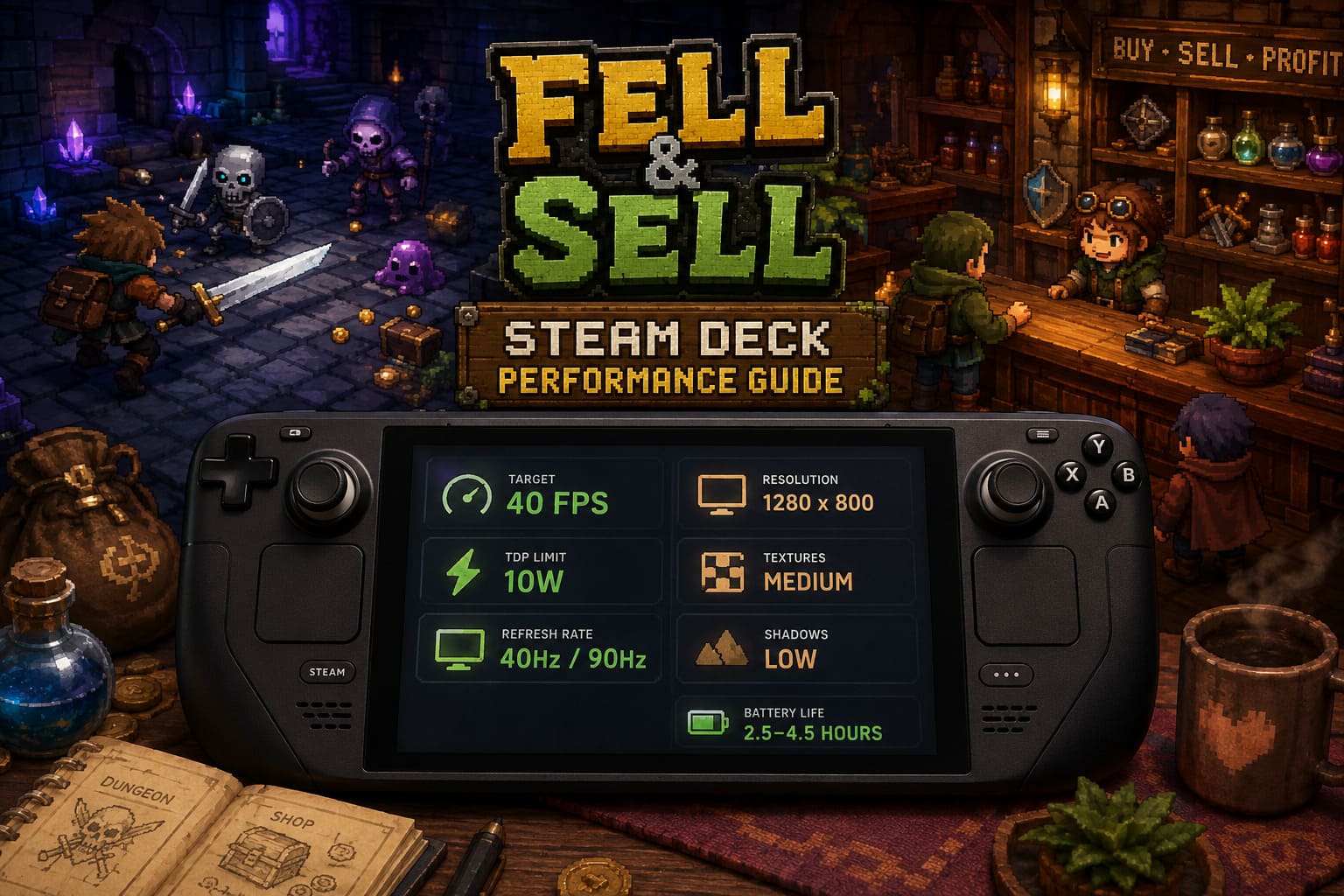
My Recommended Fell & Sell Steam Deck Performance Profile
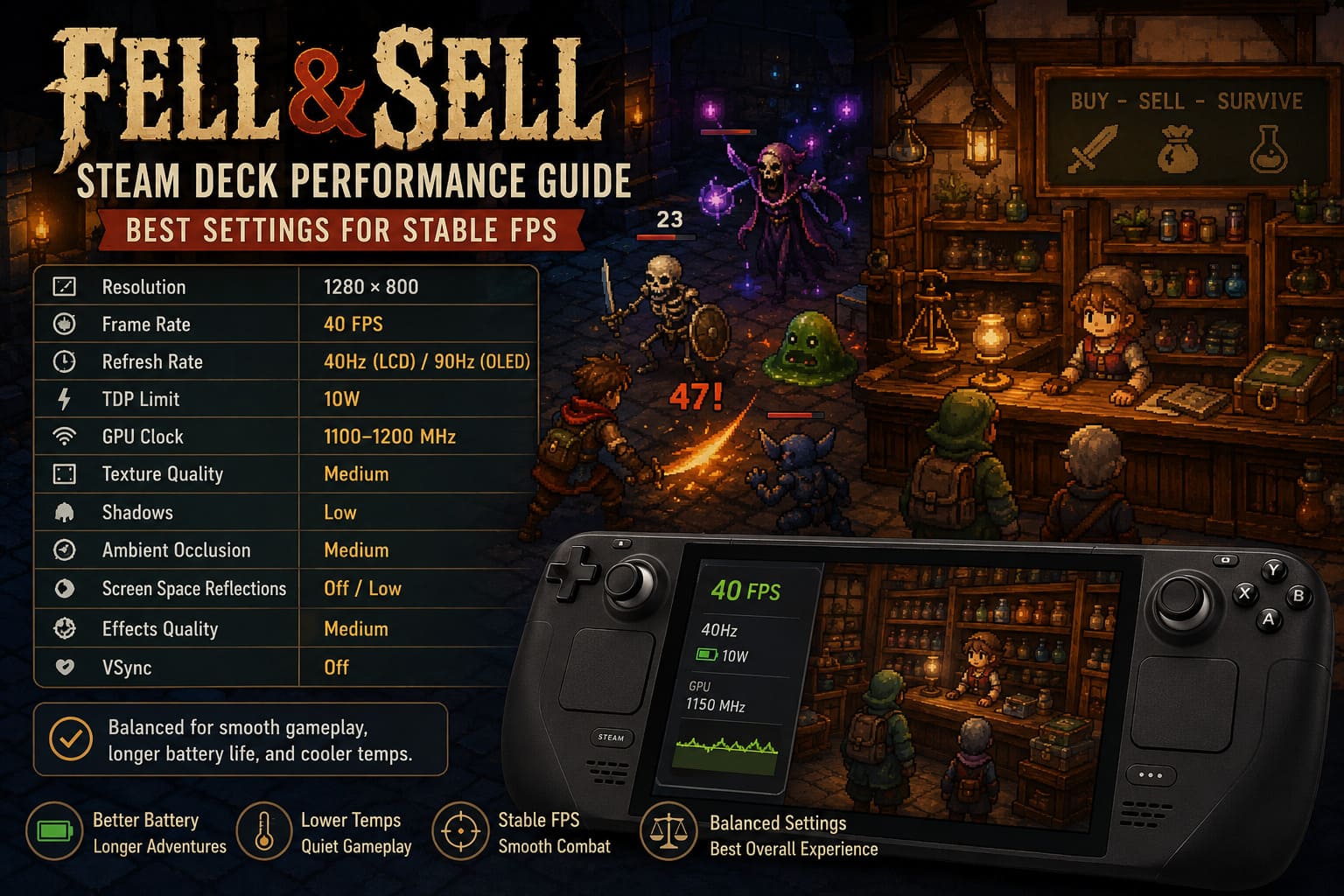
| Setting | Recommended Value |
|---|---|
| Resolution | 1280 × 800 |
| Frame Rate | 40 FPS |
| Refresh Rate | 40Hz on LCD / 90Hz on OLED |
| TDP Limit | 10W |
| GPU Clock | 1100–1200 MHz |
| Texture Quality | Medium |
| Shadows | Low |
| Ambient Occlusion | Medium |
| Screen Space Reflections | Off or Low |
| Effects Quality | Medium |
| VSync | Off |
This setup offers the best overall balance between image quality, responsiveness, battery life, and thermal performance.
And honestly? That’s what the Steam Deck is best at.
Trying to force every game into a permanent 60 FPS experience can sometimes turn handheld gaming into a battle against your battery percentage instead of an actual gaming session.
Why Fell & Sell Benefits From Steam Deck Optimization
Fell & Sell has two very different workloads.
The dungeon sections are where the GPU gets pushed harder. Fast movement, enemies, weapons, magical effects, particles, lighting, and environmental rendering can suddenly increase the workload. If performance starts stuttering during a difficult encounter, you’re not just looking at ugly numbers in a performance overlay—you might miss a dodge or parry and lose an entire run.
That’s the kind of performance problem that makes gamers immediately start blaming the game, the Steam Deck, SteamOS, the Proton version, and probably their Wi-Fi for absolutely no reason.
The shop sections create a different kind of challenge.
While combat isn’t constantly hammering the system in the same way, a busy store can place additional pressure on CPU processing and shared memory. Every item, shelf, decoration, customer, and AI interaction adds to the overall workload.
The result is that Fell & Sell benefits more from a well-balanced performance profile than from simply maxing out every available hardware setting.
Steam Deck Quick Access Menu Settings
Before touching the game’s graphics menu, open the Quick Access Menu using the three-dot button.
The first thing I recommend enabling is a Per-Game Profile.
This is important because your optimized Fell & Sell settings won’t interfere with other games. You can keep an aggressive 10W profile here while another demanding title continues using the full Steam Deck power budget.
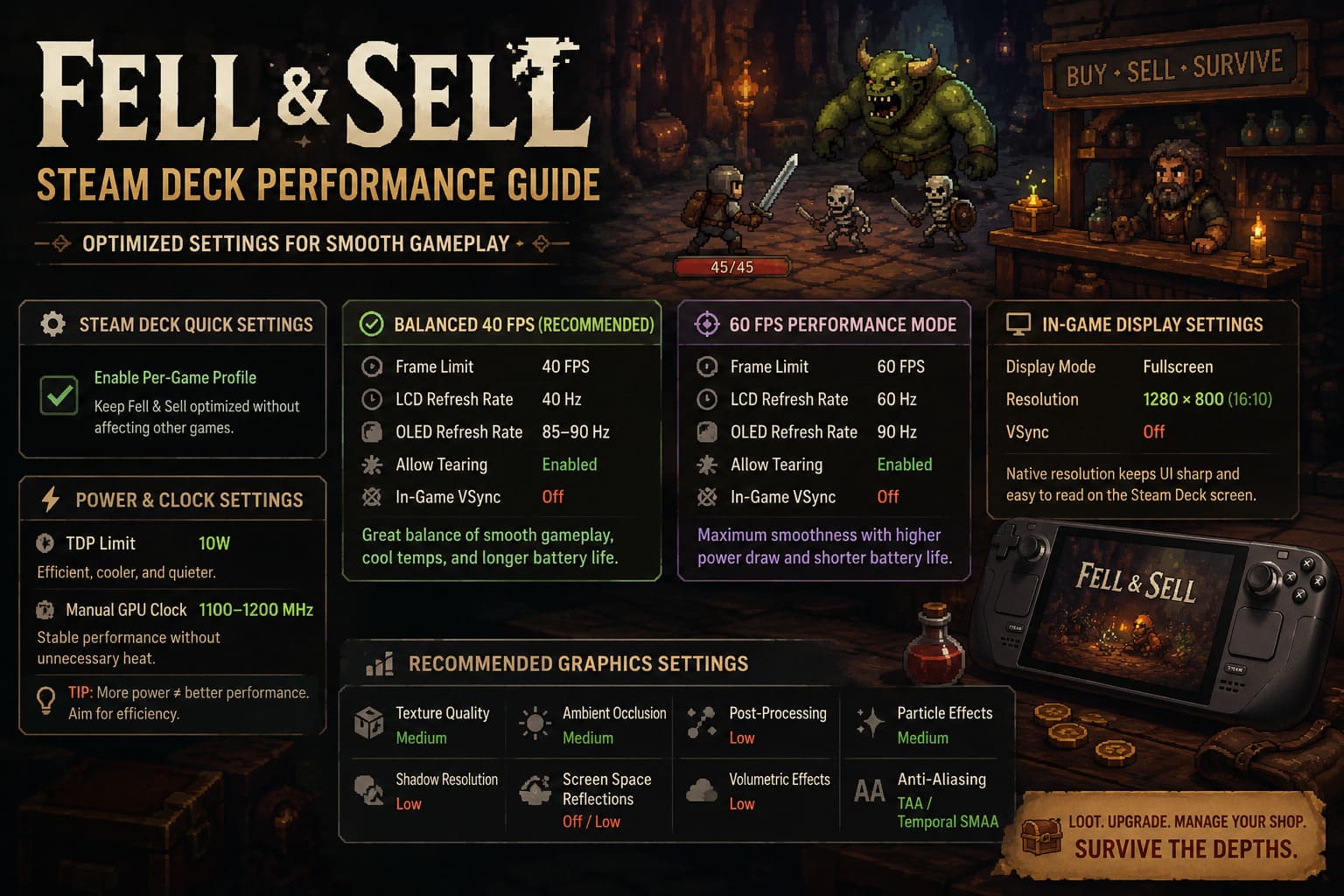
Balanced 40 FPS Profile — My Top Recommendation
For both Steam Deck LCD and Steam Deck OLED, this is the profile I’d choose first:
- Frame Limit: 40 FPS
- LCD Refresh Rate: 40Hz
- OLED Refresh Rate: 85Hz or 90Hz
- Allow Tearing: Enabled
- In-Game VSync: Off
The jump from 30 FPS to 40 FPS is much more noticeable than some players expect.
Combat feels significantly more responsive, camera movement is cleaner, and input latency improves without forcing the Steam Deck to work as hard as it would for a locked 60 FPS experience.
40 FPS is the sweet spot here.
It gives Fell & Sell enough breathing room when combat gets messy while also helping the device stay cooler during longer sessions.
Want 60 FPS? Here’s What to Expect
Players who absolutely cannot go back from 60 FPS can use this profile:
- Frame Limit: 60 FPS
- Refresh Rate: 60Hz on LCD
- Refresh Rate: 90Hz on OLED
- Allow Tearing: Enabled
- VSync: Off
The action feels excellent when performance stays near the target.
The downside is obvious: the Steam Deck has to work much harder.
Battery life drops faster, temperatures increase, and demanding scenes may create more inconsistent frame times. Personally, I would only use the 60 FPS profile when playing near a charger or when battery life isn’t important.
A stable 40 FPS experience is better than constantly bouncing between 45 and 60 FPS.
Consistency wins.
Best TDP and GPU Clock Settings for Fell & Sell
One of the biggest advantages of the Steam Deck is being able to control how aggressively the hardware uses power.
For Fell & Sell, I recommend starting with:
TDP Limit: 10 Watts
This is a surprisingly efficient setting for the game.
Running at the full 15W limit isn’t always necessary, especially for an indie title that can scale well with sensible graphical compromises. Reducing the power limit helps lower heat output and can prevent the cooling system from becoming unnecessarily loud.
For advanced users, try:
Manual GPU Clock: 1100–1200 MHz
This range gives the GPU a consistent operating target without wasting power.
Don’t assume that a higher number automatically means a better experience. Handheld optimization is about efficiency. If the game already runs smoothly at your chosen frame cap, throwing additional watts at it mostly creates extra heat.
And nobody bought a Steam Deck because they wanted a portable space heater.
Best In-Game Graphics Settings
Once your SteamOS profile is configured, launch Fell & Sell and adjust the graphics settings.
Display Settings
Use:
- Display Mode: Fullscreen
- Resolution: 1280 × 800
- VSync: Off
The native 16:10 resolution is worth keeping.
Fell & Sell includes plenty of inventory information, item names, menus, recipes, and shop-management interfaces. Lowering the resolution too aggressively can make those elements less comfortable to read.
The Steam Deck screen isn’t huge. Tiny blurry text becomes annoying fast.
Recommended Graphics Quality Settings
| Graphics Option | Recommended Setting |
|---|---|
| Texture Quality | Medium |
| Shadow Resolution | Low |
| Ambient Occlusion | Medium |
| Screen Space Reflections | Off / Low |
| Post-Processing | Low |
| Volumetric Effects | Low |
| Particle Effects | Medium |
| Anti-Aliasing | TAA or Temporal SMAA |
This configuration keeps the game visually attractive without wasting performance on settings that provide minimal benefits on a 7-inch handheld display.
Why Medium Textures Work So Well
The Steam Deck uses 16GB of shared LPDDR5 memory, so memory management matters.
Medium textures provide a good balance between visual clarity and resource usage. Loot, crafted equipment, shop decorations, and environmental objects still look detailed without pushing the system unnecessarily hard.
I’d avoid automatically selecting High or Ultra settings just because they’re available.
On a desktop gaming PC with a massive monitor, the difference might be worth it. On a handheld screen, some of those performance costs simply aren’t justified.
Medium textures are the sensible choice.
Shadows and Reflections Are the First Settings I’d Reduce
Dynamic shadows are often one of the easiest ways to improve performance.
In Fell & Sell, lowering Shadow Resolution to Low can free up valuable GPU resources during busy scenes without destroying the overall visual presentation.
Screen Space Reflections are another setting worth reducing.
Reflections can look nice around metallic surfaces, water, and polished environments, but they’re also expensive. Turning them Off or Low helps reduce sudden performance drops.
If you’re struggling to maintain your target frame rate, shadows and reflections should be among the first settings you touch.
Keep Effects Quality at Medium
This setting deserves a little more respect.
Yes, lowering effects can improve performance. The problem is that Fell & Sell is an action-heavy game, and visual effects often communicate important gameplay information.
Enemy attacks, weapon impacts, magical abilities, and other combat indicators need to remain visible.
Setting Effects Quality to Medium keeps the battlefield readable without turning every encounter into a GPU benchmark.
That’s the balance we’re looking for.
Fell & Sell Upscaling: FSR or Native Resolution?
Fell & Sell supports modern upscaling options, and SteamOS also provides its own scaling features.
My preference is to avoid forcing aggressive SteamOS FSR when the game already offers internal temporal upscaling.
Start with:
Scaling Filter: Linear or Native
Then use the game’s internal upscaling options if you need additional performance.
For most players:
- Quality Upscaling: Best image quality
- Balanced Upscaling: Best compromise during heavy scenes
- Performance Mode: Only use if absolutely necessary
At the Steam Deck’s 800p resolution, aggressive Performance modes can introduce shimmering and image instability.
That becomes especially noticeable when looking at smaller objects in your shop.
A dungeon can hide visual imperfections. A shelf full of carefully arranged inventory items absolutely cannot.
Advanced Steam Deck VRAM and Memory Tweaks
Advanced users can experiment with the Steam Deck BIOS memory allocation.
One commonly used approach is increasing the UMA Frame Buffer Size.
To access the BIOS:
- Fully restart the Steam Deck.
- Hold Volume Up while powering on.
- Enter the Setup Utility.
- Open the Advanced settings.
- Locate UMA Frame Buffer Size.
- Consider setting it to 4GB.
- Save and restart SteamOS.
Allocating additional VRAM can help reduce memory allocation behavior in games that frequently load large asset groups.
For Fell & Sell, this may help smooth out transitions involving busy dungeon environments or heavily populated shop areas.
That said, I wouldn’t treat this as a mandatory tweak.
Test the game first using the standard configuration. Advanced BIOS changes are best reserved for players actively experiencing persistent stuttering.
Battery Life Expectations on Steam Deck
With the recommended 40 FPS and 10W TDP profile, Fell & Sell becomes much more comfortable for portable sessions.
Expected battery life will naturally change depending on brightness, Wi-Fi activity, OLED/LCD hardware, and how demanding your current gameplay situation is.
A reasonable expectation is:
| Steam Deck Model | Estimated Battery Life |
|---|---|
| Steam Deck OLED | Around 4–4.5 Hours |
| Steam Deck LCD | Around 2.5–3 Hours |
The OLED model benefits from its improved efficiency and larger battery capacity, making it particularly well suited to longer Fell & Sell sessions.
The LCD model still performs perfectly well, but the 10W cap becomes even more valuable when you’re trying to stretch battery life.
Fell and Sell Guide: Top Tips, Dungeon Strategies, and Shop Management Hacks
Fixing Random FPS Drops After Steam Deck Sleep Mode
There’s one frustrating situation Steam Deck users may occasionally encounter.
You put the system into sleep mode, return later, resume Fell & Sell—and suddenly performance collapses.
Frame rates may drop dramatically, sometimes making the game feel like the APU is stuck in an incorrect low-power state.
Before restarting everything, try this:
- Open the Quick Access Menu.
- Enable the Manual GPU Clock setting.
- Disable it again.
- Resume playing.
Cycling the GPU clock setting can force the hardware to resynchronize its operating behavior.
It’s a quick trick, and when it works, it can save you from restarting the entire game.
Is Fell & Sell Coming to PS5 and Xbox Series X/S? Release Date and Console Port Rumors
Final Verdict: The Best Way to Play Fell & Sell on Steam Deck
Fell & Sell is a great match for Valve’s handheld.
The gameplay loop works beautifully in portable form: jump into a dungeon, collect ridiculous amounts of loot, head back to your store, organize everything, make money, upgrade, and immediately convince yourself you’ll play just one more run.
Then suddenly it’s two hours later.
For the best overall Steam Deck experience, I recommend sticking with 40 FPS, a 10W TDP limit, native 1280 × 800 resolution, Medium textures, Low shadows, reduced reflections, and Medium effects.
This configuration delivers the kind of experience I want from a handheld: smooth, responsive, reasonably quiet, visually clean, and efficient enough that the battery doesn’t disappear after one serious gaming session.
The 60 FPS profile is there for players who want maximum fluidity, especially on the Steam Deck OLED. But for everyday portable gaming, the balanced 40 FPS setup is the real winner.
Fell & Sell doesn’t need maximum power to be enjoyable. It needs smart settings—and once those settings are dialed in, the Steam Deck becomes an excellent place to lose yourself in its dungeon-and-shop gameplay loop.