How to Fix Sand Game Low FPS and Stuttering: Ultimate Performance Guide
Sand Game looks deceptively light at first glance, like one of those physics toys you boot up just to relax for a few minutes. But anyone who has pushed it beyond casual experimentation knows the truth: the moment particle counts start stacking, performance begins to crumble in a way that feels almost unfair. FPS drops appear out of nowhere, micro-stuttering creeps in, and suddenly your “chill sandbox” turns into a CPU stress test you never agreed to run.
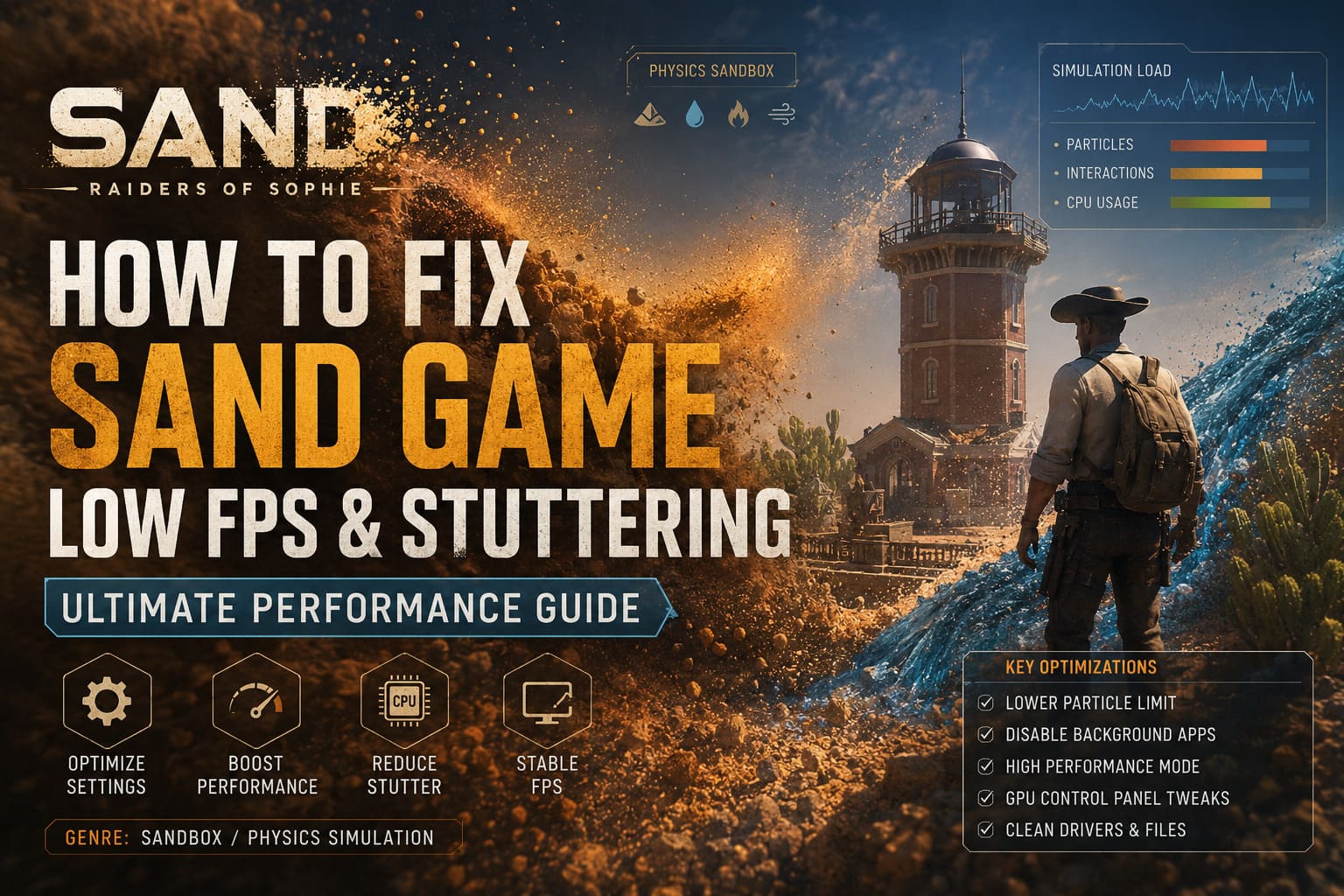
The core issue is not graphical complexity but raw simulation load. Every particle is actively computed, every interaction recalculated in real time, and the system scales in a way that punishes inefficient hardware quickly. Once the screen fills with sand, water, or other elements, the game becomes less about visuals and more about how far your processor can be pushed before timing breaks down. Fixing this is less about brute force and more about controlling how much chaos you allow on screen.
The Real Problem Behind Sand Game Performance Issues
What makes Sand Game tricky is that it does not behave like a typical GPU-bound title. Instead, it leans heavily on CPU-based physics simulation, meaning that even high-end graphics cards can sit idle while your processor struggles to keep up. This imbalance is why players often report stuttering even when their system should technically be overqualified.
Another factor is scaling behavior. Particle-based systems tend to grow computationally in non-linear ways, so a small increase in on-screen elements can create a disproportionately large performance hit. That is why everything feels smooth initially and then suddenly collapses into inconsistent frame pacing once the simulation intensifies.
1. In-Game Settings Optimization
Before touching system-level tweaks, the most effective improvements usually come directly from within the game itself. Sand Game gives you enough control to significantly reduce load if you understand what actually matters.
Particle Limit Is Everything
The particle cap is the single most important performance lever. Every grain adds computational overhead, and once the count rises, CPU usage spikes rapidly. Reducing the limit by 30–50% often stabilizes frame pacing immediately, especially in large-scale simulations where interactions stack up quickly.
Visual Settings That Actually Matter
- Lower maximum simulation or particle cap
- Disable motion blur completely
- Reduce or remove post-processing effects
- Lower resolution scaling if available
Motion blur in particular is one of those settings that looks better in theory than in practice. In a physics-heavy sandbox, it only amplifies the perception of instability without adding meaningful visual value.
V-Sync Behavior
V-Sync is situational here. Turning it off often reduces input delay and stutter in unstable frame scenarios. However, if tearing becomes too noticeable, enabling it while locking refresh rate to your monitor’s native value can improve consistency. It is not a universal fix but a tuning tool.
2. Windows-Level Performance Tuning
Windows power management can silently throttle performance, especially in workloads that look “light” on paper but are CPU-intensive in practice. Sand Game falls exactly into that category.
Switching to High Performance Mode
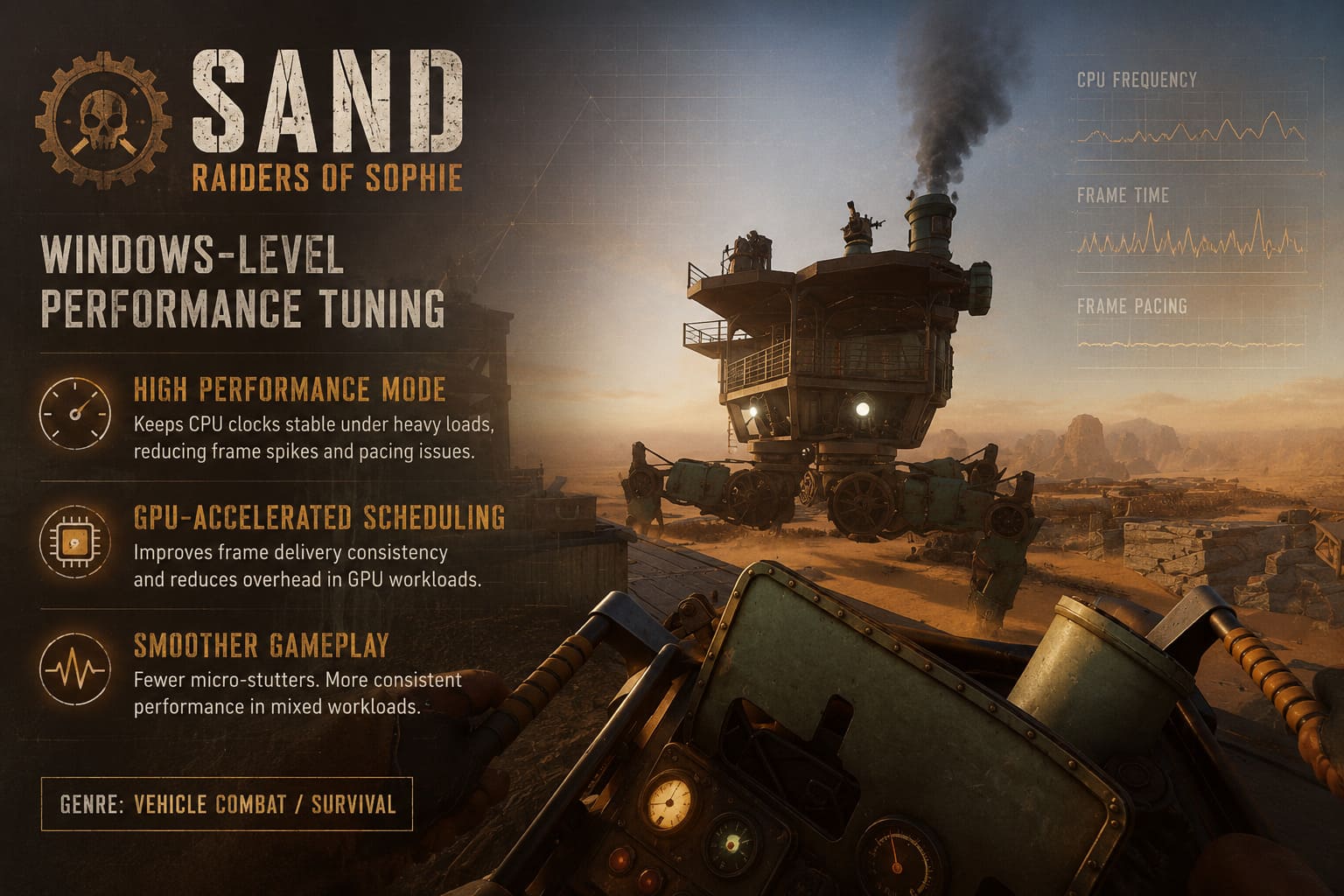
The Balanced power plan often downclocks CPU frequency too aggressively. Switching to High Performance ensures the processor maintains stable clocks even under fluctuating simulation loads, which directly reduces frame spikes and pacing inconsistencies.
Hardware-Accelerated GPU Scheduling
This feature helps reduce overhead in how Windows handles GPU memory operations. While Sand Game is CPU-heavy, smoothing GPU scheduling can still improve overall frame delivery consistency. It is not a guaranteed FPS boost, but it often reduces micro-stutter in mixed workloads.
3. GPU Control Panel Adjustments
Although the game is CPU-bound, GPU settings still play a role in frame pacing stability. The goal here is not raw performance increase but consistency under load.
NVIDIA Configuration
- Power Management Mode: Prefer Maximum Performance
- Low Latency Mode: Ultra
- Max Frame Rate: Match monitor refresh rate
These settings prevent unnecessary power scaling fluctuations and help maintain smoother frame delivery during simulation spikes.
AMD Configuration
- Enable Radeon Anti-Lag
- Disable Radeon Chill
- Set Texture Filtering Quality to Performance
AMD Chill in particular can introduce irregular pacing in simulation-heavy workloads, which is the opposite of what Sand Game needs during high particle density moments.
4. Background Applications and Overlay Interference
One of the most overlooked causes of stutter is not the game itself but everything running alongside it. Modern applications constantly use GPU acceleration in the background, which creates resource contention even if system usage appears low.
What to Disable Before Launching
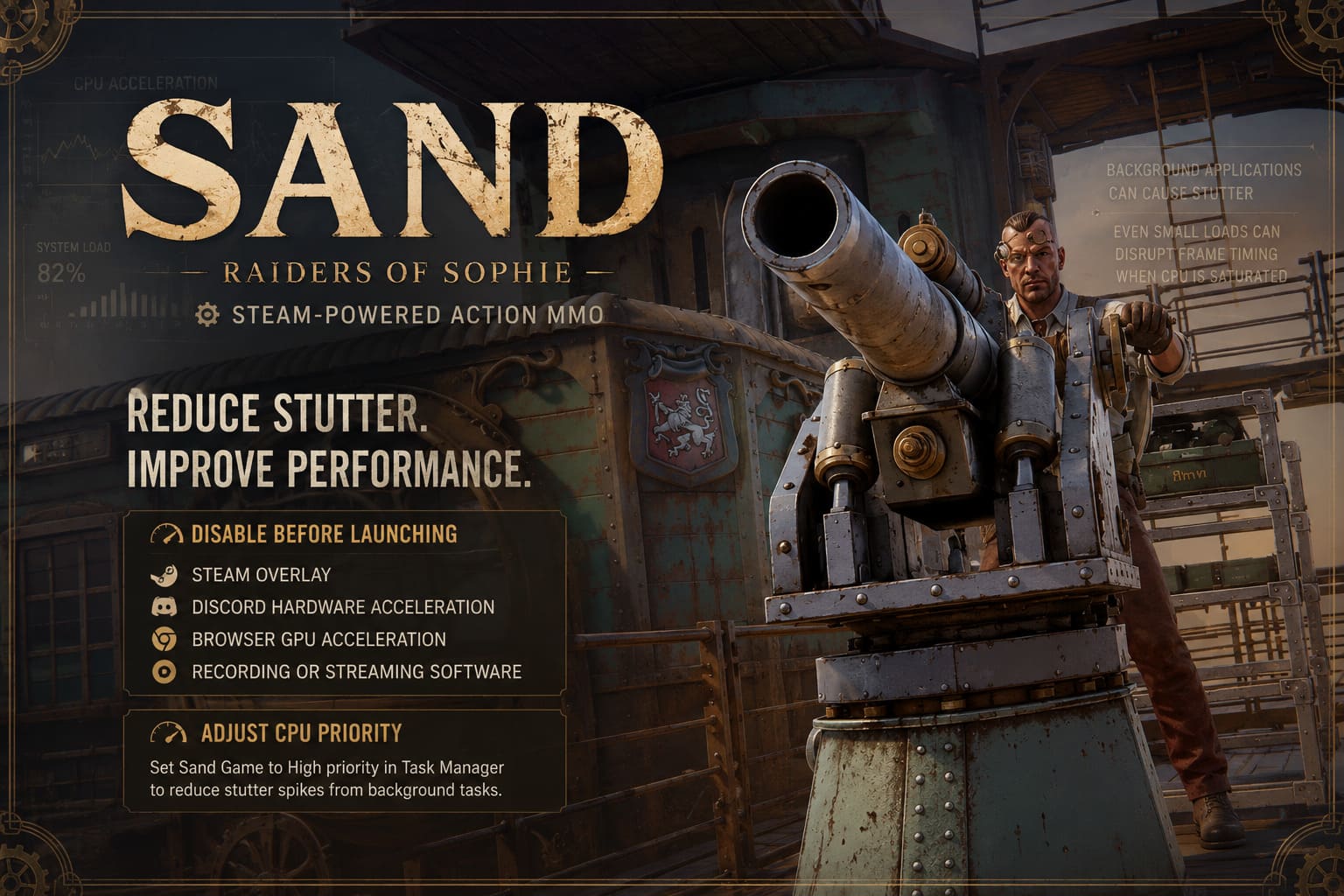
- Steam Overlay
- Discord hardware acceleration
- Browser GPU acceleration (Chrome, Edge)
- Any recording or streaming software
Even small background loads can disrupt frame timing when the CPU is already saturated with simulation tasks. Sand Game does not leave much headroom for multitasking.
5. CPU Priority Adjustment
Manually increasing process priority can help Windows allocate CPU resources more consistently to the game thread. While it does not increase raw performance, it can reduce stutter spikes caused by background interruptions.
Through Task Manager, setting Sand Game to High priority ensures the simulation loop is less frequently interrupted by system tasks. It is a simple adjustment, but in CPU-bound environments, even small scheduling improvements matter.
6. Drivers and File Integrity
Performance issues are not always caused by settings alone. Over time, driver updates, cached data, or corrupted files can introduce instability that looks like random stuttering.
Clean Driver Installation
GPU drivers accumulate leftover configurations that may conflict with newer updates. A clean reinstall ensures that outdated settings do not interfere with frame pacing or rendering stability. This step is especially useful if stutters appear after recent driver updates.
Steam File Verification
Verifying game files ensures that no corrupted or incomplete assets are affecting simulation behavior. Even minor inconsistencies in asset loading can cause hitching during particle-heavy moments.
Performance Impact Summary
| Optimization Step | FPS Impact | Stutter Reduction | Difficulty |
|---|---|---|---|
| Lower Particle Limit | Very High | Very High | Easy |
| Disable Background Apps | Medium | High | Easy |
| High Performance Power Plan | Medium | Medium | Easy |
| GPU Control Panel Tweaks | Low–Medium | Medium | Medium |
| Driver Clean Install | Variable | High | Advanced |
| CPU Priority Adjustment | Low | Medium | Easy |
Final Thoughts
Sand Game does not behave like a conventional title with predictable optimization paths. It exposes hardware limits in a very direct way, especially on the CPU side, where simulation workloads scale aggressively. That is why performance tuning here feels more like balancing a system rather than simply increasing FPS.
Once particle limits are controlled and background interference is minimized, the experience changes dramatically. The stuttering fades, frame pacing becomes consistent, and the sandbox finally behaves like a stable simulation instead of a collapsing workload. At that point, Sand Game stops feeling like a technical problem and becomes what it was meant to be: a strangely satisfying physics playground.